
Quick Comparison: At a Glance
See how WPS Office stacks up against LibreOffice in key performance areas.
User Interface (UI)
✅ Modern, Tabbed View (Like Browser), Ribbon-style
Traditional, Classic Toolbar (Dated)
MS Office Compatibility
✅ Excellent (99% Layout Fidelity)
Good (Occasional Formatting Issues)
AI Integration
✅ Built-in WPS AI (Writing, Summarizing, PDF Chat)
None (Requires 3rd party plugins)
Templates & Resources
✅ Extensive Built-in Library
Limited (Basic Set)
PDF Capabilities
✅ Advanced (Edit, Convert, Sign, OCR)
Basic (Import/Export)
Cloud Support
✅ Integrated Cloud (1GB-20GB Free)
None (Local only)
Mobile App
✅ Top-rated, Full-featured Mobile Suite
Viewer mainly (LibreOffice Viewer)
Pricing
Free (Premium Optional)
Free (Open Source)
| Feature | WPS Office | LibreOffice |
|---|---|---|
| User Interface (UI) | ✔Modern, Tabbed View (Like Browser), Ribbon-style | Traditional, Classic Toolbar (Dated) |
| MS Office Compatibility | ✔Excellent (99% Layout Fidelity) | Good (Occasional Formatting Issues) |
| AI Integration | ✔Built-in WPS AI (Writing, Summarizing, PDF Chat) | None (Requires 3rd party plugins) |
| Templates & Resources | ✔Extensive Built-in Library | Limited (Basic Set) |
| PDF Capabilities | ✔Advanced (Edit, Convert, Sign, OCR) | Basic (Import/Export) |
| Cloud Support | ✔Integrated Cloud (1GB-20GB Free) | None (Local only) |
| Mobile App | ✔Top-rated, Full-featured Mobile Suite | Viewer mainly (LibreOffice Viewer) |
| Pricing | Free (Premium Optional) | Free (Open Source) |
Detailed Feature Breakdown
Why millions are switching to WPS.
1. User Interface and Experience
The first thing you notice when opening an office suite is how it looks and feels. User experience is paramount for efficiency.
WPS Office offers a sleek, modern interface that closely mirrors the familiar ribbon layout of Microsoft Office, making the transition seamless for new users. A standout feature is the 'All-in-One' tabbed viewing mode, which allows you to open Documents, Spreadsheets, PDFs, and Slides in a single window, just like a web browser. This significantly reduces desktop clutter.
LibreOffice, maintaining its traditional roots, defaults to a classic toolbar style reminiscent of older software. While it has introduced a 'NotebookBar' option to mimic the ribbon interface, it often feels less polished and more cluttered compared to WPS.
- ✓ WPS: Clean, intuitive, browser-like tabs.
- ✓ LibreOffice: Highly customizable but steeper learning curve.
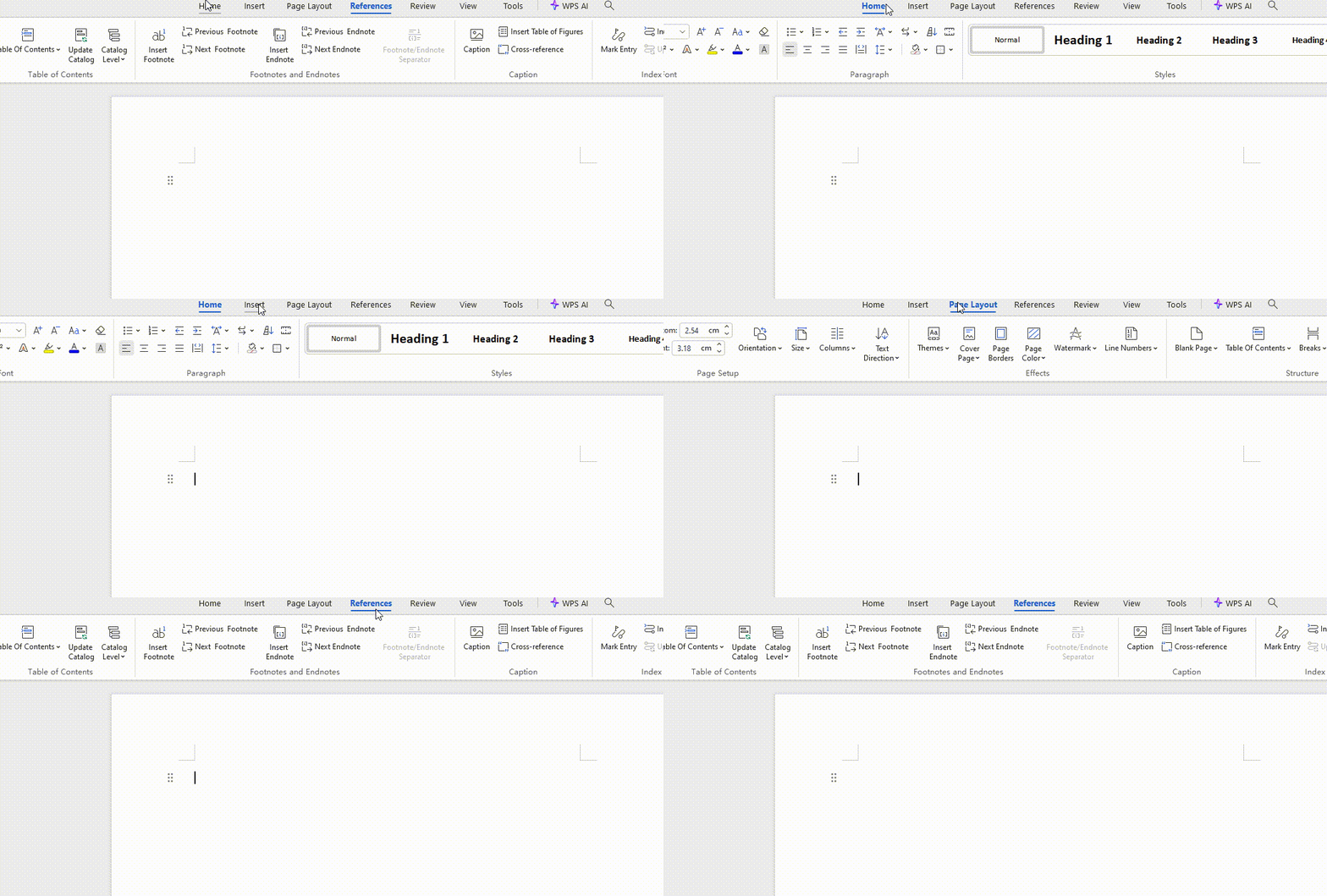
WPS Office Tabbed Interface vs LibreOffice Classic UI
2. Compatibility with Microsoft Office
For most users, the ability to open, edit, and save Microsoft Word (.docx), Excel (.xlsx), and PowerPoint (.pptx) files without losing formatting is the most critical factor.
WPS Office excels in this category. Its proprietary rendering engine ensures that fonts, layouts, and styles remain intact when moving between WPS and Microsoft Office. It is widely regarded as having the highest compatibility rate among free alternatives.
LibreOffice uses the OpenDocument Format (ODF) by default. While it handles MS Office files reasonably well, complex documents with specific macros, tables, or headers often suffer from layout shifts or formatting errors when opened in LibreOffice.
- ✓ WPS supports native .docx saving by default.
- ✓ WPS preserves complex Excel formulas and PowerPoint animations.
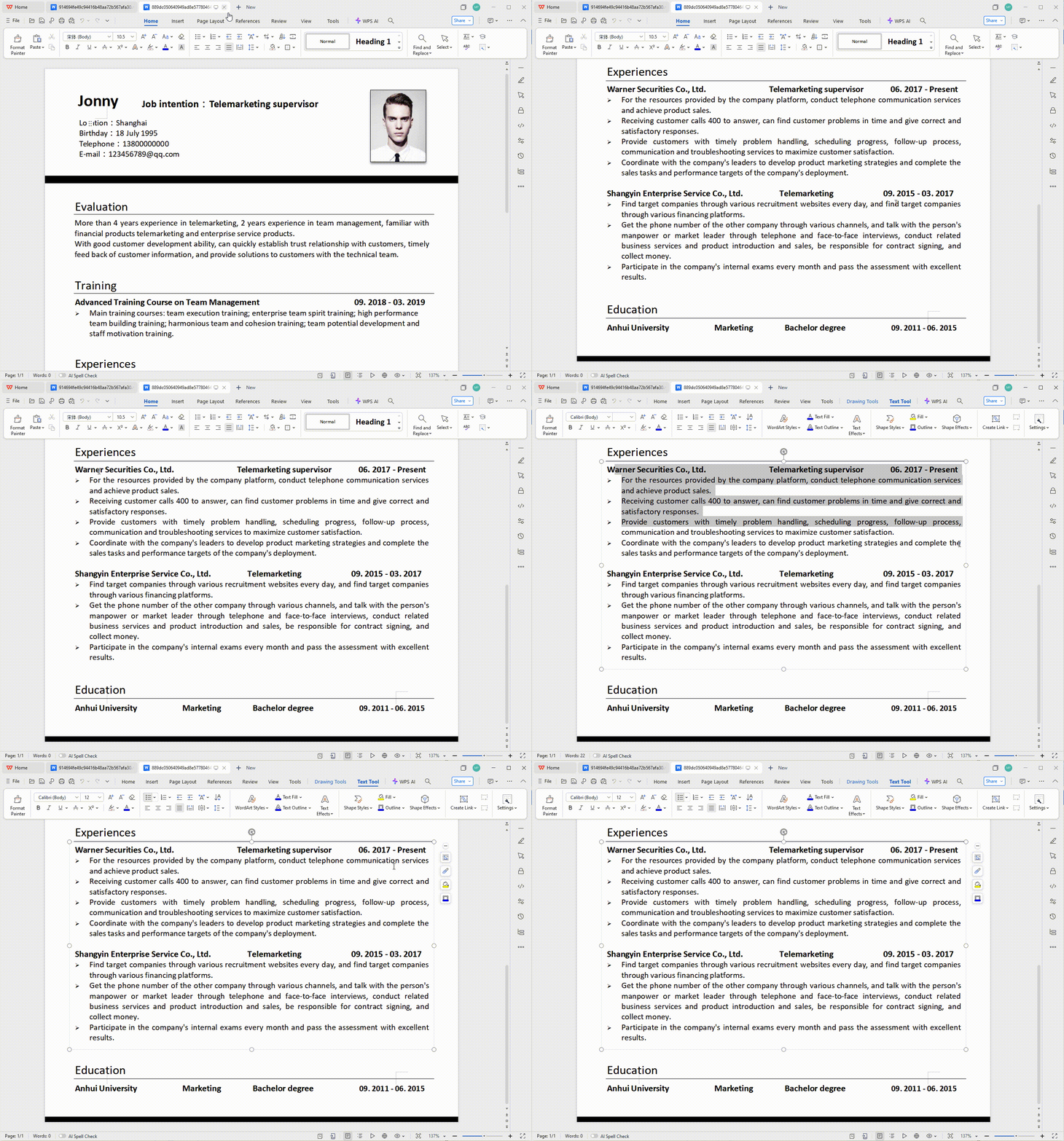
Comparison of a document file opened in WPS Office vs LibreOffice showing formatting retention
3. AI Features and Innovation
AI is revolutionizing productivity software. WPS Office has fully integrated WPS AI to enhance workflow efficiency.
WPS AI acts as a smart assistant directly within your documents. It can generate content, rewrite text for clarity, summarize lengthy PDFs, and even analyze data trends in spreadsheets automatically. This integration is native and smooth.
LibreOffice, being a community-driven open-source project, does not have a native AI engine. While users can attempt to install third-party plugins to bridge this gap, the experience is fragmented and lacks the deep system integration found in WPS Office.
- ✓ WPS AI: Content generation, summarization, and data analysis.
- ✓ LibreOffice: Relies on manual input or external tools.
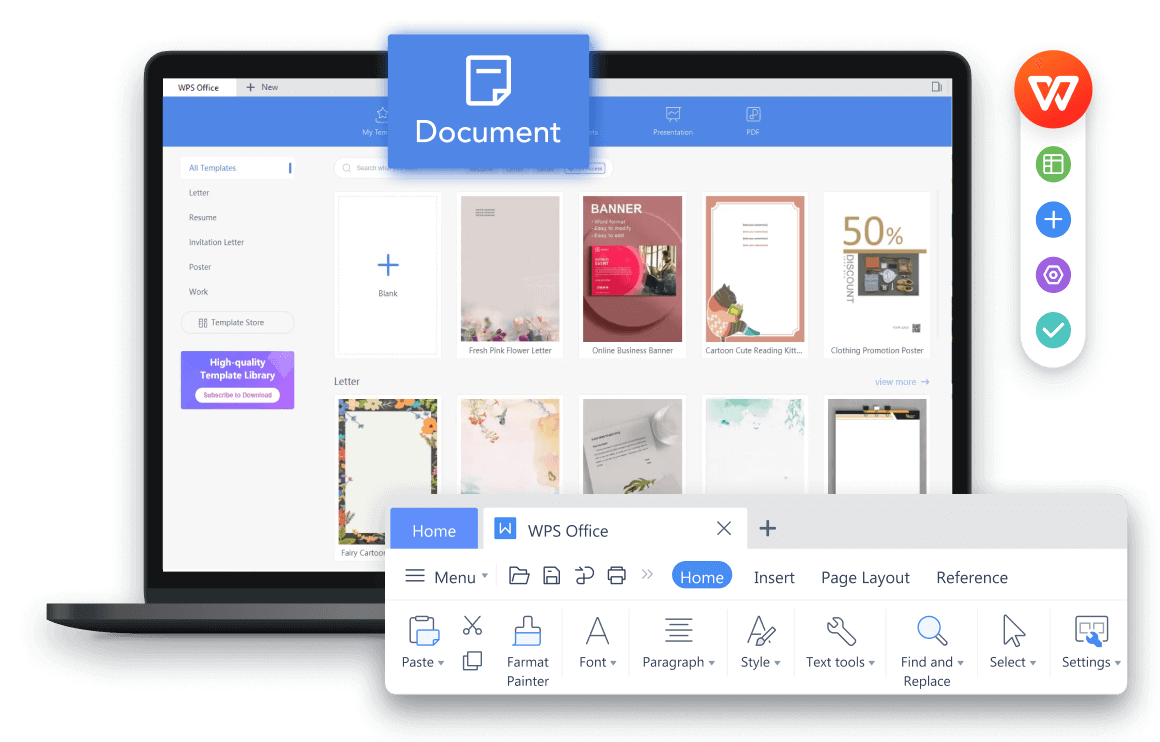
WPS AI generating text content in a document
4. PDF Handling Capabilities
Modern workflows often involve PDFs. WPS Office is not just an editor; it includes a robust PDF toolset built-in.
With WPS, you can edit PDF text and images, merge or split files, compress file sizes, and convert PDFs to Word, Excel, or Picture formats. It effectively replaces the need for a separate paid PDF software like Adobe Acrobat.
LibreOffice Draw allows for opening and editing PDFs, but the experience is more akin to a graphic design tool than a document editor. It lacks advanced conversion and compression features that are standard in WPS Office.
- ✓ WPS: Edit, Convert, Compress, OCR, Sign.
- ✓ LibreOffice: Basic editing via Draw application.
WPS Office PDF editing tools interface
5. Templates and Resources
Starting from scratch can be time-consuming. A rich library of templates is a significant productivity booster for students and professionals alike.
WPS Office provides a vast built-in library of professional templates for Word, Excel, and PowerPoint. Whether you need a resume, a project plan, a financial tracker, or a creative business presentation, you can find high-quality designs directly within the software startup screen.
LibreOffice offers a very basic set of templates out of the box. While you can download more from their online repository, the process is manual, and the visual quality varies significantly compared to the curated, designer-made templates available in WPS.
- ✓ WPS: Thousands of free and premium templates.
- ✓ LibreOffice: Limited built-in selection.
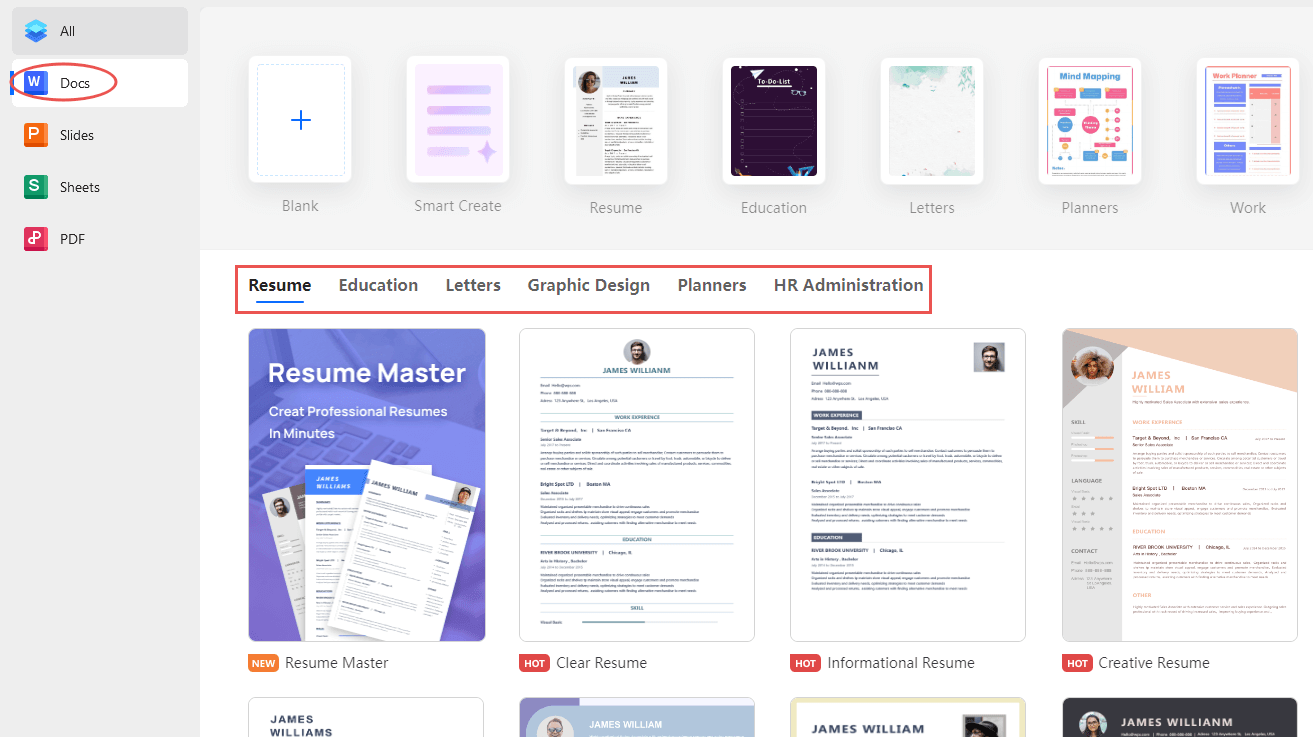
WPS Office Template Library Showcase
How to Seamlessly Switch to WPS Office
A simple 4-step guide to migrating from LibreOffice.
-
Step 1: Download and Install WPS Office
Visit the official WPS Office website and download the free version for your operating system (Windows, Mac, Linux). The installation process is quick, lightweight, and straightforward.
-
Step 2: Open Your Existing Files
Launch WPS Office. Use the 'Open' command (or simply drag and drop) to access your LibreOffice documents (.odt, .ods, .odp). You'll notice that WPS Office opens them while accurately preserving the original formatting.
-
Step 3: Explore the Familiar Interface
Take a moment to navigate the modern, ribbon-style interface. If you've ever used Microsoft Office, you'll feel right at home. Try the 'All-in-One' tabbed mode to manage multiple file types in a single, uncluttered window.
-
Step 4: Save for Maximum Compatibility
When you're finished editing, go to 'Save As'. For the best collaboration experience with colleagues and friends, save your files in standard Microsoft formats like .docx, .xlsx, or .pptx. WPS Office defaults to these formats, ensuring your work is accessible anywhere.
Summary
Both WPS Office and LibreOffice are powerful tools that can replace Microsoft Office for most users, but the 'better' choice depends on your specific needs.
If you prioritize a modern interface, seamless Microsoft Office compatibility, robust PDF tools, extensive templates, and cutting-edge AI assistance to speed up your work, WPS Office is the clear winner.
If you are strictly looking for open-source software and do not mind a steeper learning curve or occasional formatting tweaks, LibreOffice remains a solid option.
For the majority of students, professionals, and businesses, WPS Office offers a more polished, efficient, and feature-rich experience out of the box.
Why WPS Office Wins
- ✓ Better MS Office Compatibility
- ✓ Modern, Intuitive UI
- ✓ Integrated AI Tools
- ✓ Powerful PDF Editor
- ✓ Extensive Template Library
Frequently Asked Questions
Common queries about switching to WPS Office.
Is WPS Office really free?
Yes, WPS Office offers a fully functional Free version that includes Writer, Spreadsheet, Presentation, and PDF tools. There is an optional Premium version for advanced PDF features and removing ads.
Can WPS Office open LibreOffice files?
Yes, WPS Office supports opening OpenDocument Format (.odt, .ods, .odp) files used by LibreOffice, alongside standard Microsoft formats.
Does WPS Office work on mobile?
Absolutely. WPS Office has one of the highest-rated mobile apps on Android and iOS, allowing you to edit documents seamlessly on the go.
Is WPS AI available in the free version?
WPS AI features are often available as a trial or part of specific promotional plans, enhancing the productivity of users significantly.