

'%3e%3cpath%20d='M8%200C12.4183%200%2016%203.58172%2016%208C16%2012.4183%2012.4183%2016%208%2016C3.58172%2016%200%2012.4183%200%208C0%203.58172%203.58172%200%208%200ZM11.6162%204.38379C11.2257%203.99337%2010.5927%203.99338%2010.2021%204.38379L8%206.58594L5.79785%204.38379C5.40732%203.99334%204.77429%203.99329%204.38379%204.38379C3.99331%204.77429%203.99335%205.40733%204.38379%205.79785L6.58594%208L4.38379%2010.2021C3.99348%2010.5927%203.99341%2011.2257%204.38379%2011.6162C4.77426%2012.0066%205.40734%2012.0065%205.79785%2011.6162L8%209.41406L10.2021%2011.6162C10.5927%2012.0066%2011.2257%2012.0067%2011.6162%2011.6162C12.0067%2011.2257%2012.0066%2010.5927%2011.6162%2010.2021L9.41406%208L11.6162%205.79785C12.0066%205.40735%2012.0066%204.77429%2011.6162%204.38379Z'%20fill='%23080E17'%20fill-opacity='0.46'/%3e%3c/g%3e%3cdefs%3e%3cclipPath%20id='clip0_3761_713'%3e%3crect%20width='16'%20height='16'%20fill='white'/%3e%3c/clipPath%3e%3c/defs%3e%3c/svg%3e)




'%3e%3cpath%20fill-rule='evenodd'%20clip-rule='evenodd'%20d='M21.4999%2010.9993C21.4999%205.20009%2016.7986%200.498901%2010.9993%200.498901C5.19994%200.498901%200.498657%205.20009%200.498657%2010.9993C0.498657%2016.2404%204.33858%2020.5844%209.35855%2021.3722V14.0346H6.69238V10.9993H9.35855V8.68594C9.35855%206.05427%2010.9262%204.60062%2013.3248%204.60062C14.4736%204.60062%2015.6753%204.80571%2015.6753%204.80571V7.38979H14.3512C13.0468%207.38979%2012.64%208.19921%2012.64%209.0296V10.9993H15.5523L15.0867%2014.0346H12.64V21.3722C17.66%2020.5844%2021.4999%2016.2404%2021.4999%2010.9993Z'%20fill='%231568EA'/%3e%3c/g%3e%3c/svg%3e)


'%3e%3cpath%20d='M2.42045%2022.1876H6.31818V12.7217L0.75%208.54553V20.5171C0.75%2021.4414%201.49892%2022.1876%202.42045%2022.1876Z'%20fill='%234285F4'/%3e%3cpath%20d='M19.682%2022.1876H23.5797C24.5041%2022.1876%2025.2502%2021.4387%2025.2502%2020.5171V8.54553L19.682%2012.7217'%20fill='%2334A853'/%3e%3cpath%20d='M19.682%205.48293V12.7216L25.2502%208.54543V6.31816C25.2502%204.25236%2022.8921%203.07469%2021.2411%204.31361'%20fill='%23FBBC04'/%3e%3cpath%20d='M6.31824%2012.7217V5.48303L13.0001%2010.4944L19.6819%205.48303V12.7217L13.0001%2017.733'%20fill='%23EA4335'/%3e%3cpath%20d='M0.75%206.31816V8.54543L6.31818%2012.7216V5.48293L4.75909%204.31361C3.10534%203.07469%200.75%204.25236%200.75%206.31816Z'%20fill='%23C5221F'/%3e%3c/g%3e%3cdefs%3e%3cclipPath%20id='clip0_2954_7305'%3e%3crect%20width='24.5'%20height='18.375'%20fill='white'%20transform='translate(0.75%203.8125)'/%3e%3c/clipPath%3e%3c/defs%3e%3c/svg%3e)


Designing engaging presentations that keep the audience hooked can be stressful, especially when balancing the quality of your content with the aesthetics of your slides. Many users don’t know how to find the right tools that help them beautify their slides and integrate with their existing workflows. So, what are the best AI for Google Slides tools in 2026? In this guide, I’ll be highlighting 6 reliable options I’ve found, along with their detailed comparison, to help you choose the right one for yourself.

Top 6 AI Tools for Google Slides
In our fast-paced world where everyone has short attention spans, it’s hard to create presentations that keep the audience engaged. If you’re trying to make every slide from scratch by yourself, it can take a lot of time and be very stressful. I’ve been there myself, and fortunately, I found some reliable AI tools that helped me save a significant amount of time and eliminate the hassle from the process. In this section, I’ll highlight six of these AI Google Slides maker tools and help you choose the best fit for your needs.
1. WPS AI Slides
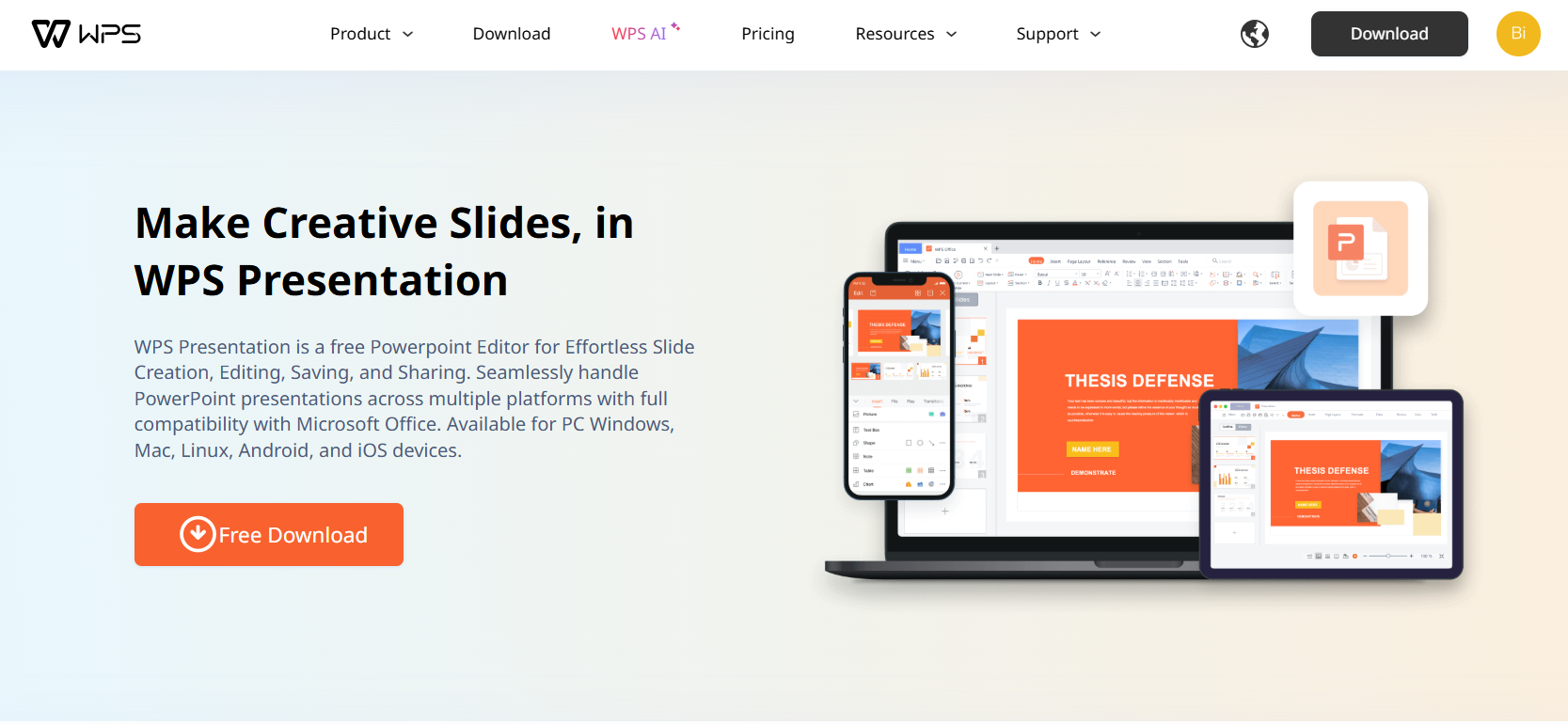
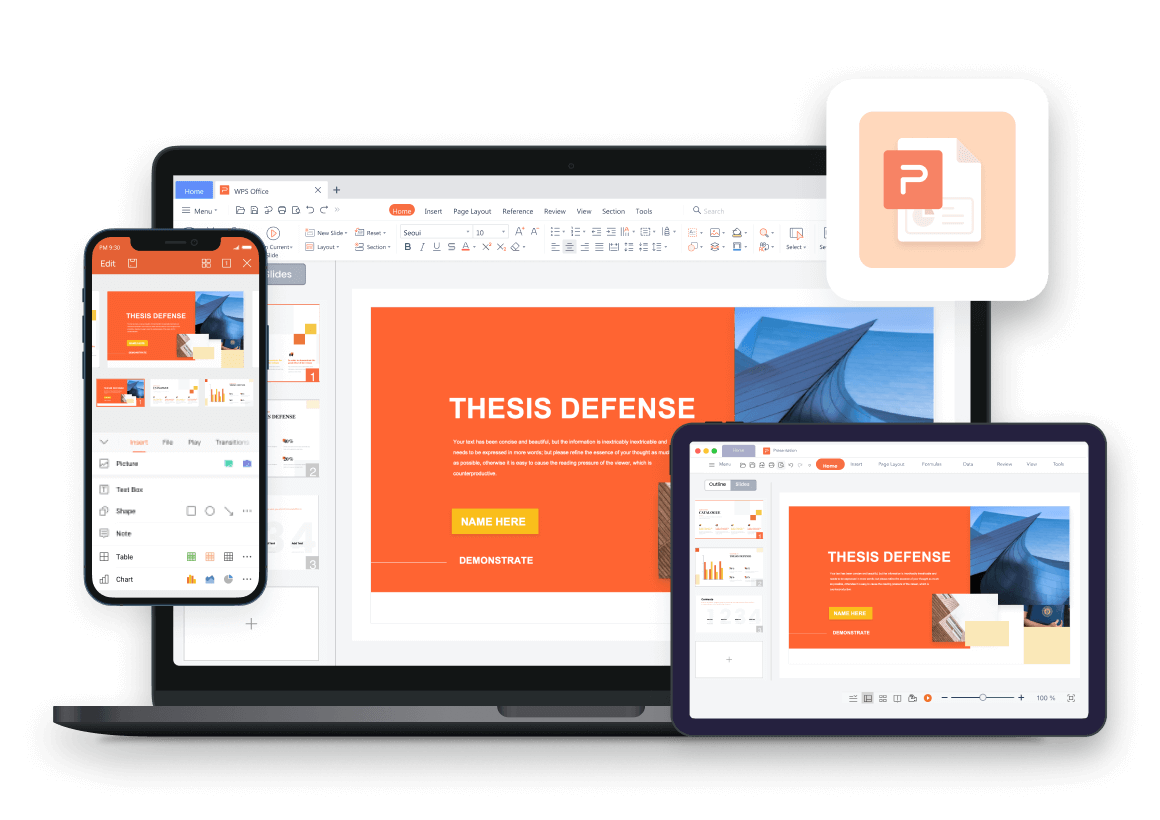
WPS AI Slides is one of the best free AI tools I have found to help me make professional and clean slides without spending much time or effort on them. It integrates seamlessly with the popular WPS Office suite and offers a wide variety of useful features to boost my productivity, including smart content generation, AI-based design suggestions, and instant compatibility with Google Slides.
Features
AI-powered content creation
Smart layout and design recommendations
Direct Google Slides compatibility
Built-in template library
Real-time collaboration features
2. Gamma
Gamma is a free and efficient design tool that’s perfect for enhancing the visual appeal of your presentations and making them more engaging. It provides complete AI-generated presentations with just a single prompt, putting heavy focus on modern design and optimizing the structure of your content. I found it to be incredibly effective for professional presentations where every little detail needs to be perfect.

Features
AI content generation from outlines
Automated design templates
Interactive presentation features
Analytics and engagement tracking
3. SlidesAI
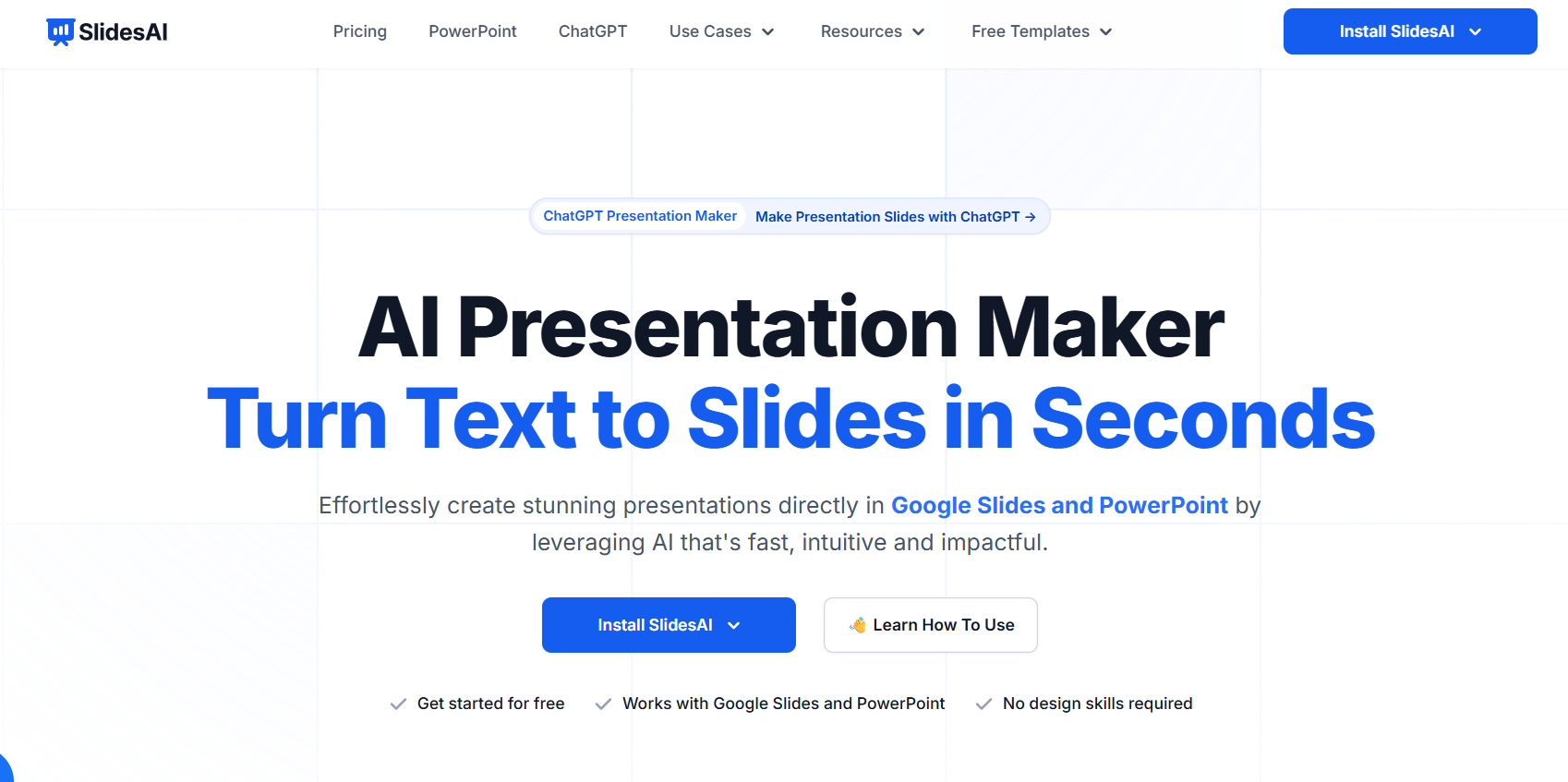
If you’re looking for an add-on that seamlessly integrates with your pre-existing workflow and helps you be more efficient in designing your presentation slides, SlidesAI is the perfect tool for you. It is a specialized Google Slides extension that generates high-quality content for your slides automatically, with just a single text input. In my experience, it was an excellent option for professionals who don’t want to switch to a new tool but still want the perks of AI-generated slides.
Features
Direct Google Workspace integration
Text-to-slide generation
Multiple design themes
Bulk slide creation
4. beautiful.ai
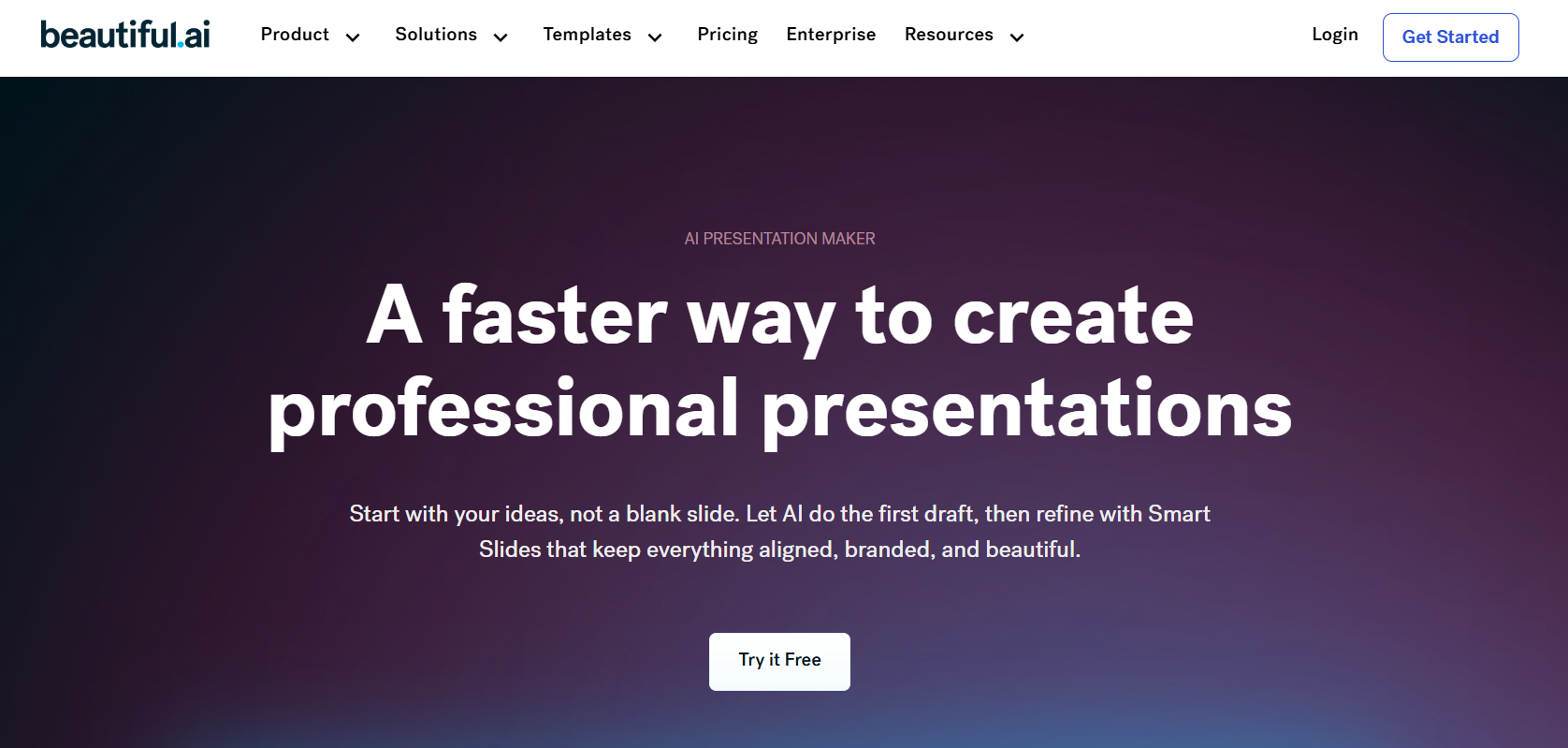
If you don’t want to deal with complicated tools that are a hassle to use and set up, going for a simple AI-powered presentation tool like beautiful.ai would be your best choice. It’s incredibly beginner-friendly and focuses on the design consistency of your slides, along with ensuring that your layout stays uniform throughout the entire presentation, making it one of the best options for creative professionals.
Features
Smart templates
Design guardrails
Team collaboration
Brand kit integration
5. Tome
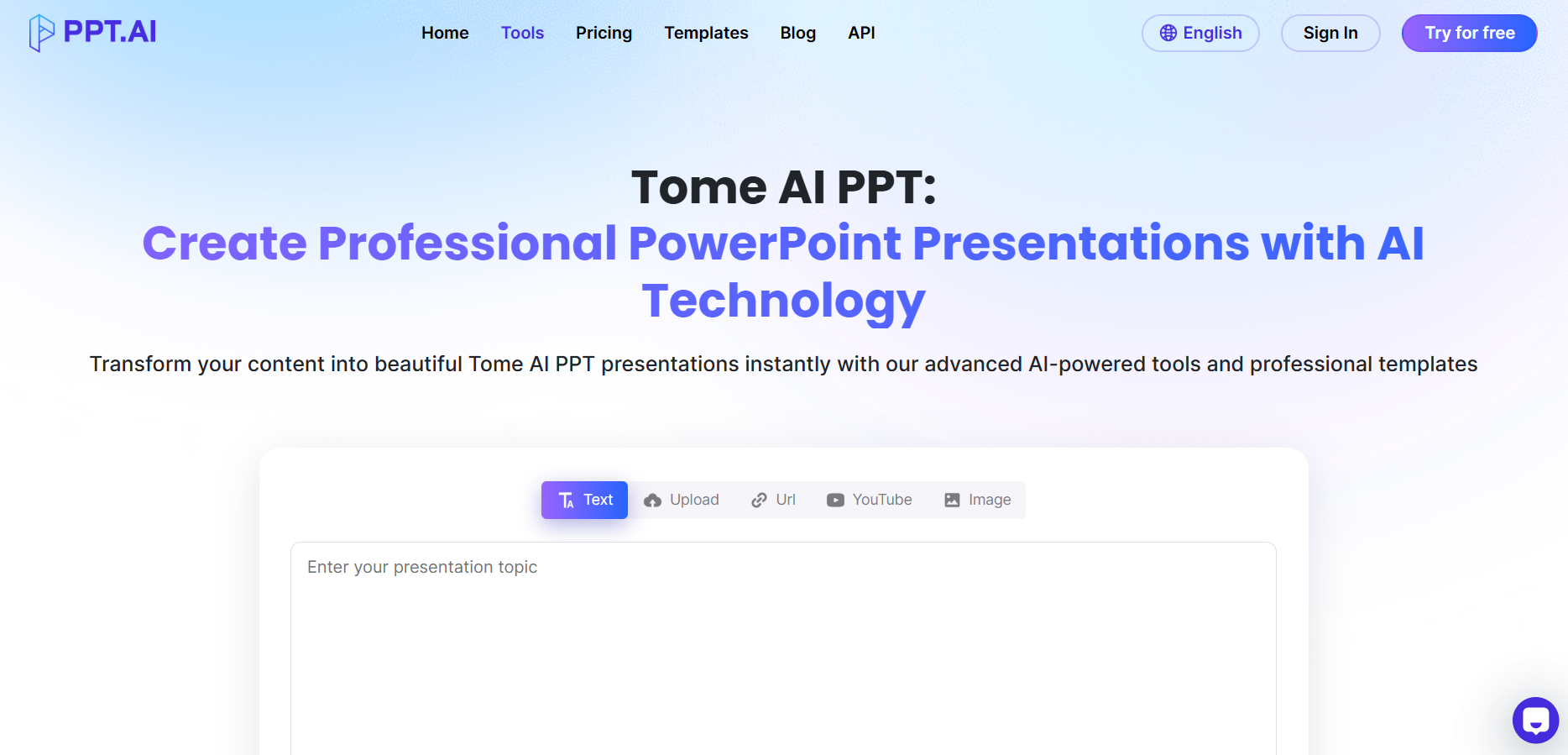
Tome is a narrative-focused AI presentation tool specifically designed for presentations that keep the audience engaged in your content, creating story-driven slides that keep your content fresh and exciting. Its fast processing speeds and easy-to-use experience have made it one of my go-to choices for creating exciting presentations that don’t bore anyone, saving me a lot of time and hassle along the way.
Features
AI storytelling assistance
Integrated media search
3D models and animations
Mobile-optimized output
6. presentations.AI
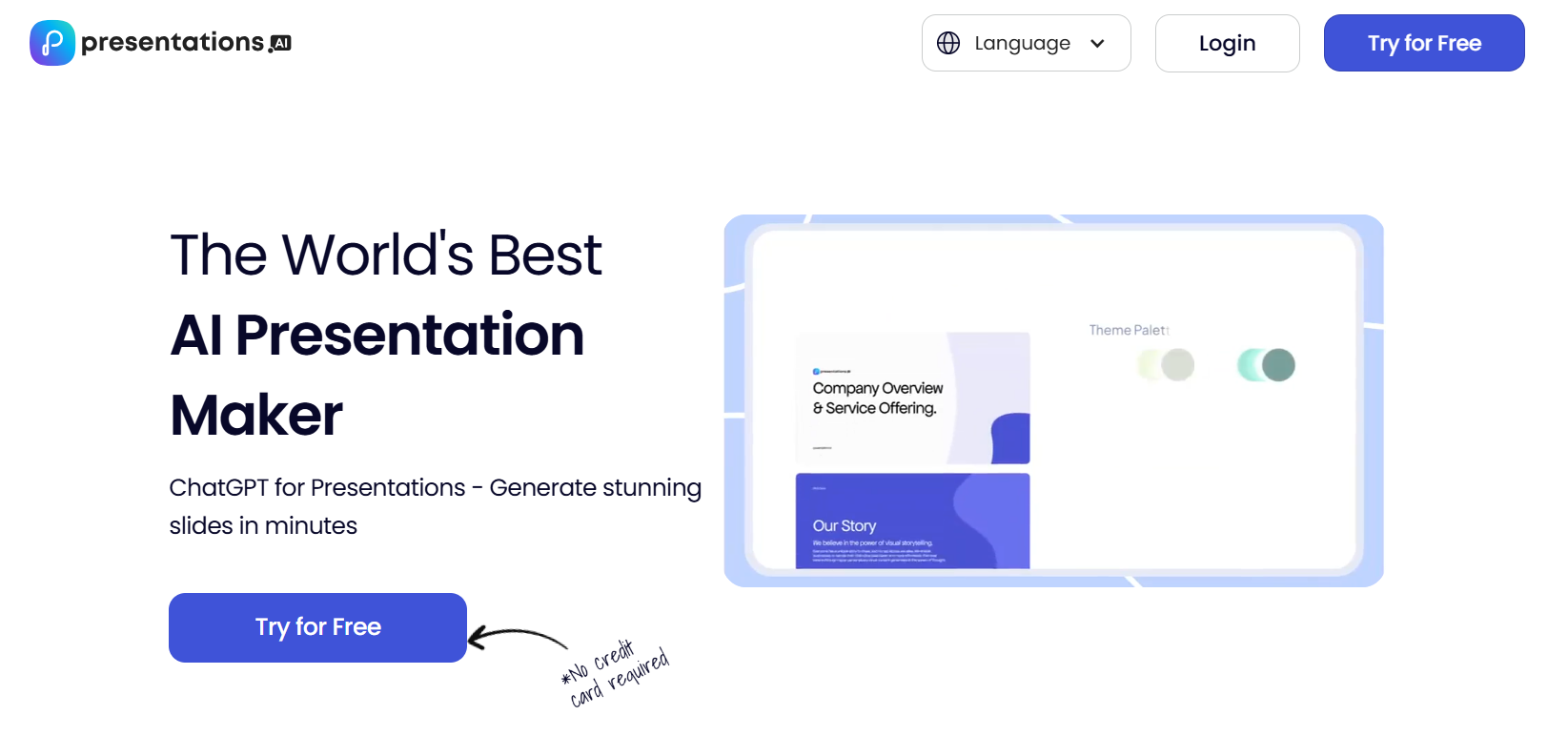
For business professionals looking for a tool to help them craft clean and attractive presentations without spending too much time manually editing each slide, presentations.AI is an ideal option. It’s an AI presentation maker that is designed specifically for business and professional use, providing high-quality, flawless results every single time. It’s free to use and provides a bunch of professional features to help you in your workflow, making it an incredibly practical option.
Features
Voice-to-presentation
Brand consistency tools
Data visualization
Export to multiple formats
Feature Comparison
All of these tools have proved to be incredibly reliable in my experience, and I have tested each one extensively. However, choosing the best option for yourself depends on a lot of factors, including your use case, platform, and the features you’re looking for. To simplify the process for you, I’ve compared all 6 of these tools in the tablebelow to help you decide on the right pick.
| Tool | Core AI Features | Best For | Platform | Key Strength |
|---|---|---|---|---|
| WPS AI Slides | AI content generation, design help, and collaboration | Users already using WPS or Google Slides | WPS Office with Google Slides support | Seamless office workflow integration |
| Gamma | Outline to slides, modern layouts, and interactivity | Fast creation of web-style visual presentations | Standalone web app | Strong from scratch AI design |
| SlidesAI | Text to slides, bulk generation, themes | Google Slides users | Google Slides add-on | Speed and convenience inside Slides |
| Beautiful.AI | Smart templates, brand kits, auto layouts | Design-focused teams and professionals | Standalone web app | Automatic design consistency |
| Tome | AI storytelling, media search, 3D elements | Narrative-driven presentations and pitches | Standalone web app | Immersive storytelling focus |
| Presentations.AI | Voice input, data visuals, branding tools | Business and professional presentations | Standalone web app | Business-oriented branding tools |
How to Use WPS AI Slides with Google Slides
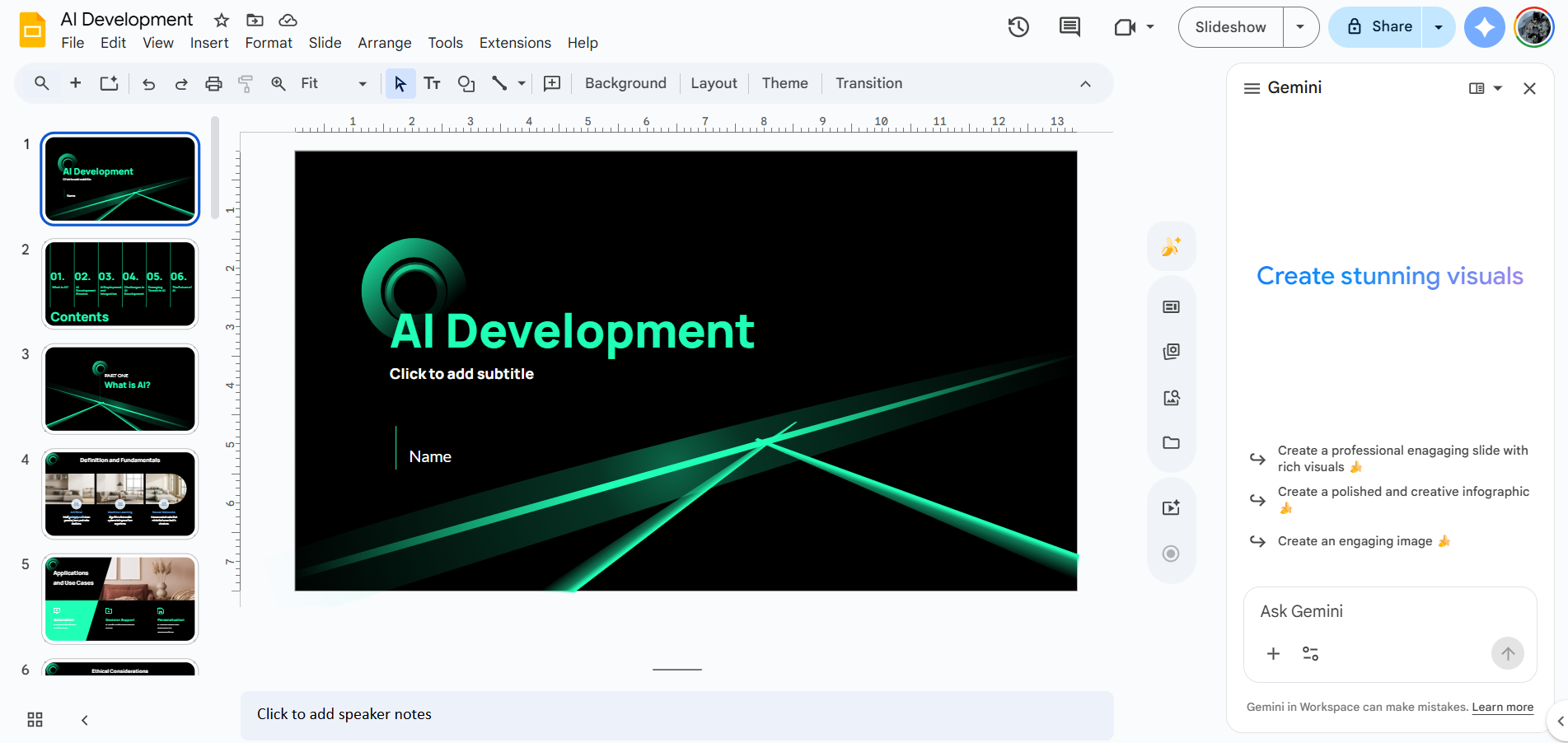
If WPS AI Slides feels like the right choice for your creative workflow, using it is incredibly simple. It provides extensive features that are designed for beginners in mind, helping you simplify the process without wasting any further time. In this section, I’ll be walking you through how to use WPS AI Slideswith Google Slides to help you be more efficient with your slide design.
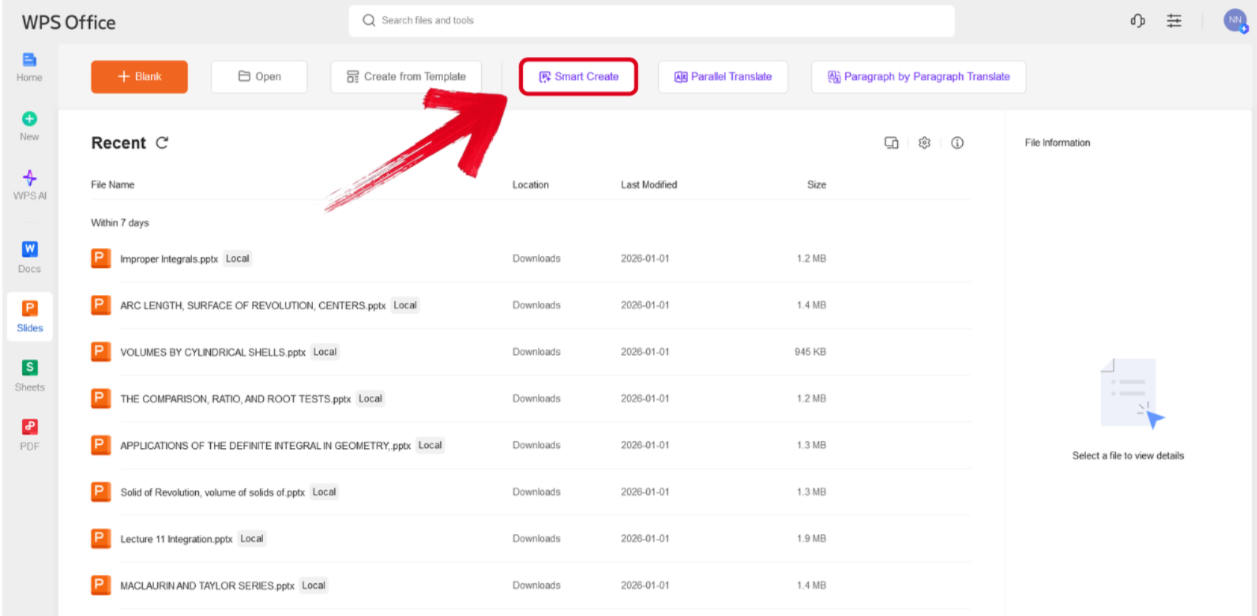
Step 1: Open WPS Presentation and select theSmart Create button to get started.
Step 2: Type out the prompt of the presentation you want to design and press Generate.
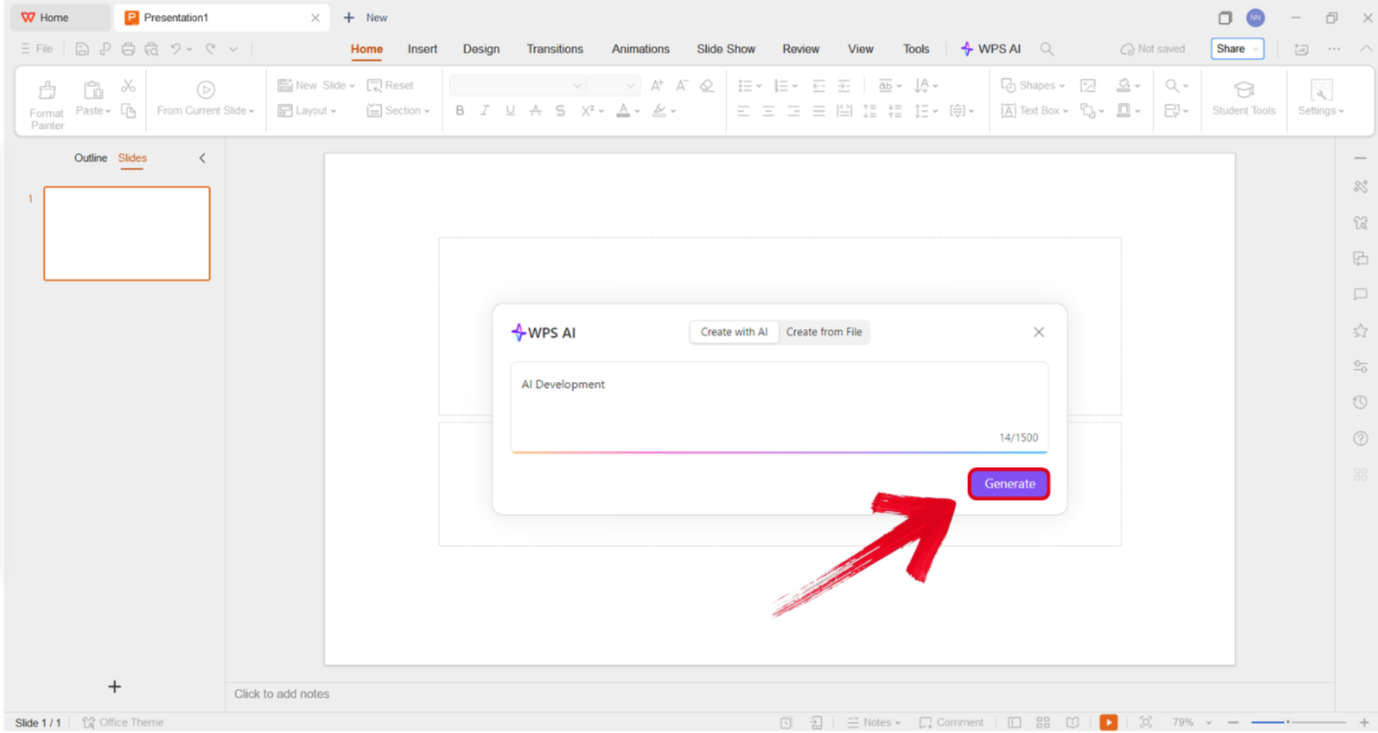
Tip: Make sure your presentation prompt is detailed, including the title, subtitles, and any other details you want to include.
Step 3: Select the template you want to use for your outline and press Create Slides.
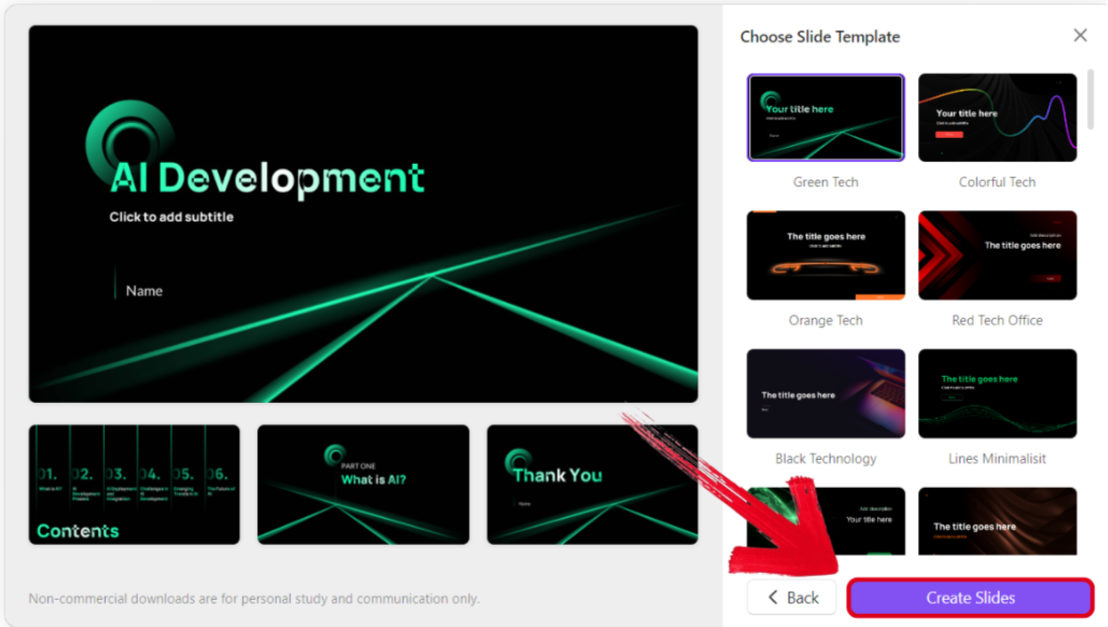
Step 4: Review the final structure of your presentation and change anything you want to, even the theme and visual elements.
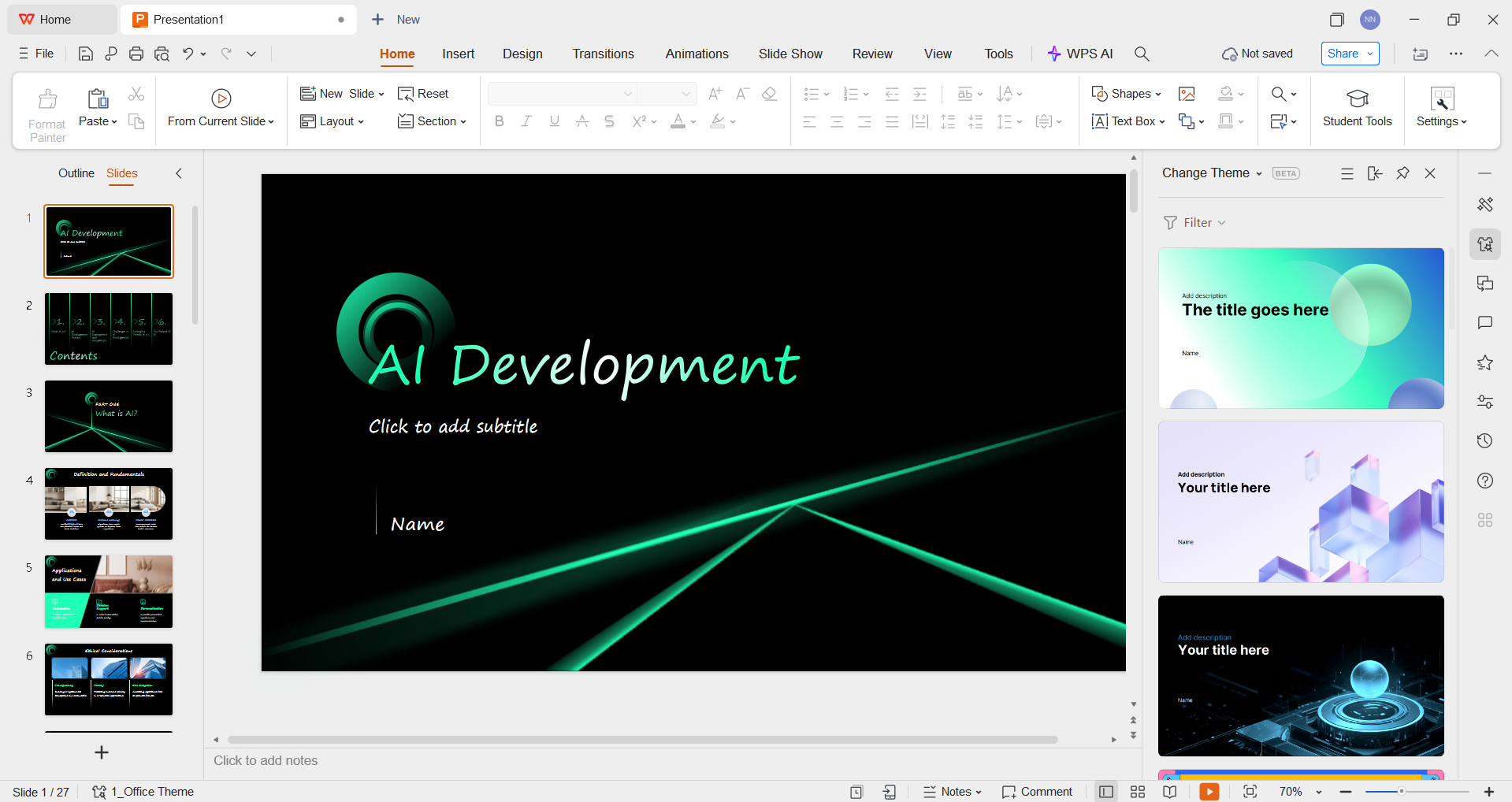
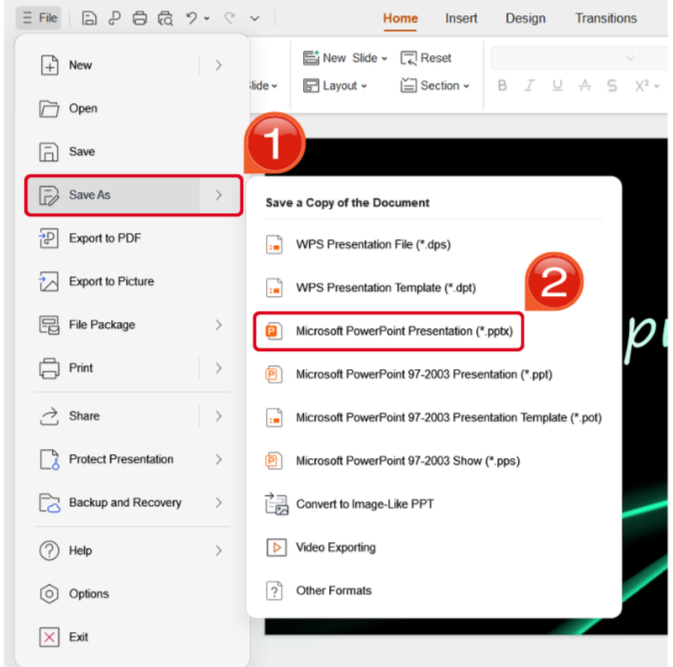
Step 5: Once you’ve finalized your design, navigate to the File Tab and locate the Save Asoptions. Select the format you want to save your presentation as.
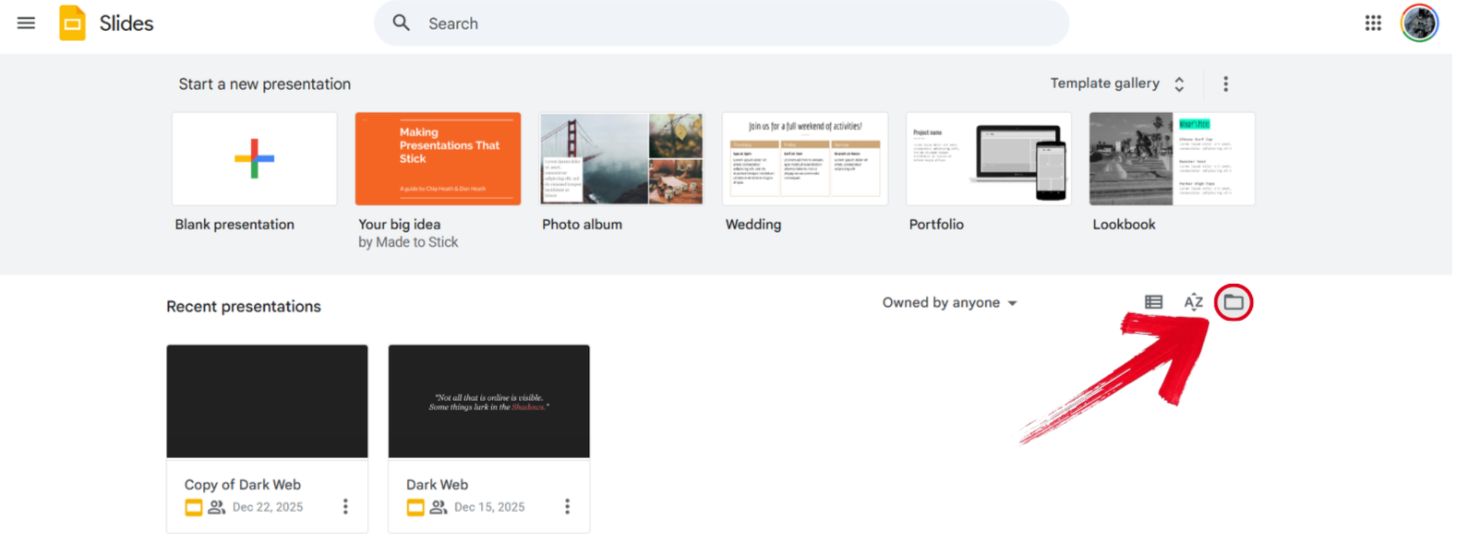
Step 6: Visit Google Slides on your web browser and select File Picker.
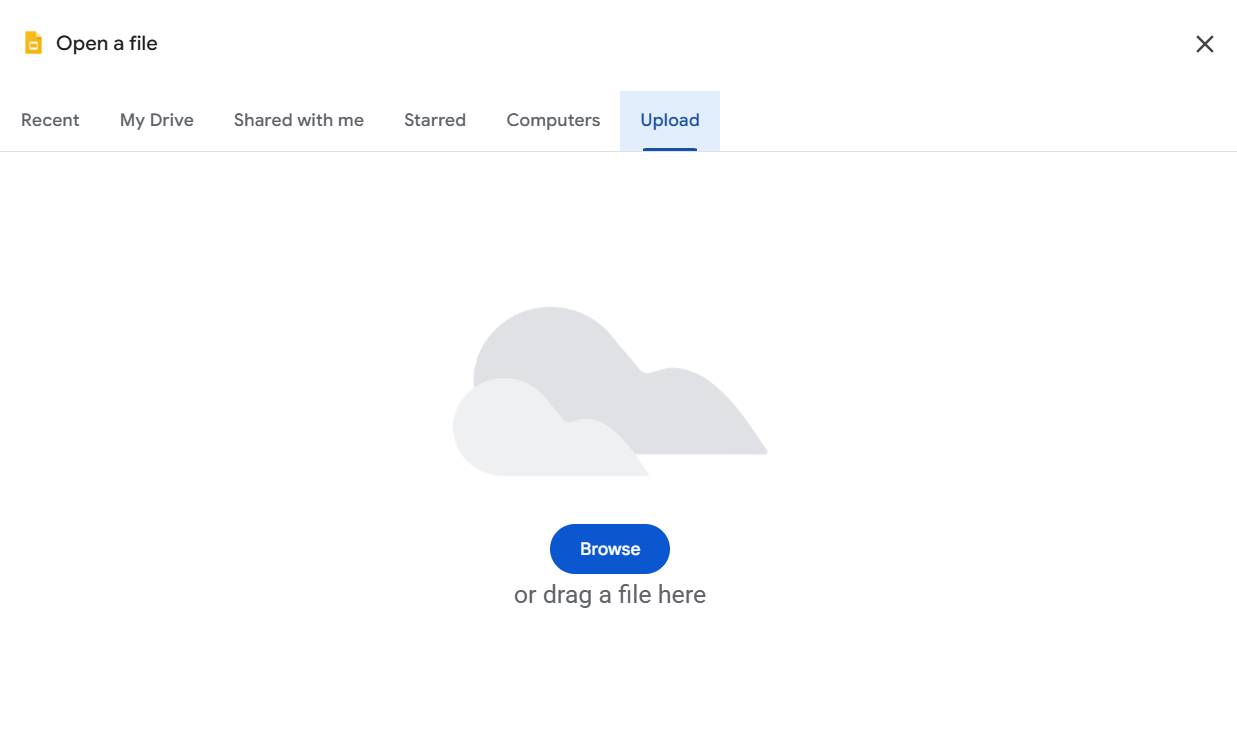
Step 7: Drag and drop your newly saved PPT file to start editing it in Google Slides.
Step 8: Once your presentation is open in Google Slides, you can add extra content and customize it however you like.
Why Choose WPS AI Slides for Google Slides Workflow
When I’m dealing with presentations and documents regularly, I need a reliable and efficient companion to help me be more productive. However, most tools I’ve tried tend to do the exact opposite, further adding to my stress and wasting a lot of my time. This is why I rely on WPS Office for all productivity needs. It’s completely free, and its AISlides tool is one of the best I’ve ever used, providing effective results in just a matter of seconds.
Advantages
Seamless Integration
Direct compatibility with the Google Slides format
Smooth import/export functionality
Maintains formatting during transfer
AI-Powered Efficiency
Smart content generation from prompts
Design optimization suggestions
Layout and structure improvements
Cost-Effective Solution
Included in the WPS Office suite
No additional subscription required
Regular updates and feature additions
Professional Results
Enterprise-grade output quality
Consistent design standards
Brand customization options
FAQs
Q1. What is the best AI for Google Slides?
SlidesAI is the best choice for Google Slides because it works directly inside Google Slides as an add-on. If you want stronger AI features with full file compatibility, WPS AI Slides is a solid alternative.
Q2. What is an AI Google Slides maker?
It is an AI tool that creates slides automatically from text or prompts, either inside Google Slides or through exportable presentation files.
Q3. Can AI create slides directly inside Google Slides?
Yes. Tools like SlidesAI run inside Google Slides and generate full presentations without leaving your browser.
Q4. Do AI presentation tools replace manual slide design?
They reduce most of the work by generating content and layouts, but manual editing is still useful for final polish and customization.
Q5. Can AI-generated slides be edited later in Google Slides?
Yes. Most AI tools allow export as PPTX files that open perfectly in Google Slides for further editing and collaboration.
Crafting Professional Slides
Making presentations that keep everyone interested can feel challenging. But if you have the right tools, it’s actually quite simple. You can use professionally designed best AI for Google Slides tools to save yourself a lot of time and the hassle of manually editing every slide yourself. In this guide, I’ve covered 6 of the best options I’ve found in my experience and compared them side by side to help you choose the right one. You can use WPS Office to further enhance your slides. Its AI-powered functionality makes sure you have everything you need to create the perfect presentations every time.

'%3e%3cpath%20d='M19.9911%204.11386V6.471H18.5894C18.0775%206.471%2017.7322%206.57814%2017.5536%206.79243C17.3751%207.00671%2017.2858%207.32814%2017.2858%207.75671V9.44421H19.9019L19.5536%2012.0871H17.2858V18.8639H14.5536V12.0871H12.2769V9.44421H14.5536V7.49779C14.5536%206.39064%2014.8632%205.53201%2015.4822%204.92189C16.1013%204.31177%2016.9257%204.00671%2017.9554%204.00671C18.8304%204.00671%2019.509%204.04243%2019.9911%204.11386Z'%20fill='%23333333'/%3e%3c/g%3e%3cdefs%3e%3cclipPath%20id='clip0_2938_8199'%3e%3crect%20width='16'%20height='16'%20fill='white'%20transform='translate(8%204.00671)'/%3e%3c/clipPath%3e%3c/defs%3e%3c/svg%3e)
'%3e%3cpath%20d='M17.5237%2010.7813L23.4811%204H22.0699L16.8949%209.88693L12.7648%204H8L14.2469%2012.9029L8%2020.0133H9.4112L14.8725%2013.7952L19.2352%2020.0133H24M9.92053%205.04213H12.0885L22.0688%2019.0224H19.9003'%20fill='%23333333'/%3e%3c/g%3e%3cdefs%3e%3cclipPath%20id='clip0_2938_8200'%3e%3crect%20width='16'%20height='16.0134'%20fill='white'%20transform='translate(8%204)'/%3e%3c/clipPath%3e%3c/defs%3e%3c/svg%3e)


