

'%3e%3cpath%20d='M8%200C12.4183%200%2016%203.58172%2016%208C16%2012.4183%2012.4183%2016%208%2016C3.58172%2016%200%2012.4183%200%208C0%203.58172%203.58172%200%208%200ZM11.6162%204.38379C11.2257%203.99337%2010.5927%203.99338%2010.2021%204.38379L8%206.58594L5.79785%204.38379C5.40732%203.99334%204.77429%203.99329%204.38379%204.38379C3.99331%204.77429%203.99335%205.40733%204.38379%205.79785L6.58594%208L4.38379%2010.2021C3.99348%2010.5927%203.99341%2011.2257%204.38379%2011.6162C4.77426%2012.0066%205.40734%2012.0065%205.79785%2011.6162L8%209.41406L10.2021%2011.6162C10.5927%2012.0066%2011.2257%2012.0067%2011.6162%2011.6162C12.0067%2011.2257%2012.0066%2010.5927%2011.6162%2010.2021L9.41406%208L11.6162%205.79785C12.0066%205.40735%2012.0066%204.77429%2011.6162%204.38379Z'%20fill='%23080E17'%20fill-opacity='0.46'/%3e%3c/g%3e%3cdefs%3e%3cclipPath%20id='clip0_3761_713'%3e%3crect%20width='16'%20height='16'%20fill='white'/%3e%3c/clipPath%3e%3c/defs%3e%3c/svg%3e)



'%3e%3cpath%20fill-rule='evenodd'%20clip-rule='evenodd'%20d='M21.4999%2010.9993C21.4999%205.20009%2016.7986%200.498901%2010.9993%200.498901C5.19994%200.498901%200.498657%205.20009%200.498657%2010.9993C0.498657%2016.2404%204.33858%2020.5844%209.35855%2021.3722V14.0346H6.69238V10.9993H9.35855V8.68594C9.35855%206.05427%2010.9262%204.60062%2013.3248%204.60062C14.4736%204.60062%2015.6753%204.80571%2015.6753%204.80571V7.38979H14.3512C13.0468%207.38979%2012.64%208.19921%2012.64%209.0296V10.9993H15.5523L15.0867%2014.0346H12.64V21.3722C17.66%2020.5844%2021.4999%2016.2404%2021.4999%2010.9993Z'%20fill='%231568EA'/%3e%3c/g%3e%3c/svg%3e)


'%3e%3cpath%20d='M2.42045%2022.1876H6.31818V12.7217L0.75%208.54553V20.5171C0.75%2021.4414%201.49892%2022.1876%202.42045%2022.1876Z'%20fill='%234285F4'/%3e%3cpath%20d='M19.682%2022.1876H23.5797C24.5041%2022.1876%2025.2502%2021.4387%2025.2502%2020.5171V8.54553L19.682%2012.7217'%20fill='%2334A853'/%3e%3cpath%20d='M19.682%205.48293V12.7216L25.2502%208.54543V6.31816C25.2502%204.25236%2022.8921%203.07469%2021.2411%204.31361'%20fill='%23FBBC04'/%3e%3cpath%20d='M6.31824%2012.7217V5.48303L13.0001%2010.4944L19.6819%205.48303V12.7217L13.0001%2017.733'%20fill='%23EA4335'/%3e%3cpath%20d='M0.75%206.31816V8.54543L6.31818%2012.7216V5.48293L4.75909%204.31361C3.10534%203.07469%200.75%204.25236%200.75%206.31816Z'%20fill='%23C5221F'/%3e%3c/g%3e%3cdefs%3e%3cclipPath%20id='clip0_2954_7305'%3e%3crect%20width='24.5'%20height='18.375'%20fill='white'%20transform='translate(0.75%203.8125)'/%3e%3c/clipPath%3e%3c/defs%3e%3c/svg%3e)


Canva is a platform you probably use daily, and it now includes a powerful AI tool. You've likely wondered if this Canva AI Image Generator is truly creative enough for professional projects or if its results are too inconsistent. Many users struggle with style restrictions or inaccuracies that can affect the final design. This guide provides a full review of the tool, analyzing its strengths and weaknesses for all types of users.


Overview of Canva AI Image Generator
Canva’s AI Image Generator is a fully integrated design feature, not just a standalone, separate tool. From my perspective, its real power is that it works directly inside the Canva editor, a platform millions of people already know and trust. You no longer need to jump to a separate, complex AI platform, generate an image, download it, and then re-upload it into Canva.
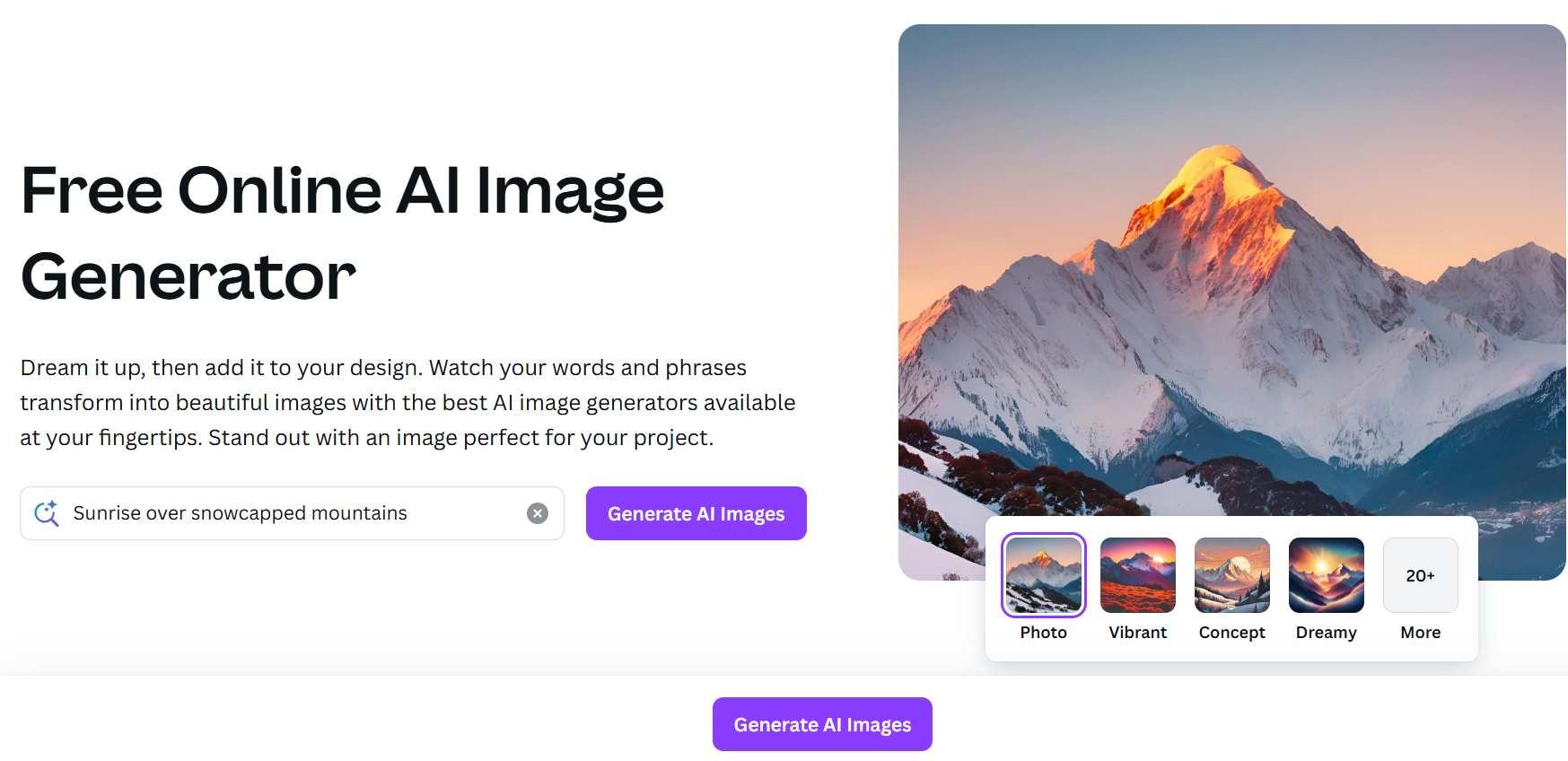
Canva’s integration expands its usability far beyond just templates, allowing you to create custom AI-generated imagery right where you're already working. The best part is how this setup is ideal for non-designers. There’s no need for any external software anymore since you can just type a simple text prompt and get a unique visual, making it a perfect fit for marketers and small business owners who need to create custom assets fast.
Pricing:
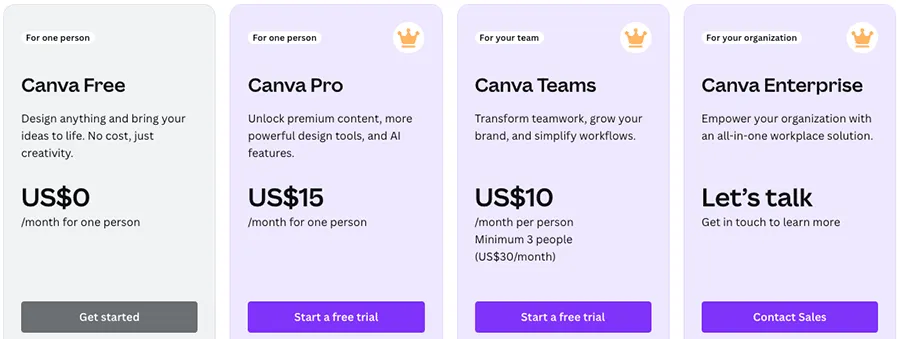
Canva includes its Canva AI Image Generator in the free plan, which is excellent for basic testing. You get 50 lifetime credits for photos and five for video. Each time you generate a batch of images, it deducts one credit. For unlimited usage, higher-resolution results, and more credits, you will need to upgrade to a paid plan like Canva Pro, which is around $15 per month.
How to Use Canva AI Image Generator – A Step-by-Step Guide
Using the tool is very straightforward and built right into the normal Canva process.
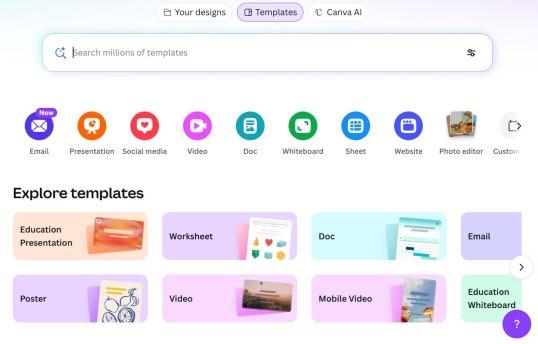
Step 1: First, head over to Canva and create a new design.
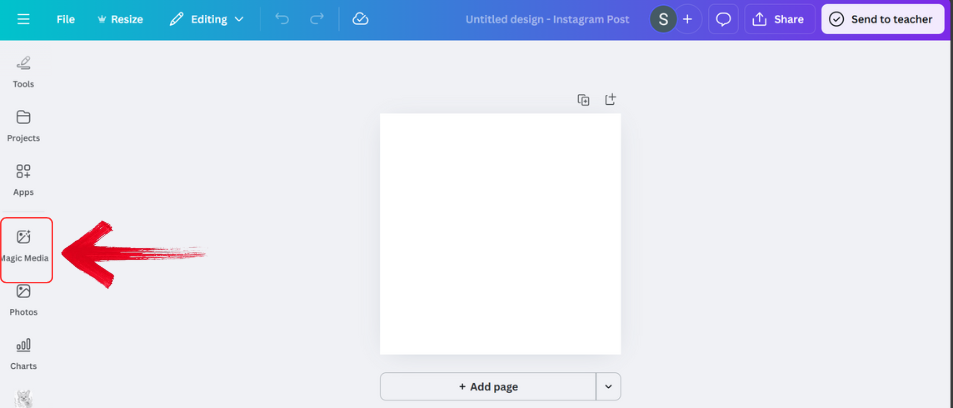
Step 2: Then, on your side menu on the left side, click on ‘Magic Media’.
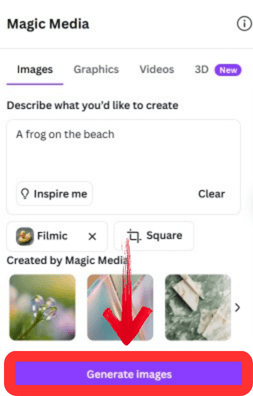
Step 3: Enter your prompt in the text box and the style to make sure the image is close to what you have in mind. Then click the ‘Generate image' button.
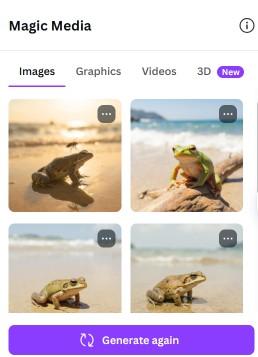
Step 4: Canva will create four options. You can then click on an image to add it directly to your design.
Enhance Your AI-Generated Images with WPS Photos
The Canva AI Image Generator is fantastic for getting an original visual created quickly. But as you've likely seen with any AI tool, the first result is rarely the final, polished product. You might get an image that's 90% right, but it's a littleblurry, the colors feel off, or the background is too distracting. You have the idea in your mind, but not the finished asset.
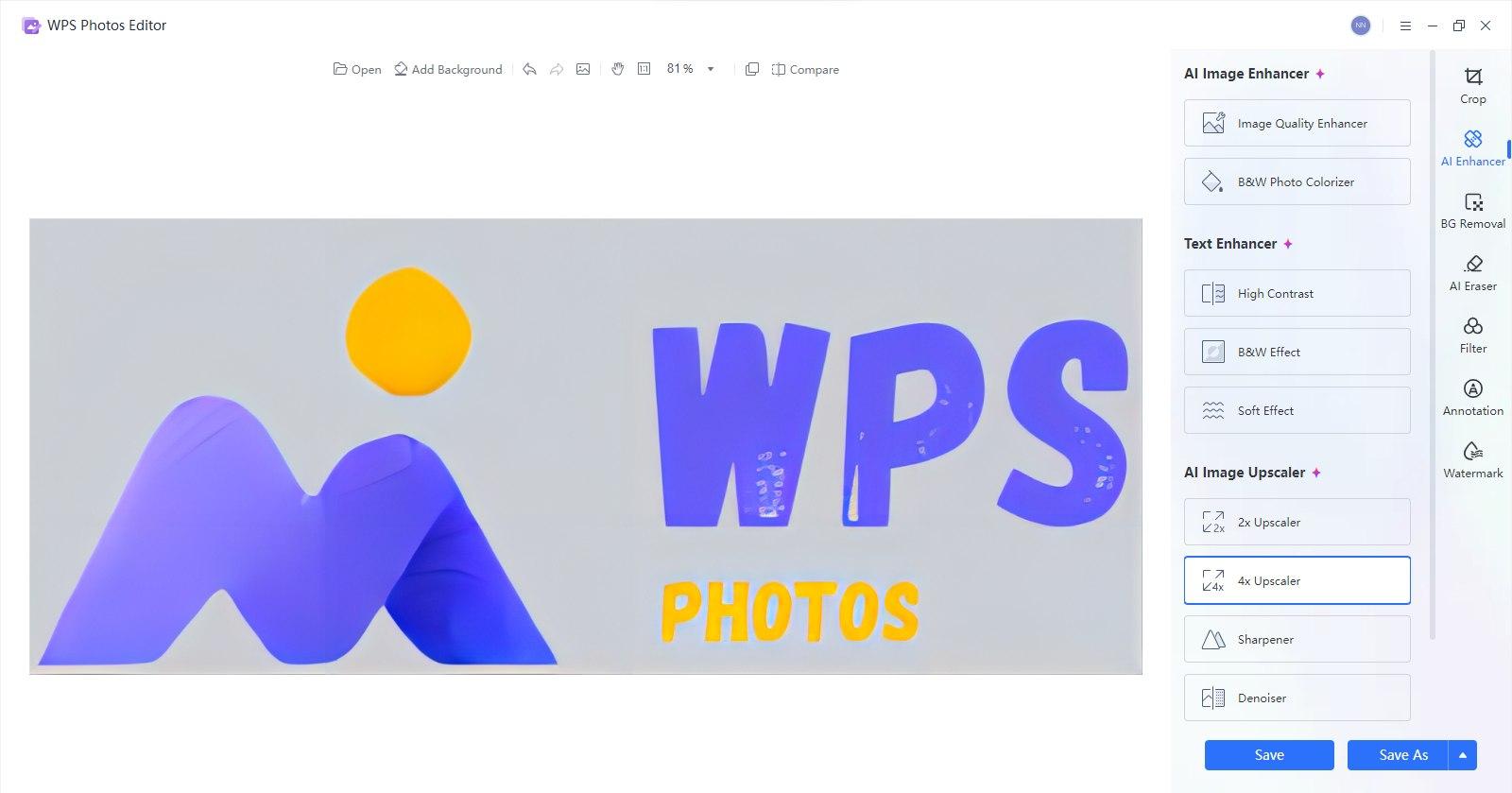
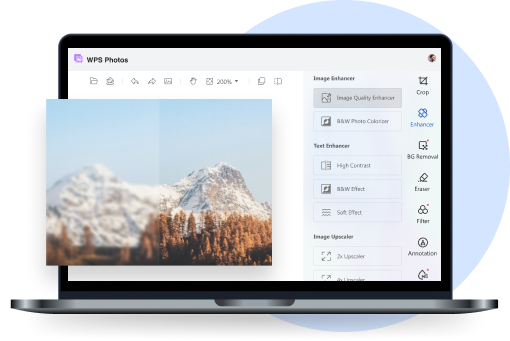
This is precisely where a dedicated photo editor becomes the essential next step. A tool like WPS Photos is designed for this exact refinement process. It helps you take that AI-generated draft from Canva and turn it into a professional-quality final image. With its own suite of AI-powered editing tools, you can quickly fix those common AI issues to get a cleaner, sharper, and more consistent look.
How to Use:
Here is how you can start editing your images using WPS Photos:
Step 1: First, upload your AI-generated photo that you downloaded from Canva into WPS Photos.

Step 2: Then choose an AI editing tool from the menu on the right-hand side.
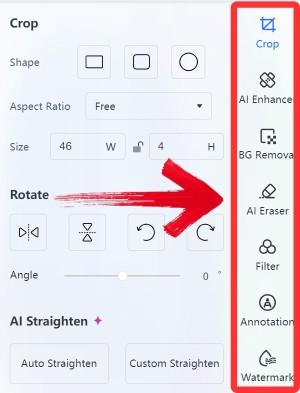
Step 3: Finally, click on ‘Export’ to download and use your enhanced AI-generated image.

FAQs
Q1: Is Canva AI Image Generator free to use?
Yes, it offers limited free generations on the free plan. Unlimited usage and more features are available with a Canva Pro subscription.
Q2: Can Canva AI Image Generator be used for professional design?
Yes, but I find the results often require editing or refinement in a tool like WPS Photos for high-level professional projects.
Q3: How does WPS Photos differ from Canva AI?
Canva AI generates new images from text prompts, while WPS Photos enhances and edits existing images (like the ones you just generated).
Q4: Which is better for casual users?
WPS Photos is simpler if you just want to do a quick photo edit. Canva AI is the best AI image generator if your goal is creative generation and building a full design from scratch.
Q5: What about copyright for AI-generated images?
This is a complex legal area. According to Canva's terms, you can use the images you generate, but their legal ownership or ability to be copyrighted is not guaranteed. It's best to check their latest policy for commercial projects.

'%3e%3cpath%20d='M19.9911%204.11386V6.471H18.5894C18.0775%206.471%2017.7322%206.57814%2017.5536%206.79243C17.3751%207.00671%2017.2858%207.32814%2017.2858%207.75671V9.44421H19.9019L19.5536%2012.0871H17.2858V18.8639H14.5536V12.0871H12.2769V9.44421H14.5536V7.49779C14.5536%206.39064%2014.8632%205.53201%2015.4822%204.92189C16.1013%204.31177%2016.9257%204.00671%2017.9554%204.00671C18.8304%204.00671%2019.509%204.04243%2019.9911%204.11386Z'%20fill='%23333333'/%3e%3c/g%3e%3cdefs%3e%3cclipPath%20id='clip0_2938_8199'%3e%3crect%20width='16'%20height='16'%20fill='white'%20transform='translate(8%204.00671)'/%3e%3c/clipPath%3e%3c/defs%3e%3c/svg%3e)
'%3e%3cpath%20d='M17.5237%2010.7813L23.4811%204H22.0699L16.8949%209.88693L12.7648%204H8L14.2469%2012.9029L8%2020.0133H9.4112L14.8725%2013.7952L19.2352%2020.0133H24M9.92053%205.04213H12.0885L22.0688%2019.0224H19.9003'%20fill='%23333333'/%3e%3c/g%3e%3cdefs%3e%3cclipPath%20id='clip0_2938_8200'%3e%3crect%20width='16'%20height='16.0134'%20fill='white'%20transform='translate(8%204)'/%3e%3c/clipPath%3e%3c/defs%3e%3c/svg%3e)


