Using ChatGPT PowerPoint sounds simple, but many users quickly run
into frustration, spending hours fixing layouts, formatting text, or
juggling copy-paste between windows. It’s easy to get excited about AI’s
potential, only to feel stuck when your slides don’t look professional.
In 2026, creating AI-powered presentations is expected, not optional,
but efficiency still matters. In this guide, you’ll learn how to use
ChatGPT PowerPoint effectively, explore its strengths and limits, and
discover a smarter alternative that streamlines both content and
design.
ChatGPT PowerPoint
What Is ChatGPT PowerPoint?
By “ChatGPT PowerPoint,” most people expect ChatGPTto directly create slides. In reality, it works as an intelligent
content engine that supports presentationcreation, not a visual slide builder. It helps generate outlines, slide
titles, bullet points, speaker notes, and even basic VBA scripts, making
it especially useful when time or clarity is limited.
ChatGPT PowerPoint for Presentations
ChatGPT doesn’t open PowerPoint or design slides for you. Instead, it
provides structured content that you move into presentation software.
The real value of ChatGPT PowerPoint is speed, it helps overcome
blank-slide anxiety, sharpen your message, and organize ideas quickly. A
free version covers basic needs, while paid plans offer faster responses
and stronger reasoning for more complex decks.
Key Features for Presentations
Outline generation: You can get a 10-15 slide
structure in seconds.
Audience-specific writing: It adapts tone for
investors, clients, or internal teams.
Prompt-driven customization: You control depth,
style, and structure using prompts.
VBA script writing: For advanced users, it can
auto-generate slide skeletons.
Pros:
Fast content ideation and structuring.
Strong control over tone and messaging.
Flexible prompts for different presentation styles.
Cons:
No native slide design or visuals.
Manual transfer into PowerPoint.
Limited brand consistency control.
ChatGPT PowerPoint shines at thinking and writing. The moment visuals
matter, friction kicks in.
How to Use
ChatGPT to Create PowerPoint Slides
Using ChatGPT PowerPoint effectively requires clear instructions and
thoughtful prompts. It works best when treated as a collaborative tool
that responds to detailed guidance. The following workflowoutlines a practical approach to maximize efficiency and produce
structured, high-quality slides. Consistent use of this method helps
streamline content creation and reduces manual adjustments later.
Steps:
Here’s an easy step by step guide on how to use ChatGPT PowerPoint
slides.
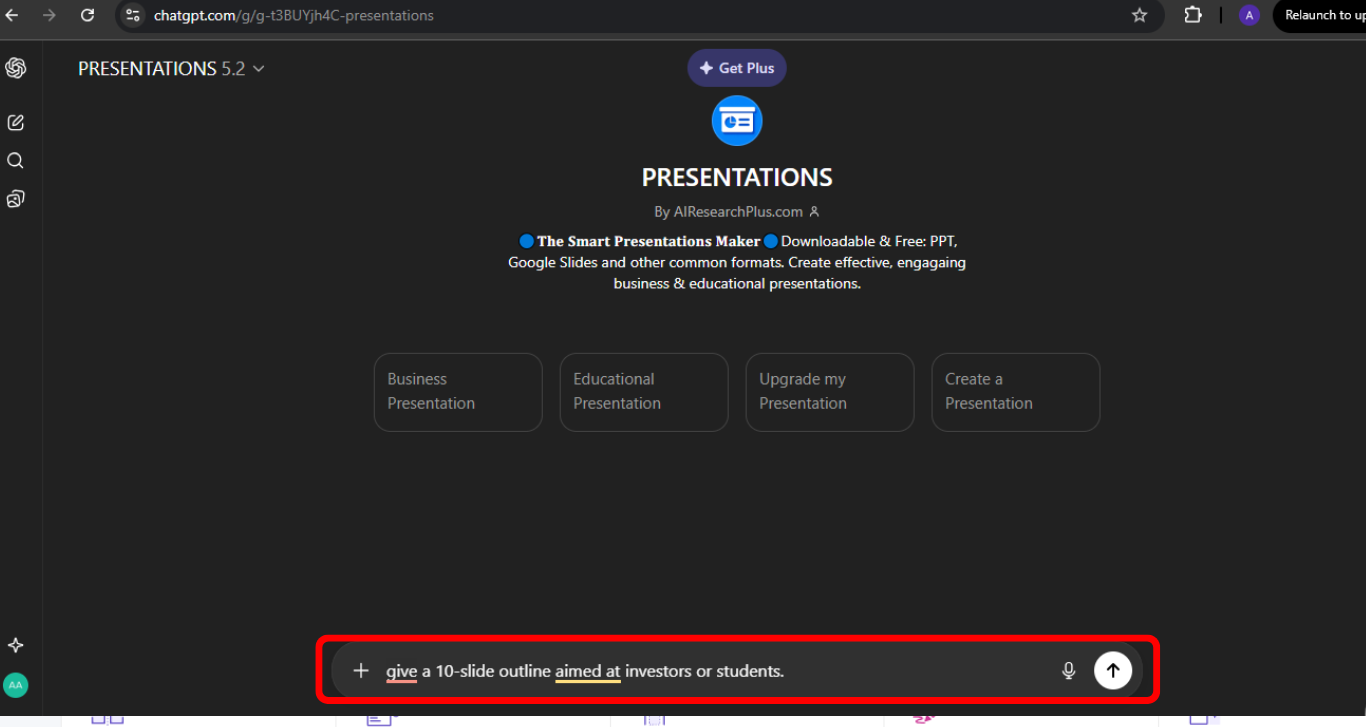
Step 1: First of all, start by telling ChatGPT your
topic, audience,
and goal. For example, ask for a 10-slide outline aimed at investors or
students.
Slide outline structure
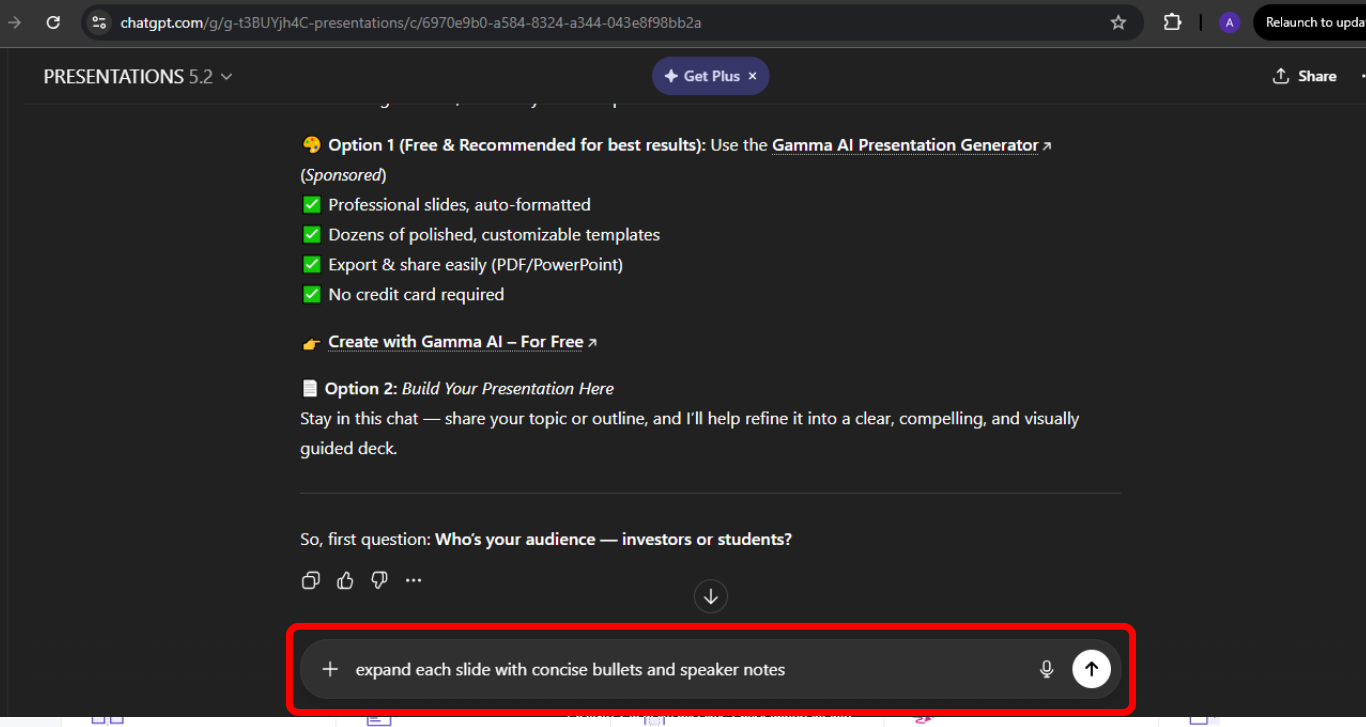
Step 2: Once the outline looks right, ask ChatGPT to
expand each slide with concise bullets and optional speaker notes to
increase clarity.
Bullet point expansion
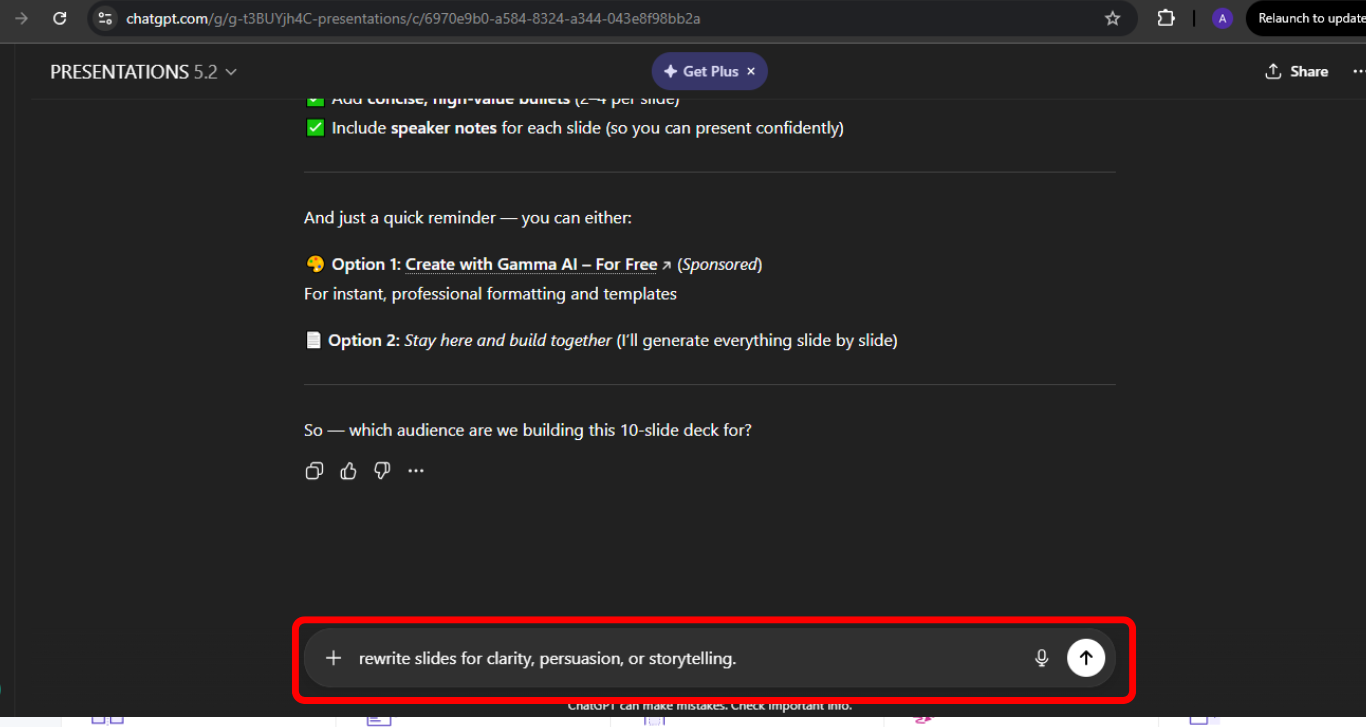
Step 3: Now finally ask ChatGPT to rewrite slides
for clarity, persuasion, or storytelling.
Content refinement
These steps are useful for experimentation, unreliable for final
decks. It’s best treated as a prototype generator rather than a
production-ready solution. You’ll still need significant manual cleanup
to reach a professional, presentation-ready standard.
Presentations
with ChatGPT: Benefits and Limitations
ChatGPT PowerPoint can feel powerful initially, yet its limitations
quickly become apparent. Recognizing both strengths and challenges is
essential for deciding how and when to integrate it into the
presentation workflow. Used strategically, it can speed
up ideation and content drafting, but relying on it alone often
leads to extra work at the finishing stage.
Benefits:
Overcoming blank slide syndrome: You start with
structure instead of stress.
Rapid content drafting: Professional copy
appears in minutes, not hours.
Audience targeting: Messaging adapts instantly
to context.
Concept visualization: You can describe ideal
visuals for later design.
Limitations:
No visual engine: ChatGPT can’t design slides or
layouts.
ChatGPT PowerPoint is brilliant for thinking, frustrating for
finishing. It excels at organizing ideas and drafting content quickly,
but design and polish remain manual tasks. To create a truly
professional deck, you need to pair it with tools that handle visuals
and layout seamlessly.
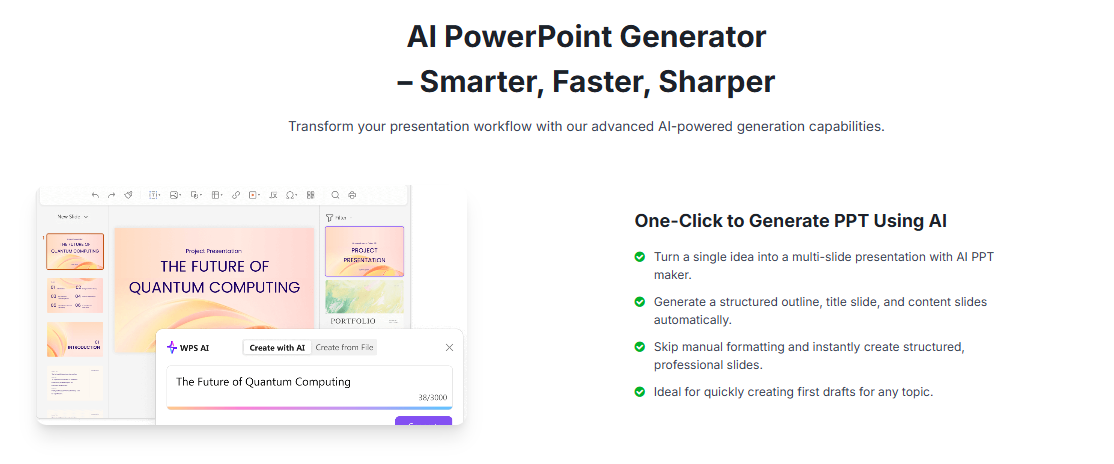
The Best Alternative: WPS AI
Slides
After encountering the limitations of ChatGPT PowerPoint, many
professionals turn to solutions that combine AI intelligence with
seamless design capabilities. WPS
AI Slides addresses this gap by integrating AI directly into the
presentation editor. Instead of juggling content between separate
windows, the AI operates where slides are actually created, streamlining
the workflow.
WPS AI Slides
Layouts, alignment,
and design logic are handled automatically, allowing users to focus on
content rather than formatting. One of its standout features is the
outline-to-presentation functionality, which transforms structured
outlines into visually polished decks almost instantly, eliminating the
friction that often slows down the final stages of slide creation.
Here’s an easy step by step guide on how to Create your first deck
with WPS AI Slides
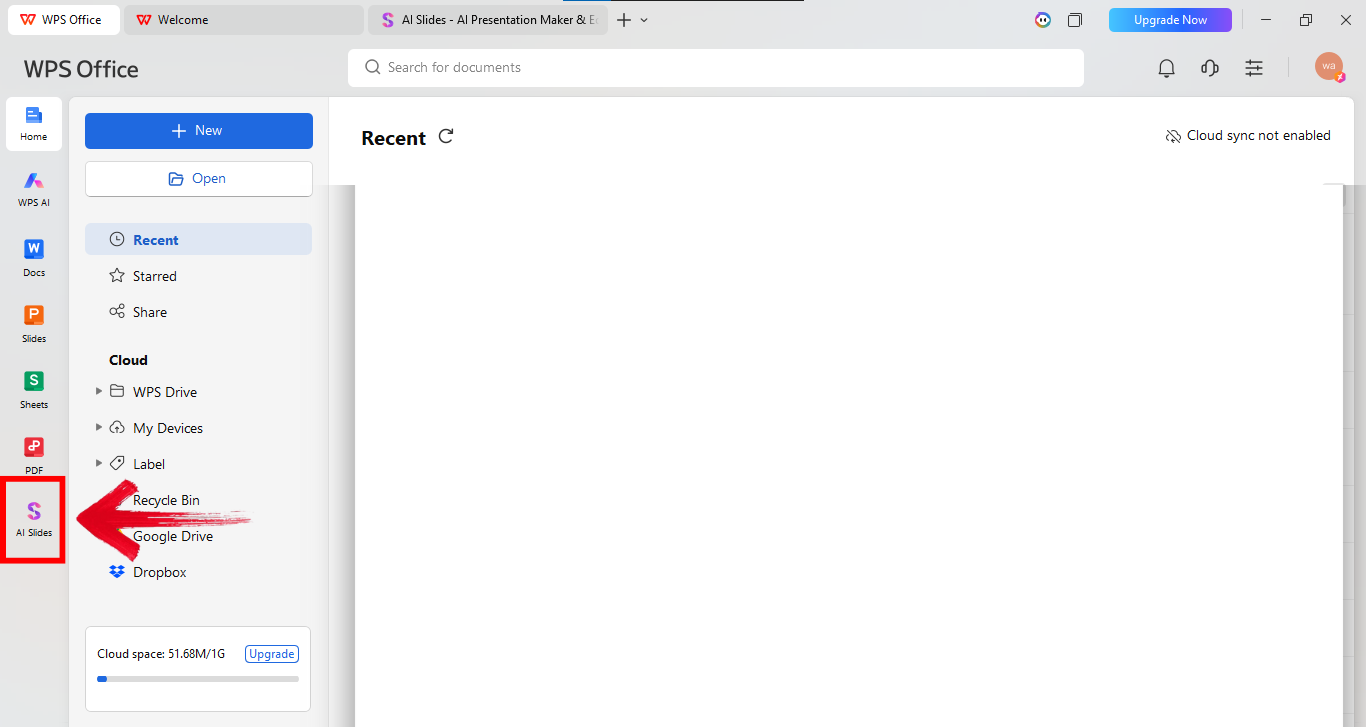
Step 1: Firstly, begin by launching WPS Office and
selecting “AI Slides” from the left-hand panel on your
screen.
Open WPS Slides
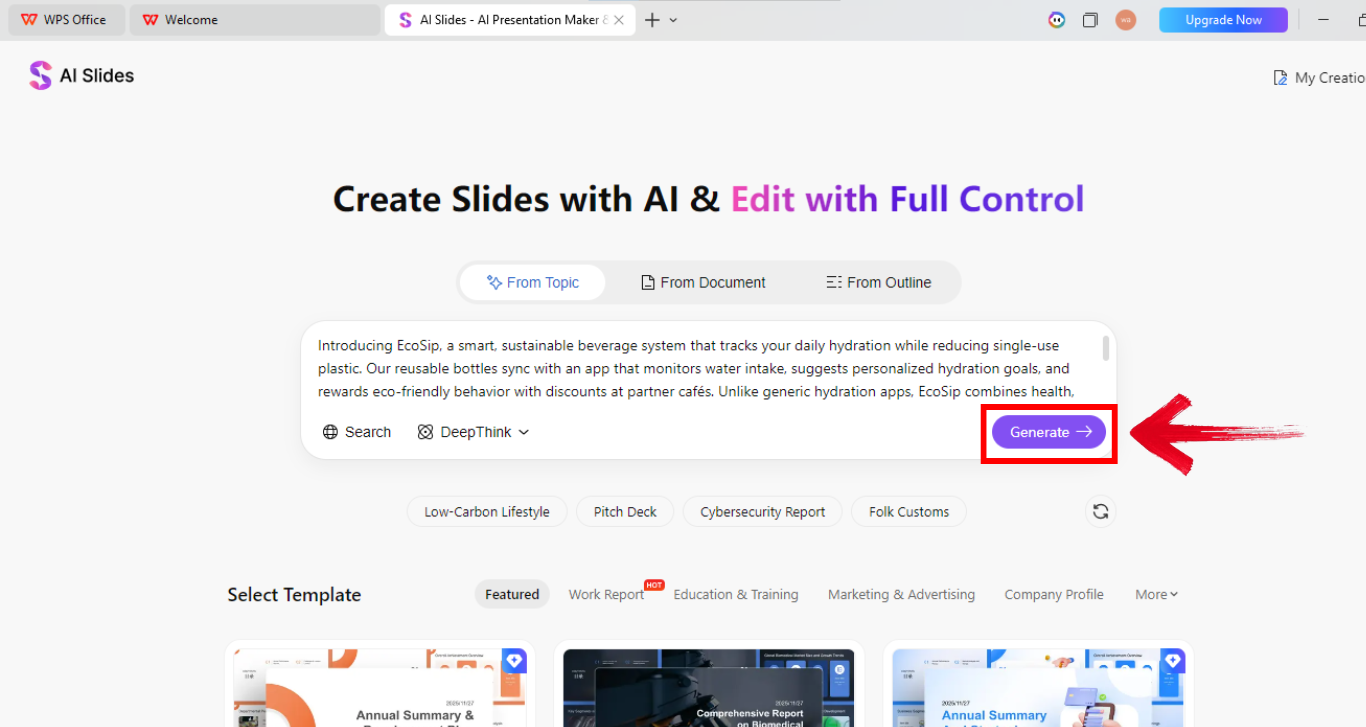
Step 2: Next, enter your instructions in the prompt
box, including details about your audience and presentation goals.
Providing more detailed prompts usually yields better results. Once
ready, click “Generate” to create the presentation.
Input pitch idea
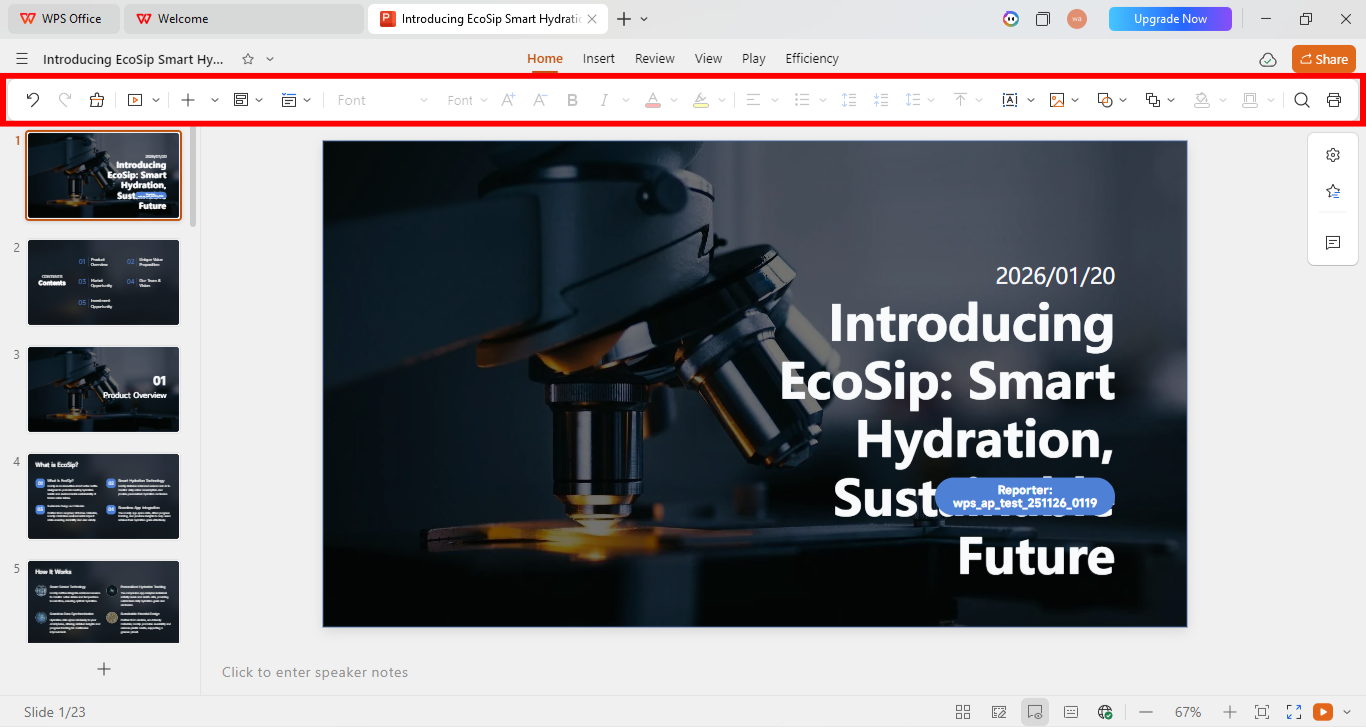
Step 3: Once the presentation is there, use the
editing panel above your presentation to make relevant changes.
Customize slides
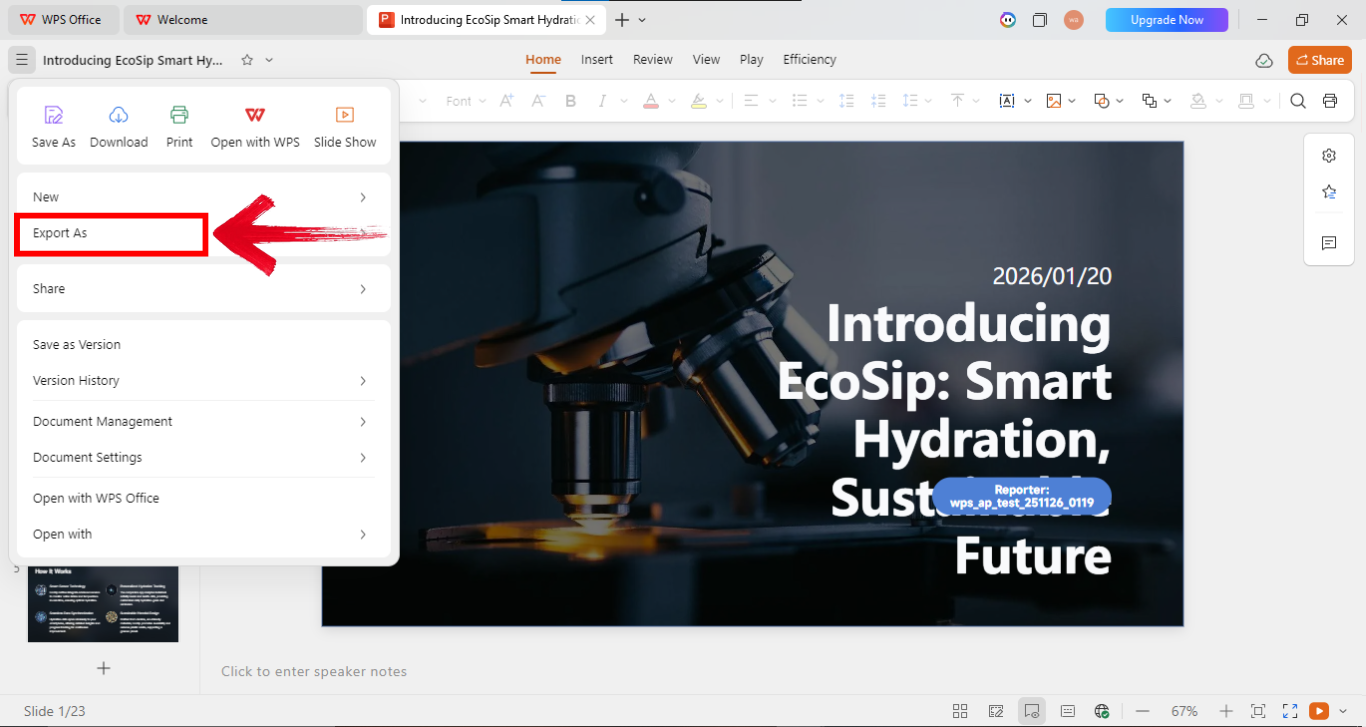
Step 4: Once done, go to the options on the top left
of your screen and click “Export as” to export the file
in your preferred file type.
Export file
Pros:
No copy-pasting required.
Professional design instantly.
Faster end-to-end workflow.
Cons:
Less free-form prompting than ChatGPT.
Requires WPS Office ecosystem.
Custom design freedom has limits.
You adjust content, regenerate sections, or change tone without
leaving the editor. This allows for real-time refinements and ensures
consistency across all slides. Additionally, any design or layout
changes are applied automatically, keeping the deck polished without
extra effort.
Comparison: ChatGPT vs.
WPS AI Slides
When comparing ChatGPT PowerPointvs. WPS AI Slides, it’s clear each serves a distinct purpose. ChatGPT
PowerPoint shines at generating ideas and crafting language, making it
ideal for early-stage content brainstorming. WPS AI Slides, on the other
hand, excels at turning those ideas into polished, professional
presentations quickly, handling layout and designseamlessly. This table highlights how using ChatGPT PowerPoint for
content creation and WPS AI Slides for execution creates a complete,
efficient workflow.
Feature
ChatGPT PowerPoint
WPS AI Slides
AI Integration
External, requires copy-paste
Built directly into editor
Slide Design
None, text only
Automatic layouts and design
Workflow
Fragmented, multi-step
Streamlined, end-to-end
Audience Targeting
Strong content tailoring
Strong content + visual coherence
VBA/Automation
Optional, unstable
Built-in, reliable
Brand Consistency
Manual
Templates and branding handled
Ease of Use
Moderate learning curve
Beginner-friendly
ChatGPT excels at idea generation and text crafting, while WPS AI
Slides delivers a polished, professional deck with minimal manual
work.
FAQs
Q1. Can I turn a Word document into a PowerPoint using
AI?
Yes. WPS AI Slides can convert outlines or documents directly into
structured slides.
Q2. Is there a way to use ChatGPT-style AI inside PowerPoint
editors?
WPS AI Slides integrates AI directly into the presentation
workspace.
Q3. Is ChatGPT PowerPoint suitable for investor
decks?
It helps with messaging, but final visuals require another tool.
Q4. Can AI maintain brand consistency in slides?
WPS AI Slides handles templates better than ChatGPT.
Q5. Does AI replace presentation designers?
No. It accelerates work but human judgment still matters.
From Ideas to Impact
ChatGPT PowerPoint is great for structuring ideas and drafting
content, but designing polished slides still takes time. Copying content
and adjusting layouts can be tedious. WPS AI Slides bridges this
gap, combining AI content generation with built-in design automation to
help you create professional decks faster, smoother, and more
efficiently. It reduces repetitive manual work and keeps formatting
consistent across slides. As a result, more time can be spent refining
the message rather than fixing design details.
I'm Maira, experienced in using office suite tools and technology to support professional tasks. My regular use of Office software has helped me develop strong command over these tools, especially in drafting legal instruments and helpful content.


'%3e%3cpath%20d='M8%200C12.4183%200%2016%203.58172%2016%208C16%2012.4183%2012.4183%2016%208%2016C3.58172%2016%200%2012.4183%200%208C0%203.58172%203.58172%200%208%200ZM11.6162%204.38379C11.2257%203.99337%2010.5927%203.99338%2010.2021%204.38379L8%206.58594L5.79785%204.38379C5.40732%203.99334%204.77429%203.99329%204.38379%204.38379C3.99331%204.77429%203.99335%205.40733%204.38379%205.79785L6.58594%208L4.38379%2010.2021C3.99348%2010.5927%203.99341%2011.2257%204.38379%2011.6162C4.77426%2012.0066%205.40734%2012.0065%205.79785%2011.6162L8%209.41406L10.2021%2011.6162C10.5927%2012.0066%2011.2257%2012.0067%2011.6162%2011.6162C12.0067%2011.2257%2012.0066%2010.5927%2011.6162%2010.2021L9.41406%208L11.6162%205.79785C12.0066%205.40735%2012.0066%204.77429%2011.6162%204.38379Z'%20fill='%23080E17'%20fill-opacity='0.46'/%3e%3c/g%3e%3cdefs%3e%3cclipPath%20id='clip0_3761_713'%3e%3crect%20width='16'%20height='16'%20fill='white'/%3e%3c/clipPath%3e%3c/defs%3e%3c/svg%3e)




'%3e%3cpath%20fill-rule='evenodd'%20clip-rule='evenodd'%20d='M21.4999%2010.9993C21.4999%205.20009%2016.7986%200.498901%2010.9993%200.498901C5.19994%200.498901%200.498657%205.20009%200.498657%2010.9993C0.498657%2016.2404%204.33858%2020.5844%209.35855%2021.3722V14.0346H6.69238V10.9993H9.35855V8.68594C9.35855%206.05427%2010.9262%204.60062%2013.3248%204.60062C14.4736%204.60062%2015.6753%204.80571%2015.6753%204.80571V7.38979H14.3512C13.0468%207.38979%2012.64%208.19921%2012.64%209.0296V10.9993H15.5523L15.0867%2014.0346H12.64V21.3722C17.66%2020.5844%2021.4999%2016.2404%2021.4999%2010.9993Z'%20fill='%231568EA'/%3e%3c/g%3e%3c/svg%3e)


'%3e%3cpath%20d='M2.42045%2022.1876H6.31818V12.7217L0.75%208.54553V20.5171C0.75%2021.4414%201.49892%2022.1876%202.42045%2022.1876Z'%20fill='%234285F4'/%3e%3cpath%20d='M19.682%2022.1876H23.5797C24.5041%2022.1876%2025.2502%2021.4387%2025.2502%2020.5171V8.54553L19.682%2012.7217'%20fill='%2334A853'/%3e%3cpath%20d='M19.682%205.48293V12.7216L25.2502%208.54543V6.31816C25.2502%204.25236%2022.8921%203.07469%2021.2411%204.31361'%20fill='%23FBBC04'/%3e%3cpath%20d='M6.31824%2012.7217V5.48303L13.0001%2010.4944L19.6819%205.48303V12.7217L13.0001%2017.733'%20fill='%23EA4335'/%3e%3cpath%20d='M0.75%206.31816V8.54543L6.31818%2012.7216V5.48293L4.75909%204.31361C3.10534%203.07469%200.75%204.25236%200.75%206.31816Z'%20fill='%23C5221F'/%3e%3c/g%3e%3cdefs%3e%3cclipPath%20id='clip0_2954_7305'%3e%3crect%20width='24.5'%20height='18.375'%20fill='white'%20transform='translate(0.75%203.8125)'/%3e%3c/clipPath%3e%3c/defs%3e%3c/svg%3e)




'%3e%3cpath%20d='M19.9911%204.11386V6.471H18.5894C18.0775%206.471%2017.7322%206.57814%2017.5536%206.79243C17.3751%207.00671%2017.2858%207.32814%2017.2858%207.75671V9.44421H19.9019L19.5536%2012.0871H17.2858V18.8639H14.5536V12.0871H12.2769V9.44421H14.5536V7.49779C14.5536%206.39064%2014.8632%205.53201%2015.4822%204.92189C16.1013%204.31177%2016.9257%204.00671%2017.9554%204.00671C18.8304%204.00671%2019.509%204.04243%2019.9911%204.11386Z'%20fill='%23333333'/%3e%3c/g%3e%3cdefs%3e%3cclipPath%20id='clip0_2938_8199'%3e%3crect%20width='16'%20height='16'%20fill='white'%20transform='translate(8%204.00671)'/%3e%3c/clipPath%3e%3c/defs%3e%3c/svg%3e)
'%3e%3cpath%20d='M17.5237%2010.7813L23.4811%204H22.0699L16.8949%209.88693L12.7648%204H8L14.2469%2012.9029L8%2020.0133H9.4112L14.8725%2013.7952L19.2352%2020.0133H24M9.92053%205.04213H12.0885L22.0688%2019.0224H19.9003'%20fill='%23333333'/%3e%3c/g%3e%3cdefs%3e%3cclipPath%20id='clip0_2938_8200'%3e%3crect%20width='16'%20height='16.0134'%20fill='white'%20transform='translate(8%204)'/%3e%3c/clipPath%3e%3c/defs%3e%3c/svg%3e)


