

'%3e%3cpath%20d='M8%200C12.4183%200%2016%203.58172%2016%208C16%2012.4183%2012.4183%2016%208%2016C3.58172%2016%200%2012.4183%200%208C0%203.58172%203.58172%200%208%200ZM11.6162%204.38379C11.2257%203.99337%2010.5927%203.99338%2010.2021%204.38379L8%206.58594L5.79785%204.38379C5.40732%203.99334%204.77429%203.99329%204.38379%204.38379C3.99331%204.77429%203.99335%205.40733%204.38379%205.79785L6.58594%208L4.38379%2010.2021C3.99348%2010.5927%203.99341%2011.2257%204.38379%2011.6162C4.77426%2012.0066%205.40734%2012.0065%205.79785%2011.6162L8%209.41406L10.2021%2011.6162C10.5927%2012.0066%2011.2257%2012.0067%2011.6162%2011.6162C12.0067%2011.2257%2012.0066%2010.5927%2011.6162%2010.2021L9.41406%208L11.6162%205.79785C12.0066%205.40735%2012.0066%204.77429%2011.6162%204.38379Z'%20fill='%23080E17'%20fill-opacity='0.46'/%3e%3c/g%3e%3cdefs%3e%3cclipPath%20id='clip0_3761_713'%3e%3crect%20width='16'%20height='16'%20fill='white'/%3e%3c/clipPath%3e%3c/defs%3e%3c/svg%3e)




'%3e%3cpath%20fill-rule='evenodd'%20clip-rule='evenodd'%20d='M21.4999%2010.9993C21.4999%205.20009%2016.7986%200.498901%2010.9993%200.498901C5.19994%200.498901%200.498657%205.20009%200.498657%2010.9993C0.498657%2016.2404%204.33858%2020.5844%209.35855%2021.3722V14.0346H6.69238V10.9993H9.35855V8.68594C9.35855%206.05427%2010.9262%204.60062%2013.3248%204.60062C14.4736%204.60062%2015.6753%204.80571%2015.6753%204.80571V7.38979H14.3512C13.0468%207.38979%2012.64%208.19921%2012.64%209.0296V10.9993H15.5523L15.0867%2014.0346H12.64V21.3722C17.66%2020.5844%2021.4999%2016.2404%2021.4999%2010.9993Z'%20fill='%231568EA'/%3e%3c/g%3e%3c/svg%3e)


'%3e%3cpath%20d='M2.42045%2022.1876H6.31818V12.7217L0.75%208.54553V20.5171C0.75%2021.4414%201.49892%2022.1876%202.42045%2022.1876Z'%20fill='%234285F4'/%3e%3cpath%20d='M19.682%2022.1876H23.5797C24.5041%2022.1876%2025.2502%2021.4387%2025.2502%2020.5171V8.54553L19.682%2012.7217'%20fill='%2334A853'/%3e%3cpath%20d='M19.682%205.48293V12.7216L25.2502%208.54543V6.31816C25.2502%204.25236%2022.8921%203.07469%2021.2411%204.31361'%20fill='%23FBBC04'/%3e%3cpath%20d='M6.31824%2012.7217V5.48303L13.0001%2010.4944L19.6819%205.48303V12.7217L13.0001%2017.733'%20fill='%23EA4335'/%3e%3cpath%20d='M0.75%206.31816V8.54543L6.31818%2012.7216V5.48293L4.75909%204.31361C3.10534%203.07469%200.75%204.25236%200.75%206.31816Z'%20fill='%23C5221F'/%3e%3c/g%3e%3cdefs%3e%3cclipPath%20id='clip0_2954_7305'%3e%3crect%20width='24.5'%20height='18.375'%20fill='white'%20transform='translate(0.75%203.8125)'/%3e%3c/clipPath%3e%3c/defs%3e%3c/svg%3e)


If recipients must read a PDF but should not casually change its content, use a permissions password rather than only an open password. An open password controls who can view the file; a permissions password controls actions such as editing, copying, and printing.
PDF permissions discourage unauthorized changes, but they are not a guarantee against screenshots, retyping, or software that ignores permission flags. Keep the editable source separately and test the protected copy in another viewer.
Edit Protect: How to Protect a PDF from Editing
How Edit Protect Settings Work for a PDF
Choose the correct password type
Use an open password when nobody should read the document without a password. Use a permissions password when recipients may open it normally but need authorization to change security settings or perform restricted actions.
Select the actions to restrict
In a PDF editor’s security or protection settings, disable editing and copying as required. Decide separately whether printing, commenting, form filling, and signing should remain available. Blocking every action can break legitimate review or accessibility workflows.
Apply protection and save a new copy
Enter a strong, unique permissions password and store it in an approved password manager. Save the protected PDF under a new name so you retain an editable source file.
Test as a recipient
Close and reopen the protected copy in a second PDF viewer. Try the edit, copy, print, comment, and page-organize commands that matter to your workflow. Confirm that allowed actions still work and restricted actions request authorization or remain unavailable.
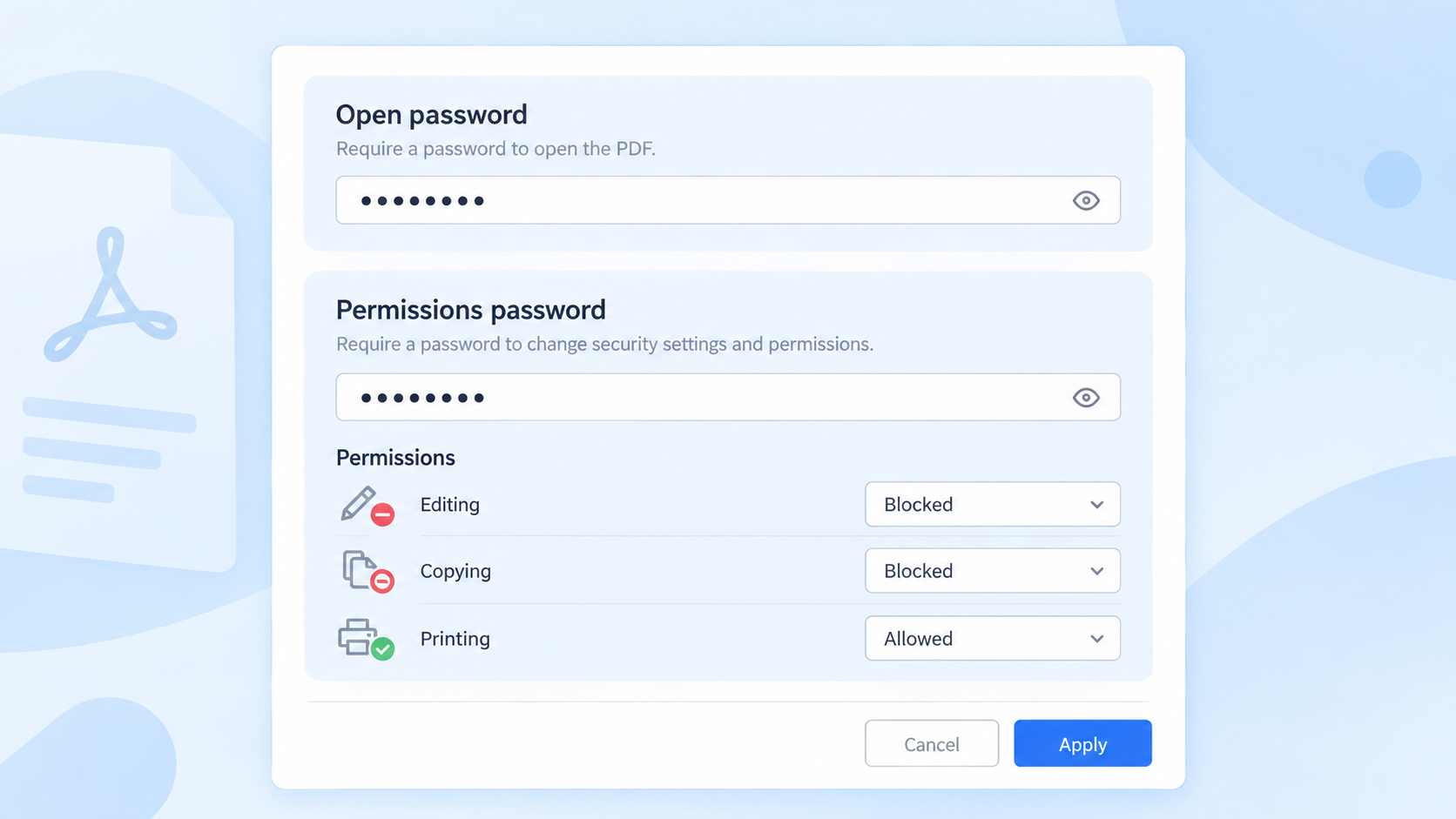
Set PDF permissions password controls


The Best Free Edit-Protect Workflow: WPS Office
WPS PDF combines editing, page organization, export, and edit protection in one free workspace, so you never need a separate tool just to lock down a document. Set an open password to control who can read the file, or a permissions password to block editing, copying, and printing after it opens — then test the result without leaving the app. The product image below is an illustrative interface mockup rather than a tested screenshot of a specific release.
Full protection controls in one place: choose the password type and restrict specific actions such as editing, copying, printing, and commenting from a single security dialog.
Free and cross-platform: protect PDFs the same way on Windows, macOS, Linux, and mobile, instead of relying on one-off online tools that require uploading sensitive files.
Editable master workflow: keep the original unlocked while distributing a protected copy, so future revisions never fight your own security settings.
Easy re-testing after revisions: because editing and export happen in the same app, you can re-apply and verify protection immediately each time you update the document.
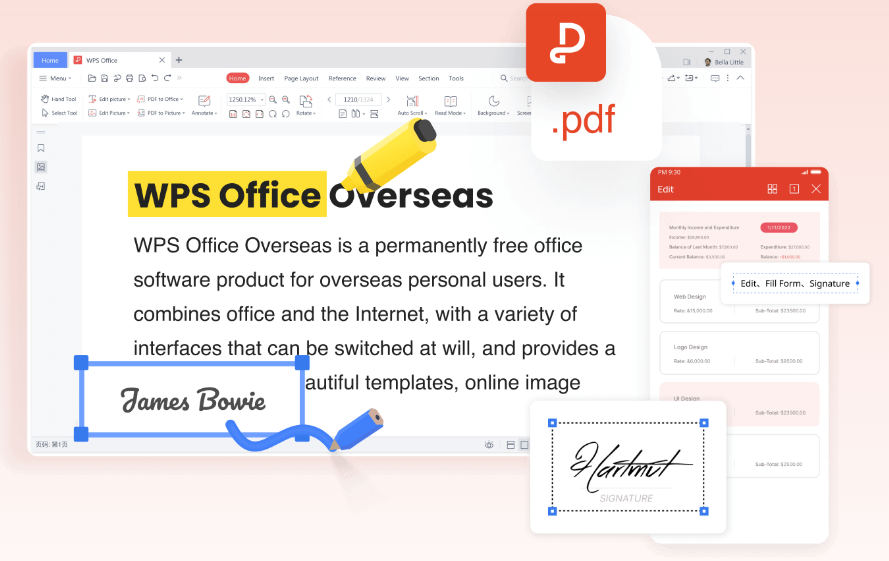
WPS PDF overview
FAQs
What is the difference between an open password and edit protection?
An open password blocks viewing; a permissions password controls editing and other actions after the file opens.
Can a protected PDF still be copied?
Permission settings can block normal copy commands, but they cannot prevent every possible form of reproduction.
Can I allow printing but block editing?
Many PDF security dialogs offer separate controls, so you can allow printing while restricting changes.
What happens if I forget the permissions password?
You may be unable to change the restrictions. Keep the editable source and store the password securely.
Does flattening a PDF provide the same protection?
No. Flattening can make form fields or annotations non-interactive, but it does not replace encryption or permission controls.

'%3e%3cpath%20d='M19.9911%204.11386V6.471H18.5894C18.0775%206.471%2017.7322%206.57814%2017.5536%206.79243C17.3751%207.00671%2017.2858%207.32814%2017.2858%207.75671V9.44421H19.9019L19.5536%2012.0871H17.2858V18.8639H14.5536V12.0871H12.2769V9.44421H14.5536V7.49779C14.5536%206.39064%2014.8632%205.53201%2015.4822%204.92189C16.1013%204.31177%2016.9257%204.00671%2017.9554%204.00671C18.8304%204.00671%2019.509%204.04243%2019.9911%204.11386Z'%20fill='%23333333'/%3e%3c/g%3e%3cdefs%3e%3cclipPath%20id='clip0_2938_8199'%3e%3crect%20width='16'%20height='16'%20fill='white'%20transform='translate(8%204.00671)'/%3e%3c/clipPath%3e%3c/defs%3e%3c/svg%3e)
'%3e%3cpath%20d='M17.5237%2010.7813L23.4811%204H22.0699L16.8949%209.88693L12.7648%204H8L14.2469%2012.9029L8%2020.0133H9.4112L14.8725%2013.7952L19.2352%2020.0133H24M9.92053%205.04213H12.0885L22.0688%2019.0224H19.9003'%20fill='%23333333'/%3e%3c/g%3e%3cdefs%3e%3cclipPath%20id='clip0_2938_8200'%3e%3crect%20width='16'%20height='16.0134'%20fill='white'%20transform='translate(8%204)'/%3e%3c/clipPath%3e%3c/defs%3e%3c/svg%3e)


