

'%3e%3cpath%20d='M8%200C12.4183%200%2016%203.58172%2016%208C16%2012.4183%2012.4183%2016%208%2016C3.58172%2016%200%2012.4183%200%208C0%203.58172%203.58172%200%208%200ZM11.6162%204.38379C11.2257%203.99337%2010.5927%203.99338%2010.2021%204.38379L8%206.58594L5.79785%204.38379C5.40732%203.99334%204.77429%203.99329%204.38379%204.38379C3.99331%204.77429%203.99335%205.40733%204.38379%205.79785L6.58594%208L4.38379%2010.2021C3.99348%2010.5927%203.99341%2011.2257%204.38379%2011.6162C4.77426%2012.0066%205.40734%2012.0065%205.79785%2011.6162L8%209.41406L10.2021%2011.6162C10.5927%2012.0066%2011.2257%2012.0067%2011.6162%2011.6162C12.0067%2011.2257%2012.0066%2010.5927%2011.6162%2010.2021L9.41406%208L11.6162%205.79785C12.0066%205.40735%2012.0066%204.77429%2011.6162%204.38379Z'%20fill='%23080E17'%20fill-opacity='0.46'/%3e%3c/g%3e%3cdefs%3e%3cclipPath%20id='clip0_3761_713'%3e%3crect%20width='16'%20height='16'%20fill='white'/%3e%3c/clipPath%3e%3c/defs%3e%3c/svg%3e)




'%3e%3cpath%20fill-rule='evenodd'%20clip-rule='evenodd'%20d='M21.4999%2010.9993C21.4999%205.20009%2016.7986%200.498901%2010.9993%200.498901C5.19994%200.498901%200.498657%205.20009%200.498657%2010.9993C0.498657%2016.2404%204.33858%2020.5844%209.35855%2021.3722V14.0346H6.69238V10.9993H9.35855V8.68594C9.35855%206.05427%2010.9262%204.60062%2013.3248%204.60062C14.4736%204.60062%2015.6753%204.80571%2015.6753%204.80571V7.38979H14.3512C13.0468%207.38979%2012.64%208.19921%2012.64%209.0296V10.9993H15.5523L15.0867%2014.0346H12.64V21.3722C17.66%2020.5844%2021.4999%2016.2404%2021.4999%2010.9993Z'%20fill='%231568EA'/%3e%3c/g%3e%3c/svg%3e)


'%3e%3cpath%20d='M2.42045%2022.1876H6.31818V12.7217L0.75%208.54553V20.5171C0.75%2021.4414%201.49892%2022.1876%202.42045%2022.1876Z'%20fill='%234285F4'/%3e%3cpath%20d='M19.682%2022.1876H23.5797C24.5041%2022.1876%2025.2502%2021.4387%2025.2502%2020.5171V8.54553L19.682%2012.7217'%20fill='%2334A853'/%3e%3cpath%20d='M19.682%205.48293V12.7216L25.2502%208.54543V6.31816C25.2502%204.25236%2022.8921%203.07469%2021.2411%204.31361'%20fill='%23FBBC04'/%3e%3cpath%20d='M6.31824%2012.7217V5.48303L13.0001%2010.4944L19.6819%205.48303V12.7217L13.0001%2017.733'%20fill='%23EA4335'/%3e%3cpath%20d='M0.75%206.31816V8.54543L6.31818%2012.7216V5.48293L4.75909%204.31361C3.10534%203.07469%200.75%204.25236%200.75%206.31816Z'%20fill='%23C5221F'/%3e%3c/g%3e%3cdefs%3e%3cclipPath%20id='clip0_2954_7305'%3e%3crect%20width='24.5'%20height='18.375'%20fill='white'%20transform='translate(0.75%203.8125)'/%3e%3c/clipPath%3e%3c/defs%3e%3c/svg%3e)


To create a fillable PDF that keeps answers, the fields must be real interactive form fields — not text annotations — and the file must be filled and saved in a desktop PDF editor instead of a browser tab. In WPS PDF you can build one in minutes: open your file, go to Tools > Prepare Form, insert Text Fields, Check Boxes, Radio Buttons and Drop-downs, then save and run a quick fill–save–reopen test before you share the form.
This guide covers the exact WPS PDF form-building steps, why filled responses sometimes vanish, and how to verify every answer survives before your recipients ever touch the file.
How to Create a Fillable PDF That Saves Responses
Why Filled PDF Forms Lose Data When You Save
Every few days, someone fills out a job application, tax form, or client questionnaire in a PDF, clicks Save, closes the file — and finds every field blank when they reopen it. The form looked fillable and even let them type. Before building your form, understand the three failure modes, because each has a different fix:
Text was added as an annotation, not a form field. If someone fills a flat PDF with the Typewriter or Text Box comment tool, those marks are sticky-note-style comments. Many viewers and printers drop annotations silently when the file is flattened or re-saved.
The form was filled inside a browser. Chrome, Edge, and Firefox render fillable PDFs in a lightweight built-in viewer that frequently cannot write form data back to the file — the download button often saves the blank original. Government agencies list this as their number-one support issue for online forms.
Field names or permissions are wrong. Two fields sharing the same name mirror each other's content, and a PDF saved with editing restrictions may reject saved input entirely.
The fix for all three starts at creation time: build genuine interactive form fields and test the save cycle. Here is how in WPS PDF.
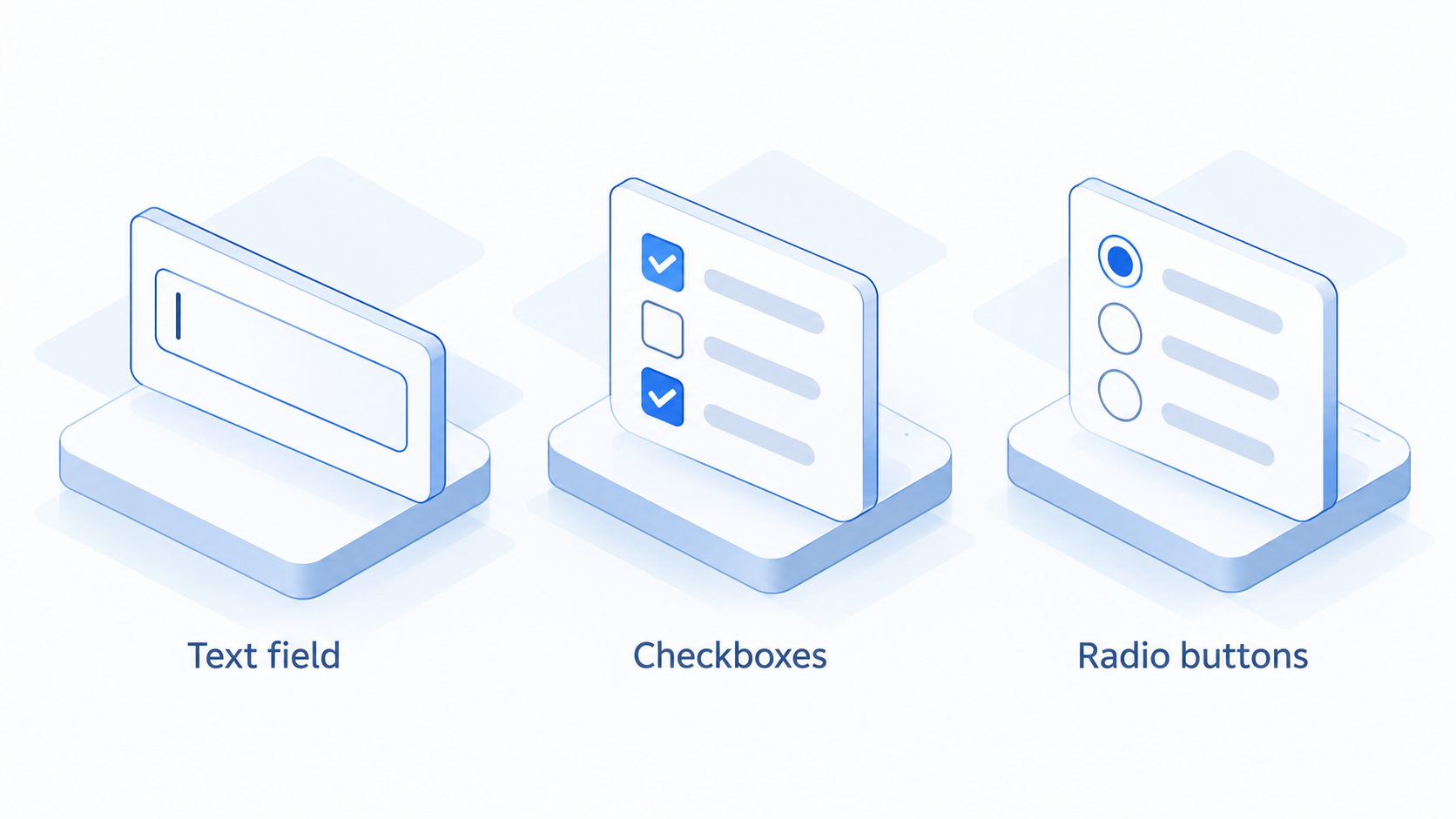
PDF annotations versus interactive form fields


How to Create a Fillable PDF in WPS PDF (Step-by-Step)
WPS PDF features a built-in form editor — no Acrobat subscription required. If you are starting from a Word document, convert or export it to PDF first.
Step 1: Open PDF and Access Form Tools
Open your document in WPS PDF.
Click the Form tab on the top menu bar.
(Optional) Click Form Recognition to automatically detect blank lines and boxes into fillable fields.
Step 2: Clean Up Auto-Detected Fields (If Used)
Select and delete any misplaced fields covering titles or labels.
Drag field borders so they align precisely with response areas.
Step 3: Insert Form Fields Manually
Select the required control from the Form toolbar:
Text Box — single-line or multi-line text input (name, email, notes).
Check Box — multi-select options ("select all that apply").
Radio Button — single-select choices within a group ("pick one").
Combo Box / List Box — dropdown options (country, department).
Step 4: Configure Field Properties
Click and drag to place the field on the page.
Double-click the field to open Properties:
Name: assign a unique name (e.g., user_email). Shared names will clone input across fields.
Options: enable Multi-line for long text, or format entries as needed.
Step 5: Save Interactive PDF
Click File > Save As and save as .pdf.
Test the saved PDF in any reader (Chrome, Edge, Acrobat) to verify inputs save correctly.
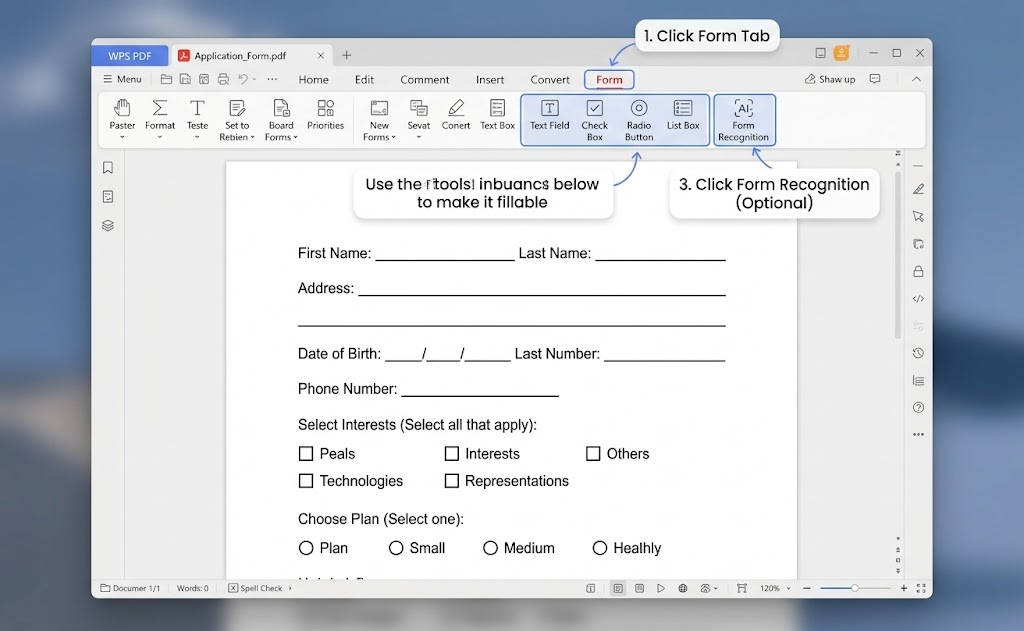
WPS PDF Form tab toolbar
How to Make Sure Responses Save Before You Share
Never distribute a form before running this 60-second save test — it is the same test your recipients will implicitly run:
Fill a test copy with realistic data: a long name, a multi-line answer, every check box, and every radio group.
Save to a known folder (for example, test-filled.pdf), then close WPS PDF completely.
Reopen the exact saved file. Every answer should still be there.
Open the same file in a second viewer, such as Adobe Reader, to confirm cross-app compatibility.
If something fails, check in this order:
| Symptom | Root cause | Fix |
|---|---|---|
| All fields blank after reopening | Filled in a browser tab; the download saved the blank original | Download the file first, fill it in WPS PDF or another desktop reader, then save |
| Some answers gone, some kept | Annotations mixed with real fields | Re-add the lost answers as proper Text Fields in Tools > Prepare Form |
| Typing in one box fills another | Duplicate field names | Rename each field uniquely in field properties |
| "Cannot save data typed into this form" warning | Form locked with fill-restricting permissions | Re-save the form without restrictions, or re-create it in WPS PDF |
| Answers vanish after printing or re-saving elsewhere | File was flattened | Always keep and submit the un-flattened interactive copy |
Why WPS PDF preserves responses reliably: WPS PDF writes standard AcroForm field definitions — the same mechanism Adobe Acrobat uses — so typed values are stored inside the form object itself, not as removable comment markup. Data saved in WPS PDF survives reopening in WPS PDF, Adobe Reader, and most desktop viewers, and named field data can be extracted and exported in bulk for HR, finance, or survey workflows.
Finish with a delivery check before sending the form out:
Tab through the form. Focus should move in natural reading order and reach every field; fix illogical order in field properties.
Test edge cases. Enter a 50-character name, a 3-line address, and every choice control — text should wrap or scroll, not clip.
Check choice logic. Independent check boxes must allow multiple selections; a radio group must keep exactly one.
Test the delivery channel. Email the test copy to yourself and fill it on a phone — mobile viewing is where most silent failures appear.
If you are comparing editors for this workflow, our walkthrough of adding fillable fields in WPS Office covers the WPS Writer route for simple internal forms.
The Best Free PDF Editor: WPS PDF
Adobe Acrobat locks form authoring and most editing tools behind a paid subscription. WPS PDF delivers the same core workflow — building fillable forms, editing text, annotating, converting, and signing — without the per-month cost, which is why it works as both the authoring tool in the steps above and the everyday reader your recipients can use for free.
What sets WPS PDF apart for form and document work:
Free form building and filling. Create interactive fields with Tools > Prepare Form, fill any standards-compliant form, and sign documents — the exact workflow in this guide, with no subscription gate on your output.
True cross-platform coverage. The same engine runs on Windows, macOS, Linux, Android, and iOS, and forms you build on the desktop open and save correctly on mobile — the environment where most recipients actually fill forms.
Familiar, low-learning-curve interface. The ribbon layout mirrors Microsoft Office, so anyone who has used Word can drive Prepare Form, annotation, and export tools on day one.
Conversion built in. Turn PDFs back into editable Word documents or Excel spreadsheets, so data trapped in a returned form can be extracted and analyzed instead of retyped.
Practical security tools. Add passwords, set editing and printing permissions, and flatten files before distribution.
The biggest advantage is that WPS PDF never works alone. It ships inside WPS Office, an all-in-one tool suite: WPS Writer is a full-featured Word alternative for drafting the form layout, WPS Spreadsheet replaces Excel for collecting and analyzing returned form data, and WPS Presentation handles the PowerPoint side of your work. One download, one license, one consistent interface across documents, spreadsheets, presentations, and PDFs — you design the form in Writer, build it in PDF, and consolidate the responses in Spreadsheet without ever leaving the suite.
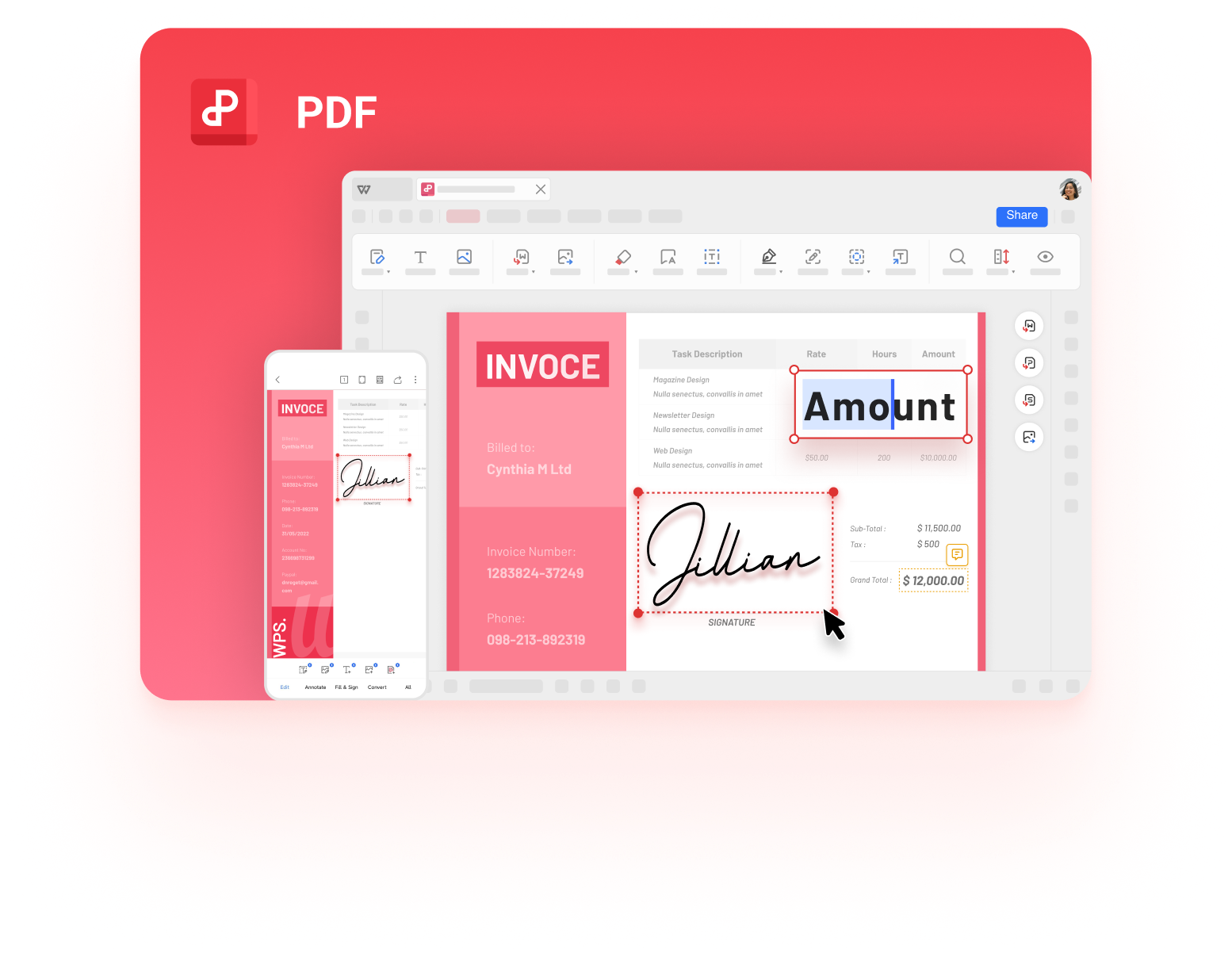
WPS PDF overview
FAQs
Why can I type in a PDF, but my answers disappear when I save?
You almost certainly filled the form in a browser's built-in viewer, or your typing went into text annotations instead of form fields. Download the file, open it in WPS PDF or another desktop reader, fill the actual fields, and save — the responses will persist.
Do recipients need WPS Office or Acrobat to fill and save my form?
No. A properly built AcroForm PDF can be filled and saved in any standards-compliant desktop reader. Still, test in the viewers your audience actually uses — especially mobile — before distribution.
Can I make a scanned paper form fillable?
Yes. In WPS PDF, run Tools > Prepare Form on a straight, legible scan; auto-detection overlays fields on lines and boxes. Verify each field's position manually — OCR (making text searchable) and form fields (making it fillable) are separate jobs.
How do I stop two fields from showing the same answer?
The fields share a name. Open field properties in the form editor and give each field a unique name (for example, home_phone versus work_phone). Only radio buttons within one "pick one" group should ever share a name.
Can I collect all filled responses in one place instead of opening each PDF?
Yes. Because responses live in named form fields, WPS PDF can extract form field data for export — so HR, finance, or survey teams can consolidate answers into a spreadsheet instead of reviewing files one by one.

'%3e%3cpath%20d='M19.9911%204.11386V6.471H18.5894C18.0775%206.471%2017.7322%206.57814%2017.5536%206.79243C17.3751%207.00671%2017.2858%207.32814%2017.2858%207.75671V9.44421H19.9019L19.5536%2012.0871H17.2858V18.8639H14.5536V12.0871H12.2769V9.44421H14.5536V7.49779C14.5536%206.39064%2014.8632%205.53201%2015.4822%204.92189C16.1013%204.31177%2016.9257%204.00671%2017.9554%204.00671C18.8304%204.00671%2019.509%204.04243%2019.9911%204.11386Z'%20fill='%23333333'/%3e%3c/g%3e%3cdefs%3e%3cclipPath%20id='clip0_2938_8199'%3e%3crect%20width='16'%20height='16'%20fill='white'%20transform='translate(8%204.00671)'/%3e%3c/clipPath%3e%3c/defs%3e%3c/svg%3e)
'%3e%3cpath%20d='M17.5237%2010.7813L23.4811%204H22.0699L16.8949%209.88693L12.7648%204H8L14.2469%2012.9029L8%2020.0133H9.4112L14.8725%2013.7952L19.2352%2020.0133H24M9.92053%205.04213H12.0885L22.0688%2019.0224H19.9003'%20fill='%23333333'/%3e%3c/g%3e%3cdefs%3e%3cclipPath%20id='clip0_2938_8200'%3e%3crect%20width='16'%20height='16.0134'%20fill='white'%20transform='translate(8%204)'/%3e%3c/clipPath%3e%3c/defs%3e%3c/svg%3e)


