

'%3e%3cpath%20d='M8%200C12.4183%200%2016%203.58172%2016%208C16%2012.4183%2012.4183%2016%208%2016C3.58172%2016%200%2012.4183%200%208C0%203.58172%203.58172%200%208%200ZM11.6162%204.38379C11.2257%203.99337%2010.5927%203.99338%2010.2021%204.38379L8%206.58594L5.79785%204.38379C5.40732%203.99334%204.77429%203.99329%204.38379%204.38379C3.99331%204.77429%203.99335%205.40733%204.38379%205.79785L6.58594%208L4.38379%2010.2021C3.99348%2010.5927%203.99341%2011.2257%204.38379%2011.6162C4.77426%2012.0066%205.40734%2012.0065%205.79785%2011.6162L8%209.41406L10.2021%2011.6162C10.5927%2012.0066%2011.2257%2012.0067%2011.6162%2011.6162C12.0067%2011.2257%2012.0066%2010.5927%2011.6162%2010.2021L9.41406%208L11.6162%205.79785C12.0066%205.40735%2012.0066%204.77429%2011.6162%204.38379Z'%20fill='%23080E17'%20fill-opacity='0.46'/%3e%3c/g%3e%3cdefs%3e%3cclipPath%20id='clip0_3761_713'%3e%3crect%20width='16'%20height='16'%20fill='white'/%3e%3c/clipPath%3e%3c/defs%3e%3c/svg%3e)




'%3e%3cpath%20fill-rule='evenodd'%20clip-rule='evenodd'%20d='M21.4999%2010.9993C21.4999%205.20009%2016.7986%200.498901%2010.9993%200.498901C5.19994%200.498901%200.498657%205.20009%200.498657%2010.9993C0.498657%2016.2404%204.33858%2020.5844%209.35855%2021.3722V14.0346H6.69238V10.9993H9.35855V8.68594C9.35855%206.05427%2010.9262%204.60062%2013.3248%204.60062C14.4736%204.60062%2015.6753%204.80571%2015.6753%204.80571V7.38979H14.3512C13.0468%207.38979%2012.64%208.19921%2012.64%209.0296V10.9993H15.5523L15.0867%2014.0346H12.64V21.3722C17.66%2020.5844%2021.4999%2016.2404%2021.4999%2010.9993Z'%20fill='%231568EA'/%3e%3c/g%3e%3c/svg%3e)


'%3e%3cpath%20d='M2.42045%2022.1876H6.31818V12.7217L0.75%208.54553V20.5171C0.75%2021.4414%201.49892%2022.1876%202.42045%2022.1876Z'%20fill='%234285F4'/%3e%3cpath%20d='M19.682%2022.1876H23.5797C24.5041%2022.1876%2025.2502%2021.4387%2025.2502%2020.5171V8.54553L19.682%2012.7217'%20fill='%2334A853'/%3e%3cpath%20d='M19.682%205.48293V12.7216L25.2502%208.54543V6.31816C25.2502%204.25236%2022.8921%203.07469%2021.2411%204.31361'%20fill='%23FBBC04'/%3e%3cpath%20d='M6.31824%2012.7217V5.48303L13.0001%2010.4944L19.6819%205.48303V12.7217L13.0001%2017.733'%20fill='%23EA4335'/%3e%3cpath%20d='M0.75%206.31816V8.54543L6.31818%2012.7216V5.48293L4.75909%204.31361C3.10534%203.07469%200.75%204.25236%200.75%206.31816Z'%20fill='%23C5221F'/%3e%3c/g%3e%3cdefs%3e%3cclipPath%20id='clip0_2954_7305'%3e%3crect%20width='24.5'%20height='18.375'%20fill='white'%20transform='translate(0.75%203.8125)'/%3e%3c/clipPath%3e%3c/defs%3e%3c/svg%3e)


For a company trying to streamline its company structure and communication flow, an organizational chart is essential. However, many people don’t really know how to create a org chart or how they can use it to show complex hierarchies. So, are there any easy and free org chart templates you can use? In this guide, I’ll be showing you some free org chart examples and how you can edit them easily using a bonus formatting solution.
How to Create an Organizational Chart
Organizational charts are visual representations of the roles and relationships within a company, helping new employees and managers to understand the chain of command easily. I’ve found them to be really helpful as they feature simple and straightforward shapes and boxesthat depict the internal structure of companies. They show who’s superior to whom, how each department is connected, and where the divisions occur.
Key Components
Boxes: Every single box in an org chart contains information about an employee or a department in the company.
Lines: They indicate the relationships between different employees, depicting the chain of command in a clear manner.
Types
Hierarchical: The standard form of an org chart, ideal for showing the basic relationships between different employees and their roles.
Flat: Mostly used for smaller businesses for showing the standard chain of command and the secondary lines of authority.
Matrix: Designed for establishments with multiple authority figures or managers.
Divisional: Used in companies divided into multiple geographical regions or product lines.
Top 10 Free Organizational Chart Templates
Organizational charts are essential in understanding the basic structure of a company, but it can be really difficult to make one from scratch yourself, especially if you’re a beginner. In situations like these, using pre-made templates really saves the day and removes the hassle from the process. In this section, I’ll be covering 10 of the most reliable templates I found in my experience so you can choose whichever works for you.
1. Contract and Bill of Sale for Automobile [Word]
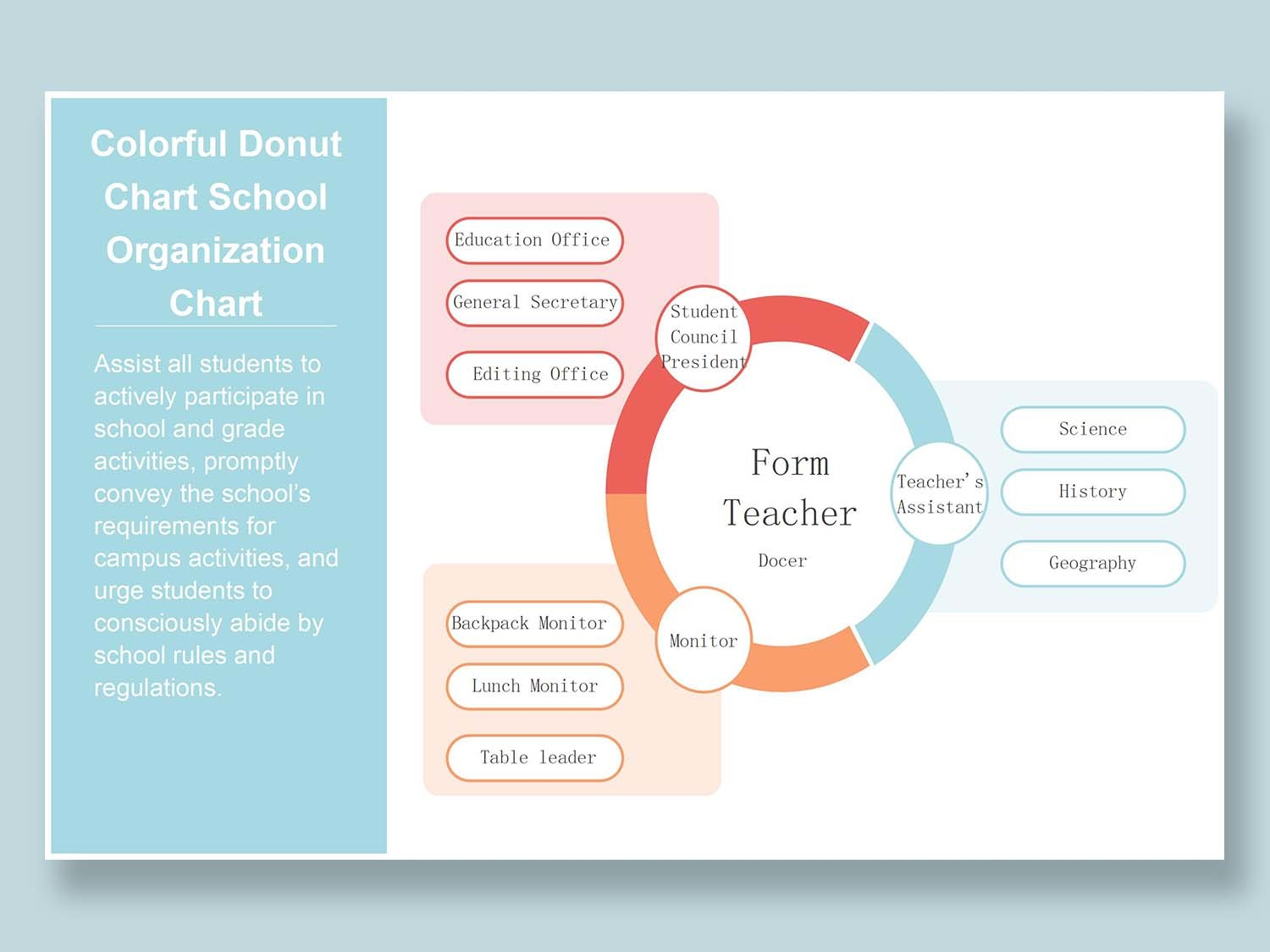
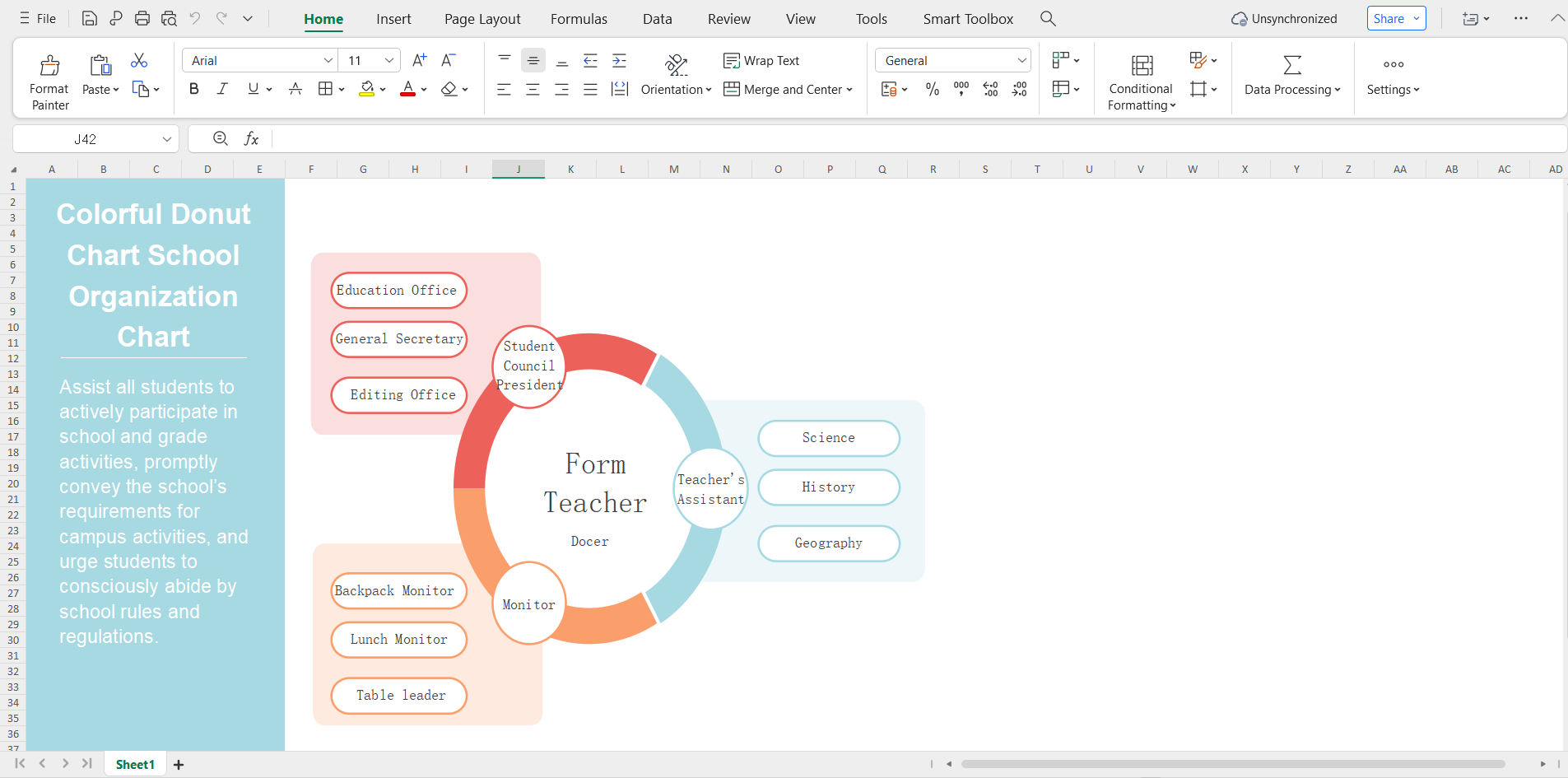
If you are looking for something simple and colorful for your school that doesn’t seem too complicated or advanced, then the School Organization Chart template would be the right choice for you. It features a simple visual diagram for the school roles, along with divisions for each department for easy understanding.
2. Functional Organizational Structure [Excel]
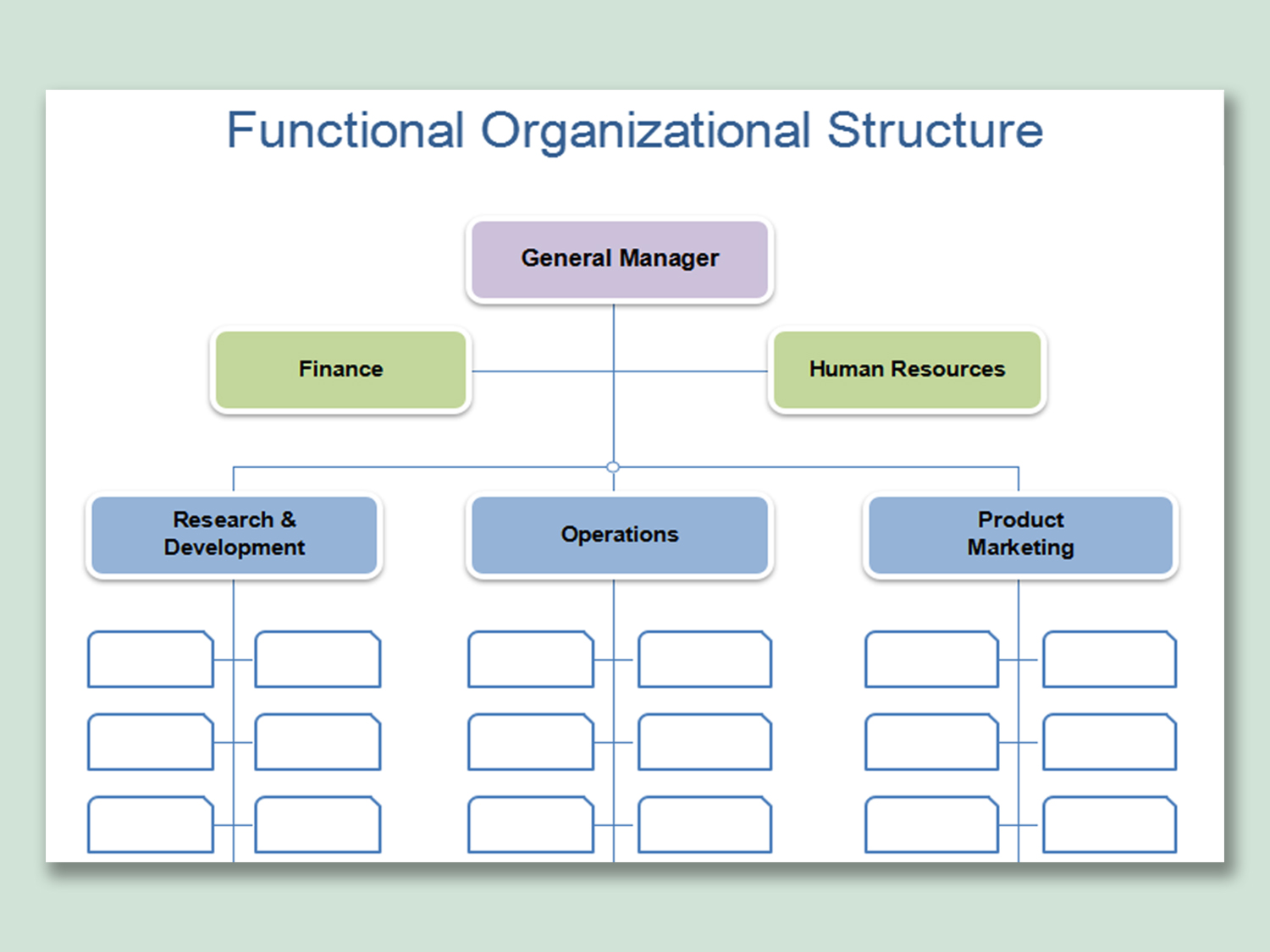
For those of you who want a simple, color-coded org chart to track the employees and their relationships, then going for the Functional Organizational Structure template would be a better option. It features all the employee roles listed in boxes, along with lines connecting each one together for a clear hierarchical representation.
3. Organization Chart of Company Personnel [Excel]
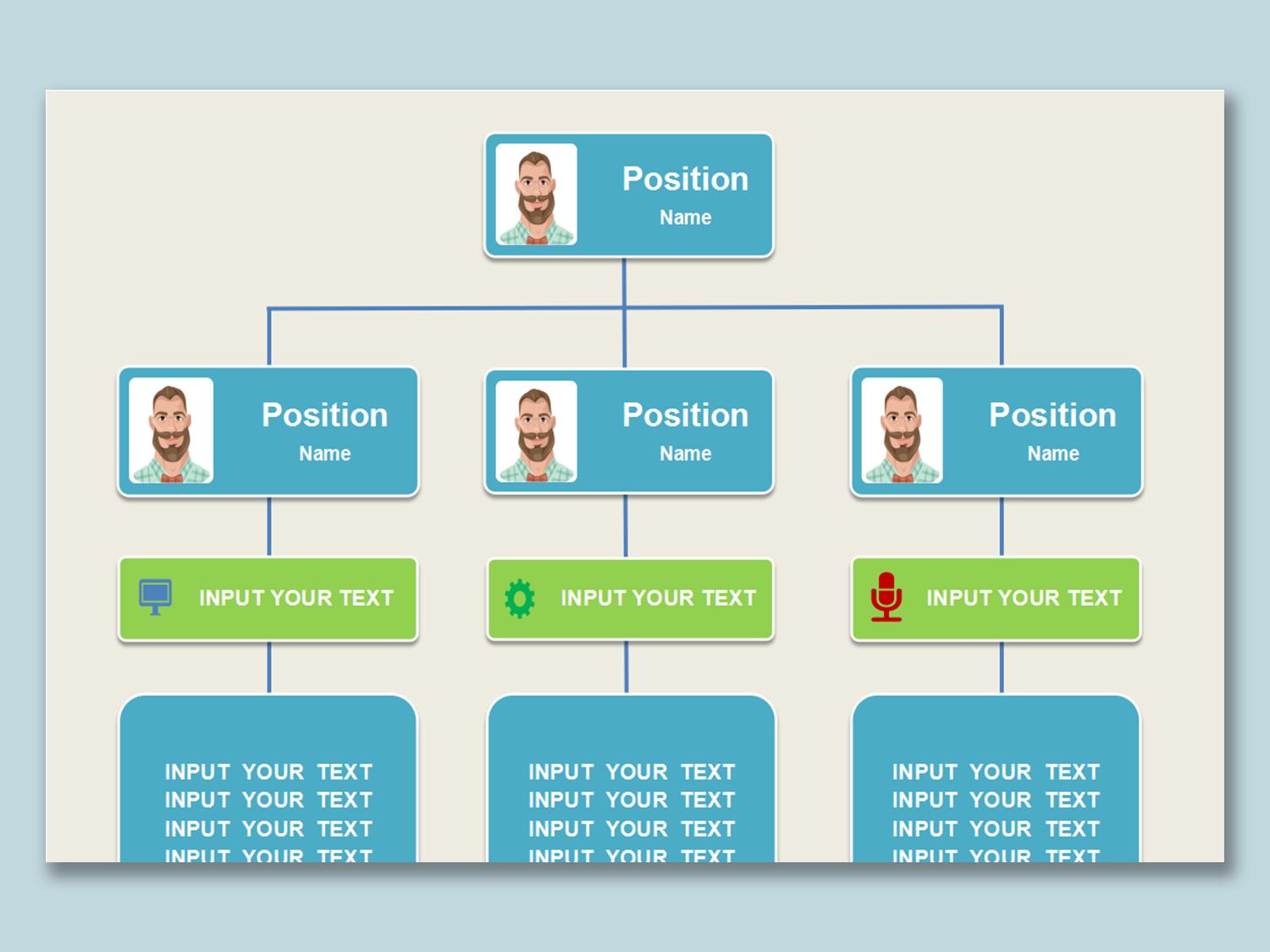
The Organization Chart of Company Personnel is perfect for professionals who want a lighthearted and clear org chart to show the relationships between company personnel. It features all employees listed in colorful boxes, along with their positions, names, and even pictures for easier understanding.
4. Simple Organization Chart [PPT]
If you are looking for an organization chart example that not only keeps track of every single employee but also helps you understand their role in a polished and professional manner, then the Simple Organization Chart would serve you well. It features a detailed breakdown of each employee, along with their roles and names, so everyone can understand the structure clearly.
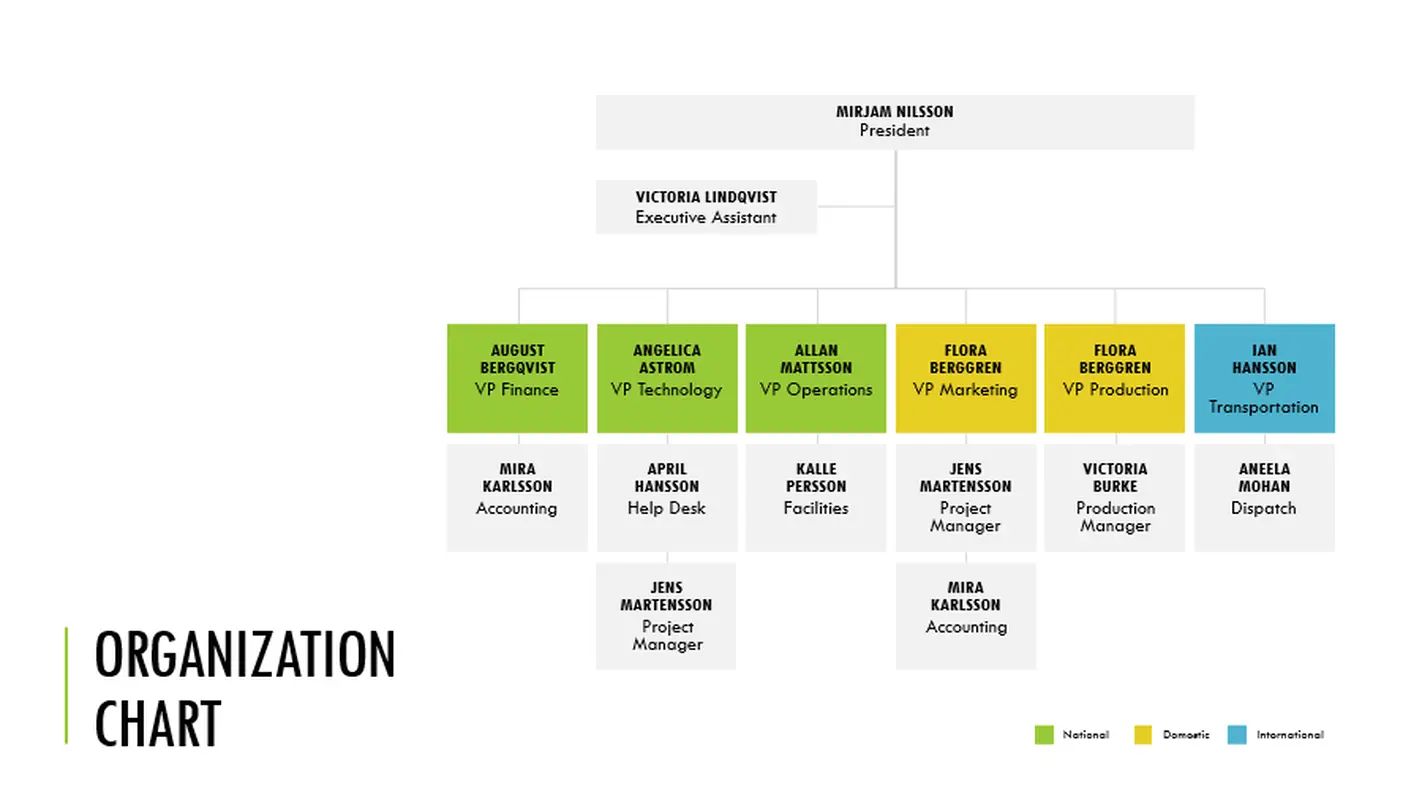
5. Minimal Organization Chart [PPT]
For those who want something more professional yet attractive to represent their company staff, the Minimal Organization Chart template might be a suitable option. It features a bunch of colourful boxes which contain details of each employee, connecting the whole company personnel together in a clear and easy-to-understand manner.
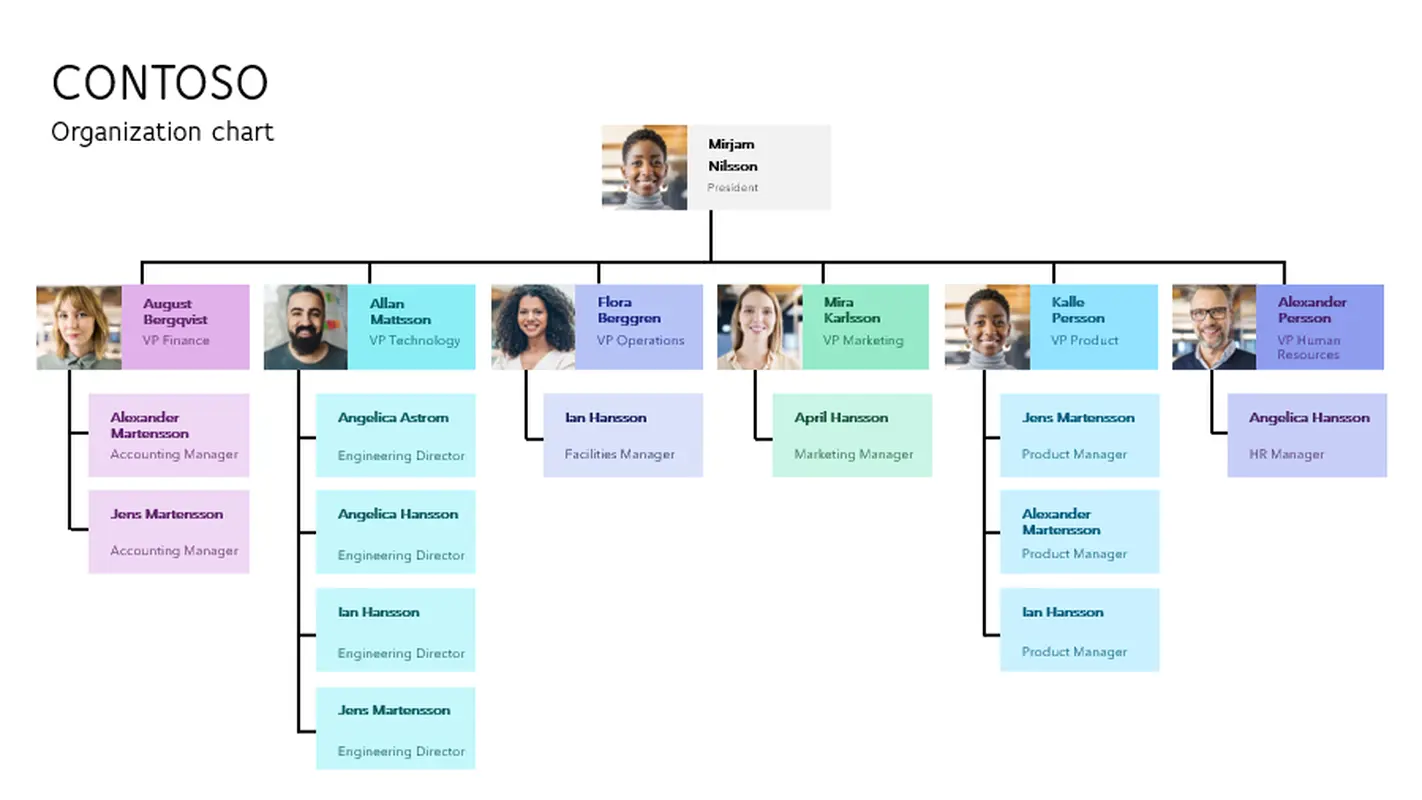
6. Team Organization Chart [PPT]
If you want an organization chart for your team that doesn’t overcomplicate things too much, then I would personally recommend the Team Organization Chart for your personnel tracking needs. It features colorful visuals for tracking employees and their roles in the company that make it really easy to understand the role of everyone.
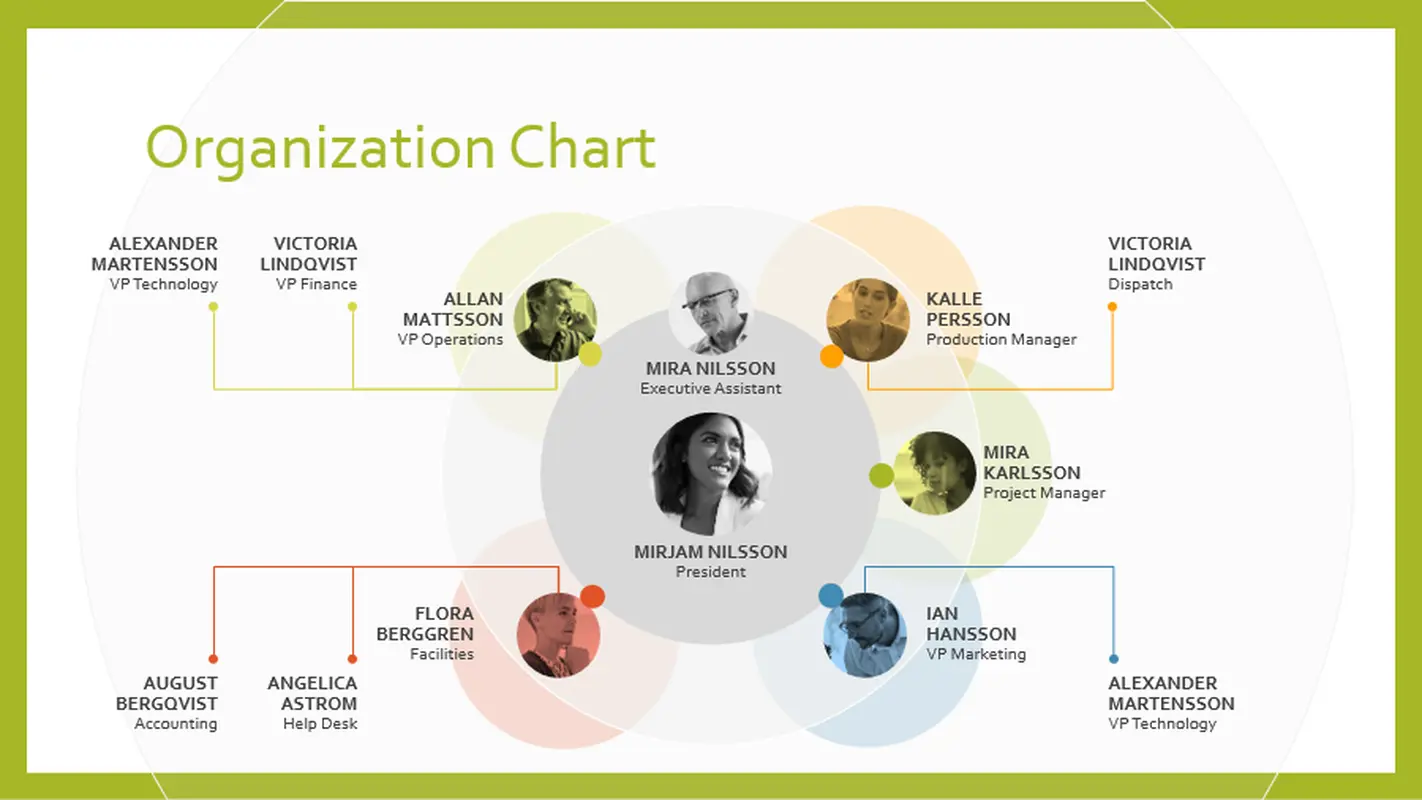
7. Organizational Chart For Small Business [Word, PPT]
For those of you looking for something a little more aesthetic for your small business, the Organizational Chart For Small Business is an ideal choice. It features a simple yet visually pleasing approach to forming an org chart by adding colorful elements to it and, ideal for straightforward tracking of your company staff without too much clutter.
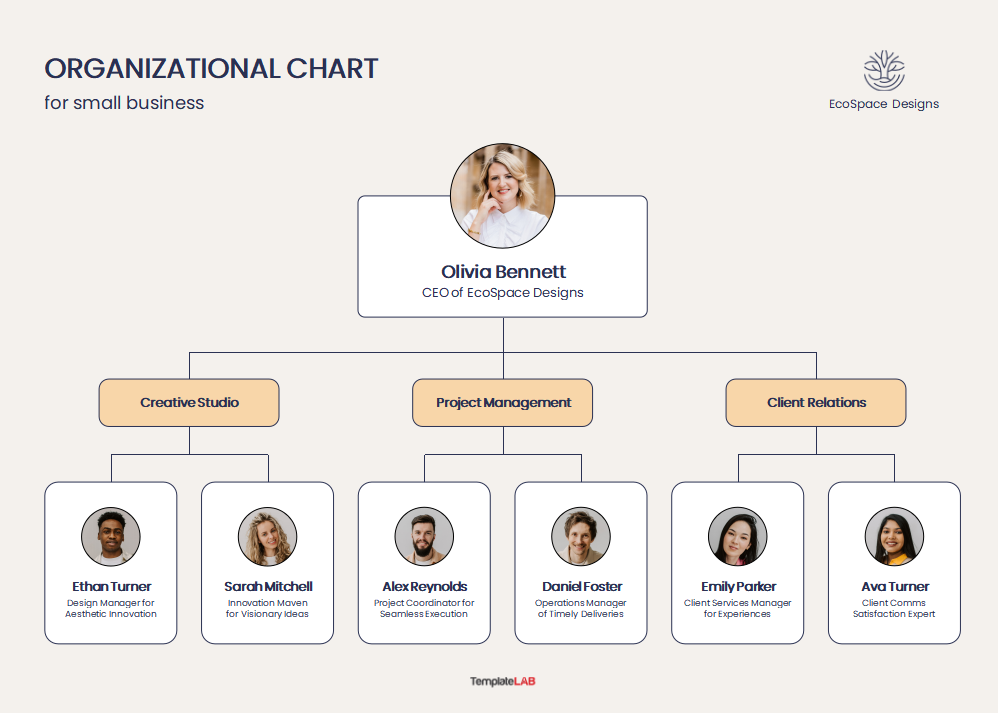
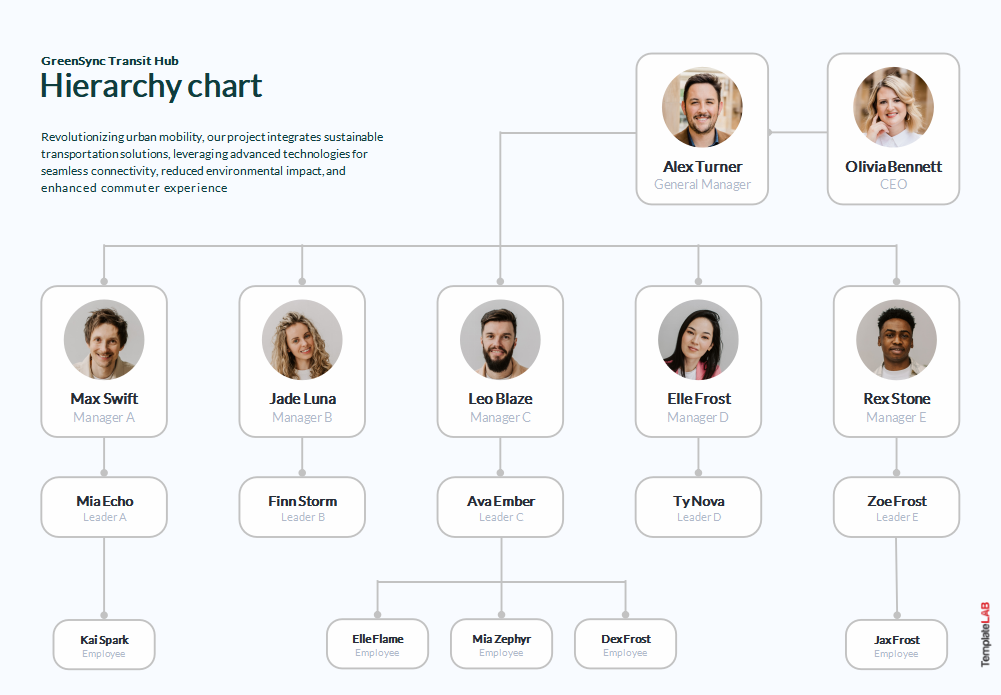
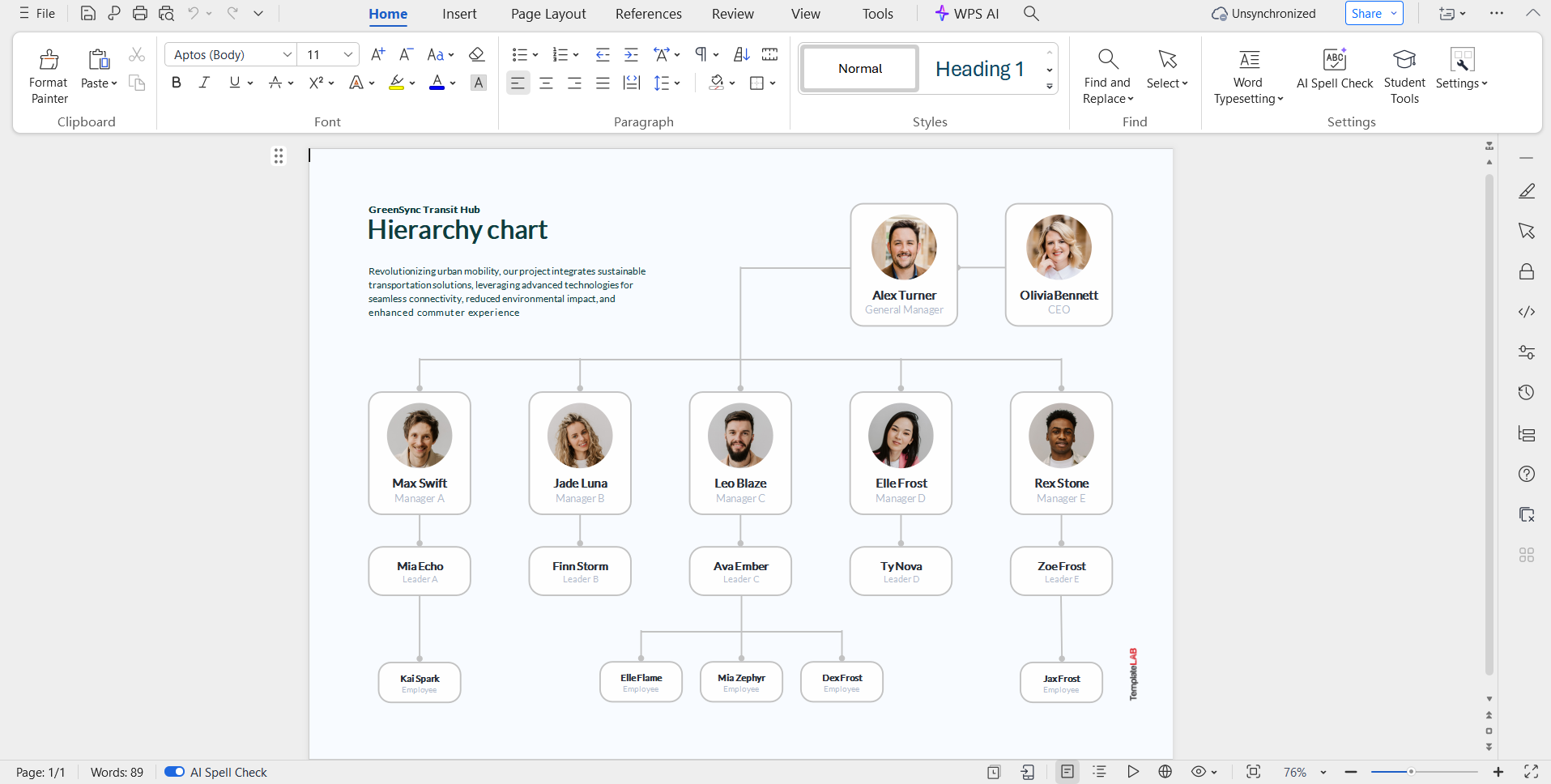
8. Hierarchy Chart Template [Word, PPT]
If you want a simple chart for tracking all of your employees in one place, without the hassle of extra and irrelevant elements, then the Hierarchy Chart Template is made for you. It features a plain white organizational diagram with all the employees and their roles listed, making sure you can keep track of everyone easily.
9. Church Organizational Chart [Word, PPT]
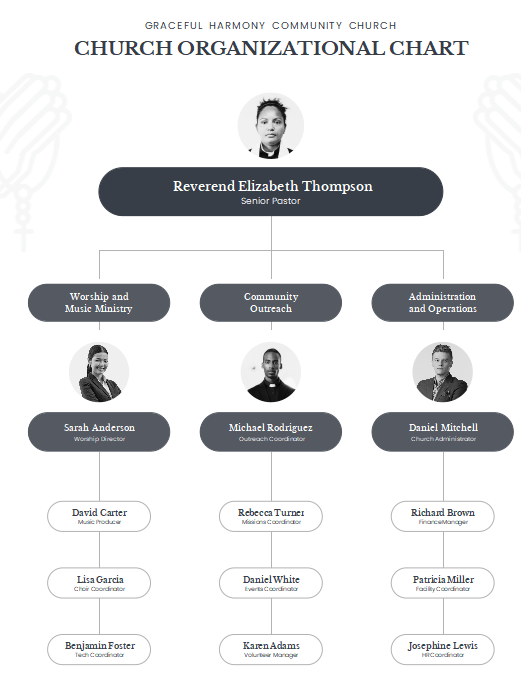
For those of you who want an organizational chart for their churches, then you can easily keep track of everyone working there using the Church Organizational Chart template. It features a black and white color scheme, including the photos, names, and the roles of each employee, connected with lines to show their relationships.
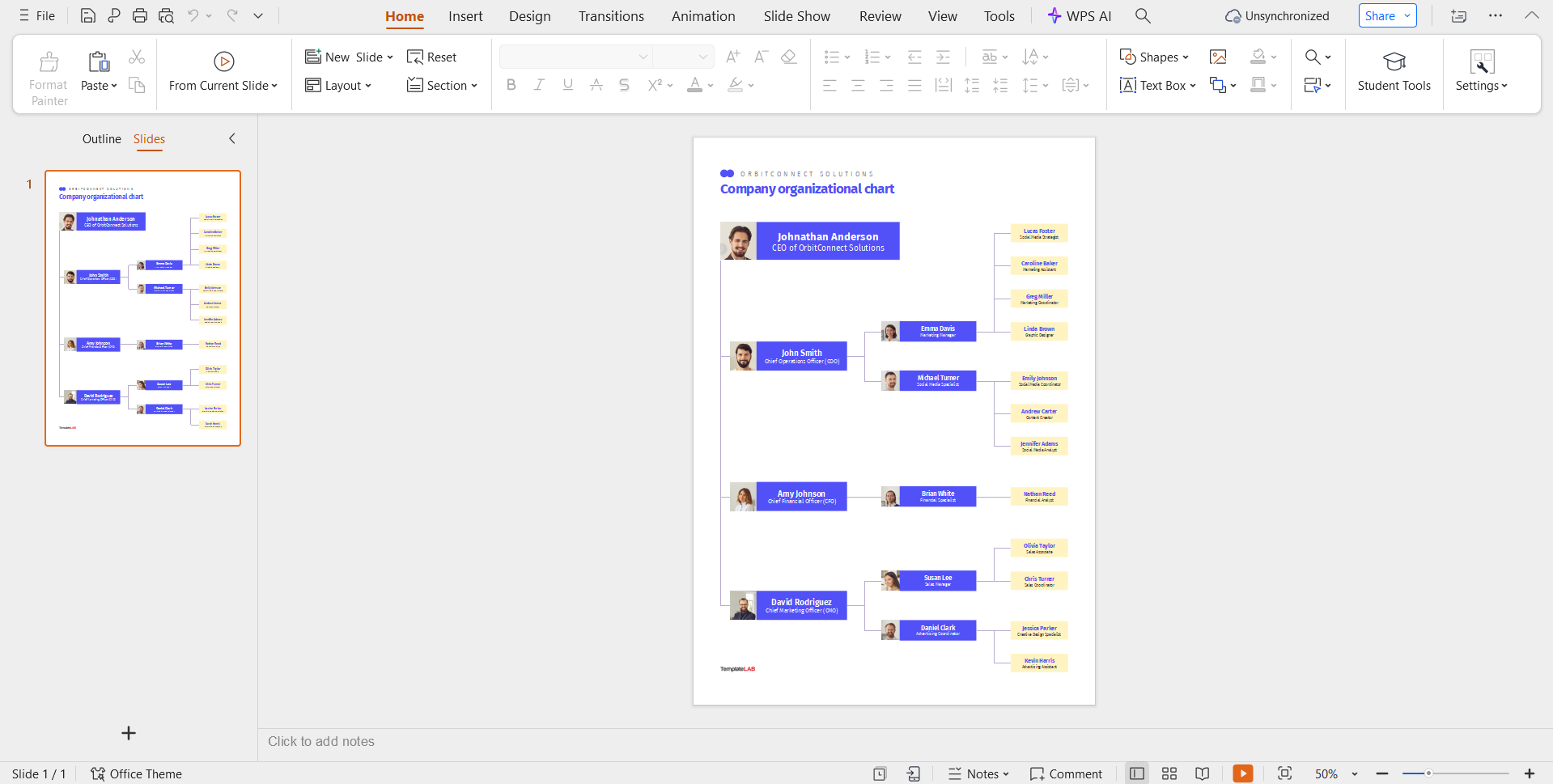
10. Company Organizational Chart [Word, PPT]
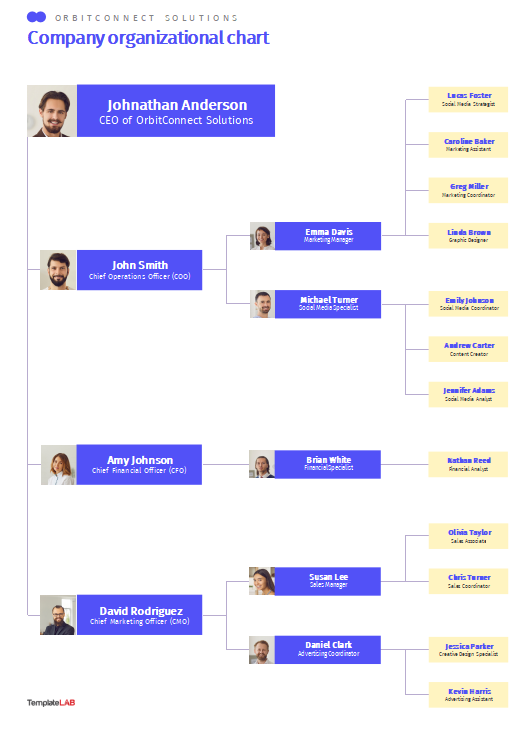
If you want your company to stand out from others through an org chart, then you should give the Company Organizational Chart a try. It offers a different approach and connects all the employees in a horizontal manner, establishing a clear chain of command that’s easy to understand.
I’ve used each of these templates myself and they’ve really helped me organize my company’s structure and employee relationships in a simple and straightforward manner. If none of these templates seem to be right for you, you can visit WPS Template and find many more that may fit your needs.
How to Edit Organizational Chart Template in Excel/Word/PPT
If you’ve decided what template you want to use for your company’s organizational chart, you can easily edit them using WPS Office. Whether your template is in Excel, Word, or even PPT format, WPS offers tools to edit and polish it however you like in just a few simple steps. In this section, I’ll walk you through the entire formatting process myself to clear out any confusion you might have.
How to Edit in Excel
If your org chart template is in Excel format, you can easily edit it through WPS Sheets. I’ll walk you through each step of the process myself.
Step 1: Open your organizational chart template in the WPS Office to get started.
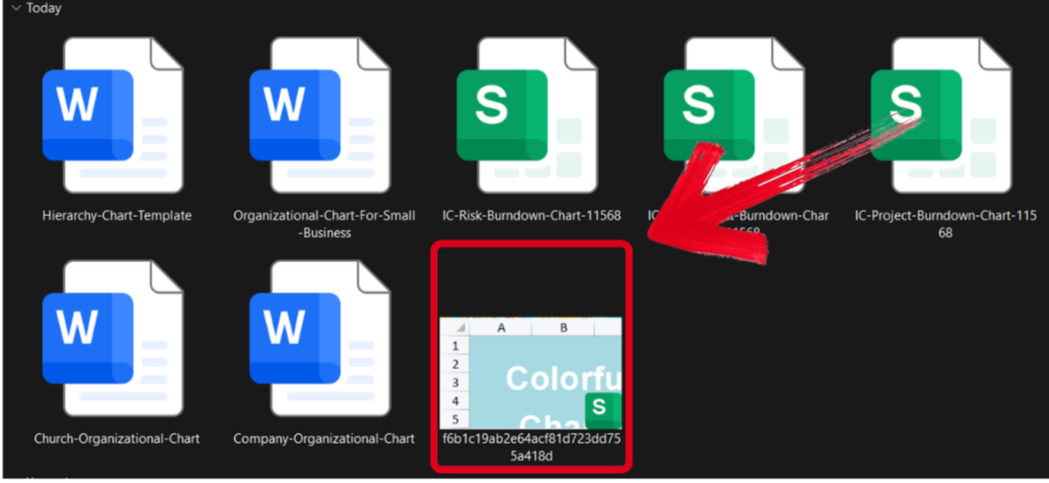
Step 2: Edit the template and add your own employees and their relationships for your company.
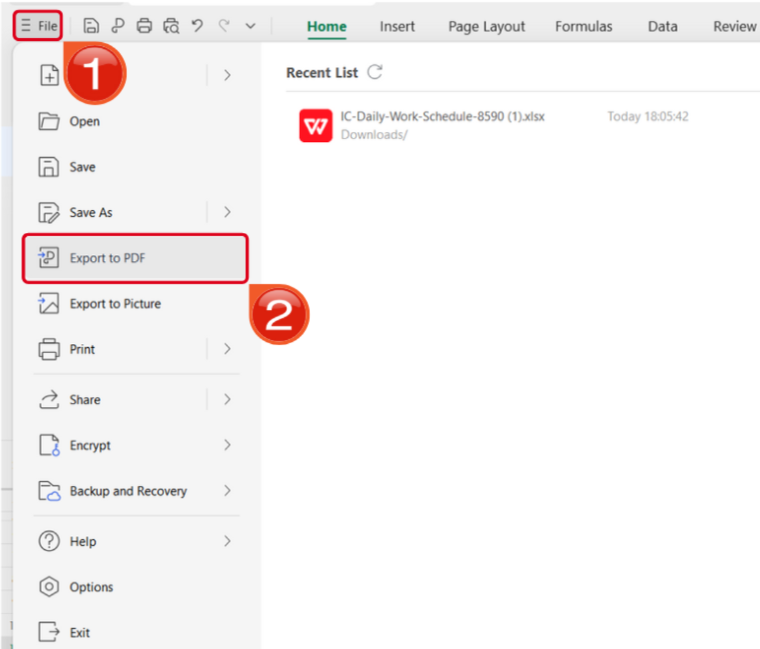
Step 3: Open the Files menu and select Export to PDF to convert your template to a PDF document.
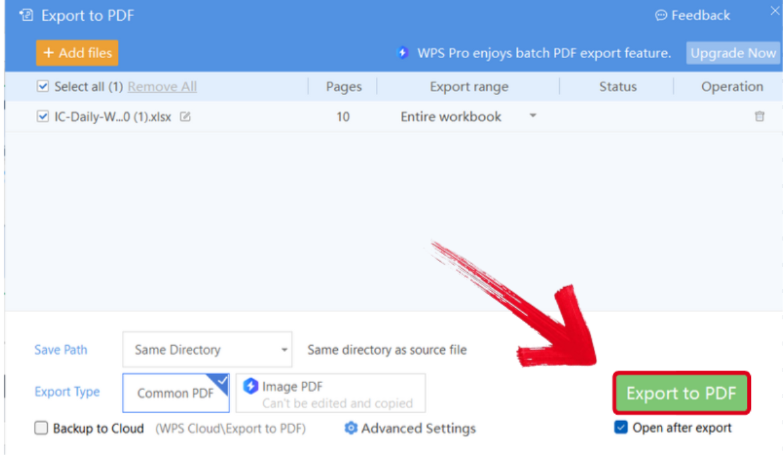
Step 4: Your Excel file will now start conversion into a PDF file. Press Export to PDF to save it to your device.
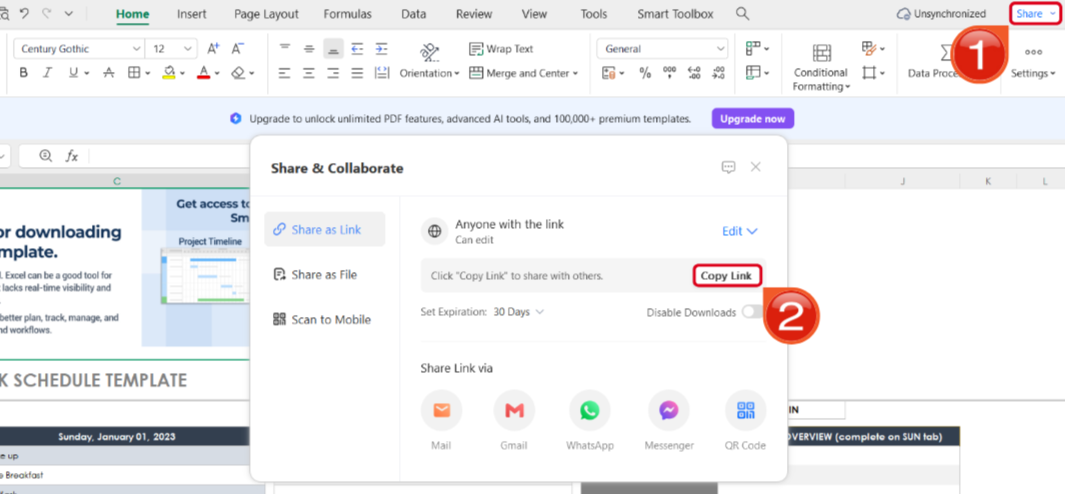
Step 5: Once you’re done saving it as a PDF, pressShare to generate an online link for your file. Then press Copy Link to copy it to your clipboard and share it with others.
How to Edit in Word
If your template is saved as a Word file, then editing it is even easier with WPS Office. I’ll walk you through each step myself so you don’t feel lost or confused.
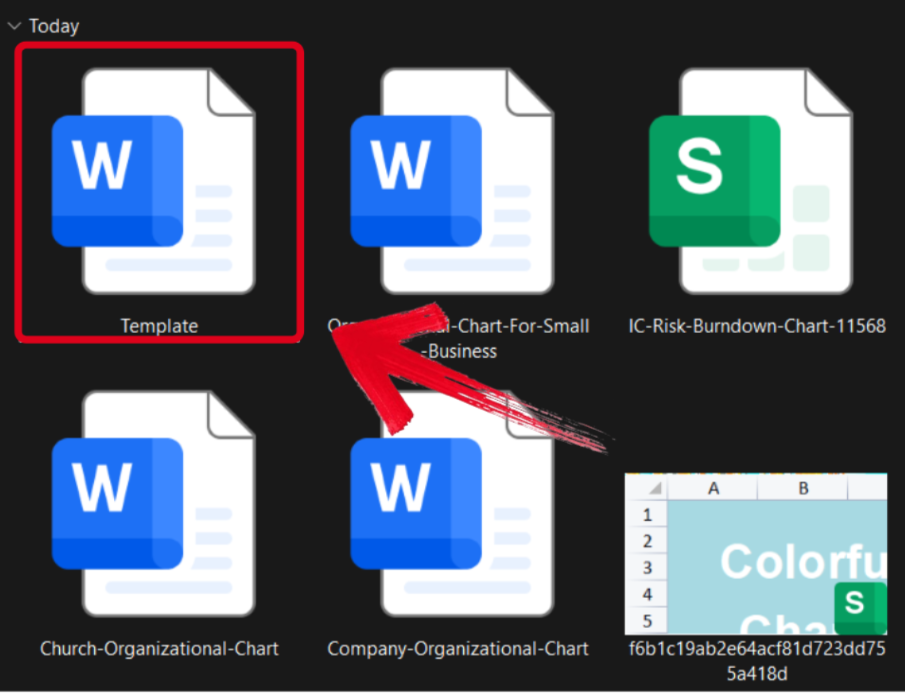
Step 1: Open your editable template in WPS Word to get started.
Step 2: Add in your own company’s personnel details and customize it to match your company’s theme.
Step 3: Navigate to the Files menu and select Export to PDF to convert your template to a PDF document.
Step 4: Your Word file will now start conversion into a PDF file. Press Export to PDF to download it to your device.
Step 5: After you’ve saved your template as a PDF, press Share to generate an online link for your file. Then press Copy Link to save it to your clipboard.
How to Edit in PowerPoint
If your file is saved in a PPT format, then you can customize it using WPS Office. I’ll show you how you can do this using just a few simple steps.
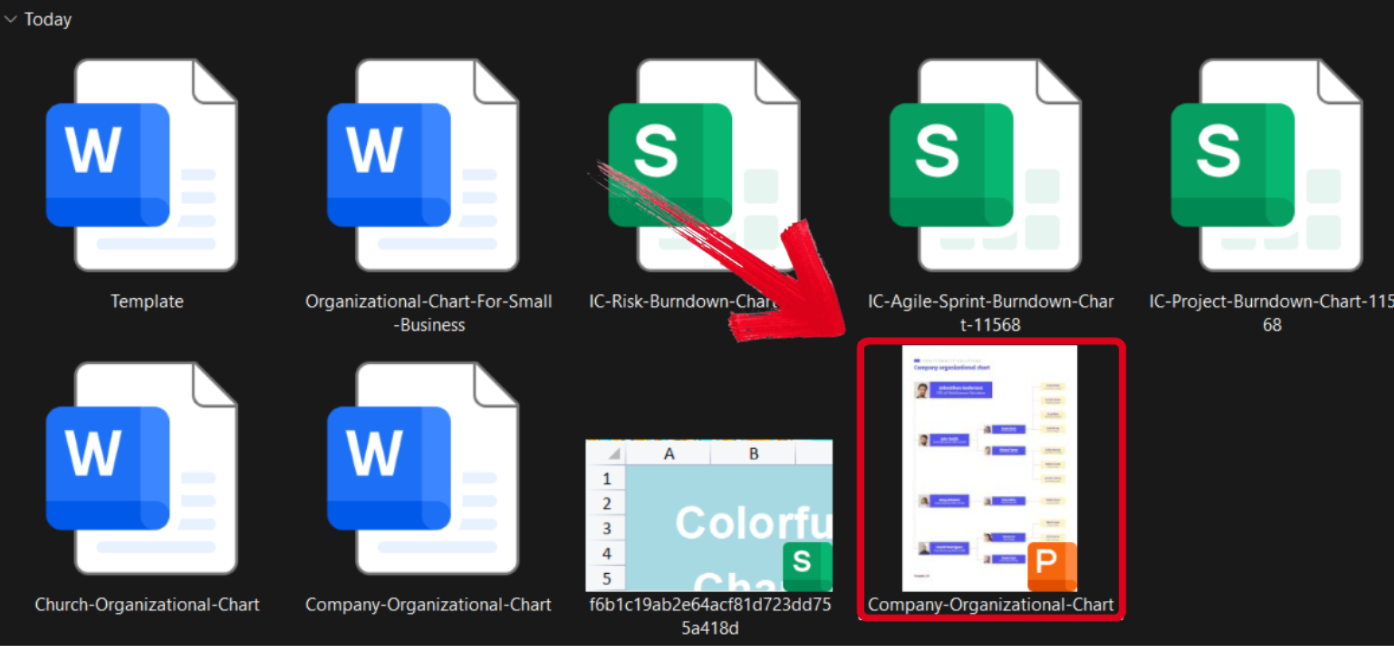
Step 1: Open your PPT-formatted template using WPS Office to get started.
Step 2: Customize the template to match the details and roles of your company.
Step 3: Open the Files menu and select Export to PDF to convert your template to a PDF document.
Step 4: Your PPT file will now start conversion into a PDF file. Press Export to PDF to save it to your device.
Step 5: Once you’re done saving it as a PDF, pressShare to generate an online link for your file. Then press Copy Link to copy it to your clipboard and share it with others.
Free Office Suite with Editable Templates
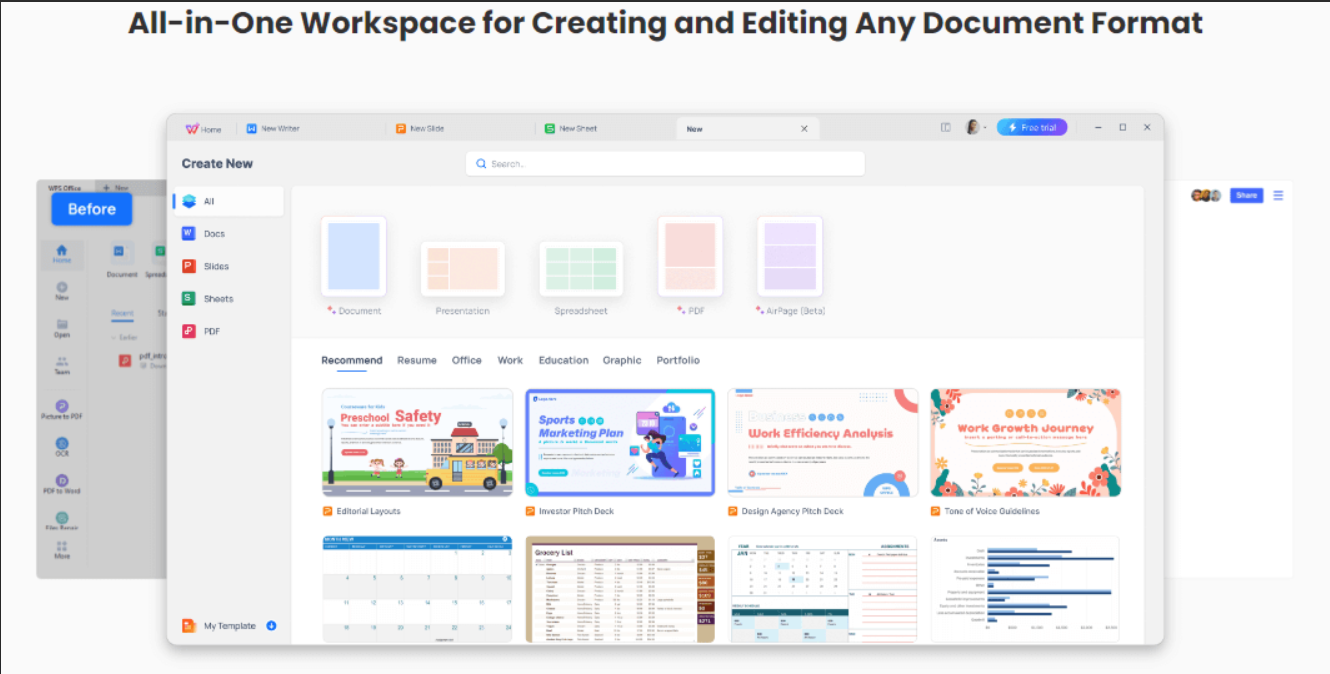
When I’m working on my organizational chart for the company, each minute is very valuable and I cannot waste any time on tools I don’t trust. This is why I only use WPS Office which makes sure my work gets done on time, without any delays or problems to slow me down. It equips me with all the features I need to use and format any template I want in just a few simple steps.
Features
Smart AI assistance to help you write
Completely free to use
A wide library of editable templates
Compatible with all office formats, including Word, Excel, and PPT.
Easy sharing through cloud syncing features
The templates are just one of the many features that WPS Office offers me. It has become my top choice for all my work tasks, whether it’s editing org chart templates or writing essays using the AI Writer.
FAQs
Q1. How do I make my org chart template look professional?
To give your chart a professional appearance:
Use a consistent design with one color scheme, font, and box style
Keep content concise by including only essential information in each box
Ensure readability with clear font sizes that work well on screen
Align all elements neatly using your software’s alignment tools
Q2. What’s the best file format to save my org chart?
It depends on how you plan to use it:
For sharing, save as a PDF or an image file (JPG/PNG) to preserve formatting and prevent edits
For updating, save in the native format of your software, such as .docx (Word), .pptx (PowerPoint), or .xlsx (Excel)
Q3. What software can I use to create an org chart?
Common options include:
Microsoft PowerPoint, Word, or Excel for simple charts
Google Slides or Google Docs for collaborative editing
Dedicated tools like Lucidchart, Canva, or Visio for more advanced customization
Q4. How detailed should my org chart be?
The level of detail depends on the purpose:
For internal use, include job titles, departments, and reporting lines
For external presentations, keep it high-level and avoid clutter
For small teams, you can include names and photos to make it more personal
Q5. Can I make my org chart interactive?
Yes. With digital tools, you can:
Add clickable links to employee profiles or department pages
Use collapsible sections to hide or expand details
Integrate with HR software to update roles automatically
Organizing Company Personnel Easily
Org charts are a great way to organize your company’s structure and make sure everyone understands the hierarchy and chain of command. Using free org chart templates, you can simplify this entire process and make one for yourself in just a few simple steps. In this guide, I’ve highlighted some of the templates I’ve personally used for my work and you can download any of them depending on your needs.
WPS Office offers a wide library filled with many different editable templates, along with all the features I need to polish them easily. It’s the perfect tool for anyone trying to boost their productivity without doing much effort.

'%3e%3cpath%20d='M19.9911%204.11386V6.471H18.5894C18.0775%206.471%2017.7322%206.57814%2017.5536%206.79243C17.3751%207.00671%2017.2858%207.32814%2017.2858%207.75671V9.44421H19.9019L19.5536%2012.0871H17.2858V18.8639H14.5536V12.0871H12.2769V9.44421H14.5536V7.49779C14.5536%206.39064%2014.8632%205.53201%2015.4822%204.92189C16.1013%204.31177%2016.9257%204.00671%2017.9554%204.00671C18.8304%204.00671%2019.509%204.04243%2019.9911%204.11386Z'%20fill='%23333333'/%3e%3c/g%3e%3cdefs%3e%3cclipPath%20id='clip0_2938_8199'%3e%3crect%20width='16'%20height='16'%20fill='white'%20transform='translate(8%204.00671)'/%3e%3c/clipPath%3e%3c/defs%3e%3c/svg%3e)
'%3e%3cpath%20d='M17.5237%2010.7813L23.4811%204H22.0699L16.8949%209.88693L12.7648%204H8L14.2469%2012.9029L8%2020.0133H9.4112L14.8725%2013.7952L19.2352%2020.0133H24M9.92053%205.04213H12.0885L22.0688%2019.0224H19.9003'%20fill='%23333333'/%3e%3c/g%3e%3cdefs%3e%3cclipPath%20id='clip0_2938_8200'%3e%3crect%20width='16'%20height='16.0134'%20fill='white'%20transform='translate(8%204)'/%3e%3c/clipPath%3e%3c/defs%3e%3c/svg%3e)


