

'%3e%3cpath%20d='M8%200C12.4183%200%2016%203.58172%2016%208C16%2012.4183%2012.4183%2016%208%2016C3.58172%2016%200%2012.4183%200%208C0%203.58172%203.58172%200%208%200ZM11.6162%204.38379C11.2257%203.99337%2010.5927%203.99338%2010.2021%204.38379L8%206.58594L5.79785%204.38379C5.40732%203.99334%204.77429%203.99329%204.38379%204.38379C3.99331%204.77429%203.99335%205.40733%204.38379%205.79785L6.58594%208L4.38379%2010.2021C3.99348%2010.5927%203.99341%2011.2257%204.38379%2011.6162C4.77426%2012.0066%205.40734%2012.0065%205.79785%2011.6162L8%209.41406L10.2021%2011.6162C10.5927%2012.0066%2011.2257%2012.0067%2011.6162%2011.6162C12.0067%2011.2257%2012.0066%2010.5927%2011.6162%2010.2021L9.41406%208L11.6162%205.79785C12.0066%205.40735%2012.0066%204.77429%2011.6162%204.38379Z'%20fill='%23080E17'%20fill-opacity='0.46'/%3e%3c/g%3e%3cdefs%3e%3cclipPath%20id='clip0_3761_713'%3e%3crect%20width='16'%20height='16'%20fill='white'/%3e%3c/clipPath%3e%3c/defs%3e%3c/svg%3e)




'%3e%3cpath%20fill-rule='evenodd'%20clip-rule='evenodd'%20d='M21.4999%2010.9993C21.4999%205.20009%2016.7986%200.498901%2010.9993%200.498901C5.19994%200.498901%200.498657%205.20009%200.498657%2010.9993C0.498657%2016.2404%204.33858%2020.5844%209.35855%2021.3722V14.0346H6.69238V10.9993H9.35855V8.68594C9.35855%206.05427%2010.9262%204.60062%2013.3248%204.60062C14.4736%204.60062%2015.6753%204.80571%2015.6753%204.80571V7.38979H14.3512C13.0468%207.38979%2012.64%208.19921%2012.64%209.0296V10.9993H15.5523L15.0867%2014.0346H12.64V21.3722C17.66%2020.5844%2021.4999%2016.2404%2021.4999%2010.9993Z'%20fill='%231568EA'/%3e%3c/g%3e%3c/svg%3e)


'%3e%3cpath%20d='M2.42045%2022.1876H6.31818V12.7217L0.75%208.54553V20.5171C0.75%2021.4414%201.49892%2022.1876%202.42045%2022.1876Z'%20fill='%234285F4'/%3e%3cpath%20d='M19.682%2022.1876H23.5797C24.5041%2022.1876%2025.2502%2021.4387%2025.2502%2020.5171V8.54553L19.682%2012.7217'%20fill='%2334A853'/%3e%3cpath%20d='M19.682%205.48293V12.7216L25.2502%208.54543V6.31816C25.2502%204.25236%2022.8921%203.07469%2021.2411%204.31361'%20fill='%23FBBC04'/%3e%3cpath%20d='M6.31824%2012.7217V5.48303L13.0001%2010.4944L19.6819%205.48303V12.7217L13.0001%2017.733'%20fill='%23EA4335'/%3e%3cpath%20d='M0.75%206.31816V8.54543L6.31818%2012.7216V5.48293L4.75909%204.31361C3.10534%203.07469%200.75%204.25236%200.75%206.31816Z'%20fill='%23C5221F'/%3e%3c/g%3e%3cdefs%3e%3cclipPath%20id='clip0_2954_7305'%3e%3crect%20width='24.5'%20height='18.375'%20fill='white'%20transform='translate(0.75%203.8125)'/%3e%3c/clipPath%3e%3c/defs%3e%3c/svg%3e)


You attach a photo and the site says the format is not supported. iPhones often save photos as HEIF or HEIC, while many forms, slide decks, and older apps still expect JPG. HEIF to JPG conversion keeps the same picture in a format more tools accept.
Below you will upload a HEIC file in your browser with the free WPS HEIC to JPG Converter, save the JPEG, and spot-check sharpness before you reuse the image. No WPS Photos app or desktop install is required for this path. If Windows cannot open HEIF locally, there is a short codec note at the end.
HEIF to JPG: Convert iPhone Photos to JPEG
When You Need HEIF to JPG
Reach for a converter when any of these show up:
Upload limits: A job portal, LMS, or CMS rejects
.heicbut accepts JPEG.Office workflows: You want the photo inside a report or PDF without asking everyone to install Apple codecs.
Batch archives: You copied a vacation folder off your phone and need JPG for a shared drive.
HEIF is efficient storage; JPG is wide compatibility. Converting once for delivery is normal. Keep the original HEIC if you might re-edit on the phone.
Convert HEIF to JPG with WPS Online
These steps use the browser-based HEIC to JPG Converter on wps.com. You can run them on Windows, Mac, or Chromebook as long as you have the HEIC file on that device.
Open wps.com/tools/heic-to-jpg in Chrome, Edge, Safari, or Firefox.
Click Upload HEIC or drag your
.HEIC/.HEIFfile onto the upload area.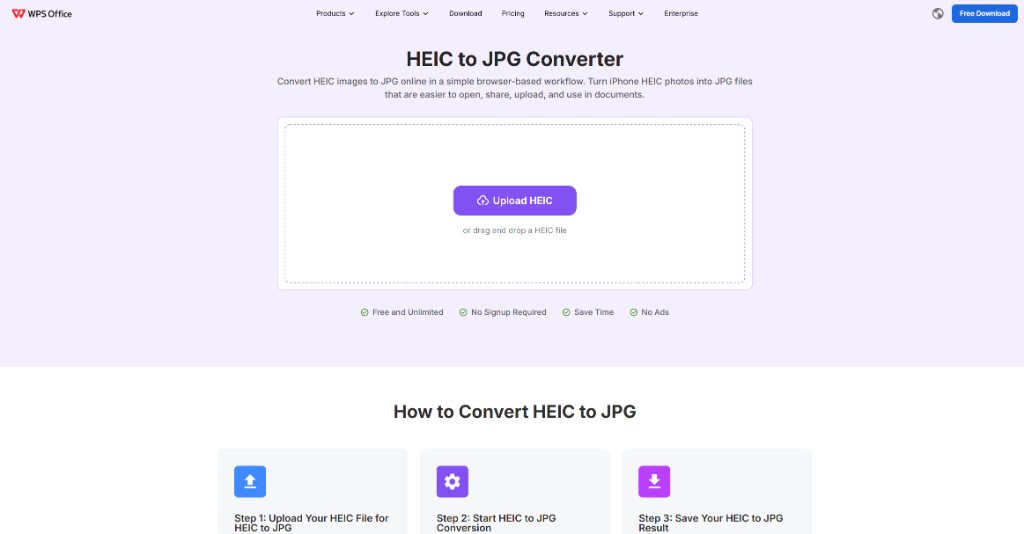
Upload HEIC on the WPS online converter
Wait for the conversion to finish. The page shows a preview of your JPG.
Download the JPEG to your computer, or click Open in WPS Office if you already use the desktop suite and want to edit the image there.
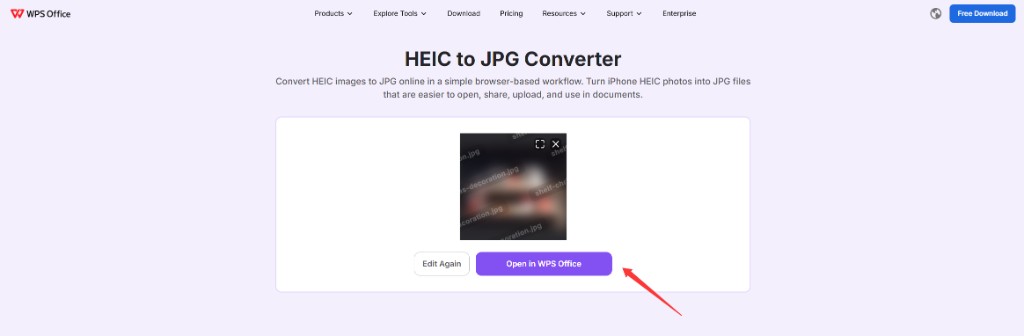
Preview after HEIC to JPG conversion
Open the saved JPG and zoom to 100% on a face or text in the scene. If it looks soft, try another export from the original HEIC master.
If upload fails, confirm the file extension is .heic or .heif and under the size limit shown on the page. For local-only batch work on Windows, install HEIF Image Extensions from the Microsoft Store and use the WPS desktop image converter instead.
Check the JPG After HEIF to JPG Conversion
After you download from the online tool, open the file in Photos, Explorer, or WPS to confirm it opens everywhere you need it.
File size: JPG is often larger than HEIC at the same visual quality. That is expected.
Quality slider: When the dialog offers 1–100, start at 90–100 for prints or slides; 80–85 is usually enough for web forms.
Re-save rule: Avoid opening a JPG and saving JPG again and again. Each pass can add artifacts. Convert from HEIC once, then edit exports from that JPG or from the original HEIC.
HEIF, HEIC, and JPG: Quick Comparison
HEIF / HEIC: Modern phone default; smaller files; not every desktop app opens it without codecs.
JPG / JPEG: Universal; lossy compression; best for sharing and uploads.
Same photo? A good HEIF to JPG export should match color you saw on the phone. If skin tones shift, check color profile settings or convert from the original HEIC again at higher quality.
Batch HEIF to JPG for Many Photos
When you offload a whole album:
Convert one HEIC at a time in the online HEIC to JPG tool, or drag files in the order you want if the page accepts multiple uploads.
Save each JPG into one output folder with clear names so you do not overwrite an older export.
Spot-check the first and last file before you delete the HEIC copies from your PC.
For large local batches without uploading, use the WPS desktop image converter after you copy HEIC files to your computer.
| WPS online HEIC to JPG | WPS desktop image converter | |
|---|---|---|
| Setup | Works in a browser; no install for the convert step. | Requires WPS Office on your PC. |
| Privacy | You upload HEIC to WPS for server-side convert; download JPG when done. | HEIC files stay on your PC during batch convert. |
| Batch albums | Best for a few files or one-off shares; repeat upload per photo if needed. | Select many HEIC files in one list with one quality setting. |
| After convert | Download JPEG or open in WPS Office from the result screen. | Open the JPG in Writer, Presentation, or PDF in the same suite. |
| Cost to start | Free online tool; no signup on the convert page. | Desktop convert and office tools in one free install. |
The Best Free Office Alternative: WPS Office
After HEIF to JPG, you can drop the JPEG into a report or slide without switching apps.
Convert phone photos on the desktop without a separate subscription tool.
Open the JPG in Writer, Presentation, or PDF when the project needs both text and images.
Keep HEIC masters on the phone or drive; export JPG only for delivery.
FAQs
Is HEIF the same as HEIC?
HEIC is Apple’s common container inside the HEIF family. Most converters treat .heic and .heif the same way.
Why will my PC not open HEIF?
Windows needs HEIF codecs from the Microsoft Store, or you can convert on the phone to “Most Compatible” JPEG before transfer.
Does HEIF to JPG reduce quality?
JPG is lossy. A high-quality export from HEIC usually looks fine for web and office use. Avoid repeated JPG saves.
Will conversion remove GPS or date metadata?
Some exporters strip location tags. Check the JPG properties before you publish photos publicly.
Can I convert HEIF to JPG on iPhone without a PC?
Yes. Settings → Camera → Formats → Most Compatible saves new shots as JPEG. For existing HEIC files, use Share → Save as JPEG, the WPS online HEIC to JPG tool on a PC, or the WPS desktop converter for batches.


Summary: HEIF to JPG
Upload HEIC at wps.com/tools/heic-to-jpg, download the JPG, and open the new file before you share or insert it. Keep the HEIC original if you might edit again.

'%3e%3cpath%20d='M19.9911%204.11386V6.471H18.5894C18.0775%206.471%2017.7322%206.57814%2017.5536%206.79243C17.3751%207.00671%2017.2858%207.32814%2017.2858%207.75671V9.44421H19.9019L19.5536%2012.0871H17.2858V18.8639H14.5536V12.0871H12.2769V9.44421H14.5536V7.49779C14.5536%206.39064%2014.8632%205.53201%2015.4822%204.92189C16.1013%204.31177%2016.9257%204.00671%2017.9554%204.00671C18.8304%204.00671%2019.509%204.04243%2019.9911%204.11386Z'%20fill='%23333333'/%3e%3c/g%3e%3cdefs%3e%3cclipPath%20id='clip0_2938_8199'%3e%3crect%20width='16'%20height='16'%20fill='white'%20transform='translate(8%204.00671)'/%3e%3c/clipPath%3e%3c/defs%3e%3c/svg%3e)
'%3e%3cpath%20d='M17.5237%2010.7813L23.4811%204H22.0699L16.8949%209.88693L12.7648%204H8L14.2469%2012.9029L8%2020.0133H9.4112L14.8725%2013.7952L19.2352%2020.0133H24M9.92053%205.04213H12.0885L22.0688%2019.0224H19.9003'%20fill='%23333333'/%3e%3c/g%3e%3cdefs%3e%3cclipPath%20id='clip0_2938_8200'%3e%3crect%20width='16'%20height='16.0134'%20fill='white'%20transform='translate(8%204)'/%3e%3c/clipPath%3e%3c/defs%3e%3c/svg%3e)


