

'%3e%3cpath%20d='M8%200C12.4183%200%2016%203.58172%2016%208C16%2012.4183%2012.4183%2016%208%2016C3.58172%2016%200%2012.4183%200%208C0%203.58172%203.58172%200%208%200ZM11.6162%204.38379C11.2257%203.99337%2010.5927%203.99338%2010.2021%204.38379L8%206.58594L5.79785%204.38379C5.40732%203.99334%204.77429%203.99329%204.38379%204.38379C3.99331%204.77429%203.99335%205.40733%204.38379%205.79785L6.58594%208L4.38379%2010.2021C3.99348%2010.5927%203.99341%2011.2257%204.38379%2011.6162C4.77426%2012.0066%205.40734%2012.0065%205.79785%2011.6162L8%209.41406L10.2021%2011.6162C10.5927%2012.0066%2011.2257%2012.0067%2011.6162%2011.6162C12.0067%2011.2257%2012.0066%2010.5927%2011.6162%2010.2021L9.41406%208L11.6162%205.79785C12.0066%205.40735%2012.0066%204.77429%2011.6162%204.38379Z'%20fill='%23080E17'%20fill-opacity='0.46'/%3e%3c/g%3e%3cdefs%3e%3cclipPath%20id='clip0_3761_713'%3e%3crect%20width='16'%20height='16'%20fill='white'/%3e%3c/clipPath%3e%3c/defs%3e%3c/svg%3e)



'%3e%3cpath%20fill-rule='evenodd'%20clip-rule='evenodd'%20d='M21.4999%2010.9993C21.4999%205.20009%2016.7986%200.498901%2010.9993%200.498901C5.19994%200.498901%200.498657%205.20009%200.498657%2010.9993C0.498657%2016.2404%204.33858%2020.5844%209.35855%2021.3722V14.0346H6.69238V10.9993H9.35855V8.68594C9.35855%206.05427%2010.9262%204.60062%2013.3248%204.60062C14.4736%204.60062%2015.6753%204.80571%2015.6753%204.80571V7.38979H14.3512C13.0468%207.38979%2012.64%208.19921%2012.64%209.0296V10.9993H15.5523L15.0867%2014.0346H12.64V21.3722C17.66%2020.5844%2021.4999%2016.2404%2021.4999%2010.9993Z'%20fill='%231568EA'/%3e%3c/g%3e%3c/svg%3e)


'%3e%3cpath%20d='M2.42045%2022.1876H6.31818V12.7217L0.75%208.54553V20.5171C0.75%2021.4414%201.49892%2022.1876%202.42045%2022.1876Z'%20fill='%234285F4'/%3e%3cpath%20d='M19.682%2022.1876H23.5797C24.5041%2022.1876%2025.2502%2021.4387%2025.2502%2020.5171V8.54553L19.682%2012.7217'%20fill='%2334A853'/%3e%3cpath%20d='M19.682%205.48293V12.7216L25.2502%208.54543V6.31816C25.2502%204.25236%2022.8921%203.07469%2021.2411%204.31361'%20fill='%23FBBC04'/%3e%3cpath%20d='M6.31824%2012.7217V5.48303L13.0001%2010.4944L19.6819%205.48303V12.7217L13.0001%2017.733'%20fill='%23EA4335'/%3e%3cpath%20d='M0.75%206.31816V8.54543L6.31818%2012.7216V5.48293L4.75909%204.31361C3.10534%203.07469%200.75%204.25236%200.75%206.31816Z'%20fill='%23C5221F'/%3e%3c/g%3e%3cdefs%3e%3cclipPath%20id='clip0_2954_7305'%3e%3crect%20width='24.5'%20height='18.375'%20fill='white'%20transform='translate(0.75%203.8125)'/%3e%3c/clipPath%3e%3c/defs%3e%3c/svg%3e)



In the age of digital storytelling, photos have become more than static images, their vessels of memories, emotions, and connections. Yet, we’ve all had those moments where a perfect group photo was missing someone important, or we wished we could appear in a dream destination without traveling there.
But while adding a person to a photo sounds simple, traditional editing tools demand expert level skill. Layers, masks, and lighting corrections, these often leave beginners frustrated with unrealistic results. So, the question is: How can you seamlessly add a person to a photo without advanced design skills or expensive software? This guide explores the best AI-powered tools and user-friendly apps to help you add people naturally and effortlessly, no professional editing required.


Part 1: Top Tools for Adding a Person to a Photo
1. Fotor
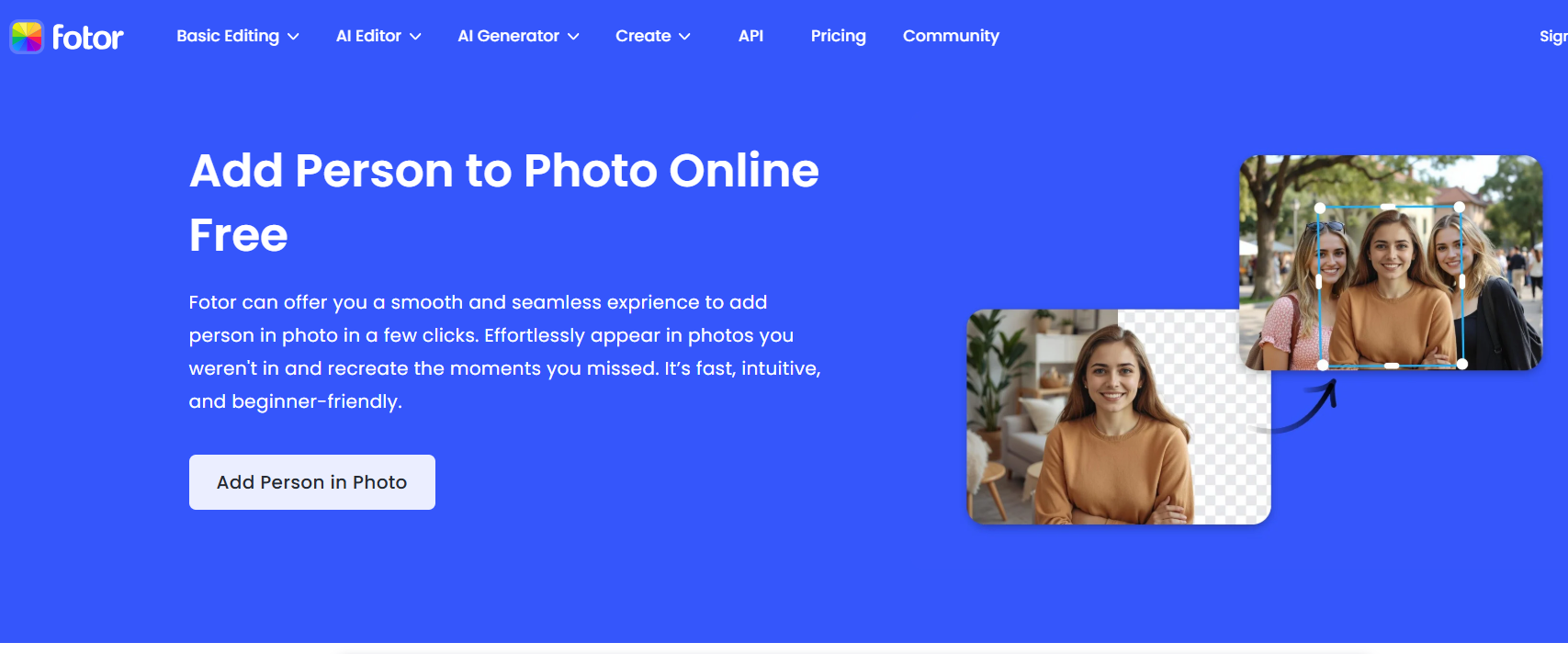
Fotor offers an intuitive, AI-powered platform that allows anyone to add people to photos with minimal effort. Its AI cutout tool can isolate subjects cleanly, making it ideal for beginners.
Features
AI background remover
Edge smoothing
Blend & color correction
Drag-and-drop editor
Price
Freemium; premium options available
How to Add a Person Using Fotor
Upload the base photo.
Use AI Cutout on the person’s photo.
Drag the cutout into your main image.
Adjust size, position, and blend.
Apply color correction and export.
Pros
Very beginner-friendly
Fast output
Online, no installation
Cons
Free version adds watermark
Limited advanced blending features
My Experience Using Fotor
Fotor is great when I need quick edits. The AI Cutout tool does most of the heavy lifting, and blending the person into the main image is fast. While the free version has limitations, it’s still good enough for simple edits.
2. PerfectCorp(YouCam Perfect)
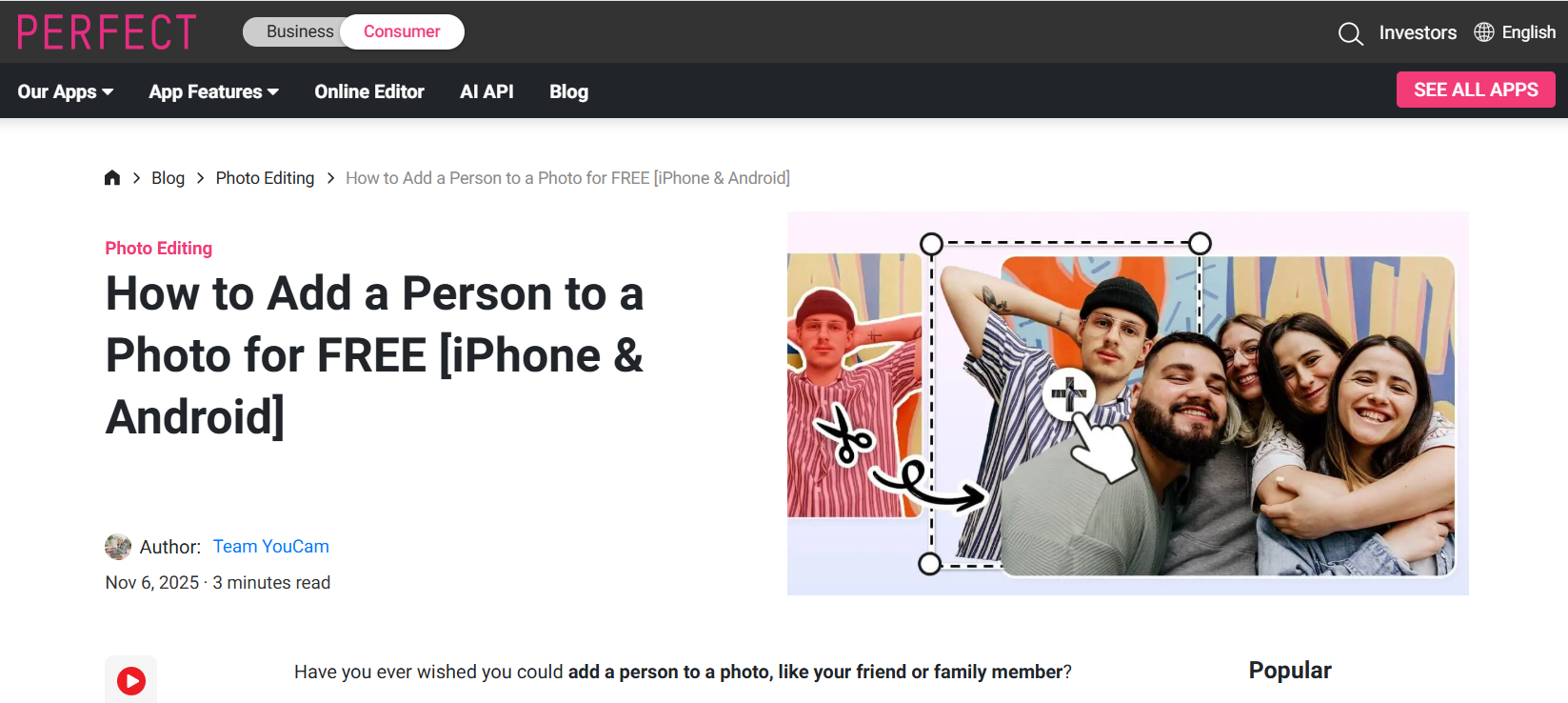
PerfectCorp specializes in facial-enhancement AI and AR effects. It’s ideal for mobile users wanting to add people to photos on the go.
Features
Auto cutout
Real-time AR preview
Facial retouching tools
Mobile-friendly controls
Price
Freemium
How to Add a Person with YouCam
Open the app and upload photos.
Apply the “Add Person” option.
Auto cutout removes backgrounds.
Use filters for blending.
Save to the gallery.
Pros
Real-time editing
Great for selfies and portraits
Easy to use
Cons
Precision cutouts sometimes require manual fixes
Ads in free tier
My Experience Using PerfectCorp
YouCam feels more like a fun, creative tool than a technical editor. It’s perfect for social media edits, and the AR cutout is impressive for quick composites.
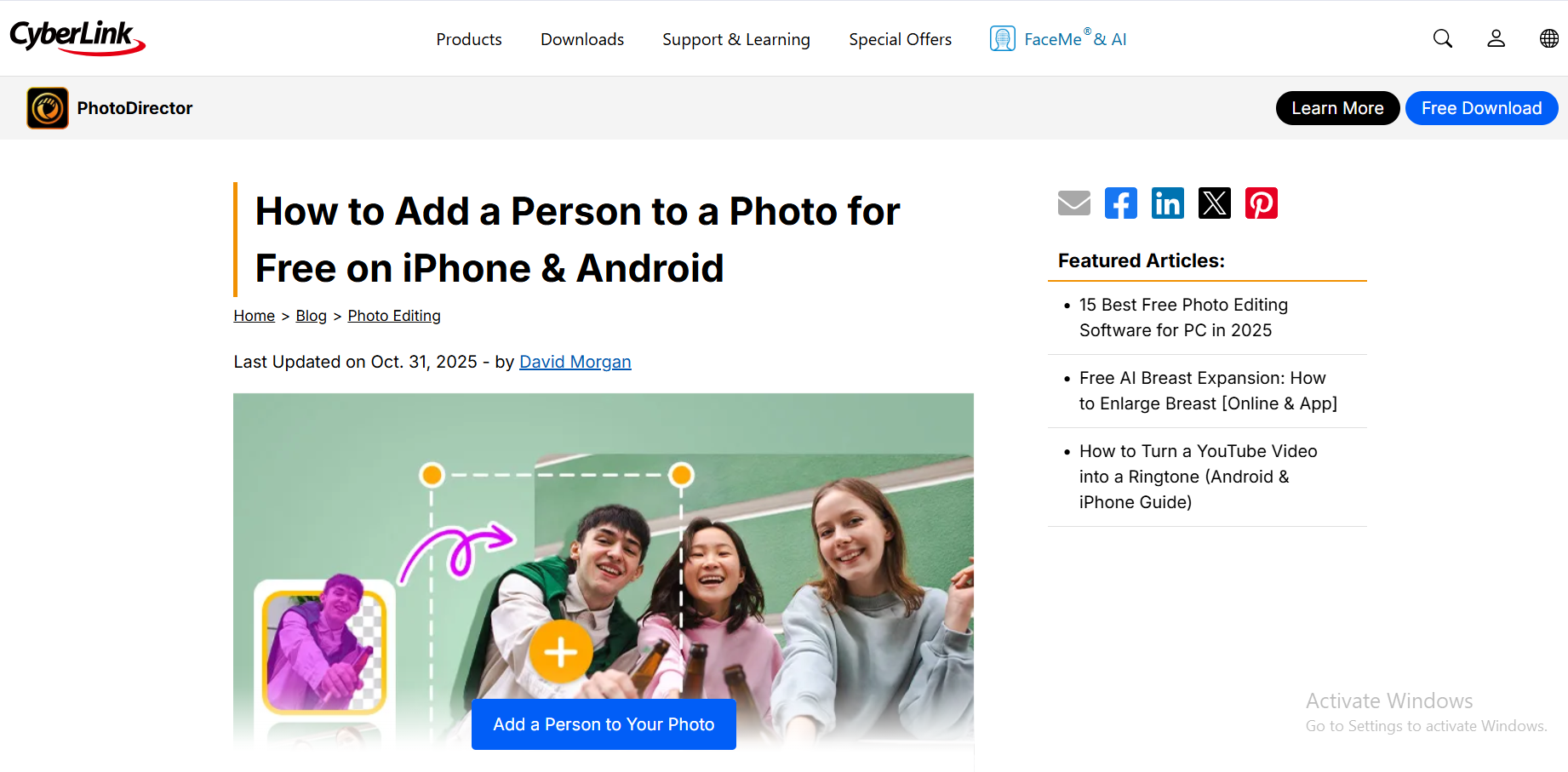
A full-fledged desktop editor ideal for users seeking precise control and high-quality results.
Features
Multi-layer editing
Manual masking
Lighting & color grading
Object blending tools
AI sky & color replacement
Price
Paid (with trial)
How to Add Someone Using PhotoDirector
Import both the main and personal photos.
Use the Cutout tool to isolate the person.
Insert into the base photo via layers.
Adjust lighting, shadows, and tone.
Export in high resolution.
Pros
Professional-grade control
Excellent blending features
Supports advanced compositions
Cons
Requires learning curve
Not ideal for fast edits
My Experience with PhotoDirector
When I need polished, realistic results especially for marketing materials, PhotoDirector is my go-to. It gives me granular control through layers and masking.
4. CapCut
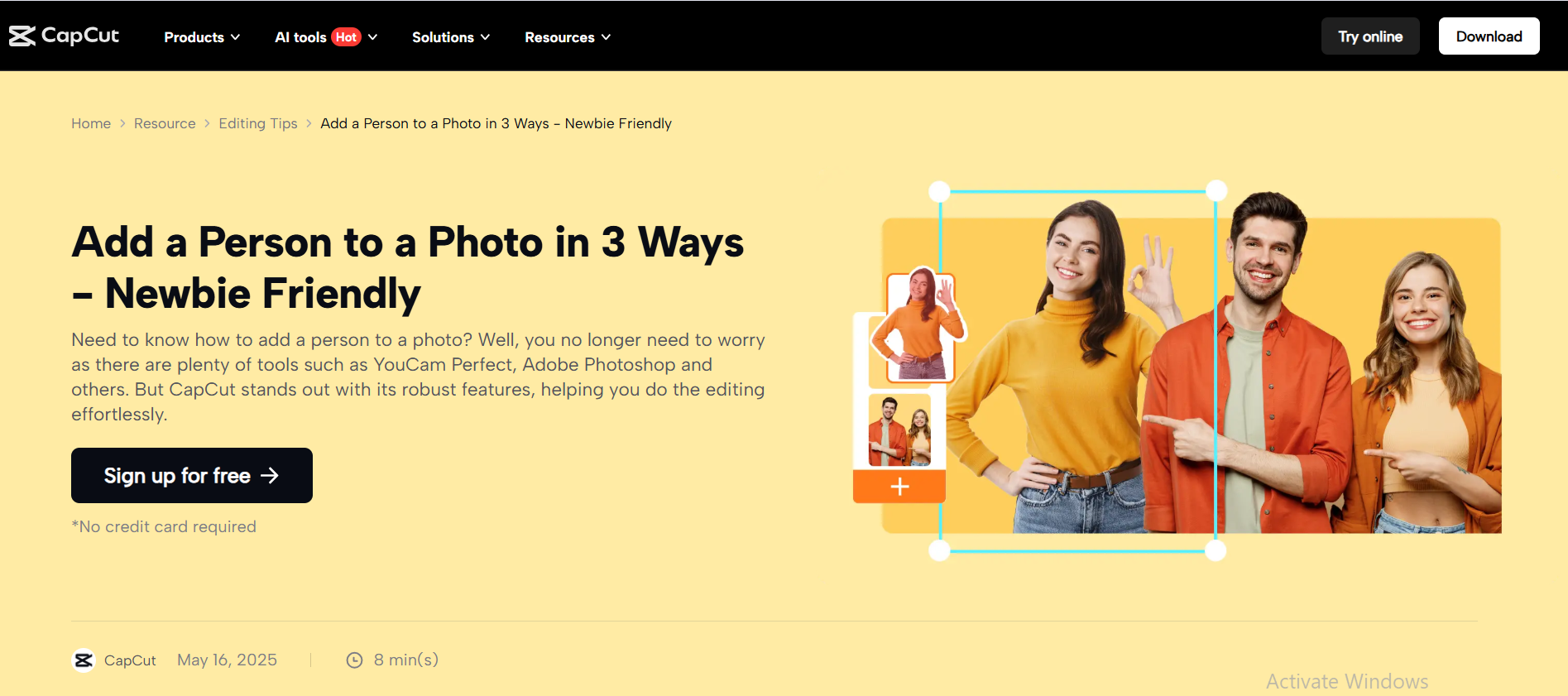
CapCut, widely known for video editing, also includes AI photo editing features that allow you to add people to photos easily.
Features
AI person cutout
Photo + video integration
Filters and color match
Web + mobile versions
Price
Freemium
How to Add a Person Using CapCut
Open a new project.
Add both images.
Use “Auto Cutout.”
Position the subject on the canvas.
Adjust filters to match tones.
Pros
Good for social media content
Fast and accessible
Works on phone or browser
Cons
Not designed for very precise edits
Best used for casual edits
My Experience with CapCut
CapCut is excellent for quick, TikTok ready edits. While it’s not as precise as desktop tools, the results are surprisingly good for simple composites.
Part 2: Comparison Table of Tools
| Tool | Type | Features | Pros | Cons | Price |
|---|---|---|---|---|---|
| Fotor | Online | AI cutout, blending | Beginner-friendly, fast | Watermark in free version | Freemium |
| PerfectCorp | Mobile | AR editing, auto cutout | Real-time filters | Less precise | Freemium |
| CyberLink PhotoDirector | Desktop | Layers, masks, pro blending | Professional results | Learning curve | Paid |
| CapCut | Mobile/Online | AI cutout, filters | Multi-format support | Better for video | Freemium |
Part 3: Enhance Your Editing with WPS AI Photo
Transition Paragraph
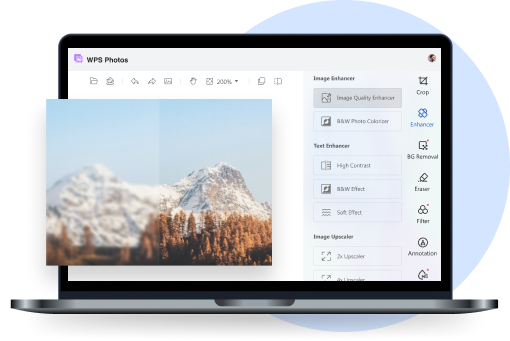
After exploring the best tools for adding people to photos, it becomes clear that creating a realistic composite requires more than just a cutout. You need consistent lighting, shadows, and color harmony. This is where WPS AI Photo excels. It not only helps you add people but ensures the entire image looks naturally cohesive.
Introducing WPS AI Photo: Your Smart Editing Assistant
My Personal Example Using WPS AI Photo
I recently used WPS AI Photo to add a colleague into a team photo. The AI Cutout feature isolated them cleanly, and the Color Match tool automatically adjusted tones so they blended perfectly. What impressed me most was how effortlessly the shadows and lighting adjusted, creating a realistic final image that looked professionally edited.
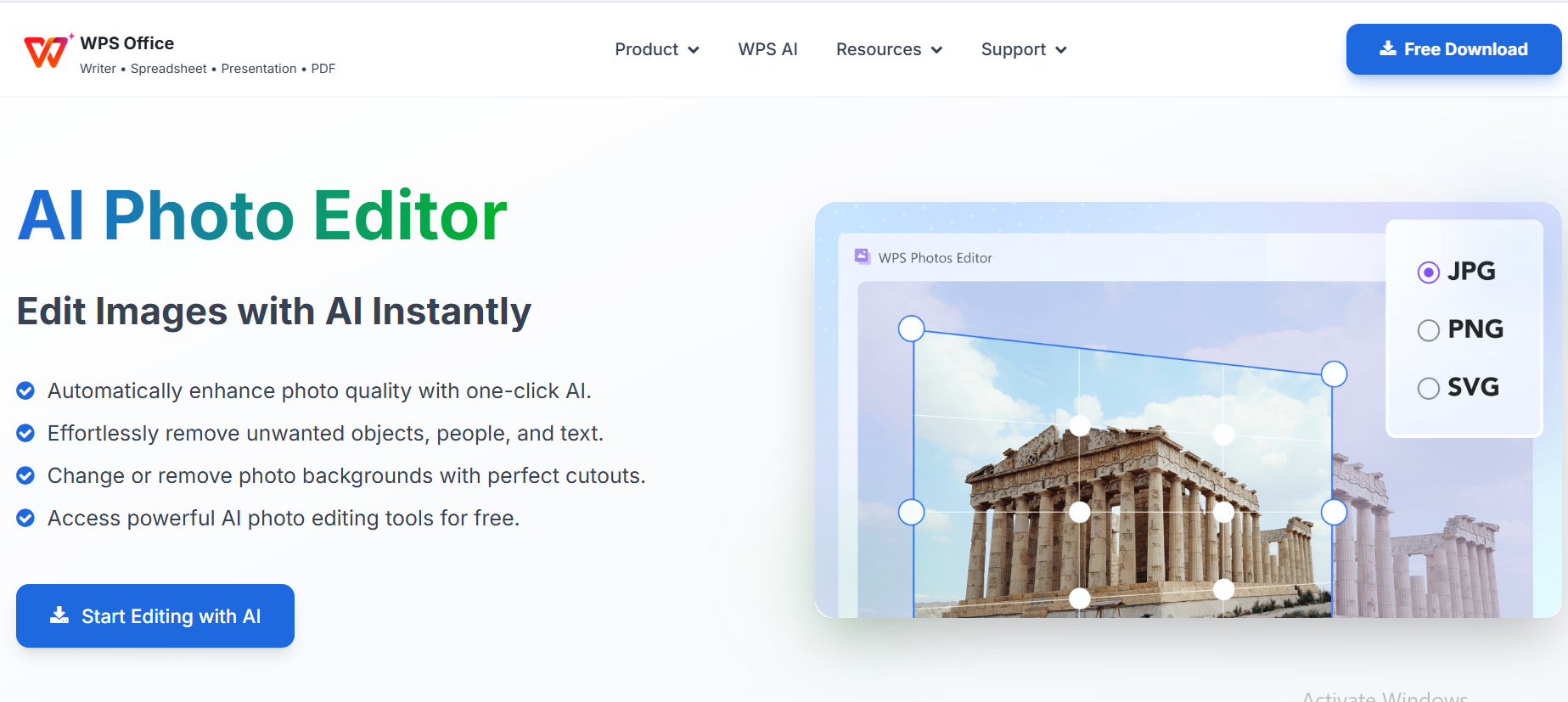
WPS AI Photo is part of the WPS Office suite, offering a powerful AI-driven environment for editing photos seamlessly.
Features
AI Cutout
AI Enhance
Color Match
Lighting correction
One-click filters
Smart shadows
Precision object adjustment
Pros
Strong AI automation
All-in-one editing suite
Blends people into images naturally
Cons
More advanced editing settings may overwhelm beginners
Best features in premium tire
How to Add a Person to a Photo Using WPS AI Photo?
Step 1: Prepare Your Base Photo and Person Photo. Choose both photos with good lighting and resolution.
Step 2: Open WPS AI Photo and Upload Base Image
Step 3: Use AI Cutout to Extract the
Person. Upload the person’s photo → Click AI
Cutout.
Step 4: Paste and Position the Person. Resize, rotate,
or flip as needed.
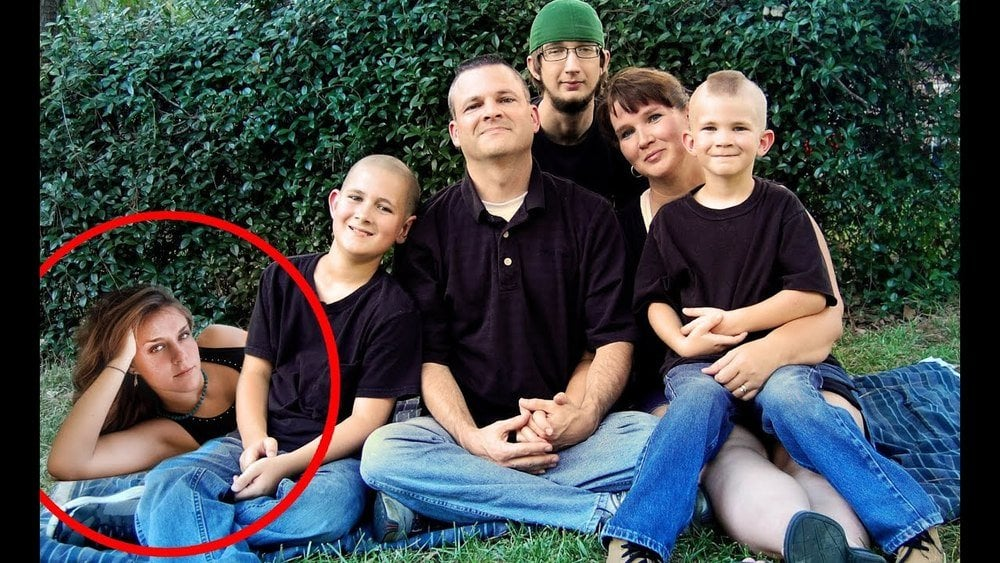
Step 5: Blend the Person Using AI Enhance. Use color matching and lighting correction tools for realism.
Step 6: Save and Export. Choose a high-resolution export format.
FAQs
Q1: Can I add a person to a photo for free?
Yes. Tools like Fotor and CapCut offer free versions. WPS AI Photo also provides free access with optional upgrades.
Q2: How can I make the added person look natural?
Ensure consistent lighting, shadows, and color tones. WPS AI Photo’s AI Enhance and Color Match tools help automate this step.
Q3: Do I need design skills for this?
No. AI editors simplify the process significantly.
Q4: Can I add multiple people to a photo?
Yes. Most tools allow you to repeat the cutout-and-paste process for multiple subjects.
Q5: What if the person’s photo has poor lighting?
Use tools like WPS AI Photo’s lighting enhancement feature to correct brightness and shadows before merging.

'%3e%3cpath%20d='M19.9911%204.11386V6.471H18.5894C18.0775%206.471%2017.7322%206.57814%2017.5536%206.79243C17.3751%207.00671%2017.2858%207.32814%2017.2858%207.75671V9.44421H19.9019L19.5536%2012.0871H17.2858V18.8639H14.5536V12.0871H12.2769V9.44421H14.5536V7.49779C14.5536%206.39064%2014.8632%205.53201%2015.4822%204.92189C16.1013%204.31177%2016.9257%204.00671%2017.9554%204.00671C18.8304%204.00671%2019.509%204.04243%2019.9911%204.11386Z'%20fill='%23333333'/%3e%3c/g%3e%3cdefs%3e%3cclipPath%20id='clip0_2938_8199'%3e%3crect%20width='16'%20height='16'%20fill='white'%20transform='translate(8%204.00671)'/%3e%3c/clipPath%3e%3c/defs%3e%3c/svg%3e)
'%3e%3cpath%20d='M17.5237%2010.7813L23.4811%204H22.0699L16.8949%209.88693L12.7648%204H8L14.2469%2012.9029L8%2020.0133H9.4112L14.8725%2013.7952L19.2352%2020.0133H24M9.92053%205.04213H12.0885L22.0688%2019.0224H19.9003'%20fill='%23333333'/%3e%3c/g%3e%3cdefs%3e%3cclipPath%20id='clip0_2938_8200'%3e%3crect%20width='16'%20height='16.0134'%20fill='white'%20transform='translate(8%204)'/%3e%3c/clipPath%3e%3c/defs%3e%3c/svg%3e)


