Creating professional diagrams manually is time-consuming and often
requires professional design skills. While many AI tools promise to
automate this process, most of them never deliver and are a waste of
money. With numerous AI tools available, it’s essential to evaluate each
tool's pros and cons to ensure it's the right fit for your needs. This
guide evaluates four leading diagram AI tools to help you identify the
perfect fit and demonstrates how to integrate your visuals into a
cohesive presentation using WPS AI Slides.
Diagram AI
Top 4 Diagram AI
Tools – Features, Pros, and Cons
With dozens of platforms claiming to be the best, finding the one
that actually fits a specific workflow is a challenge. After trial and
error, I was able to pick four of the best Diagram AI tools, each
dominating a specific niche, from technical engineering to creative
design, ensuring you find the perfect partner to elevate your
productivity.
1. Eraser
Eraser is a
specialized whiteboard and diagramming platform designed primarily for
engineering and development teams. Unlike generic design tools, it
focuses on the specific needs of technical documentation, allowing users
to embed code and diagrams side-by-side in a distraction-free
environment.
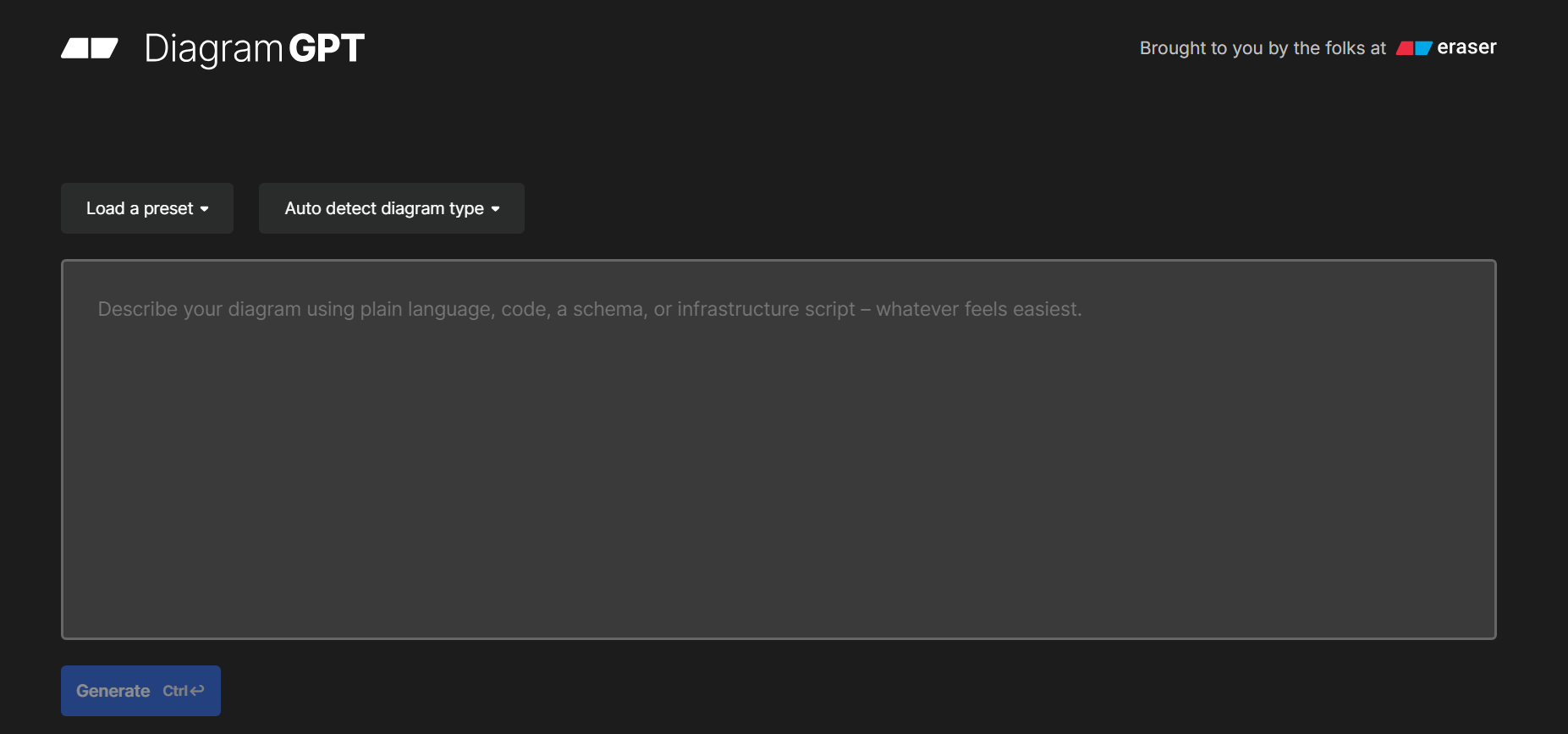
Eraser DiagramGPT
Its standout feature is DiagramGPT, which allows anyone to generate
complex technical architectures or flowchartssimply by typing natural language prompts or pasting code snippets. This
makes it uniquely suited for rapid prototyping of cloud infrastructures
or entity-relationship diagrams without manually dragging and dropping
boxes.
Features:
DiagramGPT: Converts text prompts and code into
flowcharts, cloud architectures, and sequence diagrams.
Markdown Support: Allows users to write docs and
diagrams side-by-side.
Syntax Highlighting: Optimized for technical
documentation.
Pros:
Extremely fast for generating technical diagrams (UML, Cloud
Architecture).
Clean, distraction-free interface loved by developers.
Strong integration with GitHub and Notion.
Cons:
Limited customization for artistic or non-technical visual
styles.
Fewer export formats compared to general design tools.
2. EdrawMax
EdrawMaxserves as a comprehensive, all-in-one diagramming powerhouse that rivals
industry standards like Microsoft Visio. It is designed to handle
everything from intricate floor plans to detailed electrical diagrams,
making it a favorite for engineers, business analysts, and corporate
environments that require high-precision visuals.
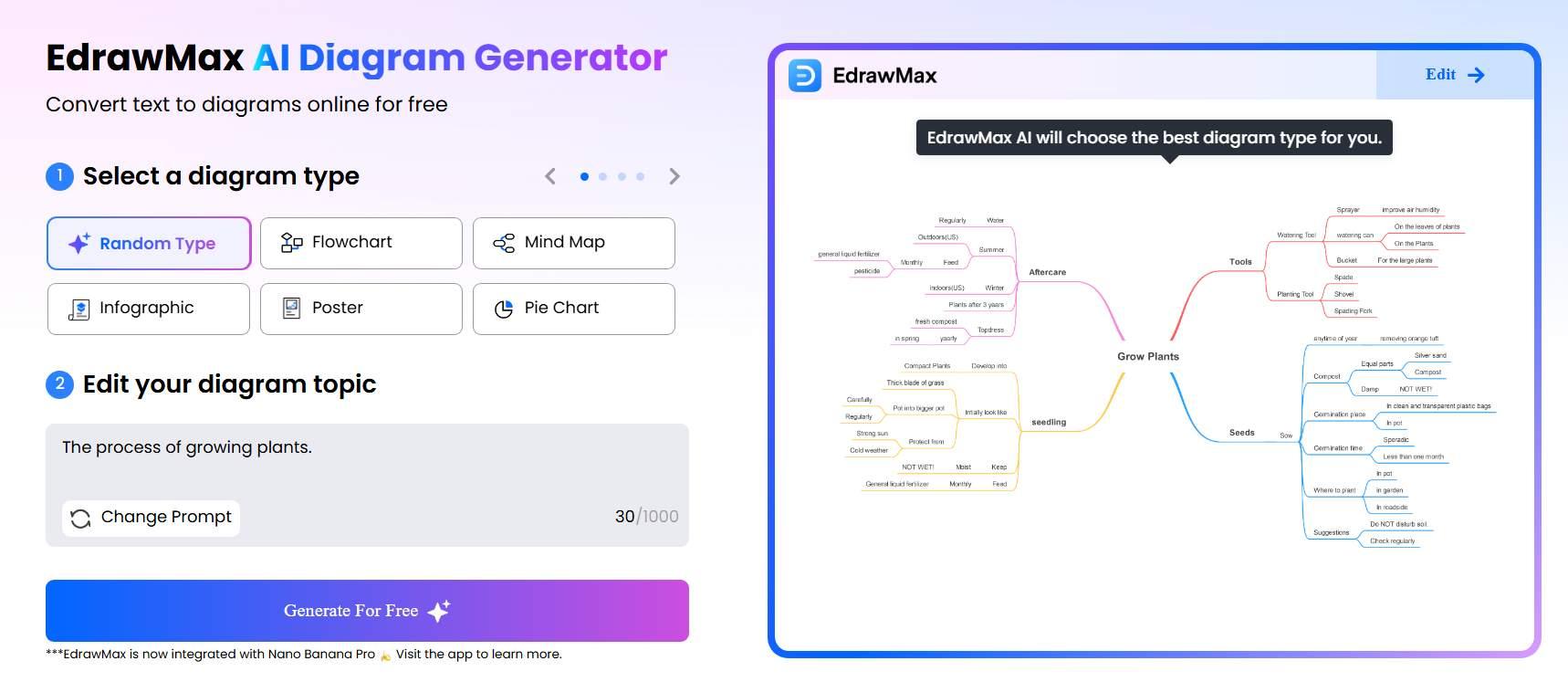
EdrawMax Diagram Generator
It has a deep integration of AI for both generation and digitization.
It features OCR capabilities to extract text from images to create
editable diagrams and offers an enormous library of over 280 diagram
types. This ensures that whether you are mapping a network or an org
chart, there is a professional, AI-enhanced template ready to use.
Features:
AI Diagram Generation: Creates timelines, SWOT
analyses, and mind maps from simple prompts.
OCR Scanning: Extracts text from images to
create editable diagrams.
Huge Template Library: Access to over 280
diagram types.
Pros:
Professional-grade customization with extensive shape
libraries.
Available on Windows, Mac, Linux, and Web.
Supports exporting to editable PowerPoint, Word, and PDF
files.
Cons:
The interface can be overwhelming for absolute beginners due to
the sheer number of features.
The full suite requires a paid subscription.
3. Canva
Canva is
famous for making graphic design easy for everyone, and its Magic Design
feature brings that same simplicity to diagrams. It is the perfect
solution for marketers, teachers, and creatives who need to visualize
information quickly without learning complicated technical software or
struggling with complex tools.
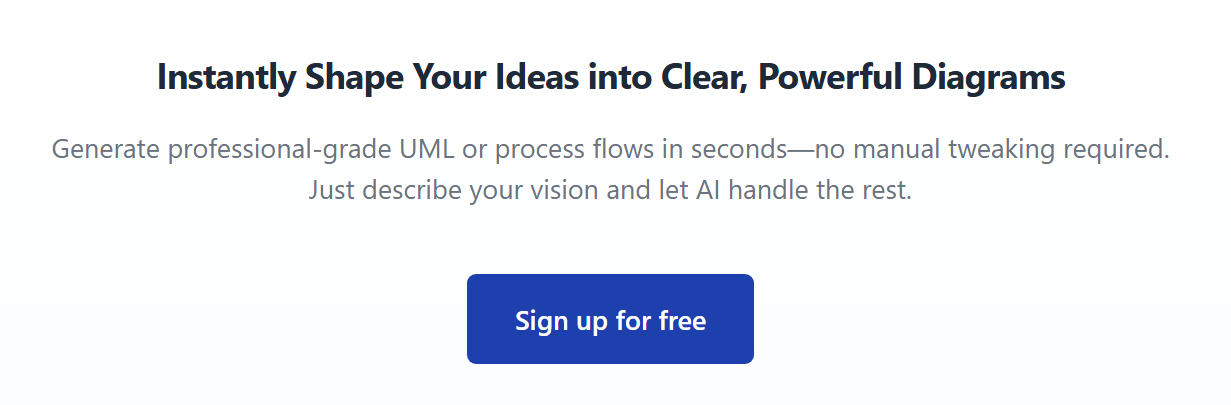
Canva Online Diagrams
The platform stands out because it focuses on beautiful designs and
easy teamwork. Users can access a huge library of photos, icons, and
fonts to make diagrams look attractive, while tools like Magic Switch
let you change formats instantly. It is the best choice when you want
your diagram to look just as good as the data it shows.
Features:
Magic Switch: Resizes and transforms visuals
into different formats.
Text-to-Graphic: AI generates custom elements to
use within diagrams.
Flowchart Maker: Easy drag-and-drop connectors
with smart alignment.
Pros:
Incredibly user-friendly and aesthetically pleasing
results.
Massive library of stock photos, icons, and fonts.
Excellent real-time collaboration features for teams.
Cons:
Lacks support for complex technical standards (UML,
ERD).
Exporting vector files (SVG) is often locked behind the Pro
plan.
4. Diagramming AI
Diagramming AI takes
a logic-first approach, built specifically to leverage Mermaid.js code
to generate structured diagrams. It is designed for users who prefer
constructing diagrams through conversation and code logic rather than
manual drawing, offering a unique chat-to-diagram workflow.
Diagramming AI
Its iterative chat interface allows anyone to refine diagrams
conversationally. You can simply tell the AI to add a decision node here
or change the color scheme, and it instantly updates the chart. This
makes it an excellent tool for rapidly mapping out system logic or
operational workflows without touching a design tool.
Features:
Chat-to-Diagram: Users converse with the AI to
edit and update the diagram in real-time.
Mermaid Code Editor: Direct access to the code
layer for precise control.
Auto-Suggestions: AI suggests improvements to
the logic of the flow.
Pros:
Rapid iteration through conversation.
Great for logic flows and system processes.
Lightweight and web-based.
Cons:
A steeper learning curve if the user is unfamiliar with logic
structures.
Visual styling is more rigid compared to Canva or
EdrawMax.
Diagram AI Tools Comparison
Table
Choosing the right tool depends on your specific needs, whether you
prioritize technical accuracy, designaesthetics, or platform flexibility.
Feature
Eraser
EdrawMax
Canva
Diagramming AI
Best For
Developers & Engineers
Business & Enterprise
Marketing & Design
Rapid Logic Flows
Platform
Web
Win, Mac, Linux, Web, Mobile
Web, Mobile
Web
Ease of Use
Moderate
Moderate (High capability)
Very High
Moderate
AI Features
Text-to-Diagram, Code-to-Diagram
AI Analysis, OCR, Auto-Map
Magic Media, Magic Write
Chat-based iteration
Customization
Low (Structured)
Very High
High (Artistic)
Low (Structured)
Export Options
PNG, SVG, PDF
PDF, Office, SVG, PNG, Visio
PDF, PNG, JPG, MP4
PNG, SVG
Collaboration
Real-time
Cloud Sync
Real-time
Basic Sharing
Pricing
Free / Pro ($10/mo)
Freemium / Subscription
Free / Pro ($12.99/mo)
Freemium / Subscription
WPS
AI Slides – The Smart Way to Transform Diagrams into Presentations
Most dedicated diagramming platforms are amazing at visualisation,
but they often hit a wall when it’s time to present that information.
Tools like Eraser or Diagramming AI typically export static images that
must be manually resized and formattedinto a slide deck, which costs valuable time. WPS AI
Slides solves this by automatically generating professional
designs and narratives around your diagrams, instantly turning static
visuals into a cohesive presentation.
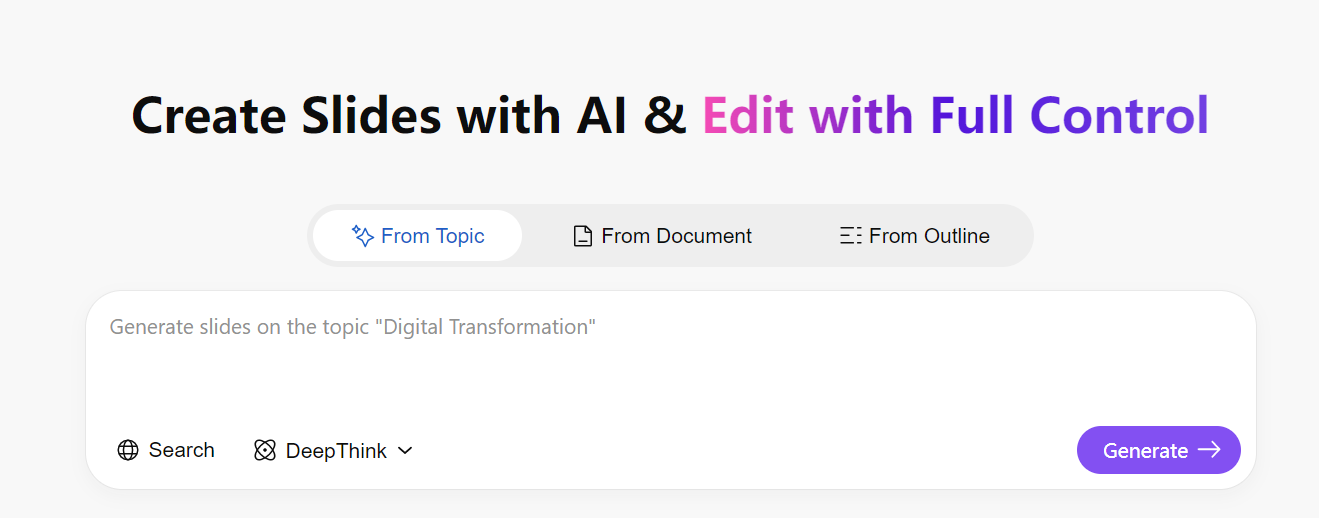
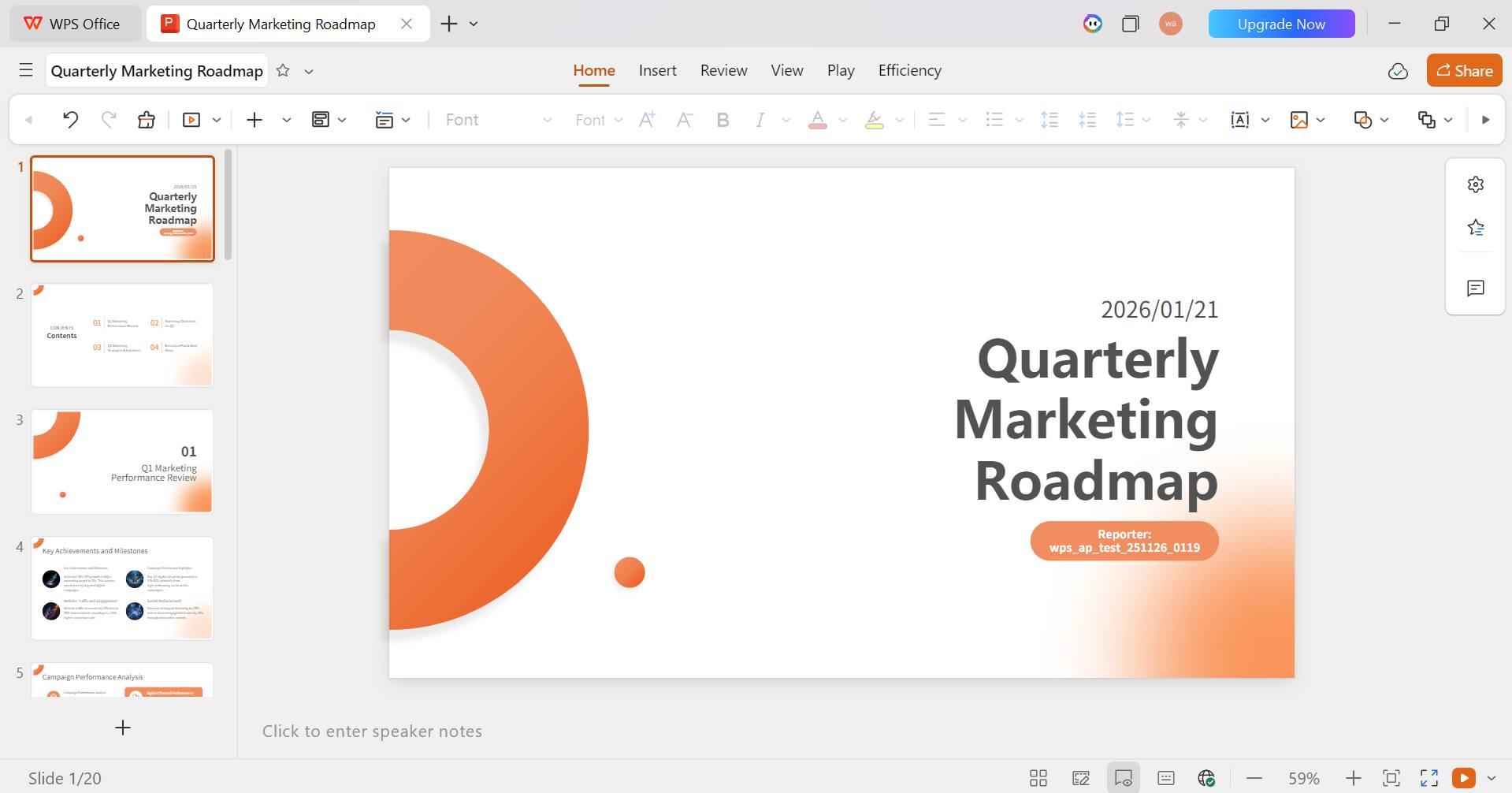
WPS AI Slides
As a powerful integrated assistant within the WPS Office suite, WPS AI Slides
transforms simple topic prompts into fully structured PowerPoint
presentations in seconds. It goes beyond basic text generation by
offering smart layout adjustments that accommodate imported visuals,
ensuring your diagrams fit perfectly within the slide design. With
features like automated content outlining, professional theme
application, and seamless compatibility across Windows, Mac, and mobile,
it allows professionals to move from a raw diagram to a boardroom-ready
presentation without manually formatting anything.
How to Create Slides with WPS
AI:
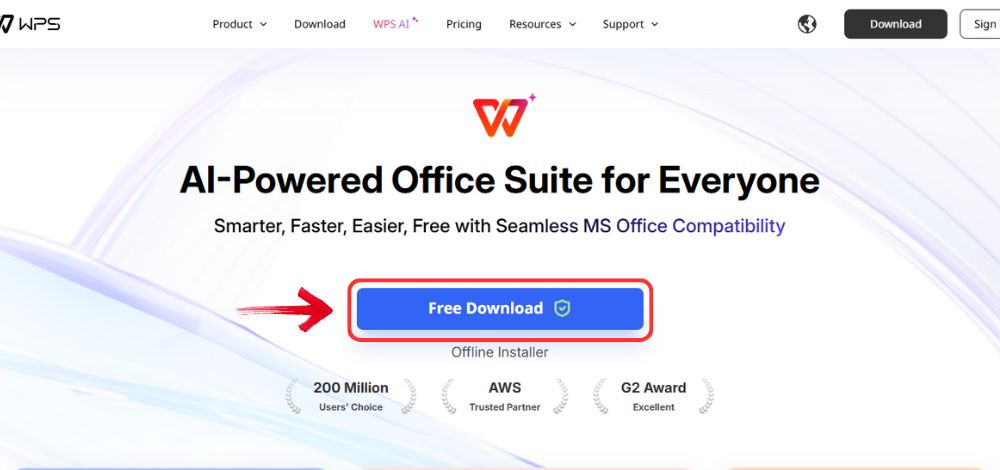
Step 1: Open your browser to visit WPS Office and click the"Free Download" button to start the download.
Download WPS Office
Step 2: The download will finish in a few seconds.
Once done, run the installation file like you would for any other app or
software.
Step 3: WPS Office will show you a few simple terms
and conditions. Accept them, then click the "Install
Now" button to begin the installation.
Install WPS Office
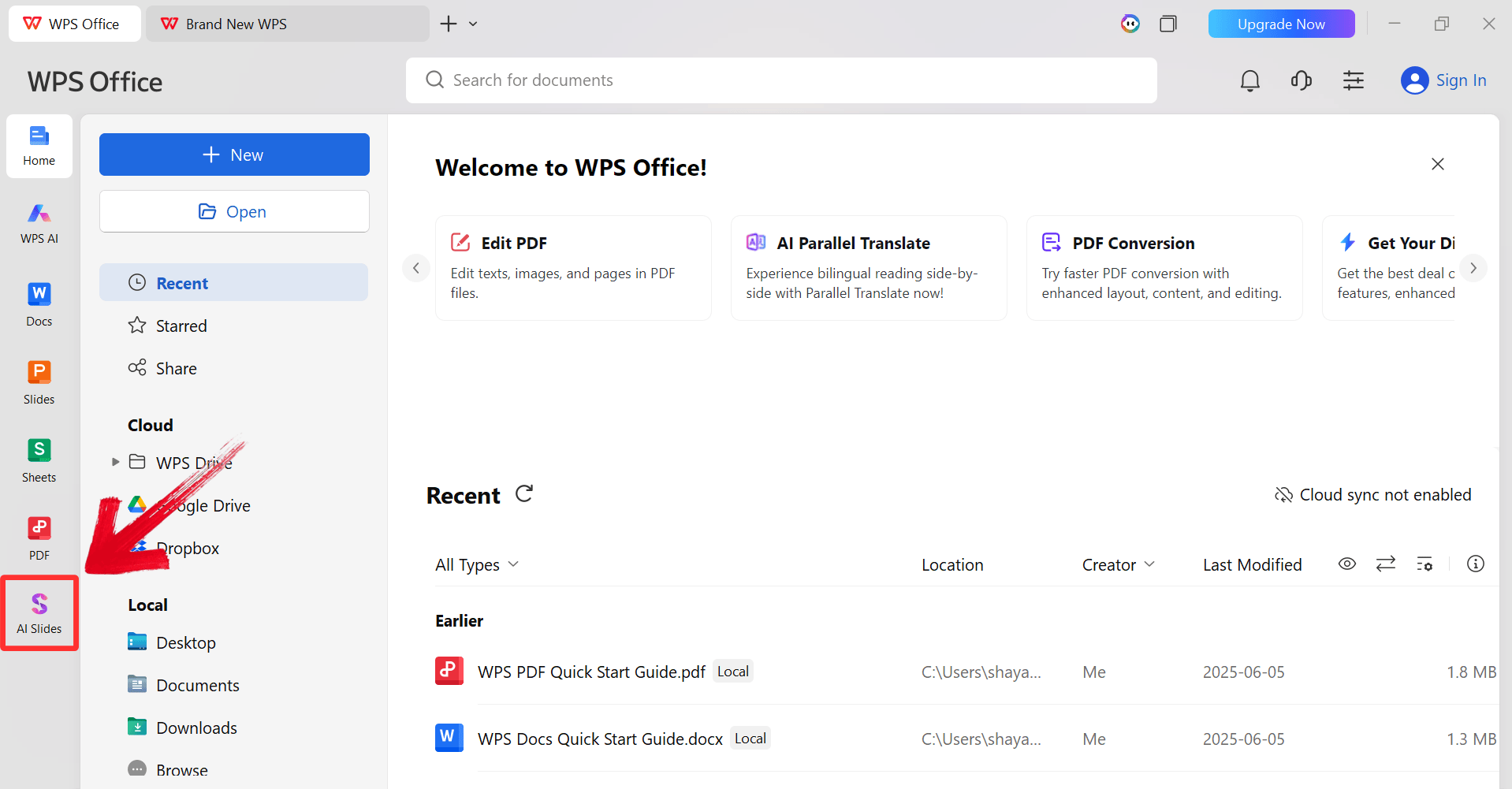
Step 4: After installation, in WPS Office, click“Slides” from the left sidebar.
WPS Slides Dashboard
Step 5: Enter your presentation topic (e.g.,
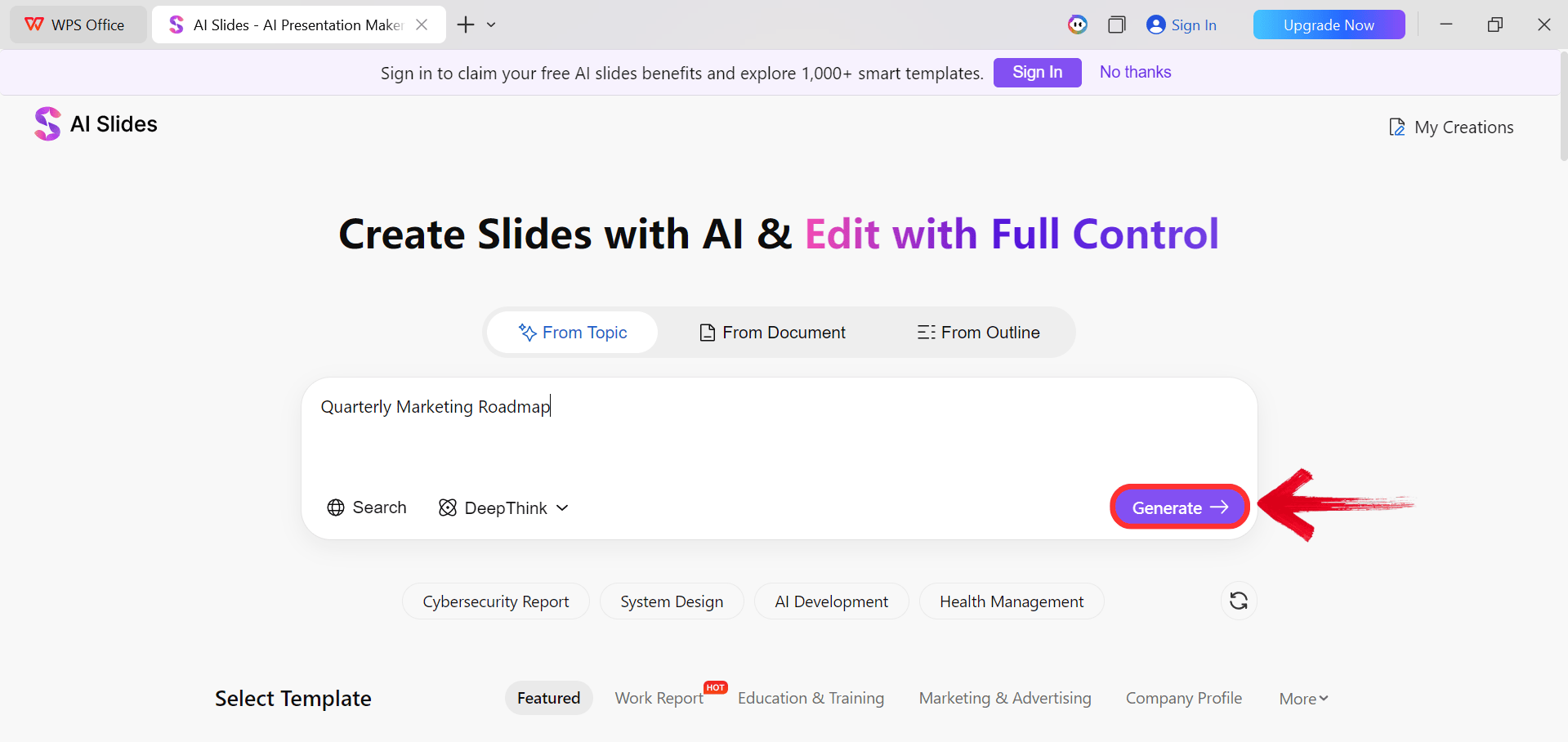
"Quarterly Marketing Roadmap") into the dialogue box and click“Generate” to create the outline.
Click Generate
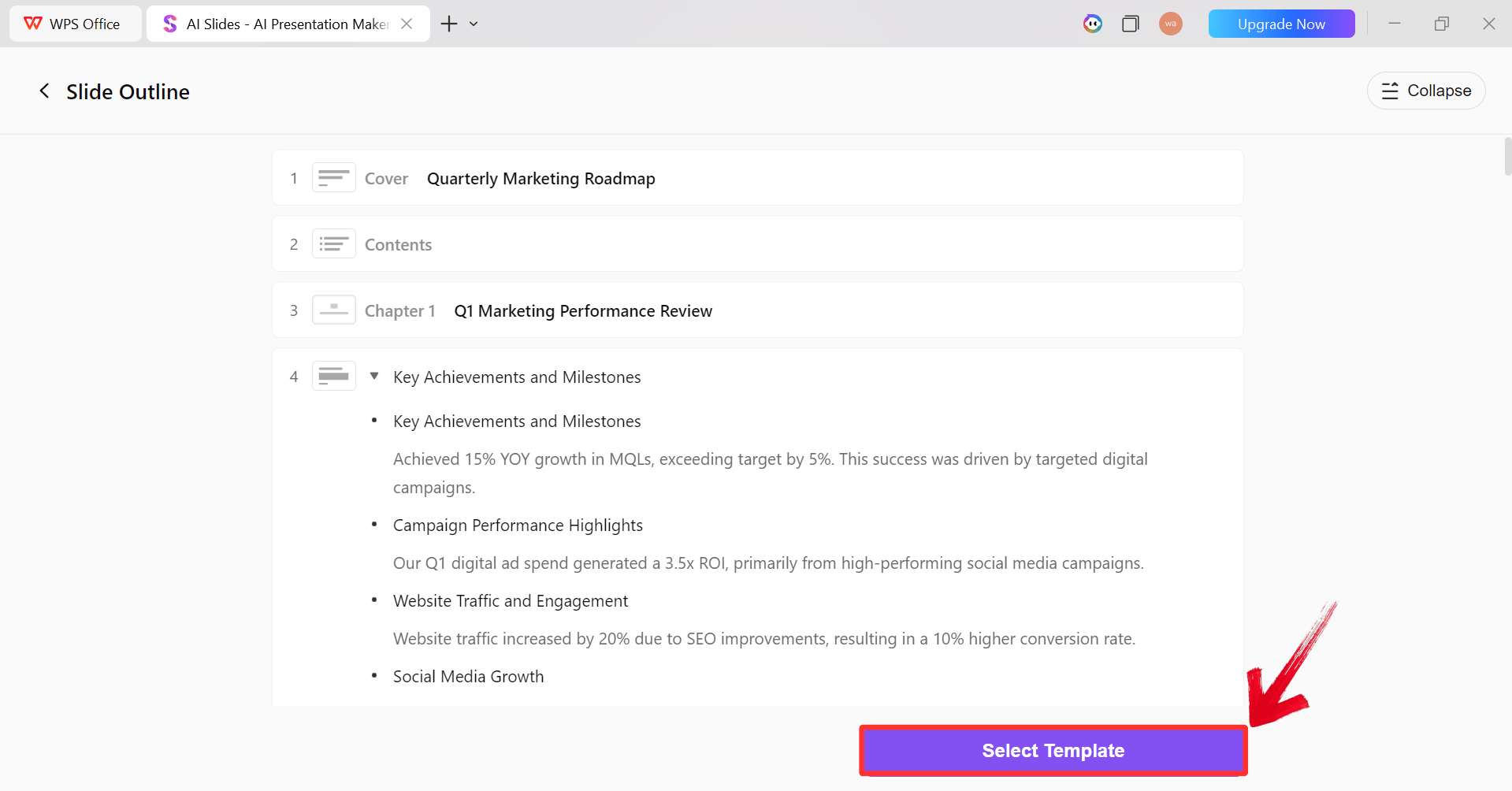
Step 6: After the AI creates the outline, click“Select Template” to pick a template from the already
available ones.
AI Generated Outline
Step 7: Choose from the Wide template library and
click “Create Slides” to generate your
presentation.
Pick a Template
Step 8: Finally, your Slide deck will be generated
with the accurate content. You can now import any diagram that you might
have generated into the PPT.
AI-generated PPT
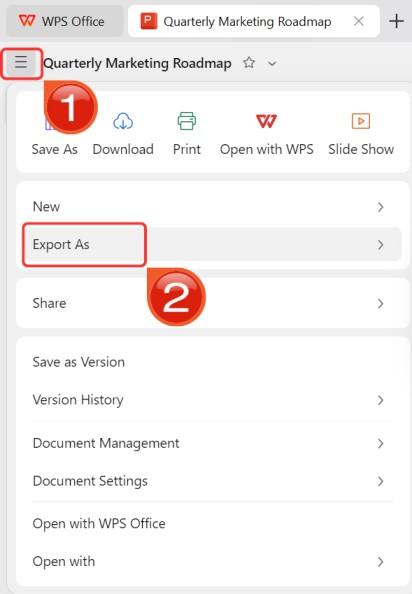
Step 9: Click on the File menu and then click“Export as” to download your PPT.
Export and Download
FAQs
1.
What is the main advantage of using a Diagram AI tool over traditional
diagram software?
Diagram AI tools save significant time by automatically generating
layouts, suggesting shapes, and applying smart connections based on text
prompts. Unlike manual diagramming, AI tools reduce repetitive
formatting tasks, allowing users to visualize complex information
instantly.
2.
Can I customize diagrams created by AI, or are they fixed templates?
Most Diagram AI tools, like Eraser and EdrawMax, allow full
customization after the initial generation. You can adjust colors,
shapes, connectors, and text. The AI provides a starting foundation, but
you retain full control to refine the design to your specific
requirements.
3.
Are Diagram AI tools suitable for beginners with no design experience?
Yes. Tools like Canva and EdrawMax are designed with intuitive,
drag-and-drop interfaces and automated suggestions. Beginners can
produce professional-looking visuals without needing prior knowledge of
design theory or technical plotting.
4. How
do I choose the best Diagram AI tool for my workflow?
Focus on your primary goal. If you are a developer, choose Eraser for
code integration. For general business and complex structure, EdrawMax
is superior. For visual appeal and marketing, Canva is the best choice.
Always check export options to ensure compatibility with your other
software.
5.
How does WPS AI Slides enhance the use of diagrams in presentations?
While not a diagram creator itself, WPS AI Slides eliminates the
workload of building the presentation deck. It automates the layout,
content structure, and formatting, giving you a professional canvas
where you can easily drop in your diagrams for a polished final
report.
6. Are AI
diagram tools suitable for team collaboration?
Yes. Tools like Canva and Eraser support real-time editing and link
sharing, making it easy for remote teams to collaborate on a visual
simultaneously. WPS AI Slides further complements this by allowing
collaborative editing of the final presentation file.
An End-to-End AI
Workflow: Research to Design
Choosing the right diagram AI tool transforms how teams communicate
complex ideas, turning hours of manual formatting into minutes of
automated creation. Whether you need the technical precision of Eraser,
the versatility of EdrawMax, or the design flair of Canva, there is a
tool to fit every workflow. To maximize efficiency, pair these visuals
with WPS AI
Slides, ensuring that your perfectly crafted diagrams are
showcased in equally professional, AI-generated presentations.
7+ years in productivity tech. I test and review the latest tools to simplify your workflow. Follow for honest app comparisons, practical guides, and curated tech picks to boost efficiency.


'%3e%3cpath%20d='M8%200C12.4183%200%2016%203.58172%2016%208C16%2012.4183%2012.4183%2016%208%2016C3.58172%2016%200%2012.4183%200%208C0%203.58172%203.58172%200%208%200ZM11.6162%204.38379C11.2257%203.99337%2010.5927%203.99338%2010.2021%204.38379L8%206.58594L5.79785%204.38379C5.40732%203.99334%204.77429%203.99329%204.38379%204.38379C3.99331%204.77429%203.99335%205.40733%204.38379%205.79785L6.58594%208L4.38379%2010.2021C3.99348%2010.5927%203.99341%2011.2257%204.38379%2011.6162C4.77426%2012.0066%205.40734%2012.0065%205.79785%2011.6162L8%209.41406L10.2021%2011.6162C10.5927%2012.0066%2011.2257%2012.0067%2011.6162%2011.6162C12.0067%2011.2257%2012.0066%2010.5927%2011.6162%2010.2021L9.41406%208L11.6162%205.79785C12.0066%205.40735%2012.0066%204.77429%2011.6162%204.38379Z'%20fill='%23080E17'%20fill-opacity='0.46'/%3e%3c/g%3e%3cdefs%3e%3cclipPath%20id='clip0_3761_713'%3e%3crect%20width='16'%20height='16'%20fill='white'/%3e%3c/clipPath%3e%3c/defs%3e%3c/svg%3e)




'%3e%3cpath%20fill-rule='evenodd'%20clip-rule='evenodd'%20d='M21.4999%2010.9993C21.4999%205.20009%2016.7986%200.498901%2010.9993%200.498901C5.19994%200.498901%200.498657%205.20009%200.498657%2010.9993C0.498657%2016.2404%204.33858%2020.5844%209.35855%2021.3722V14.0346H6.69238V10.9993H9.35855V8.68594C9.35855%206.05427%2010.9262%204.60062%2013.3248%204.60062C14.4736%204.60062%2015.6753%204.80571%2015.6753%204.80571V7.38979H14.3512C13.0468%207.38979%2012.64%208.19921%2012.64%209.0296V10.9993H15.5523L15.0867%2014.0346H12.64V21.3722C17.66%2020.5844%2021.4999%2016.2404%2021.4999%2010.9993Z'%20fill='%231568EA'/%3e%3c/g%3e%3c/svg%3e)


'%3e%3cpath%20d='M2.42045%2022.1876H6.31818V12.7217L0.75%208.54553V20.5171C0.75%2021.4414%201.49892%2022.1876%202.42045%2022.1876Z'%20fill='%234285F4'/%3e%3cpath%20d='M19.682%2022.1876H23.5797C24.5041%2022.1876%2025.2502%2021.4387%2025.2502%2020.5171V8.54553L19.682%2012.7217'%20fill='%2334A853'/%3e%3cpath%20d='M19.682%205.48293V12.7216L25.2502%208.54543V6.31816C25.2502%204.25236%2022.8921%203.07469%2021.2411%204.31361'%20fill='%23FBBC04'/%3e%3cpath%20d='M6.31824%2012.7217V5.48303L13.0001%2010.4944L19.6819%205.48303V12.7217L13.0001%2017.733'%20fill='%23EA4335'/%3e%3cpath%20d='M0.75%206.31816V8.54543L6.31818%2012.7216V5.48293L4.75909%204.31361C3.10534%203.07469%200.75%204.25236%200.75%206.31816Z'%20fill='%23C5221F'/%3e%3c/g%3e%3cdefs%3e%3cclipPath%20id='clip0_2954_7305'%3e%3crect%20width='24.5'%20height='18.375'%20fill='white'%20transform='translate(0.75%203.8125)'/%3e%3c/clipPath%3e%3c/defs%3e%3c/svg%3e)







'%3e%3cpath%20d='M19.9911%204.11386V6.471H18.5894C18.0775%206.471%2017.7322%206.57814%2017.5536%206.79243C17.3751%207.00671%2017.2858%207.32814%2017.2858%207.75671V9.44421H19.9019L19.5536%2012.0871H17.2858V18.8639H14.5536V12.0871H12.2769V9.44421H14.5536V7.49779C14.5536%206.39064%2014.8632%205.53201%2015.4822%204.92189C16.1013%204.31177%2016.9257%204.00671%2017.9554%204.00671C18.8304%204.00671%2019.509%204.04243%2019.9911%204.11386Z'%20fill='%23333333'/%3e%3c/g%3e%3cdefs%3e%3cclipPath%20id='clip0_2938_8199'%3e%3crect%20width='16'%20height='16'%20fill='white'%20transform='translate(8%204.00671)'/%3e%3c/clipPath%3e%3c/defs%3e%3c/svg%3e)
'%3e%3cpath%20d='M17.5237%2010.7813L23.4811%204H22.0699L16.8949%209.88693L12.7648%204H8L14.2469%2012.9029L8%2020.0133H9.4112L14.8725%2013.7952L19.2352%2020.0133H24M9.92053%205.04213H12.0885L22.0688%2019.0224H19.9003'%20fill='%23333333'/%3e%3c/g%3e%3cdefs%3e%3cclipPath%20id='clip0_2938_8200'%3e%3crect%20width='16'%20height='16.0134'%20fill='white'%20transform='translate(8%204)'/%3e%3c/clipPath%3e%3c/defs%3e%3c/svg%3e)


