Linear presentations often fail to grab attention, but Google Slides
offers linking features that help presentations flow more naturally. The
challenge is that adding and managing links is not always intuitive,
especially on mobile or when editing without breaking connections.
Whether you are building a clickable table of contents or linking a
Google Doc for reference, understanding these tools matters. This guide
covers how to link slides in Google Slides and introduces a smarter
AI-powered option for creating interactive decks faster.
How to Link Slides in
Google Slides
Google
Slides includes built-in tools that allow text, images, and
shapes to link directly to other slides. Once you understand where these
options live, then knowing how to link slides in Google Slides on
Phone/Chromebook/Canva becomes extremely easy. The methods below will
show you how to link slides in Google Slides without confusion or extra
setup.
1. Turning Text into
a Link to Another Slide
Text links are the simplest and most reliable way to make your
presentation interactive. If you’re building a clickable table
of contents or a Return to Home button in a lesson plan or pitch
deck, turning bullet
points into links lets your audience jump straight to sections
like Financials or Q&A without flipping through every slide. It’s
fast, works on any device, and keeps navigation clean, though it’s not
ideal if you prefer a highly visual, icon-based interface over text.
Here’s how to add a link in Google Slides in 3 simple steps:
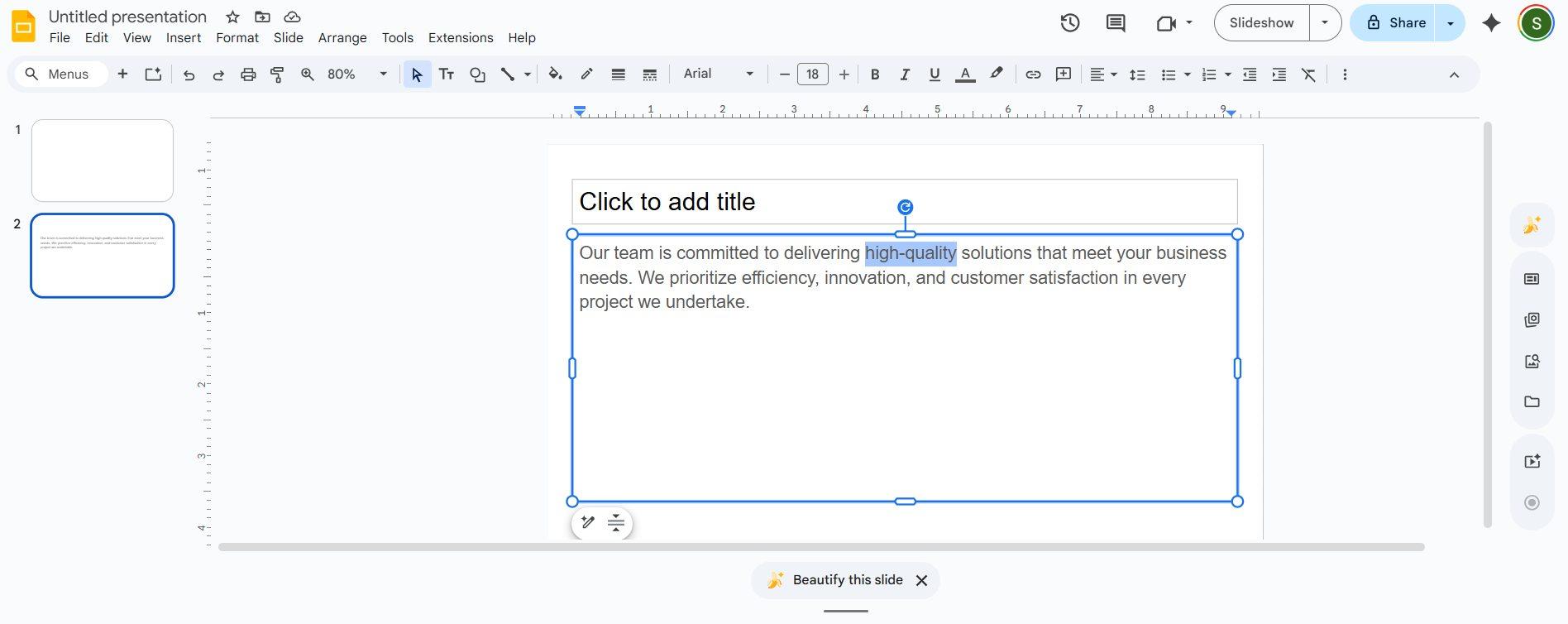
Step 1: Highlight the text you want to turn into a
link.
Highlight text
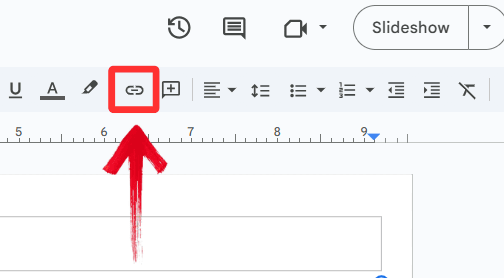
Step 2: Click the “Insert Link”icon in the toolbar or use the keyboard shortcut (Ctrl + K on
Windows/Chromebook, Cmd + K on Mac).
Insert link button
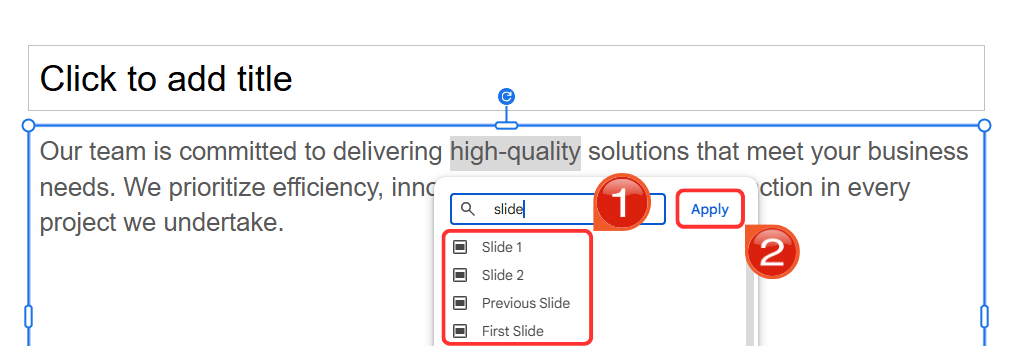
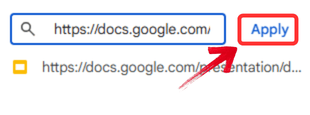
Step 3: In the menu that appears, do not paste a
URL. Instead, enter the specific slide title or number you want to jump
to, then click “Apply”.
Apply the changes
2. Turning
Part of Your Slide (Images/Shapes) into a Link
Sometimes text alone isn’t engaging enough. By linking a shape, like
a button, or an image, like a home icon, you can create interactive
slides that feel like an app or game. This method is perfect for
self-guided lessons, mock-ups, dashboards, or Jeopardy-style games,
giving your audience a tactile, intuitive way to navigate. The only
catch is that this interactivity disappears if you print your slides, so
it works best for on-screen experiences.
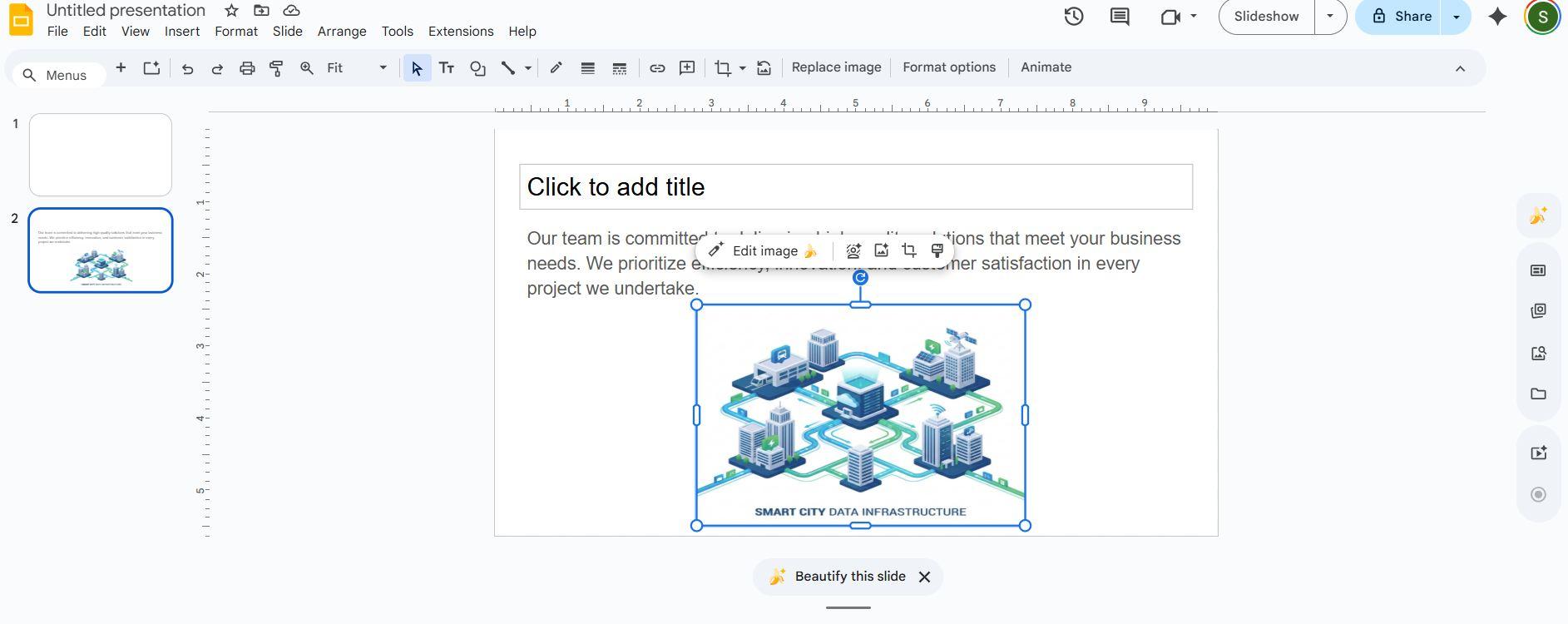
Step 1: Select the image or shape on your slide.
Select image
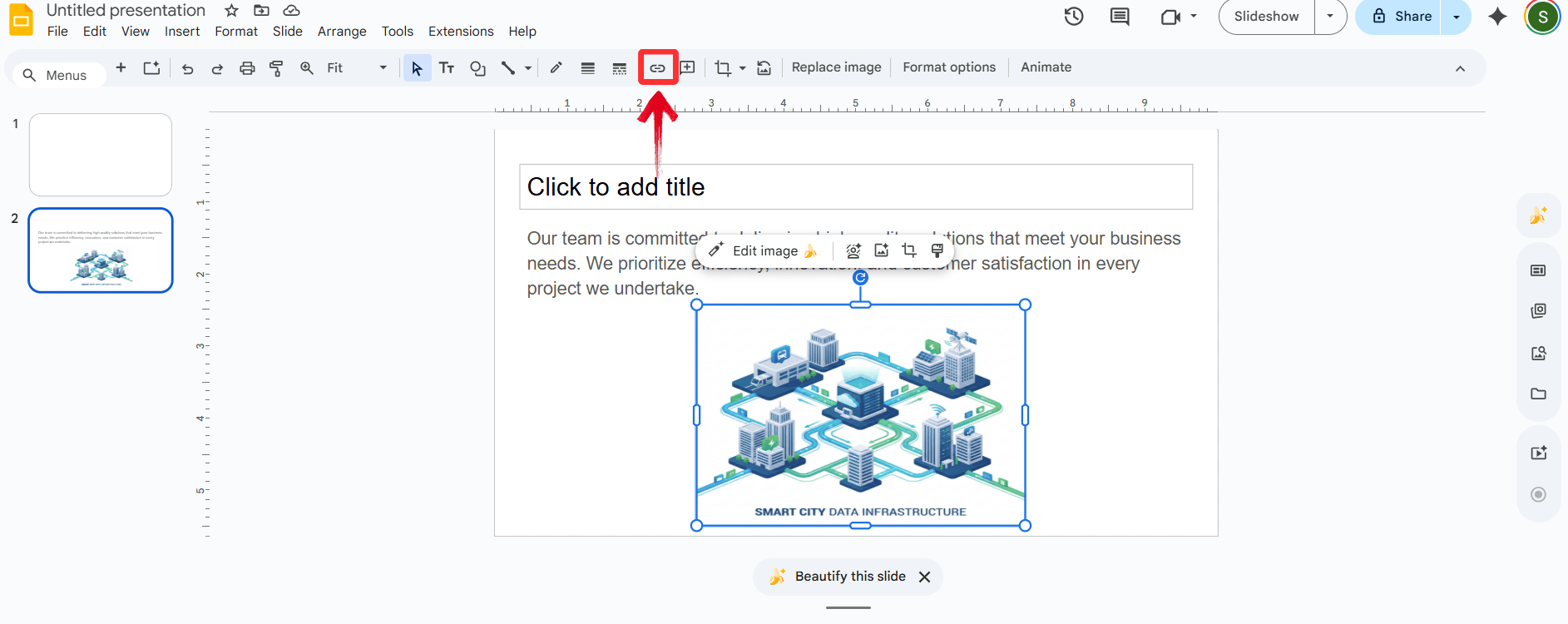
Step 2: Click the “Insert Link”icon in the toolbar or use the keyboard shortcut (Ctrl + K on
Windows/Chromebook, Cmd + K on Mac).
Insert link
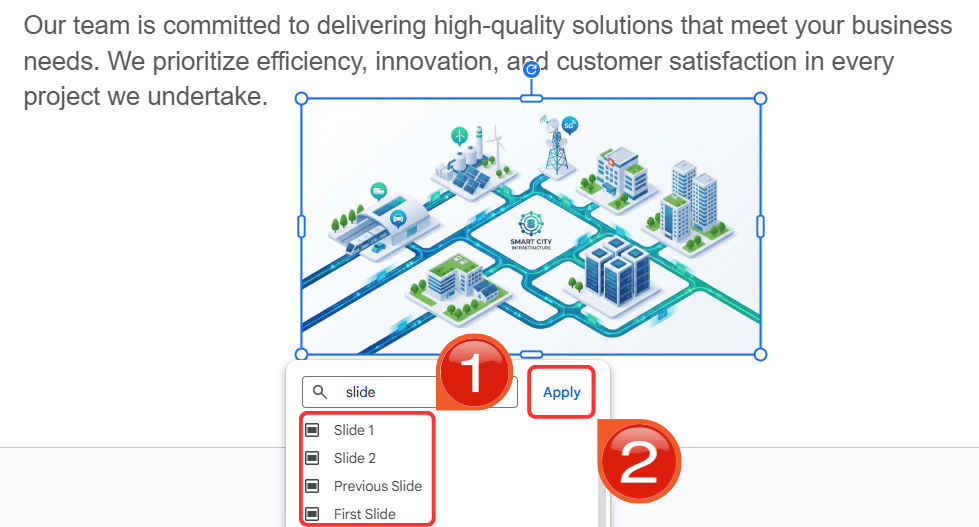
Step 3: Choose the destination slide and click“Apply”. Now, when you present, clicking that image
will instantly transport you to the linked section.
Apply changes
3. Link to Other
Slides (External or Specific URLs)
There are times when a single deck can’t hold all the information.
Linking to another presentation, a Google Doc, or an external resource
keeps your slides lightweight while giving your audience instant access
to deeper content. This method is great for project managers referencing
a separate budget deck or students citing research papers. The only
limitation is that these links require an internet connection, so
offline presentations won’t work.
Option A: Linking to a Google
Doc
Here’s how to link Google Doc in Slides without going through any
unnecessary external tools:
Step 1: Open the Google Doc you intend to link.
Highlight the URL in the browser's address bar and copy it to your
clipboard.
Copy URL link
Step 2: Return to your Google Slides, highlight the
text or select the object you want to use as a button.
Highlighted text
Step 3: Press “Ctrl + K” (orCmd + K on Mac). Paste the URL into the field and press“Apply”.
Apply changes
Option B:
Linking to a Specific Slide in Another Deck
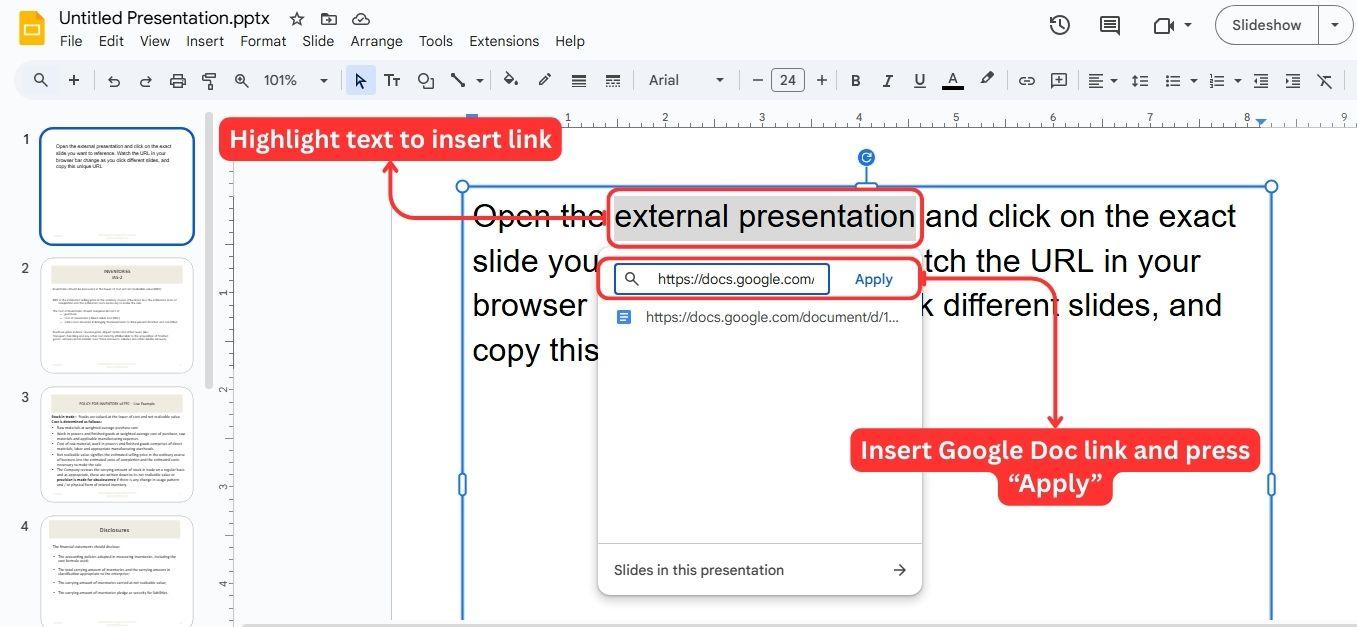
Step 1: Open the external presentation and click on
the exact slide you want to reference. Watch the URL in your browser bar
change as you click different slides, and copy this unique URL.
Copy URL link
Step 2: Go back to your current slide and select
your text or object.
Select text
Step 3: Open the link menu, paste the specific URL
you copied, and click Apply to create a direct link to that exact
slide.
Apply Changes
4. Add Hyperlinks in Canva
For designers who prefer Canva for its visual flexibility but still
use Google Slides, adding links directly in Canva can save a lot of
time. You can maintain navigation when exporting to PowerPoint and
importing into Slides, so you don’t have to redo the interactivity. This
method works best if you don’t need to frequently change the links,
making it an ideal bridge between design and presentation.
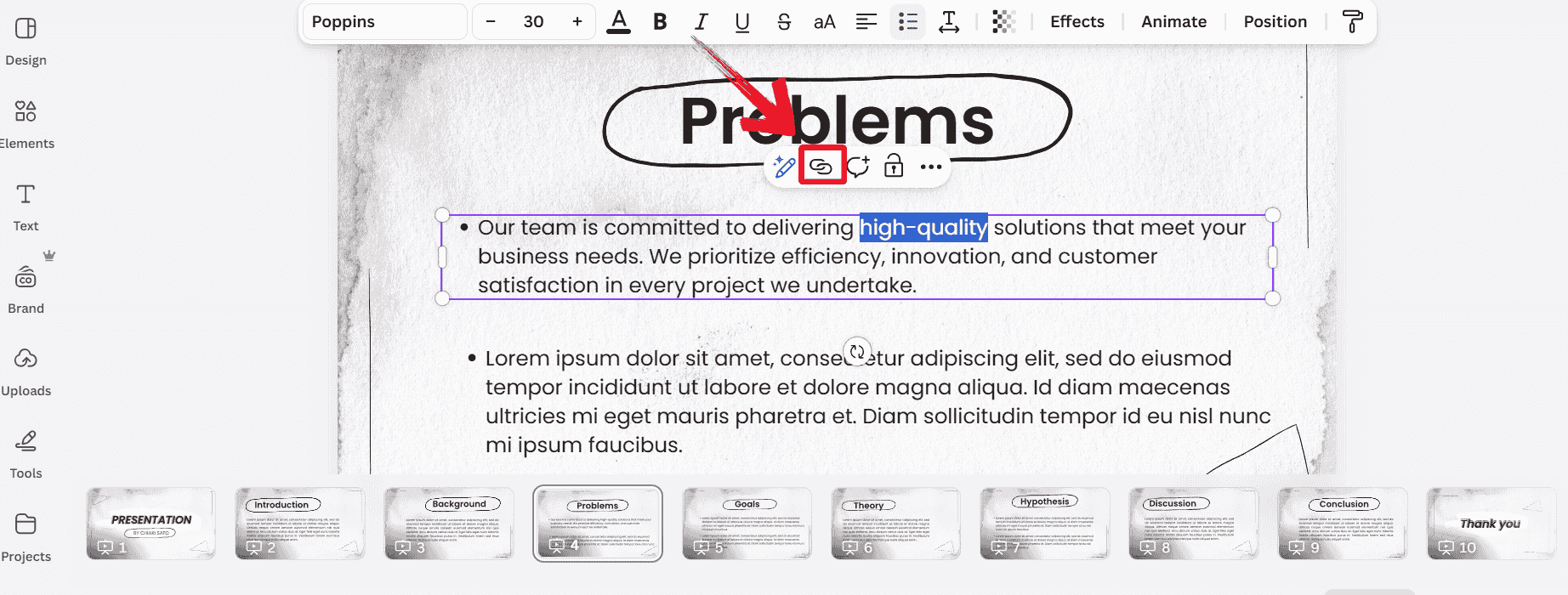
Step 1: In Canva, select your element, click the
Link icon (chain link), and link to other pages.
Click the Chain icon
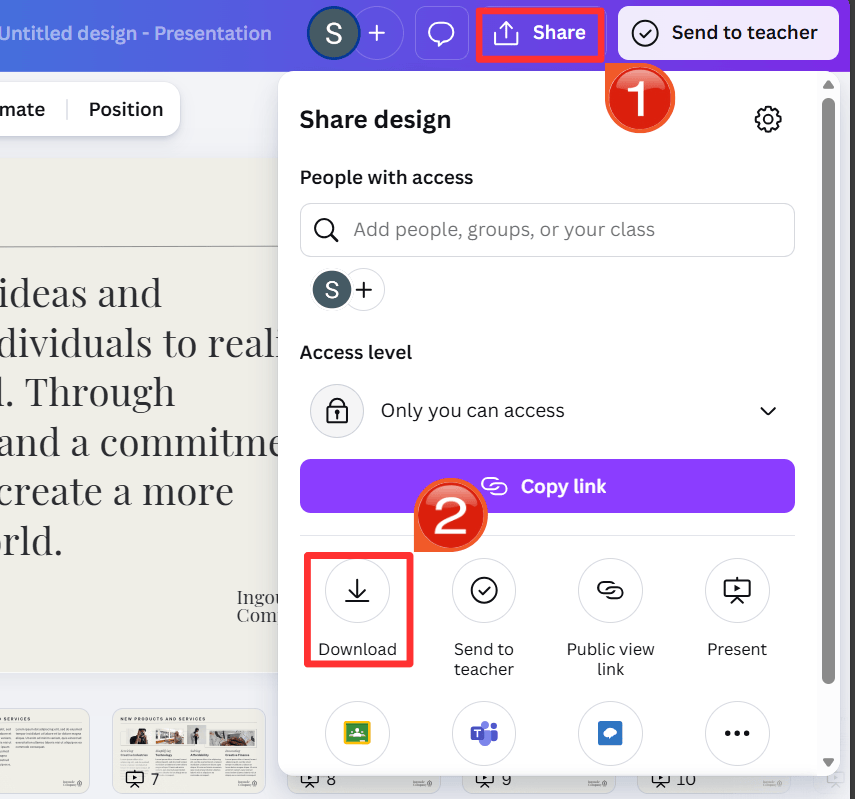
Step 2: Keep the file type as“PPTX” and click “Download” to export
the slides and open it in Google Slides.
Download as PPTX
Best Way to Link
Slides—WPS AI Slides
Manually linking slides can make a presentation interactive, but it
is fragile and time-consuming. Move a slide or delete a section, and
your carefully built navigation can break, forcing you to fix every link
by hand. WPS AI
Slides solves this problem by understanding your content and
keeping your deck organized, so your presentation flows smoothly, no
matter how you edit.
WPS AI Slides
WPS AI Slides helps you create polished, professional
decks faster. Its AI-Powered Outline & Structure organizes
your ideas into a clear, logical flow while Content-to-Slide Sync
automatically updates your slides whenever your source documents change.
Smart Navigation and One-Click Interactive Elements make it easy to
build complex, non-linear presentations that are both impressive and
effortless to manage. With WPS AI Slides, you spend less time wrestling
with slides and more time delivering your message.
Suggested Features
If you want high-quality visuals or polished slides quickly, WPS AI
Slides makes it easy.
AI Image Generation: Instead of spending time
hunting for images online and uploading them manually, you can generate
visuals directly in your slides. Just describe what you need, and the AI
creates high-resolution, royalty-free images instantly.
Simple Asset Management: Managing images in
Google Slides can feel clunky with multiple steps and hidden menus. WPS
Office solves this with a single Resource Library where you can
organize, drag, drop, and export your visuals in seconds. Everything
stays in one place, so your workflow is smoother and faster.
Smart Layout and Polishing: Once your images are
in place, Smart Layout arranges them automatically into professional
grids. No resizing or manual adjustments are needed. In moments, your
slides go from rough visuals to polished, ready-to-present
decks.
How to Edit:
Getting started is easy. Instead of struggling with manual
formatting, you can let the AI handle the heavy lifting in just a few
clicks. Here’s how to use the AI pitch
deck generator:
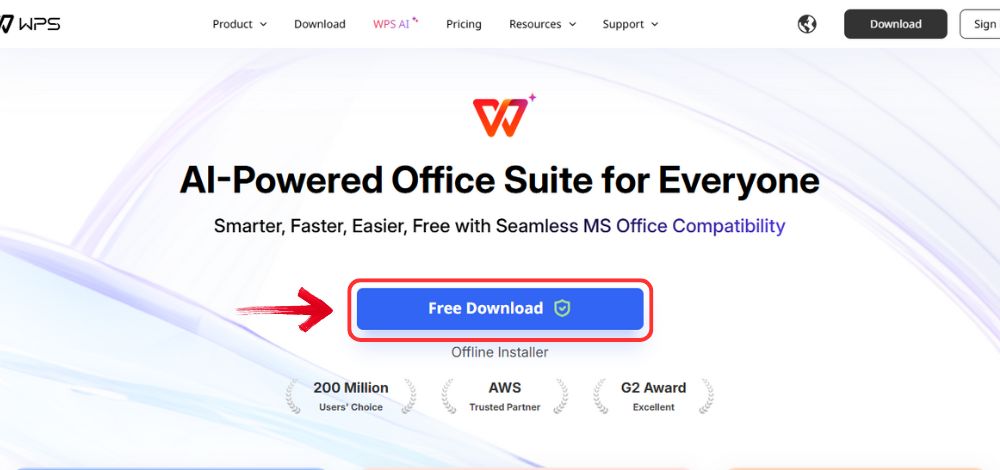
Step 1: First, head on over to the WPS Office website and click the"Free Download" button to download WPS Office onto your
device.
Download WPS Office
Step 2: Once the download completes, open the WPS
Office installation wizard, and click on the "Install
Now" button after checking the Terms and Conditions
checkbox.
Install WPS Office
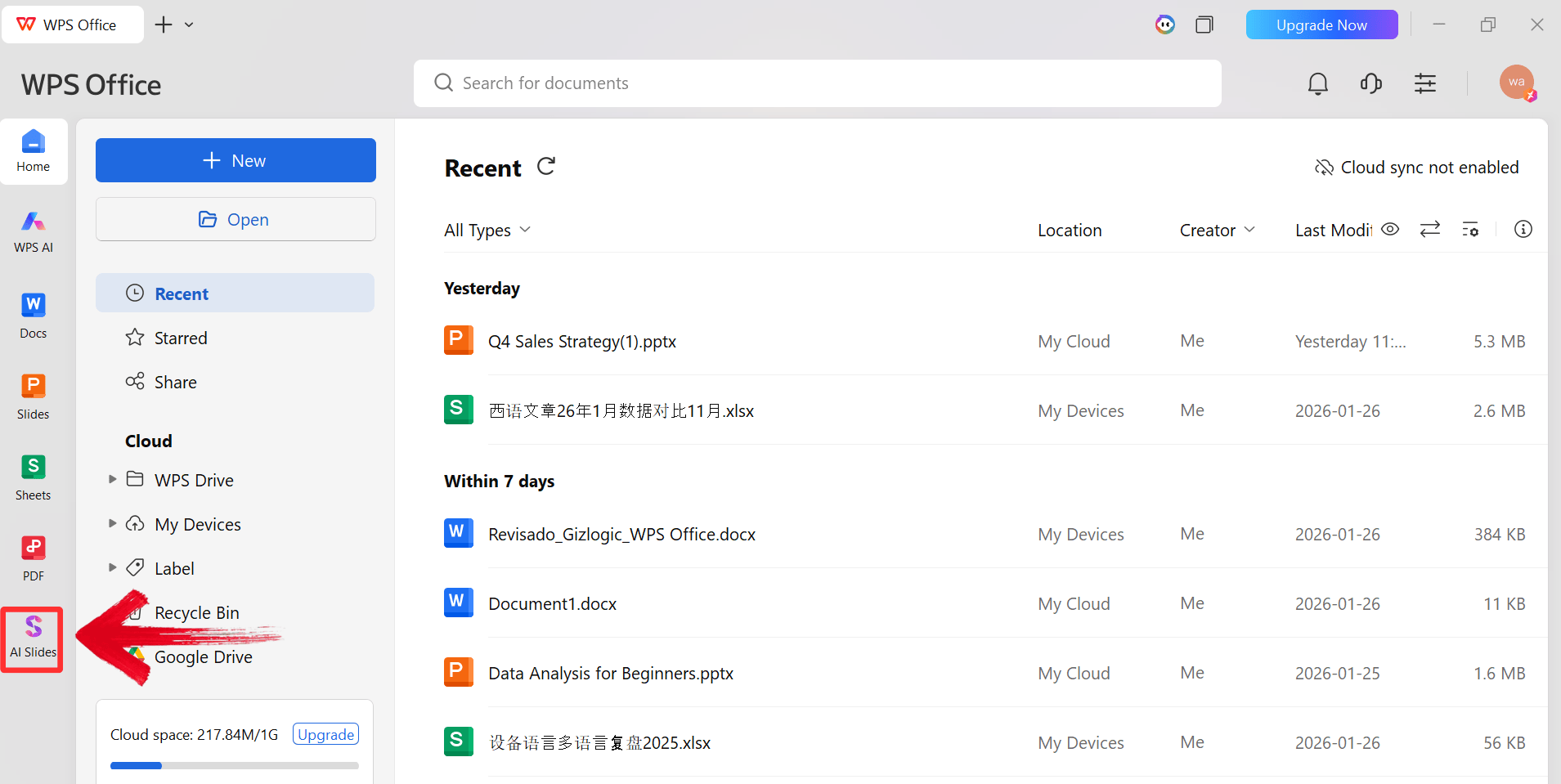
Step 4: Now to edit your presentation, click on“Slides” in the left menu bar on WPS Office
dashboard.
WPS Slides Dashboard
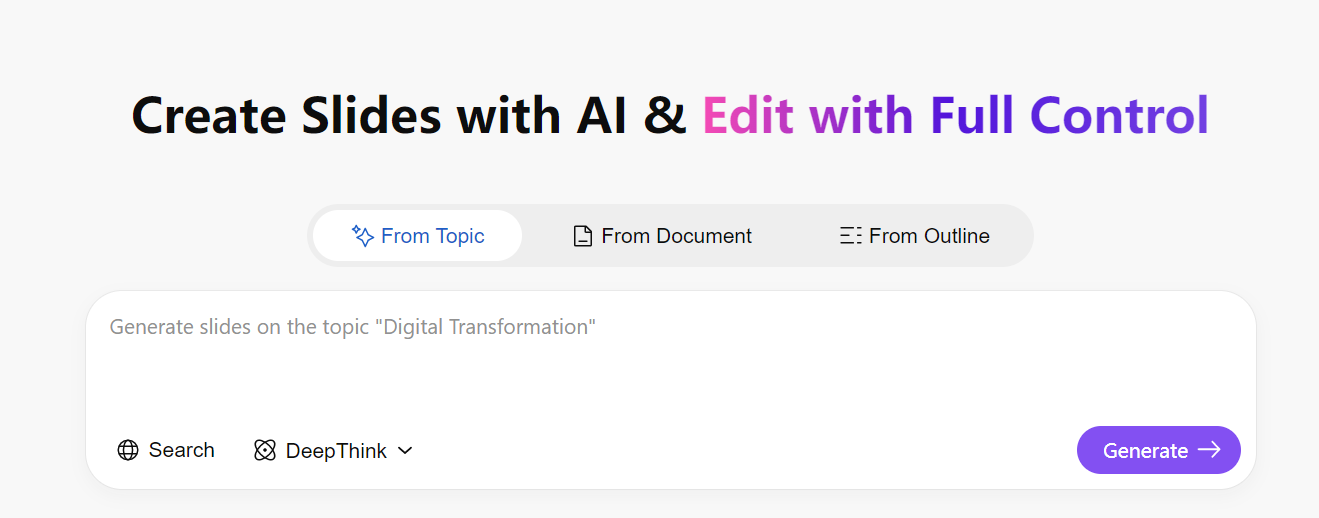
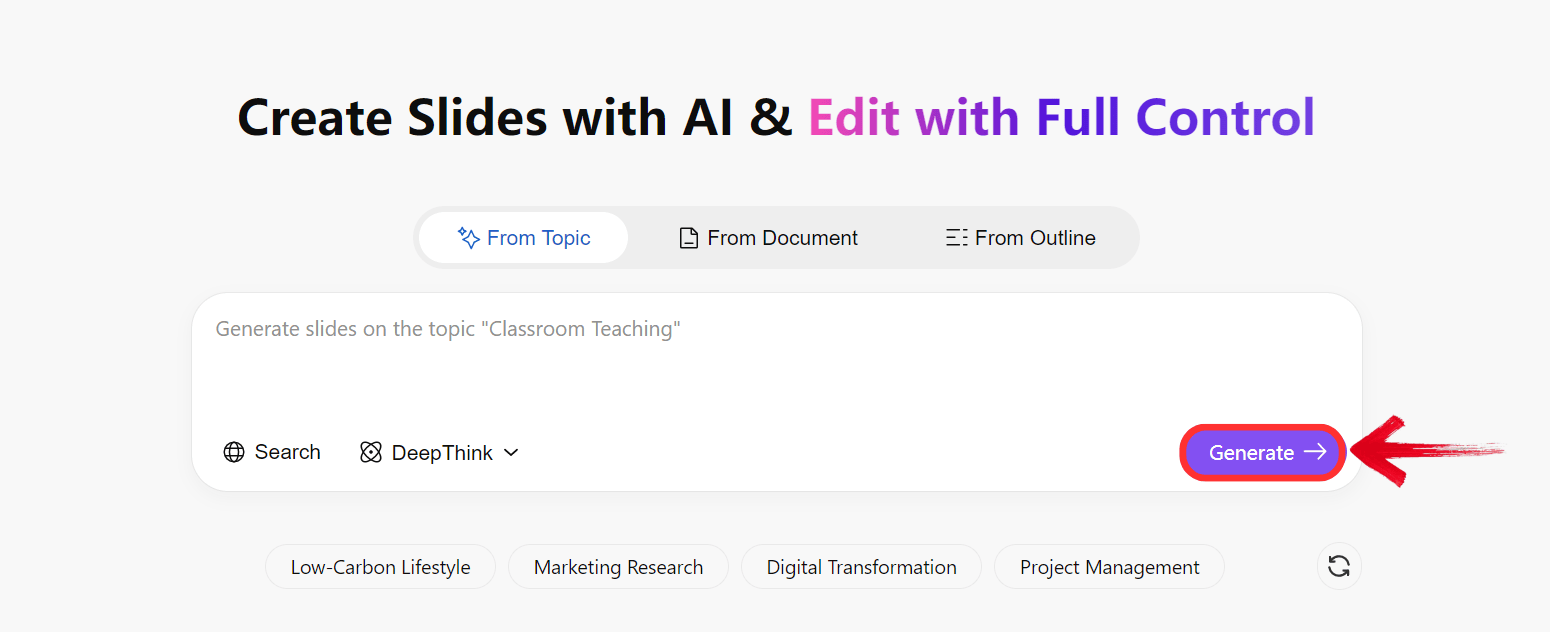
Step 5: Type in your prompt into the text box, and
click “Generate” to create the outline. Alternatively,
you can also import a PDF or Word file.
Click Generate
Quick Tip: The more detailed your prompt is, the
better the result will be. You can also use the AI assistant in WPS
Writer to generate more detailed prompts.
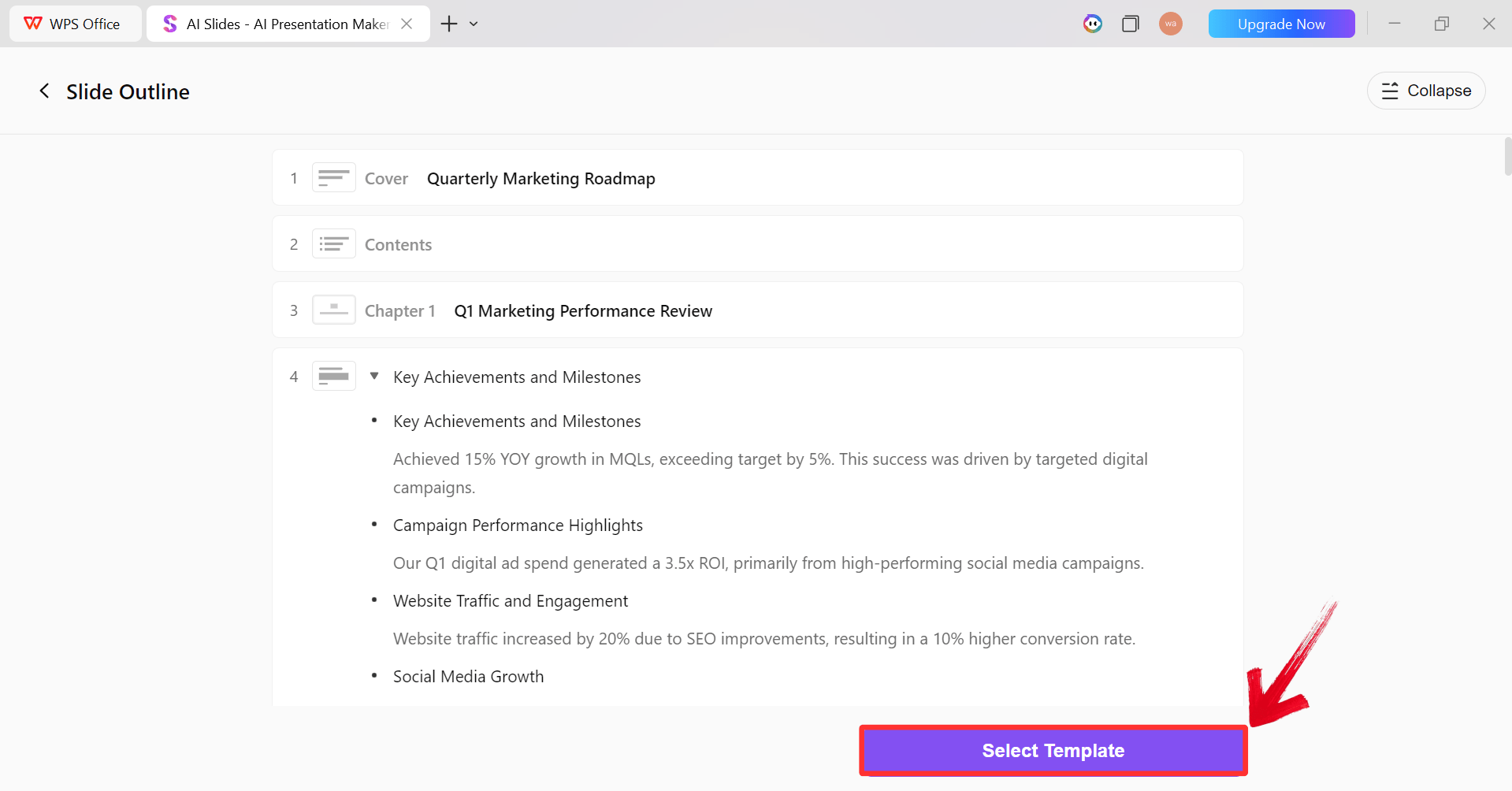
Step 6: Soon, the AI will generate a detailed outline.
Once you’re satisfied, click “Select Template” and pick
a template from the extensive WPS library.
AI Generated Outline
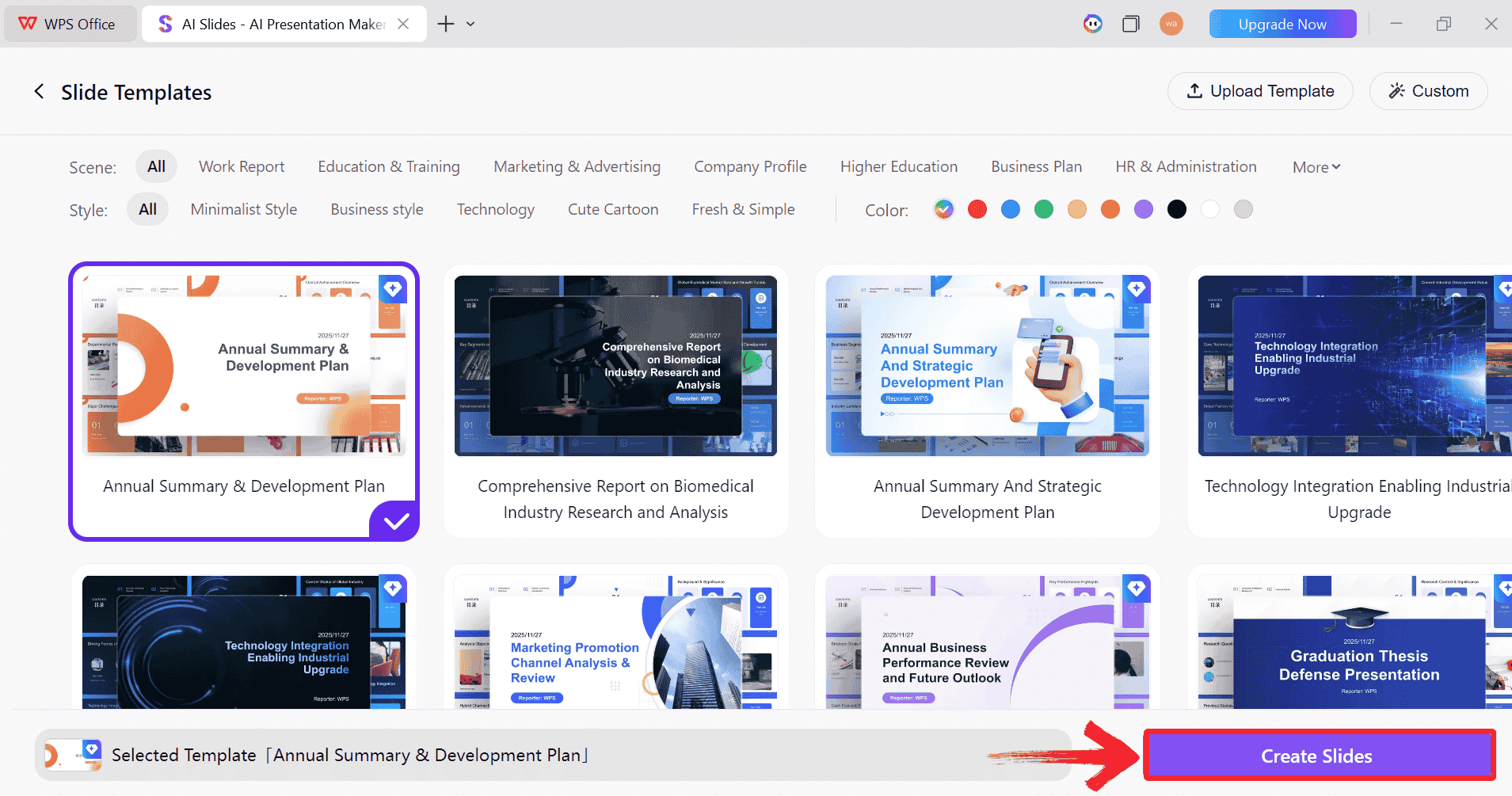
Step 7: Once you’re done selecting, click“Create Slides” and in a couple of seconds your
presentation with the detailed content will be ready.
Pick a Template
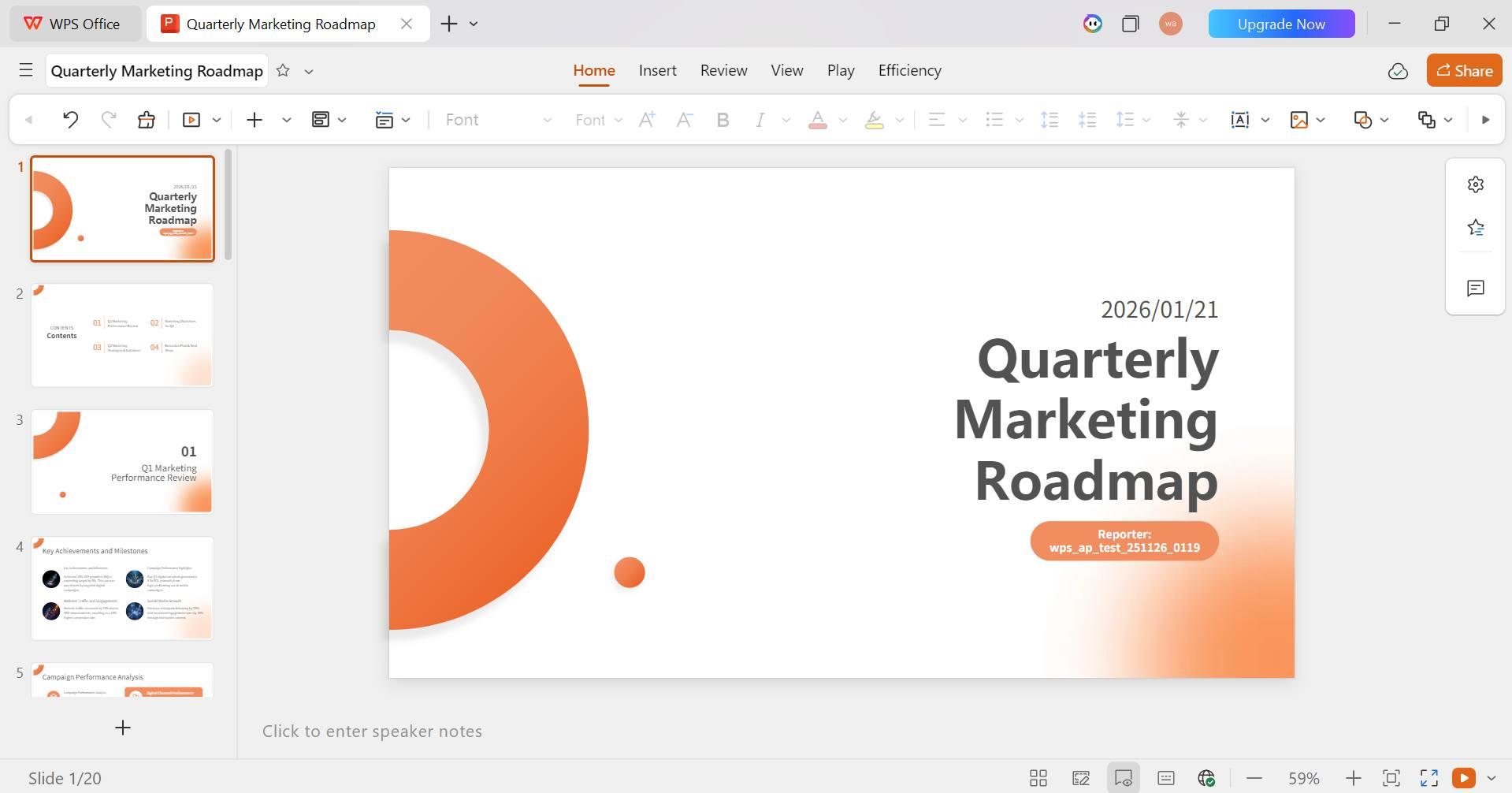
Step 8: Review and finalize the Presentation and
make any changes you want to make.
AI-generated PPT
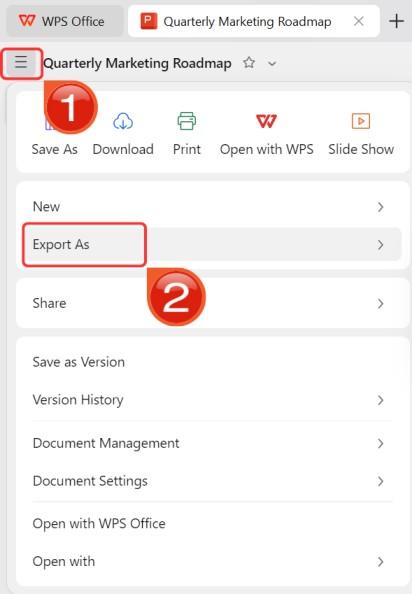
Step 9: Click on the File menu and then click“Export as” to download and export your PPT or PDF.
Export and Download
Comparison of WPS
AI Slides and Google Slides
Google Slides is excellent for simple, linear decks, but when you
need complex navigation or automated structure, WPS AI Slides offers a
robust alternative.
Feature
Google Slides
WPS AI Slides
Creation Approach
Manual editing
AI-assisted slide generation
Linking Workflow
Manual Insert Link
Automated Structure & Outlining
Video Insertion
YouTube/Drive only
Direct local video support
Design Support
User-designed layouts
AI layout and template suggestions
Workflow Speed
Step-by-step building
Faster automated drafting
Collaboration
Strong real-time collaboration
Basic collaboration
Device Flexibility
Browser-based
Desktop (Offline) & Mobile
Best Use Cases
Simple team slides
Frequent, media-heavy presentations
FAQs
1.
What are the benefits of linking to specific slides in Google
Slides?
Linking to specific slides transforms a linear presentation into an
interactive experience. It lets viewers jump directly to dashboards or
key sections, improves accessibility for reviewing specific data points,
and enables non-linear storytelling like interactive quizzes or choose
your own adventure scenarios, keeping engagement high.
2. Can
I link to slides outside of the current presentation?
You cannot create a seamless internal link to a slide in another deck
while in presentation mode. However, you can paste the slide's URL from
another Google Slides file. Clicking it opens that slide in a new
browser tab, effectively connecting the two presentations.
3. What can I link
to instead of other slides?
Beyond linking slides, you can link to webpages, Google Docs for
detailed resources, or Drive folders with PDFs. This keeps your slides
visually clean while still giving viewers access to additional
materials.
4.
Are there any other ways to improve navigation in my presentation?
You can enhance navigation with clear slide numbering, a Table of
Contents slide as a central map, and breadcrumbs with small text links
at the bottom of slides so viewers can easily orient themselves and
return to main sections.
5. How can WPS AI improve my
images?
WPS AI can enhance image quality, remove distracting backgrounds, and
match colors between visuals. This helps interactive elements like
buttons and cloud images blend naturally, giving your presentation a
professional, polished look without extra software.
Simplify Slide
Linking with AI AssistanceSummary
Learning how to link slides in Google Slides is the first step toward
creating professional, app-like presentations. By using simple
shortcuts, you can connect text, images, and even external Google Docs
to build a smooth flow. However, for those who want to automate the
structure and avoid the hassle of broken links, WPS AI Slidesprovides a smarter, AI-driven alternative that keeps your content
organized and presentation-ready.
7+ years in productivity tech. I test and review the latest tools to simplify your workflow. Follow for honest app comparisons, practical guides, and curated tech picks to boost efficiency.


'%3e%3cpath%20d='M8%200C12.4183%200%2016%203.58172%2016%208C16%2012.4183%2012.4183%2016%208%2016C3.58172%2016%200%2012.4183%200%208C0%203.58172%203.58172%200%208%200ZM11.6162%204.38379C11.2257%203.99337%2010.5927%203.99338%2010.2021%204.38379L8%206.58594L5.79785%204.38379C5.40732%203.99334%204.77429%203.99329%204.38379%204.38379C3.99331%204.77429%203.99335%205.40733%204.38379%205.79785L6.58594%208L4.38379%2010.2021C3.99348%2010.5927%203.99341%2011.2257%204.38379%2011.6162C4.77426%2012.0066%205.40734%2012.0065%205.79785%2011.6162L8%209.41406L10.2021%2011.6162C10.5927%2012.0066%2011.2257%2012.0067%2011.6162%2011.6162C12.0067%2011.2257%2012.0066%2010.5927%2011.6162%2010.2021L9.41406%208L11.6162%205.79785C12.0066%205.40735%2012.0066%204.77429%2011.6162%204.38379Z'%20fill='%23080E17'%20fill-opacity='0.46'/%3e%3c/g%3e%3cdefs%3e%3cclipPath%20id='clip0_3761_713'%3e%3crect%20width='16'%20height='16'%20fill='white'/%3e%3c/clipPath%3e%3c/defs%3e%3c/svg%3e)




'%3e%3cpath%20fill-rule='evenodd'%20clip-rule='evenodd'%20d='M21.4999%2010.9993C21.4999%205.20009%2016.7986%200.498901%2010.9993%200.498901C5.19994%200.498901%200.498657%205.20009%200.498657%2010.9993C0.498657%2016.2404%204.33858%2020.5844%209.35855%2021.3722V14.0346H6.69238V10.9993H9.35855V8.68594C9.35855%206.05427%2010.9262%204.60062%2013.3248%204.60062C14.4736%204.60062%2015.6753%204.80571%2015.6753%204.80571V7.38979H14.3512C13.0468%207.38979%2012.64%208.19921%2012.64%209.0296V10.9993H15.5523L15.0867%2014.0346H12.64V21.3722C17.66%2020.5844%2021.4999%2016.2404%2021.4999%2010.9993Z'%20fill='%231568EA'/%3e%3c/g%3e%3c/svg%3e)


'%3e%3cpath%20d='M2.42045%2022.1876H6.31818V12.7217L0.75%208.54553V20.5171C0.75%2021.4414%201.49892%2022.1876%202.42045%2022.1876Z'%20fill='%234285F4'/%3e%3cpath%20d='M19.682%2022.1876H23.5797C24.5041%2022.1876%2025.2502%2021.4387%2025.2502%2020.5171V8.54553L19.682%2012.7217'%20fill='%2334A853'/%3e%3cpath%20d='M19.682%205.48293V12.7216L25.2502%208.54543V6.31816C25.2502%204.25236%2022.8921%203.07469%2021.2411%204.31361'%20fill='%23FBBC04'/%3e%3cpath%20d='M6.31824%2012.7217V5.48303L13.0001%2010.4944L19.6819%205.48303V12.7217L13.0001%2017.733'%20fill='%23EA4335'/%3e%3cpath%20d='M0.75%206.31816V8.54543L6.31818%2012.7216V5.48293L4.75909%204.31361C3.10534%203.07469%200.75%204.25236%200.75%206.31816Z'%20fill='%23C5221F'/%3e%3c/g%3e%3cdefs%3e%3cclipPath%20id='clip0_2954_7305'%3e%3crect%20width='24.5'%20height='18.375'%20fill='white'%20transform='translate(0.75%203.8125)'/%3e%3c/clipPath%3e%3c/defs%3e%3c/svg%3e)






'%3e%3cpath%20d='M19.9911%204.11386V6.471H18.5894C18.0775%206.471%2017.7322%206.57814%2017.5536%206.79243C17.3751%207.00671%2017.2858%207.32814%2017.2858%207.75671V9.44421H19.9019L19.5536%2012.0871H17.2858V18.8639H14.5536V12.0871H12.2769V9.44421H14.5536V7.49779C14.5536%206.39064%2014.8632%205.53201%2015.4822%204.92189C16.1013%204.31177%2016.9257%204.00671%2017.9554%204.00671C18.8304%204.00671%2019.509%204.04243%2019.9911%204.11386Z'%20fill='%23333333'/%3e%3c/g%3e%3cdefs%3e%3cclipPath%20id='clip0_2938_8199'%3e%3crect%20width='16'%20height='16'%20fill='white'%20transform='translate(8%204.00671)'/%3e%3c/clipPath%3e%3c/defs%3e%3c/svg%3e)
'%3e%3cpath%20d='M17.5237%2010.7813L23.4811%204H22.0699L16.8949%209.88693L12.7648%204H8L14.2469%2012.9029L8%2020.0133H9.4112L14.8725%2013.7952L19.2352%2020.0133H24M9.92053%205.04213H12.0885L22.0688%2019.0224H19.9003'%20fill='%23333333'/%3e%3c/g%3e%3cdefs%3e%3cclipPath%20id='clip0_2938_8200'%3e%3crect%20width='16'%20height='16.0134'%20fill='white'%20transform='translate(8%204)'/%3e%3c/clipPath%3e%3c/defs%3e%3c/svg%3e)


