

'%3e%3cpath%20d='M8%200C12.4183%200%2016%203.58172%2016%208C16%2012.4183%2012.4183%2016%208%2016C3.58172%2016%200%2012.4183%200%208C0%203.58172%203.58172%200%208%200ZM11.6162%204.38379C11.2257%203.99337%2010.5927%203.99338%2010.2021%204.38379L8%206.58594L5.79785%204.38379C5.40732%203.99334%204.77429%203.99329%204.38379%204.38379C3.99331%204.77429%203.99335%205.40733%204.38379%205.79785L6.58594%208L4.38379%2010.2021C3.99348%2010.5927%203.99341%2011.2257%204.38379%2011.6162C4.77426%2012.0066%205.40734%2012.0065%205.79785%2011.6162L8%209.41406L10.2021%2011.6162C10.5927%2012.0066%2011.2257%2012.0067%2011.6162%2011.6162C12.0067%2011.2257%2012.0066%2010.5927%2011.6162%2010.2021L9.41406%208L11.6162%205.79785C12.0066%205.40735%2012.0066%204.77429%2011.6162%204.38379Z'%20fill='%23080E17'%20fill-opacity='0.46'/%3e%3c/g%3e%3cdefs%3e%3cclipPath%20id='clip0_3761_713'%3e%3crect%20width='16'%20height='16'%20fill='white'/%3e%3c/clipPath%3e%3c/defs%3e%3c/svg%3e)




'%3e%3cpath%20fill-rule='evenodd'%20clip-rule='evenodd'%20d='M21.4999%2010.9993C21.4999%205.20009%2016.7986%200.498901%2010.9993%200.498901C5.19994%200.498901%200.498657%205.20009%200.498657%2010.9993C0.498657%2016.2404%204.33858%2020.5844%209.35855%2021.3722V14.0346H6.69238V10.9993H9.35855V8.68594C9.35855%206.05427%2010.9262%204.60062%2013.3248%204.60062C14.4736%204.60062%2015.6753%204.80571%2015.6753%204.80571V7.38979H14.3512C13.0468%207.38979%2012.64%208.19921%2012.64%209.0296V10.9993H15.5523L15.0867%2014.0346H12.64V21.3722C17.66%2020.5844%2021.4999%2016.2404%2021.4999%2010.9993Z'%20fill='%231568EA'/%3e%3c/g%3e%3c/svg%3e)


'%3e%3cpath%20d='M2.42045%2022.1876H6.31818V12.7217L0.75%208.54553V20.5171C0.75%2021.4414%201.49892%2022.1876%202.42045%2022.1876Z'%20fill='%234285F4'/%3e%3cpath%20d='M19.682%2022.1876H23.5797C24.5041%2022.1876%2025.2502%2021.4387%2025.2502%2020.5171V8.54553L19.682%2012.7217'%20fill='%2334A853'/%3e%3cpath%20d='M19.682%205.48293V12.7216L25.2502%208.54543V6.31816C25.2502%204.25236%2022.8921%203.07469%2021.2411%204.31361'%20fill='%23FBBC04'/%3e%3cpath%20d='M6.31824%2012.7217V5.48303L13.0001%2010.4944L19.6819%205.48303V12.7217L13.0001%2017.733'%20fill='%23EA4335'/%3e%3cpath%20d='M0.75%206.31816V8.54543L6.31818%2012.7216V5.48293L4.75909%204.31361C3.10534%203.07469%200.75%204.25236%200.75%206.31816Z'%20fill='%23C5221F'/%3e%3c/g%3e%3cdefs%3e%3cclipPath%20id='clip0_2954_7305'%3e%3crect%20width='24.5'%20height='18.375'%20fill='white'%20transform='translate(0.75%203.8125)'/%3e%3c/clipPath%3e%3c/defs%3e%3c/svg%3e)


As a tool for data collection and processing, PDF forms have become indispensable, however, a lot of PDF forms aren't designed to be filled out, which can pose challenges for respondents to fill them out. Fillable PDF forms are helpful in this situation since they enable users to input data directly into the PDF file. In this article, we'll look at how to create fillable PDF forms without using Adobe Acrobat. We'll go over a number of tools and methods you can employ on your PC or mobile device to create fillable PDF forms. If you need to create a fillable PDF form for either personal or professional use, this article will show you how to do it.
If you also need a create pdf fillable form, see our related guide.
For a faster fill-and-sign workflow, try WPS pdf filler tools in WPS Office.

How to Make a Fillable PDF Form without Acrobat in Different Ways
A fillable PDF form can be created in a number of ways. Here, we'll discuss two methods: by using a desktop application and by using an online tool.
Make a Fillable PDF Form without Acrobat Using an Online Tool
One of the easiest ways to create a fillable PDF form is to use an online tool such as PDFescape or JotForm.
Go to the website of the online tool you choose and sign up for an account.
Click on the "Create PDF Form" button and select the PDF form template you want to use.
Customize your PDF form by adding form fields, such as text boxes, checkboxes, and drop-down lists.
Save your PDF form and share it with others.
Pros: Online tools are easy to use and require no download or installation. They are also often free or offer a free trial.
Cons: Online tools may have limited features, and some may require a subscription fee to unlock all features.
Make a Fillable PDF Form without Acrobat Using Desktop Software

If you prefer to use desktop software, WPS Office is an excellent choice. WPS Office is a free office suite that includes a PDF editor.
Download and install WPS Office on your computer.
Open WPS Writer and create a new document.
Go to "Insert"> "Form" and select the form fields you want to add to your PDF form.
Customize your PDF form by adjusting the size and position of the form fields.
Save your PDF form and share it with others.
Even better, once your fillable PDF is ready, you can use the same desktop software to fill many kinds of PDF forms with AI—such as a W-2 form, W-9 form, credit card authorization form, or other multi-field application PDFs. That’s where WPS AI Form Filler becomes especially useful.
If you already know the answers but don’t want to type every box manually, open the form in WPS PDF, start AI Form / AI Smart Form, paste your information, and click Extract&Fill. Then review the result before sharing.
Here’s a simple way to use it:
Step 1. Open your newly created fillable PDF (or any form PDF you need to complete) in WPS Office.
Step 2. Go to PDF → Fill&Sign.
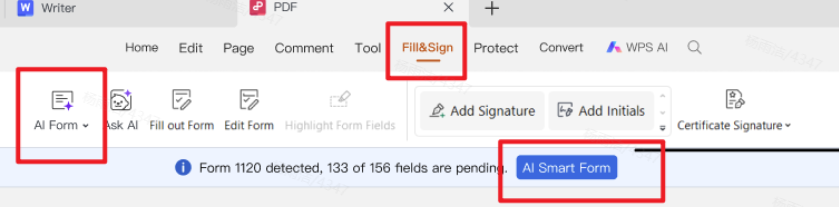
Step 3. When fields are detected, click AI Form or AI Smart Form.
Step 4. In the AI Form Filler window, paste the information you need to enter (or upload/drag a source file), then click Extract&Fill.
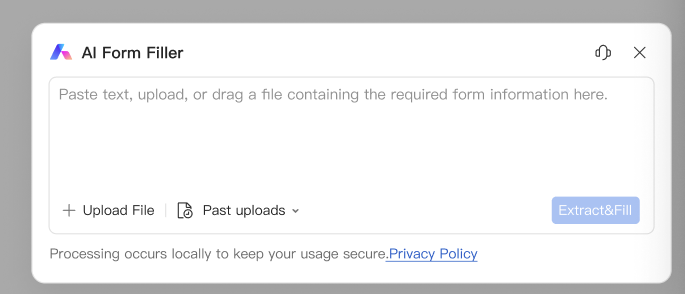
Step 5. Review the autofilled fields carefully, fix anything incorrect, and save the PDF.
Using Tips to Make a Fillable PDF Form without Acrobat
Keep the form simple so that respondents can fill it out easily.
To verify compatibility, test the PDF form on different hardware and applications.
A backup copy of your PDF form should be saved in case any unintended additions or deletions occur.
To make it easier for respondents to comprehend and complete the form, give the fields descriptive titles.
Make the form readable and visually appealing by using formatting and design elements like colors and fonts.
If you also need a how to make a fillable pdf form without acrobat, see our related guide.
FAQs on How to Make a Fillable PDF Form without Acrobat
Q: Can I add instructions or help text to a fillable PDF form without Acrobat?
Yes, you can add instructions or help text to a fillable PDF form without Acrobat using most PDF editing software. You can create a form field for the instruction or help text and then set the properties to reflect the desired options.
Q: Can I create a fillable PDF form on my mobile device?
Yes, there are mobile apps available that allow you to create fillable PDF forms, such as Adobe Fill and Sign PDF and PDFelement.
Q: Can I add a digital signature field to my fillable PDF form?
Yes, you can add a digital signature field to your fillable PDF form using a PDF editor such as WPS Office. This allows respondents to sign the form electronically, making it easier and more convenient for both parties.
Download WPS Office for a Free Trial
WPS Office is a free and simple office suite that includes a PDF editor that we strongly suggest for generating fillable PDF forms. Visit the official website and select "Free Download" to start the download of WPS Office. Along with producing fillable PDF forms, WPS Office also allows you to edit, convert, and annotate PDF files. See how it can make your PDF-related tasks easier by giving it a try.
If you also need a free pdf filler, see our related guide.

'%3e%3cpath%20d='M19.9911%204.11386V6.471H18.5894C18.0775%206.471%2017.7322%206.57814%2017.5536%206.79243C17.3751%207.00671%2017.2858%207.32814%2017.2858%207.75671V9.44421H19.9019L19.5536%2012.0871H17.2858V18.8639H14.5536V12.0871H12.2769V9.44421H14.5536V7.49779C14.5536%206.39064%2014.8632%205.53201%2015.4822%204.92189C16.1013%204.31177%2016.9257%204.00671%2017.9554%204.00671C18.8304%204.00671%2019.509%204.04243%2019.9911%204.11386Z'%20fill='%23333333'/%3e%3c/g%3e%3cdefs%3e%3cclipPath%20id='clip0_2938_8199'%3e%3crect%20width='16'%20height='16'%20fill='white'%20transform='translate(8%204.00671)'/%3e%3c/clipPath%3e%3c/defs%3e%3c/svg%3e)
'%3e%3cpath%20d='M17.5237%2010.7813L23.4811%204H22.0699L16.8949%209.88693L12.7648%204H8L14.2469%2012.9029L8%2020.0133H9.4112L14.8725%2013.7952L19.2352%2020.0133H24M9.92053%205.04213H12.0885L22.0688%2019.0224H19.9003'%20fill='%23333333'/%3e%3c/g%3e%3cdefs%3e%3cclipPath%20id='clip0_2938_8200'%3e%3crect%20width='16'%20height='16.0134'%20fill='white'%20transform='translate(8%204)'/%3e%3c/clipPath%3e%3c/defs%3e%3c/svg%3e)


