

'%3e%3cpath%20d='M8%200C12.4183%200%2016%203.58172%2016%208C16%2012.4183%2012.4183%2016%208%2016C3.58172%2016%200%2012.4183%200%208C0%203.58172%203.58172%200%208%200ZM11.6162%204.38379C11.2257%203.99337%2010.5927%203.99338%2010.2021%204.38379L8%206.58594L5.79785%204.38379C5.40732%203.99334%204.77429%203.99329%204.38379%204.38379C3.99331%204.77429%203.99335%205.40733%204.38379%205.79785L6.58594%208L4.38379%2010.2021C3.99348%2010.5927%203.99341%2011.2257%204.38379%2011.6162C4.77426%2012.0066%205.40734%2012.0065%205.79785%2011.6162L8%209.41406L10.2021%2011.6162C10.5927%2012.0066%2011.2257%2012.0067%2011.6162%2011.6162C12.0067%2011.2257%2012.0066%2010.5927%2011.6162%2010.2021L9.41406%208L11.6162%205.79785C12.0066%205.40735%2012.0066%204.77429%2011.6162%204.38379Z'%20fill='%23080E17'%20fill-opacity='0.46'/%3e%3c/g%3e%3cdefs%3e%3cclipPath%20id='clip0_3761_713'%3e%3crect%20width='16'%20height='16'%20fill='white'/%3e%3c/clipPath%3e%3c/defs%3e%3c/svg%3e)




'%3e%3cpath%20fill-rule='evenodd'%20clip-rule='evenodd'%20d='M21.4999%2010.9993C21.4999%205.20009%2016.7986%200.498901%2010.9993%200.498901C5.19994%200.498901%200.498657%205.20009%200.498657%2010.9993C0.498657%2016.2404%204.33858%2020.5844%209.35855%2021.3722V14.0346H6.69238V10.9993H9.35855V8.68594C9.35855%206.05427%2010.9262%204.60062%2013.3248%204.60062C14.4736%204.60062%2015.6753%204.80571%2015.6753%204.80571V7.38979H14.3512C13.0468%207.38979%2012.64%208.19921%2012.64%209.0296V10.9993H15.5523L15.0867%2014.0346H12.64V21.3722C17.66%2020.5844%2021.4999%2016.2404%2021.4999%2010.9993Z'%20fill='%231568EA'/%3e%3c/g%3e%3c/svg%3e)


'%3e%3cpath%20d='M2.42045%2022.1876H6.31818V12.7217L0.75%208.54553V20.5171C0.75%2021.4414%201.49892%2022.1876%202.42045%2022.1876Z'%20fill='%234285F4'/%3e%3cpath%20d='M19.682%2022.1876H23.5797C24.5041%2022.1876%2025.2502%2021.4387%2025.2502%2020.5171V8.54553L19.682%2012.7217'%20fill='%2334A853'/%3e%3cpath%20d='M19.682%205.48293V12.7216L25.2502%208.54543V6.31816C25.2502%204.25236%2022.8921%203.07469%2021.2411%204.31361'%20fill='%23FBBC04'/%3e%3cpath%20d='M6.31824%2012.7217V5.48303L13.0001%2010.4944L19.6819%205.48303V12.7217L13.0001%2017.733'%20fill='%23EA4335'/%3e%3cpath%20d='M0.75%206.31816V8.54543L6.31818%2012.7216V5.48293L4.75909%204.31361C3.10534%203.07469%200.75%204.25236%200.75%206.31816Z'%20fill='%23C5221F'/%3e%3c/g%3e%3cdefs%3e%3cclipPath%20id='clip0_2954_7305'%3e%3crect%20width='24.5'%20height='18.375'%20fill='white'%20transform='translate(0.75%203.8125)'/%3e%3c/clipPath%3e%3c/defs%3e%3c/svg%3e)


Need to fix a contract on the train, mark up a study pack between classes, or sign a form before a meeting? Searching for the best PDF editor for Android usually means you want real edits on a phone—not just a viewer. Roundups often list Adobe Acrobat, Foxit, Xodo, iLovePDF, and browser tools. The useful question is simpler: which option matches the job you do most on a small screen?
This guide introduces the main apps and methods people use today, compares them side by side, explains why WPS Office is a strong pick for everyday Android PDF work, and walks through how to edit PDFs inside WPS with clear screenshots.
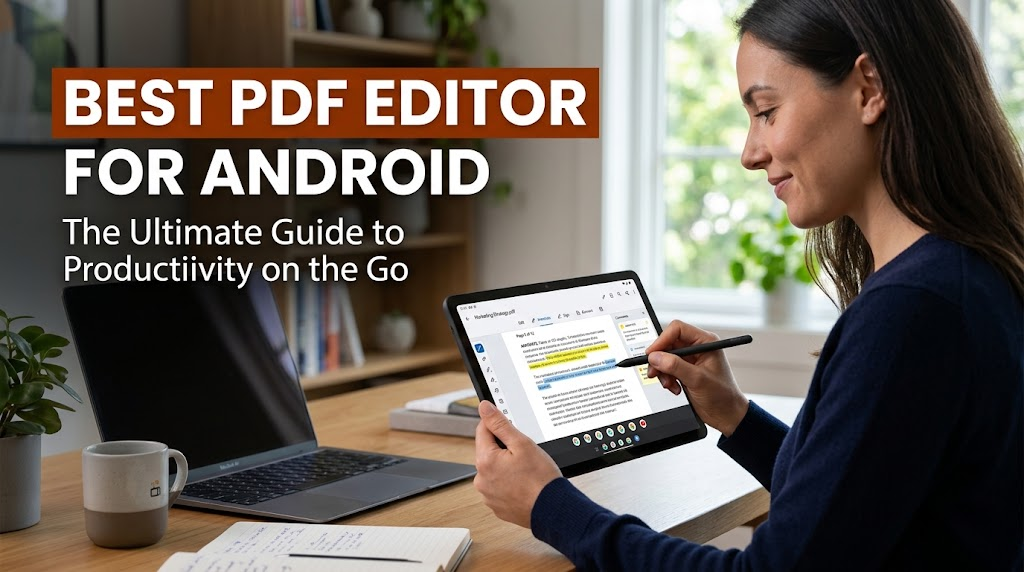
WPS PDF editor on Android
Popular Options When You Need the Best PDF Editor for Android
Most Android PDF workflows fall into a few camps: a dedicated reader-editor app, a lightweight markup tool, a single-task utility, a browser-based editor, or an all-in-one office suite. Here are the options you will see most often—and what each method is actually good for.
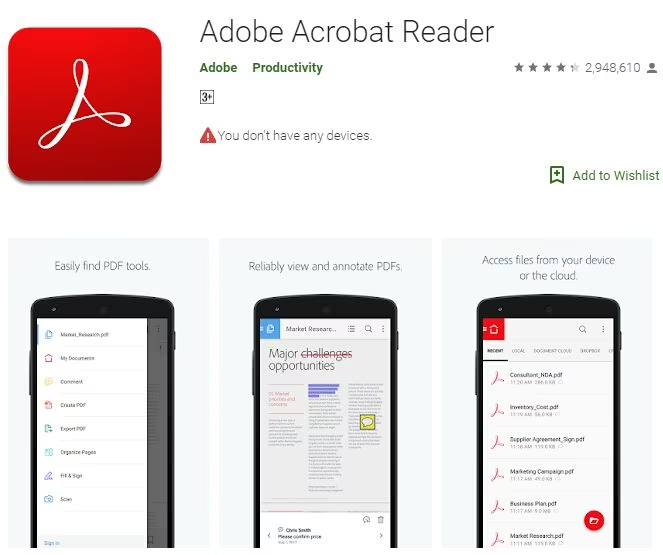
1. Adobe Acrobat Reader
Adobe remains the default name in business documents. On Android, Acrobat Reader is excellent for viewing, Liquid Mode reflow, comments, form fill, and signing. Structural text editing, however, is typically locked behind a paid plan. Choose Adobe if your team already lives in Creative Cloud or needs familiar enterprise signing flows.
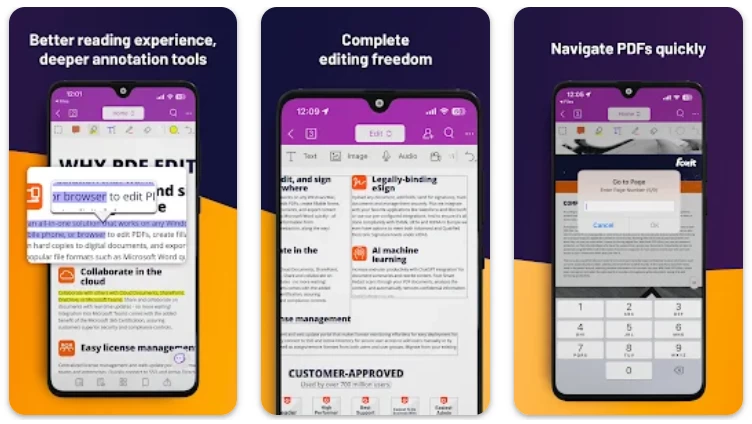
2. Foxit PDF Editor
Foxit is built for speed and lower memory use. It opens large or schematic-heavy files more smoothly on mid-range or older phones. Annotation and some editing are available, but the interface can feel busy on smaller screens, and deeper edits often sit behind a subscription. It fits field engineers and tablet users who prioritize performance.
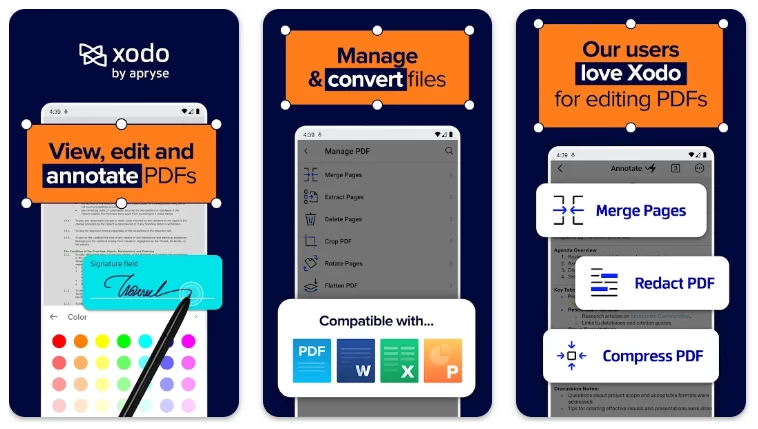
3. Xodo PDF Reader & Editor
Xodo shines for stylus writing, palm rejection, highlights, form fill, and page tools. Students and reviewers who mainly annotate—not rewrite—often prefer it. Free-tier save limits have tightened over time, so check current daily caps before you rely on it for heavy daily output.
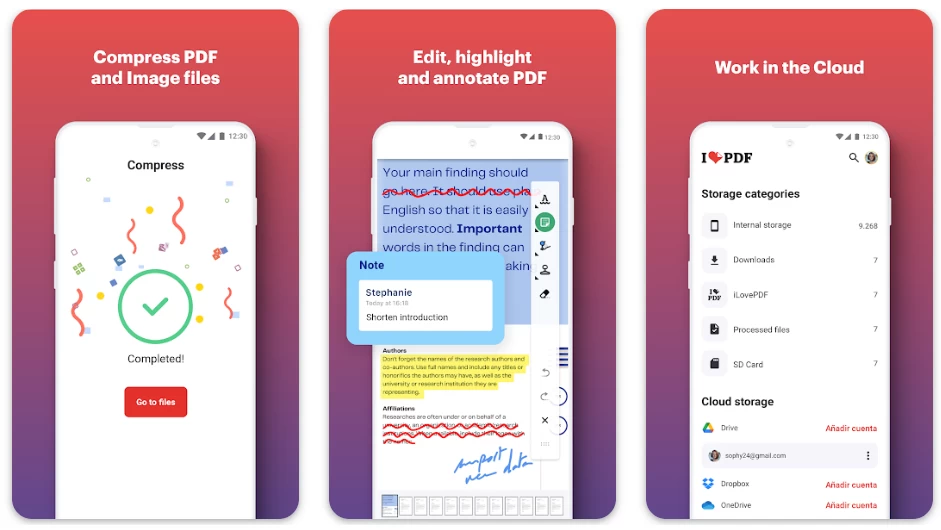
4. iLovePDF (app / web hybrid)
iLovePDF focuses on single tasks: merge, split, compress, and light markup. It is handy when you need a quick file action before email, not a full layout rewrite. Advanced in-line paragraph restructuring is limited compared with a full PDF editor.
5. Browser-based editors
Cloud editors in Chrome or Firefox avoid a big install and push heavy processing to remote servers. They work well for urgent one-off edits when storage is tight. The trade-off is network dependence, upload privacy considerations, and sometimes queue waits for large batches.
6. WPS Office (all-in-one suite)
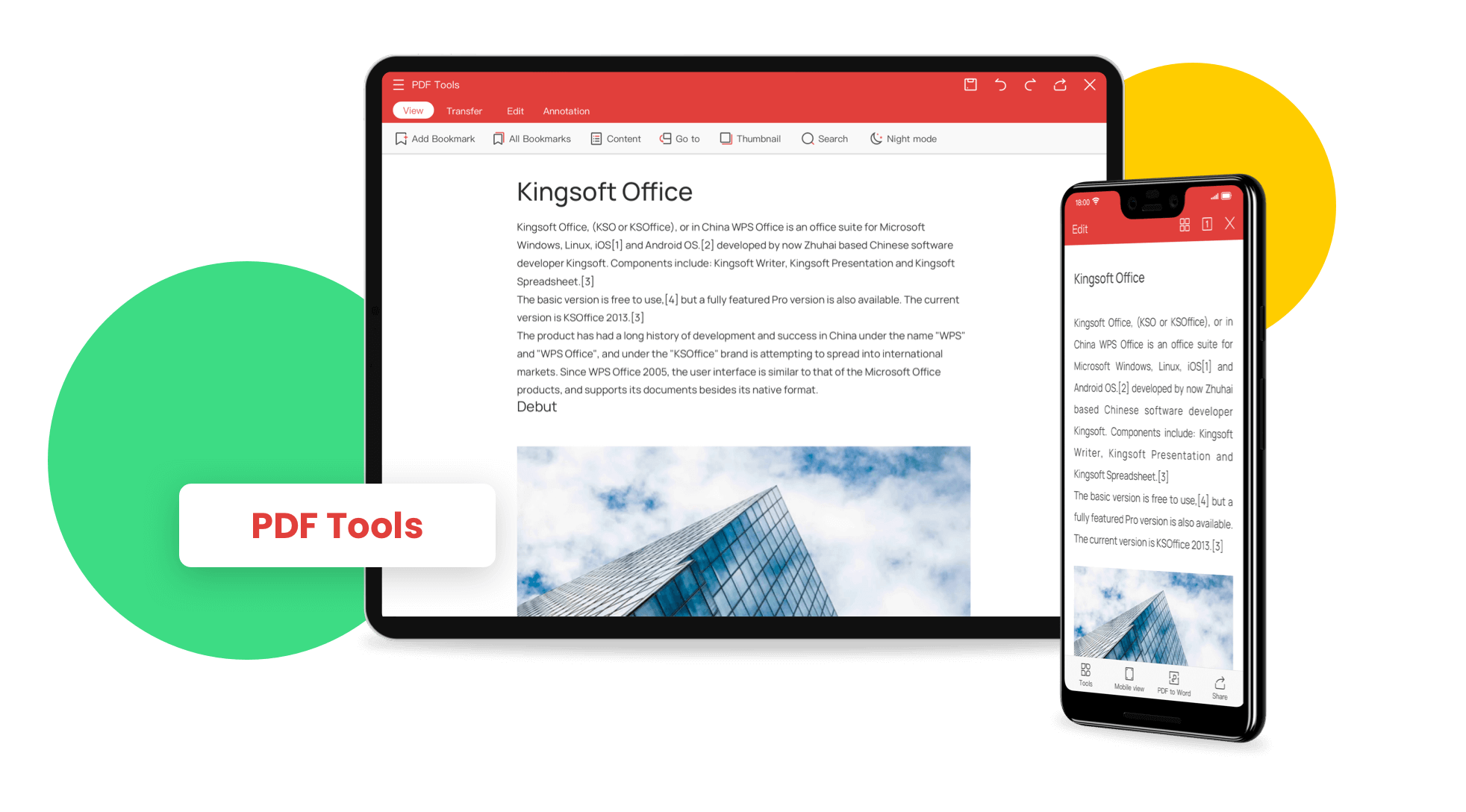
WPS Office combines Word, Excel, PowerPoint, and a practical PDF toolkit in one Android app. You can open files from local storage or cloud, edit text and images, annotate, sign, convert, and compress without jumping between apps. That all-in-one path is why many users treat WPS as their day-to-day best PDF editor for Android choice.


Side-by-Side Comparison of the Best PDF Editor for Android Apps
Use this matrix to match the tool to your workflow. Pricing and free limits change often—verify in Google Play before you commit.
| App / method | Best for | Free-tier reality | Watch-outs |
|---|---|---|---|
| Adobe Acrobat Reader | Viewing, comments, enterprise signing | Strong free reading and markup; deep text edit is paid | Subscription cost for core rewrites |
| Foxit PDF Editor | Speed on older hardware; large files | View and light tools free; advanced edit paid | Cramped UI on small phones |
| Xodo | Stylus annotation and form fill | Solid free markup; save limits may apply | Less ideal for full paragraph rewrites |
| iLovePDF | Merge, split, compress, quick fixes | Task-based free tools with limits | Not a deep layout editor |
| Browser editors | No-install emergency edits | Often free for light use | Needs internet; privacy/upload trade-offs |
| WPS Office | Office + PDF in one app; text/image edits | Free Standard plan; Pro+ unlocks more PDF power | Some advanced PDF features may need Pro+ |
Quick pick: choose Adobe for corporate Acrobat workflows, Xodo for stylus markup, Foxit for low-RAM phones, iLovePDF or a browser tool for one-shot utilities, and WPS when PDF edits sit next to Word, Excel, or slides in the same day.
Why WPS Is the Best PDF Editor for Android for Everyday Work
After comparing the field, WPS Office stands out as the best PDF editor for Android for people who need practical edits without juggling three apps. Here is what makes it the everyday winner:
Edit original content: Change existing text and manage images—not only overlay notes.
One app for the whole job: PDF tools live beside Writer, Spreadsheets, and Presentation, so convert → rewrite → export stays inside WPS.
Annotation, Fill & Sign, page tools: Highlight, comment, sign, reorder, merge, split, and compress when the task is review—not a full rewrite.
Mobile OCR path: Turn scanned pages into searchable, editable text when a photo PDF will not select normally.
Fair pricing: Start on the free Standard plan; Pro+ (often around $5.83/month billed annually) unlocks deeper PDF edit, conversion, and storage—typically lower than many PDF-only subscriptions near $10–$12/month.
Cross-device sync: Start on Android, finish on desktop or web without rebuilding the file.
If your real goal is a usable edited PDF today—while still opening Word and Excel later—WPS is the balanced choice after the comparison above.
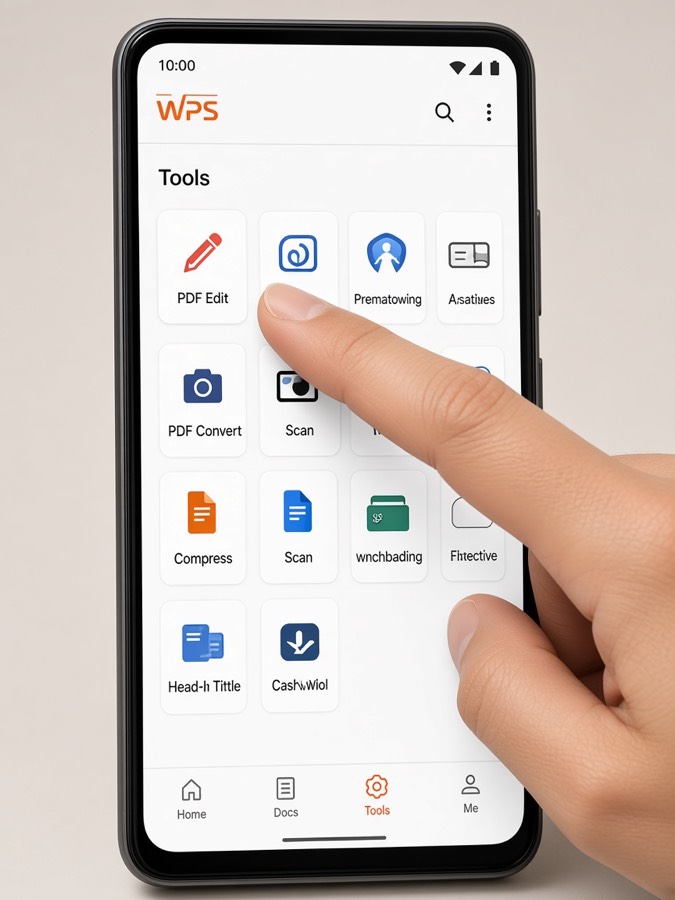
WPS Tools PDF Edit menu
How to Use the Best PDF Editor for Android Inside WPS
Ready to edit on your phone? Follow these steps in WPS Office for Android. The screenshots below mirror the real in-app flow so you can match each action on screen.
Step 1: Install and open WPS Office
Download WPS Office from Google Play, open the app, and sign in if you want cloud documents available across devices. Grant storage access when prompted so you can open local PDFs.
Step 2: Open your PDF file
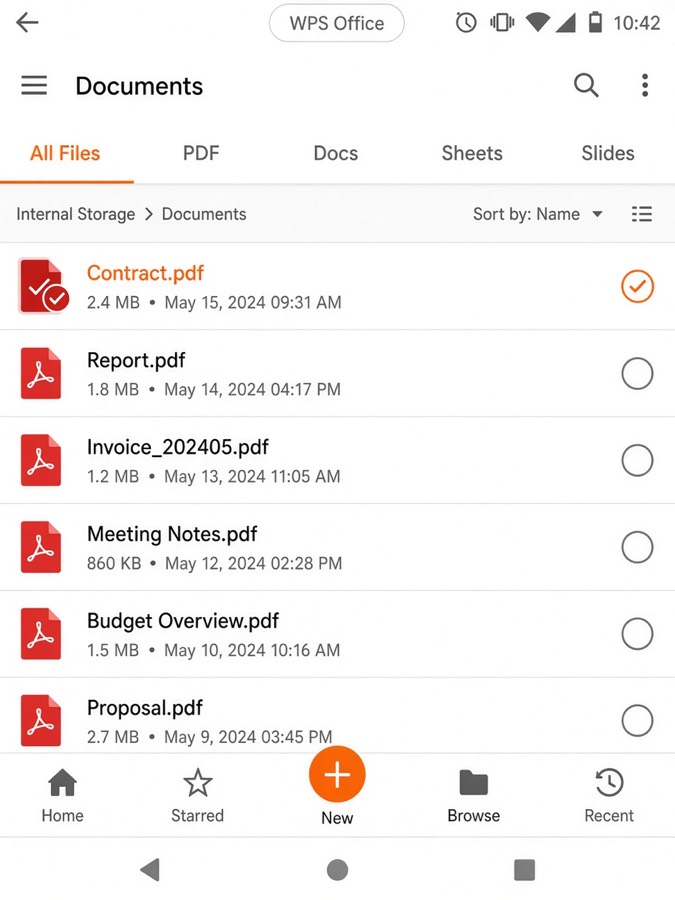
Tap Docs or + / Files, then select the PDF from phone storage, Downloads, Google Drive, OneDrive, or an email attachment.
Open PDF file in WPS
Step 3: Enter PDF Edit mode
From the Tools tab, choose PDF Edit, or open the PDF and tap Edit on the toolbar. You will see modes such as Edit, Annotate, Fill & Sign, and Insert.
WPS Tools PDF Edit menu
Step 4: Edit text
In Edit mode, tap a text box to change wording, font size, or color. Drag handles if spacing shifts after a longer rewrite. This is ideal for typo fixes, date updates, and short clause changes on the go.
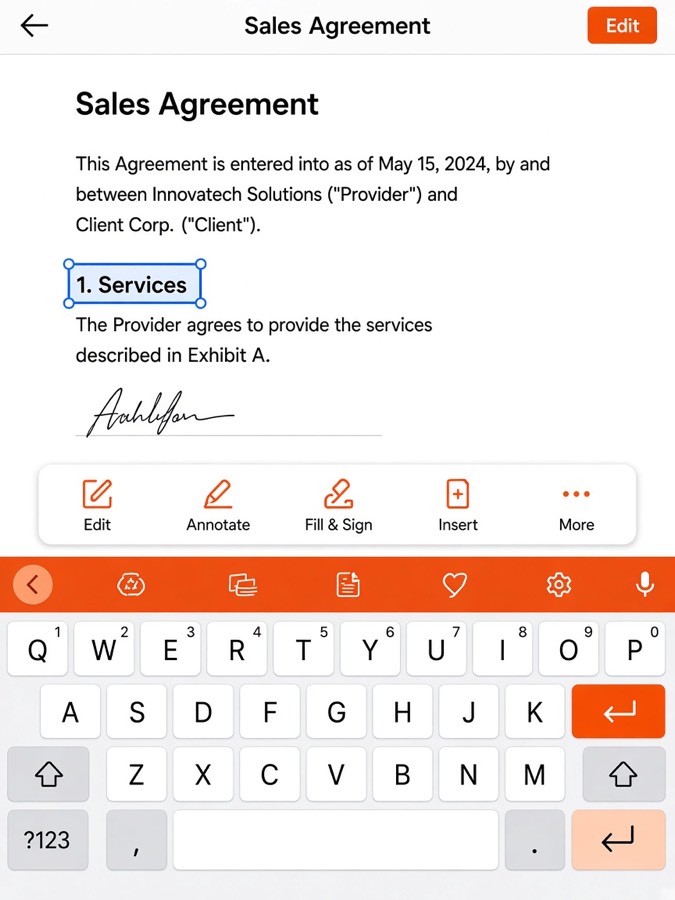
Edit PDF text on Android
Step 5: Adjust images when needed
Tap an image to crop, rotate, replace it from your gallery, or adjust opacity. Use this when a logo is outdated or a figure needs a quick swap without rebuilding the whole page.
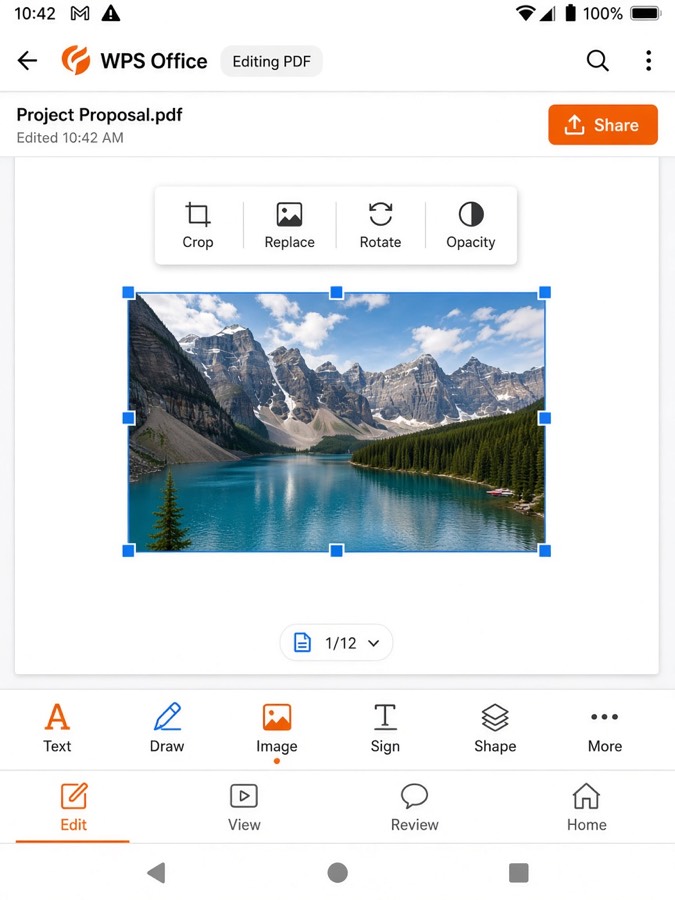
Edit PDF image in WPS
Step 6: Annotate, fill, or sign
Switch to Annotate for highlights and comments, or Fill & Sign to place a finger-drawn signature. Keep drawn signatures for informal workflows; follow your organization’s policy for formal contracts.
Step 7: Save and share
Tap Done or the save/share control. Rename if needed, then save locally or to cloud storage and send via email or messaging apps. Reopen on a PC later to confirm layout integrity.
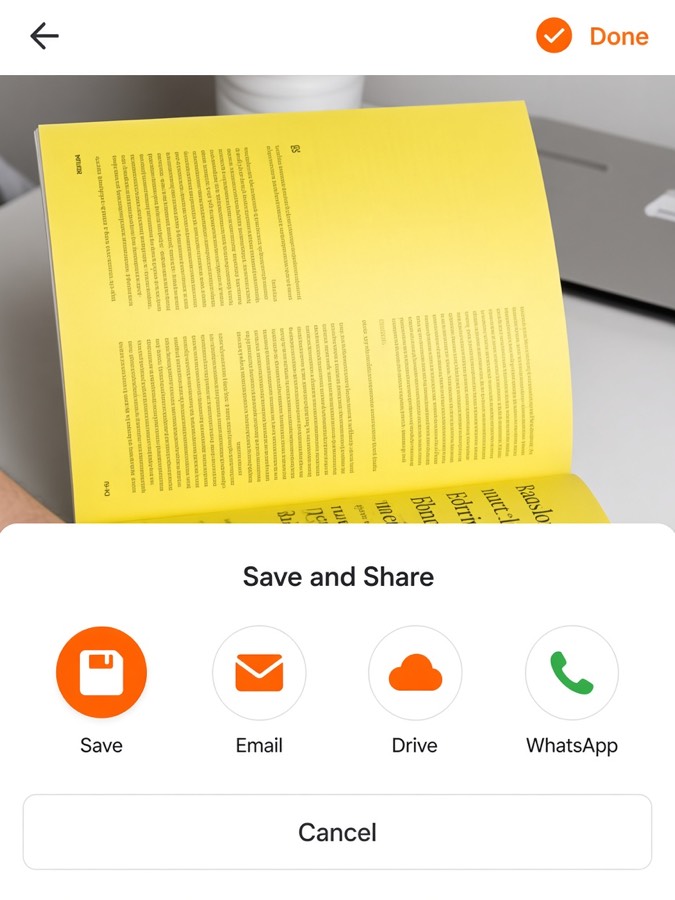
Save and share PDF Android
Tip: Scanned PDFs behave like images. If text will not select, run OCR or convert to Word inside WPS before you force a text edit. Also check whether the exact tool you need sits on the free plan or Pro+.
FAQs
What is the best PDF editor for Android if I only need free markup?
Annotation-first apps such as Xodo are strong for highlights and forms. If you also edit Word or Excel files, WPS Office is usually more efficient as your default app.
Can I edit PDF text for free on Android with WPS?
Yes—WPS Office offers free viewing, annotation, and editing tools. Some advanced PDF edit, OCR, or conversion features may require WPS Pro+. Check the in-app prompt for the action you need.
Is Adobe better than WPS for Android PDF editing?
Adobe is excellent for reading and enterprise signing. For everyday text/image edits plus office files in one place, WPS is often the more practical best PDF editor for Android pick.
Will my formatting break when I edit on a phone?
Complex multi-column layouts can shift on small screens. Make small, careful edits, save a copy first, and review once on desktop when the layout is critical.
Do I need internet to edit PDFs in WPS on Android?
Local files generally open and edit offline. Cloud sync, account features, and some conversion or premium services may need a network connection.

'%3e%3cpath%20d='M19.9911%204.11386V6.471H18.5894C18.0775%206.471%2017.7322%206.57814%2017.5536%206.79243C17.3751%207.00671%2017.2858%207.32814%2017.2858%207.75671V9.44421H19.9019L19.5536%2012.0871H17.2858V18.8639H14.5536V12.0871H12.2769V9.44421H14.5536V7.49779C14.5536%206.39064%2014.8632%205.53201%2015.4822%204.92189C16.1013%204.31177%2016.9257%204.00671%2017.9554%204.00671C18.8304%204.00671%2019.509%204.04243%2019.9911%204.11386Z'%20fill='%23333333'/%3e%3c/g%3e%3cdefs%3e%3cclipPath%20id='clip0_2938_8199'%3e%3crect%20width='16'%20height='16'%20fill='white'%20transform='translate(8%204.00671)'/%3e%3c/clipPath%3e%3c/defs%3e%3c/svg%3e)
'%3e%3cpath%20d='M17.5237%2010.7813L23.4811%204H22.0699L16.8949%209.88693L12.7648%204H8L14.2469%2012.9029L8%2020.0133H9.4112L14.8725%2013.7952L19.2352%2020.0133H24M9.92053%205.04213H12.0885L22.0688%2019.0224H19.9003'%20fill='%23333333'/%3e%3c/g%3e%3cdefs%3e%3cclipPath%20id='clip0_2938_8200'%3e%3crect%20width='16'%20height='16.0134'%20fill='white'%20transform='translate(8%204)'/%3e%3c/clipPath%3e%3c/defs%3e%3c/svg%3e)


