

'%3e%3cpath%20d='M8%200C12.4183%200%2016%203.58172%2016%208C16%2012.4183%2012.4183%2016%208%2016C3.58172%2016%200%2012.4183%200%208C0%203.58172%203.58172%200%208%200ZM11.6162%204.38379C11.2257%203.99337%2010.5927%203.99338%2010.2021%204.38379L8%206.58594L5.79785%204.38379C5.40732%203.99334%204.77429%203.99329%204.38379%204.38379C3.99331%204.77429%203.99335%205.40733%204.38379%205.79785L6.58594%208L4.38379%2010.2021C3.99348%2010.5927%203.99341%2011.2257%204.38379%2011.6162C4.77426%2012.0066%205.40734%2012.0065%205.79785%2011.6162L8%209.41406L10.2021%2011.6162C10.5927%2012.0066%2011.2257%2012.0067%2011.6162%2011.6162C12.0067%2011.2257%2012.0066%2010.5927%2011.6162%2010.2021L9.41406%208L11.6162%205.79785C12.0066%205.40735%2012.0066%204.77429%2011.6162%204.38379Z'%20fill='%23080E17'%20fill-opacity='0.46'/%3e%3c/g%3e%3cdefs%3e%3cclipPath%20id='clip0_3761_713'%3e%3crect%20width='16'%20height='16'%20fill='white'/%3e%3c/clipPath%3e%3c/defs%3e%3c/svg%3e)




'%3e%3cpath%20fill-rule='evenodd'%20clip-rule='evenodd'%20d='M21.4999%2010.9993C21.4999%205.20009%2016.7986%200.498901%2010.9993%200.498901C5.19994%200.498901%200.498657%205.20009%200.498657%2010.9993C0.498657%2016.2404%204.33858%2020.5844%209.35855%2021.3722V14.0346H6.69238V10.9993H9.35855V8.68594C9.35855%206.05427%2010.9262%204.60062%2013.3248%204.60062C14.4736%204.60062%2015.6753%204.80571%2015.6753%204.80571V7.38979H14.3512C13.0468%207.38979%2012.64%208.19921%2012.64%209.0296V10.9993H15.5523L15.0867%2014.0346H12.64V21.3722C17.66%2020.5844%2021.4999%2016.2404%2021.4999%2010.9993Z'%20fill='%231568EA'/%3e%3c/g%3e%3c/svg%3e)


'%3e%3cpath%20d='M2.42045%2022.1876H6.31818V12.7217L0.75%208.54553V20.5171C0.75%2021.4414%201.49892%2022.1876%202.42045%2022.1876Z'%20fill='%234285F4'/%3e%3cpath%20d='M19.682%2022.1876H23.5797C24.5041%2022.1876%2025.2502%2021.4387%2025.2502%2020.5171V8.54553L19.682%2012.7217'%20fill='%2334A853'/%3e%3cpath%20d='M19.682%205.48293V12.7216L25.2502%208.54543V6.31816C25.2502%204.25236%2022.8921%203.07469%2021.2411%204.31361'%20fill='%23FBBC04'/%3e%3cpath%20d='M6.31824%2012.7217V5.48303L13.0001%2010.4944L19.6819%205.48303V12.7217L13.0001%2017.733'%20fill='%23EA4335'/%3e%3cpath%20d='M0.75%206.31816V8.54543L6.31818%2012.7216V5.48293L4.75909%204.31361C3.10534%203.07469%200.75%204.25236%200.75%206.31816Z'%20fill='%23C5221F'/%3e%3c/g%3e%3cdefs%3e%3cclipPath%20id='clip0_2954_7305'%3e%3crect%20width='24.5'%20height='18.375'%20fill='white'%20transform='translate(0.75%203.8125)'/%3e%3c/clipPath%3e%3c/defs%3e%3c/svg%3e)


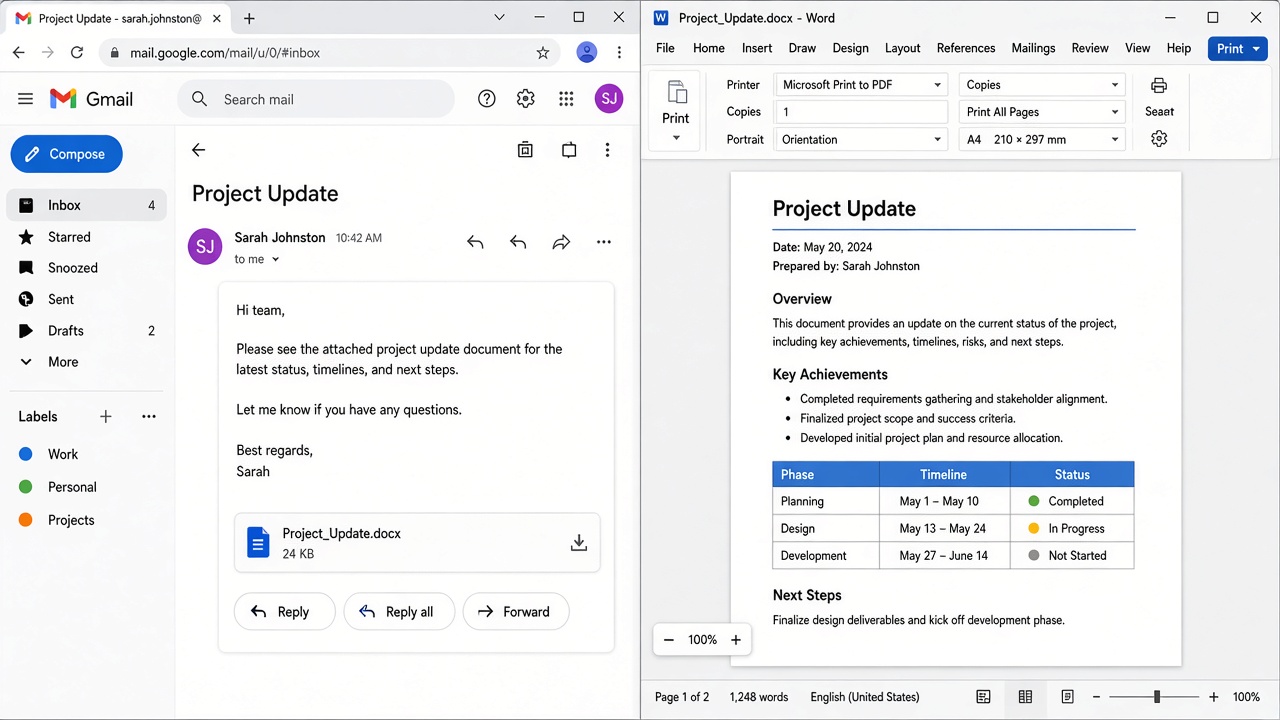
Quick answer: To print documents from Gmail without saving first, open the attachment preview and click the Print icon (top right)—or choose Edit with Google Docs → File → Print. To print a document from your Gmail the classic way, click Download (or Download all) next to the file at the bottom of the message, open it in Word, then press Ctrl + P. Gmail’s message Print button only prints the email body, not the Word file.
People searching this topic usually ask one of a few real questions: Can I print without saving? Where is the Print button? How do I print the attachment? Or how do I turn the email itself into a Word file without wrecking the layout? The sections below answer those searches in that order.
How can I print documents from Gmail without saving first?
Yes—on a computer you can often print the attachment without downloading a local .docx first.
Open the email in Gmail.
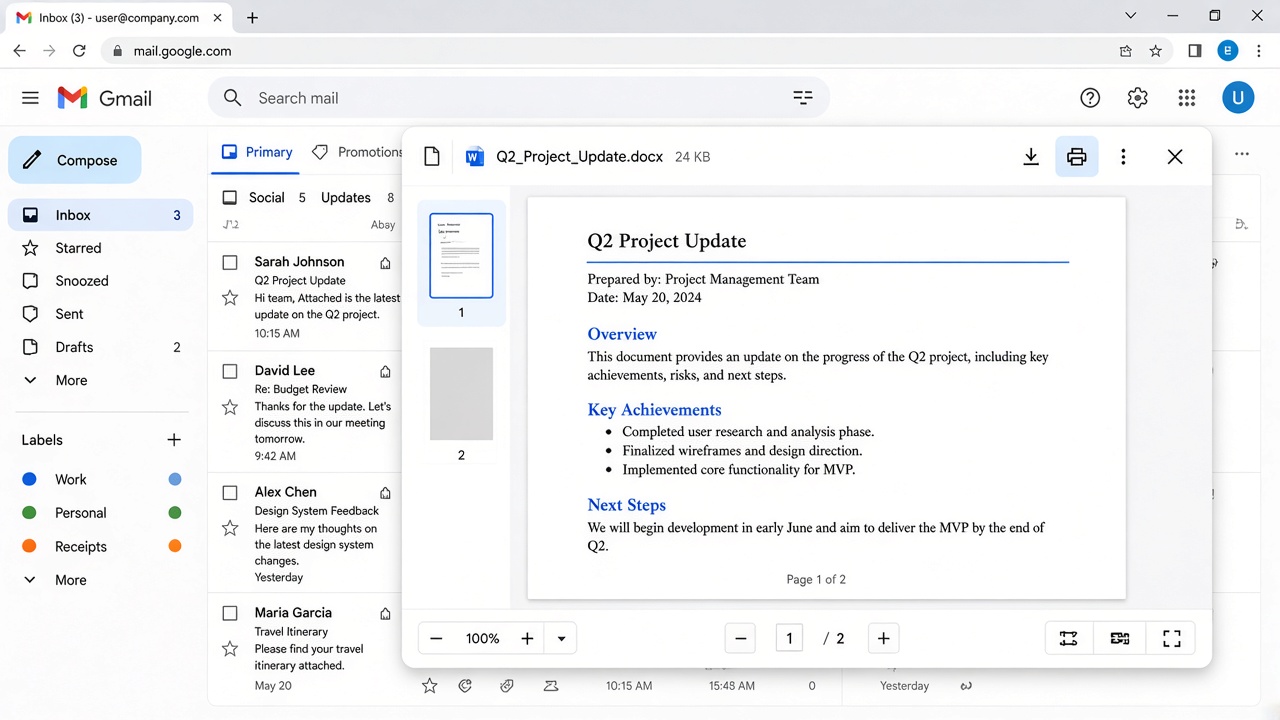
Click the attachment (or the preview area on the attachment chip) to open the built-in viewer.
Click the Print icon at the top right of the viewer.
In the print dialog, set Destination to your printer (or Save as PDF), then print.
If the viewer has no Print icon—or Print is grayed out—use this no-local-file path instead:
Hover the .docx attachment and click Edit with Google Docs.
When Docs opens, choose File → Print (or press Ctrl + P).
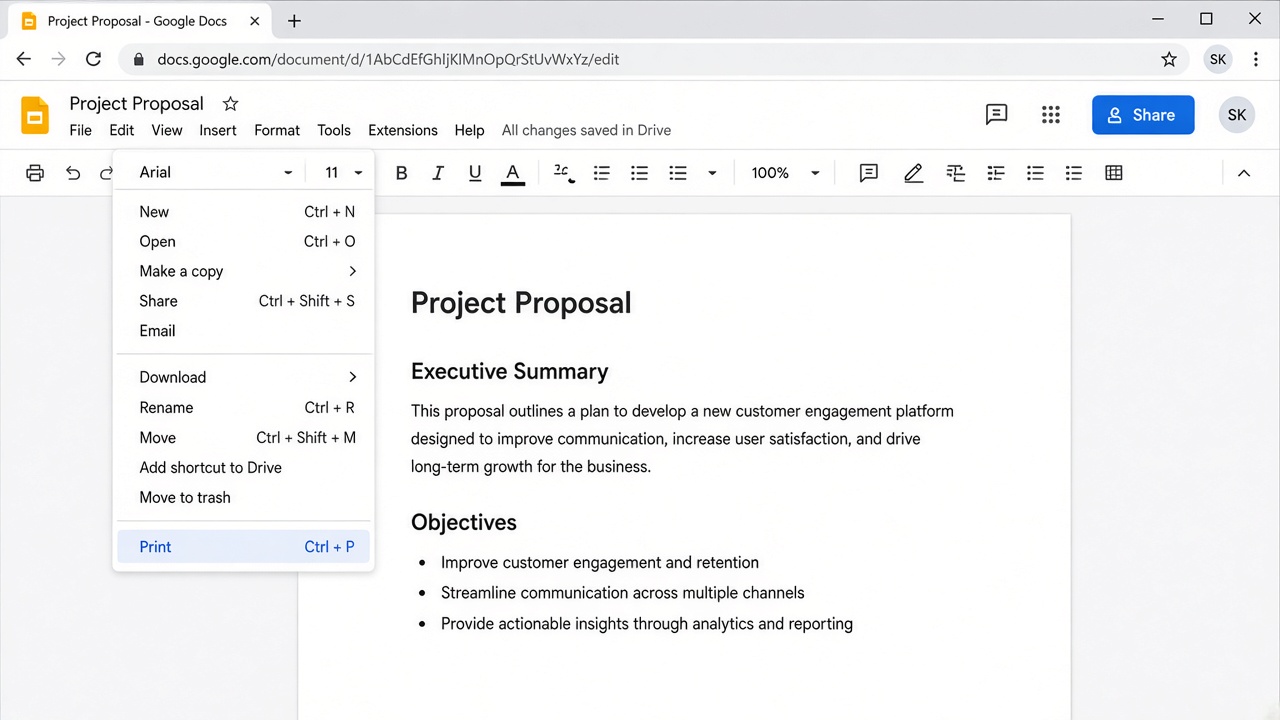
Note: Docs still creates a Drive copy in the background. You skip saving to Downloads, but Google still stores a copy. Complex Word layouts can shift slightly in Docs—if the preview looks wrong, use the Download → Word path below.
Where is the Print button in Gmail?
Gmail has more than one Print control, and they do different jobs:
Message Print: open the email, then use the Print option in the top-right message toolbar (or the three-dot menu → Print). This prints the email thread/body—not the Word attachment.
Attachment Print: open the attachment viewer first; the Print icon is in that viewer’s top-right toolbar.
Download / Download all: at the bottom of the email, next to each attachment name (or use Download all when several files are attached). After download, print from Word, Docs, or another app.
If you only see Print and the paper still shows the email text, you used the message Print button. Close that dialog and open the attachment instead.
How do I print a document from my Gmail? (Download → Word)
This is the most reliable path when formatting must stay exact—resumes, contracts, forms, and letterhead.
Open the message in Gmail on your computer.
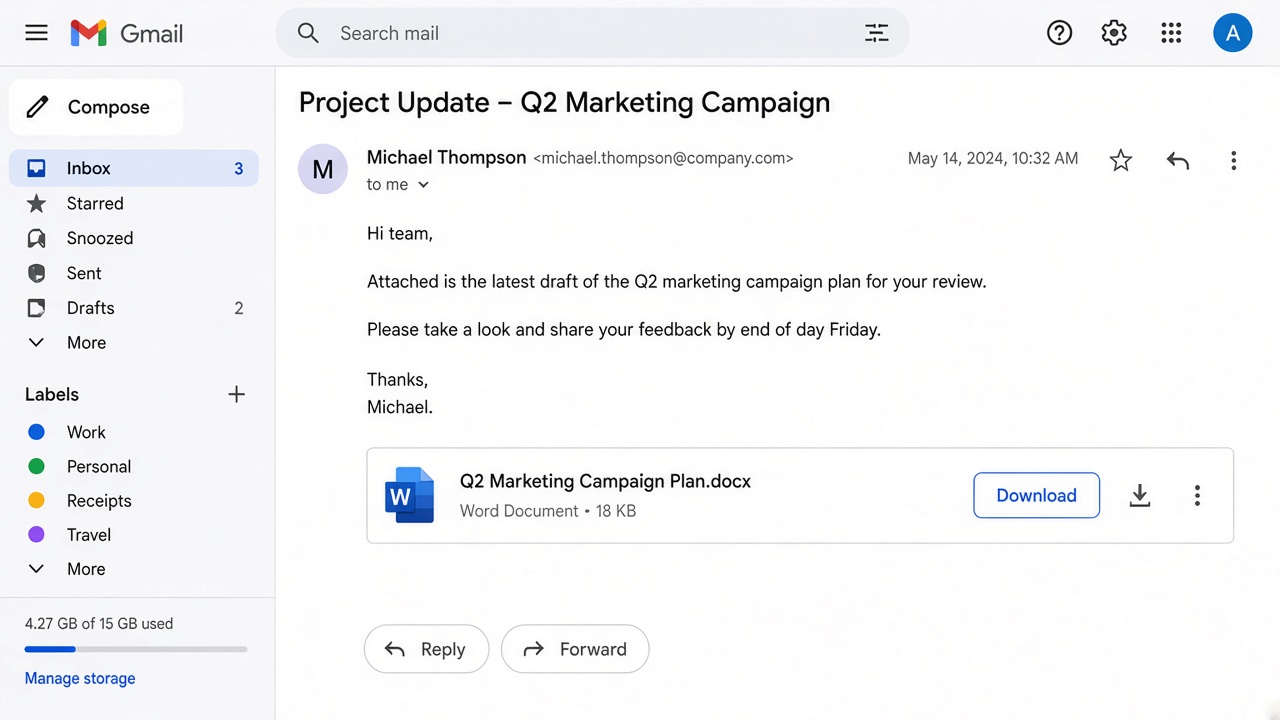
At the bottom of the message, find the document name.
Click Download next to that file (or Download all if you need every attachment).
Open the file from Downloads in Microsoft Word.
Press Ctrl + P (or File → Print), set scale to 100%, check the preview, then print.
Tip: If Windows asks which app to use, choose Word and set it as the default for .docx so future Gmail downloads open faster.
Convert Gmail to a Word document (with less formatting loss)
This search usually means one of two jobs. Pick the matching path:
A) The attachment is already a Word file
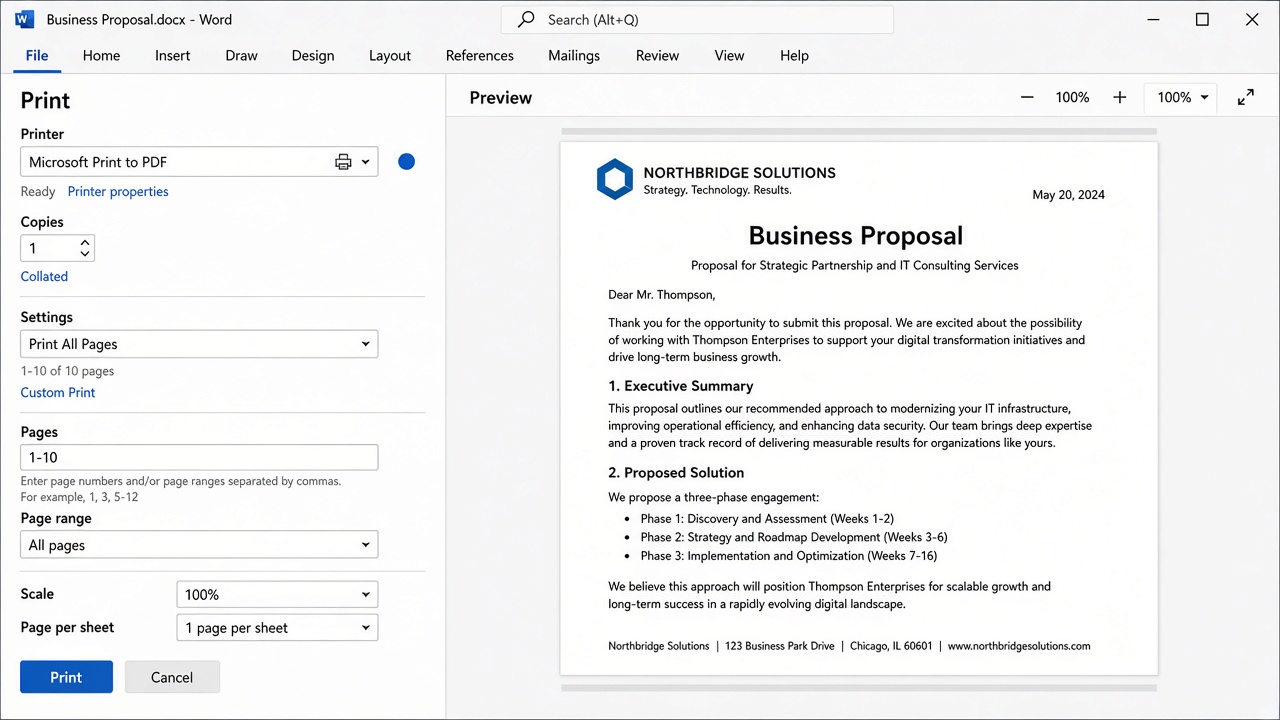
Don’t “convert” it. Download the .docx and open it in Word (or WPS Writer). That keeps the original formatting better than pasting the email body.
B) You want the email message itself as a .docx
Open the email → use message Print → set Destination to Save as PDF.
Open the PDF in Word (File → Open) and save as .docx—or open a blank Word doc and paste only the parts you need.
For editable text with fewer layout surprises, select the email body in Gmail, copy it, paste into a blank Word or Google Docs file, then clean spacing before you save/print.
Third-party “Gmail to Word” tools are optional. For most U.S. office workflows, Print → PDF → Word or copy/paste into Word is enough—and safer on confidential mail.
How to print a Word attachment from Gmail on phone
The Gmail app rarely prints .docx in one tap:
Open the email in the Gmail app.
Tap the attachment to download/open it.
Open it in Google Docs, Microsoft Word, or Files.
Use Share → Print (or the app’s Print option) and pick your Wi‑Fi printer or printer app.
If Print is missing or grayed out, save the file first, confirm phone and printer share the same Wi‑Fi, and enable your phone’s print service.
If you can’t download or print the attachment
Confidential mode: the sender may have blocked download/print—ask for a normal attachment or PDF.
“Checking this file” / virus scan: wait a few minutes and try again.
Browser extensions: disable ad blockers or Office helpers, then retry.
Need a previously printed copy again: open the same email (or Search mail for the subject), reopen the attachment, and print again—Gmail doesn’t keep a separate “printed history” of attachments.
Suspicious email: don’t download. Confirm the sender first.
Another option: open the download in WPS Writer
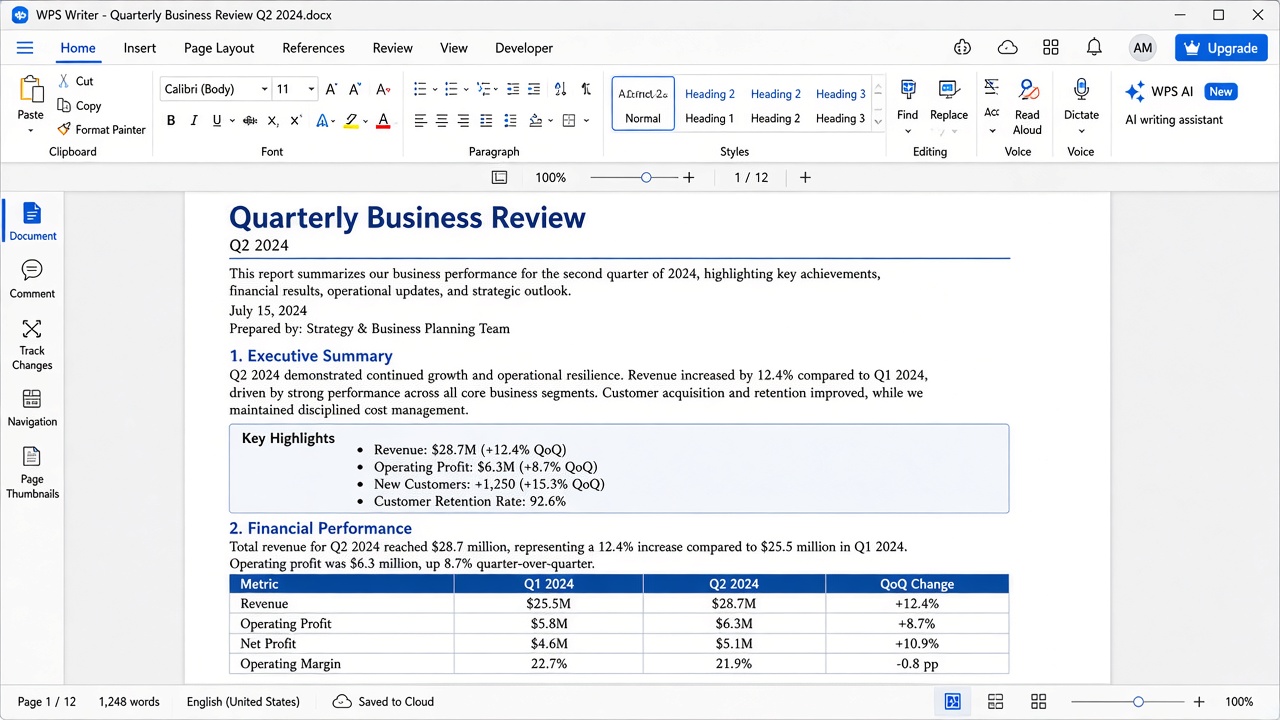
Already printed from the viewer, Docs, or Word? You’re done. If you use WPS Office, download the .docx from Gmail, open it in WPS Writer, check the preview, then print at 100% scale.
FAQ
How can I print documents from Gmail without saving first?
Open the attachment viewer and click Print at the top right. If Print isn’t there, use Edit with Google Docs → File → Print. That avoids a Downloads folder file (Docs still stores a Drive copy).
Where is the Print button in Gmail?
For the email body: top-right message toolbar (or More → Print). For an attachment: open the viewer first—the Print icon is in that toolbar. Download lives next to the file name at the bottom of the message.
How do I print a document from my Gmail?
Click Download or Download all next to the attachment, open the file in Word (or Docs), then print with Ctrl + P.
How do I convert Gmail to a Word document without formatting loss?
If it’s already a .docx attachment, download and open it in Word. If you need the email body as Word, Print → Save as PDF → open in Word, or paste the body into a blank Word doc and clean spacing—avoid tools you don’t trust on confidential mail.
Why does Gmail Print only print the email, not the Word file?
Message Print is for the conversation. Attachments are separate files—open the viewer, download them, or open them in Docs/Word before printing.
Can I print a .docx attachment from the Gmail mobile app?
Usually not in one step. Download/open the attachment, then print from Docs, Word, Files, or your printer’s app.
Summary
Match the method to what you searched for: without saving → attachment viewer Print or Docs Print; print a document from Gmail → Download / Download all → Word → Ctrl + P; convert Gmail to Word → download the .docx if you already have one, otherwise PDF or paste into Word. Don’t use message Print when you need the attachment. On phones, download first. Open the same file in WPS Writer only if you already work in WPS.



'%3e%3cpath%20d='M19.9911%204.11386V6.471H18.5894C18.0775%206.471%2017.7322%206.57814%2017.5536%206.79243C17.3751%207.00671%2017.2858%207.32814%2017.2858%207.75671V9.44421H19.9019L19.5536%2012.0871H17.2858V18.8639H14.5536V12.0871H12.2769V9.44421H14.5536V7.49779C14.5536%206.39064%2014.8632%205.53201%2015.4822%204.92189C16.1013%204.31177%2016.9257%204.00671%2017.9554%204.00671C18.8304%204.00671%2019.509%204.04243%2019.9911%204.11386Z'%20fill='%23333333'/%3e%3c/g%3e%3cdefs%3e%3cclipPath%20id='clip0_2938_8199'%3e%3crect%20width='16'%20height='16'%20fill='white'%20transform='translate(8%204.00671)'/%3e%3c/clipPath%3e%3c/defs%3e%3c/svg%3e)
'%3e%3cpath%20d='M17.5237%2010.7813L23.4811%204H22.0699L16.8949%209.88693L12.7648%204H8L14.2469%2012.9029L8%2020.0133H9.4112L14.8725%2013.7952L19.2352%2020.0133H24M9.92053%205.04213H12.0885L22.0688%2019.0224H19.9003'%20fill='%23333333'/%3e%3c/g%3e%3cdefs%3e%3cclipPath%20id='clip0_2938_8200'%3e%3crect%20width='16'%20height='16.0134'%20fill='white'%20transform='translate(8%204)'/%3e%3c/clipPath%3e%3c/defs%3e%3c/svg%3e)


