

'%3e%3cpath%20d='M8%200C12.4183%200%2016%203.58172%2016%208C16%2012.4183%2012.4183%2016%208%2016C3.58172%2016%200%2012.4183%200%208C0%203.58172%203.58172%200%208%200ZM11.6162%204.38379C11.2257%203.99337%2010.5927%203.99338%2010.2021%204.38379L8%206.58594L5.79785%204.38379C5.40732%203.99334%204.77429%203.99329%204.38379%204.38379C3.99331%204.77429%203.99335%205.40733%204.38379%205.79785L6.58594%208L4.38379%2010.2021C3.99348%2010.5927%203.99341%2011.2257%204.38379%2011.6162C4.77426%2012.0066%205.40734%2012.0065%205.79785%2011.6162L8%209.41406L10.2021%2011.6162C10.5927%2012.0066%2011.2257%2012.0067%2011.6162%2011.6162C12.0067%2011.2257%2012.0066%2010.5927%2011.6162%2010.2021L9.41406%208L11.6162%205.79785C12.0066%205.40735%2012.0066%204.77429%2011.6162%204.38379Z'%20fill='%23080E17'%20fill-opacity='0.46'/%3e%3c/g%3e%3cdefs%3e%3cclipPath%20id='clip0_3761_713'%3e%3crect%20width='16'%20height='16'%20fill='white'/%3e%3c/clipPath%3e%3c/defs%3e%3c/svg%3e)




'%3e%3cpath%20fill-rule='evenodd'%20clip-rule='evenodd'%20d='M21.4999%2010.9993C21.4999%205.20009%2016.7986%200.498901%2010.9993%200.498901C5.19994%200.498901%200.498657%205.20009%200.498657%2010.9993C0.498657%2016.2404%204.33858%2020.5844%209.35855%2021.3722V14.0346H6.69238V10.9993H9.35855V8.68594C9.35855%206.05427%2010.9262%204.60062%2013.3248%204.60062C14.4736%204.60062%2015.6753%204.80571%2015.6753%204.80571V7.38979H14.3512C13.0468%207.38979%2012.64%208.19921%2012.64%209.0296V10.9993H15.5523L15.0867%2014.0346H12.64V21.3722C17.66%2020.5844%2021.4999%2016.2404%2021.4999%2010.9993Z'%20fill='%231568EA'/%3e%3c/g%3e%3c/svg%3e)


'%3e%3cpath%20d='M2.42045%2022.1876H6.31818V12.7217L0.75%208.54553V20.5171C0.75%2021.4414%201.49892%2022.1876%202.42045%2022.1876Z'%20fill='%234285F4'/%3e%3cpath%20d='M19.682%2022.1876H23.5797C24.5041%2022.1876%2025.2502%2021.4387%2025.2502%2020.5171V8.54553L19.682%2012.7217'%20fill='%2334A853'/%3e%3cpath%20d='M19.682%205.48293V12.7216L25.2502%208.54543V6.31816C25.2502%204.25236%2022.8921%203.07469%2021.2411%204.31361'%20fill='%23FBBC04'/%3e%3cpath%20d='M6.31824%2012.7217V5.48303L13.0001%2010.4944L19.6819%205.48303V12.7217L13.0001%2017.733'%20fill='%23EA4335'/%3e%3cpath%20d='M0.75%206.31816V8.54543L6.31818%2012.7216V5.48293L4.75909%204.31361C3.10534%203.07469%200.75%204.25236%200.75%206.31816Z'%20fill='%23C5221F'/%3e%3c/g%3e%3cdefs%3e%3cclipPath%20id='clip0_2954_7305'%3e%3crect%20width='24.5'%20height='18.375'%20fill='white'%20transform='translate(0.75%203.8125)'/%3e%3c/clipPath%3e%3c/defs%3e%3c/svg%3e)


Quick answer: A grey box when printing a Word document (U.S. spelling: gray) is rarely the printer. Match what you see: a faint bar on the right → turn off Markup Area Highlight or uncheck Print Markup; grey fill on form fields → toggle Form Field Shading; a solid rectangle on every page → delete it from the header; boxes only in Print/PDF on a Mac → update macOS / Word and recheck field shading.
People who search this phrase usually already have a deadline—thesis printouts, intake forms, translated reports. They need a diagnosis first, then the matching Word switch. The sections below follow those real searches in order.
Why is there a grey bar on the right when I print Word?
If Print Preview shows a vertical shaded band where comment balloons live, Word is reserving the markup area. That band can print even when you only wanted clean body text.
Open the document in Microsoft Word for Windows (Microsoft 365, Word 2021, or Word 2019).
Go to the Review tab.
Select Show Markup (under Tracking).
Uncheck Markup Area Highlight if you see it.
Press Ctrl + P and confirm the right-hand grey bar is gone in preview.
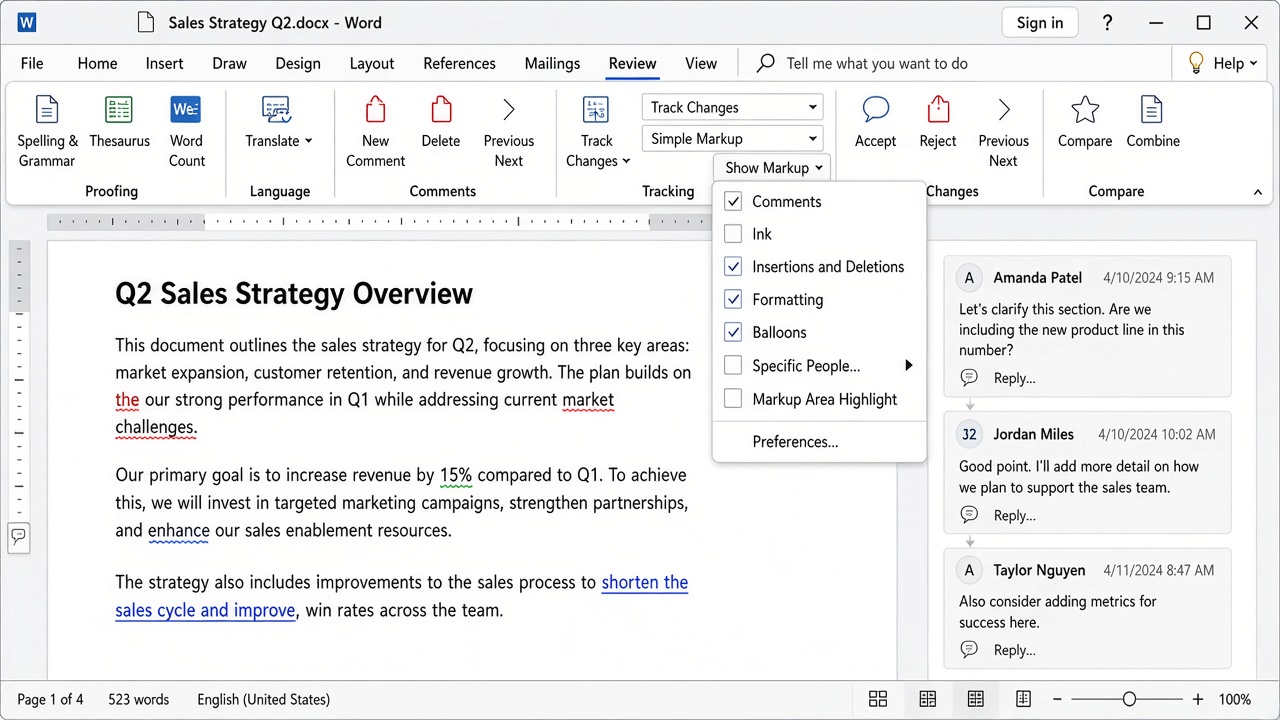
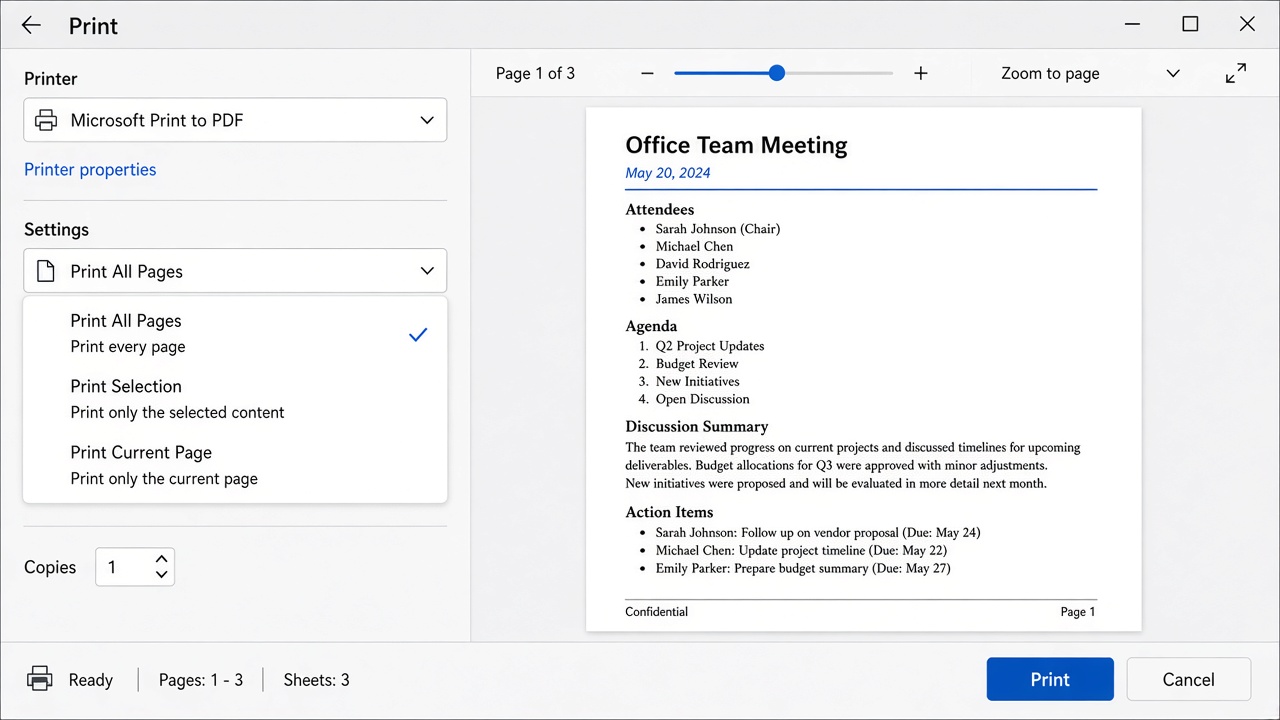
Still there? In File → Print, open the first settings dropdown (often labeled Print All Pages) and uncheck Print Markup. Use this when you want a clean hard copy; leave Print Markup on only when reviewers must see comments on paper.
How do I remove grey boxes when printing a Word form?
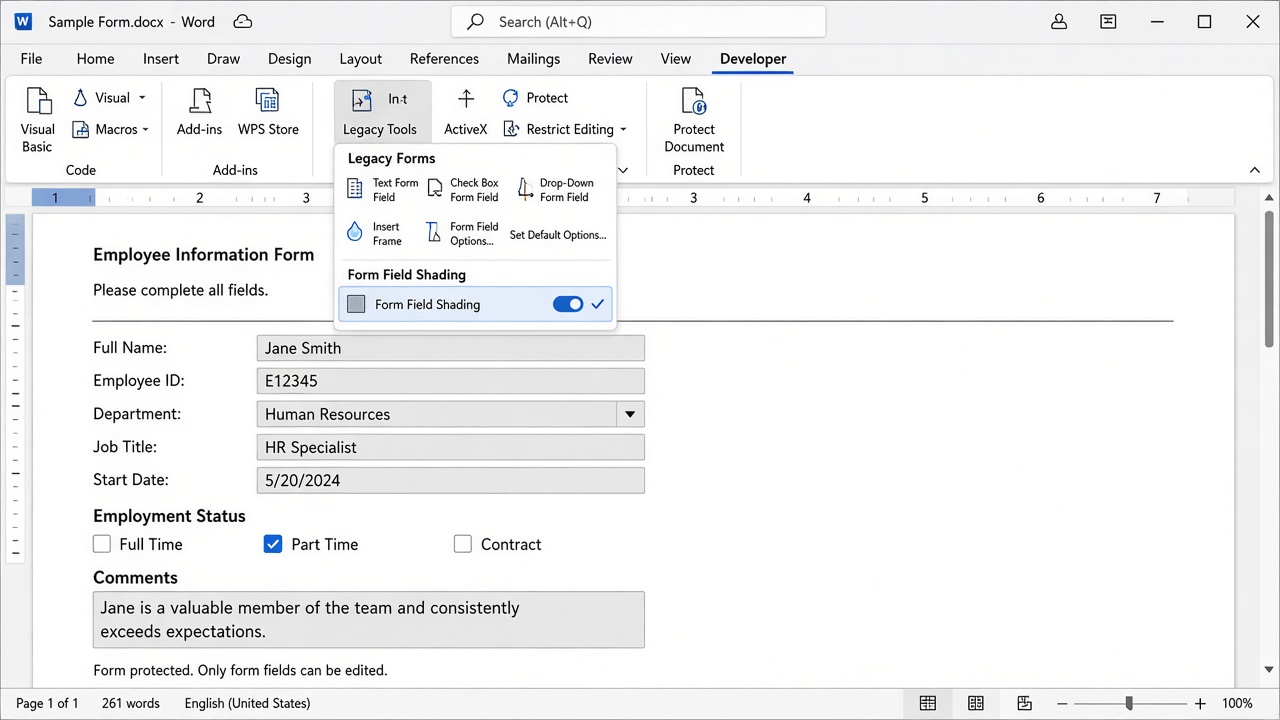
Legacy text fields, check boxes, and drop-downs often show grey shading so authors can spot fillable spots. That shading is a display aid—and many users want it off before they print or paste into another system.
Show the Developer tab if needed (File → Options → Customize Ribbon → check Developer).
On Developer, open Legacy Tools.
Click Form Field Shading to toggle the grey fill off.
Also check File → Options → Advanced → Show document content → Field shading. Prefer When selected or Never if fields always look grey on screen.
Note: Field shading often does not print even when you see it on screen. If Print Preview is already clean, you may only need to change the on-screen setting. If grey still appears on paper, clear paragraph/cell Shading (Home → Borders and Shading) applied as a real fill.
Grey rectangle on every page in Word
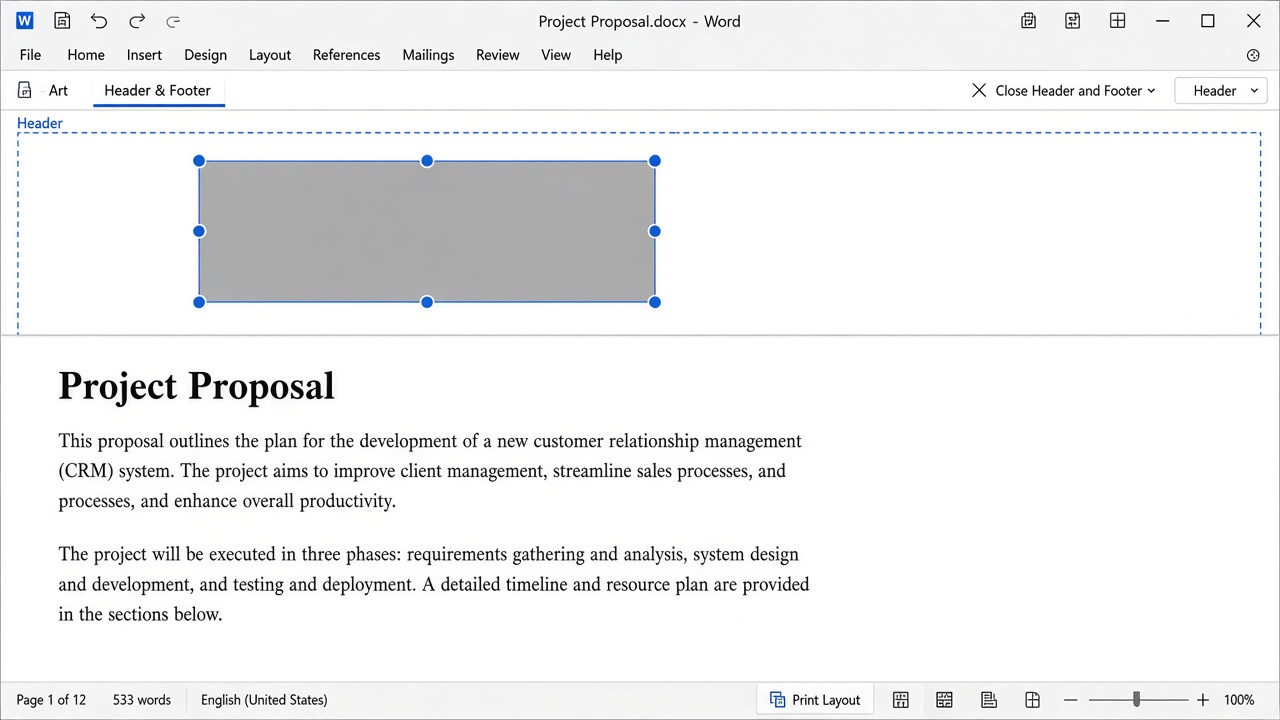
A hard-edged grey block that repeats page after page is usually a drawing object anchored in the header (common after some translation or template workflows)—not comments.
Double-click the top of any page to open the header.
Click the grey rectangle until selection handles appear.
Press Delete.
Close the header. If body text stays squeezed left, open Paragraph settings and set Right indent to 0 (check the style and the local paragraph).
Grey boxes only appear when printing or exporting to PDF
If the editing view looks fine but Print Preview / PDF grows stray grey boxes near logos, footers, or tables—especially on a Mac—treat it as a print pipeline issue:
Mac + early macOS Sonoma: update macOS (14.1 or later fixed many Word print/PDF box bugs) and update Microsoft 365.
Picture placeholders: File → Options → Advanced → clear Show picture placeholders.
Bullets print as empty/black boxes: often a Symbol/font rendering bug on Mac—change the bullet font or update the OS, then reprint.
Quick test: Save as PDF from another PC, or print from Word Online / OneDrive, to see if the local driver/OS is the culprit.
Quick checklist before you reprint
Right-hand faint band → Markup Area Highlight / Print Markup
Grey fill inside form blanks → Form Field Shading / Field shading
Solid rectangle every page → header shape → Delete
Only in Print/PDF → OS/Word update, picture placeholders, font/bullet issue
Real grey behind text → Home → Borders and Shading → No Color (apply to Text or Paragraph)
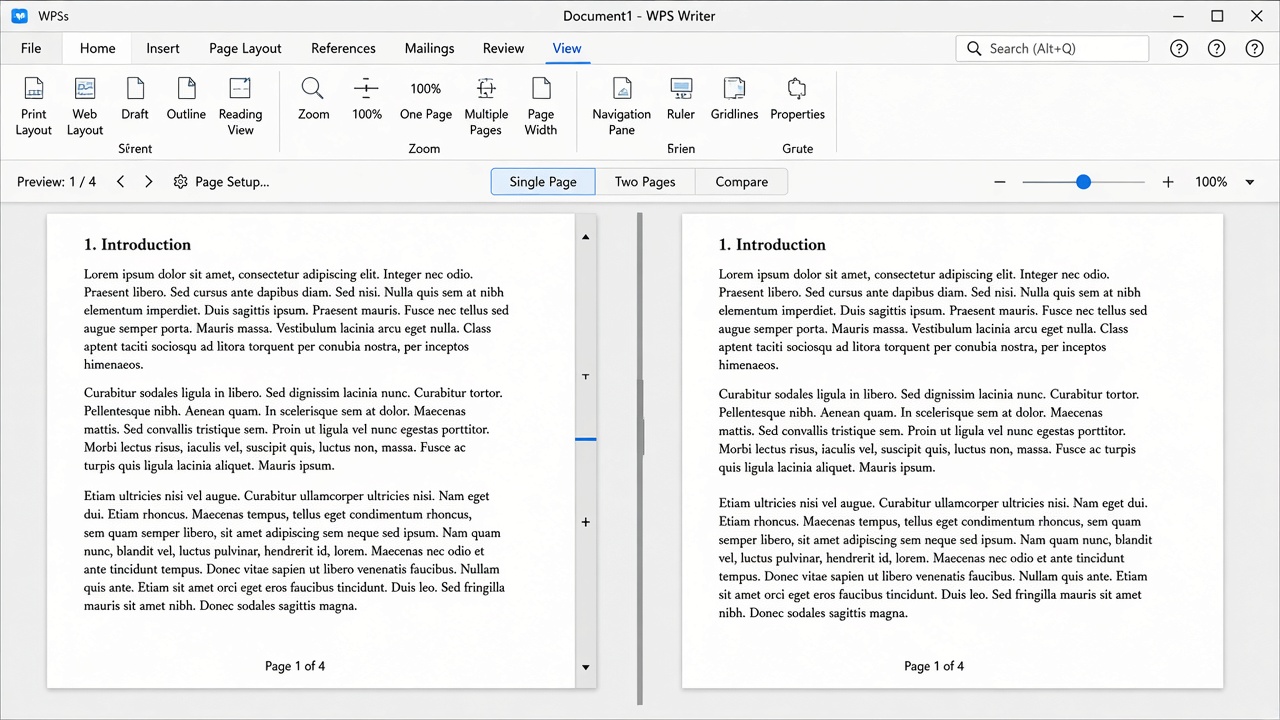
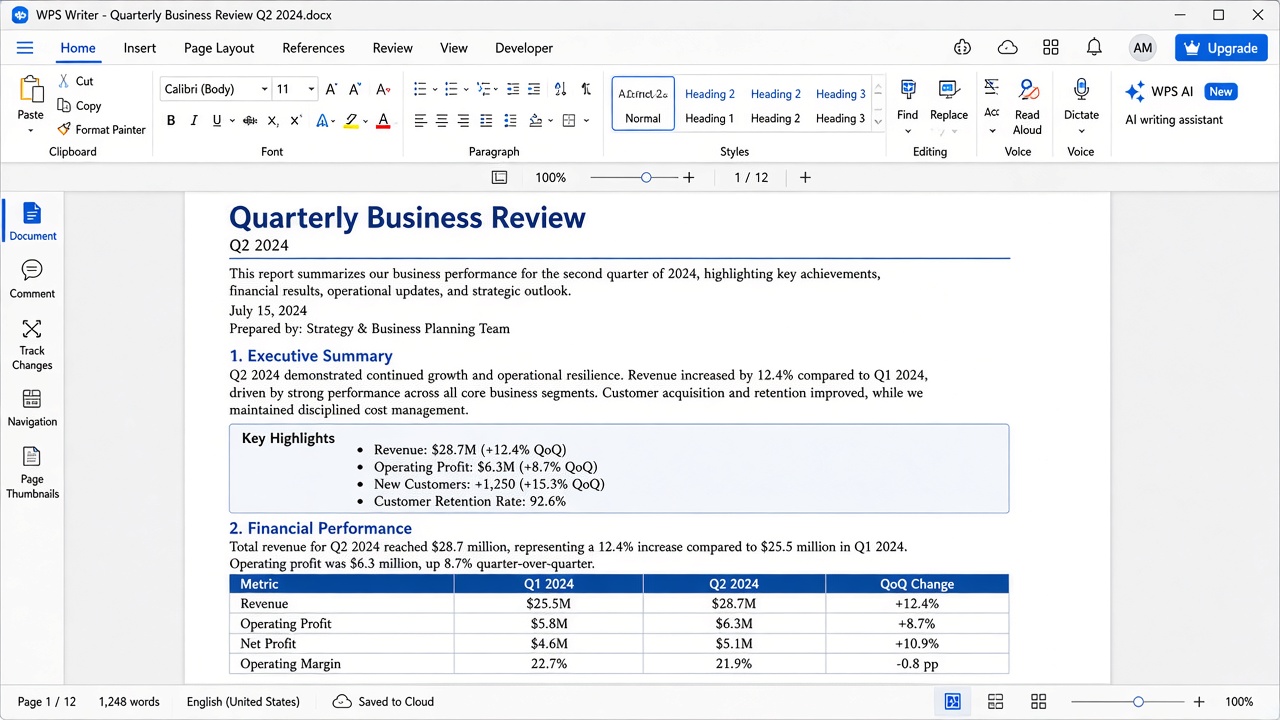
Another option: open the same file in WPS Writer
Already fixed in Microsoft Word? You’re done. If you use WPS Office, open the .docx in WPS Writer, check Print Preview for leftover shading or header objects, clear any fill you don’t want, then print at 100% scale.
FAQ
Why is there a grey bar on the right when I print a Word document?
Word is showing the markup area for comments or tracked changes. Uncheck Markup Area Highlight under Review → Show Markup, or uncheck Print Markup in File → Print.
How do I remove grey boxes when printing a Word form?
On the Developer tab, open Legacy Tools and click Form Field Shading. Also set Field shading under File → Options → Advanced to When selected or Never.
Do form field grey boxes print?
Often no—they’re an on-screen aid. Check Print Preview. If grey still prints, remove real paragraph or cell shading, not only the field-shading toggle.
How do I delete a grey rectangle that appears on every page?
Double-click the header, select the rectangle (look for corner handles), press Delete, then clear any leftover right indent on the body text.
Grey boxes appear only when I export to PDF or print on Mac—what now?
Update macOS and Word (early Sonoma builds caused print/PDF box bugs). Clear picture placeholders, and if bullets become boxes, change the bullet font or reprint after the OS update.
Is “grey box” the same as “gray box” in Word?
Yes. U.S. writers usually spell it gray; the fixes are the same.
Summary
To fix a grey (gray) box when printing Word, identify the pattern: markup band → turn off Markup Area Highlight or Print Markup; form greys → Form Field Shading / Field shading; repeating rectangle → delete it from the header; print-only boxes → update Mac/Word and check placeholders. Reprint with Print Preview first. Open the same file in WPS Writer only if you already work in WPS and want a second preview pass.



'%3e%3cpath%20d='M19.9911%204.11386V6.471H18.5894C18.0775%206.471%2017.7322%206.57814%2017.5536%206.79243C17.3751%207.00671%2017.2858%207.32814%2017.2858%207.75671V9.44421H19.9019L19.5536%2012.0871H17.2858V18.8639H14.5536V12.0871H12.2769V9.44421H14.5536V7.49779C14.5536%206.39064%2014.8632%205.53201%2015.4822%204.92189C16.1013%204.31177%2016.9257%204.00671%2017.9554%204.00671C18.8304%204.00671%2019.509%204.04243%2019.9911%204.11386Z'%20fill='%23333333'/%3e%3c/g%3e%3cdefs%3e%3cclipPath%20id='clip0_2938_8199'%3e%3crect%20width='16'%20height='16'%20fill='white'%20transform='translate(8%204.00671)'/%3e%3c/clipPath%3e%3c/defs%3e%3c/svg%3e)
'%3e%3cpath%20d='M17.5237%2010.7813L23.4811%204H22.0699L16.8949%209.88693L12.7648%204H8L14.2469%2012.9029L8%2020.0133H9.4112L14.8725%2013.7952L19.2352%2020.0133H24M9.92053%205.04213H12.0885L22.0688%2019.0224H19.9003'%20fill='%23333333'/%3e%3c/g%3e%3cdefs%3e%3cclipPath%20id='clip0_2938_8200'%3e%3crect%20width='16'%20height='16.0134'%20fill='white'%20transform='translate(8%204)'/%3e%3c/clipPath%3e%3c/defs%3e%3c/svg%3e)


