

'%3e%3cpath%20d='M8%200C12.4183%200%2016%203.58172%2016%208C16%2012.4183%2012.4183%2016%208%2016C3.58172%2016%200%2012.4183%200%208C0%203.58172%203.58172%200%208%200ZM11.6162%204.38379C11.2257%203.99337%2010.5927%203.99338%2010.2021%204.38379L8%206.58594L5.79785%204.38379C5.40732%203.99334%204.77429%203.99329%204.38379%204.38379C3.99331%204.77429%203.99335%205.40733%204.38379%205.79785L6.58594%208L4.38379%2010.2021C3.99348%2010.5927%203.99341%2011.2257%204.38379%2011.6162C4.77426%2012.0066%205.40734%2012.0065%205.79785%2011.6162L8%209.41406L10.2021%2011.6162C10.5927%2012.0066%2011.2257%2012.0067%2011.6162%2011.6162C12.0067%2011.2257%2012.0066%2010.5927%2011.6162%2010.2021L9.41406%208L11.6162%205.79785C12.0066%205.40735%2012.0066%204.77429%2011.6162%204.38379Z'%20fill='%23080E17'%20fill-opacity='0.46'/%3e%3c/g%3e%3cdefs%3e%3cclipPath%20id='clip0_3761_713'%3e%3crect%20width='16'%20height='16'%20fill='white'/%3e%3c/clipPath%3e%3c/defs%3e%3c/svg%3e)



'%3e%3cpath%20fill-rule='evenodd'%20clip-rule='evenodd'%20d='M21.4999%2010.9993C21.4999%205.20009%2016.7986%200.498901%2010.9993%200.498901C5.19994%200.498901%200.498657%205.20009%200.498657%2010.9993C0.498657%2016.2404%204.33858%2020.5844%209.35855%2021.3722V14.0346H6.69238V10.9993H9.35855V8.68594C9.35855%206.05427%2010.9262%204.60062%2013.3248%204.60062C14.4736%204.60062%2015.6753%204.80571%2015.6753%204.80571V7.38979H14.3512C13.0468%207.38979%2012.64%208.19921%2012.64%209.0296V10.9993H15.5523L15.0867%2014.0346H12.64V21.3722C17.66%2020.5844%2021.4999%2016.2404%2021.4999%2010.9993Z'%20fill='%231568EA'/%3e%3c/g%3e%3c/svg%3e)


'%3e%3cpath%20d='M2.42045%2022.1876H6.31818V12.7217L0.75%208.54553V20.5171C0.75%2021.4414%201.49892%2022.1876%202.42045%2022.1876Z'%20fill='%234285F4'/%3e%3cpath%20d='M19.682%2022.1876H23.5797C24.5041%2022.1876%2025.2502%2021.4387%2025.2502%2020.5171V8.54553L19.682%2012.7217'%20fill='%2334A853'/%3e%3cpath%20d='M19.682%205.48293V12.7216L25.2502%208.54543V6.31816C25.2502%204.25236%2022.8921%203.07469%2021.2411%204.31361'%20fill='%23FBBC04'/%3e%3cpath%20d='M6.31824%2012.7217V5.48303L13.0001%2010.4944L19.6819%205.48303V12.7217L13.0001%2017.733'%20fill='%23EA4335'/%3e%3cpath%20d='M0.75%206.31816V8.54543L6.31818%2012.7216V5.48293L4.75909%204.31361C3.10534%203.07469%200.75%204.25236%200.75%206.31816Z'%20fill='%23C5221F'/%3e%3c/g%3e%3cdefs%3e%3cclipPath%20id='clip0_2954_7305'%3e%3crect%20width='24.5'%20height='18.375'%20fill='white'%20transform='translate(0.75%203.8125)'/%3e%3c/clipPath%3e%3c/defs%3e%3c/svg%3e)


Combining two images has become a staple task, not just for social media collage posts or side‑by‑side comparisons, but increasingly for visual storytelling in blogs, marketing material and professional work. Free tools promise “merge 2 images” functionality, but we end up with blurry results, distorted aspect ratios or drastic quality loss. In this guide, I’ll take you through how to merge 2 images in 2025 using several professional tools and show you how to enhance your merged image.
Top 5 Tools to Merge 2 Images
Having the right tool to merge 2 images makes all the difference, not just for speed, but for maintaining clarity and control over the final image. In my experience, a good merging tool should let you combine photos cleanly, offer some level of customization, and preserve resolution without forcing you into a complicated design setup. I’ve tested several options, focusing on tools that are free, easy to use, and capable of producing professional-looking results. Here are five tools I’ve found reliable for merging 2 images.
Pine Tools
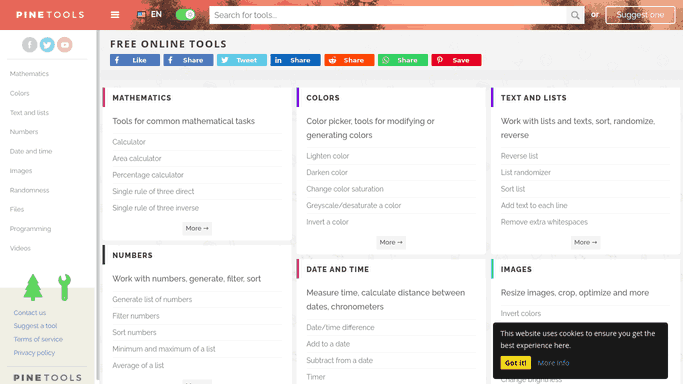
Pine Tools is an online platform that allows users to merge two images efficiently. Images can be combined either horizontally or vertically, and the tool provides options to adjust spacing and border color. It supports standard file formats such as PNG and JPEG. Uploaded images are processed quickly, producing a single merged image without requiring registration. The merged output retains the original resolution and aspect ratio of the source images. This makes Pine Tools suitable for quick side-by-side or stacked comparisons.
Features:
Supports merging two images either vertically or horizontally, enabling side‑by‑side or stacked layouts.
Allows control over how to handle differing image sizes: options such as magnify the smallest, reduce the biggest, or crop the biggest.
Processes output directly from the browser without needing account registration, making it very accessible.
Retains original image clarity and resolution in final output, suitable for both digital and print uses.
Pros:
Simple, fast interface lets you merge two images in seconds.
No account or registration required.
Supports standard formats like PNG and JPEG.
Cons:
Very limited editing/customisation as no text, overlays, or advanced design tools.
Output may not be ideal for large‑print or highly refined projects.
The process of merging images can be straightforward if you follow the right steps, and knowing exactly how to navigate Pine Tools ensures you get high-quality results. Here’s how to do it.
Step 1: Head over to the Pine Tools Image Merger and on the left-hand side, click“Choose File” to select the first image you want to merge from your computer.
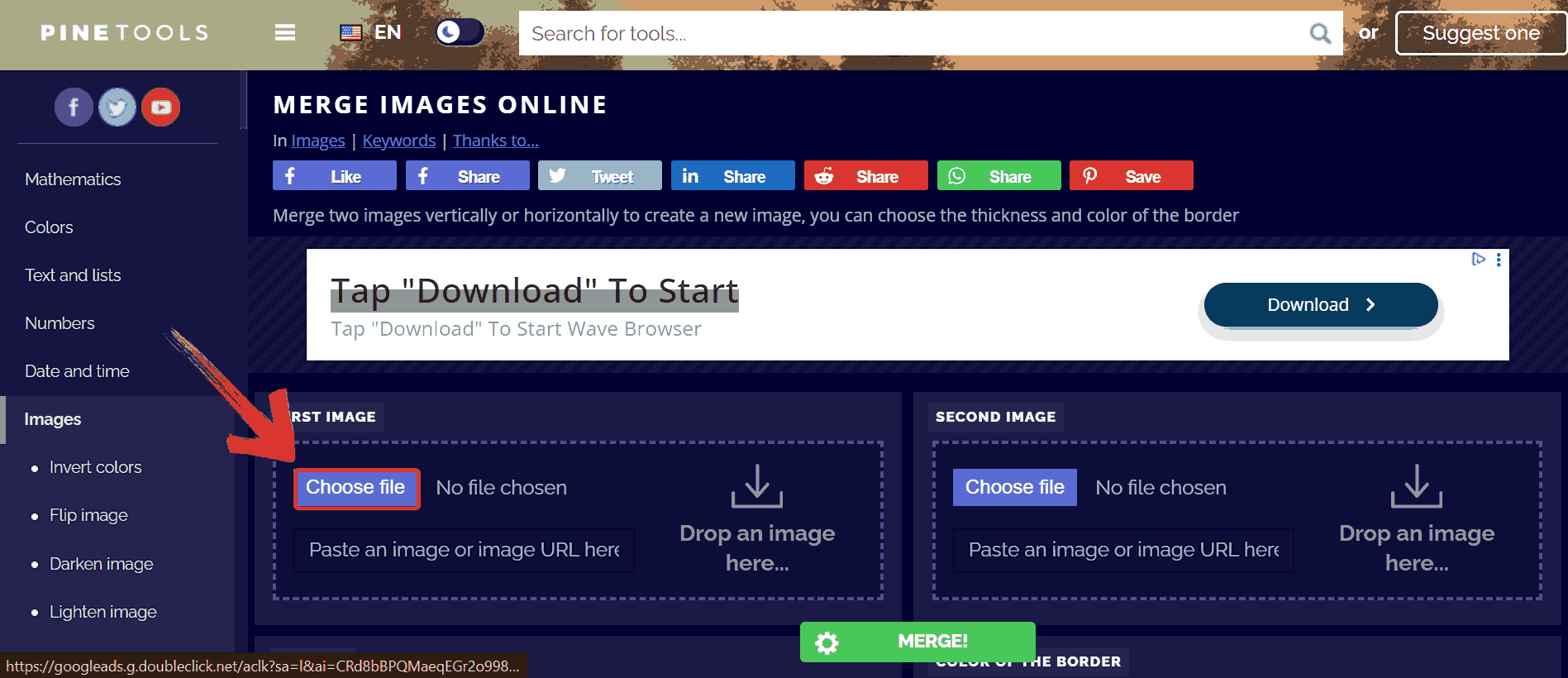
Step 2: Next, on the right-hand side, click“Choose File” again and select your second image. Both images should now be ready for merging.
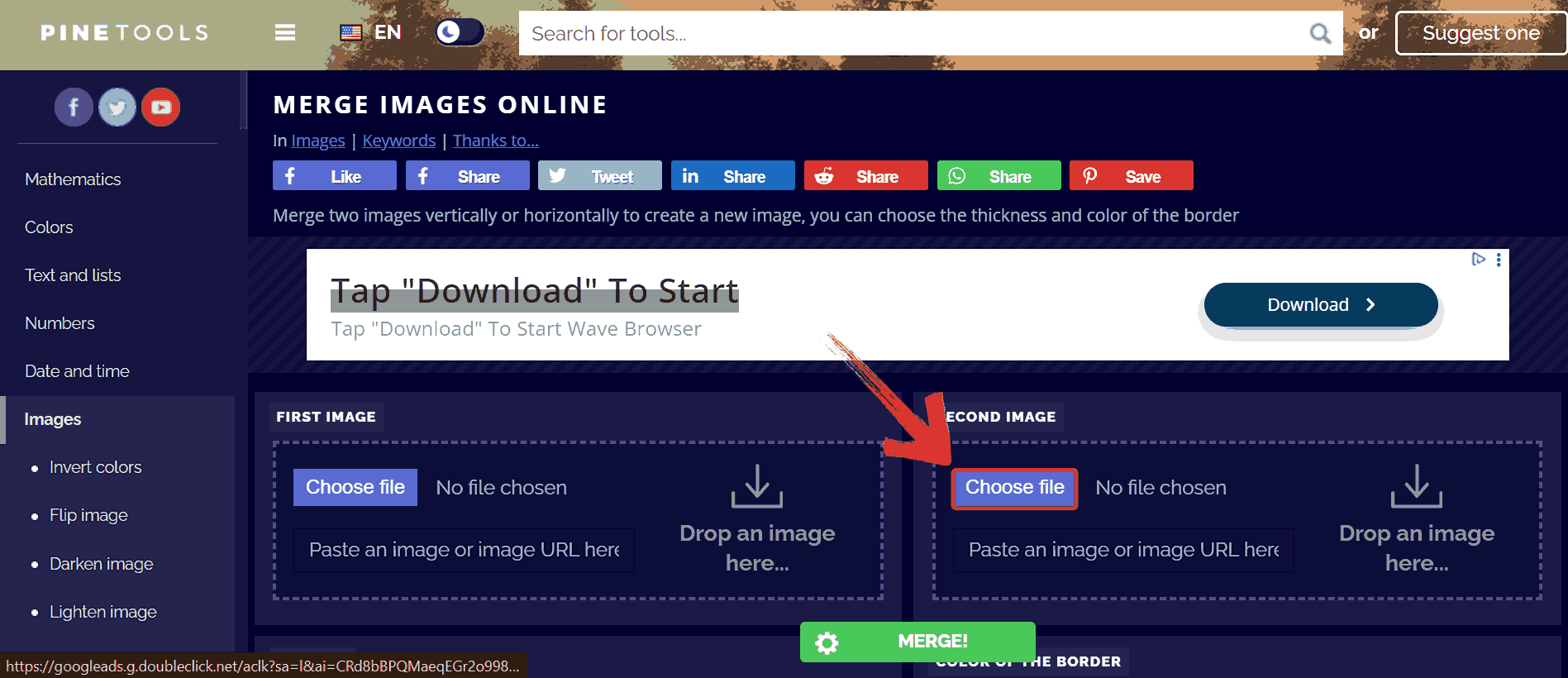
Step 3: Decide how you want your images combined:
Vertically: one on top of the other
Horizontally: side by side

Step 4: Once you’re satisfied with the preview, click on one of the green buttons representing the desired format to download your merged image in high quality.
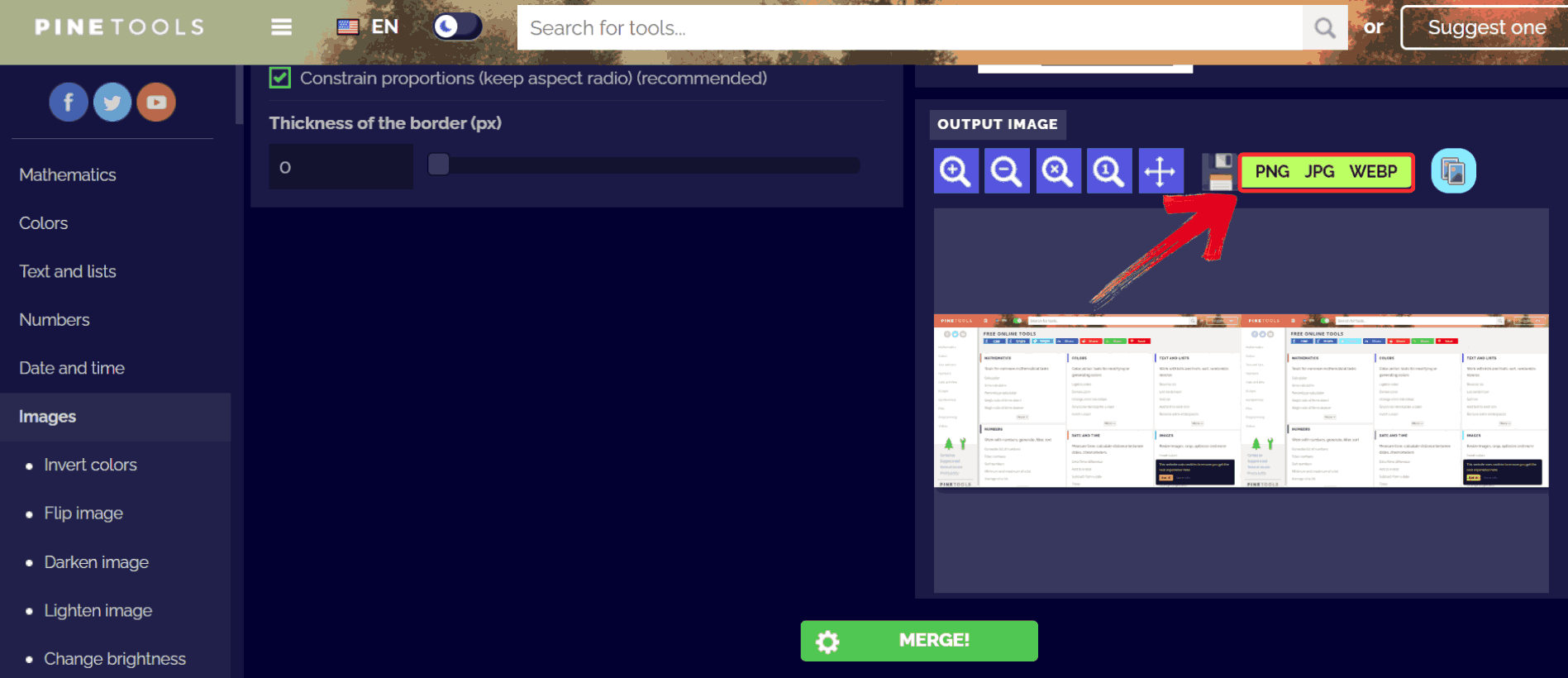
Using Pine Tools is almost instantaneous. I merged two travel photos for social media, and the process took less than two minutes. It does lack creative features but it’s perfect when you just need a clean, fast merge.
Canva Combiner
Canva provides a feature to combine images on a customizable canvas. Users can arrange multiple photos side by side, in grids, or with overlay effects. The platform allows addition of text, frames, and other visual elements while merging. Images can be resized, aligned, and spaced precisely on the canvas. Merged images can be exported in formats like PNG, JPEG, or PDF. This combination of merging and design options makes Canva useful for both professional and social media projects.

Features:
Drag‑and‑drop interface enables placement of two uploaded images onto a design canvas.
Use of grids, frames or free‑placement layouts to combine images side‑by‑side or layered formats.
Full control over resizing, alignment and spacing of images using built‑in tools and guides.
Free version supports basic merging operations and layout features; additional effects and premium assets may require upgrade.
Pros:
Drag‐and‐drop design makes it easy to merge images and build layouts.
Offers text, frames, stickers, and templates within the same workflow.
Good for social media and design‑rich merges.
Cons:
Free plan limits certain features; higher resolution/export quality may be impacted.
Some users report image quality degradation for print use.
With a clear understanding of Canva’s features and limitations, you’re ready to start merging images using its intuitive drag-and-drop interface. Here’s how to use it.
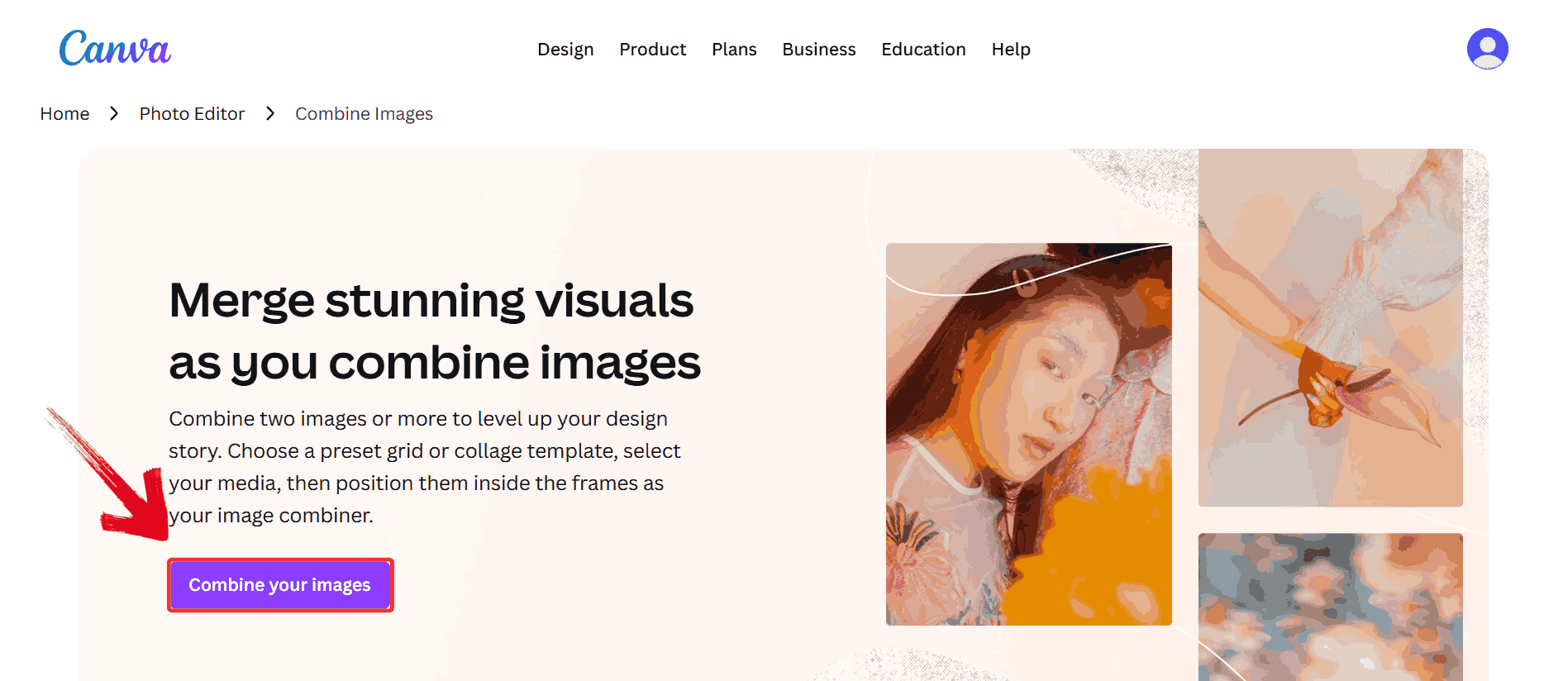
Step 1: Head over to the CanvaCombiner and click “Combine Your Images” to start a new project.
Step 2: On the left-hand side, browse your gallery and select the first image you want to merge.
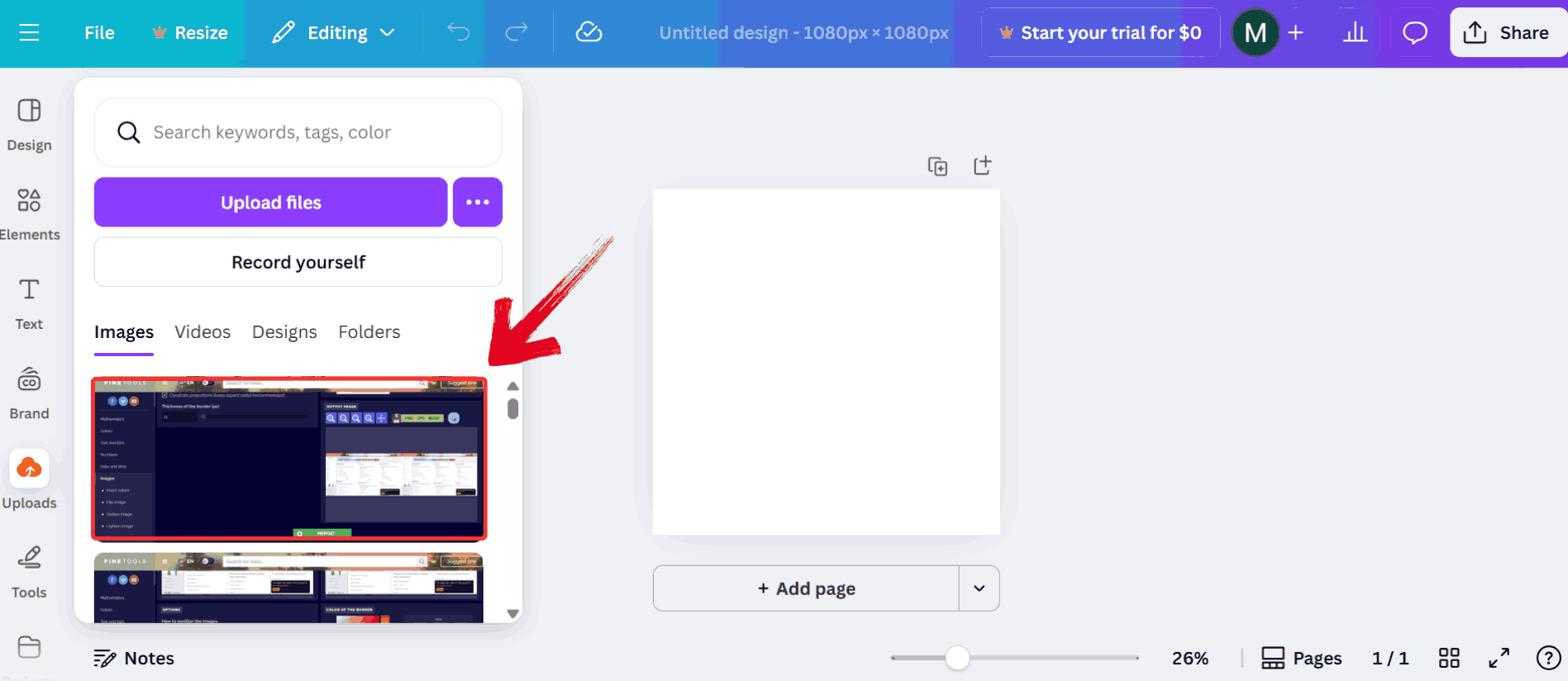
Step 3: Choose your second image from the gallery and add it to the canvas.
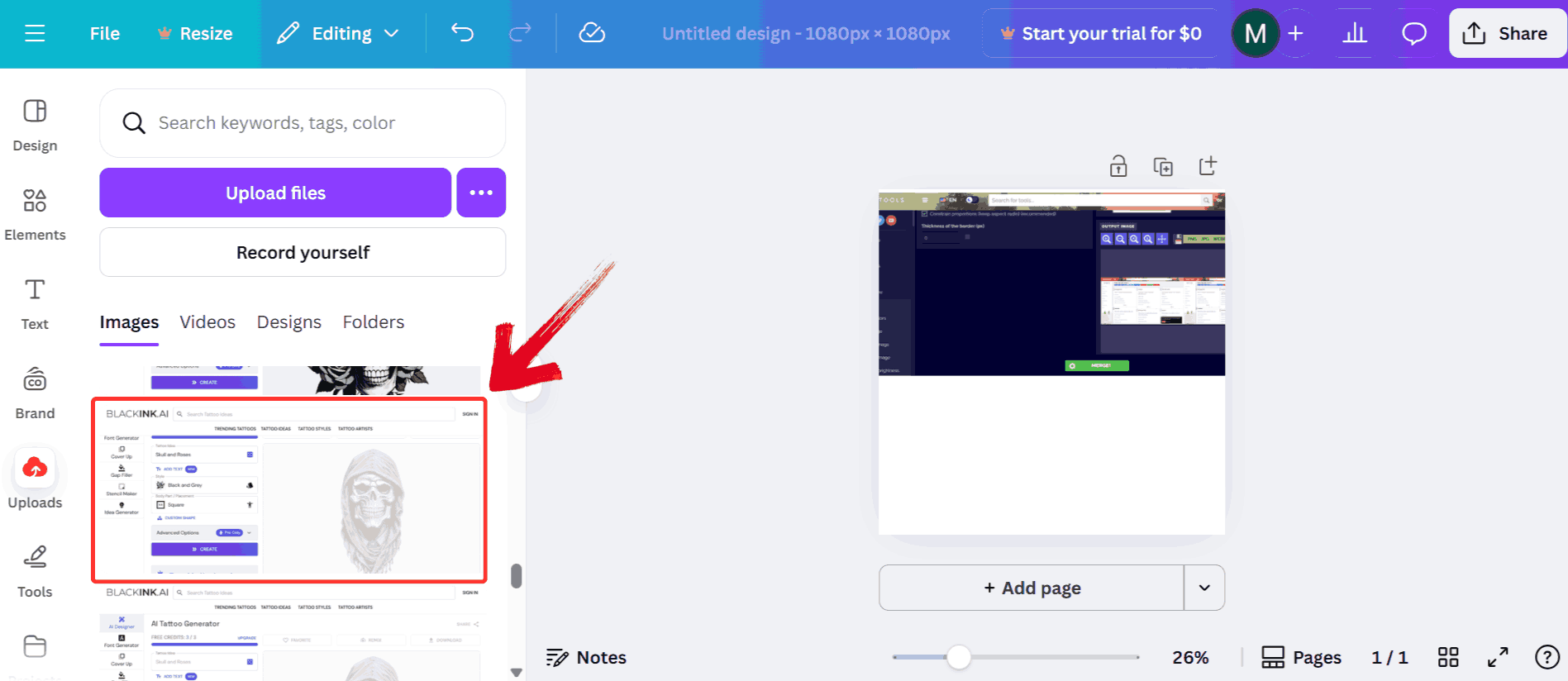
Tip: You can adjust both images using your mouse to resize, move, or rotate them for perfect alignment.
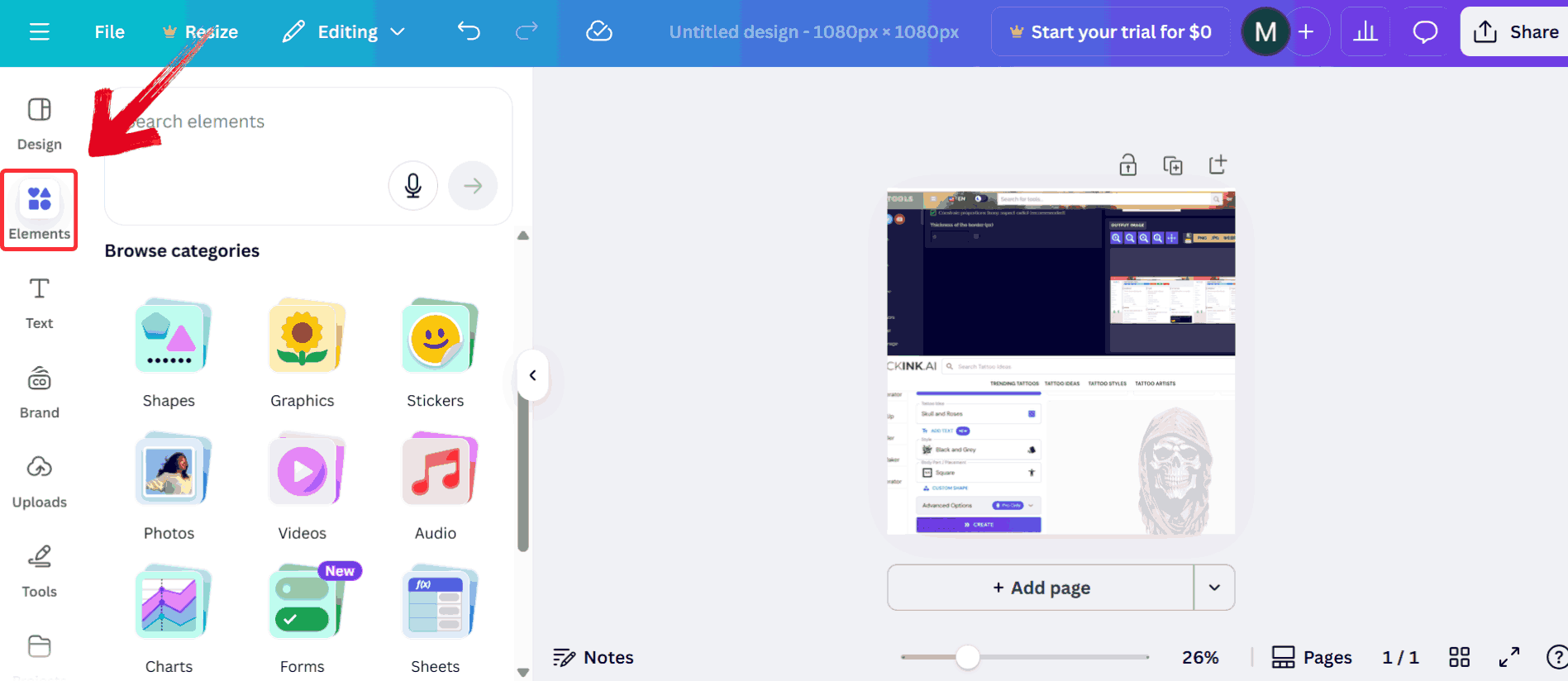
Step 4: Click on “Elements” to insert shapes, text, frames, or other design elements to enhance your merged image.
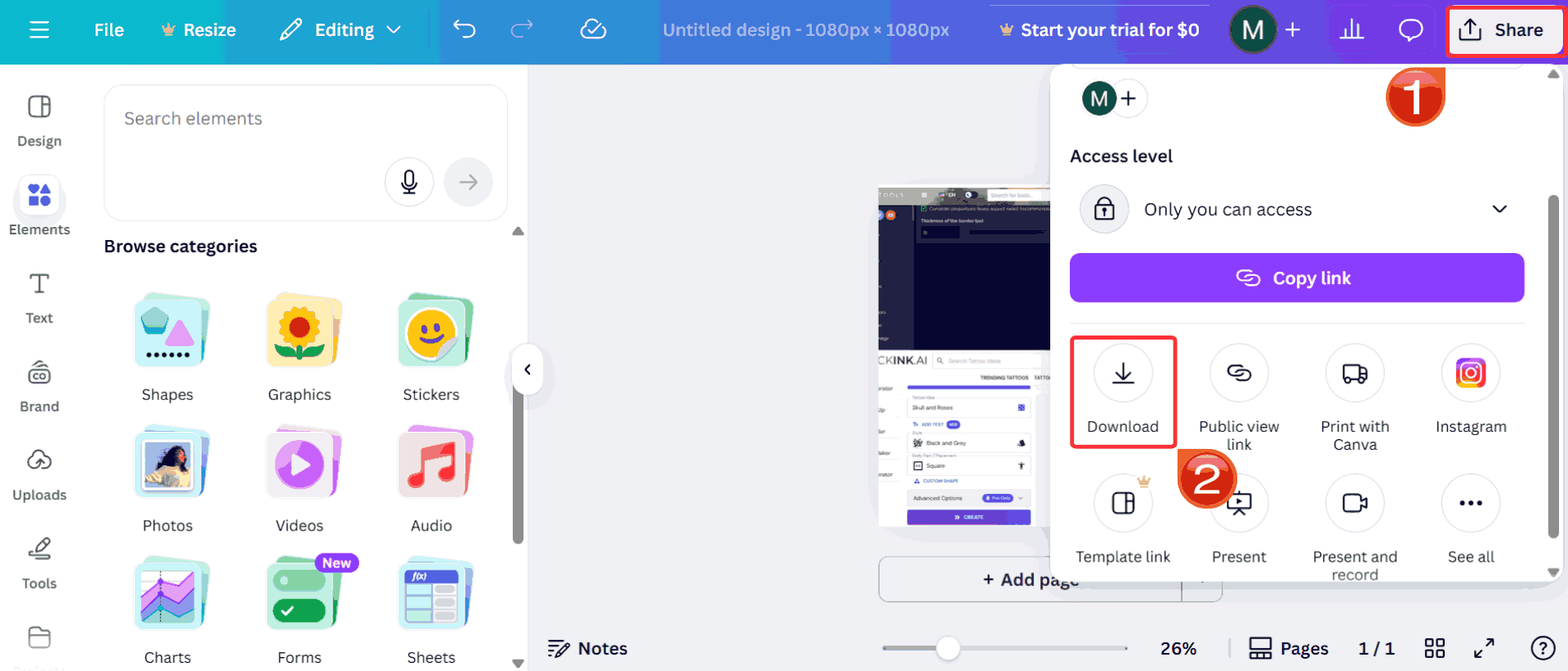
Step 5: When you’re happy with your layout, click“Share” and then “Download” to save your final merged image in your preferred format.
I merged screenshots from a TV show to make a before-and-after collage.
Canva made it easy to add labels and align images perfectly. I enjoyed
the creative control and final look.
Fotor Combiner
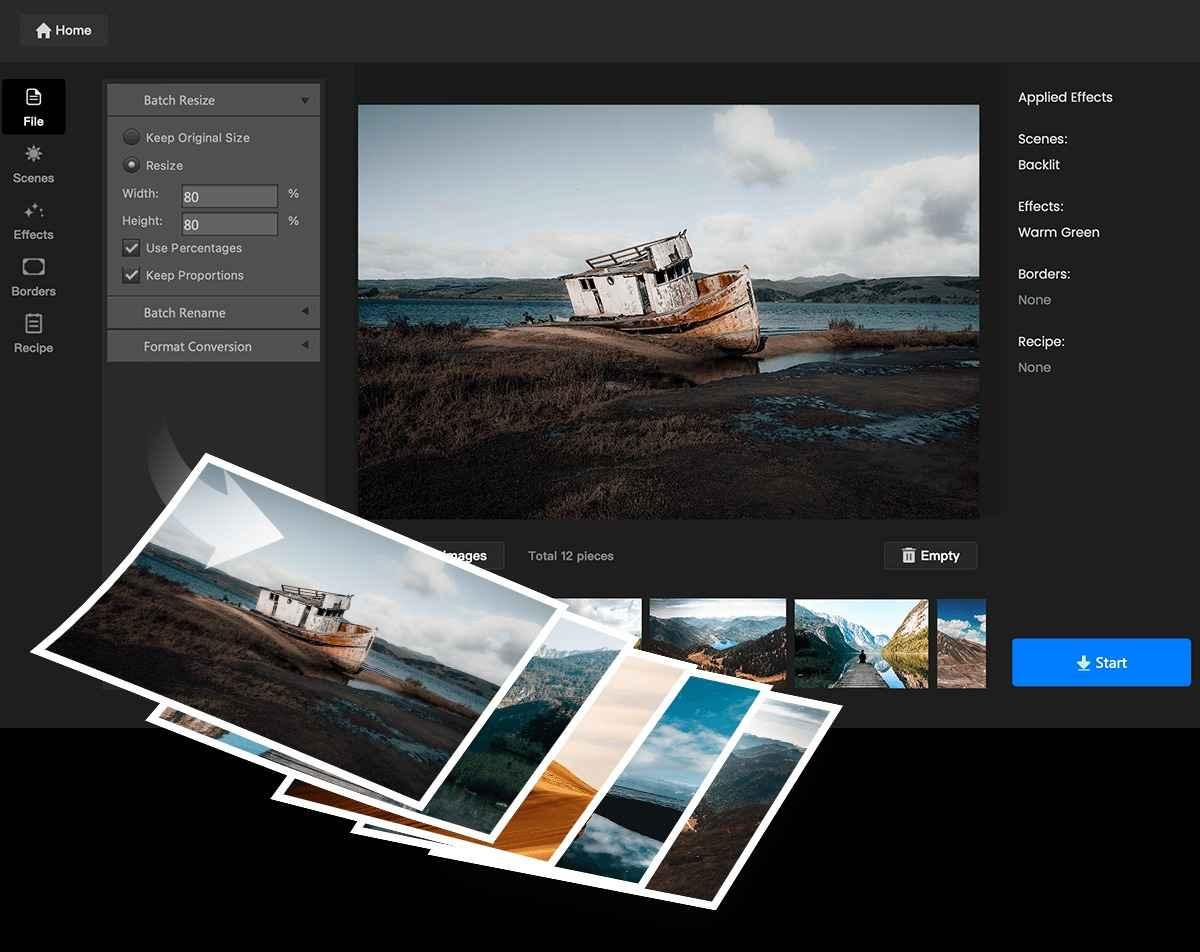
Fotor offers a photo combining tool that supports horizontal, vertical, and tiled layouts. Users can upload multiple images, adjust their size, spacing, and background color. The platform provides a live preview of changes before exporting the merged image. Output files maintain a consistent resolution suitable for online and print use. The interface allows resizing and alignment of images using intuitive sliders. Fotor also supports common image formats, making it compatible with other designs.
Features:
Provides an Image Combiner tool that accepts uploads of two or more photos and places them into a frame or layout for merging.
Offers pre‑designed layouts and templates to simplify the arrangement of merged images.
Lets you adjust image size, background color, border thickness and spacing between images via intuitive controls.
Real‑time preview of the merged result before export, enabling you to make adjustments ahead of download.
Pros:
Offers customizable layouts, background colors, spacing adjustments for merging.
Web and mobile versions available; good for quick merges and editing on the go.
Cons:
Many advanced features locked behind paywall;
Free version has ads and can feel limiting.
Performance issues reported for high resolution or complex edits.
Unlike some basic tools, Fotor provides flexible layouts and real-time previews, letting you see exactly how your images will look together. Here’s how to use it.
Step 1: Visit the Fotor Combiner and click “Merge Images Now” to start your project.

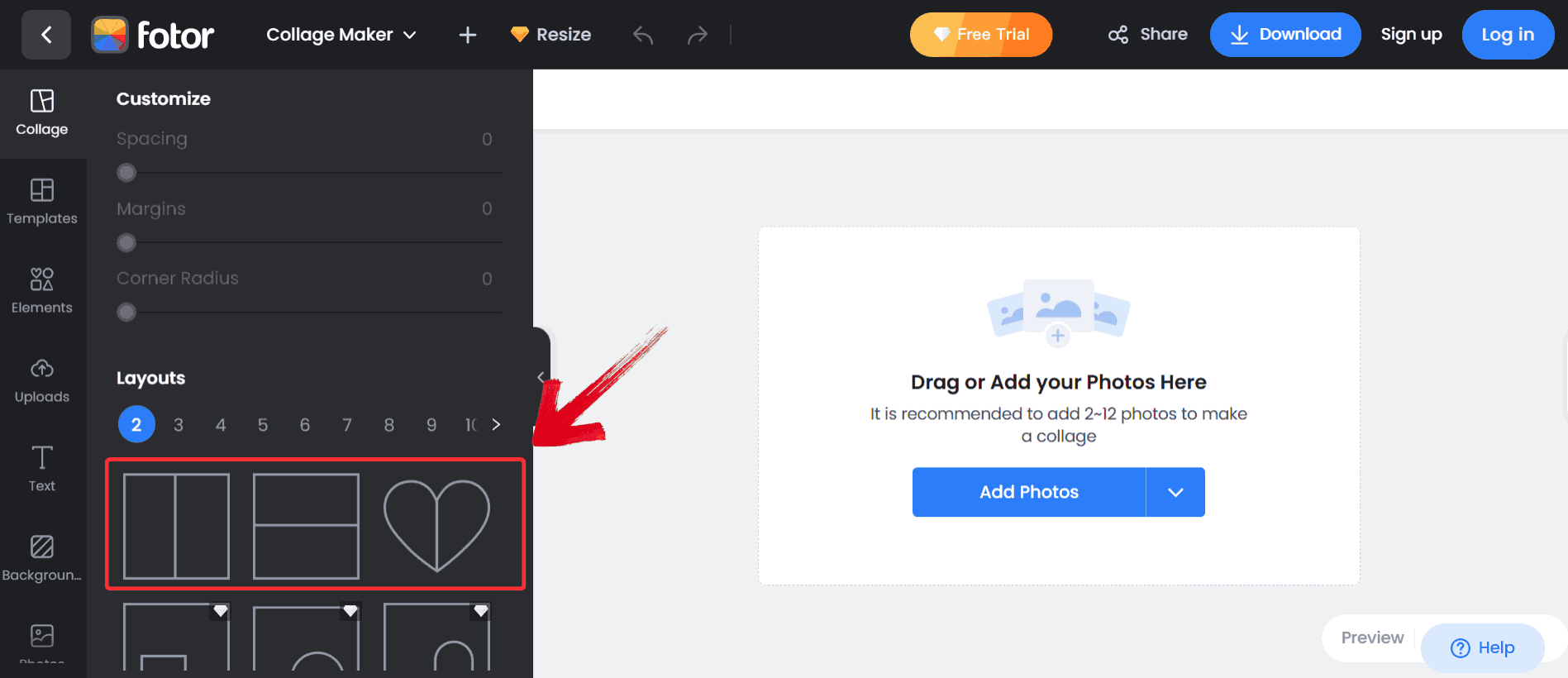
Step 2: Select the type of layout you want for your images, such as vertical, horizontal, or even a heart-shaped arrangement for a creative touch.
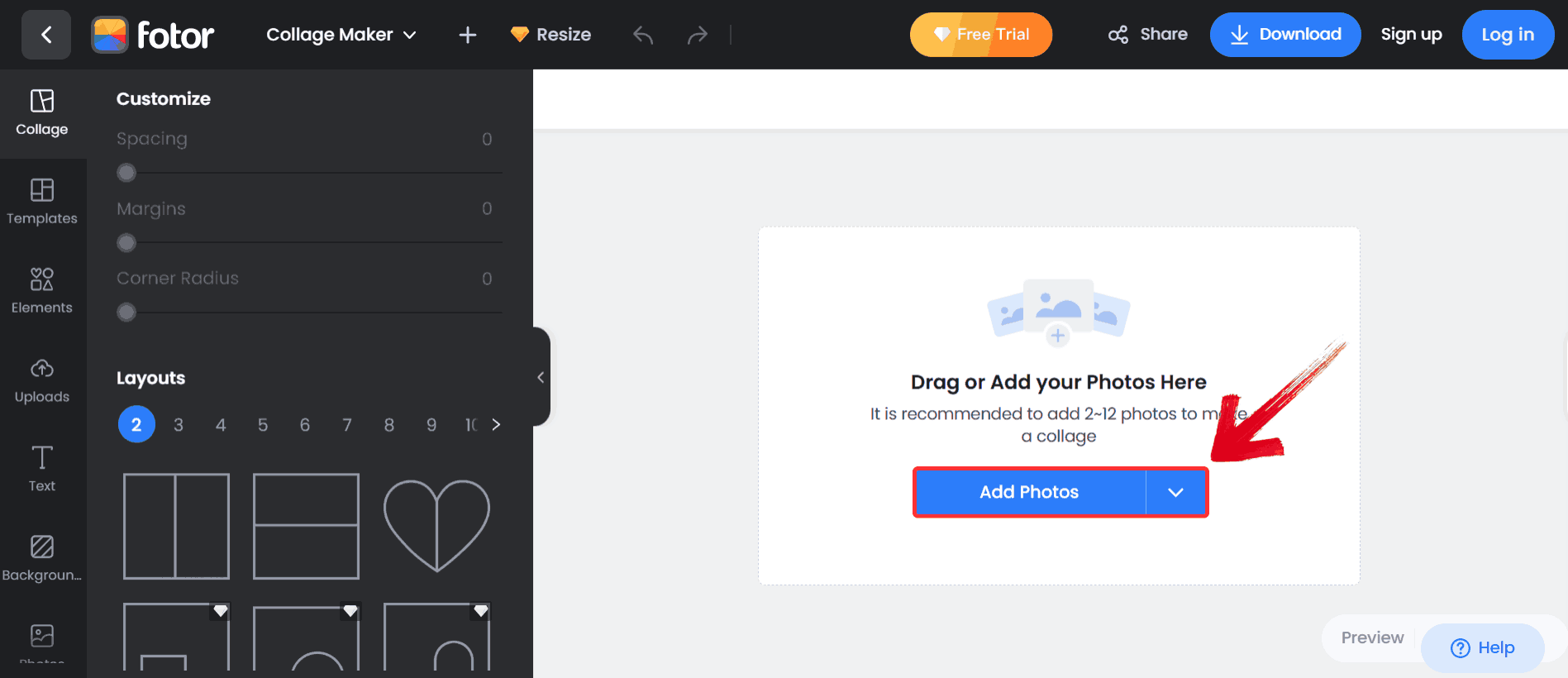
Step 3: Click “Add Photos” and select the images you want to merge from your device.
Step 4: When you’re happy with the arrangement, click the “Download” button to save your final merged image.
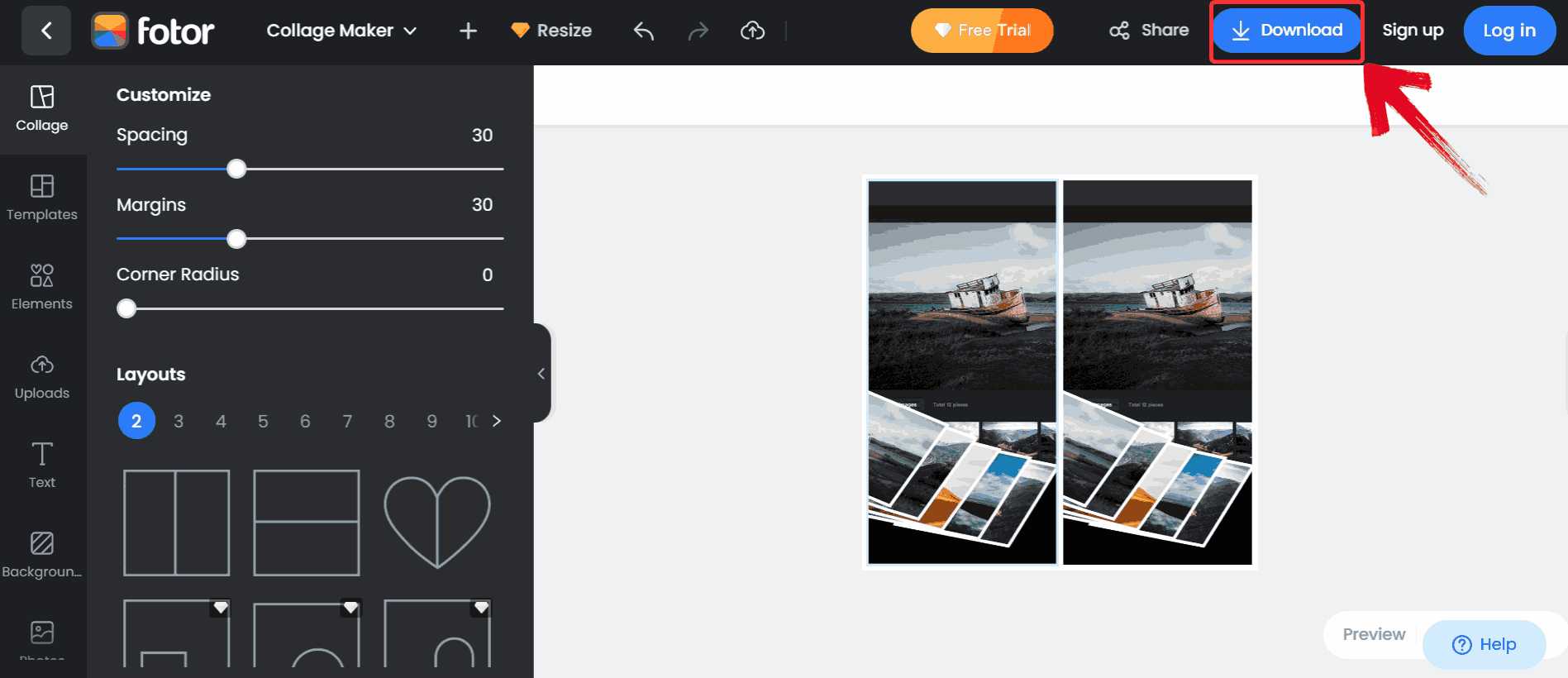
I used Fotor to merge two family photos. It was easy to tweak the spacing and brightness. Even though the download was slightly compressed, running it through an AI enhancer fixed the minor quality loss.
Zight Combiner
Zight provides a straightforward online image merge function. Users drag and drop two photos, select the desired orientation, and the tool produces a merged image quickly. The platform does not require registration, and the interface focuses solely on merging. Merged images retain clarity and alignment of the original files. Output is available in standard formats like PNG or JPEG. This tool is optimized for fast and simple merges without additional editing features.

Features:
Web‑based image merge tool where you upload two images, choose layout and get a merged output swiftly.
Layout choice includes horizontal or vertical orientation to suit different display needs.
Export formats supported include PNG, JPG and WebP, providing flexibility for usage across platforms.
Instant preview of merged image before download, helping ensure alignment and clarity.
Pros:
Very quick and simple merge tool, upload two images, choose layout, download.
No registration required; works in browser.
Cons:
Minimal editing capabilities; mostly focused on the merge itself, not design/finishing touches.
Limited advanced options for styling or creative layout.
Now that you’re familiar with Zight’s quick and simple merging capabilities, it’s time to see it in action. Its minimalist interface focuses on speed and ease, so you can combine two images in just a few clicks.
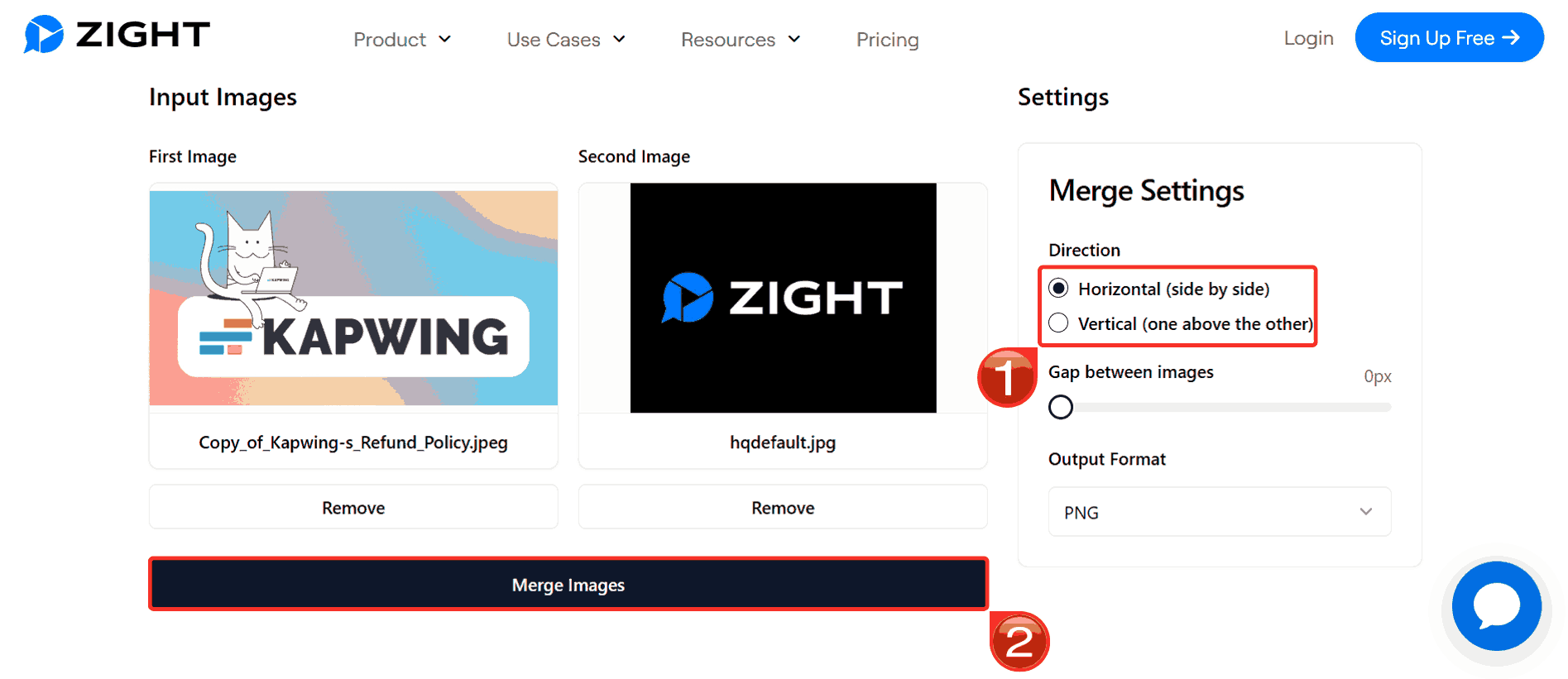
Step 1: Head over to the Zight Image Merger and click “Choose File” to upload your first picture.
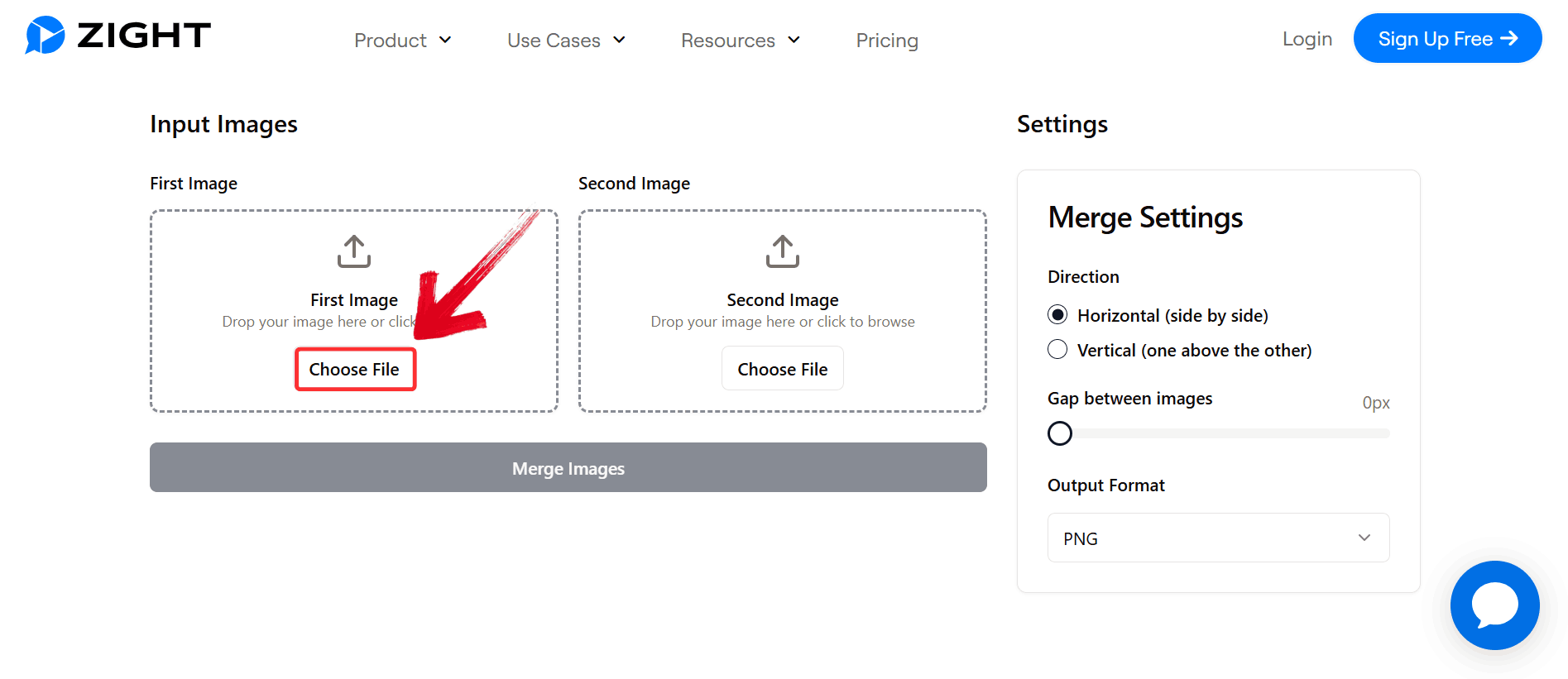
Step 2: Click “Choose File” again to upload your second image. You’ll see both images displayed in the preview window.

Step 3: Choose whether you want the images combined horizontally or vertically, then click “Merge Images”to process the images.
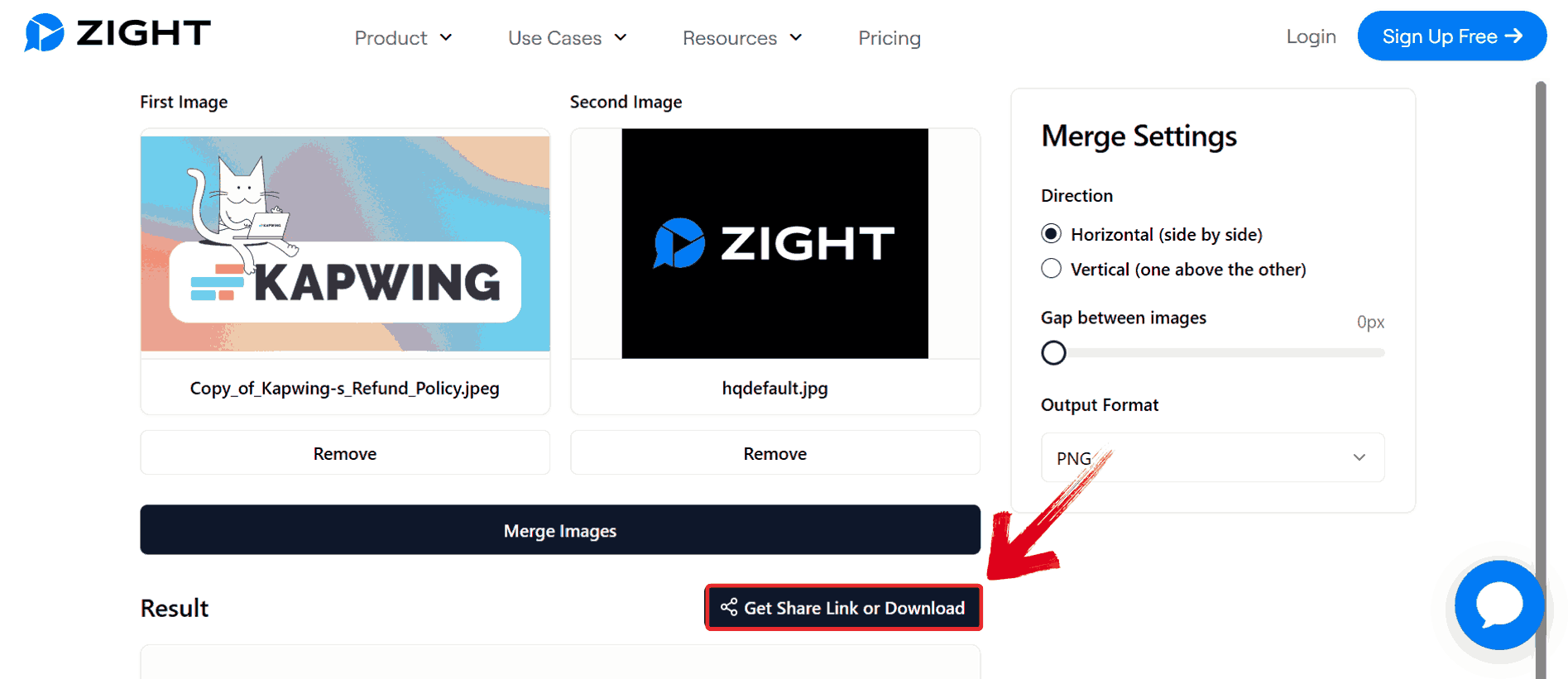
Step 4: Once the merge is complete, click“Get Share Link or Download” to share it online or to save it directly to your device.
Zight was my fastest option. I merged two event photos in under a minute. It’s ideal for speed, but you sacrifice creative features, so I used WPS Photo afterward to enhance quality and add minor edits.
Kapwing Combiner
Kapwing is an online editor that includes image merging among its features. Users can upload multiple images, arrange them on a canvas, and adjust their dimensions to create a single image. The platform allows addition of text overlays, borders, and basic visual effects. Merged images can be exported in high resolution and in multiple file formats. The live canvas preview ensures accurate alignment and layout before export. Kapwing combines merging capabilities with basic design tools for enhanced visual output.

Features:
Ability to overlay images, align them vertically or horizontally, and add filters, text or stickers for enhanced design.
Access to a media library of royalty‑free images and assets to supplement your merged design.
Export options include high resolution image formats as well as GIF or video formats if desired.
Live canvas preview shows changes dynamically, enabling you to adjust layout and visuals before final download.
Pros:
Strong design/editor features alongside merging.
Cloud‑based platform with collaborative features.
Cons:
Free plan imposes watermarks and file‐size/quality/export limitations.
Slower processing or upload/download delays for large projects.
With a clear understanding of Kapwing’s features, you’re ready to create more dynamic and customizable merged images. Its flexible canvas and editing tools let you not only combine photos but also add text, overlays, and effects.
Step 1: Head over to Kapwing’s Image Merger and click “Upload Images” to get started.

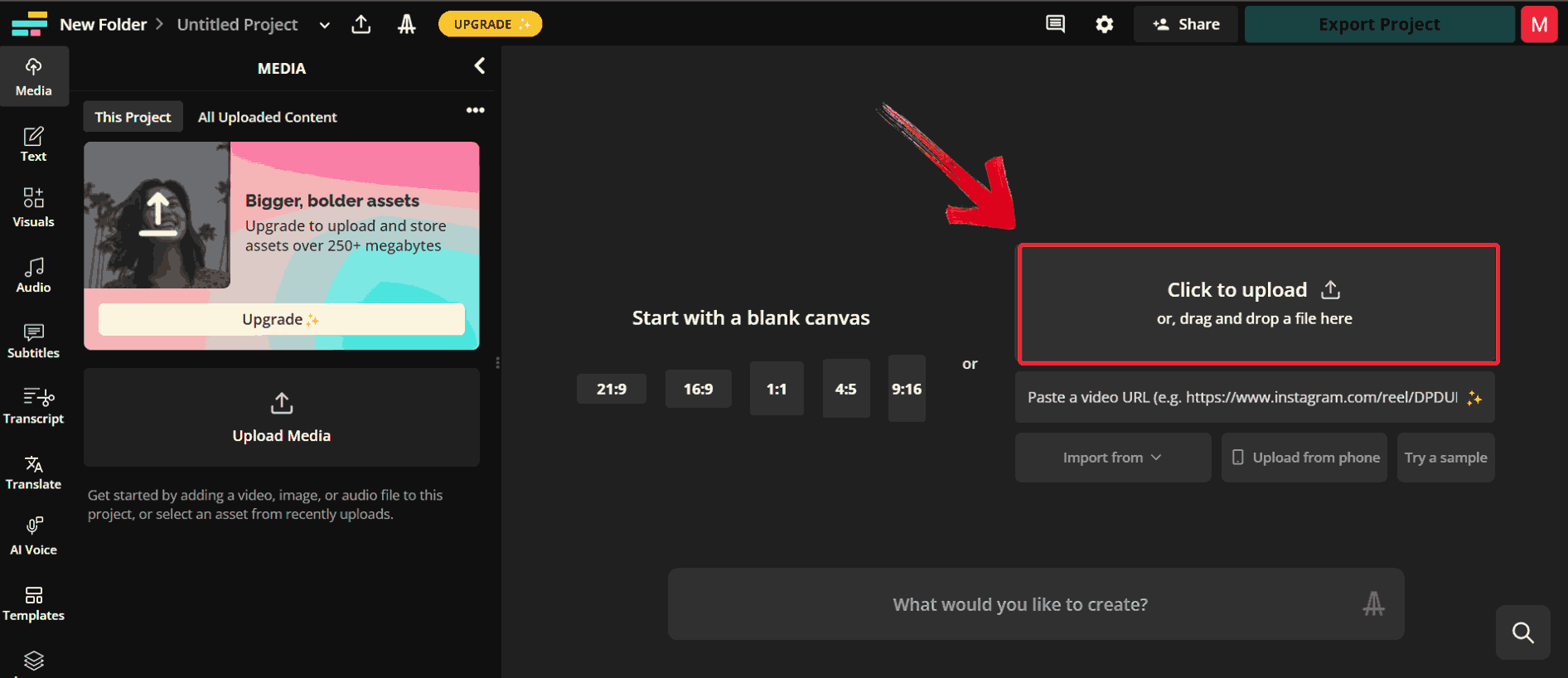
Step 2: Click on “Click to Upload”and select both images you want to merge. You can drag and drop them directly into the editor too.
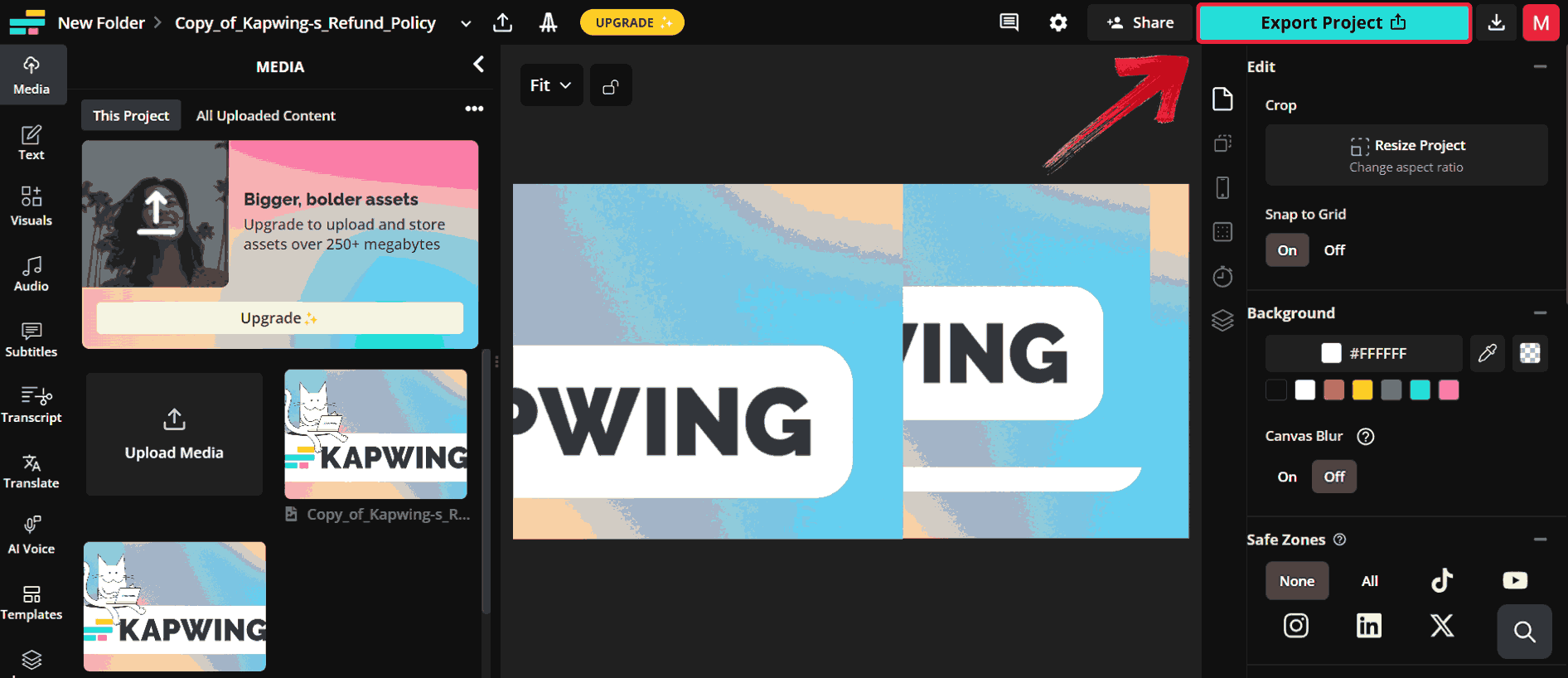
Step 3: Adjust the pictures by resizing or repositioning them as you like, then hit “Export Project” to generate and download your final merged image.
I tried an AI merge 2 images feature when I merged two product shots for a blog post. Kapwing made it easy to add labels and make adjustments, although I had to remove a watermark afterward. The interface was intuitive, and the output quality was impressive.
Quick Comparison Table of the 5 Tools to Merge 2 Images
Here's a quick comparison table that highlights the key features of all the best merge 2 images tools. It breaks down essentials like pricing, output quality, watermarkpolicy, and accessibility so you can instantly see which platform aligns with your needs. This makes it easier to choose the right tool for your task without testing each one manually.
| Tool | Ease of Use | Editing Options | Speed | Free Version | Quality Output | My Comments |
|---|---|---|---|---|---|---|
| Pine Tools | 9/10 | Minimal | 10/10 | Yes | High | Fast and perfect for simple merges, no creative edits. |
| Canva | 8/10 | Extensive | 7/10 | Yes | High | Great for social media and adding text, requires an account. |
| Fotor | 8/10 | Moderate | 8/10 | Yes | Medium-High | Balanced tool, some compression but fixable with enhancer. |
| Zight | 10/10 | Minimal | 10/10 | Yes | Medium | Lightning-fast merges, lacks advanced features. |
| Kapwing | 9/10 | Extensive | 8/10 | Yes | High | Flexible and intuitive, watermark can be an issue on free plans. |
Enhance Your Merged Image With WPS Photo
Once your images are merged, the next step is refining them for clarity and consistency especially if the lighting or colors don’t match perfectly. WPS Photo is ideal for that stage because it offers quick, in-app editing options like exposure correction, edge sharpening, and tone adjustment without requiring separate software. It also supports batch enhancement, so if you’re combining multiple visuals for a project, you can keep them uniform in just a few clicks. Plus, the AI Enhancer tool automatically balances light and detail, which is great for saving time when you’re finalizing graphics for professional use.
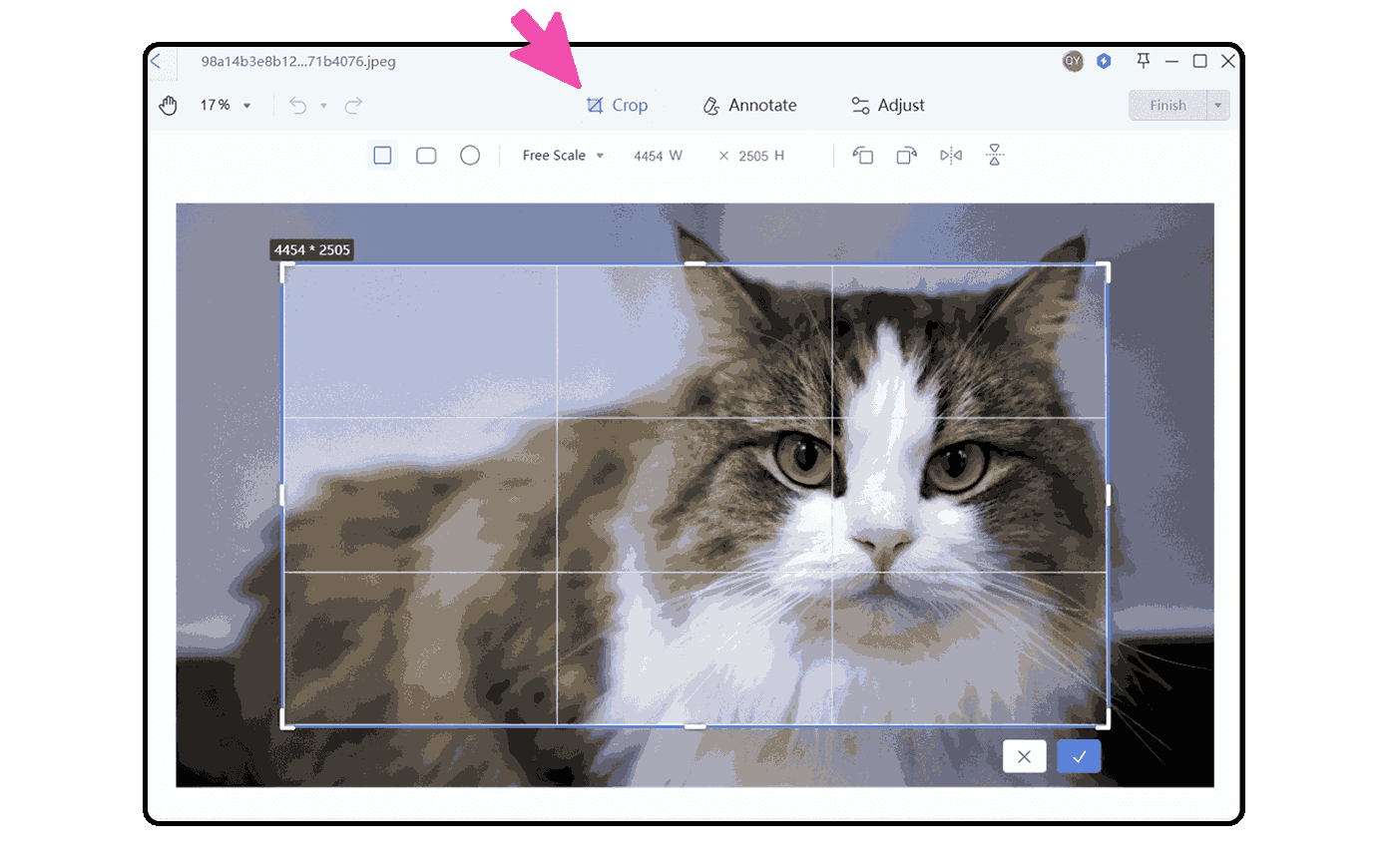
Features:
AI Resolution Enhancer: Automatically improves the sharpness and clarity of your merged image, making it look more polished and professional.
Color Correction and Filters: Adjusts brightness, contrast, and tone while offering preset filters to give your image a consistent, refined look.
Crop, Rotate, and Add Text: Lets you fine-tune composition, reframe the image, or overlay text for captions, labels, or creative touches.
Object Removal and Background Editing: Helps clean up unwanted elements and easily modify or replace backgrounds for a cleaner final result.
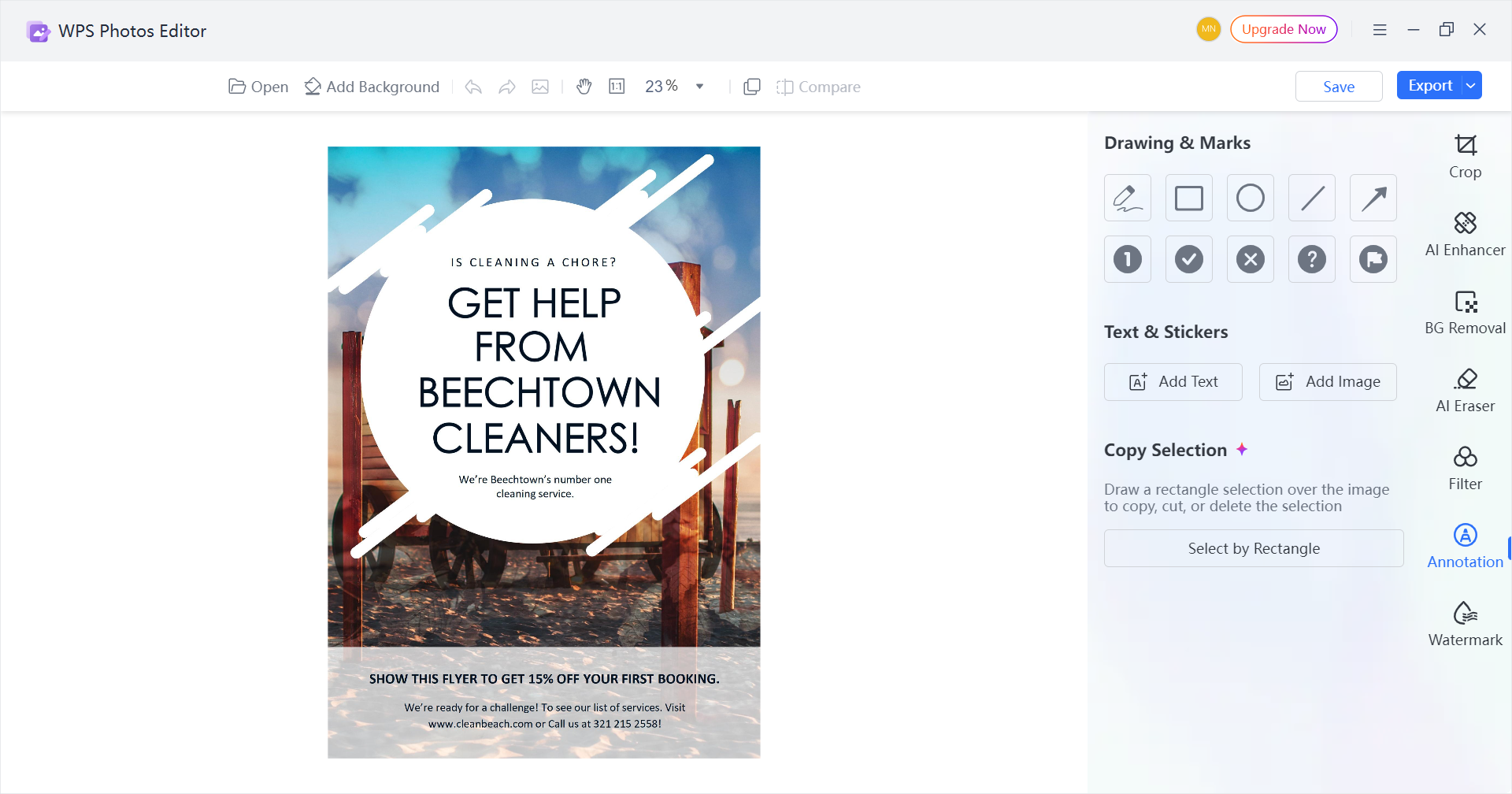
Using WPS Photo’s editor is easy as you don’t need advanced design skills to get professional-looking results. Here’s a quick walkthrough to help you enhance your merged image step by step.
Step 1: Right-click on the merged photo you want to edit, then click on “Edit Photo” to open it in WPS Photo Editor.

Step 2: Make whatever changes you like, such as using the Image Enhancer and adjusting colors for a refined look.
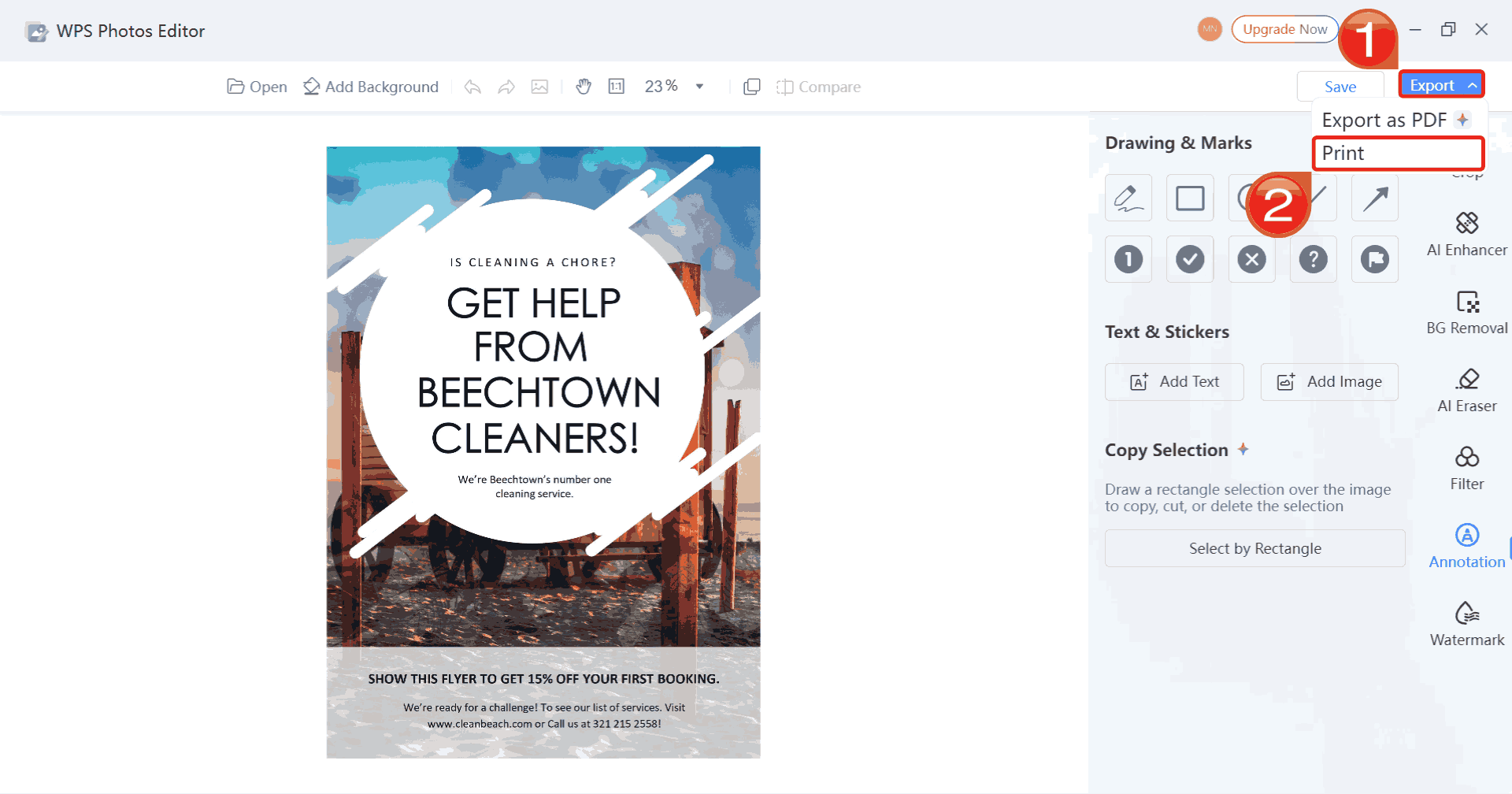
Step 3: Click on “Export”, then select “Print” to save your changes and print your edited photo.
FAQs
1. Why does my merged image look blurry or pixelated?
This usually happens if your source images were low-resolution or the merging tool compressed the file too aggressively. Use an AI enhancer like WPS Photo to restore clarity.
2. Is it possible to add text or borders to the merged image?
Yes. Tools like Canva, Fotor, and Kapwing allow text or border additions. Basic merging tools like Pine Tools or Zight do not.
3. What file format is best for saving merged images?
PNG is ideal due to lossless compression. JPEG is acceptable if exported at the highest quality setting.
4. Can I merge images on mobile devices?
Yes. Canva, Fotor, Kapwing, and WPS Photo all have mobile-friendly versions, making it easy to merge images on the go.
5. Are these tools safe to use?
Absolutely. All five tools are reputable online platforms. Always download images from official sites to avoid malware.
Merged & Ready with WPS
Knowing how to merge 2 images can be simple only if you know the right tools. Free options like Pine Tools and Zight let you quickly combine photos, while Canva, Fotor, and Kapwing give you space to add text, borders, or other creative touches. After merging, enhancing the image with WPS Photo can improve resolution, adjust colors, and make everything look ready and polished. This approach saves time and ensures your visuals stay professional. By following these steps, you can create seamless, high-quality images without any problem.

'%3e%3cpath%20d='M19.9911%204.11386V6.471H18.5894C18.0775%206.471%2017.7322%206.57814%2017.5536%206.79243C17.3751%207.00671%2017.2858%207.32814%2017.2858%207.75671V9.44421H19.9019L19.5536%2012.0871H17.2858V18.8639H14.5536V12.0871H12.2769V9.44421H14.5536V7.49779C14.5536%206.39064%2014.8632%205.53201%2015.4822%204.92189C16.1013%204.31177%2016.9257%204.00671%2017.9554%204.00671C18.8304%204.00671%2019.509%204.04243%2019.9911%204.11386Z'%20fill='%23333333'/%3e%3c/g%3e%3cdefs%3e%3cclipPath%20id='clip0_2938_8199'%3e%3crect%20width='16'%20height='16'%20fill='white'%20transform='translate(8%204.00671)'/%3e%3c/clipPath%3e%3c/defs%3e%3c/svg%3e)
'%3e%3cpath%20d='M17.5237%2010.7813L23.4811%204H22.0699L16.8949%209.88693L12.7648%204H8L14.2469%2012.9029L8%2020.0133H9.4112L14.8725%2013.7952L19.2352%2020.0133H24M9.92053%205.04213H12.0885L22.0688%2019.0224H19.9003'%20fill='%23333333'/%3e%3c/g%3e%3cdefs%3e%3cclipPath%20id='clip0_2938_8200'%3e%3crect%20width='16'%20height='16.0134'%20fill='white'%20transform='translate(8%204)'/%3e%3c/clipPath%3e%3c/defs%3e%3c/svg%3e)


