Videos are a great way to break up text-heavy slides and make complex
ideas more engaging. Many people get stuck deciding whether to stream a
YouTube clip or upload a video file, especially when switching between
desktop and mobile. The good news is that adding videos to Google Slides
is simple once you know where to look. This guide will help you learn
how to put a video on a Google Slide and manage playback so your
presentation runs smoothly.
How to Put a Video on a
Google Slides
Adding multimedia is one of the best ways to keep an audience awake,
but the method changes depending on where your file is stored.
Understanding the insertion options ensures your video plays smoothly
when it matters most. Below you’ll learn the steps on how to put a video
on a Google Slides on phone/pad/computer.
1. Insert or Delete Videos
Adding videos to your slides is straightforward. This method works
best when you want to learn how to put a YouTube video on Google Slides.
YouTube clips or videos stored in Google
Drive make it perfect for teachers showing educational content
or professionals, including product demos.
Keep in mind that Google
Slides doesn’t let you drag a video directly from your computer,
as you need to upload it to the cloud first. Once it’s in place, you can
delete or replace it as needed without disrupting the rest of your
presentation.
Here’s how to put a video on a Google Slide:
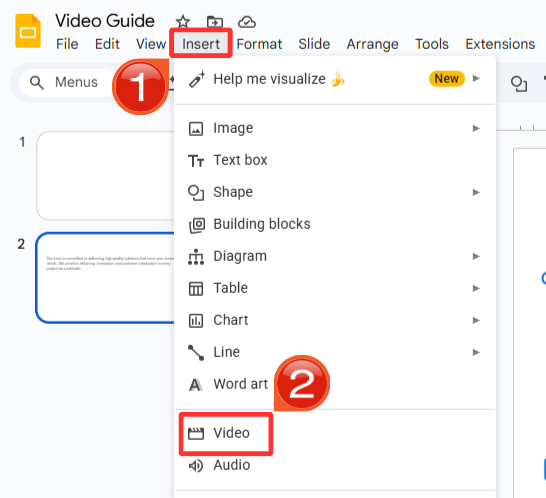
Step 1: Open your presentation and click the“Insert” button on the ribbon. Then from the dropdown,
click "Video".
Insert menu Google Slides
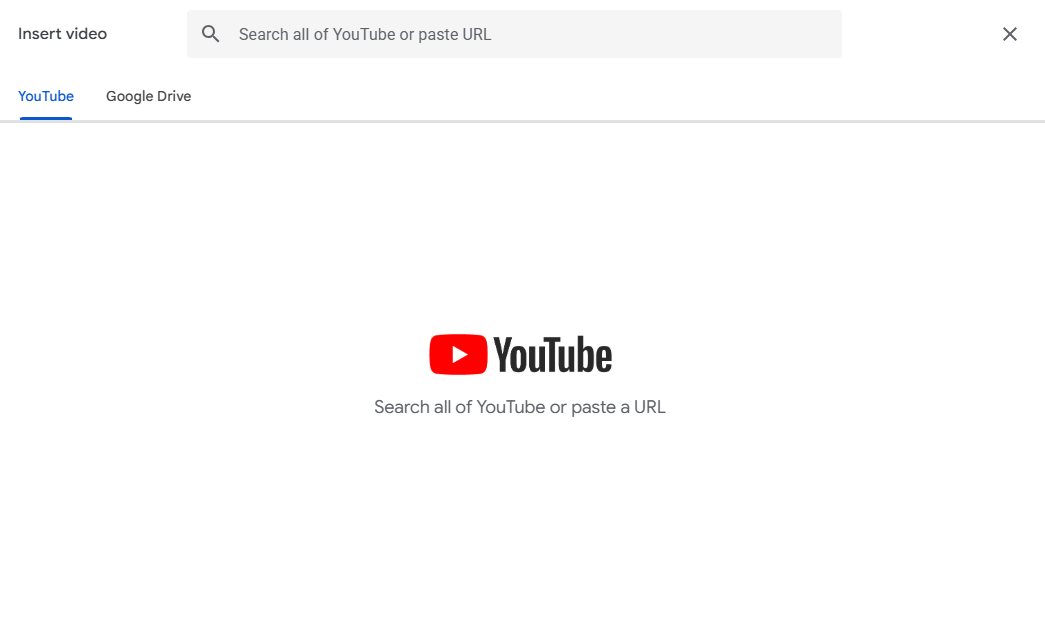
Step 2: You can either paste the YouTube URL or
insert the video directly from Google Drive.
Select an option
2. Insert or Delete Images
Not every slide needs a video. High-quality images are often enough
to illustrate a point. Adding pictures in Google Slides works almost the
same way as adding videos, and it’s ideal for situations where motion
isn’t necessary. You can insert, move, or delete images easily, keeping
your slides clean and visually engaging.
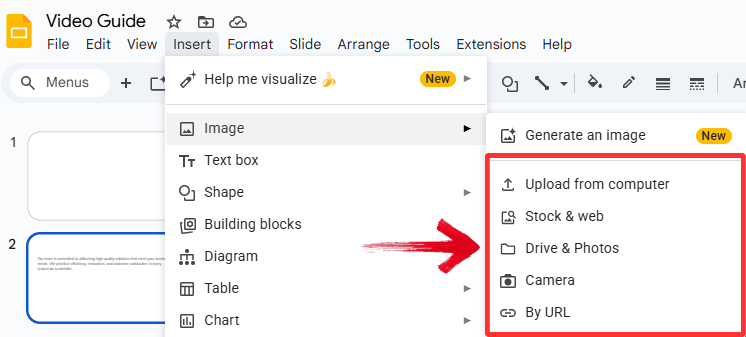
Here’s how to put a picture on a Google Slide:
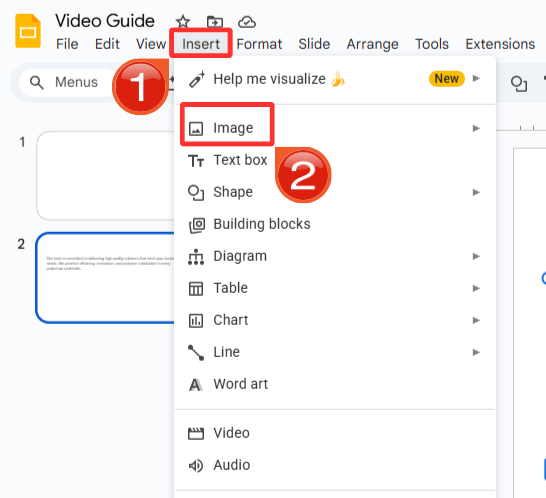
Step 1: Go to "Insert" in the top
menu and hover over "Image".
Insert Menu
Step 2: Select an option to import your image into
the presentation.
Select a Source
3. Choosing Video
Sources and Embedding Methods
YouTube is great for saving cloud space but depends on a strong
internet connection, while Google Drive keeps videos more reliable and
accessible offline, but uses your storage. Selecting the right source
ensures your presentation runs smoothly. Avoid trying to embed
unsupported platforms like Vimeo or TikTok directly, as they often cause
playback issues.
Step 1: When you click "Insert" and
then "Video", notice the tabs at the top of the
window.
Step 2: If you have a direct link to a video hosted
on Google Drive, you can also use the "By URL" tab
(though this is less common now that the Drive tab is so
integrated).
Select a Source
4. Customizing Video
Playback and Settings
Once your video is on the slide, you can control how it behaves. You
can set it to start automatically when the slide appears, loop
continuously, or play only when clicked.
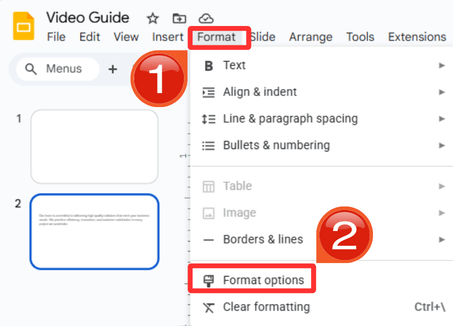
Step 1: Click on your inserted video to select it.
In the toolbar, click “Format” and then click
"Format options" (or right-click the video and select
it).
Format menu
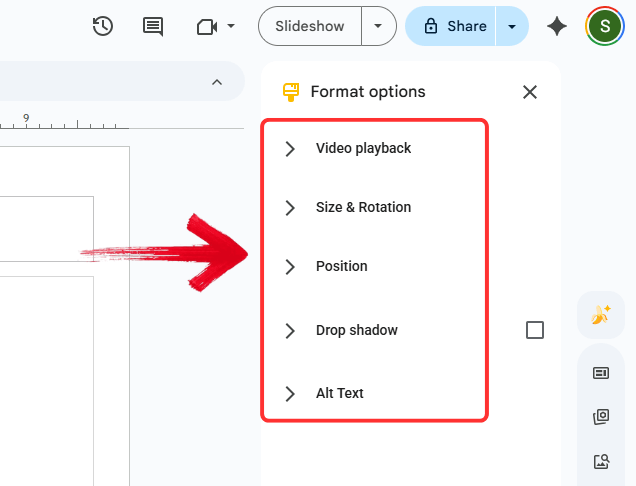
Step 2: In the sidebar that appears, you can tweak
the settings to adjust according to your presentation.
Format Options Sidebar
Best Way to
Optimize Your Slides—WPS AI Slides
Inserting a video is just the starting point. The bigger challenge is
making it look right and ensuring it plays smoothly when it matters
most. If you have dealt with broken links, unreliable playback,
or videos that throw off your slide layout right before a meeting, you
know how frustrating that can be.
WPS AI Slides
WPS AI Slidestakes a more integrated approach to multimedia, helping you place,
format, and present videos without the usual headache. Instead of simply
adding a video to a slide, it helps you build a polished
presentation that feels intentional and professional from start
to finish.
Why Use WPS AI for Video
Presentations?
WPS AI Slides is designed to handle media more natively than the
web-based Google Slides.
Intelligent Video Layout: WPS AI Slides
automatically places your video into clean, professional layouts, so you
don’t have to resize or reposition anything by hand. Videos are styled
to match your slide design, helping the entire deck feel consistent
instead of looking like a video was dropped in at the last
minute.
Reliable Local and Cloud Playback: Unlike Google
Slides, which often depends on a strong internet connection for video
playback, WPS AI Slides supports local video files smoothly. That means
your presentation runs reliably from your device even when Wi-Fi is slow
or unavailable, removing the stress of buffering during important
moments.
Video-to-Slide Summaries: Rather than forcing
your audience to watch a long clip, WPS AI can pull out the key points
and turn them into clear text or bullet slides. This keeps your message
front and center and ensures nothing important gets lost, even if the
video is only partially viewed.
How to Edit With WPS:
Getting started is easy. Instead of struggling with manual
formatting, you can let the AI handle the heavy lifting in just a few
clicks. Here’s how to use the AI pitch
deck generator:
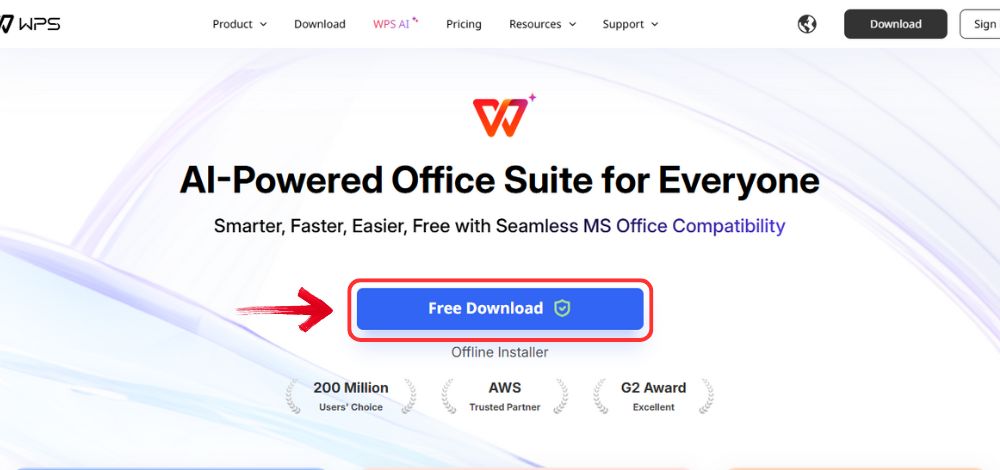
Step 1: Open your browser to visit WPS Office and click the"Free Download" button to start the download.
Download WPS Office
Step 2: The download will finish in a few seconds.
Once done, run the installation file like you would for any other app or
software.
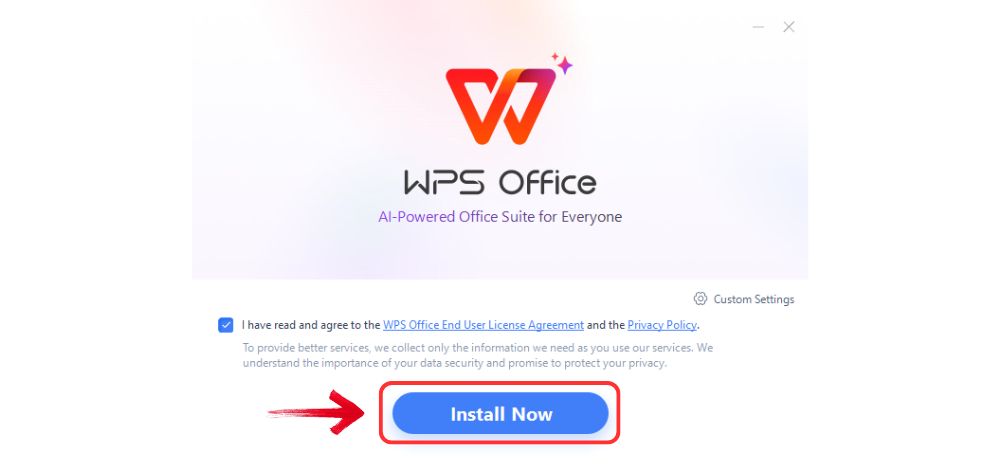
Step 3: WPS Office will show you a few simple terms
and conditions. Accept them, then click the "Install
Now" button to begin the installation.
Install WPS Office
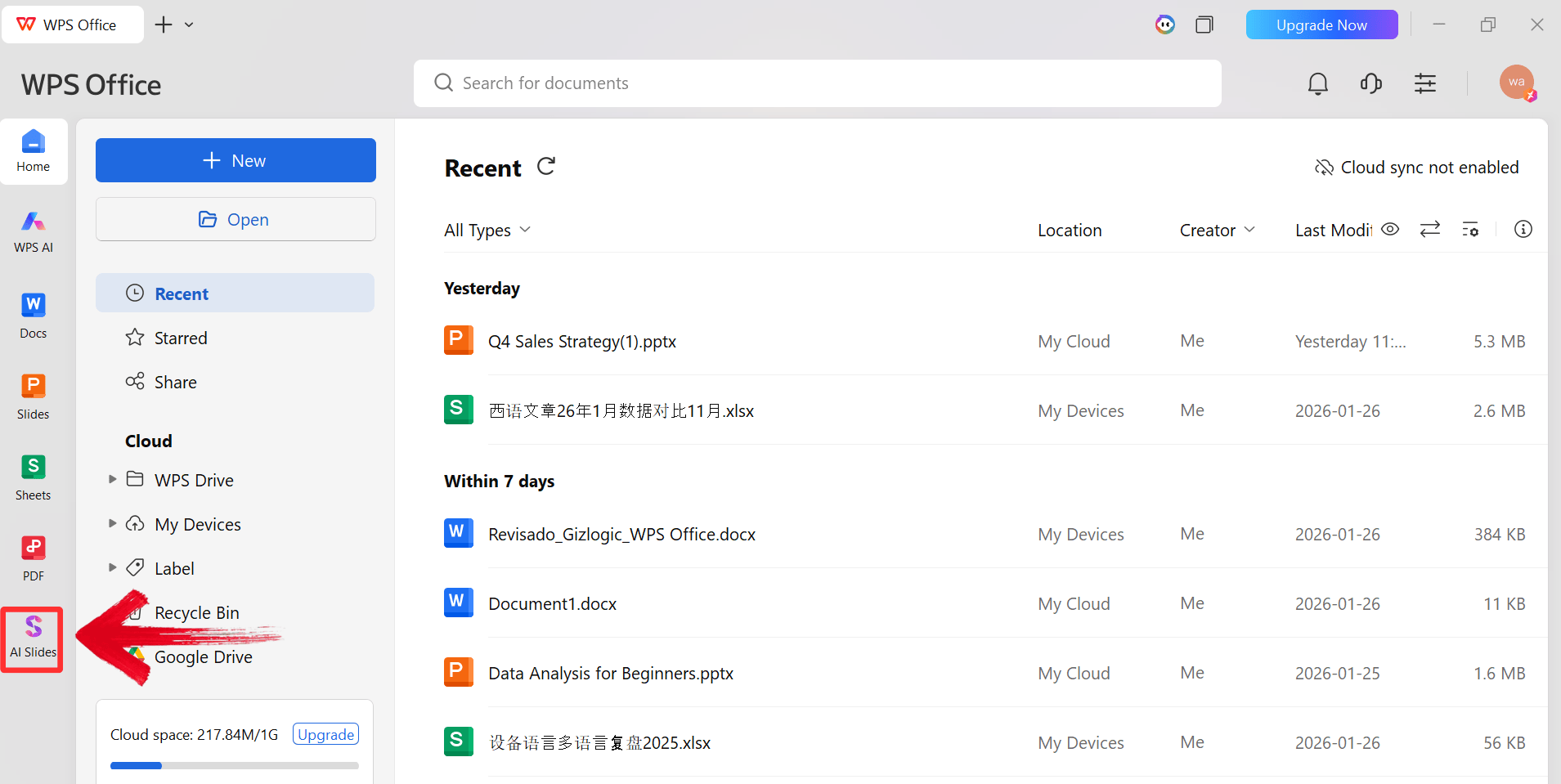
Step 4: After installation, in WPS Office, click“Slides” from the left sidebar.
WPS Slides Dashboard
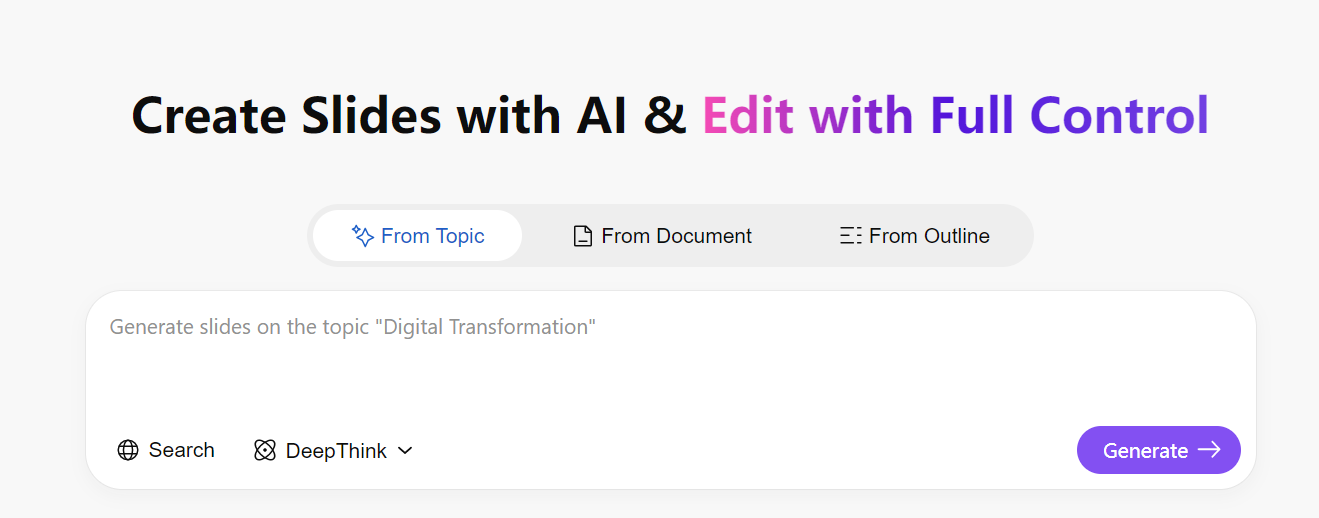
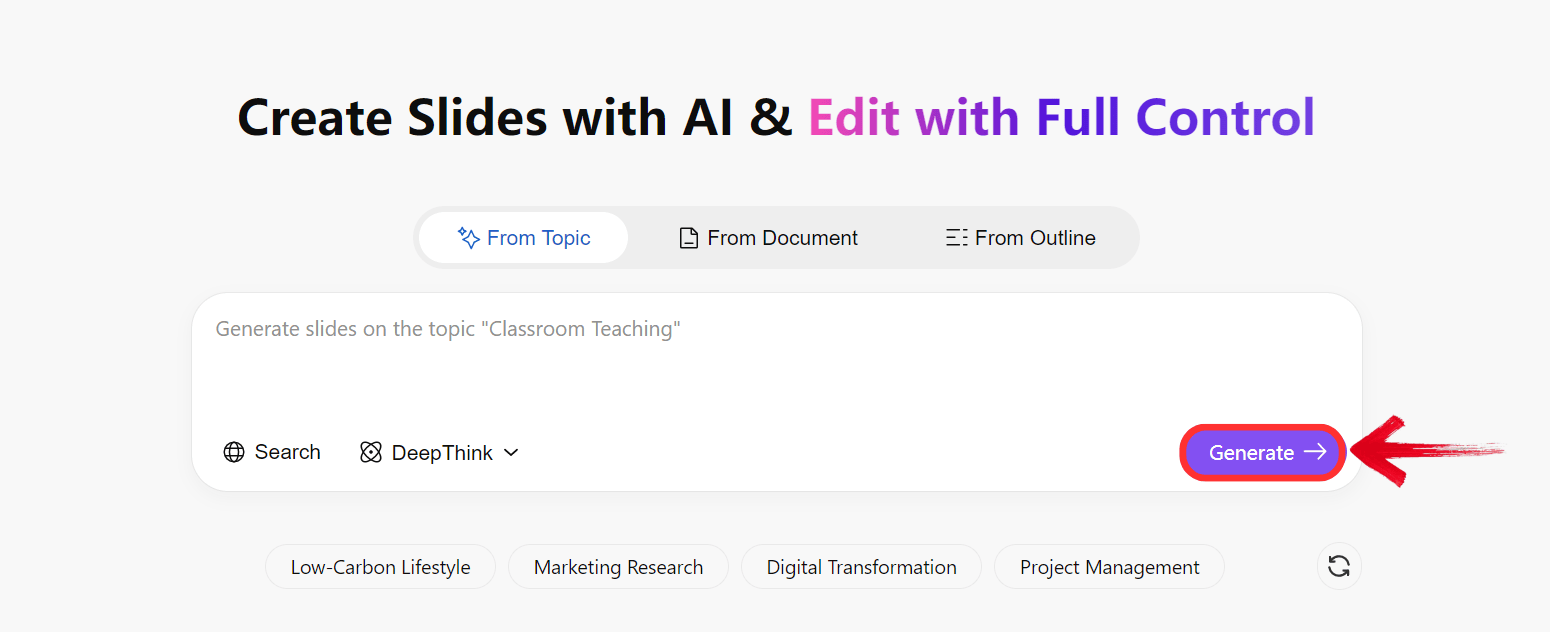
Step 5: Enter your presentation topic (e.g.,
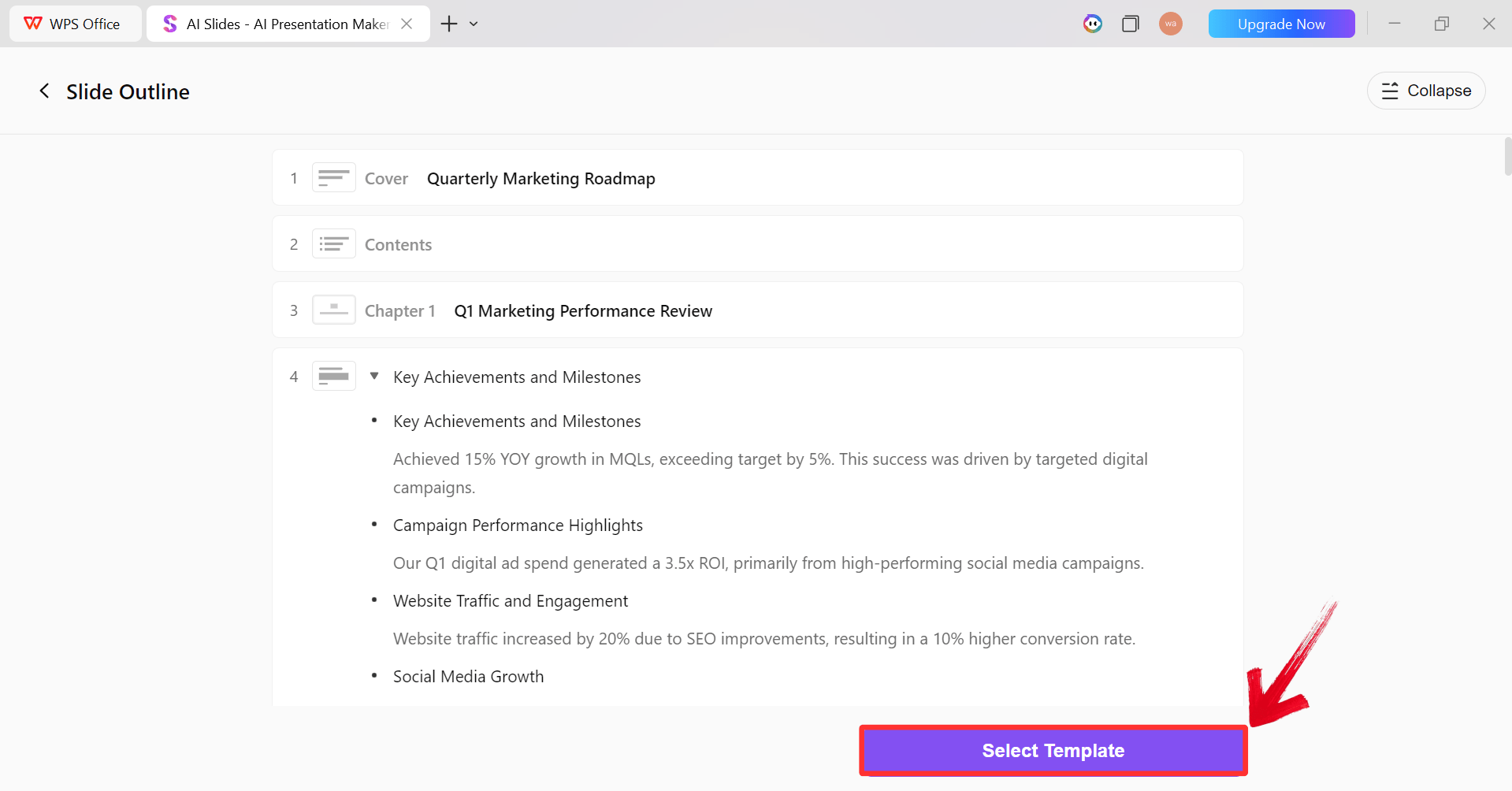
"Quarterly Marketing Roadmap") into the dialogue box and click“Generate” to create the outline.
Click Generate
Step 6: After the AI creates the outline, click“Select Template” to pick a template from the already
available ones.
AI Generated Outline
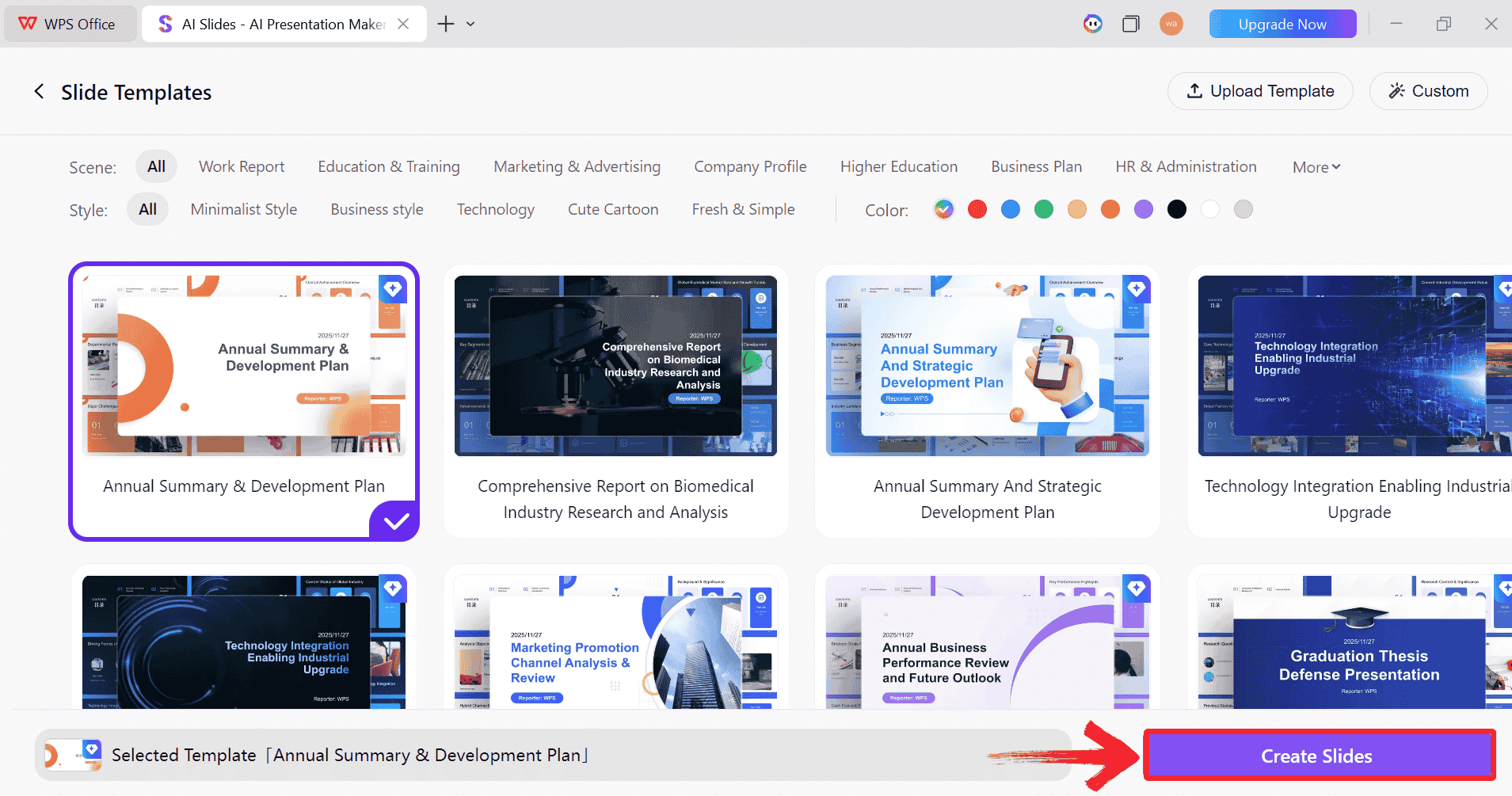
Step 7: Choose from the Wide template library and
click “Create Slides” to generate your
presentation.
Pick a Template
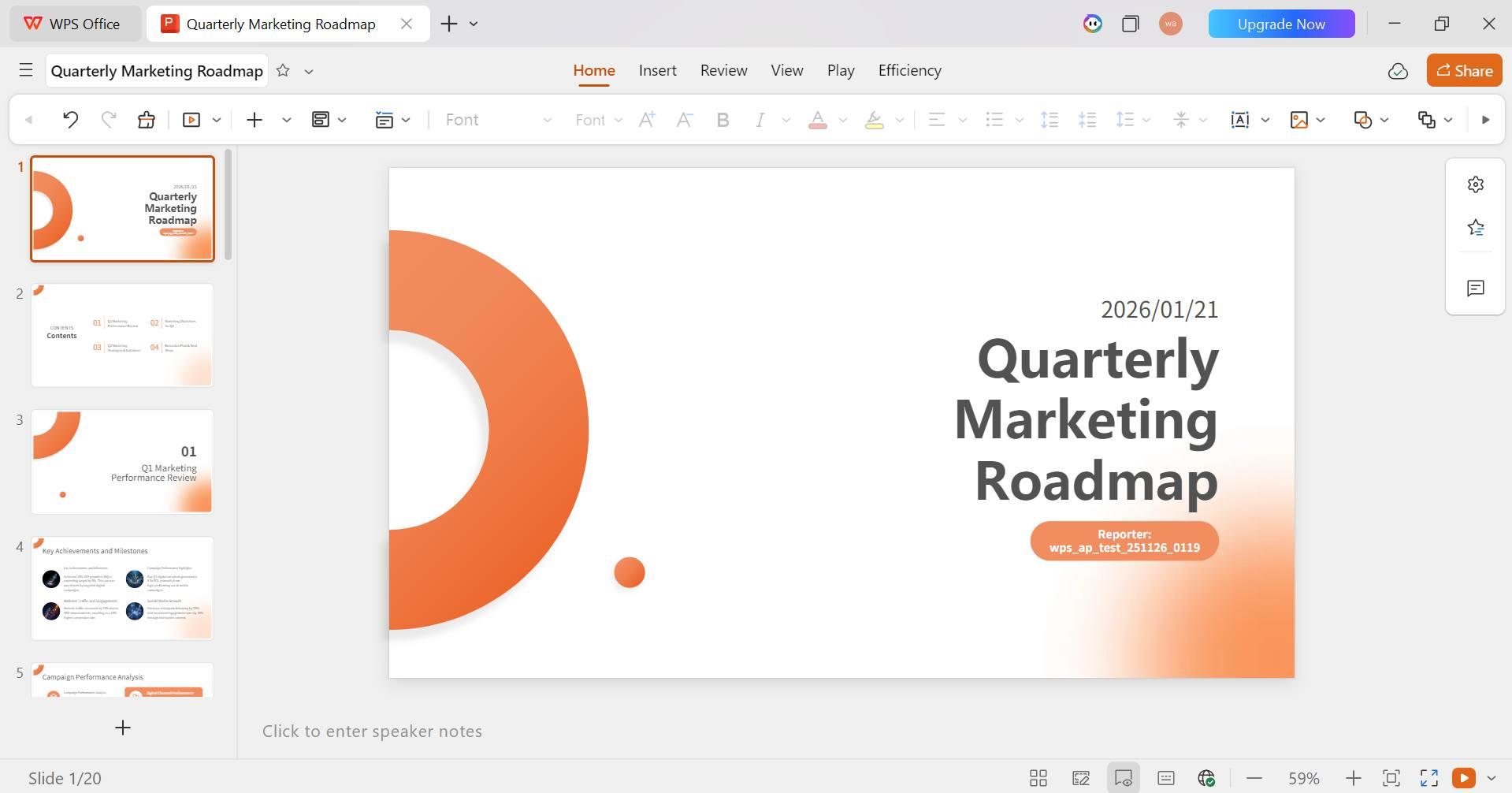
Step 8: Finally, your Slide deck will be generated
with the accurate content.
AI-generated PPT
Step 9: You can then, from the ribbon menu above,
make different changes using the extensive tools provided in WPS
Presentation.
WPS Presentation toolbar
Step 10: To insert a video, head on over to“Insert” and then click “Video”.
Insert video to Presentation in WPS Slides
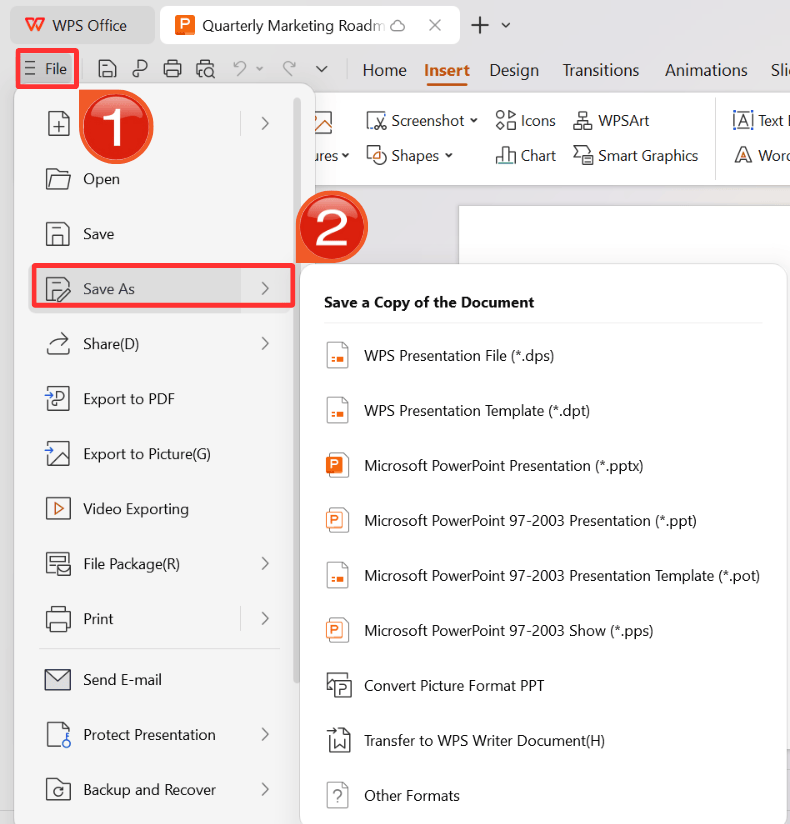
Step 11: Click on the File menu and then click“Save as” to download your PPT.
Export and Download in WPS Presentation
Comparison of WPS
AI Slides and Google Slides
While Google Slides relies heavily on internet connectivity for
media, WPS AI Slides offers robust offline capabilities and AI design
assistance. The major issue with Google Slides is the dependency on
Cloud storage for videos; if the internet fails, your YouTube video
fails. WPS solves this by allowing direct local file embedding.
Feature
Google Slides
WPS AI Slides
Creation Approach
Manual editing
AI-assisted slide generation
Video Insertion
YouTube/Drive only
Direct local video support
Design Support
User-designed layouts
AI layout and template suggestions
Workflow Speed
Step-by-step building
Faster automated drafting
Collaboration
Strong real-time collaboration
Basic collaboration
Device Flexibility
Browser-based
Desktop (Offline) & Mobile
Best Use Cases
Simple team slides
Frequent, media-heavy presentations
FAQs
1. What does video embedding
involve?
Video embedding in Google Slides involves inserting a media player
directly onto the slide canvas. This allows the video to play within the
presentation environment without forcing you to close the slides and
open a web browser or separate video player application, keeping the
audience focused on your message.
2. What video
formats does Google Slides support?
When uploading files to Google Drive for use in Slides, the system
supports MP4, which is recommended for its balance of quality and
compatibility. It also supports MOV, which is ideal for iOS users, and
WebM, which provides excellent compression for web delivery without
using excessive storage space.
3. Does this work on a
phone or tablet?
The ability to insert a video directly is currently limited on mobile
devices. On the Google Slides app for phone orpad, you can view videos that are already on the slide,
but you typically cannot insert a new video file directly from the
mobile interface. The common workaround is to add the video via a
computer first.
4.
How do I make the video play automatically after putting the video on
Google Slides?
After you have inserted the clip, click on it to select it. Open the
Format options menu from the toolbar, click the Video playback dropdown,
and check the box labeled Autoplay when presenting. This ensures the
video starts immediately when you advance to that slide.
5. Why
would I recommend WPS AI Slides over Google Slides?
WPS AI Slides offers AI-powered creation that can generate layouts
and structure content much faster than manual editing. It is
particularly useful because it supports direct local video files,
meaning you do not have to upload everything to Drive first, and it
offers smarter design suggestions to make those videos look professional
instantly.
6. Can WPS handle videos easily?
Yes, WPS Presentation supports inserting local video files directly
from your computer, which is often faster and more reliable for offline
presenting. It also includes standard playback settings such as looping,
volume control, and trimming directly within the slide editor.
7. Is
it easier to manage design and media together in WPS?
The AI-assisted features in WPS analyze your content and suggest
optimal layouts where videos, images, and text fit best together. This
reduces the manual trial-and-error work of resizing and aligning
elements that is often required when designing in Google Slides.
8. Does AI help beyond
video insertion?
WPS AI can generate entire slide decks from simple text prompts or
ideas, refine your written content, and suggest cohesive themes. This
accelerates the entire workflow significantly compared to manually
building each slide element by element.
9.
Will switching between WPS and Google cause compatibility issues?
WPS Office files are fully compatible with the .pptx format. You can
create or enrich slides in WPS and then save them as PowerPoint files,
which can be uploaded and edited in Google Slides if needed, making it
easy to switch between platforms.
10.
Is using WPS AI Slides worth it for simple tasks like inserting a video?
For a quick, one-off task, Google Slides is sufficient. However, if
you are creating frequent, media-heavy presentations or need built-in
design assistance to make your decks look professional with minimal
effort, WPS AI Slides is the more efficient and powerful choice.
Bring Your Slides to Life
with Video
Knowing how to put a video on a Google Slides is a fundamental skill
for modern presenters. While Google Slides requires you to use YouTube
or Google Drive to bridge the gap between your computer and the cloud,
it remains a flexible tool for connected presentations. However, for
those needing robust offline reliability, direct local video embedding,
and AI-driven layout design, WPS AI Slides offers a
powerful alternative that simplifies multimedia management.
7+ years in productivity tech. I test and review the latest tools to simplify your workflow. Follow for honest app comparisons, practical guides, and curated tech picks to boost efficiency.


'%3e%3cpath%20d='M8%200C12.4183%200%2016%203.58172%2016%208C16%2012.4183%2012.4183%2016%208%2016C3.58172%2016%200%2012.4183%200%208C0%203.58172%203.58172%200%208%200ZM11.6162%204.38379C11.2257%203.99337%2010.5927%203.99338%2010.2021%204.38379L8%206.58594L5.79785%204.38379C5.40732%203.99334%204.77429%203.99329%204.38379%204.38379C3.99331%204.77429%203.99335%205.40733%204.38379%205.79785L6.58594%208L4.38379%2010.2021C3.99348%2010.5927%203.99341%2011.2257%204.38379%2011.6162C4.77426%2012.0066%205.40734%2012.0065%205.79785%2011.6162L8%209.41406L10.2021%2011.6162C10.5927%2012.0066%2011.2257%2012.0067%2011.6162%2011.6162C12.0067%2011.2257%2012.0066%2010.5927%2011.6162%2010.2021L9.41406%208L11.6162%205.79785C12.0066%205.40735%2012.0066%204.77429%2011.6162%204.38379Z'%20fill='%23080E17'%20fill-opacity='0.46'/%3e%3c/g%3e%3cdefs%3e%3cclipPath%20id='clip0_3761_713'%3e%3crect%20width='16'%20height='16'%20fill='white'/%3e%3c/clipPath%3e%3c/defs%3e%3c/svg%3e)




'%3e%3cpath%20fill-rule='evenodd'%20clip-rule='evenodd'%20d='M21.4999%2010.9993C21.4999%205.20009%2016.7986%200.498901%2010.9993%200.498901C5.19994%200.498901%200.498657%205.20009%200.498657%2010.9993C0.498657%2016.2404%204.33858%2020.5844%209.35855%2021.3722V14.0346H6.69238V10.9993H9.35855V8.68594C9.35855%206.05427%2010.9262%204.60062%2013.3248%204.60062C14.4736%204.60062%2015.6753%204.80571%2015.6753%204.80571V7.38979H14.3512C13.0468%207.38979%2012.64%208.19921%2012.64%209.0296V10.9993H15.5523L15.0867%2014.0346H12.64V21.3722C17.66%2020.5844%2021.4999%2016.2404%2021.4999%2010.9993Z'%20fill='%231568EA'/%3e%3c/g%3e%3c/svg%3e)


'%3e%3cpath%20d='M2.42045%2022.1876H6.31818V12.7217L0.75%208.54553V20.5171C0.75%2021.4414%201.49892%2022.1876%202.42045%2022.1876Z'%20fill='%234285F4'/%3e%3cpath%20d='M19.682%2022.1876H23.5797C24.5041%2022.1876%2025.2502%2021.4387%2025.2502%2020.5171V8.54553L19.682%2012.7217'%20fill='%2334A853'/%3e%3cpath%20d='M19.682%205.48293V12.7216L25.2502%208.54543V6.31816C25.2502%204.25236%2022.8921%203.07469%2021.2411%204.31361'%20fill='%23FBBC04'/%3e%3cpath%20d='M6.31824%2012.7217V5.48303L13.0001%2010.4944L19.6819%205.48303V12.7217L13.0001%2017.733'%20fill='%23EA4335'/%3e%3cpath%20d='M0.75%206.31816V8.54543L6.31818%2012.7216V5.48293L4.75909%204.31361C3.10534%203.07469%200.75%204.25236%200.75%206.31816Z'%20fill='%23C5221F'/%3e%3c/g%3e%3cdefs%3e%3cclipPath%20id='clip0_2954_7305'%3e%3crect%20width='24.5'%20height='18.375'%20fill='white'%20transform='translate(0.75%203.8125)'/%3e%3c/clipPath%3e%3c/defs%3e%3c/svg%3e)





'%3e%3cpath%20d='M19.9911%204.11386V6.471H18.5894C18.0775%206.471%2017.7322%206.57814%2017.5536%206.79243C17.3751%207.00671%2017.2858%207.32814%2017.2858%207.75671V9.44421H19.9019L19.5536%2012.0871H17.2858V18.8639H14.5536V12.0871H12.2769V9.44421H14.5536V7.49779C14.5536%206.39064%2014.8632%205.53201%2015.4822%204.92189C16.1013%204.31177%2016.9257%204.00671%2017.9554%204.00671C18.8304%204.00671%2019.509%204.04243%2019.9911%204.11386Z'%20fill='%23333333'/%3e%3c/g%3e%3cdefs%3e%3cclipPath%20id='clip0_2938_8199'%3e%3crect%20width='16'%20height='16'%20fill='white'%20transform='translate(8%204.00671)'/%3e%3c/clipPath%3e%3c/defs%3e%3c/svg%3e)
'%3e%3cpath%20d='M17.5237%2010.7813L23.4811%204H22.0699L16.8949%209.88693L12.7648%204H8L14.2469%2012.9029L8%2020.0133H9.4112L14.8725%2013.7952L19.2352%2020.0133H24M9.92053%205.04213H12.0885L22.0688%2019.0224H19.9003'%20fill='%23333333'/%3e%3c/g%3e%3cdefs%3e%3cclipPath%20id='clip0_2938_8200'%3e%3crect%20width='16'%20height='16.0134'%20fill='white'%20transform='translate(8%204)'/%3e%3c/clipPath%3e%3c/defs%3e%3c/svg%3e)


