

'%3e%3cpath%20d='M8%200C12.4183%200%2016%203.58172%2016%208C16%2012.4183%2012.4183%2016%208%2016C3.58172%2016%200%2012.4183%200%208C0%203.58172%203.58172%200%208%200ZM11.6162%204.38379C11.2257%203.99337%2010.5927%203.99338%2010.2021%204.38379L8%206.58594L5.79785%204.38379C5.40732%203.99334%204.77429%203.99329%204.38379%204.38379C3.99331%204.77429%203.99335%205.40733%204.38379%205.79785L6.58594%208L4.38379%2010.2021C3.99348%2010.5927%203.99341%2011.2257%204.38379%2011.6162C4.77426%2012.0066%205.40734%2012.0065%205.79785%2011.6162L8%209.41406L10.2021%2011.6162C10.5927%2012.0066%2011.2257%2012.0067%2011.6162%2011.6162C12.0067%2011.2257%2012.0066%2010.5927%2011.6162%2010.2021L9.41406%208L11.6162%205.79785C12.0066%205.40735%2012.0066%204.77429%2011.6162%204.38379Z'%20fill='%23080E17'%20fill-opacity='0.46'/%3e%3c/g%3e%3cdefs%3e%3cclipPath%20id='clip0_3761_713'%3e%3crect%20width='16'%20height='16'%20fill='white'/%3e%3c/clipPath%3e%3c/defs%3e%3c/svg%3e)




'%3e%3cpath%20fill-rule='evenodd'%20clip-rule='evenodd'%20d='M21.4999%2010.9993C21.4999%205.20009%2016.7986%200.498901%2010.9993%200.498901C5.19994%200.498901%200.498657%205.20009%200.498657%2010.9993C0.498657%2016.2404%204.33858%2020.5844%209.35855%2021.3722V14.0346H6.69238V10.9993H9.35855V8.68594C9.35855%206.05427%2010.9262%204.60062%2013.3248%204.60062C14.4736%204.60062%2015.6753%204.80571%2015.6753%204.80571V7.38979H14.3512C13.0468%207.38979%2012.64%208.19921%2012.64%209.0296V10.9993H15.5523L15.0867%2014.0346H12.64V21.3722C17.66%2020.5844%2021.4999%2016.2404%2021.4999%2010.9993Z'%20fill='%231568EA'/%3e%3c/g%3e%3c/svg%3e)


'%3e%3cpath%20d='M2.42045%2022.1876H6.31818V12.7217L0.75%208.54553V20.5171C0.75%2021.4414%201.49892%2022.1876%202.42045%2022.1876Z'%20fill='%234285F4'/%3e%3cpath%20d='M19.682%2022.1876H23.5797C24.5041%2022.1876%2025.2502%2021.4387%2025.2502%2020.5171V8.54553L19.682%2012.7217'%20fill='%2334A853'/%3e%3cpath%20d='M19.682%205.48293V12.7216L25.2502%208.54543V6.31816C25.2502%204.25236%2022.8921%203.07469%2021.2411%204.31361'%20fill='%23FBBC04'/%3e%3cpath%20d='M6.31824%2012.7217V5.48303L13.0001%2010.4944L19.6819%205.48303V12.7217L13.0001%2017.733'%20fill='%23EA4335'/%3e%3cpath%20d='M0.75%206.31816V8.54543L6.31818%2012.7216V5.48293L4.75909%204.31361C3.10534%203.07469%200.75%204.25236%200.75%206.31816Z'%20fill='%23C5221F'/%3e%3c/g%3e%3cdefs%3e%3cclipPath%20id='clip0_2954_7305'%3e%3crect%20width='24.5'%20height='18.375'%20fill='white'%20transform='translate(0.75%203.8125)'/%3e%3c/clipPath%3e%3c/defs%3e%3c/svg%3e)


A Korean PDF landed in your inbox - a contract, a transcript, a research paper - and you need it in English before your next call. The fastest free route is a document translator that keeps the layout: upload the file, set Korean to English, and download the result - and when the pages are scanned images, run OCR first, because no translator can read a page that is only pixels.
How to Translate a Korean PDF to English: Free Methods That Work
Before Translating: Is the Korean PDF Text Selectable or Scanned?
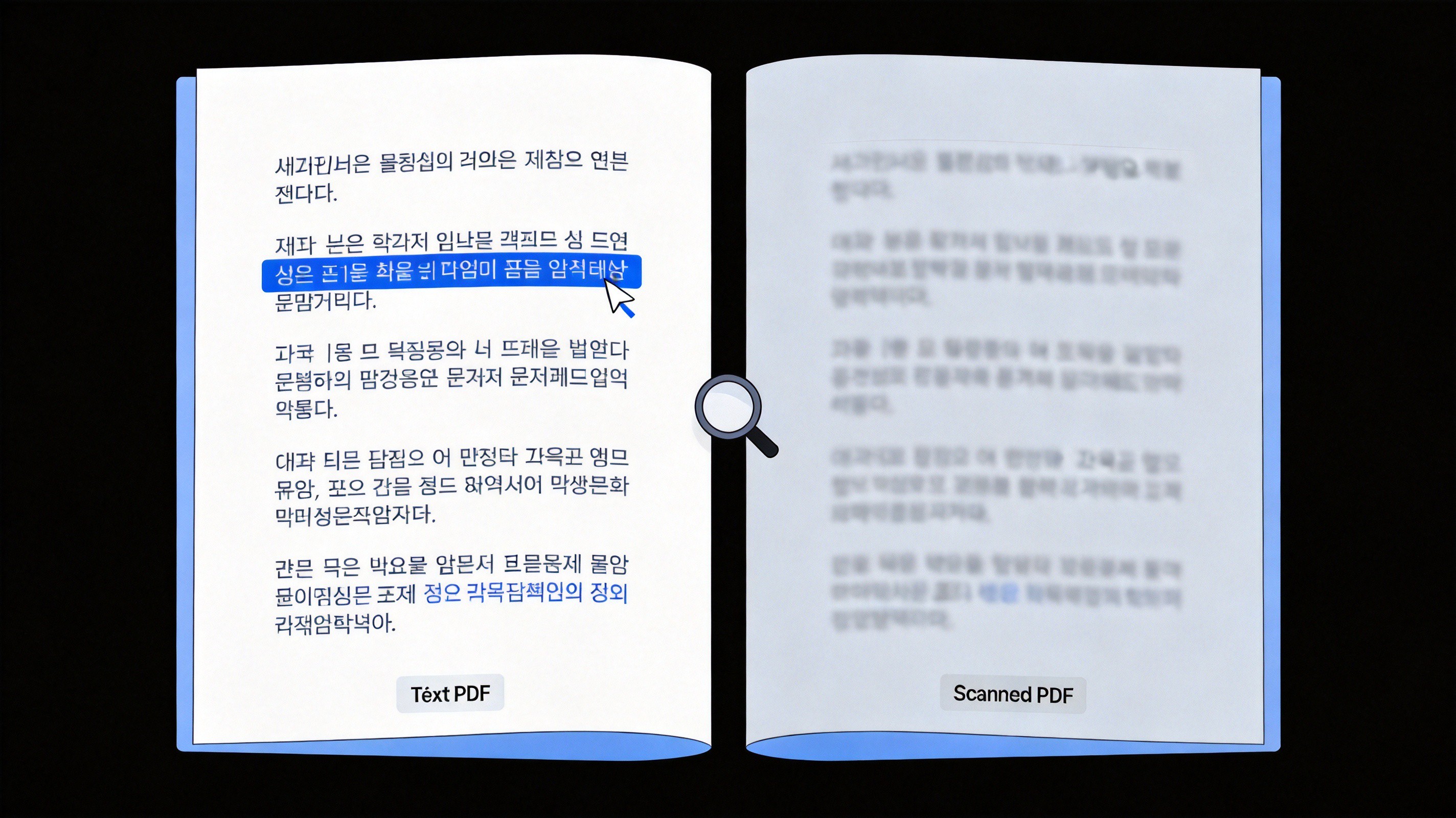
The step most people skip decides whether any tool works. Open the PDF and drag across a line of Korean text: if it highlights and copies as clean Hangul characters, the file is text-based and every method below works directly. If nothing selects, or the copy pastes as broken symbols, the pages are scans - the characters are just pixels, so a translator sees no text to read. OCR is the feature that turns those image pages back into machine-readable text: run it first and the same Korean document translates normally.
Open the PDF in any viewer and drag across a Korean line.
Try to copy it. Clean Hangul characters in the clipboard mean a text layer exists; nothing, or garbled symbols, means a scan.
For scans, run OCR first - WPS Office includes a free OCR tool under Convert, then OCR PDF - and translate the recognized text as normal.
Checking if Korean PDF text is selectable


Translate a Korean PDF to English in WPS Office
When the file is already in the app you work in, translating in place saves the export round trip. WPS Office translates PDF, Word, Excel and PowerPoint files with AI, supports 100+ languages, and keeps tables, charts and images in position so the English copy looks like the original.
Open the Korean PDF in WPS Office on Windows, Mac, iOS or Android.
Start the WPS AI Translator and pick the document you want to translate - PDF, DOCX, XLSX and PPTX all work.
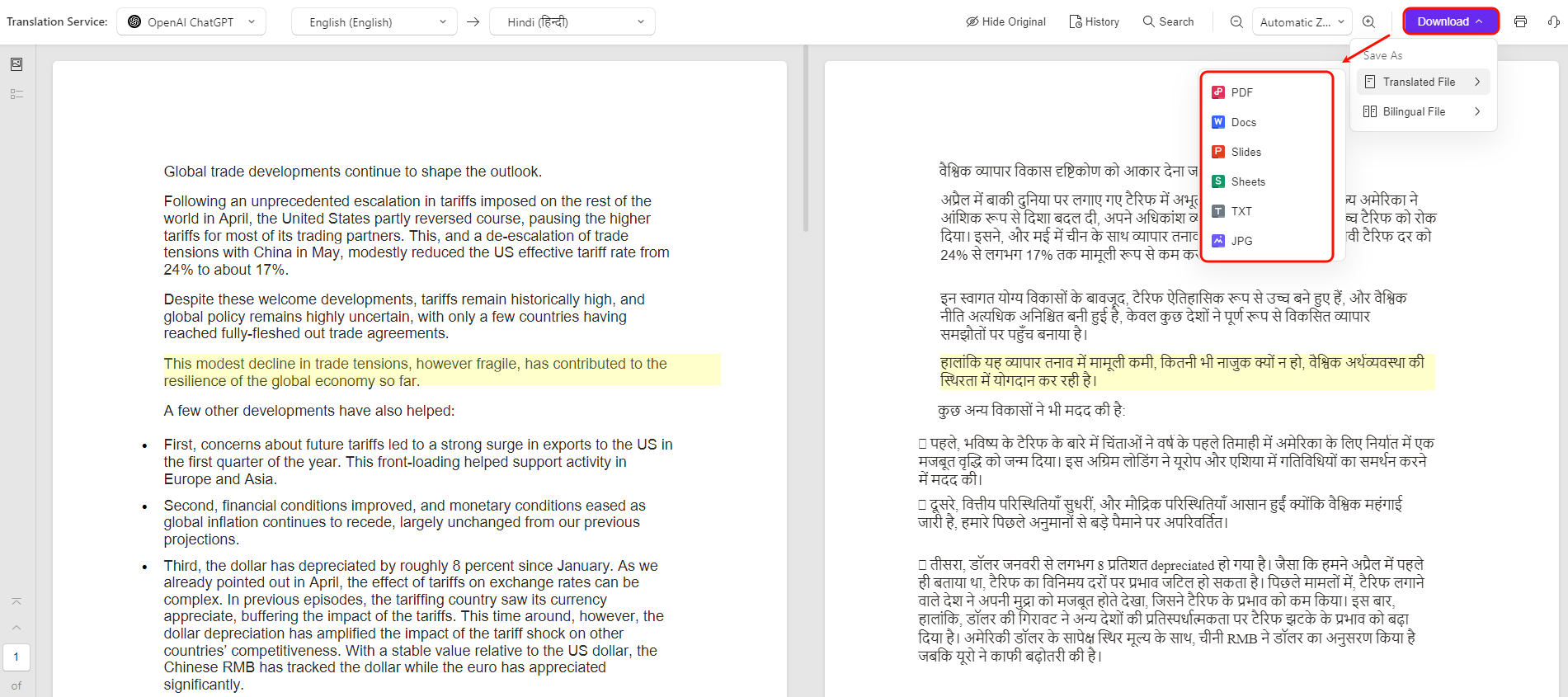
Set Korean as the source and English as the target. The side-by-side view keeps both versions visible, so numbers and names are easy to check while you read.
Review and save the English copy as a new file so the Korean original stays untouched.
Side-by-side translation preview in WPS
Free Web Route: Korean PDF to English with Google Translate
For a quick free pass with nothing to install, Google Translate handles documents in the browser and needs no account.
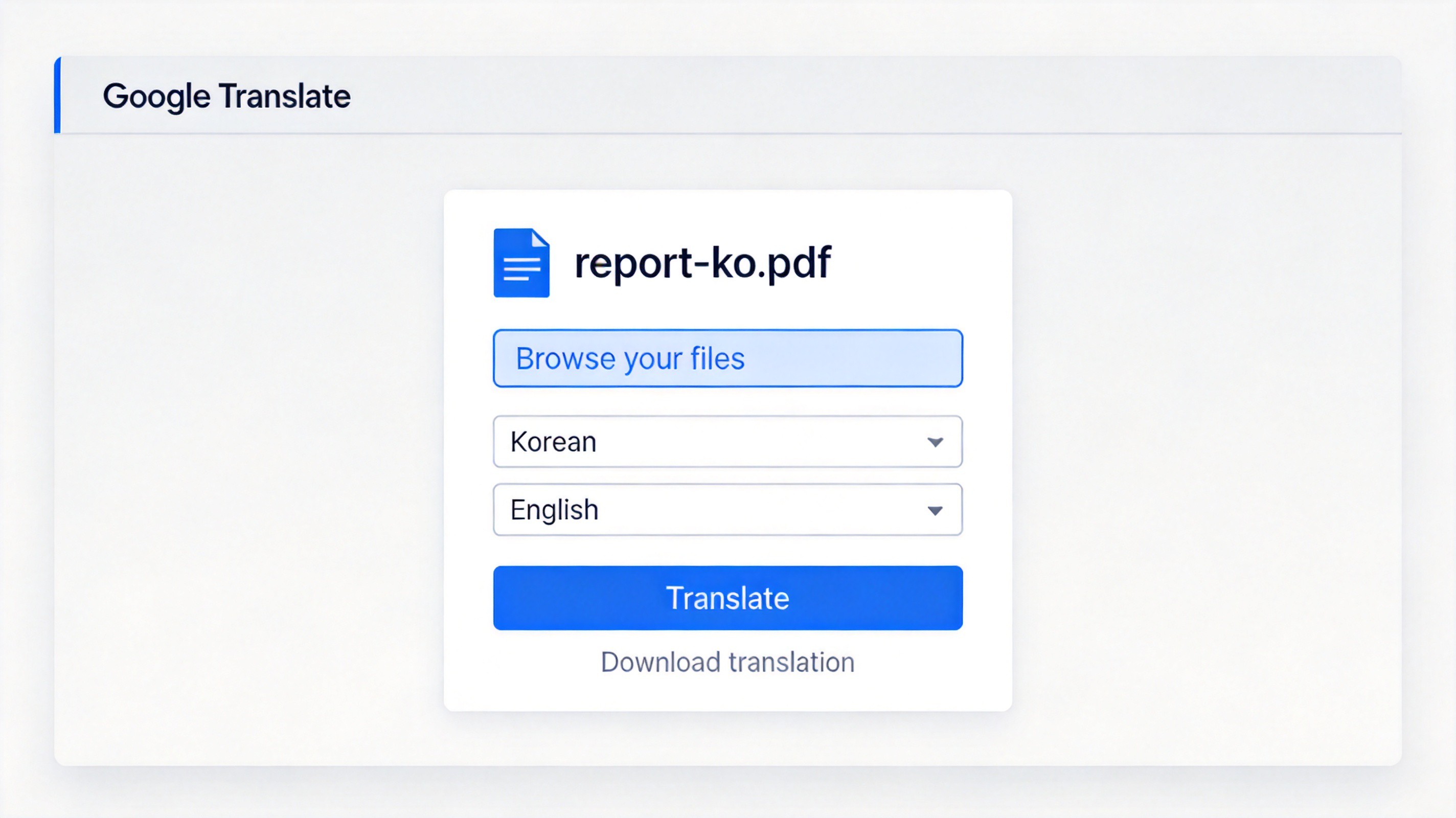
Open translate.google.com and switch to the Documents tab.
Upload the Korean PDF. The 10 MB size cap is the main limit, so compress a larger file first.
Set the pair to Korean and English - the page usually detects Korean on its own - and click Translate.
Click Download translation and open the file to check how the layout survived.
Google Translate reflows the text instead of rebuilding the page, so tables and images can shift. Use it to understand the content; reach for a document translator when the formatting has to survive.
Google Translate Korean PDF to English
Translate Korean PDFs to Natural English with DeepL
When the document is formal - a contract, a recommendation letter, a thesis chapter - DeepL usually produces the most natural English of the free options.
Open deepl.com/translator and choose the Translate files tab.
Upload the Korean PDF and set the pair to Korean and English.
Wait for the download. The free plan covers a few documents a month, which is enough for occasional paperwork.
Compare the first page against the original - names, dates and honorific titles are the parts worth double-checking.
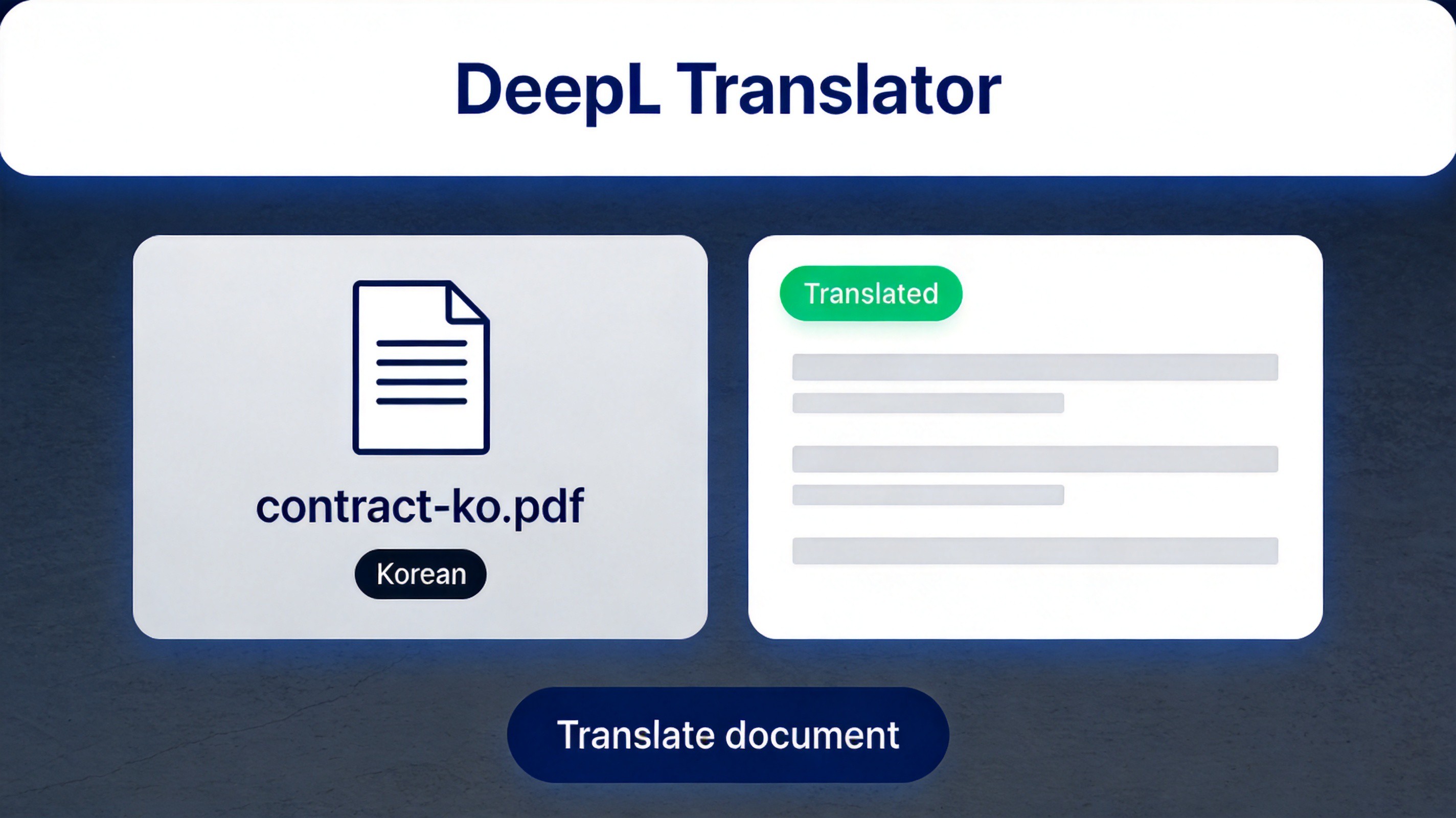
DeepL Korean PDF translation interface
Tips for Clean Korean to English PDF Translations
Fix the scan before you translate. Sharp, upright, single-page scans OCR far better than photos of a printout on a desk.
Expect the word order to move. Korean runs subject-object-verb, so English sentences reorder themselves during translation - that is normal, not a bug.
Check numbers, dates and names by hand. Machine translation handles them worst, and a wrong figure in a contract is the one error that matters.
Honorifics flatten out. Korean politeness levels and titles compress into plain English; add a formal line yourself before replying to business mail.
Keep the original. Save the English version as a new file so you can re-translate a section without losing the Korean source.
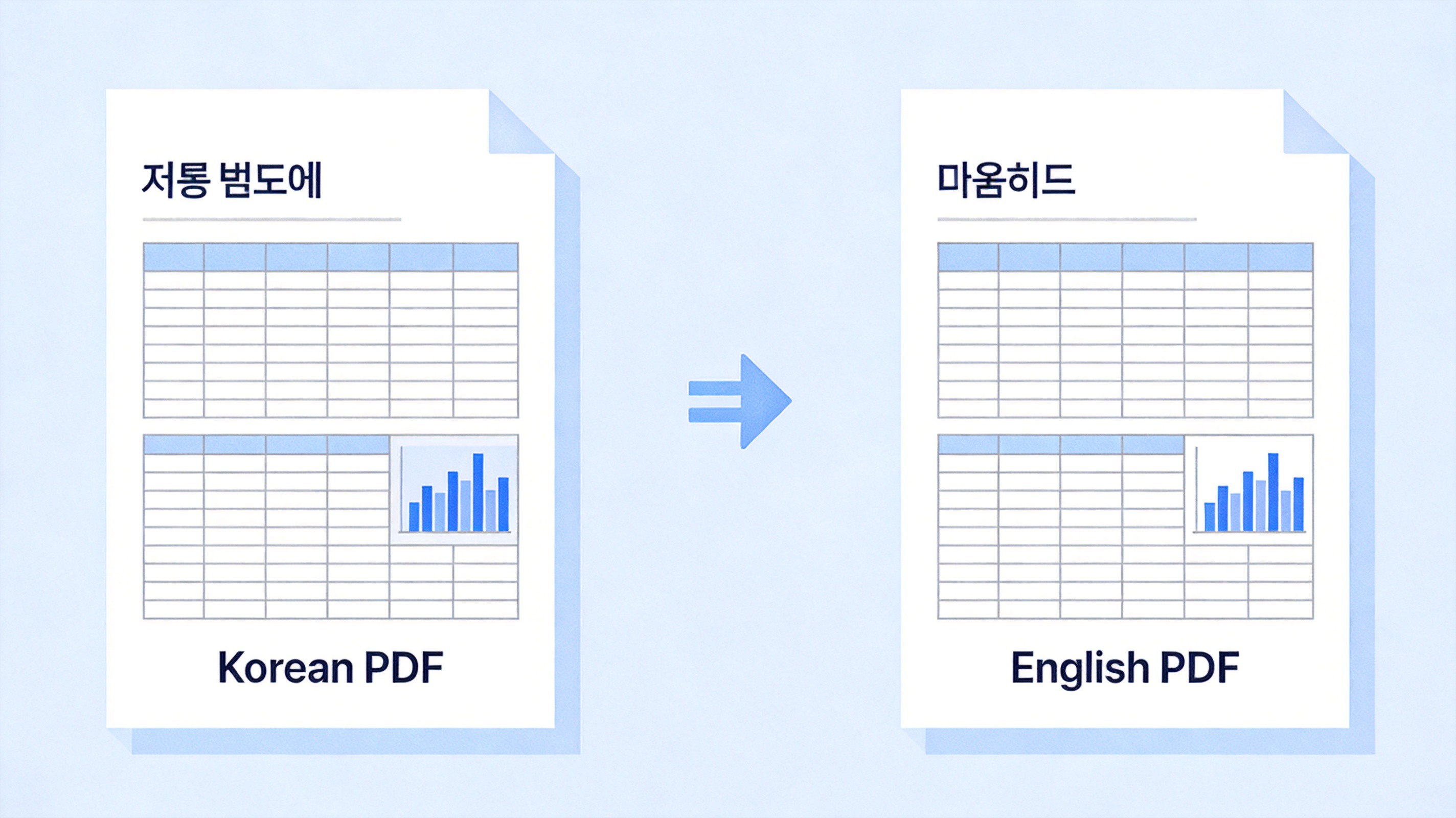
Preserving PDF layout after Korean translation
The Best Free PDF Alternative: WPS Office
WPS Office puts the whole job in one free app: open the Korean PDF, run the AI translation, fix the layout or the wording in the same window, then export the English file - no juggling three browser tabs or re-uploading downloads between tools.
Translate in place: PDF, Word, Excel and PowerPoint files, 100+ languages, with tables, charts and images kept in position.
Free core tools: view, edit, annotate and convert PDFs - plus OCR for scanned pages and AI document translation - at no cost for everyday files.
One suite: Writer, Spreadsheet, Presentation and PDF on desktop and mobile, so the translated contract opens where the rest of your work lives.
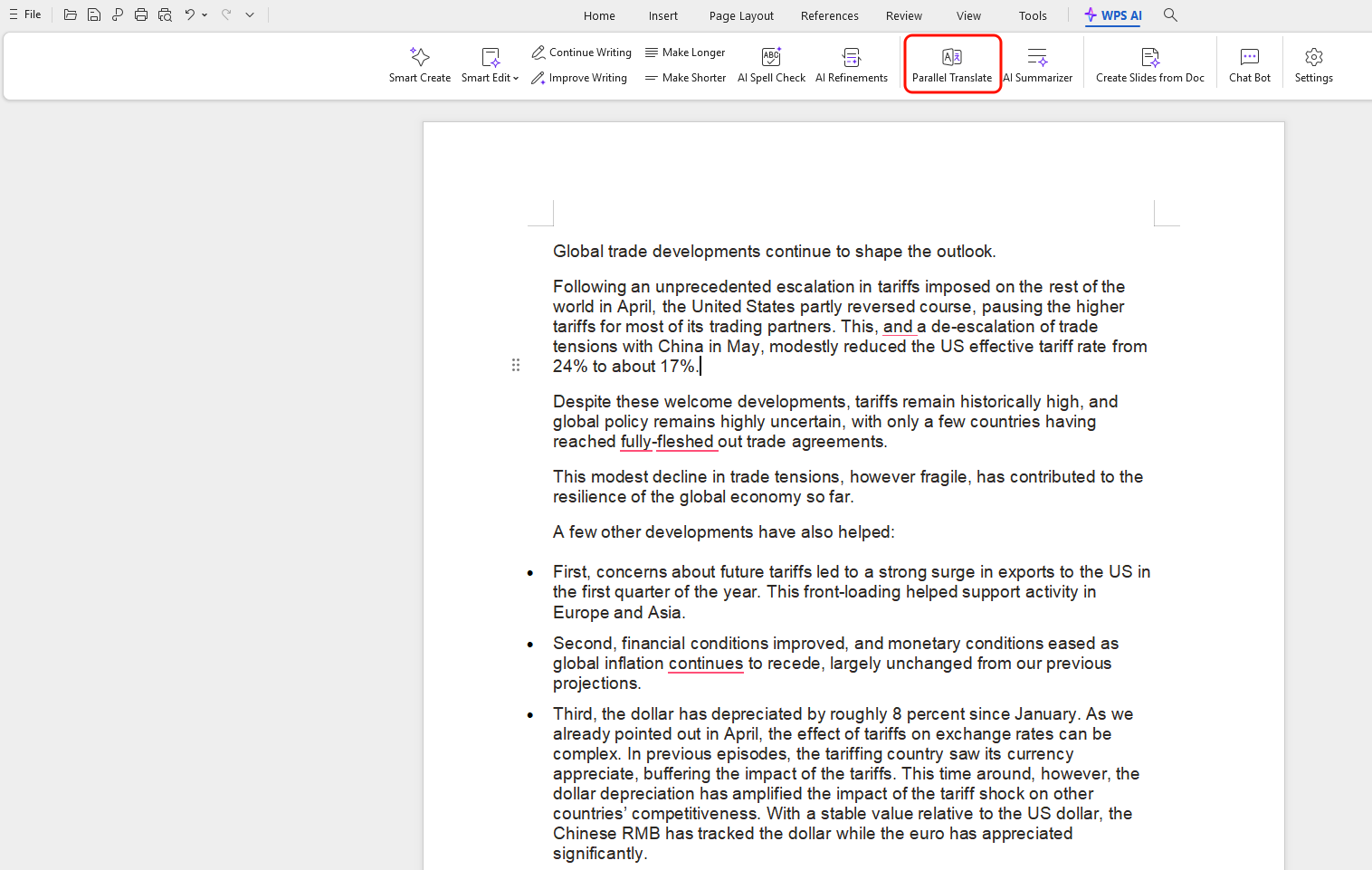
WPS AI Parallel Translate in the toolbar
FAQs
1. Can I translate a Korean PDF to English for free?
Yes. Google Translate and DeepL translate documents free within their monthly limits, and WPS Office includes AI document translation for everyday files at no cost. Paid plans only matter for heavy volumes or advanced terminology features.
2. Why does my translated PDF come out blank or garbled?
The Korean pages are scanned images with no text layer, so the translator had nothing to read. Run OCR first - WPS Office has a free OCR tool under Convert, then OCR PDF - and translate the recognized text instead.
3. Do I need OCR for every Korean PDF?
No. If you can select and copy the Korean text in any viewer, the text layer is there and translation works directly. OCR matters only for scans, photos and faxed pages.
4. Will the English PDF keep the original layout?
It depends on the tool. Document translators that state they preserve formatting - including WPS AI - keep tables, charts and page structure. Plain text translators reflow the content into continuous text, which is fine for reading but not for sharing.
5. Which is better for Korean PDFs: Google Translate or WPS?
For a quick informal read, Google Translate is fine and needs no install. When the layout, tables and formatting have to survive - contracts, reports, slides - a document translator such as WPS Office is the stronger choice.

Summary

'%3e%3cpath%20d='M19.9911%204.11386V6.471H18.5894C18.0775%206.471%2017.7322%206.57814%2017.5536%206.79243C17.3751%207.00671%2017.2858%207.32814%2017.2858%207.75671V9.44421H19.9019L19.5536%2012.0871H17.2858V18.8639H14.5536V12.0871H12.2769V9.44421H14.5536V7.49779C14.5536%206.39064%2014.8632%205.53201%2015.4822%204.92189C16.1013%204.31177%2016.9257%204.00671%2017.9554%204.00671C18.8304%204.00671%2019.509%204.04243%2019.9911%204.11386Z'%20fill='%23333333'/%3e%3c/g%3e%3cdefs%3e%3cclipPath%20id='clip0_2938_8199'%3e%3crect%20width='16'%20height='16'%20fill='white'%20transform='translate(8%204.00671)'/%3e%3c/clipPath%3e%3c/defs%3e%3c/svg%3e)
'%3e%3cpath%20d='M17.5237%2010.7813L23.4811%204H22.0699L16.8949%209.88693L12.7648%204H8L14.2469%2012.9029L8%2020.0133H9.4112L14.8725%2013.7952L19.2352%2020.0133H24M9.92053%205.04213H12.0885L22.0688%2019.0224H19.9003'%20fill='%23333333'/%3e%3c/g%3e%3cdefs%3e%3cclipPath%20id='clip0_2938_8200'%3e%3crect%20width='16'%20height='16.0134'%20fill='white'%20transform='translate(8%204)'/%3e%3c/clipPath%3e%3c/defs%3e%3c/svg%3e)


15 years of office industry experience, tech lover and copywriter. Follow me for product reviews, comparisons, and recommendations for new apps and software.


