

'%3e%3cpath%20d='M8%200C12.4183%200%2016%203.58172%2016%208C16%2012.4183%2012.4183%2016%208%2016C3.58172%2016%200%2012.4183%200%208C0%203.58172%203.58172%200%208%200ZM11.6162%204.38379C11.2257%203.99337%2010.5927%203.99338%2010.2021%204.38379L8%206.58594L5.79785%204.38379C5.40732%203.99334%204.77429%203.99329%204.38379%204.38379C3.99331%204.77429%203.99335%205.40733%204.38379%205.79785L6.58594%208L4.38379%2010.2021C3.99348%2010.5927%203.99341%2011.2257%204.38379%2011.6162C4.77426%2012.0066%205.40734%2012.0065%205.79785%2011.6162L8%209.41406L10.2021%2011.6162C10.5927%2012.0066%2011.2257%2012.0067%2011.6162%2011.6162C12.0067%2011.2257%2012.0066%2010.5927%2011.6162%2010.2021L9.41406%208L11.6162%205.79785C12.0066%205.40735%2012.0066%204.77429%2011.6162%204.38379Z'%20fill='%23080E17'%20fill-opacity='0.46'/%3e%3c/g%3e%3cdefs%3e%3cclipPath%20id='clip0_3761_713'%3e%3crect%20width='16'%20height='16'%20fill='white'/%3e%3c/clipPath%3e%3c/defs%3e%3c/svg%3e)




'%3e%3cpath%20fill-rule='evenodd'%20clip-rule='evenodd'%20d='M21.4999%2010.9993C21.4999%205.20009%2016.7986%200.498901%2010.9993%200.498901C5.19994%200.498901%200.498657%205.20009%200.498657%2010.9993C0.498657%2016.2404%204.33858%2020.5844%209.35855%2021.3722V14.0346H6.69238V10.9993H9.35855V8.68594C9.35855%206.05427%2010.9262%204.60062%2013.3248%204.60062C14.4736%204.60062%2015.6753%204.80571%2015.6753%204.80571V7.38979H14.3512C13.0468%207.38979%2012.64%208.19921%2012.64%209.0296V10.9993H15.5523L15.0867%2014.0346H12.64V21.3722C17.66%2020.5844%2021.4999%2016.2404%2021.4999%2010.9993Z'%20fill='%231568EA'/%3e%3c/g%3e%3c/svg%3e)


'%3e%3cpath%20d='M2.42045%2022.1876H6.31818V12.7217L0.75%208.54553V20.5171C0.75%2021.4414%201.49892%2022.1876%202.42045%2022.1876Z'%20fill='%234285F4'/%3e%3cpath%20d='M19.682%2022.1876H23.5797C24.5041%2022.1876%2025.2502%2021.4387%2025.2502%2020.5171V8.54553L19.682%2012.7217'%20fill='%2334A853'/%3e%3cpath%20d='M19.682%205.48293V12.7216L25.2502%208.54543V6.31816C25.2502%204.25236%2022.8921%203.07469%2021.2411%204.31361'%20fill='%23FBBC04'/%3e%3cpath%20d='M6.31824%2012.7217V5.48303L13.0001%2010.4944L19.6819%205.48303V12.7217L13.0001%2017.733'%20fill='%23EA4335'/%3e%3cpath%20d='M0.75%206.31816V8.54543L6.31818%2012.7216V5.48293L4.75909%204.31361C3.10534%203.07469%200.75%204.25236%200.75%206.31816Z'%20fill='%23C5221F'/%3e%3c/g%3e%3cdefs%3e%3cclipPath%20id='clip0_2954_7305'%3e%3crect%20width='24.5'%20height='18.375'%20fill='white'%20transform='translate(0.75%203.8125)'/%3e%3c/clipPath%3e%3c/defs%3e%3c/svg%3e)


You scanned a score into a PDF, and now you want the actual notes — playable, editable, and ready for your DAW. A PDF on its own can't be turned into audio by a normal converter, because MIDI needs note data, not pixels. You can convert PDF to MIDI by running the score through Optical Music Recognition (OMR) software, then exporting as MIDI: MuseScore and PDFtoMusic handle digital score PDFs on desktop, PlayScore 2 scans paper or PDFs on your phone, and Audiveris batch-processes large libraries for free.
Below are the four methods that actually work in 2026, what each one costs, where they fail, and how to prepare your PDF so the notes come through cleanly.
How to Convert PDF to MIDI: 4 Methods That Actually Work
How PDF to MIDI Conversion Works
OMR is the reason a plain file converter won't help here. Optical Music Recognition scans the page the way OCR reads a receipt — it detects staves, noteheads, beams, key signatures, and barlines, then reconstructs the music as editable data. Only after that step can software export a MIDI file your computer can play and edit.
Where your PDF came from decides your accuracy before you even start. A digital score PDF (exported from MuseScore, Sibelius, or Finale) contains clean vector notation, so OMR tools read it almost perfectly. A scanned or photographed score is just an image, and accuracy drops with skew, blur, and dense orchestral layouts — clean, simple pieces typically land around 85–95% note accuracy, while complex scans always need manual review. Check which type you have first: zoom to 400% and see if the noteheads stay razor-sharp (digital) or soften into pixels (scanned).
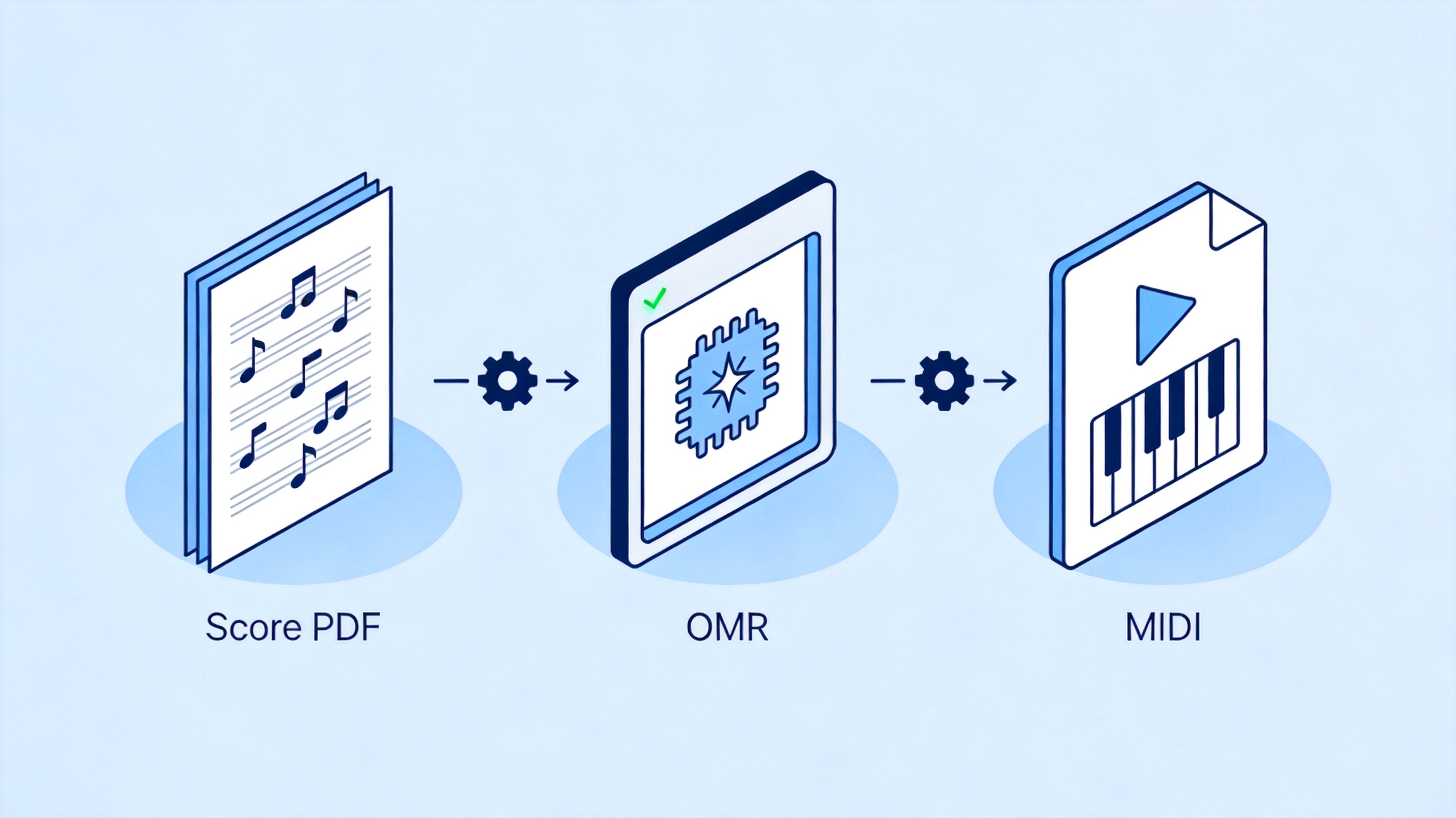
How PDF to MIDI conversion works
Method 1: Convert PDF to MIDI with MuseScore (Free)
MuseScore is the best free starting point for most musicians. It's open-source, runs on Windows, macOS, and Linux, and since version 4 it has Audiveris OMR built in, so PDF import and MIDI export happen in one program.
- Install and open MuseScore Studio — download the free desktop version from musescore.org and skip the paid museScore.com subscription; the notation software itself is free.
- Import your PDF — go to File > Import PDF, select your sheet music, and let the OMR engine process it. A one-page piano score usually takes under a minute.
- Review the detected notes — open the imported score and compare it against the original page. Fix the most common OMR errors first: wrong key signature, missing ties, and drum or grace notes.
- Export as MIDI — go to File > Export, choose MIDI, and save. The export dialog also lets you pick MP3 or MusicXML if you need other formats later.
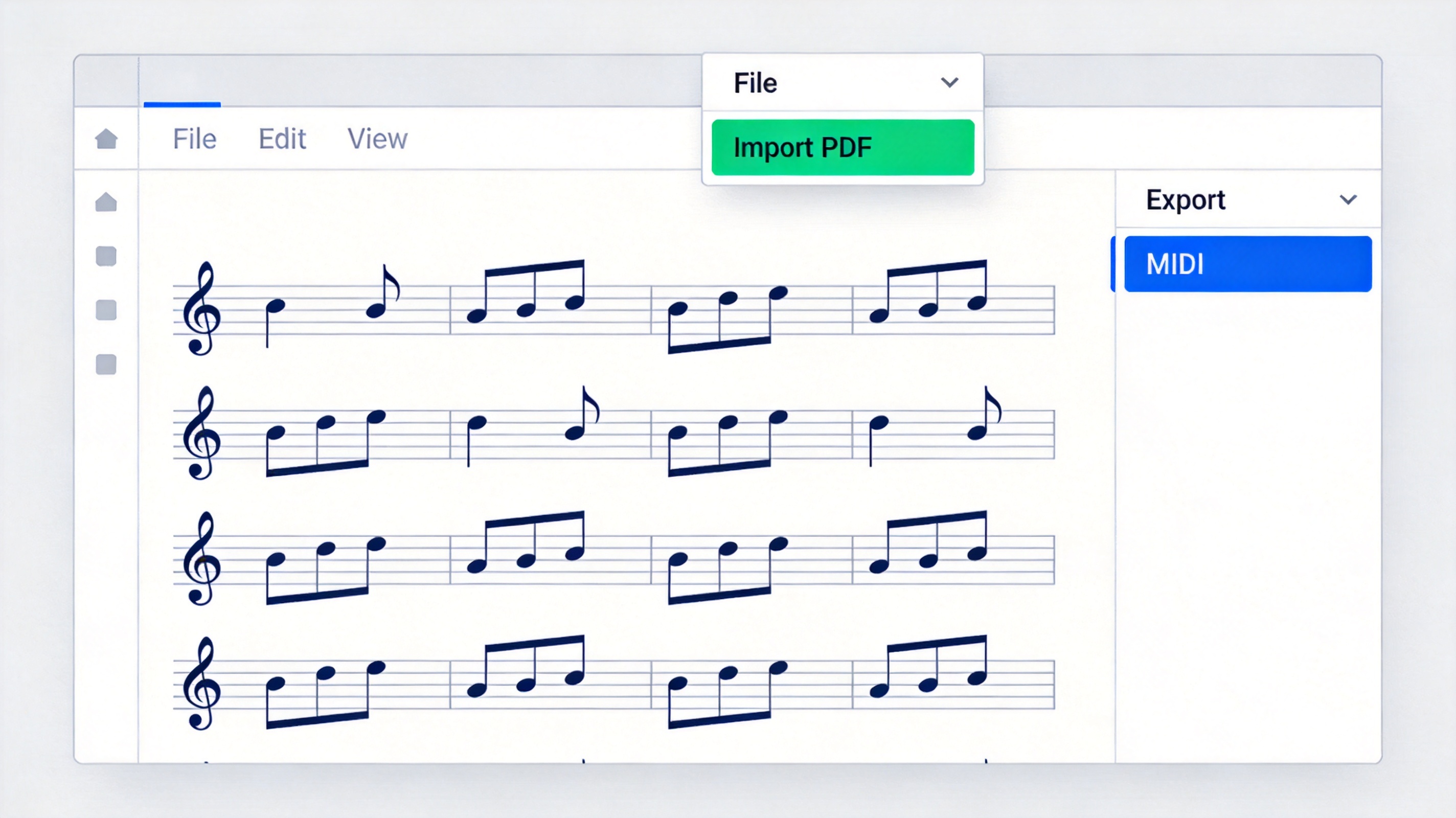
MuseScore import PDF and export MIDI (schematic)


Method 2: Convert PDF to MIDI with PDFtoMusic
PDFtoMusic from Myriad Software reads the notation data inside digital score PDFs instead of interpreting an image, which makes it one of the fastest and most accurate options for files exported from other notation programs. The free version converts the first page of each score, so it works well for testing a piece before you buy the Pro version.
- Open your score — launch PDFtoMusic and drop a digital score PDF into the window; the staves appear almost instantly.
- Hit play to verify — press Play and listen before exporting. If a passage sounds wrong, the OMR layer misread it, and you'll want to fix it before conversion rather than after.
- Export the MIDI file — choose MIDI in the export panel and save. Pro removes the one-page limit and batch-processes whole folders.
Important limitation: PDFtoMusic does not recognize scanned scores. If your PDF is a scan, use MuseScore, PlayScore 2, or Audiveris instead.
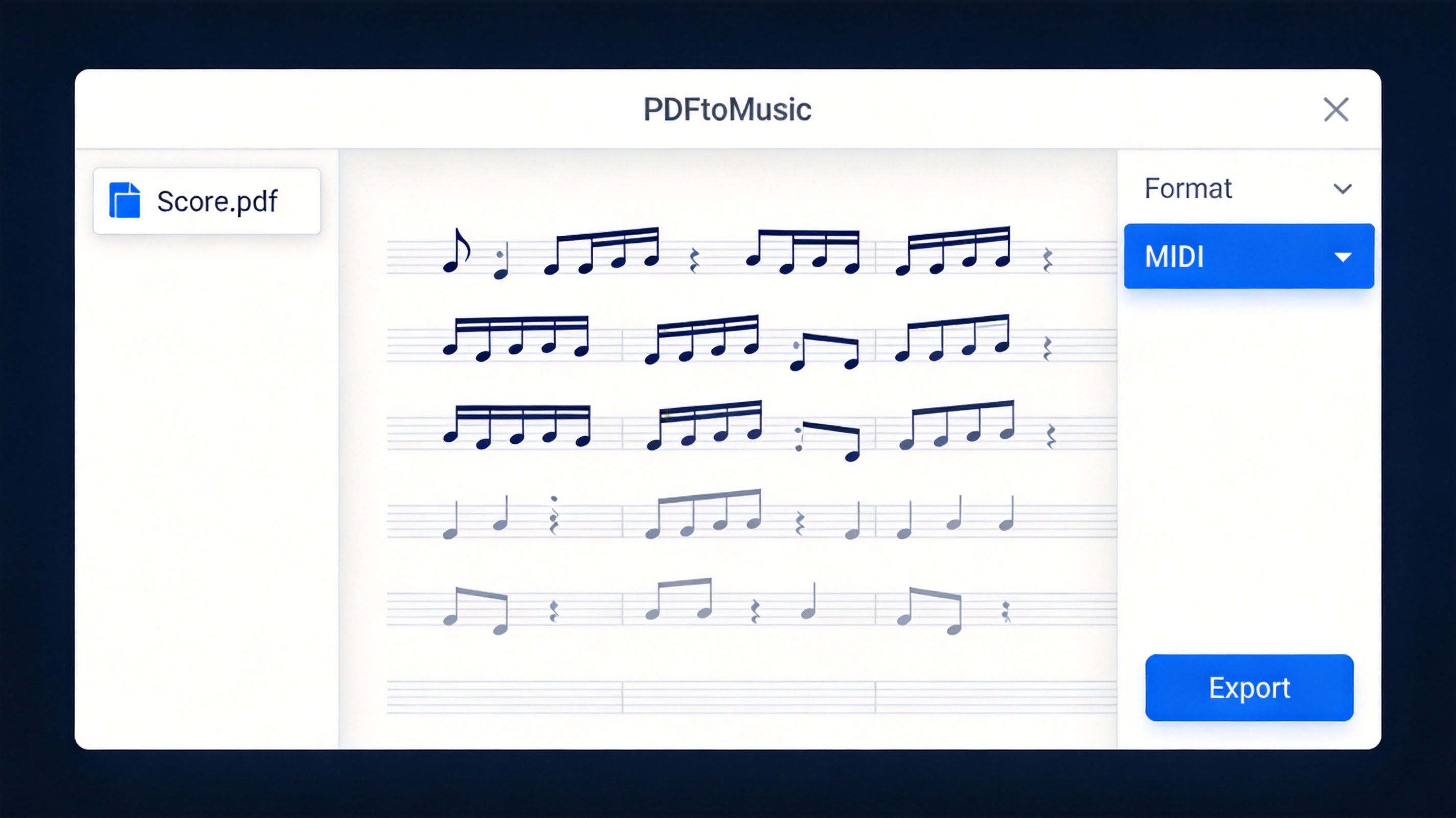
Export MIDI from PDFtoMusic (schematic)
Method 3: Scan Sheet Music to MIDI with PlayScore 2
PlayScore 2 turns your phone camera into an OMR scanner, which makes it the fastest route when your score starts on paper or in a photographed book. It reads multi-staff layouts well, plays the result back instantly, and exports MIDI or MusicXML. The app is free to try with a subscription for full export.
- Photograph the score — open PlayScore 2 on iPhone or Android, frame the page flat under even light, and let the app auto-capture each page in order.
- Let it recognize and play — the app processes the notation and starts playback; tap any measure to hear it in isolation and confirm the rhythm parsed correctly.
- Export the MIDI file — open the share menu, choose MIDI, and send it to your email, cloud drive, or DAW app.
This is also the cleanest fix for music you can't find as a digital PDF — old etude books and handwritten charts included.
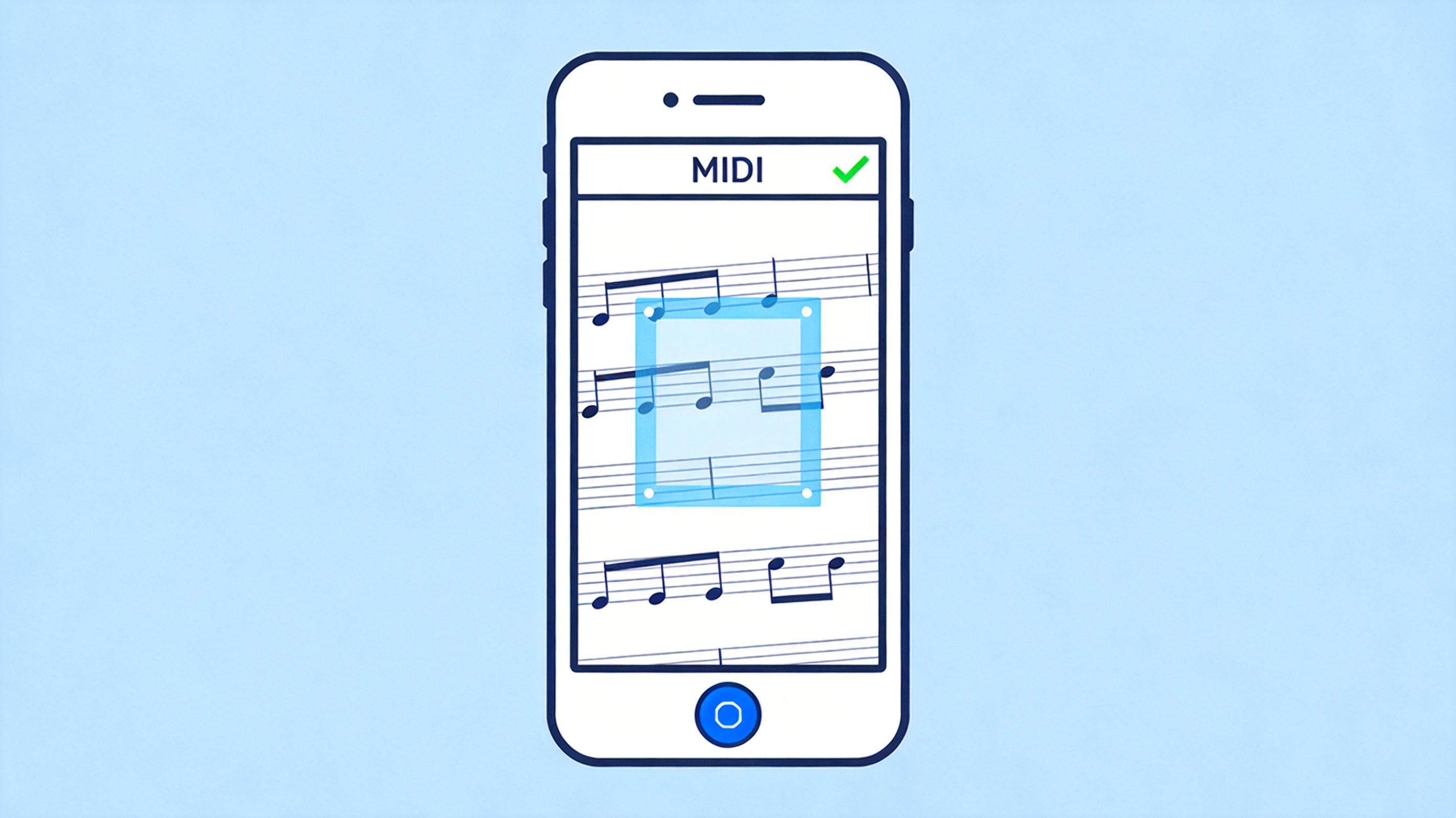
Scan sheet music with PlayScore 2 (schematic)
Method 4: Batch Convert PDF to MIDI with Audiveris
Audiveris is the open-source OMR engine that MuseScore itself uses, and it's the practical choice when you have a whole folder of scores rather than one file. It runs on Windows, macOS, and Linux, reads both digital and reasonably clean scanned scores, and processes books of PDFs in one job.
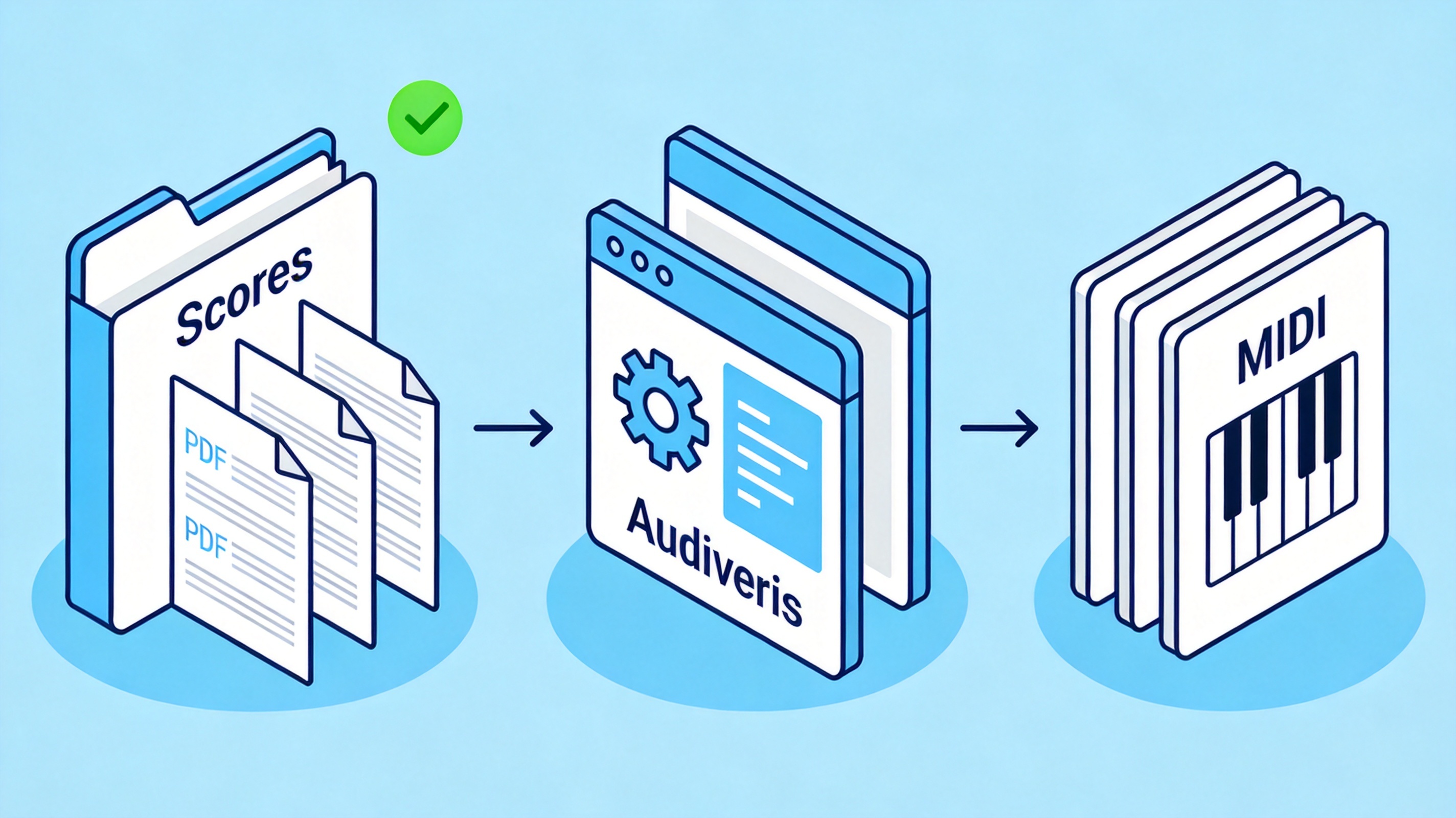
Batch convert scores with Audiveris
The trade-off is that it's a power user's tool: you'll install it from GitHub, review each recognized score in its built-in editor, and export as MusicXML or MIDI. If a result is messy, importing the MusicXML into MuseScore for cleanup is usually faster than fighting the scan.
Why Your PDF to MIDI Conversion Fails (and How to Fix It)
Most bad conversions trace back to the source PDF, not the OMR engine. Fix these four things first:
- Too many pages in one file — OMR accuracy drops on long scores. Split the PDF into sections per movement and convert them one at a time.
- Low-resolution scans — re-scan at 300 DPI or higher; skewed, gray photocopies confuse the notehead detector far more than any software setting.
- Mobile apps can't open your PDF pages — several scanning apps accept images more reliably than PDFs. Export the score pages as high-resolution PNG files first; our guide to converting PDF pages to PNG covers it in WPS Office in a few clicks.
- Dense orchestral layouts — convert one instrumental part per pass. Two hands of piano parse fine; twelve staves of score-in-shortcuts rarely do.
WPS Office is a handy prep step here: use the free PDF toolkit to split a long score into single pieces or export its pages as clean, high-resolution images before they go into any OMR app.
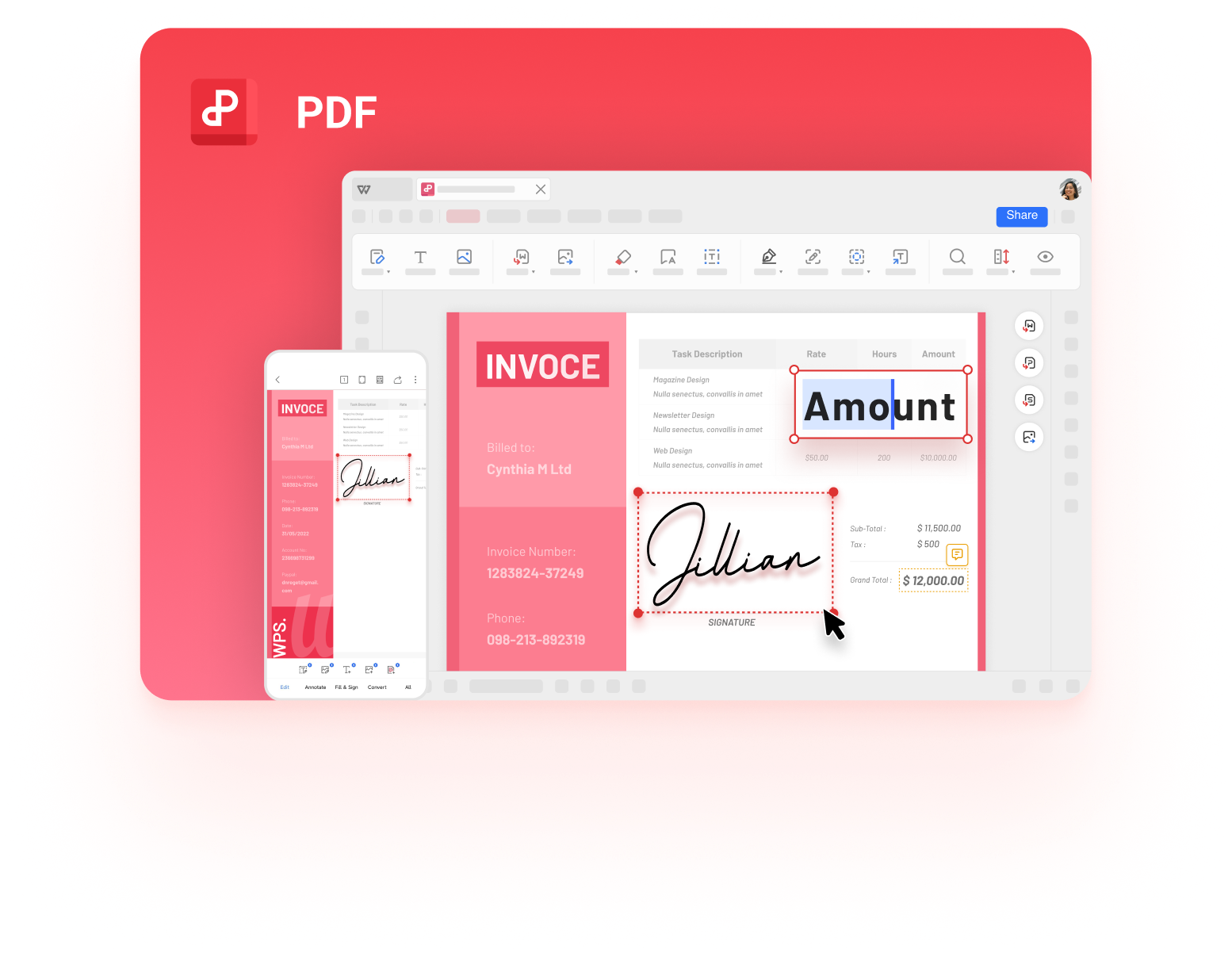
Prepare score PDF in WPS Office
PDF to MIDI Converters Compared
| Converter | Best for | Cost | Accuracy on clean scores | Platform |
|---|---|---|---|---|
| MuseScore | All-purpose free conversion | Free | High with review | Windows, macOS, Linux |
| PDFtoMusic | Digital score PDFs, speed | Free (1st page) / Pro | Very high (digital only) | Windows, macOS |
| PlayScore 2 | Paper scores and books | Free trial / subscription | High, great on multi-staff | iOS, Android |
| Audiveris | Batch jobs, big libraries | Free (open source) | Good, needs review | Windows, macOS, Linux |
One caution from testing the search results: generic "PDF to MIDI" file-converter websites that accept any format rarely perform real OMR — they either fail on scores or return an empty MIDI file. Stick to the four tools above.
After You Convert PDF to MIDI: Edit, Transpose, and Create
A MIDI file is the start of the workflow, not the end. Load it into any DAW — GarageBand, FL Studio, or Logic — and you can transpose the key, swap the piano for strings, slow a phrase down for practice, or rebuild the arrangement instrument by instrument.
This is also where AI enters the picture in 2026: MIDI data is the raw material AI music tools feed on, whether you're generating stems from a melody or building a practice loop. If you want to hear your conversion with real instruments first, you can also turn the PDF into a read-aloud audio file, or record your own performance once the score is on screen. For deeper reading, see our guide to converting PDF to audio, how to attach audio to a PDF, and our roundup of AI music video generators.
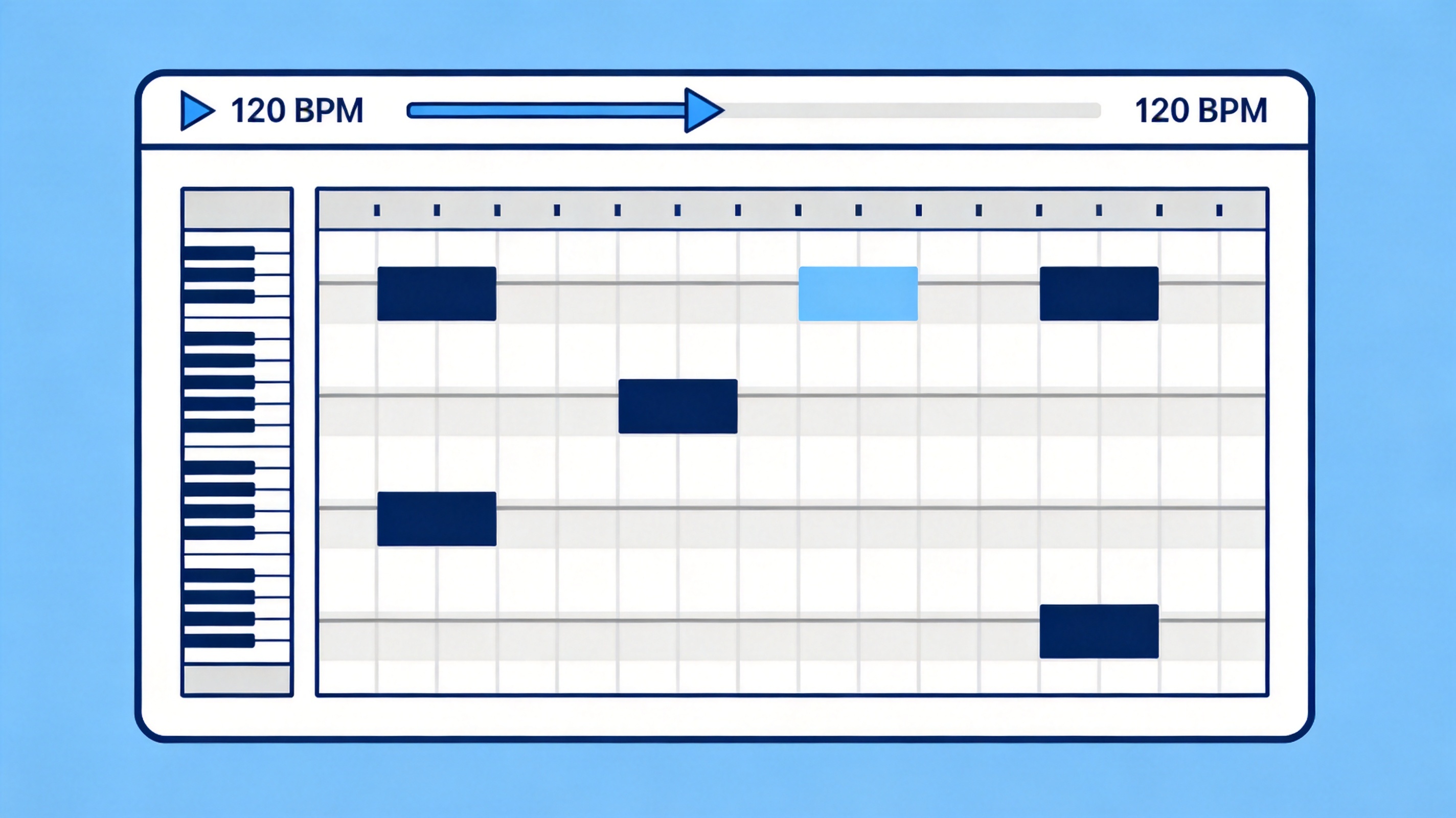
Edit converted MIDI in a DAW (schematic)
The Best Free PDF Companion: WPS Office
Every method above starts with a PDF, and most conversions fail because of a PDF problem — a 40-page book that needs splitting, pages that should be images, or a scan that needs re-exporting. WPS Office handles that prep for free: split and reorganize the score, export pages as high-resolution PNGs for mobile scanning apps, compress the result for emailing to your ensemble, and read the final MIDI source alongside your practice notes.
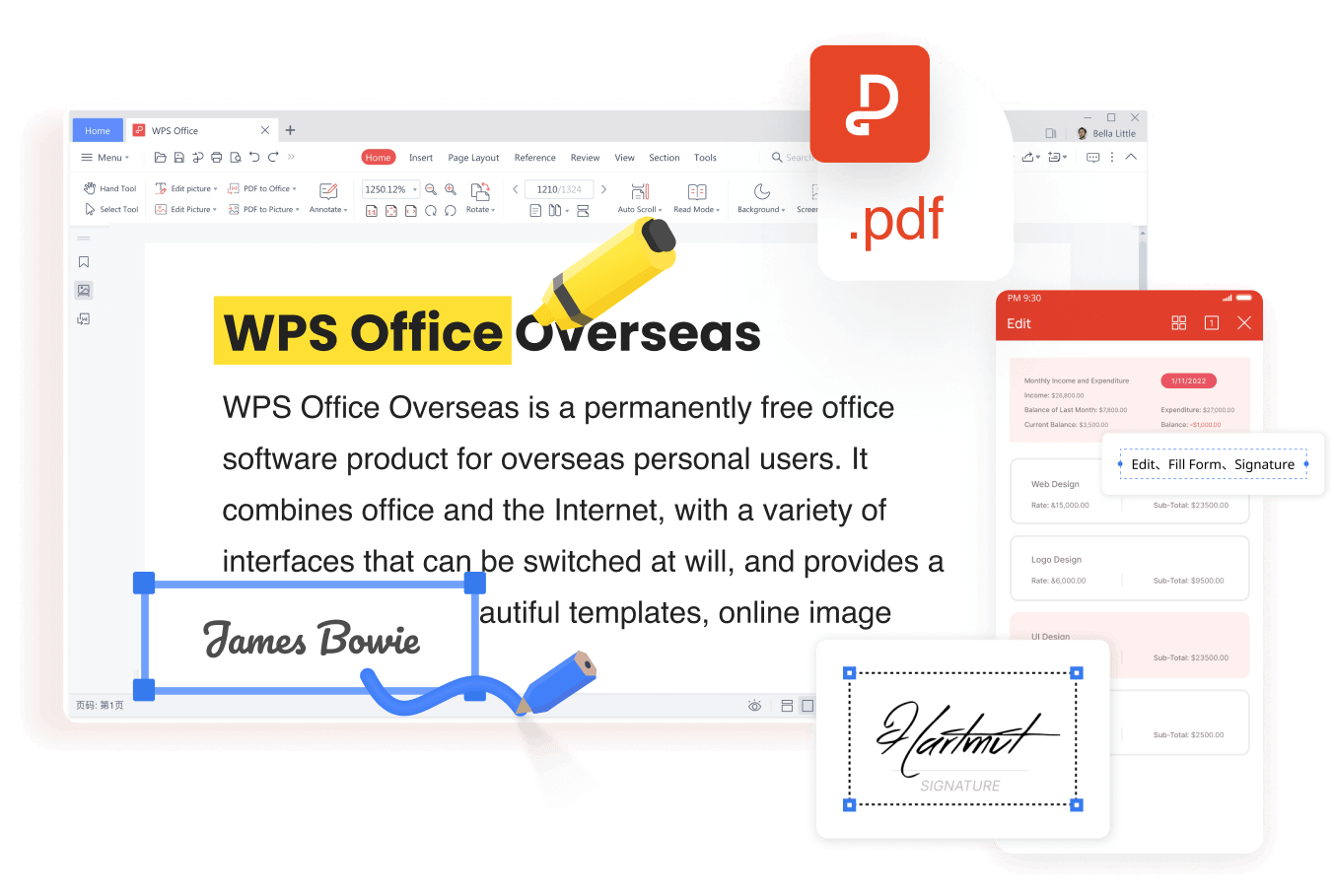
WPS Office free PDF toolkit
It works on Windows, macOS, Linux, iOS, and Android, with the same document, spreadsheet, and presentation tools alongside the PDF toolkit — one install instead of four utilities. Download WPS Office and keep it next to your score library.
FAQs
Can I convert PDF to MIDI online for free?
Only for simple, digital score PDFs, and we don't recommend the generic converters that rank for this search — most don't run real OMR and return empty MIDI files. MuseScore is free and far more accurate; for a quick online route, MuseScore's own importer runs in your browser account at no cost.
How accurate is PDF to MIDI conversion?
For clean digital PDFs, expect near-perfect results. For scanned scores, simple piano pieces typically reach 85–95% note accuracy, while dense orchestral scans can drop much lower. Always proof the imported score by playing it back before you rely on the MIDI.
Can I convert a scanned PDF to MIDI?
Yes, but use a tool with an image-capable OMR engine: MuseScore, PlayScore 2, or Audiveris. PDFtoMusic won't work because it reads the notation data inside digital PDFs only. Re-scan at 300 DPI if the first pass misses notes.
Can I convert MIDI back to a PDF score?
Yes — import the MIDI into MuseScore, tidy the notation (MIDI imports lose fingerings and some articulations), then export or print as PDF. The round trip MIDI → score → PDF works but doesn't recover the original engraving details.
What is the difference between MIDI and MP3?
MIDI stores note instructions (pitch, timing, velocity) that software plays back with any instrument sound; MP3 stores a fixed audio recording. That's why MIDI is tiny and fully editable, while MP3 is better for sharing a finished performance.


'%3e%3cpath%20d='M19.9911%204.11386V6.471H18.5894C18.0775%206.471%2017.7322%206.57814%2017.5536%206.79243C17.3751%207.00671%2017.2858%207.32814%2017.2858%207.75671V9.44421H19.9019L19.5536%2012.0871H17.2858V18.8639H14.5536V12.0871H12.2769V9.44421H14.5536V7.49779C14.5536%206.39064%2014.8632%205.53201%2015.4822%204.92189C16.1013%204.31177%2016.9257%204.00671%2017.9554%204.00671C18.8304%204.00671%2019.509%204.04243%2019.9911%204.11386Z'%20fill='%23333333'/%3e%3c/g%3e%3cdefs%3e%3cclipPath%20id='clip0_2938_8199'%3e%3crect%20width='16'%20height='16'%20fill='white'%20transform='translate(8%204.00671)'/%3e%3c/clipPath%3e%3c/defs%3e%3c/svg%3e)
'%3e%3cpath%20d='M17.5237%2010.7813L23.4811%204H22.0699L16.8949%209.88693L12.7648%204H8L14.2469%2012.9029L8%2020.0133H9.4112L14.8725%2013.7952L19.2352%2020.0133H24M9.92053%205.04213H12.0885L22.0688%2019.0224H19.9003'%20fill='%23333333'/%3e%3c/g%3e%3cdefs%3e%3cclipPath%20id='clip0_2938_8200'%3e%3crect%20width='16'%20height='16.0134'%20fill='white'%20transform='translate(8%204)'/%3e%3c/clipPath%3e%3c/defs%3e%3c/svg%3e)


