

'%3e%3cpath%20d='M8%200C12.4183%200%2016%203.58172%2016%208C16%2012.4183%2012.4183%2016%208%2016C3.58172%2016%200%2012.4183%200%208C0%203.58172%203.58172%200%208%200ZM11.6162%204.38379C11.2257%203.99337%2010.5927%203.99338%2010.2021%204.38379L8%206.58594L5.79785%204.38379C5.40732%203.99334%204.77429%203.99329%204.38379%204.38379C3.99331%204.77429%203.99335%205.40733%204.38379%205.79785L6.58594%208L4.38379%2010.2021C3.99348%2010.5927%203.99341%2011.2257%204.38379%2011.6162C4.77426%2012.0066%205.40734%2012.0065%205.79785%2011.6162L8%209.41406L10.2021%2011.6162C10.5927%2012.0066%2011.2257%2012.0067%2011.6162%2011.6162C12.0067%2011.2257%2012.0066%2010.5927%2011.6162%2010.2021L9.41406%208L11.6162%205.79785C12.0066%205.40735%2012.0066%204.77429%2011.6162%204.38379Z'%20fill='%23080E17'%20fill-opacity='0.46'/%3e%3c/g%3e%3cdefs%3e%3cclipPath%20id='clip0_3761_713'%3e%3crect%20width='16'%20height='16'%20fill='white'/%3e%3c/clipPath%3e%3c/defs%3e%3c/svg%3e)




'%3e%3cpath%20fill-rule='evenodd'%20clip-rule='evenodd'%20d='M21.4999%2010.9993C21.4999%205.20009%2016.7986%200.498901%2010.9993%200.498901C5.19994%200.498901%200.498657%205.20009%200.498657%2010.9993C0.498657%2016.2404%204.33858%2020.5844%209.35855%2021.3722V14.0346H6.69238V10.9993H9.35855V8.68594C9.35855%206.05427%2010.9262%204.60062%2013.3248%204.60062C14.4736%204.60062%2015.6753%204.80571%2015.6753%204.80571V7.38979H14.3512C13.0468%207.38979%2012.64%208.19921%2012.64%209.0296V10.9993H15.5523L15.0867%2014.0346H12.64V21.3722C17.66%2020.5844%2021.4999%2016.2404%2021.4999%2010.9993Z'%20fill='%231568EA'/%3e%3c/g%3e%3c/svg%3e)


'%3e%3cpath%20d='M2.42045%2022.1876H6.31818V12.7217L0.75%208.54553V20.5171C0.75%2021.4414%201.49892%2022.1876%202.42045%2022.1876Z'%20fill='%234285F4'/%3e%3cpath%20d='M19.682%2022.1876H23.5797C24.5041%2022.1876%2025.2502%2021.4387%2025.2502%2020.5171V8.54553L19.682%2012.7217'%20fill='%2334A853'/%3e%3cpath%20d='M19.682%205.48293V12.7216L25.2502%208.54543V6.31816C25.2502%204.25236%2022.8921%203.07469%2021.2411%204.31361'%20fill='%23FBBC04'/%3e%3cpath%20d='M6.31824%2012.7217V5.48303L13.0001%2010.4944L19.6819%205.48303V12.7217L13.0001%2017.733'%20fill='%23EA4335'/%3e%3cpath%20d='M0.75%206.31816V8.54543L6.31818%2012.7216V5.48293L4.75909%204.31361C3.10534%203.07469%200.75%204.25236%200.75%206.31816Z'%20fill='%23C5221F'/%3e%3c/g%3e%3cdefs%3e%3cclipPath%20id='clip0_2954_7305'%3e%3crect%20width='24.5'%20height='18.375'%20fill='white'%20transform='translate(0.75%203.8125)'/%3e%3c/clipPath%3e%3c/defs%3e%3c/svg%3e)


Preview — the app that opens when you double-click a PDF on a Mac — can create PDFs from almost anything, merge and reorder pages, fill forms, and sign documents without installing anything. The catch: it hides these features behind drag-and-drop gestures and the File menu. Here are all the practical methods, with the limits where you'll need a dedicated PDF editor.
How to Create and Edit PDFs in Preview on Mac (Every Method)
Create PDFs in Preview from Images and Documents
- From images — select your image files in Finder, right-click, choose Open With > Preview. In Preview's sidebar, drag the thumbnails into order, then use File > Print > Save as PDF (or File > Export as PDF for a direct save).
- From any printable document — open the file in its own app (Pages, Safari, TextEdit), press Cmd+P, and pick Save as PDF from the PDF dropdown. This works from every Mac app.
- From the clipboard — copy content, then in Preview use File > New from Clipboard and export the result as PDF.
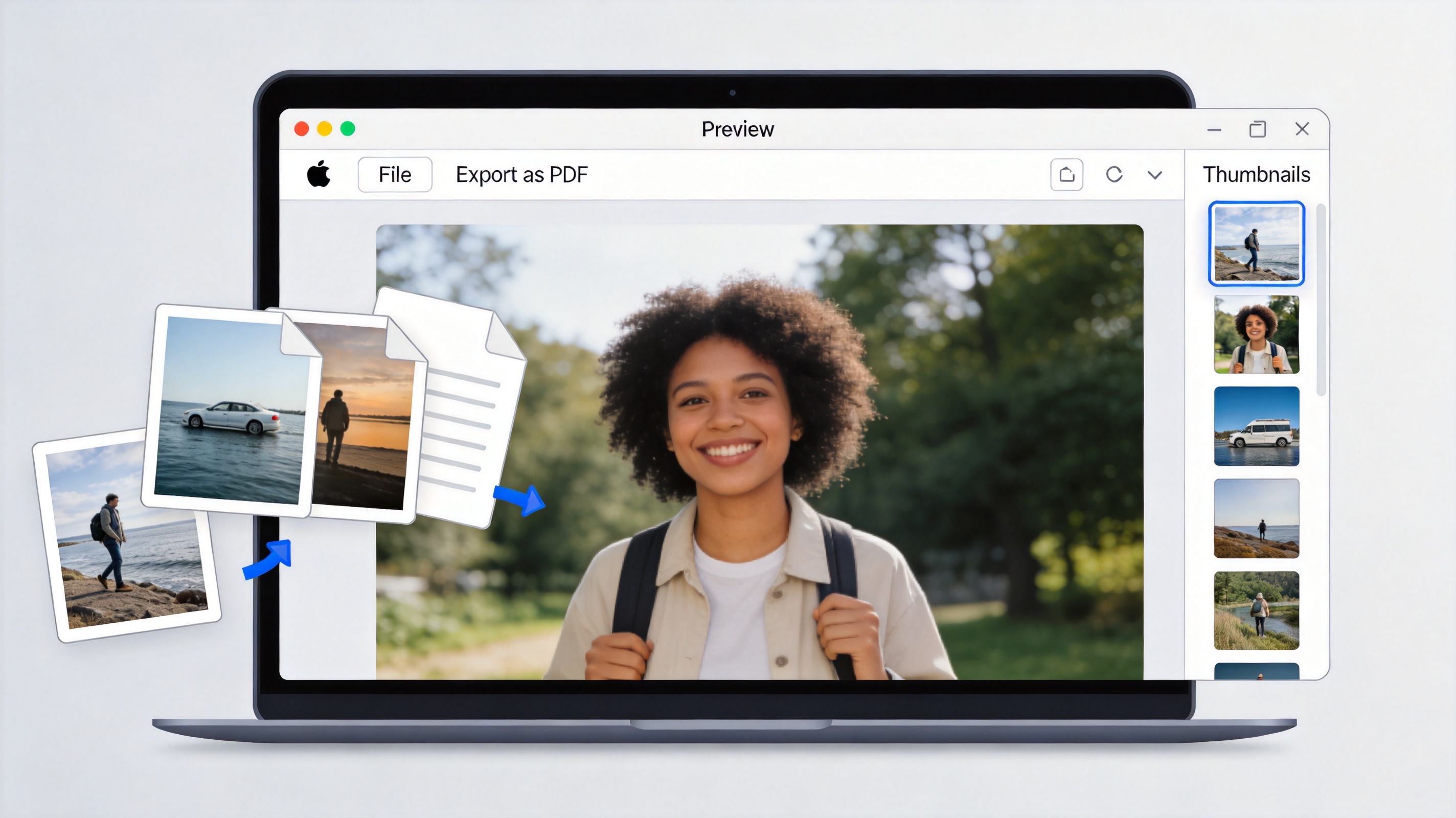
Create PDF from images in Preview
Merge, Reorder, and Delete Pages in Preview
Show the sidebar with View > Thumbnails. To merge, drag a second PDF's thumbnail into the sidebar at the position you want. To reorder, drag thumbnails; to delete, select and press Delete. To extract a page, drag the thumbnail to the Desktop — it becomes its own PDF. These gestures are fast, but they only work one file at a time, which gets tedious past a handful of documents.
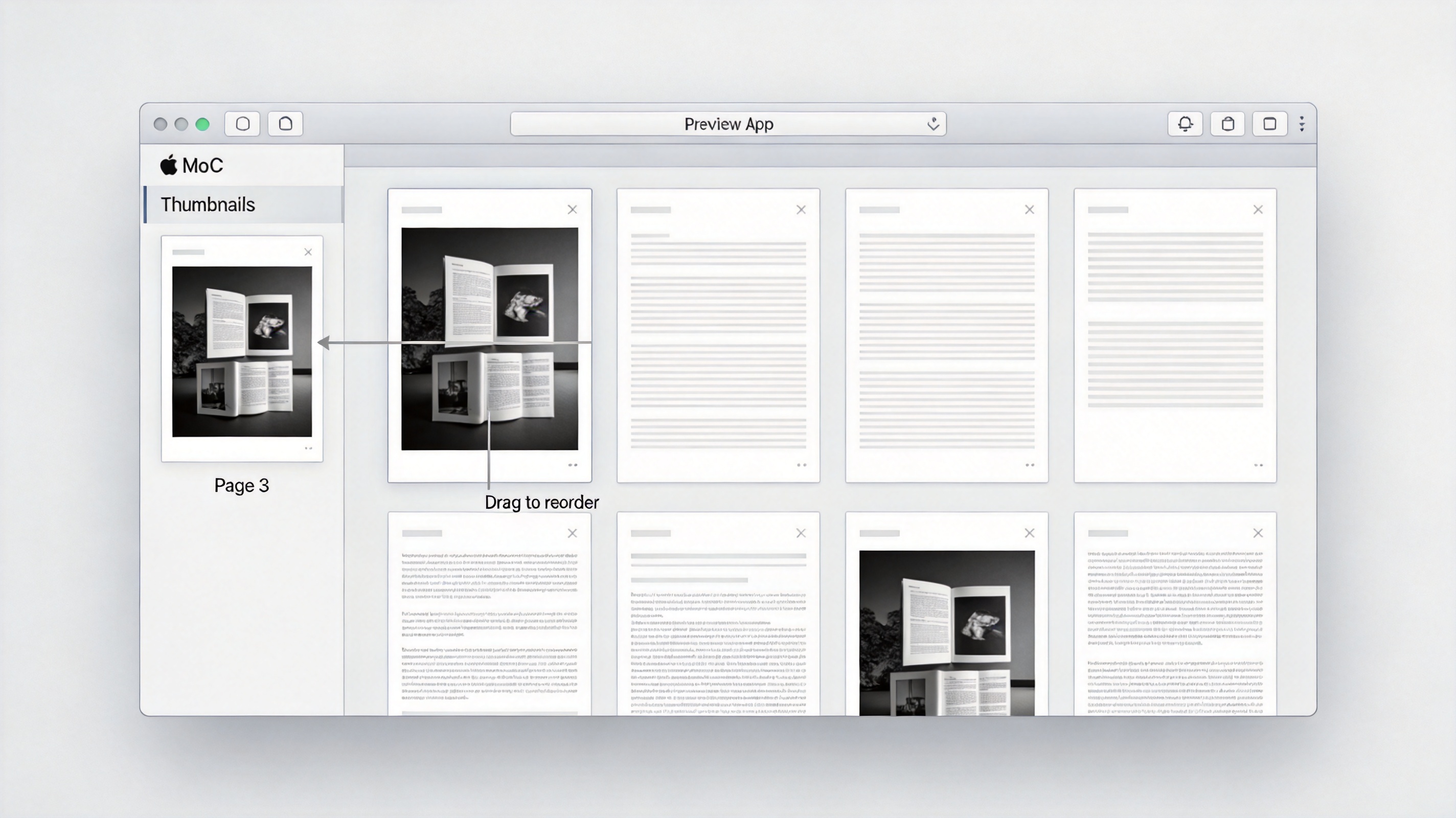
Merge and reorder pages in Preview
Annotate, Fill, and Sign in Preview
- Annotate — the Markup toolbar (pen icon) adds highlight, text boxes, shapes, and arrows.
- Fill forms — click any detected form field and type; for flat forms, add text boxes manually.
- Sign — Markup > Sign lets you sign with the trackpad, camera, or iPhone.
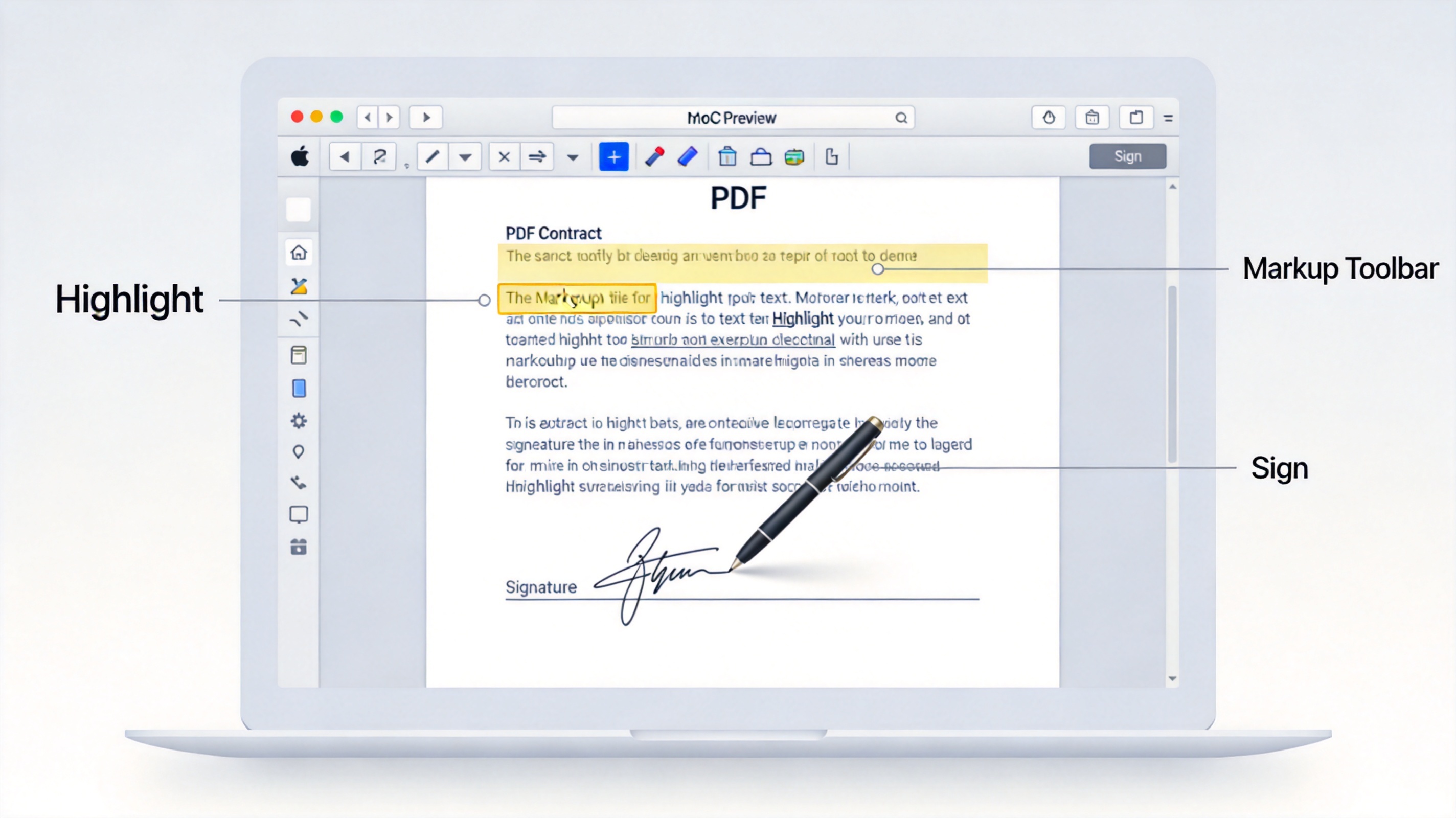
Annotate and sign PDF in Preview
What Preview Cannot Do (and the Fix)
Preview stops at annotations: it cannot edit existing PDF text, run OCR on scans, convert PDFs to Word or Excel, or redact content permanently. When you hit those limits, a full editor takes over. WPS PDF covers the missing pieces — direct text editing, OCR for scanned documents, and PDF-to-Word conversion — in the same lightweight window, and it is free. If you only preview PDFs in Finder, the tips in previewing PDFs without opening each file pair well with it, and editing PDF text on a Mac covers the rest.
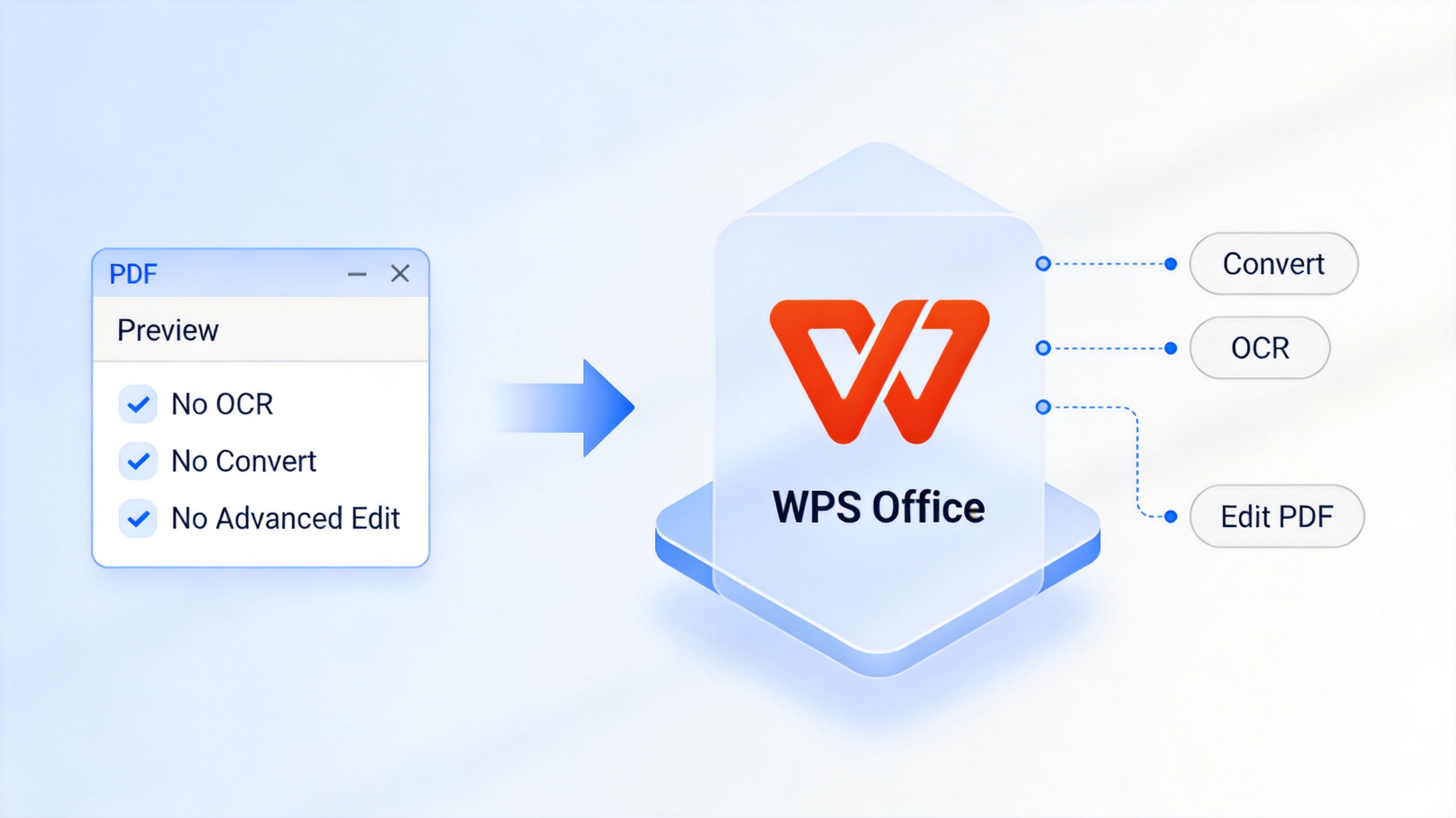
Preview limits versus WPS PDF tools
The Best Free Preview Upgrade: WPS Office
Use Preview for quick signatures and page shuffling; use WPS Office when a PDF needs real editing. WPS runs natively on macOS, opens PDFs and Office documents in one app, and its PDF toolkit — merge, split, OCR, convert — is free to use daily. Download WPS Office and keep both in your Dock.
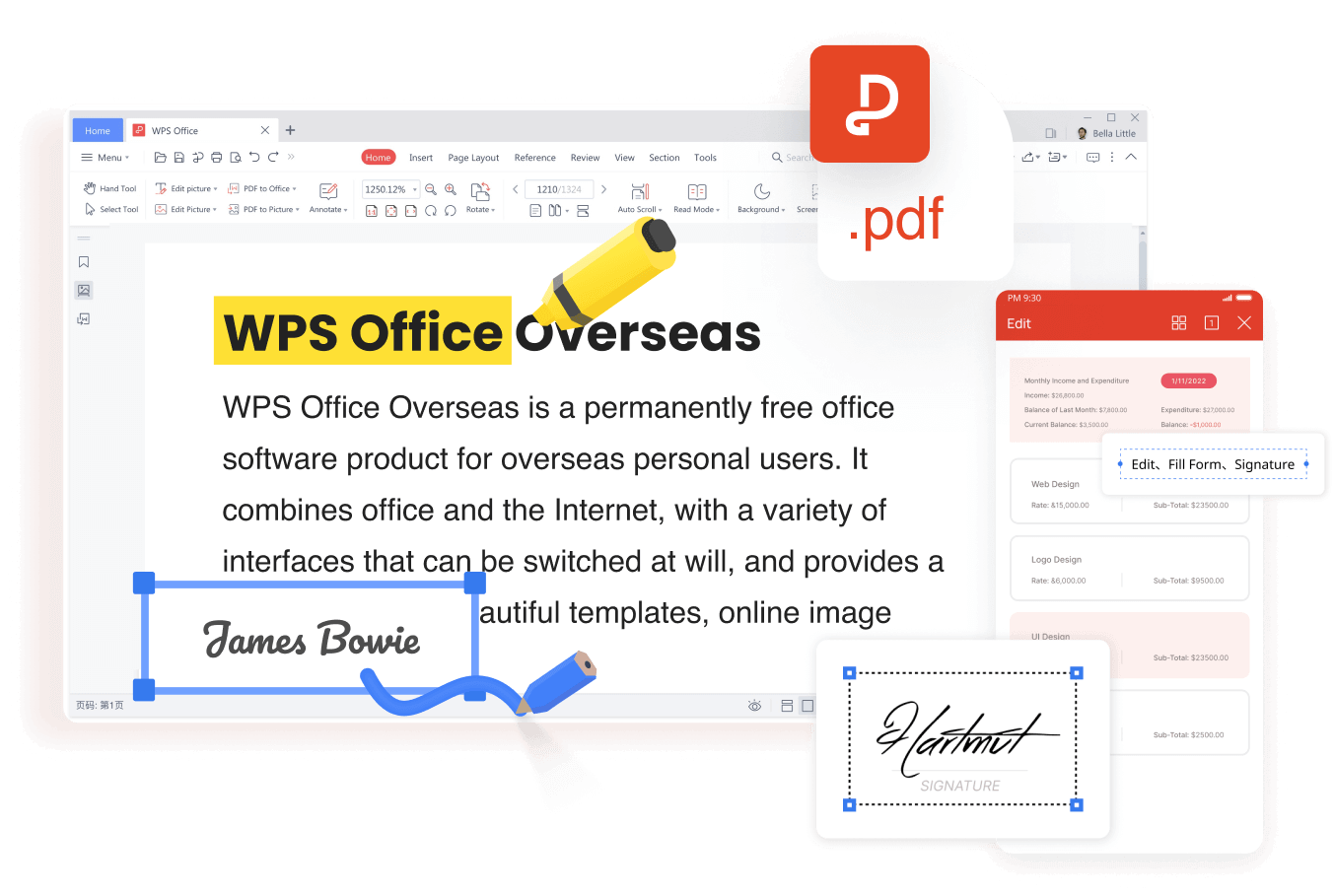
WPS PDF editing interface
FAQs
How do I create a PDF in Preview from multiple images?
Open all images in one Preview window, arrange the thumbnails in the sidebar, then File > Export as PDF or Print > Save as PDF.
Why is Save as PDF missing in my Print dialog?
Click the PDF dropdown at the bottom-left of the print dialog — the option is inside that menu, not a separate button.
Can Preview edit text inside a PDF?
No. Preview annotates on top of the page. To change the actual text, use a PDF editor such as WPS PDF.
How do I combine two PDFs in Preview?
Open both, show Thumbnails, and drag the second file's pages into the first file's sidebar where you want them.
Is Preview free on Mac?
Yes — it ships with macOS. WPS Office is also free and adds editing, OCR, and format conversion on top.



'%3e%3cpath%20d='M19.9911%204.11386V6.471H18.5894C18.0775%206.471%2017.7322%206.57814%2017.5536%206.79243C17.3751%207.00671%2017.2858%207.32814%2017.2858%207.75671V9.44421H19.9019L19.5536%2012.0871H17.2858V18.8639H14.5536V12.0871H12.2769V9.44421H14.5536V7.49779C14.5536%206.39064%2014.8632%205.53201%2015.4822%204.92189C16.1013%204.31177%2016.9257%204.00671%2017.9554%204.00671C18.8304%204.00671%2019.509%204.04243%2019.9911%204.11386Z'%20fill='%23333333'/%3e%3c/g%3e%3cdefs%3e%3cclipPath%20id='clip0_2938_8199'%3e%3crect%20width='16'%20height='16'%20fill='white'%20transform='translate(8%204.00671)'/%3e%3c/clipPath%3e%3c/defs%3e%3c/svg%3e)
'%3e%3cpath%20d='M17.5237%2010.7813L23.4811%204H22.0699L16.8949%209.88693L12.7648%204H8L14.2469%2012.9029L8%2020.0133H9.4112L14.8725%2013.7952L19.2352%2020.0133H24M9.92053%205.04213H12.0885L22.0688%2019.0224H19.9003'%20fill='%23333333'/%3e%3c/g%3e%3cdefs%3e%3cclipPath%20id='clip0_2938_8200'%3e%3crect%20width='16'%20height='16.0134'%20fill='white'%20transform='translate(8%204)'/%3e%3c/clipPath%3e%3c/defs%3e%3c/svg%3e)


