

'%3e%3cpath%20d='M8%200C12.4183%200%2016%203.58172%2016%208C16%2012.4183%2012.4183%2016%208%2016C3.58172%2016%200%2012.4183%200%208C0%203.58172%203.58172%200%208%200ZM11.6162%204.38379C11.2257%203.99337%2010.5927%203.99338%2010.2021%204.38379L8%206.58594L5.79785%204.38379C5.40732%203.99334%204.77429%203.99329%204.38379%204.38379C3.99331%204.77429%203.99335%205.40733%204.38379%205.79785L6.58594%208L4.38379%2010.2021C3.99348%2010.5927%203.99341%2011.2257%204.38379%2011.6162C4.77426%2012.0066%205.40734%2012.0065%205.79785%2011.6162L8%209.41406L10.2021%2011.6162C10.5927%2012.0066%2011.2257%2012.0067%2011.6162%2011.6162C12.0067%2011.2257%2012.0066%2010.5927%2011.6162%2010.2021L9.41406%208L11.6162%205.79785C12.0066%205.40735%2012.0066%204.77429%2011.6162%204.38379Z'%20fill='%23080E17'%20fill-opacity='0.46'/%3e%3c/g%3e%3cdefs%3e%3cclipPath%20id='clip0_3761_713'%3e%3crect%20width='16'%20height='16'%20fill='white'/%3e%3c/clipPath%3e%3c/defs%3e%3c/svg%3e)




'%3e%3cpath%20fill-rule='evenodd'%20clip-rule='evenodd'%20d='M21.4999%2010.9993C21.4999%205.20009%2016.7986%200.498901%2010.9993%200.498901C5.19994%200.498901%200.498657%205.20009%200.498657%2010.9993C0.498657%2016.2404%204.33858%2020.5844%209.35855%2021.3722V14.0346H6.69238V10.9993H9.35855V8.68594C9.35855%206.05427%2010.9262%204.60062%2013.3248%204.60062C14.4736%204.60062%2015.6753%204.80571%2015.6753%204.80571V7.38979H14.3512C13.0468%207.38979%2012.64%208.19921%2012.64%209.0296V10.9993H15.5523L15.0867%2014.0346H12.64V21.3722C17.66%2020.5844%2021.4999%2016.2404%2021.4999%2010.9993Z'%20fill='%231568EA'/%3e%3c/g%3e%3c/svg%3e)


'%3e%3cpath%20d='M2.42045%2022.1876H6.31818V12.7217L0.75%208.54553V20.5171C0.75%2021.4414%201.49892%2022.1876%202.42045%2022.1876Z'%20fill='%234285F4'/%3e%3cpath%20d='M19.682%2022.1876H23.5797C24.5041%2022.1876%2025.2502%2021.4387%2025.2502%2020.5171V8.54553L19.682%2012.7217'%20fill='%2334A853'/%3e%3cpath%20d='M19.682%205.48293V12.7216L25.2502%208.54543V6.31816C25.2502%204.25236%2022.8921%203.07469%2021.2411%204.31361'%20fill='%23FBBC04'/%3e%3cpath%20d='M6.31824%2012.7217V5.48303L13.0001%2010.4944L19.6819%205.48303V12.7217L13.0001%2017.733'%20fill='%23EA4335'/%3e%3cpath%20d='M0.75%206.31816V8.54543L6.31818%2012.7216V5.48293L4.75909%204.31361C3.10534%203.07469%200.75%204.25236%200.75%206.31816Z'%20fill='%23C5221F'/%3e%3c/g%3e%3cdefs%3e%3cclipPath%20id='clip0_2954_7305'%3e%3crect%20width='24.5'%20height='18.375'%20fill='white'%20transform='translate(0.75%203.8125)'/%3e%3c/clipPath%3e%3c/defs%3e%3c/svg%3e)


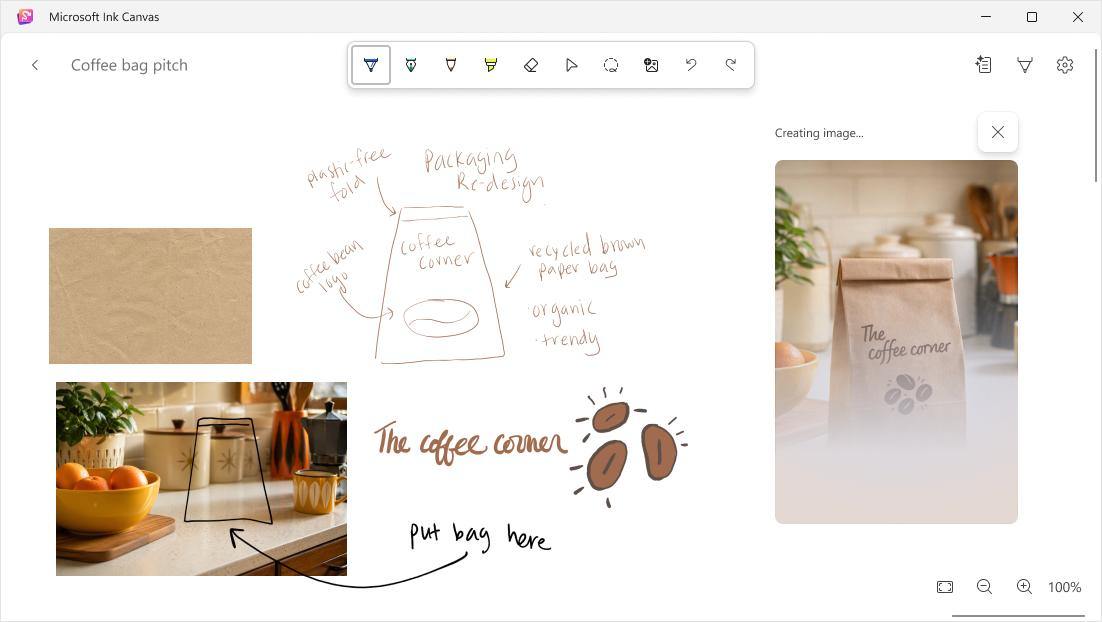
A rough sketch can be a faster starting point than a blank document—especially when you are planning a concept, marking up a reference image, or arranging ideas spatially. Microsoft Ink Canvas is built for that early, pen-and-touch stage, then lets you use Copilot to turn selected canvas content into text or a generated image.
This guide shows a practical workflow: install the app on a supported device, sketch or annotate an idea, select only the part you want Copilot to understand, and carry the useful result into a document or presentation. It also separates the free inking features from the subscription requirements for AI features.
How to Use Microsoft Ink Canvas: Turn Handwritten Ideas into AI-Generated Content
How Microsoft Ink Canvas Fits an Idea-to-Content Workflow
Microsoft Ink Canvas is a pen-first canvas for early-stage visual thinking. You can write, sketch, organize marks, bring in images, and annotate directly on the canvas. The useful handoff is not an automatic document conversion: you choose content on the canvas, then use Copilot to produce text or an image that you can copy, refine, and place in another app.
This makes it most useful when a typed outline would lose context—for example, a product idea with arrows and labels, a visual mood board, or a slide concept with notes around it.
Download Microsoft Ink Canvas on a Supported Device
Microsoft says Ink Canvas is pre-installed on the Surface Pro 12-inch (2nd Edition). Since October 13, 2026, consumers on other supported Surface Pro and Windows devices can download it from the Microsoft Store.
Check that the device runs Windows 10 version 18362.0 or later and has integrated touch support.
Sign in with a Microsoft account.
Open Microsoft Store, search for Microsoft Ink Canvas, and select the official Microsoft listing.
Install the app, open a new canvas, and confirm that pen or touch input is working.
On supported devices with a Surface Slim Pen, you can also set the pen shortcut button in Windows Settings to open Ink Canvas. The pen is sold separately, and shortcut behavior depends on your device.
Start a Microsoft Ink Canvas Sketch or Annotation
Begin with the smallest useful visual: a few labels, a rough diagram, or an imported reference image. The goal is to make the relationship between ideas visible before asking AI to work with it.
Create a blank canvas and use pen or touch to write short notes, draw connections, or outline the parts of an idea.
Drag an image onto the canvas when you need a reference, then annotate directly over or around it.
Keep labels short and draw arrows only where they express a meaningful relationship. This makes the selected context easier to review before you send it to Copilot.
You can continue basic drawing and handwriting features without a Microsoft 365 subscription. Those offline-friendly inking tools are separate from Copilot-powered actions.
Use Microsoft Ink Canvas with Copilot Carefully
When your sketch is ready, use the lasso to select the notes, handwriting, sketch, or visual content that should give Copilot context. A smaller, intentional selection is often better than sending an entire busy canvas.
Generate text: select the relevant region, choose text generation, then review the output as a first draft rather than a finished document.
Generate an image: use the selected visual context as a starting point, then iterate on the result if it does not match your intent.
Reuse an idea: give the canvas a clear title so you can find it later. Where supported, saved canvases can also inform a Microsoft Copilot conversation.
Copilot features require an eligible Microsoft 365 Personal, Family, Premium, or Pro subscription. AI usage limits and minimum-age requirements can apply, so check your subscription's current allowance before building a workflow around repeated generation.
Turn Microsoft Ink Canvas Output into a Document or Presentation
After generating text or an image, treat Ink Canvas as the ideation layer and move the result into an editor for structure, fact-checking, formatting, and sharing. Microsoft describes a generated summary as something you can copy into a document, while generated visuals can be used in a presentation.
Copy the generated text into your preferred document editor and turn it into a clear outline with headings, evidence, and an audience-appropriate tone.
Place a generated or annotated visual into a presentation, then add a concise title, supporting points, and speaker notes.
Keep the original canvas and source images when the work needs traceability, feedback, or another editing pass.
Do not assume that an AI-generated statement is accurate or cleared for reuse. Review facts, citations, copyright permissions, sensitive information, and brand requirements before sharing it.
Microsoft Ink Canvas Limits and Privacy Checks
Ink Canvas can help you move from a visual idea to a draft, but it is not a replacement for a full document editor, presentation editor, or project-management system. Its main strength is unstructured ideation with pen and touch.
Subscription boundary: basic inking does not require Microsoft 365, while Copilot features do.
Device boundary: download eligibility depends on Windows version and integrated touch support.
AI boundary: image and text generation can be limited by credits or usage limits and should be reviewed for accuracy.
Privacy boundary: avoid placing confidential client, financial, health, or unreleased product information into an AI workflow unless your organization has approved the data handling and account configuration.
For the current requirements, use Microsoft's official Ink Canvas support page. It is the best source for changes to supported devices, subscription eligibility, and AI limits.
Continue the Workflow in WPS Office
Once you have a reviewed outline or visual from Ink Canvas, WPS Office is a practical next step for turning the material into a polished file. Use WPS Writer to shape a brief, proposal, or meeting document, and use WPS Presentation to arrange the approved visual and supporting narrative into slides.
WPS Office does not directly integrate with or replace Microsoft Ink Canvas. The connection is a simple file-and-content workflow: create early ideas in the canvas, review the output, then edit, format, export, and share the final document or presentation in your chosen office suite.
WPS Office document presentation workflow


FAQs
Is Microsoft Ink Canvas free?
Inking and non-AI features are available without a Microsoft 365 subscription. Copilot-powered features require an eligible subscription and can be subject to AI usage limits.
Where can I download Microsoft Ink Canvas?
Microsoft says eligible consumers can download it from Microsoft Store on supported Surface Pro and Windows devices. It is pre-installed on Surface Pro 12-inch (2nd Edition).
What does Microsoft Ink Canvas need to run?
Microsoft lists Windows 10 version 18362.0 or later, integrated touch support, and a Microsoft account with sign-in. Device support can change, so check the official page before installing.
Can Microsoft Ink Canvas turn handwriting into text?
Ink Canvas can use Copilot text generation on a lasso-selected part of a canvas. Review and edit the result before treating it as a final document.
Is Microsoft Ink Canvas the same as OneNote?
No. Ink Canvas is designed as a freeform, pen-first AI canvas for early visual ideation. OneNote is a note-taking application with its own notebooks, pages, and organization model.

'%3e%3cpath%20d='M19.9911%204.11386V6.471H18.5894C18.0775%206.471%2017.7322%206.57814%2017.5536%206.79243C17.3751%207.00671%2017.2858%207.32814%2017.2858%207.75671V9.44421H19.9019L19.5536%2012.0871H17.2858V18.8639H14.5536V12.0871H12.2769V9.44421H14.5536V7.49779C14.5536%206.39064%2014.8632%205.53201%2015.4822%204.92189C16.1013%204.31177%2016.9257%204.00671%2017.9554%204.00671C18.8304%204.00671%2019.509%204.04243%2019.9911%204.11386Z'%20fill='%23333333'/%3e%3c/g%3e%3cdefs%3e%3cclipPath%20id='clip0_2938_8199'%3e%3crect%20width='16'%20height='16'%20fill='white'%20transform='translate(8%204.00671)'/%3e%3c/clipPath%3e%3c/defs%3e%3c/svg%3e)
'%3e%3cpath%20d='M17.5237%2010.7813L23.4811%204H22.0699L16.8949%209.88693L12.7648%204H8L14.2469%2012.9029L8%2020.0133H9.4112L14.8725%2013.7952L19.2352%2020.0133H24M9.92053%205.04213H12.0885L22.0688%2019.0224H19.9003'%20fill='%23333333'/%3e%3c/g%3e%3cdefs%3e%3cclipPath%20id='clip0_2938_8200'%3e%3crect%20width='16'%20height='16.0134'%20fill='white'%20transform='translate(8%204)'/%3e%3c/clipPath%3e%3c/defs%3e%3c/svg%3e)


