

'%3e%3cpath%20d='M8%200C12.4183%200%2016%203.58172%2016%208C16%2012.4183%2012.4183%2016%208%2016C3.58172%2016%200%2012.4183%200%208C0%203.58172%203.58172%200%208%200ZM11.6162%204.38379C11.2257%203.99337%2010.5927%203.99338%2010.2021%204.38379L8%206.58594L5.79785%204.38379C5.40732%203.99334%204.77429%203.99329%204.38379%204.38379C3.99331%204.77429%203.99335%205.40733%204.38379%205.79785L6.58594%208L4.38379%2010.2021C3.99348%2010.5927%203.99341%2011.2257%204.38379%2011.6162C4.77426%2012.0066%205.40734%2012.0065%205.79785%2011.6162L8%209.41406L10.2021%2011.6162C10.5927%2012.0066%2011.2257%2012.0067%2011.6162%2011.6162C12.0067%2011.2257%2012.0066%2010.5927%2011.6162%2010.2021L9.41406%208L11.6162%205.79785C12.0066%205.40735%2012.0066%204.77429%2011.6162%204.38379Z'%20fill='%23080E17'%20fill-opacity='0.46'/%3e%3c/g%3e%3cdefs%3e%3cclipPath%20id='clip0_3761_713'%3e%3crect%20width='16'%20height='16'%20fill='white'/%3e%3c/clipPath%3e%3c/defs%3e%3c/svg%3e)




'%3e%3cpath%20fill-rule='evenodd'%20clip-rule='evenodd'%20d='M21.4999%2010.9993C21.4999%205.20009%2016.7986%200.498901%2010.9993%200.498901C5.19994%200.498901%200.498657%205.20009%200.498657%2010.9993C0.498657%2016.2404%204.33858%2020.5844%209.35855%2021.3722V14.0346H6.69238V10.9993H9.35855V8.68594C9.35855%206.05427%2010.9262%204.60062%2013.3248%204.60062C14.4736%204.60062%2015.6753%204.80571%2015.6753%204.80571V7.38979H14.3512C13.0468%207.38979%2012.64%208.19921%2012.64%209.0296V10.9993H15.5523L15.0867%2014.0346H12.64V21.3722C17.66%2020.5844%2021.4999%2016.2404%2021.4999%2010.9993Z'%20fill='%231568EA'/%3e%3c/g%3e%3c/svg%3e)


'%3e%3cpath%20d='M2.42045%2022.1876H6.31818V12.7217L0.75%208.54553V20.5171C0.75%2021.4414%201.49892%2022.1876%202.42045%2022.1876Z'%20fill='%234285F4'/%3e%3cpath%20d='M19.682%2022.1876H23.5797C24.5041%2022.1876%2025.2502%2021.4387%2025.2502%2020.5171V8.54553L19.682%2012.7217'%20fill='%2334A853'/%3e%3cpath%20d='M19.682%205.48293V12.7216L25.2502%208.54543V6.31816C25.2502%204.25236%2022.8921%203.07469%2021.2411%204.31361'%20fill='%23FBBC04'/%3e%3cpath%20d='M6.31824%2012.7217V5.48303L13.0001%2010.4944L19.6819%205.48303V12.7217L13.0001%2017.733'%20fill='%23EA4335'/%3e%3cpath%20d='M0.75%206.31816V8.54543L6.31818%2012.7216V5.48293L4.75909%204.31361C3.10534%203.07469%200.75%204.25236%200.75%206.31816Z'%20fill='%23C5221F'/%3e%3c/g%3e%3cdefs%3e%3cclipPath%20id='clip0_2954_7305'%3e%3crect%20width='24.5'%20height='18.375'%20fill='white'%20transform='translate(0.75%203.8125)'/%3e%3c/clipPath%3e%3c/defs%3e%3c/svg%3e)


While working in Excel spreadsheets, precision is key to accurate calculation and data clarity. The round function in Excel is a versatile tool that allows users to keep their values to a specific digit. Sometimes the user precise the number after the total calculation, which leads to conflicted sums. Therefore, the round function seems indispensable for your data formatting. In this guide, we will walk you through the possibilities of how to use the round function in Excel.

What is Round Function in Excel?
The Round function in Excel is considered a dynamic mathematical tool, a built-in Excel function that facilitates you with a single click. It not only allows you to precise the number of digits to a specific decimal place but also makes the calculation process easier.
You just put on the targeted numeric value or desired number of decimal places in this excel function, and Excel does the whole process in a blink of an eye. You can use the Round function to specify both the left and right sides of a decimal number.
This fabulous Excel formula is specifically designed to simplify long-form numerical calculations as well as make your spreadsheet presentable. Therefore, if you want more readable figures and calculate them effortlessly, the Round formula is your go-to source.
So, bid farewell to the lengthy manual calculation process and welcome to the efficient Round function in Excel
Round Function in Excel Formula
The Round Function formula is as follows:
Syntax of the Formula
=ROUND(number, num_digits)
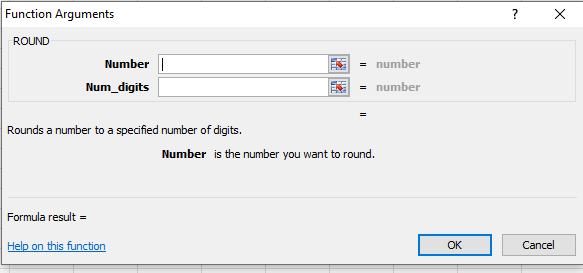
The Round Function in Excel consists of two arguments:
Number: The first argument is Number; at the place of the number, you should input your targeted numerical value or place value of the number you want to round to a specific decimal place.
Num_digits: This section allows you to add your desired decimal place in which you want to round your targeted numeric value.
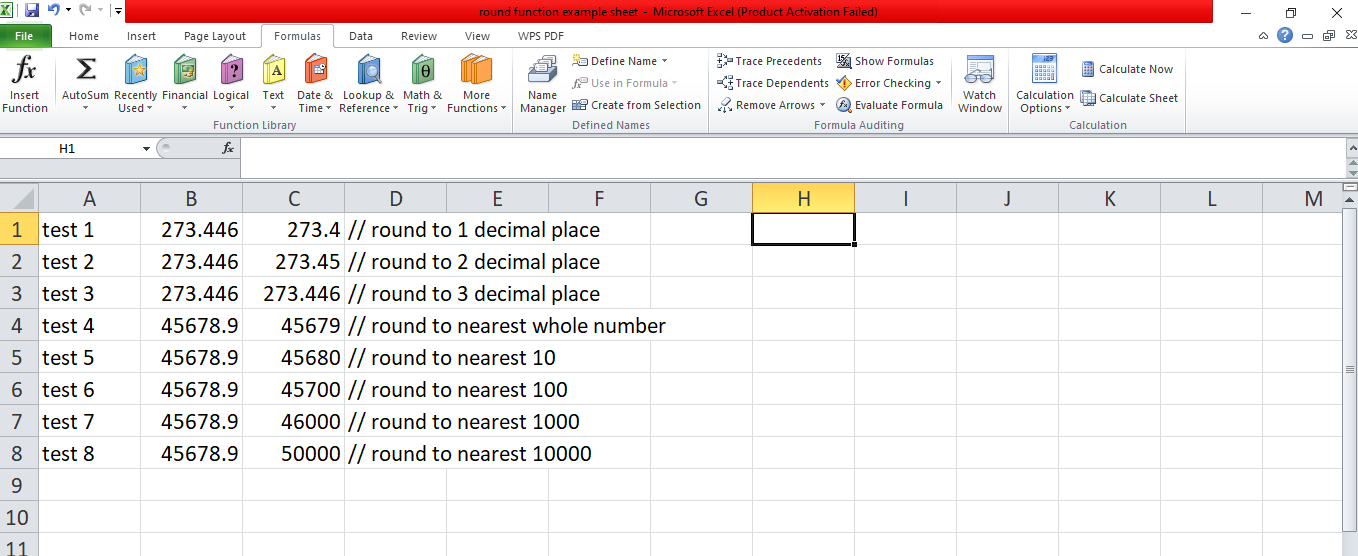
Note: If you input positive num_digits, you give the command to Excel to round the decimal point to the right. Contrarily, if your num_digits is negative, Excel rounds the decimal point to the left side of the numerical.
Calculation:
The Round function in Excel follows the simple rule to calculate to round the numbers specifically.
If the next number after the desired decimal place is 5, the number rounds up.
If the following number after the desired decimal place is lower than 5, the number rounds down.
If the desired number is 0, then the targeted number rounds according to the nearest integer.
When the desired number is greater than 0, such as 1,2,3,4, the targeted number rounds to the specified decimal number.
On the other hand, when you want to choose a targeted number less than 0, such as -1,-2,-3,-4, the desired number rounds to the left of the decimal point.
How to use the Round function in Excel
Round Function in Excel can be used to round off values to a specified number of decimal places or a whole number. It is a versatile function that allows you to adjust the precision of numerical data based on your needs. Let’s learn how we can use the Round Function in Excel through a few examples.
Method #1
This method involves rounding off values by simply using the Round Function in Excel.
Example 1- Round Function in Excel to the nearest 100
Users can make use of the Round Function to round the value to the nearest 100 in Excel. To round a value to the nearest 100, the 2nd argument used will be such that Excel rounds to the left, this is because we want our value to be rounded off before the decimal. A bit confusing? Here’s an example:
Let’s say we have the following Excel sheet containing 5 values:
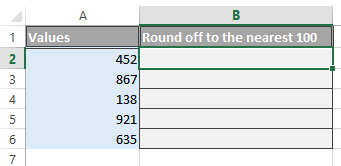
Step 1: To round these numbers to the nearest 100, we will start typing the Round Function in Excel. Remember, every function in Excel starts with an Equal sign.

Step 2: For the 1st argument; number, we will select cell A1.
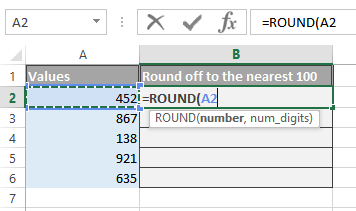
Step 3: So now for the confusing part, in the 2nd argument; num_digits, we will be entering -2 to round the function to the nearest 100. The negative sign is because we want our value to be rounded off before the decimal; to the left. Whereas, the number “2” is because we want our value to be rounded off to the nearest 100.
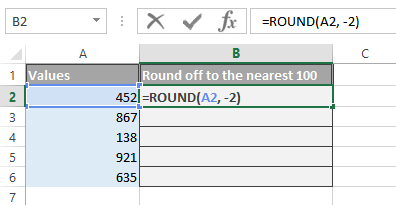
Step 4: Press “Enter” to execute the Round Function in Excel.
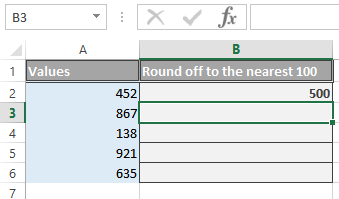
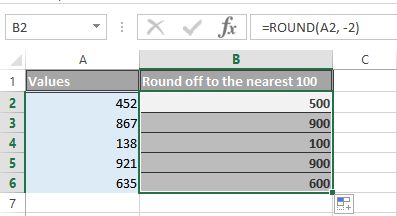
Step 5: Use the AutoFill handle to round off the rest of the cells.
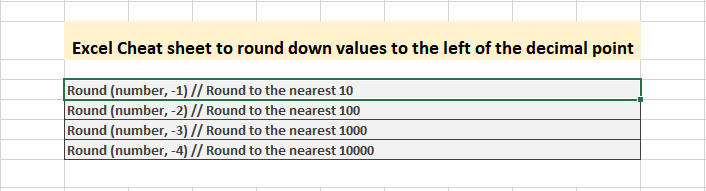
Bonus
The num_digits argument of the Round Function can get pretty confusing at times. So we decided to curate a cheat sheet for our readers to help them stay ahead.
Example 2- Round Function in Excel to decimal places
To round a number to 0 decimal places in Excel, users can make use of the ROUND function with the second argument set to 0.
Let’s take a look at the sample data below to help us understand this technique:
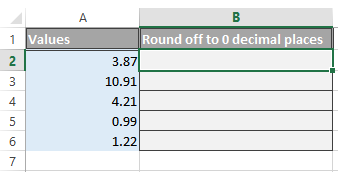
Step 1: To use the Round function to 0 decimal places, we will enter the Round Function in cell B2.
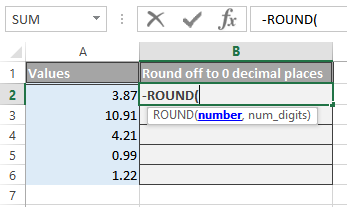
Step 2: Next, we will select the cell with the value; A2, to round it off to 0 decimal places using the Round function in Excel.
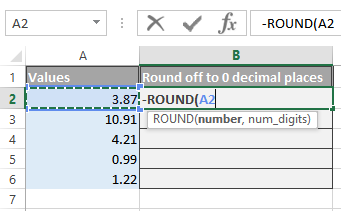
Step 3: Now, for the num_digits argument we will be using “0”. This will round off the value to 0 decimal places.
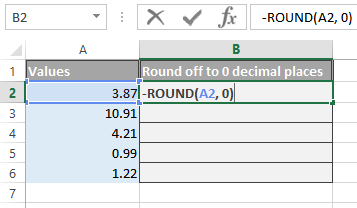
Step 4: Press “Enter” for results.
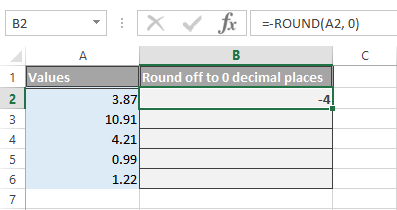
Step 5: Use the “AutoFill” handle to round off the other values to 0 decimal places.
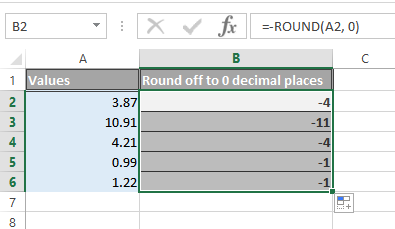
The Round function can also be used similarly to Round Function to the nearest whole number.
Bonus
Here is how users can use the Round function in Excel to 2 decimal places and more.
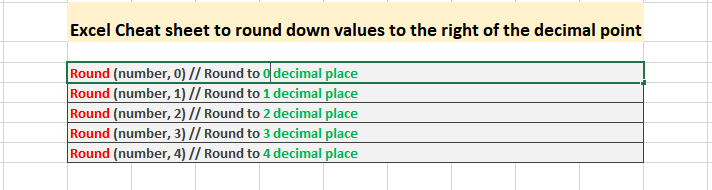
Method #2
Example- Nested Round Function in Excel
The Nested Round Function in Excel allows users to round off values along with another Excel function. Confused? Let’s take a look at an example.
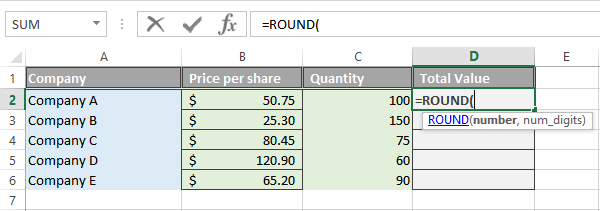
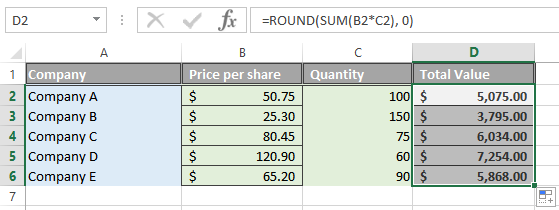
Let’s try calculating the Total value of Stocks using the Nested Round Function in Excel. Let’s suppose we have a portfolio consisting of stocks of 5 companies. We want to calculate the total amount of each stock by multiplying the price per share and quantity. Furthermore, we want the Total Value to be rounded off to a whole number. Here’s how we can avoid setting up multiple columns and use the Nested Round Function:
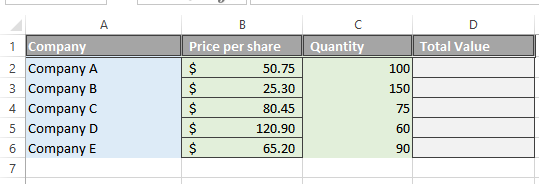
Step 1: To round the Total Value to a whole number, we enter the Round Function to begin with.
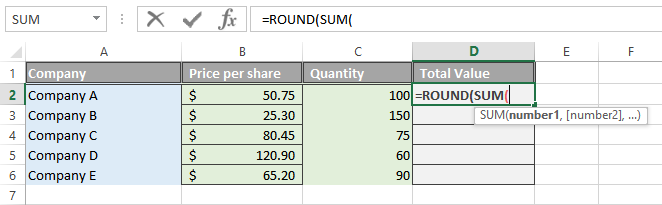
Step 2: To calculate the product of price per share and quantity we will use the Sum Function inside the Round Function in Excel. Enter “Sum” and select the Sum Function.
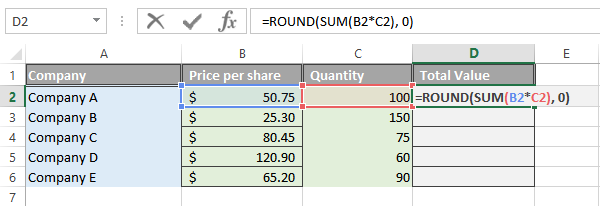
Step 3: Now, we will select the cells B2 and C2 to calculate the product.

Step 4: Close the parenthesis to complete the Sum Function.
Step 5: Next, we will enter the 2nd argument of the Round Function; num_digits, in which we will enter “0” to round the Total Value to the nearest whole number.
Step 6: Press “Enter” to display the results.
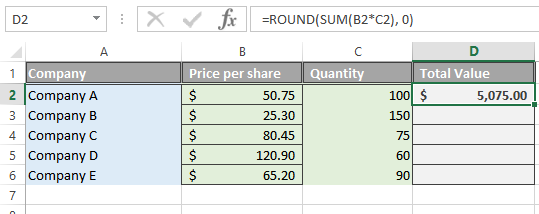
Step 7: Simply copy the formula to other cells using the “AutoFill” handle.


Free Editing Excel, Word, Powerpoint - WPS Office
WPS is a comprehensive Office Suite that offers something for every user. Whether you are a student, teacher, marketer, or office worker, WPS Office software benefits you alike. It offers millions of free pre-designed templates that make your work easier than ever. Due to its versatility, it is considered the best alternative to MS Office.
Similar to MS Office, you can work conveniently with Word, Powerpoint, Excel, and pdf sheets. Above all, WPS's innovative AI tool allows you to integrate it with your editor. WPS AI proves to be a game changer for your career.

It’s a free suite that helps to enhance your creativity in writing marketing copies, data analyses, and formulation. Top of all, it’s a cost-effective solution for your day-to-day queries.
Additionally, the Round function of WPS Spreadsheets makes your large calculation easy to handle and aesthetically clarifies your documents. Wondering where to download WPS Office to utilize its amazing features? Visit WPS Office and get your hands on the free Microsoft Office alternative with a solution for all your document needs!

FAQs
Q1. How to round the number in a significant figure?
Simply use the Round Function in Excel. This is how the function will be written:
=ROUND(A1, -INT(LOG10(ABS(A1)))+2)
Replace “A1” with the cell reference.
Replace +2 with your desired significant figure.
Using the formula above, if our reference cell contains 3.546, the function would result in a value of 3.46; 2 significant figures
Q2. How to round a price number in .99?
To round a price number in .99, apply the round function formula to the whole value and then subtract 0.1 from the resulting figure. It will change the last two figures after the decimal to .99. Let’s say we need to round a price of $4.53 in 0.99. =Round( 4.53, 0)- 0.01, using the Round Function in this manner will first round the number to 0 decimal places; $5.00, and then simply subtract 0.01 giving us $4.99
Q3. How to round the number to the nearest multiple?
To round a number to the nearest multiple in Excel, users can take advantage of the MROUND function. Let’s take an example, if we want to round 18 to the nearest multiple of 5, the MROUND function will give 20 as a result.
Refine Your Data Presentation with Excel's Round Function
Whether you need accurate calculations or want to refine your data presentation, the round function in Excel serves both purposes. In this definitive guide, we have not only shed light on the effectiveness of the Round function in Excel but also elaborated on the methods to use it effectively. WPS Office provides you with this fantastic built-in Spreadsheet tool, allowing users to experience the ease of Excel calculations for free! Download WPS Office today and round your life to an easy office experience!

'%3e%3cpath%20d='M19.9911%204.11386V6.471H18.5894C18.0775%206.471%2017.7322%206.57814%2017.5536%206.79243C17.3751%207.00671%2017.2858%207.32814%2017.2858%207.75671V9.44421H19.9019L19.5536%2012.0871H17.2858V18.8639H14.5536V12.0871H12.2769V9.44421H14.5536V7.49779C14.5536%206.39064%2014.8632%205.53201%2015.4822%204.92189C16.1013%204.31177%2016.9257%204.00671%2017.9554%204.00671C18.8304%204.00671%2019.509%204.04243%2019.9911%204.11386Z'%20fill='%23333333'/%3e%3c/g%3e%3cdefs%3e%3cclipPath%20id='clip0_2938_8199'%3e%3crect%20width='16'%20height='16'%20fill='white'%20transform='translate(8%204.00671)'/%3e%3c/clipPath%3e%3c/defs%3e%3c/svg%3e)
'%3e%3cpath%20d='M17.5237%2010.7813L23.4811%204H22.0699L16.8949%209.88693L12.7648%204H8L14.2469%2012.9029L8%2020.0133H9.4112L14.8725%2013.7952L19.2352%2020.0133H24M9.92053%205.04213H12.0885L22.0688%2019.0224H19.9003'%20fill='%23333333'/%3e%3c/g%3e%3cdefs%3e%3cclipPath%20id='clip0_2938_8200'%3e%3crect%20width='16'%20height='16.0134'%20fill='white'%20transform='translate(8%204)'/%3e%3c/clipPath%3e%3c/defs%3e%3c/svg%3e)


