

'%3e%3cpath%20d='M8%200C12.4183%200%2016%203.58172%2016%208C16%2012.4183%2012.4183%2016%208%2016C3.58172%2016%200%2012.4183%200%208C0%203.58172%203.58172%200%208%200ZM11.6162%204.38379C11.2257%203.99337%2010.5927%203.99338%2010.2021%204.38379L8%206.58594L5.79785%204.38379C5.40732%203.99334%204.77429%203.99329%204.38379%204.38379C3.99331%204.77429%203.99335%205.40733%204.38379%205.79785L6.58594%208L4.38379%2010.2021C3.99348%2010.5927%203.99341%2011.2257%204.38379%2011.6162C4.77426%2012.0066%205.40734%2012.0065%205.79785%2011.6162L8%209.41406L10.2021%2011.6162C10.5927%2012.0066%2011.2257%2012.0067%2011.6162%2011.6162C12.0067%2011.2257%2012.0066%2010.5927%2011.6162%2010.2021L9.41406%208L11.6162%205.79785C12.0066%205.40735%2012.0066%204.77429%2011.6162%204.38379Z'%20fill='%23080E17'%20fill-opacity='0.46'/%3e%3c/g%3e%3cdefs%3e%3cclipPath%20id='clip0_3761_713'%3e%3crect%20width='16'%20height='16'%20fill='white'/%3e%3c/clipPath%3e%3c/defs%3e%3c/svg%3e)




'%3e%3cpath%20fill-rule='evenodd'%20clip-rule='evenodd'%20d='M21.4999%2010.9993C21.4999%205.20009%2016.7986%200.498901%2010.9993%200.498901C5.19994%200.498901%200.498657%205.20009%200.498657%2010.9993C0.498657%2016.2404%204.33858%2020.5844%209.35855%2021.3722V14.0346H6.69238V10.9993H9.35855V8.68594C9.35855%206.05427%2010.9262%204.60062%2013.3248%204.60062C14.4736%204.60062%2015.6753%204.80571%2015.6753%204.80571V7.38979H14.3512C13.0468%207.38979%2012.64%208.19921%2012.64%209.0296V10.9993H15.5523L15.0867%2014.0346H12.64V21.3722C17.66%2020.5844%2021.4999%2016.2404%2021.4999%2010.9993Z'%20fill='%231568EA'/%3e%3c/g%3e%3c/svg%3e)


'%3e%3cpath%20d='M2.42045%2022.1876H6.31818V12.7217L0.75%208.54553V20.5171C0.75%2021.4414%201.49892%2022.1876%202.42045%2022.1876Z'%20fill='%234285F4'/%3e%3cpath%20d='M19.682%2022.1876H23.5797C24.5041%2022.1876%2025.2502%2021.4387%2025.2502%2020.5171V8.54553L19.682%2012.7217'%20fill='%2334A853'/%3e%3cpath%20d='M19.682%205.48293V12.7216L25.2502%208.54543V6.31816C25.2502%204.25236%2022.8921%203.07469%2021.2411%204.31361'%20fill='%23FBBC04'/%3e%3cpath%20d='M6.31824%2012.7217V5.48303L13.0001%2010.4944L19.6819%205.48303V12.7217L13.0001%2017.733'%20fill='%23EA4335'/%3e%3cpath%20d='M0.75%206.31816V8.54543L6.31818%2012.7216V5.48293L4.75909%204.31361C3.10534%203.07469%200.75%204.25236%200.75%206.31816Z'%20fill='%23C5221F'/%3e%3c/g%3e%3cdefs%3e%3cclipPath%20id='clip0_2954_7305'%3e%3crect%20width='24.5'%20height='18.375'%20fill='white'%20transform='translate(0.75%203.8125)'/%3e%3c/clipPath%3e%3c/defs%3e%3c/svg%3e)


When Excel or Windows refuses a macro-enabled workbook, people search cannot open xlsm file because the double-click fails, a repair prompt loops, or the sheet never appears. An .xlsm file is an Excel Open XML workbook that can store VBA. The grid is usually safe to inspect; the macros are the risky part.
This guide focuses on the cases where you cannot open xlsm file at all—blocked downloads, corruption, broken associations—and a local path in WPS Spreadsheets when Microsoft Excel is missing or keeps failing. Enable macros only if you trust the sender.
Common reasons you cannot open xlsm file workbooks
Before you reinstall Office, match the symptom to a cause. Most cannot open xlsm file reports fall into a short list:
Mark of the Web / blocked download — Windows treats email or browser downloads as untrusted, so Excel may refuse macros or fail to load the package.
Corruption or incomplete transfer — a truncated zip inside the .xlsm package triggers “Excel found unreadable content” or a hard open failure.
Wrong default app — double-click sends the file to a viewer that does not understand macro-enabled workbooks.
Security sandbox — Protected View, Trust Center, or a company policy can look like you cannot open xlsm file even when the cells would load with macros off.
Password or permissions — a locked workbook or a read-denied network path stops the open before the grid appears.
If a coworker can open the same attachment and you cannot, start with Unblock and file location. If nobody can open it, plan on Open and Repair or a fresh copy from the sender.
Unblock a download when you cannot open xlsm file
Email and browser downloads often carry a Mark of the Web. Excel then blocks the file more aggressively. Close the workbook first. Fix the file properties, not only the ribbon.
In File Explorer, right-click the .xlsm file, open Properties, and check the General tab. If you see a Security line with Unblock, select it, Apply, then OK. Reopen only a file you already trust. Unblocking does not make unknown VBA safe; it only tells Windows the file is no longer treated as an internet download.
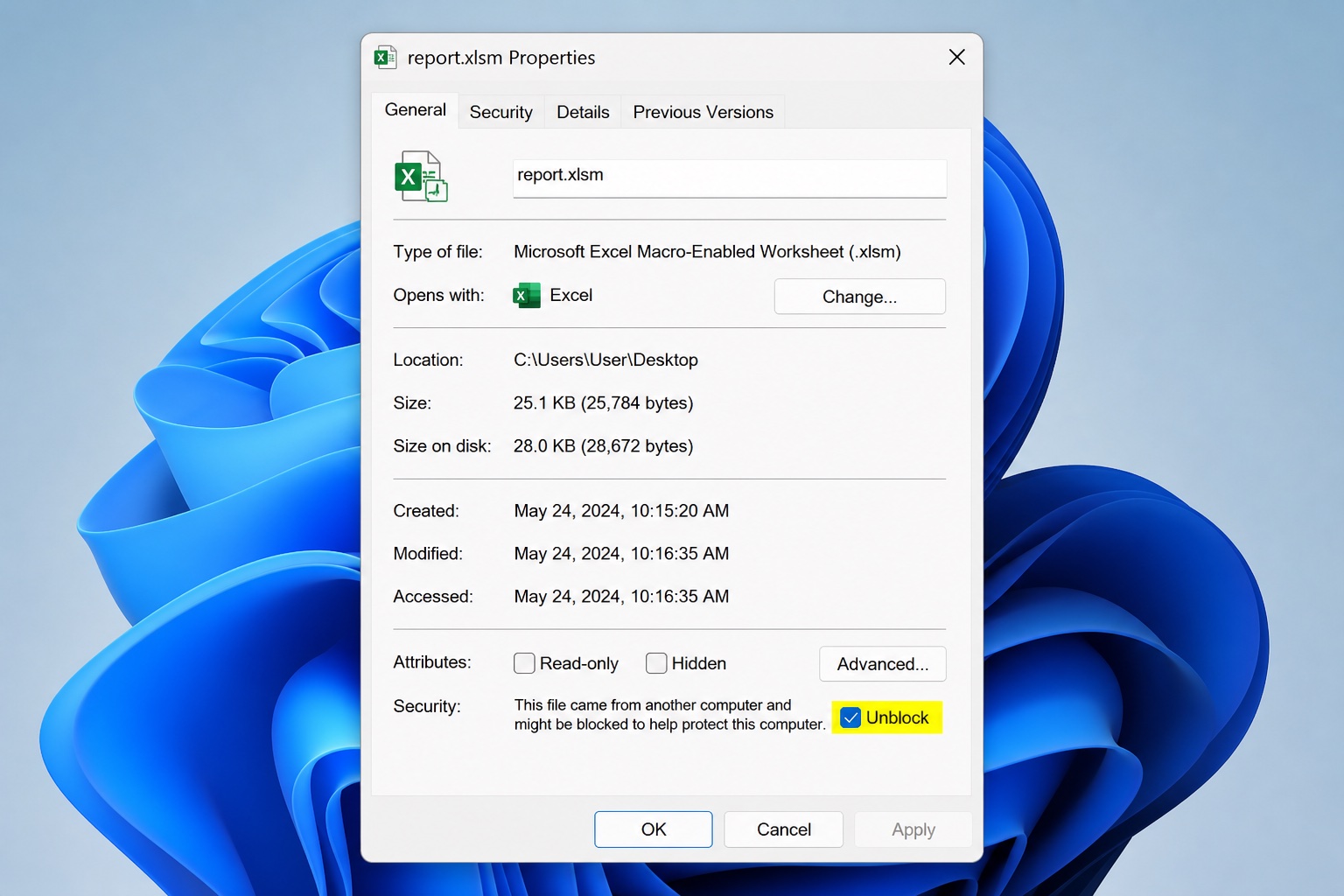
If Unblock is missing, the file may already be local, or Group Policy is holding it down. In that case, keep macros disabled, ask IT, or request an .xlsx export when automation is not required. Avoid “Enable all macros” globally just to silence one cannot open xlsm file prompt.


Open and Repair if you cannot open xlsm file in Excel
When Excel reports damaged content, use the built-in repair path instead of renaming the extension. Launch Excel first, go to File > Open, select the workbook, click the arrow next to Open, and choose Open and Repair. Prefer Repair; use Extract Data only if Repair still fails.
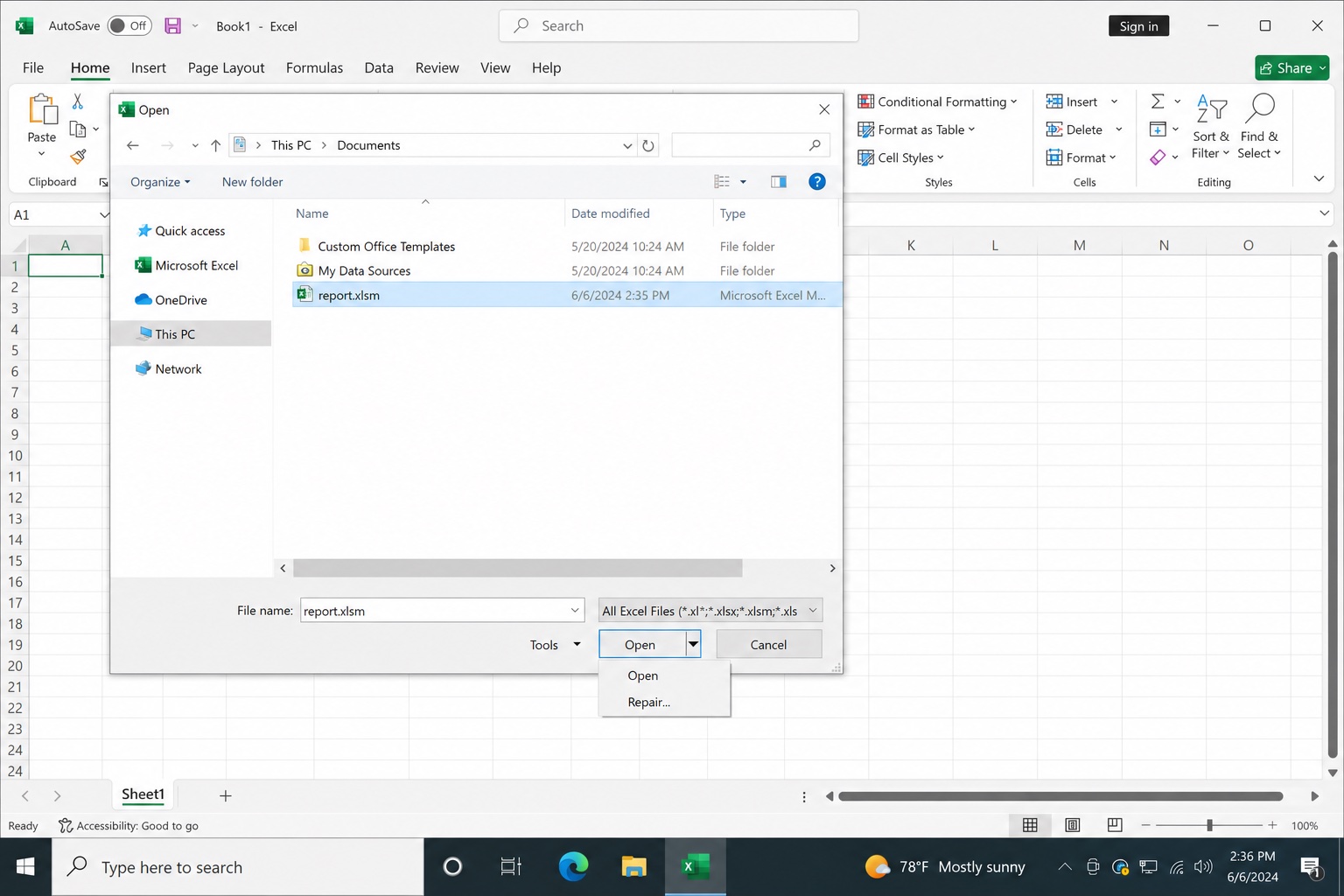
Optional: hold Shift while opening so macros do not run during repair. After a successful repair, save a new copy under a different name. Legacy Excel 4.0 macro sheets and broken external links are common reasons a file looks fine once, then you cannot open xlsm file again after the next save—keep a clean copy when the prompt returns.
Safe Mode (excel /safe) helps when add-ins crash on startup. It will not fix a truncated download; you still need a good source file.
Reset associations when you cannot open xlsm file by double-click
If nothing happens on double-click, or a random app claims the .xlsm extension, the association is wrong. Open Windows Settings > Apps > Default apps, search for .xlsm, and assign Microsoft Excel or your preferred spreadsheet app. Then try File > Open from inside that app—this path bypasses Explorer when you still cannot open xlsm file from the desktop icon.
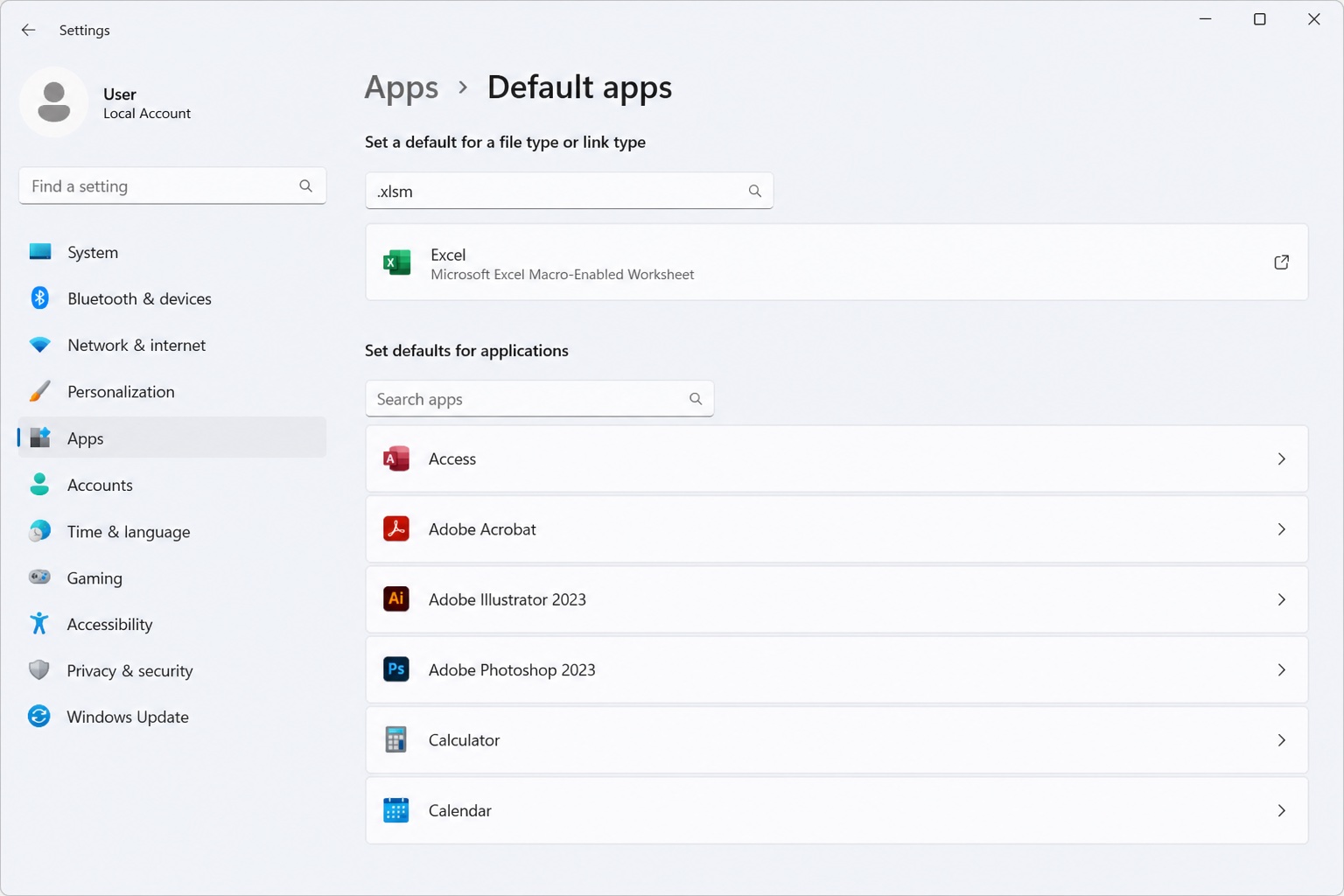
Also confirm the filename truly ends in .xlsm, not .xlsx renamed by hand, and that the file size is not near zero. A zero-byte download will never open in any spreadsheet app.
Open the workbook in WPS when you cannot open xlsm file
WPS Office lists .xls, .xlsx, and .xlsm among Excel-compatible formats. When Microsoft Excel is unavailable, or when you need the table today while Excel keeps failing, WPS Spreadsheets is a practical local option. You can view and edit cells without uploading the workbook to a converter site.
Macros are a separate layer. WPS can open the sheets for data work even when VBA is incomplete. Complex Excel macros may not run fully; for everyday review, that is often enough when the real goal is to stop the cannot open xlsm file loop and read the numbers.
Step 1: Start Spreadsheets from the WPS home screen
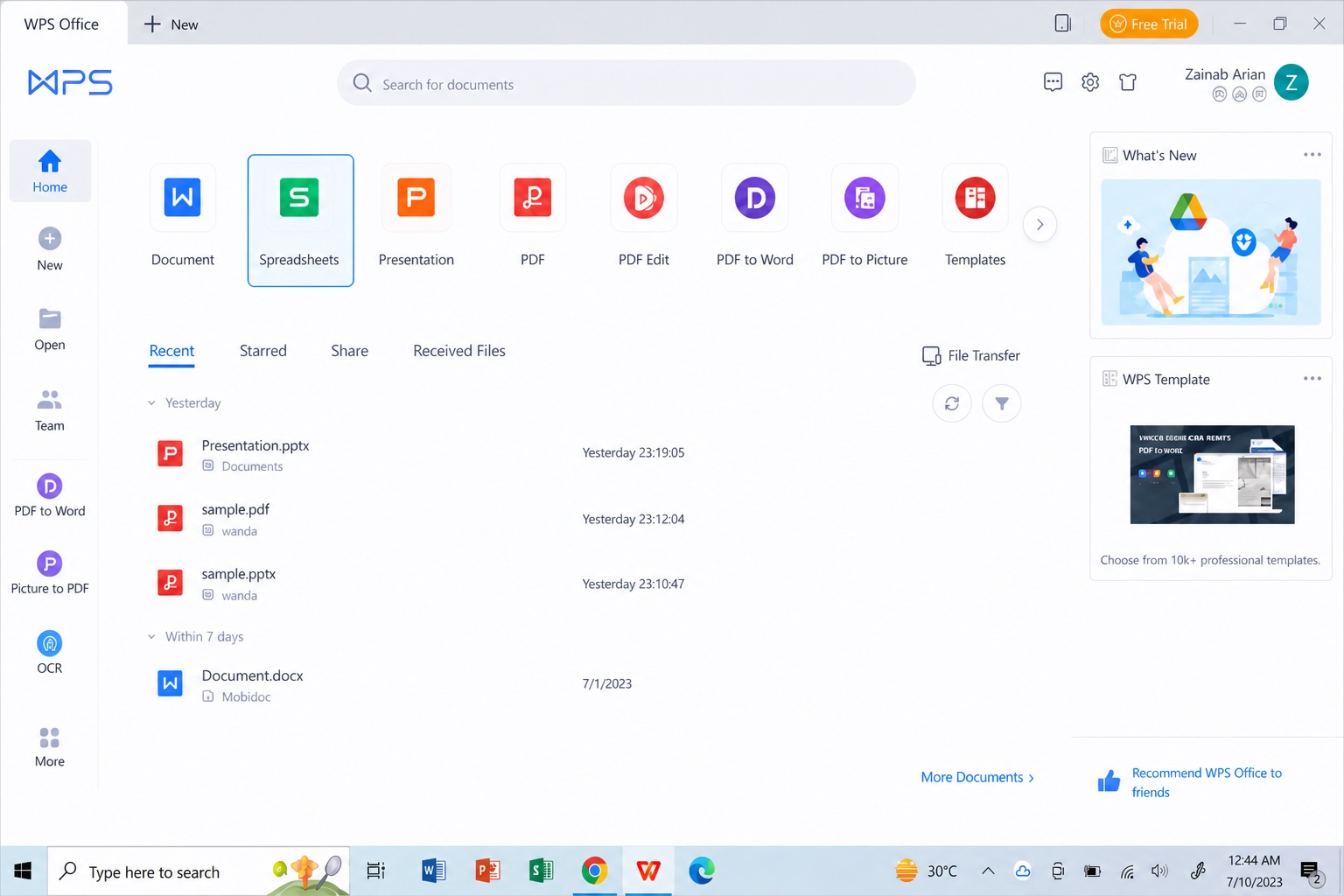
Launch WPS Office. On the home dashboard, choose Spreadsheets so you open the spreadsheet workspace instead of Writer or Presentation.
Step 2: Use Menu, then Open
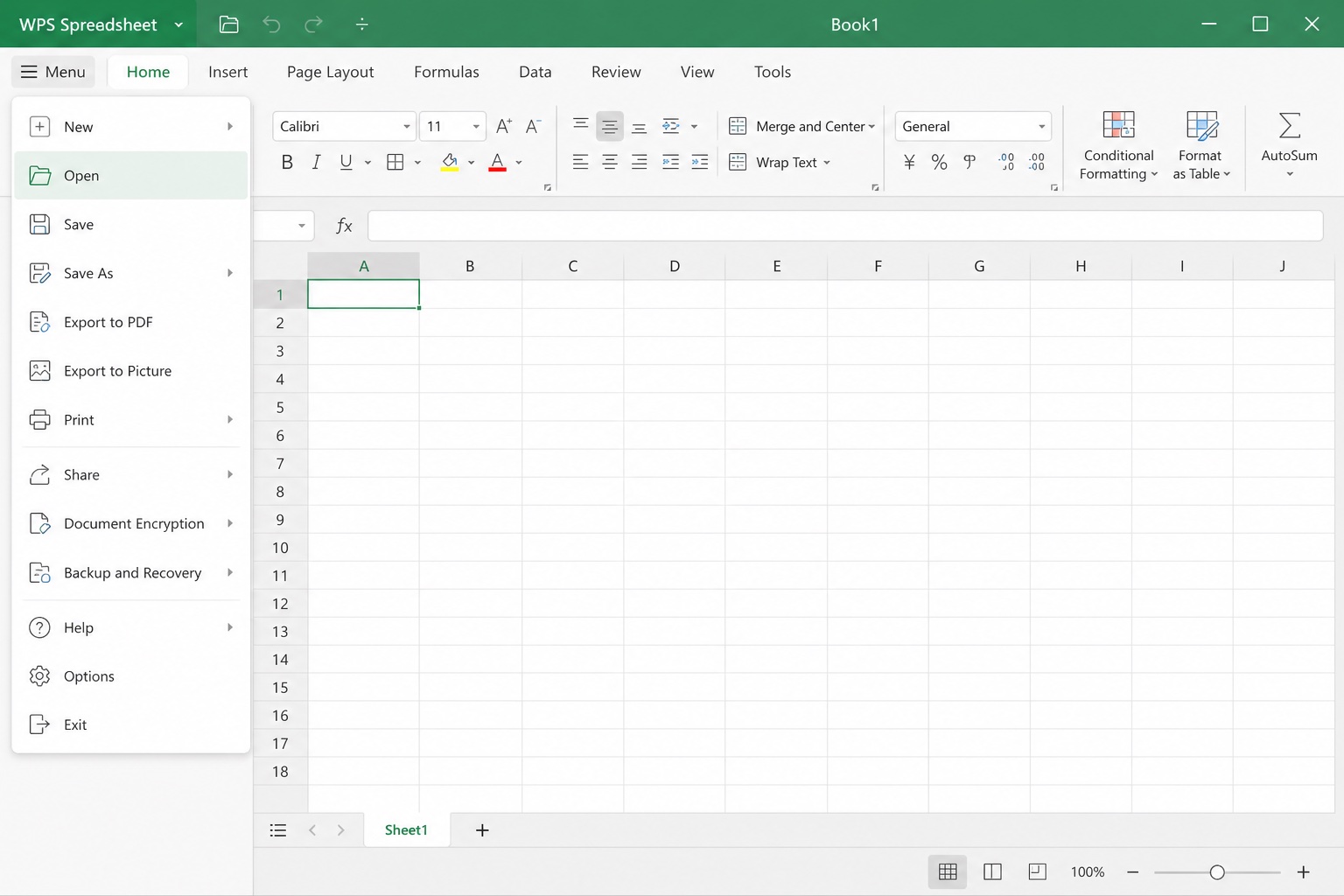
Click the Menu button in the upper-left corner and choose Open. Opening from inside the app avoids broken Explorer associations that make it look like you cannot open xlsm file.
Step 3: Select the .xlsm file
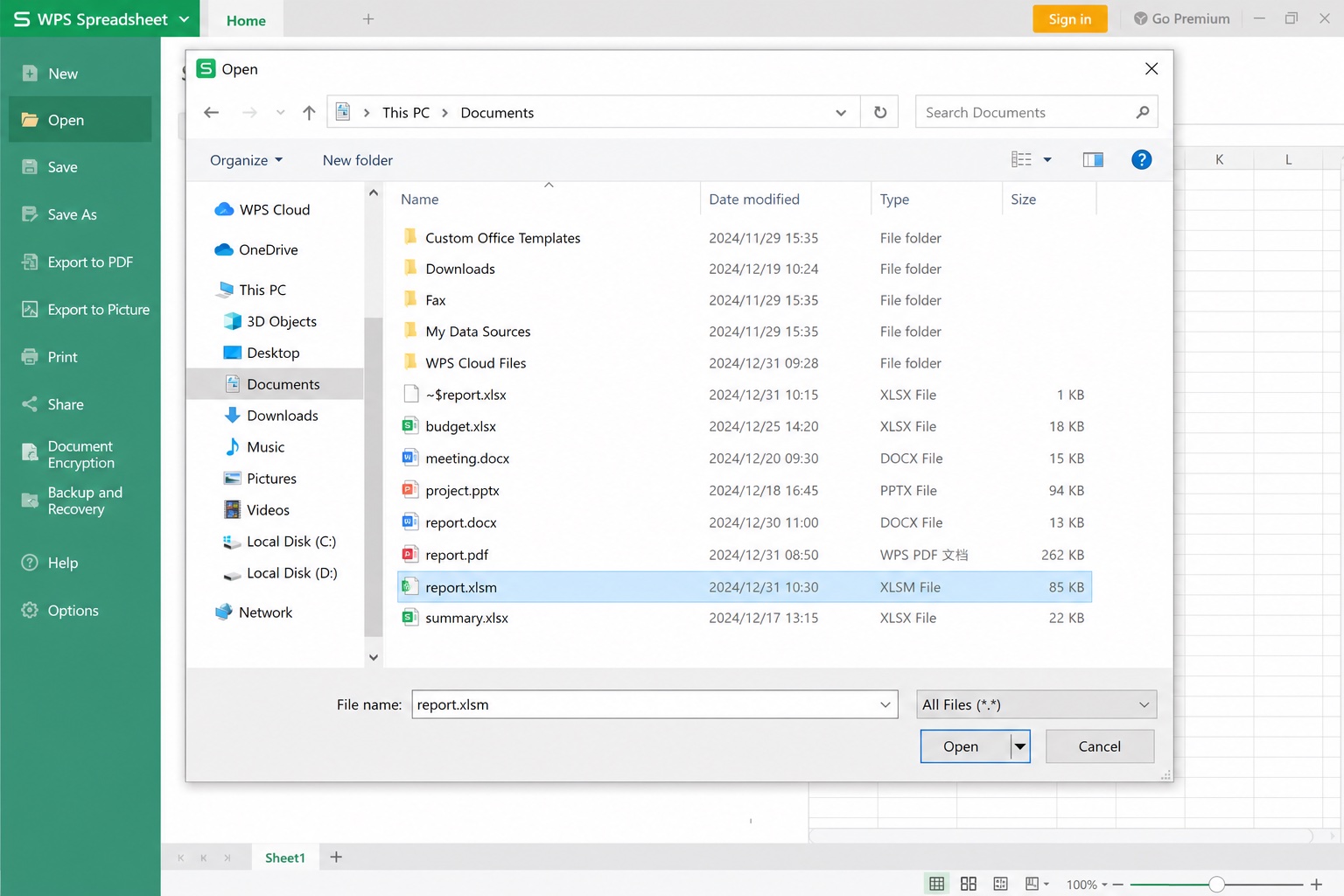
In the Open File window, browse Recent, Computer, or Documents. Select the .xlsm workbook and click Open. If the list is filtered, switch the type to Excel or All files so the macro-enabled workbook is visible.
Step 4: Review sheets before enabling any code
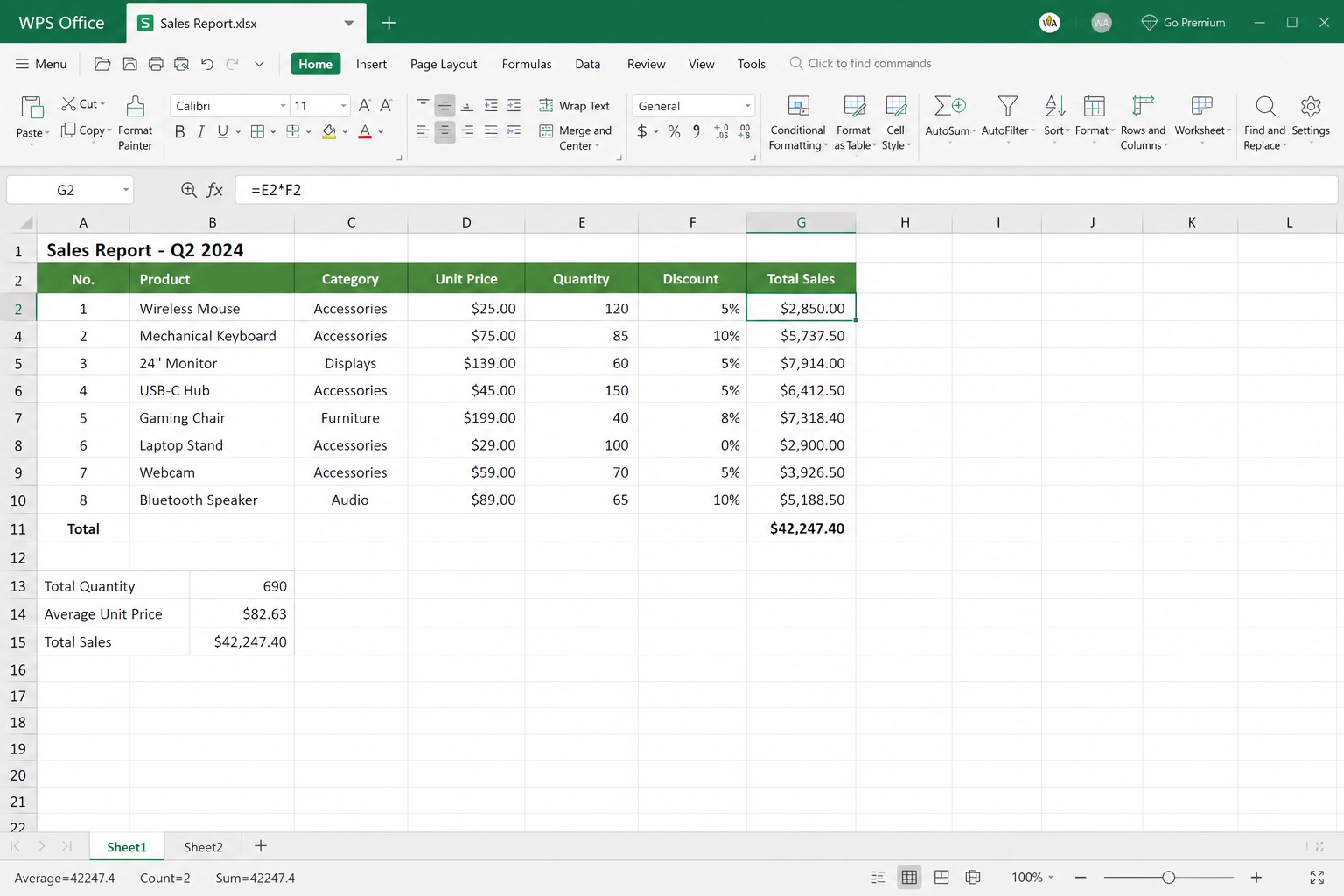
Confirm sheet tabs, totals, and the formula bar. Leave macros disabled unless you trust the source. After the workbook loads in WPS, you can edit values, export PDF, or save a working copy even if automation stays off.
FAQ
Why does Excel say it found a problem with content?
That message usually means Open XML parts inside the .xlsm package are damaged or using legacy features Excel wants to strip. Use Open and Repair, then save a new file. If the prompt returns every time, ask the author for a clean export.
Can Google Sheets fix cannot open xlsm file errors?
Google Sheets can show many tables after upload, but it does not run VBA. Use it to preview values when Excel fails. It will not restore broken macros.
Should I rename .xlsm to .xlsx?
No. Renaming does not convert the package and can make the cannot open xlsm file problem worse. Use Save As inside a spreadsheet app when you intentionally want a macro-free copy.
Is it safe to enable macros after the file finally opens?
Only if you trust the sender and know what the code should do. Unsolicited XLSM files that push Enable Content are a common malware path. Reading cells with macros off is enough for most reviews.


'%3e%3cpath%20d='M19.9911%204.11386V6.471H18.5894C18.0775%206.471%2017.7322%206.57814%2017.5536%206.79243C17.3751%207.00671%2017.2858%207.32814%2017.2858%207.75671V9.44421H19.9019L19.5536%2012.0871H17.2858V18.8639H14.5536V12.0871H12.2769V9.44421H14.5536V7.49779C14.5536%206.39064%2014.8632%205.53201%2015.4822%204.92189C16.1013%204.31177%2016.9257%204.00671%2017.9554%204.00671C18.8304%204.00671%2019.509%204.04243%2019.9911%204.11386Z'%20fill='%23333333'/%3e%3c/g%3e%3cdefs%3e%3cclipPath%20id='clip0_2938_8199'%3e%3crect%20width='16'%20height='16'%20fill='white'%20transform='translate(8%204.00671)'/%3e%3c/clipPath%3e%3c/defs%3e%3c/svg%3e)
'%3e%3cpath%20d='M17.5237%2010.7813L23.4811%204H22.0699L16.8949%209.88693L12.7648%204H8L14.2469%2012.9029L8%2020.0133H9.4112L14.8725%2013.7952L19.2352%2020.0133H24M9.92053%205.04213H12.0885L22.0688%2019.0224H19.9003'%20fill='%23333333'/%3e%3c/g%3e%3cdefs%3e%3cclipPath%20id='clip0_2938_8200'%3e%3crect%20width='16'%20height='16.0134'%20fill='white'%20transform='translate(8%204)'/%3e%3c/clipPath%3e%3c/defs%3e%3c/svg%3e)


