

'%3e%3cpath%20d='M8%200C12.4183%200%2016%203.58172%2016%208C16%2012.4183%2012.4183%2016%208%2016C3.58172%2016%200%2012.4183%200%208C0%203.58172%203.58172%200%208%200ZM11.6162%204.38379C11.2257%203.99337%2010.5927%203.99338%2010.2021%204.38379L8%206.58594L5.79785%204.38379C5.40732%203.99334%204.77429%203.99329%204.38379%204.38379C3.99331%204.77429%203.99335%205.40733%204.38379%205.79785L6.58594%208L4.38379%2010.2021C3.99348%2010.5927%203.99341%2011.2257%204.38379%2011.6162C4.77426%2012.0066%205.40734%2012.0065%205.79785%2011.6162L8%209.41406L10.2021%2011.6162C10.5927%2012.0066%2011.2257%2012.0067%2011.6162%2011.6162C12.0067%2011.2257%2012.0066%2010.5927%2011.6162%2010.2021L9.41406%208L11.6162%205.79785C12.0066%205.40735%2012.0066%204.77429%2011.6162%204.38379Z'%20fill='%23080E17'%20fill-opacity='0.46'/%3e%3c/g%3e%3cdefs%3e%3cclipPath%20id='clip0_3761_713'%3e%3crect%20width='16'%20height='16'%20fill='white'/%3e%3c/clipPath%3e%3c/defs%3e%3c/svg%3e)




'%3e%3cpath%20fill-rule='evenodd'%20clip-rule='evenodd'%20d='M21.4999%2010.9993C21.4999%205.20009%2016.7986%200.498901%2010.9993%200.498901C5.19994%200.498901%200.498657%205.20009%200.498657%2010.9993C0.498657%2016.2404%204.33858%2020.5844%209.35855%2021.3722V14.0346H6.69238V10.9993H9.35855V8.68594C9.35855%206.05427%2010.9262%204.60062%2013.3248%204.60062C14.4736%204.60062%2015.6753%204.80571%2015.6753%204.80571V7.38979H14.3512C13.0468%207.38979%2012.64%208.19921%2012.64%209.0296V10.9993H15.5523L15.0867%2014.0346H12.64V21.3722C17.66%2020.5844%2021.4999%2016.2404%2021.4999%2010.9993Z'%20fill='%231568EA'/%3e%3c/g%3e%3c/svg%3e)


'%3e%3cpath%20d='M2.42045%2022.1876H6.31818V12.7217L0.75%208.54553V20.5171C0.75%2021.4414%201.49892%2022.1876%202.42045%2022.1876Z'%20fill='%234285F4'/%3e%3cpath%20d='M19.682%2022.1876H23.5797C24.5041%2022.1876%2025.2502%2021.4387%2025.2502%2020.5171V8.54553L19.682%2012.7217'%20fill='%2334A853'/%3e%3cpath%20d='M19.682%205.48293V12.7216L25.2502%208.54543V6.31816C25.2502%204.25236%2022.8921%203.07469%2021.2411%204.31361'%20fill='%23FBBC04'/%3e%3cpath%20d='M6.31824%2012.7217V5.48303L13.0001%2010.4944L19.6819%205.48303V12.7217L13.0001%2017.733'%20fill='%23EA4335'/%3e%3cpath%20d='M0.75%206.31816V8.54543L6.31818%2012.7216V5.48293L4.75909%204.31361C3.10534%203.07469%200.75%204.25236%200.75%206.31816Z'%20fill='%23C5221F'/%3e%3c/g%3e%3cdefs%3e%3cclipPath%20id='clip0_2954_7305'%3e%3crect%20width='24.5'%20height='18.375'%20fill='white'%20transform='translate(0.75%203.8125)'/%3e%3c/clipPath%3e%3c/defs%3e%3c/svg%3e)


Quick answer: Microsoft Excel cannot open an Apple Numbers (.numbers) file directly. Convert it to a real Excel workbook first—preferably .xlsx. On a Mac, use Numbers → File → Export To → Excel. On Windows (no Mac), use iCloud.com → Numbers → Upload → Download a Copy → Excel, then open the downloaded file in Excel. Do not only rename the extension.
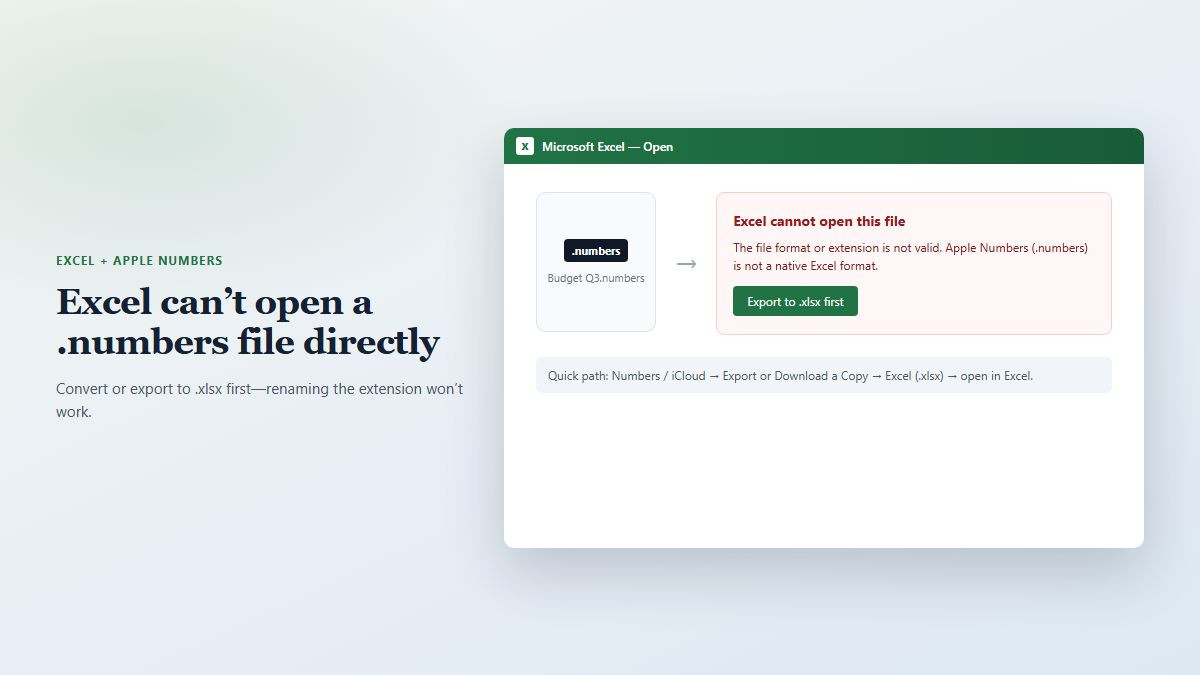
This is a classic cross-platform problem: a teammate on iPhone or Mac sends a spreadsheet, your Windows PC double-clicks it, and Excel says the file is invalid or damaged. The fix is conversion—not a hidden Excel menu for .numbers. Below is the full path users actually search for: basic open/convert steps, the “corrupt file” traps, how to keep formulas and layout, and what to do when Apple ↔ Microsoft handoffs keep breaking.
Can Excel open a Numbers file?
No—not natively. Excel reads .xlsx/.xls (and CSV/text). Apple Numbers uses its own package format. Until you export or convert, Excel has nothing valid to open. That is why “Open with Excel” fails, and why a renamed .numbers file still looks corrupt.
Method 1: Export Numbers to Excel on a Mac (or iPhone/iPad)
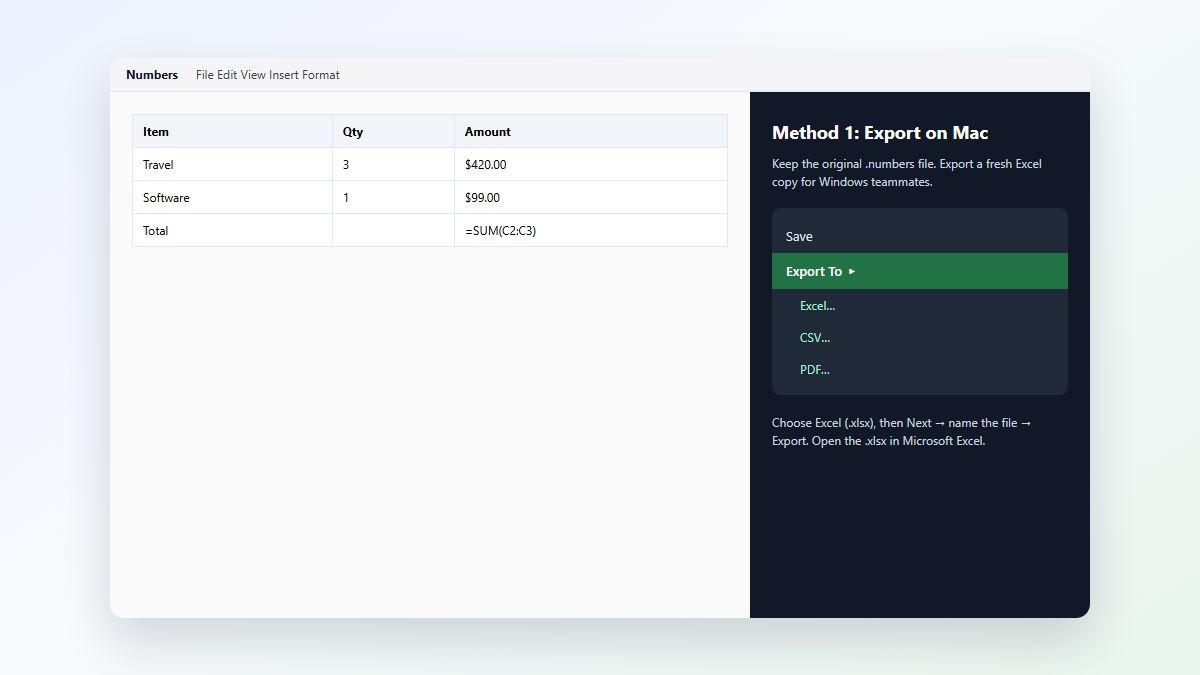
If you have any Apple device with Numbers, this is usually the cleanest conversion—and the most stable option for large or formula-heavy reports.
Open the spreadsheet in the Numbers app.
Choose File → Export To → Excel (on iPhone/iPad: share / more options → Export → Excel).
Keep .xlsx selected unless someone specifically needs older
.xls.Optional: open Advanced Options if you need password protection or Excel compatibility tweaks.
Click Next, pick a folder, then Export.
On Windows or Mac, open the new
.xlsxin Excel with File → Open.
Tip: ask the sender to export to Excel before emailing when you exchange files every week—it removes the conversion step on your side.
Method 2: Open a Numbers file in Excel on Windows with iCloud (no Mac)
You do not need Apple hardware. You need a free Apple ID and a browser. This is the default path for “Windows PC, no Mac, how do I open a Numbers file in Excel?”
Go to iCloud.com and sign in.
Open Numbers.
Upload the
.numbersfile from your PC.Open the uploaded spreadsheet.
Use the tools / more menu → Download a Copy → choose Excel.
Save the downloaded
.xlsx, then open it in Microsoft Excel.
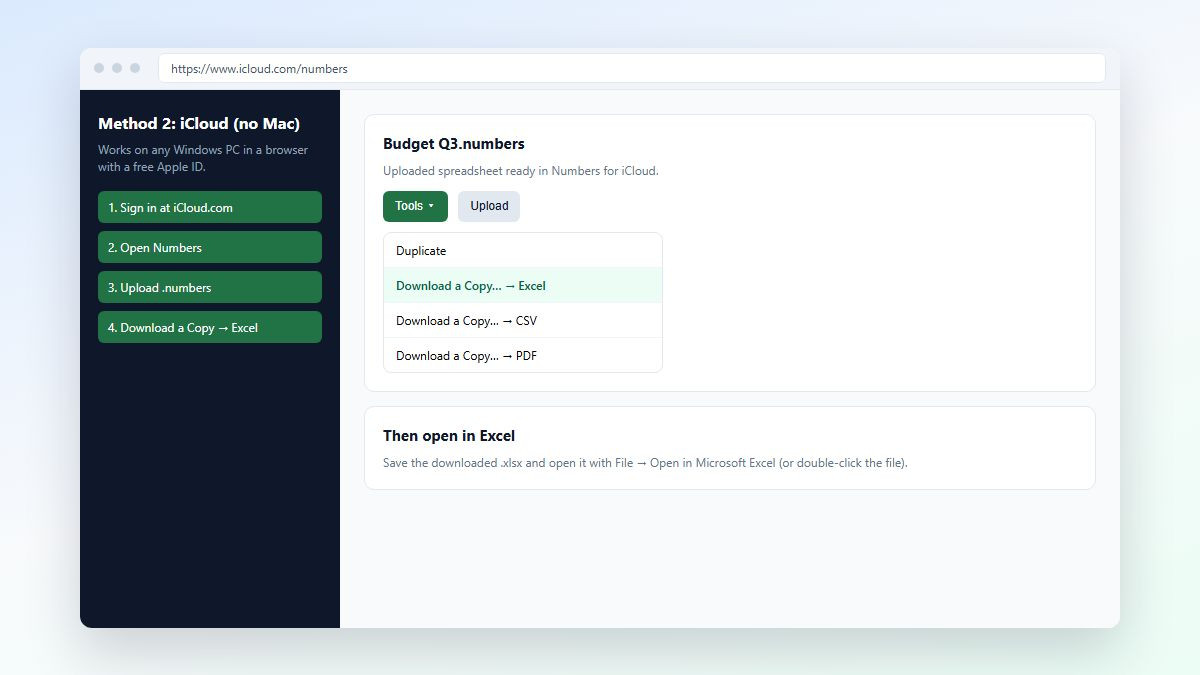
iCloud export usually preserves formulas and layout better than casual online converters—especially for multi-sheet workbooks.
Method 3: Free online Numbers-to-Excel converters (use carefully)
Yes—free web converters can turn .numbers into .xlsx without a Mac. They answer the “is there a free online converter?” search, but they are a tradeoff, not the first choice for work files.
When they help: one-off personal sheets, no payroll/HR/client secrets, you lack an Apple ID, and the file is under the site’s upload size limit.
When to skip them: confidential finance data, large reports that hit upload caps, or anything where charts/formulas must stay exact.
Safer habit: prefer Numbers/iCloud export, or ask the sender for
.xlsxso sensitive sheets never leave your devices.
Why renaming .numbers to .xlsx “corrupts” the file
Changing only the file extension does not rebuild an Excel package. Excel then reports an invalid format or damaged workbook—even on a brand-new Numbers file with one cell of text.
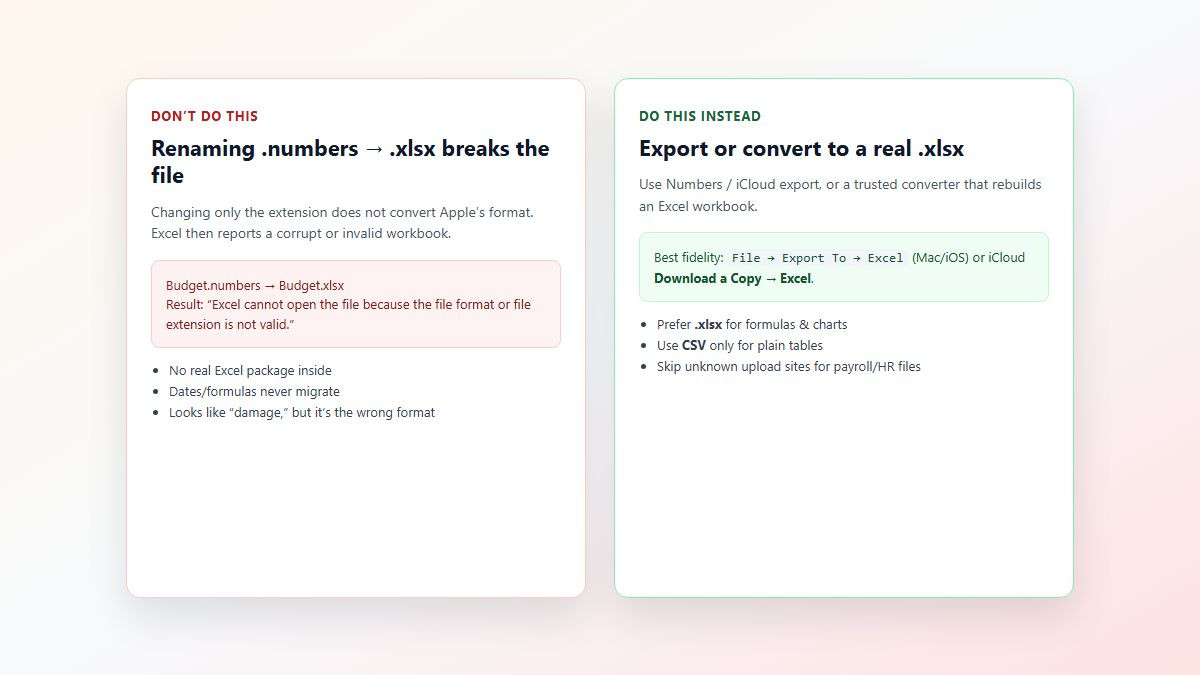
Always export or convert. Keep the original .numbers as backup.
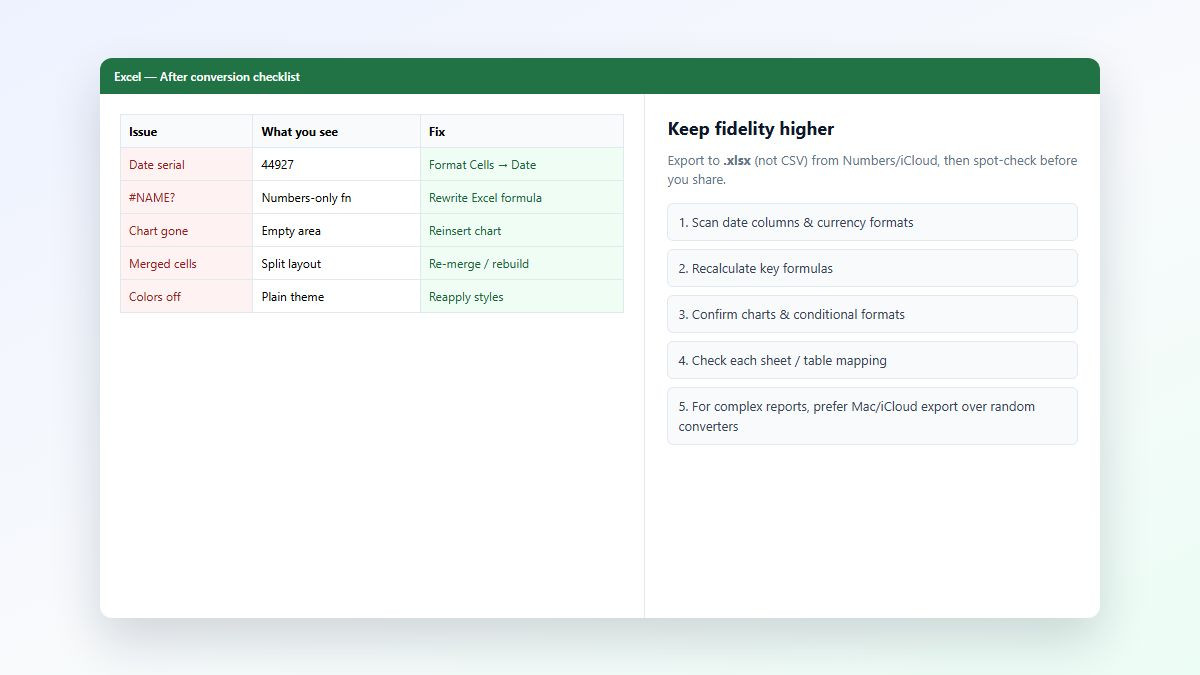
Fix garbled text, serial-number dates, and broken formulas after conversion
Even a good export can need a five-minute QA pass—these are the high-friction failures people hit right after “it finally opened.”
Dates show as 44927-style numbers: select the column → Format Cells → Date (or the correct local date format).
Odd characters / “mojibake”: re-export as
.xlsxfrom Numbers/iCloud; if you used CSV, reopen with UTF-8 encoding or avoid CSV for non-English text.Formulas show #NAME? or become static values: Numbers-only functions may not map. Rebuild with Excel equivalents (
SUM,XLOOKUP/VLOOKUP, etc.).Charts missing or shifted: reinsert charts from the data range; decorative canvas layouts transfer poorly.
Merged cells, conditional formatting, or theme colors drop: common after conversion—reapply merges/rules or simplify the layout in Numbers before exporting.
How to keep formatting and formulas as intact as possible
Prefer Numbers or iCloud export to .xlsx over random upload sites for anything important.
Before export, replace exotic Numbers functions with mainstream spreadsheet functions when you can.
Flatten overly designed “canvas” layouts (many floating tables) into clearer sheets.
Export once, then spot-check totals, dates, and each sheet.
For large tables and complex reports, Mac Numbers export or iCloud Download a Copy is usually more stable than third-party converters.
CSV vs XLSX: which export should you choose?
Choose .xlsx when you need formulas, multiple sheets, charts, cell formats, or ongoing editing in Excel.
Choose CSV only for a simple single table of values (imports, plain data dumps). CSV drops charts, most formatting, and live formulas—so it is the wrong default for “open Numbers in Excel and keep working.”
Another option: keep working in WPS Spreadsheets after you have .xlsx
The long-term pain is bigger than one file: Apple iWork and Microsoft Office do not share one native spreadsheet format. Windows↔Mac handoffs keep forcing exports—and every hop risks date quirks, dead formulas, and layout drift. Excel’s hard limit is clear: no direct .numbers open, so you always depend on a Mac, an Apple ID + iCloud, or a third-party converter (with privacy tradeoffs).
After you export once to .xlsx or .csv, WPS Office Spreadsheets is a practical place to keep day-to-day work moving: open common Excel-compatible workbooks across Windows, macOS, mobile, and the web with a familiar ribbon; reduce “Office-only” lock-in for shared .xlsx/.csv files; and use the free tier for basic spreadsheet work without a high-priced Microsoft 365 subscription. That does not remove the one-time Numbers→Excel export, but it makes cross-platform editing after conversion simpler for individuals and small teams.
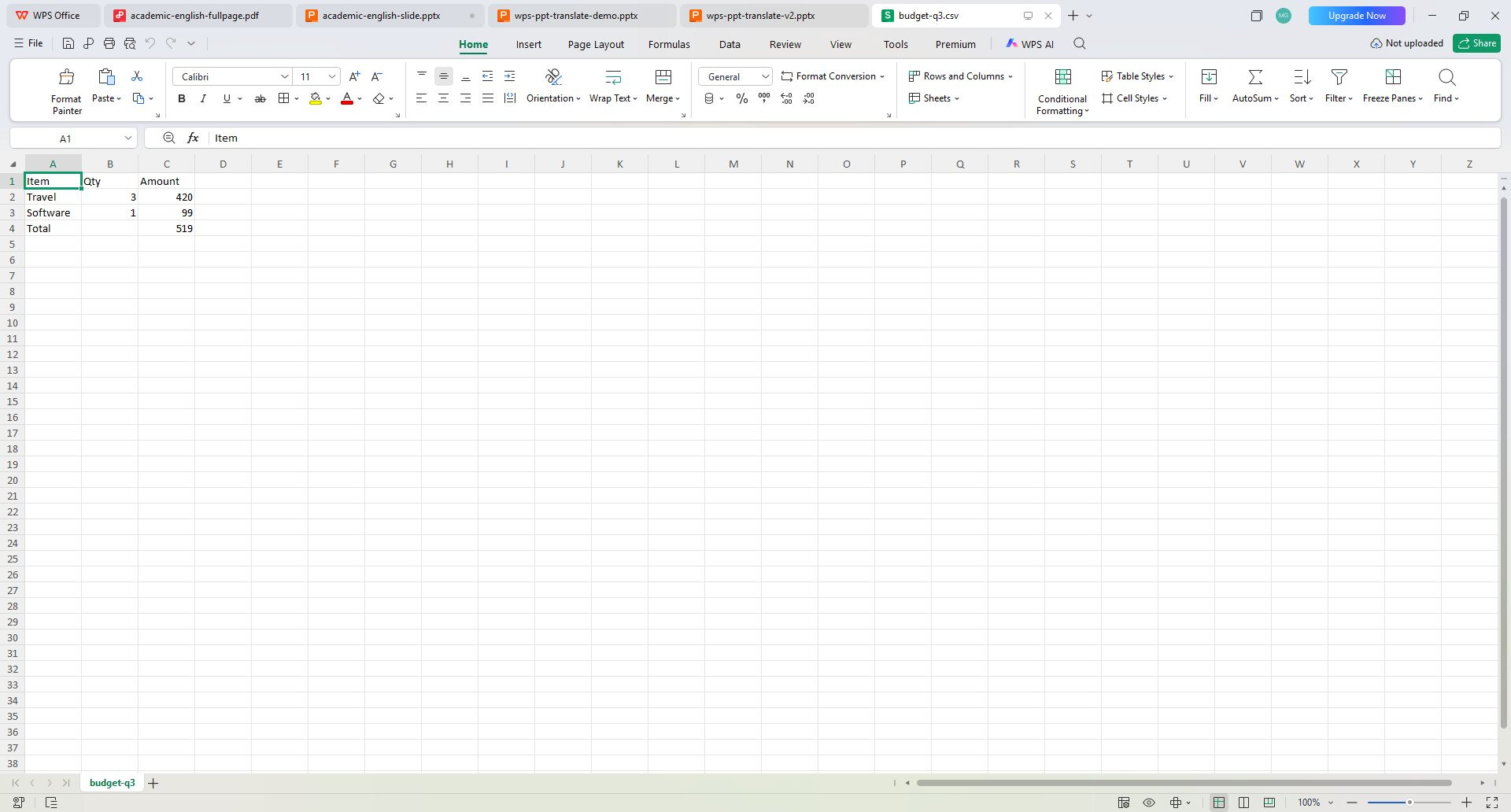
.xlsx or .csv in WPS Spreadsheets on Windows, Mac, or mobile for day-to-day cross-platform work.FAQ
Can Microsoft Excel open a .numbers file directly?
No. Excel does not support Apple Numbers natively. Export or convert to .xlsx (or CSV), then open that file in Excel.
How do I open a Numbers file in Excel on Windows without a Mac?
Use iCloud.com → Numbers → upload the file → Download a Copy → Excel. Then open the downloaded .xlsx in Excel.
Why does Excel say my Numbers file is corrupt after I rename it to .xlsx?
Renaming only changes the label, not the file structure. Excel expects a real Excel package. Export from Numbers/iCloud instead.
Why are my dates a bunch of numbers after converting Numbers to Excel?
Excel is showing date serial values. Select the cells and apply a Date format. If text looks garbled, re-export as .xlsx or fix CSV encoding.
Will formulas and charts survive Numbers to Excel conversion?
Many common formulas transfer; Numbers-specific functions, complex charts, merges, and conditional formatting often need cleanup. Prefer .xlsx export over CSV.
Is a free online Numbers to Excel converter safe?
Only for non-sensitive files. For work data, use Numbers/iCloud export or ask the sender for .xlsx so you are not uploading confidential sheets to a third party.
Summary
To open a Numbers file in Excel, convert it first: Export To → Excel on Apple devices, or iCloud Download a Copy → Excel on Windows. Never rely on renaming .numbers to .xlsx. Prefer .xlsx over CSV when you need formulas and charts, then verify dates, formulas, merges, and layout. For ongoing editing after export, WPS Spreadsheets is an optional cross-platform way to work with the Excel-compatible file without living only inside Microsoft 365.



'%3e%3cpath%20d='M19.9911%204.11386V6.471H18.5894C18.0775%206.471%2017.7322%206.57814%2017.5536%206.79243C17.3751%207.00671%2017.2858%207.32814%2017.2858%207.75671V9.44421H19.9019L19.5536%2012.0871H17.2858V18.8639H14.5536V12.0871H12.2769V9.44421H14.5536V7.49779C14.5536%206.39064%2014.8632%205.53201%2015.4822%204.92189C16.1013%204.31177%2016.9257%204.00671%2017.9554%204.00671C18.8304%204.00671%2019.509%204.04243%2019.9911%204.11386Z'%20fill='%23333333'/%3e%3c/g%3e%3cdefs%3e%3cclipPath%20id='clip0_2938_8199'%3e%3crect%20width='16'%20height='16'%20fill='white'%20transform='translate(8%204.00671)'/%3e%3c/clipPath%3e%3c/defs%3e%3c/svg%3e)
'%3e%3cpath%20d='M17.5237%2010.7813L23.4811%204H22.0699L16.8949%209.88693L12.7648%204H8L14.2469%2012.9029L8%2020.0133H9.4112L14.8725%2013.7952L19.2352%2020.0133H24M9.92053%205.04213H12.0885L22.0688%2019.0224H19.9003'%20fill='%23333333'/%3e%3c/g%3e%3cdefs%3e%3cclipPath%20id='clip0_2938_8200'%3e%3crect%20width='16'%20height='16.0134'%20fill='white'%20transform='translate(8%204)'/%3e%3c/clipPath%3e%3c/defs%3e%3c/svg%3e)


