Converting HTML to PDF is essential for creating stable, shareable
documents, but often the PDF will have inconsistent styling or other
formatting issues. This happens because HTML is not suited for fixed
page formats like PDF. But that doesn't mean there are not good tools
out there to solve this. If you’re someone who consistently needs to
convert and print webpages, then this guide explores the bestHTML to PDF tools, focusing on WPS PDF for reliable,
high-quality output.
HTML to PDF
How to Convert HTML to PDF
Online
Before looking into each tool, it is important to understand why
online converters are necessary. If you regularly work with HTML and
need to send it to others, you might understand how ineffective it is to
share a raw HTMLfile, since the recipient will always receive a broken, unformatted
version. The inconsistent rendering engines across different browsers
can cause the same webpage to appear differently depending on the
viewing software.
Online converters resolve these issues by functioning as a
standardized rendering environment that captures the current state of a
webpage and encapsulates it into a fixed document format. Instead of
sending a skeleton file that merely references external images, these
tools embed every element directly into the final PDF. This ensures that
you can share a complete document that looks exactly as intended,
regardless of the recipient's internet connection or access to the
original server. Additionally, since the conversion process occurs on
cloud servers, you can generate high-quality documents from tablets or
public computers without the need for complex software installation or
technical configuration.
Top Web-Based
Online Converters (For Manual Use)
Selecting the most reliable HTML to PDF converter can be challenging
when faced with countless search results and varying rendering
qualities. You might require a robust platform capable of processing
complex CSS and JavaScript for a professional presentation, or simply a
quick, browser-based utility to archive a receiptwithout creating an account. The tools below cover different method
print HTML to PDF, helping you find the right method to secure your web
content efficiently.
1. WPS PDF Tools (Online)
WPS PDF Tools is best known
as a versatile component of the comprehensive WPS Office ecosystem,
offering speed that rivals premium software. Unlike simple standalone
converters that often produce static, uneditable files, WPS PDF Tools
distinguishes itself by integrating closely with a broader suite of
editing tools, making it the ideal choice for professionals who require
high-quality output that can be further modified.
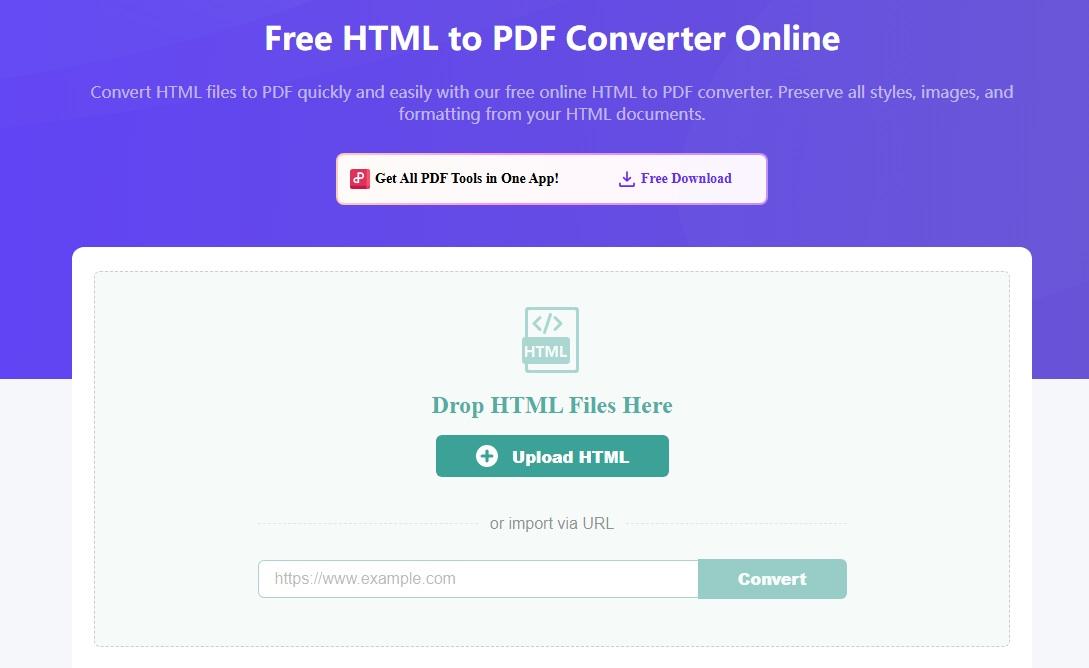
WPS HTML to PDF Interface
The platform provides a secure, streamlined online interface designed
to process HTML files with precision, ensuring that complex layouts,
fonts, and images are preserved during the transition to PDF format. It
functions as a comprehensive document gateway, allowing users to not
only convert web pages but also seamlessly manage, merge, and compress
the resulting files within a single unified system.
Features:
High Precision: Excellent preservation of text
fonts and image placement.
Secure: Files are automatically deleted from the
server after processing.
Multi-format Support: Seamlessly handles HTML,
JPG, Word, and Excel to PDF.
How to use:
Converting your file is a straightforward process designed for speed,
allowing you to process documents immediately without complex account
setups.
Step 1: First, head on over to the WPS HTML to
PDF tool website.
WPS HTML to PDF Interface
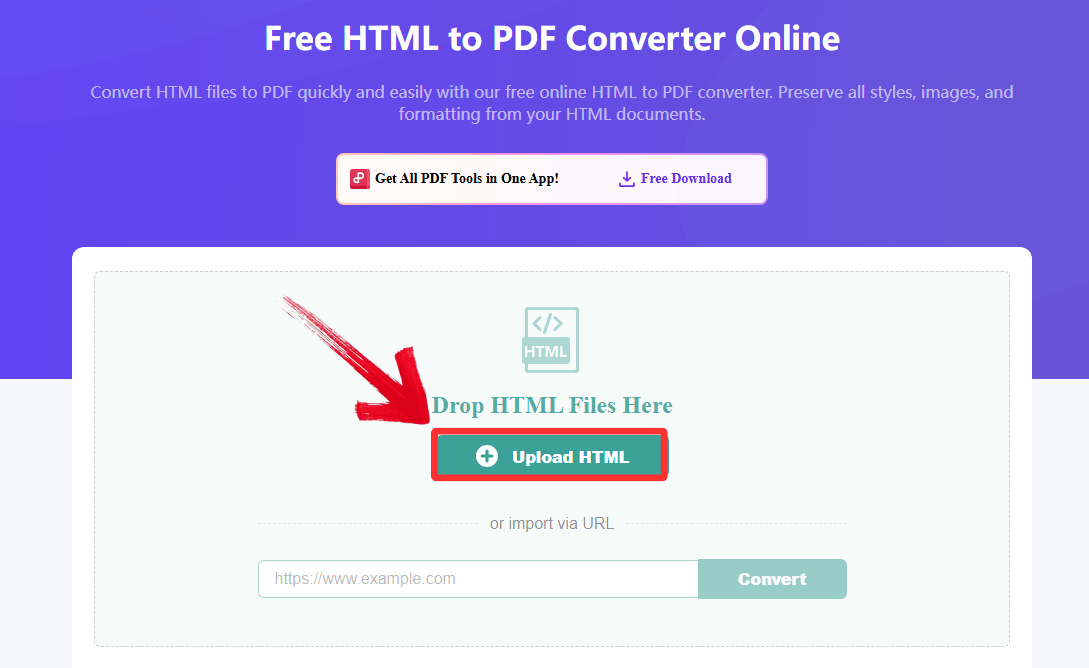
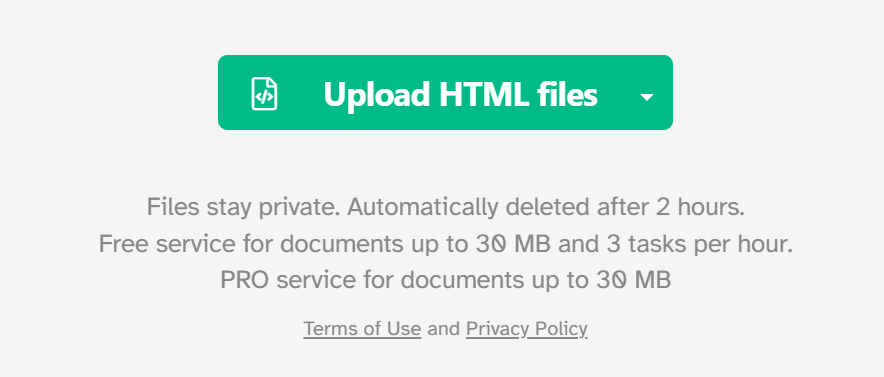
Step 2: Upload your HTML by dragging it or clicking
the “Upload HTML” button. You could also paste a web
URL directly.
Upload your Image
Step 3: Your file will be converted automatically,
then just click “Download” to save the extracted file
onto your device.
Download and save the PDF
Pros:
Exceptional Ease of Use: The minimalist
interface requires no technical knowledge, allowing for simple
copy-paste URL conversion.
High-Fidelity Output: It accurately preserves
the original webpage's layout, text formatting, images, and
hyperlinks.
No Watermarks: The service is completely free
and produces clean, professional documents without intrusive
watermarks.
No Installation Required: As a fully
browser-based tool, it is instantly accessible from any device without
downloading software.
Cons:
Internet Dependent: It requires an active
internet connection and cannot work with locally saved HTML
files.
Public URLs Only: The tool cannot convert
content hidden behind login walls or within private intranets.
Limited Customization: It lacks advanced options
for adjusting margins, page orientation, or selecting specific page
ranges.
Dynamic Content Issues: It may struggle to
capture highly interactive elements or content that relies heavily on
JavaScript.
WPS Office (On Desktop)
WPS
Office is best known as a comprehensive, all-in-one alternative
to Microsoft Office, integrating a powerful PDF editor directly with a
word processor, spreadsheet, and presentation tool. Unlike online
converters that simply freeze your HTML into a static file, the desktop
version differentiates itself by allowing you to open and edit the HTML
content as a document before finalizing it. This makes it the best
choice for users who need to correct typos, adjust formatting, or remove
unwanted web elements (like ads or sidebars) prior to conversion, all
without needing an internet connection.
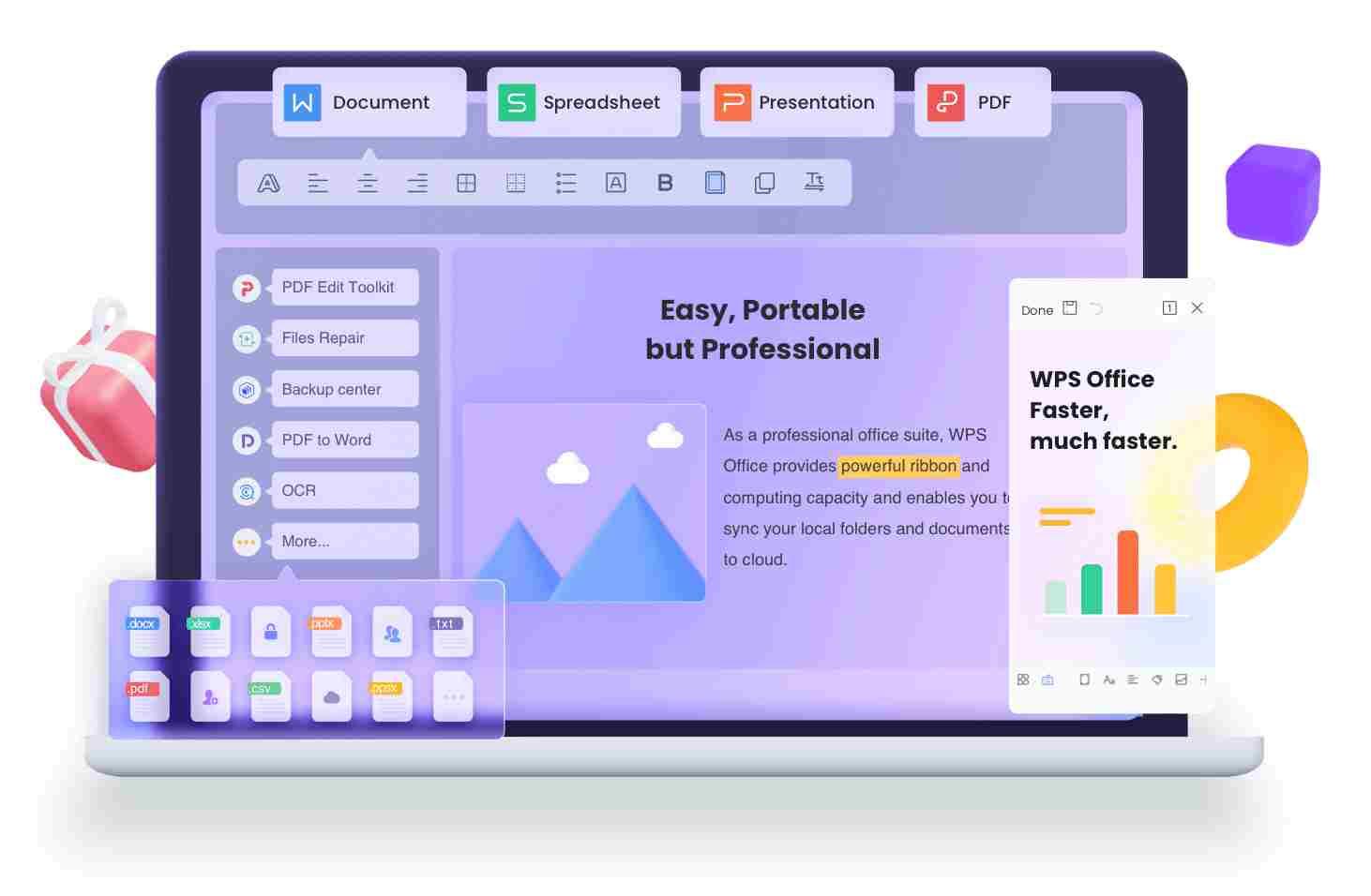
WPS Office
The software functions as a central hub for all document needs.
Beyond basic conversion, it offers advanced utilities like OCR to
extract text from images, file compression to shrink large reports, and
the ability to convert PDFs back into editable Word or Excel formats. It
provides a familiar, tabbed interface that lets you manage multiple
documents side-by-side, streamlining the workflow for heavy-duty
users.
Features:
Pre-Conversion Editing: Open HTML files directly
in the Writer component to modify text and layout just like a Word
document.
Offline Privacy: Processes files locally on your
machine, ensuring sensitive data never touches a cloud server.
Multi-Format Support: seamless conversion
between PDF, Word, Excel, PPT, and image formats (JPG/PNG).
Built-in PDF Toolkit: Includes tools to merge,
split, sign, and password-protect your converted files
immediately.
How to Convert HTML to PDF:
Unlike online tools that lock the file immediately, the desktop
process starts by treating your HTML file as an editable document,
giving you full control over the final look.
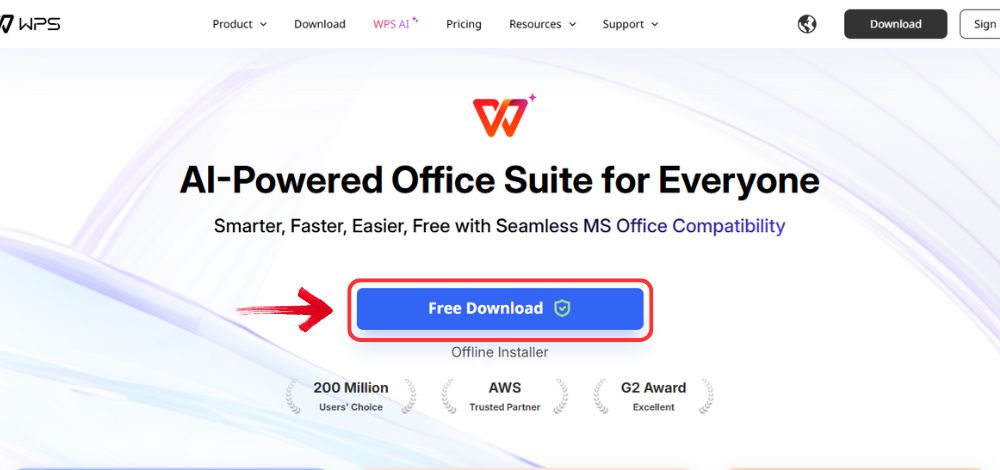
Step 1: Open your browser to visit WPS Office and click the"Free Download" button to start the download.
Download WPS Office
Step 2: The download will finish in a few seconds.
Once done, run the installation file like you would for any other app or
software.
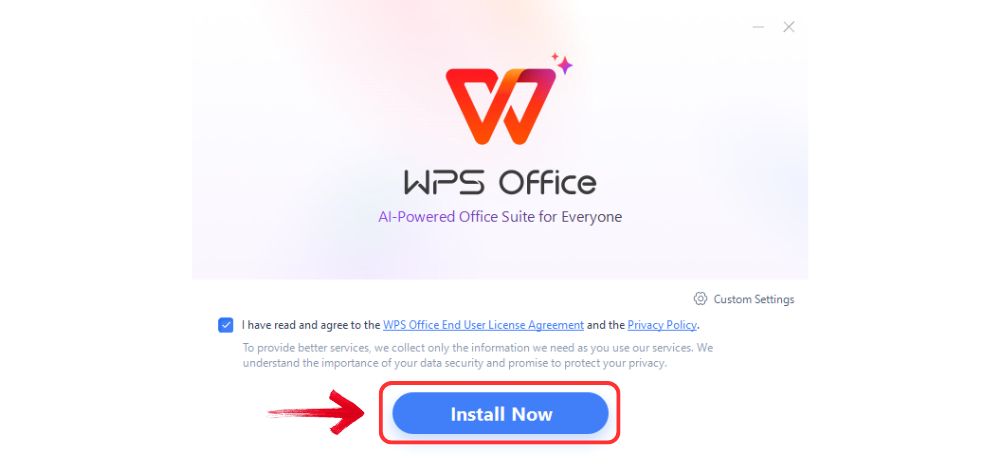
Step 3: WPS Office will show you a few simple terms
and conditions. Accept them, then click the "Install
Now" button to begin the installation.
Install WPS Office
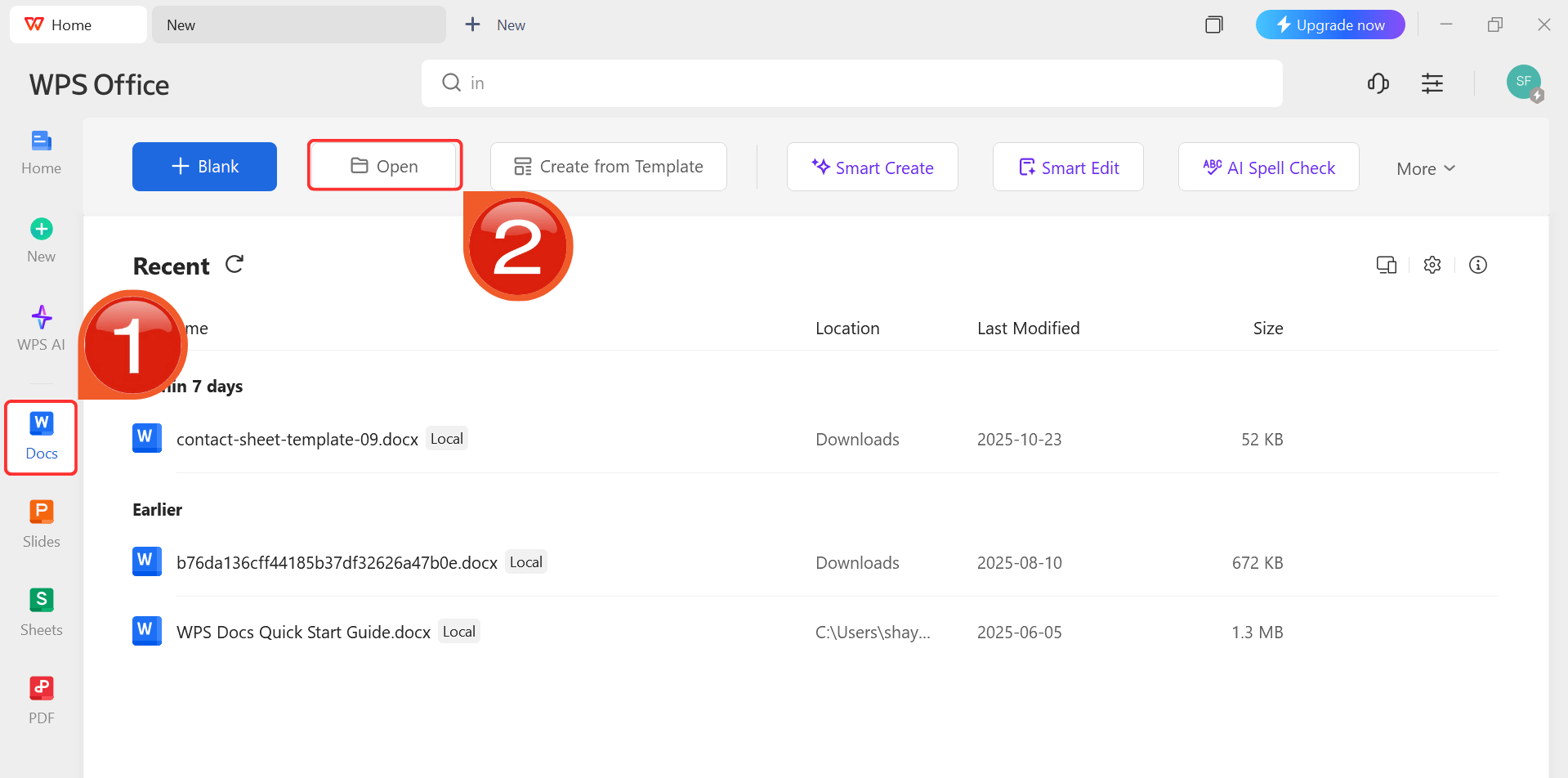
Step 4: After installation, in WPS Office, click“Docs” from the left sidebar and hit“Open” to select your HTML file in WPS Office.
WPS Docs Dashboard
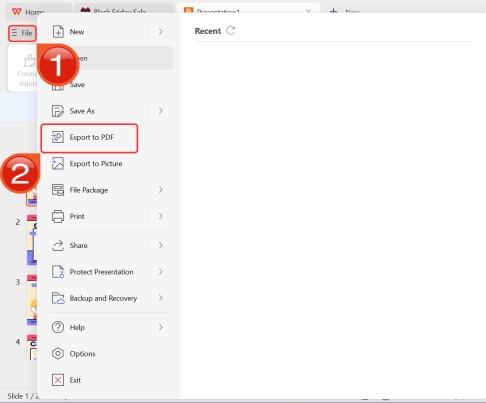
Step 5: After you’re done modifying the template,
head to “File” and choose “Export to
PDF” to save the HTML in PDF format.
Export as PDF
2. Adobe Acrobat Online
Adobe Acrobatis widely recognized as the industry standard for document management,
having originally created the PDF format itself. It sets itself apart
through unmatched reliability and strict adherence to ISO standards,
ensuring that converted documents render correctly on any professional
printing or viewing system. This tool is best suited for corporate users
and professionals who cannot afford formatting errors and require a
legally compliant, archive-grade document.
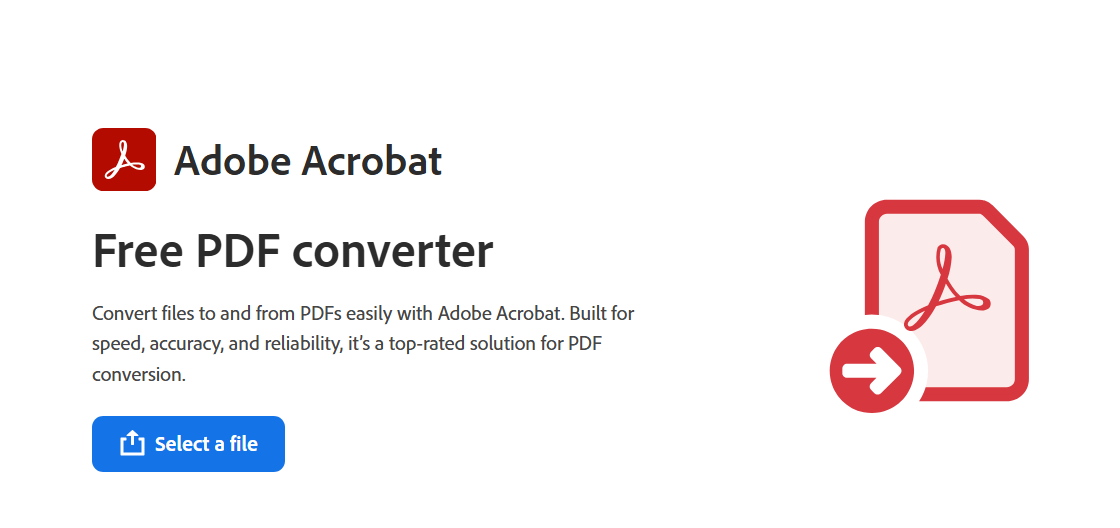
Adobe Acrobat PDF Converter
As a web-based utility, it delivers Adobe’s powerful rendering engine
directly in the browser, capable of handling complex web layouts and
preserving clickable links with a level of accuracy that free tools
often struggle to match. It simplifies the conversion process into a few
clicks while maintaining high-end security protocols, ensuring that
sensitive web data remains protected throughout the transformation.
Features:
Standard Compliance: Generates ISO-compliant
PDFs.
OCR Capability: Often makes text selectable even
from image-heavy pages.
Cloud Integration: Saves directly to Adobe Cloud
storage.
How to use:
Adobe simplifies the technical complexity of HTML conversion into a
single drag-and-drop action, handling the rendering securely in the
cloud to meet industry standards.
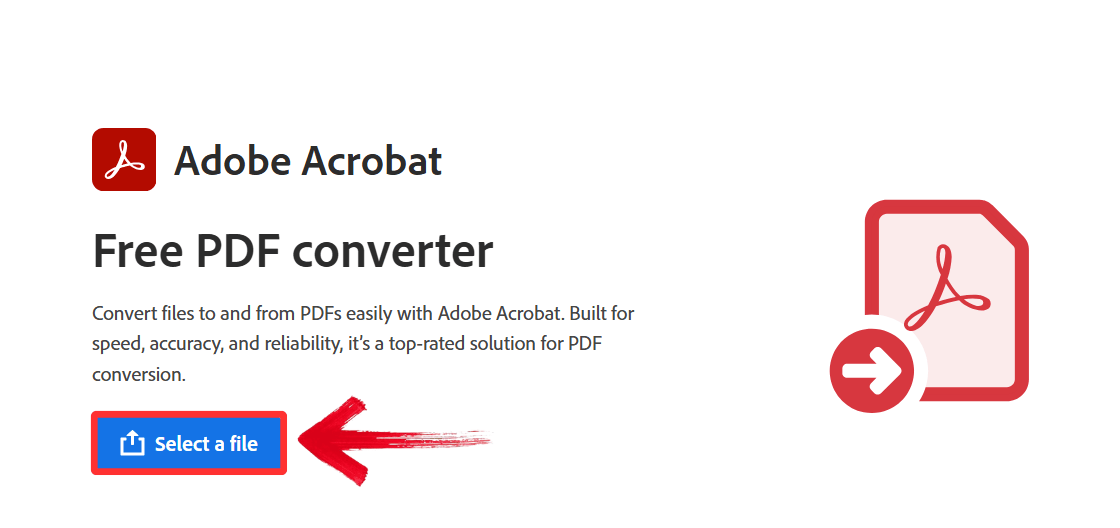
Step 2: Drag and drop your HTML file directly into
the conversion zone, or click the “Select a file”button to select a file from your device.
Upload File
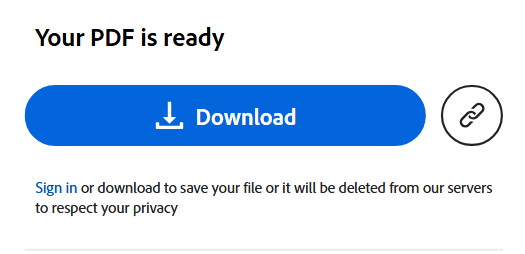
Step 3: Once the process finishes, click“Download” to save the converted high-quality PDF.
Download and Export
Pros:
Top-tier rendering quality.
Reliable handling of complex CSS.
Cons:
Often requires a sign-in or subscription for full
features.
Free use is limited.
3. Sejda
Sejda is best known for
its user-centric approach that combines simplicity with a surprisingly
deep set of configuration options rarely found in browser-based tools.
It differentiates itself by allowing granular control over the
conversion process, such as adjusting page margins, orientation, and
viewport size before the file is even generated. This makes it an
excellent choice for developers and power users who need specific
formatting parameters without writing complex code.
Sejda HTML to PDF Converter
The platform supports both raw HTML file uploads and direct URL
conversions, providing a clean, modern interface where users can
manipulate the final appearance of the document. It offers features
specifically designed to handle web content, such as the ability to
convert a long webpage into a single continuous PDF page or split it
into standard A4 sheets based on the user's preference.
Features:
URL to PDF: Can convert live websites just by
pasting the link.
Page Settings: Allows you to adjust margins and
page orientation before converting.
How to use:
Sejda offers flexible input methods, allowing you to convert either a
live website URL or a saved file from your computer with specific layout
configurations.
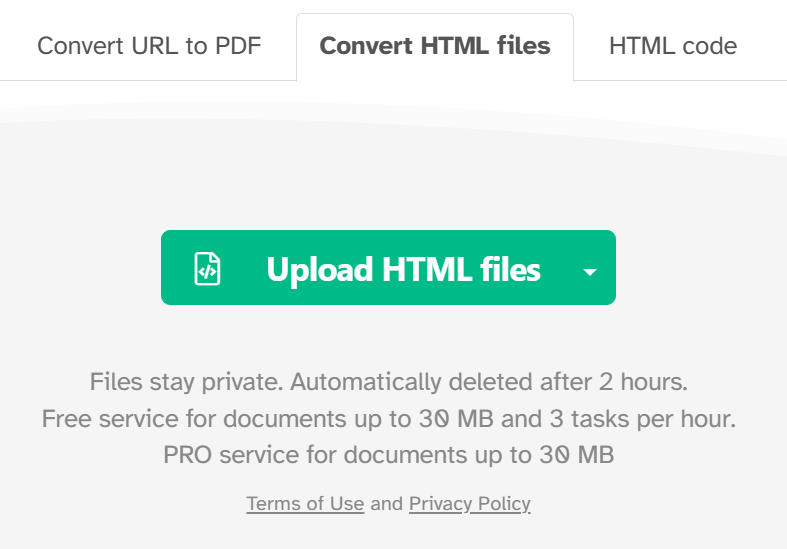
Step 2: Choose your input method: click“Convert URL to PDF” to paste a link, or“Upload HTML files” for local documents.
Upload Files
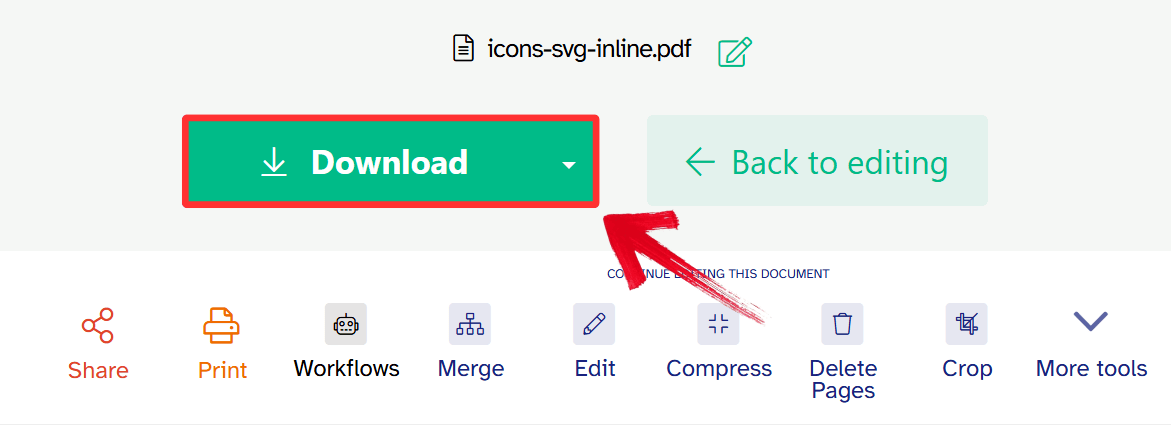
Step 3: Click “Download” to save
your document.
Download and Export
Pros:
Offers advanced options like one long page (great for mobile
views).
No watermarks on the free version.
Cons:
Limit: Free service is limited to 3 tasks per
day and 50MB files.
4. CloudConvert
CloudConvert is best
known as a powerful, format-agnostic conversion engine that supports
over 200 different file types with technical precision. It stands out
from competitors by offering advanced rendering options, such as the
ability to delay conversion until specific page elements have loaded,
which is critical for preserving dynamic web content heavily reliant on
JavaScript. This tool is particularly well-suited for developers and
technical users who require precise control over encoding settings and
file attributes.
CloudConvert HTML to PDF
The platform functions as a robust utility that allows for detailed
customization through its settings menu, enabling users to define the
exact screen width, zoom level, and background preferences to ensure the
PDF captures the webpage exactly as it appears on a monitor. It
prioritizes API-level quality in a user-friendly interface, ensuring
that even complex technical requirements are met during the
conversion.
Features:
Custom Selectors: Can wait for specific page
elements to load before converting (great for JS-heavy sites).
Batch Processing: Convert multiple HTML files at
once.
How to use:
Before executing the conversion, CloudConvert allows you to verify
and tweak your file settings to ensure the rendering engine captures the
page exactly as intended.
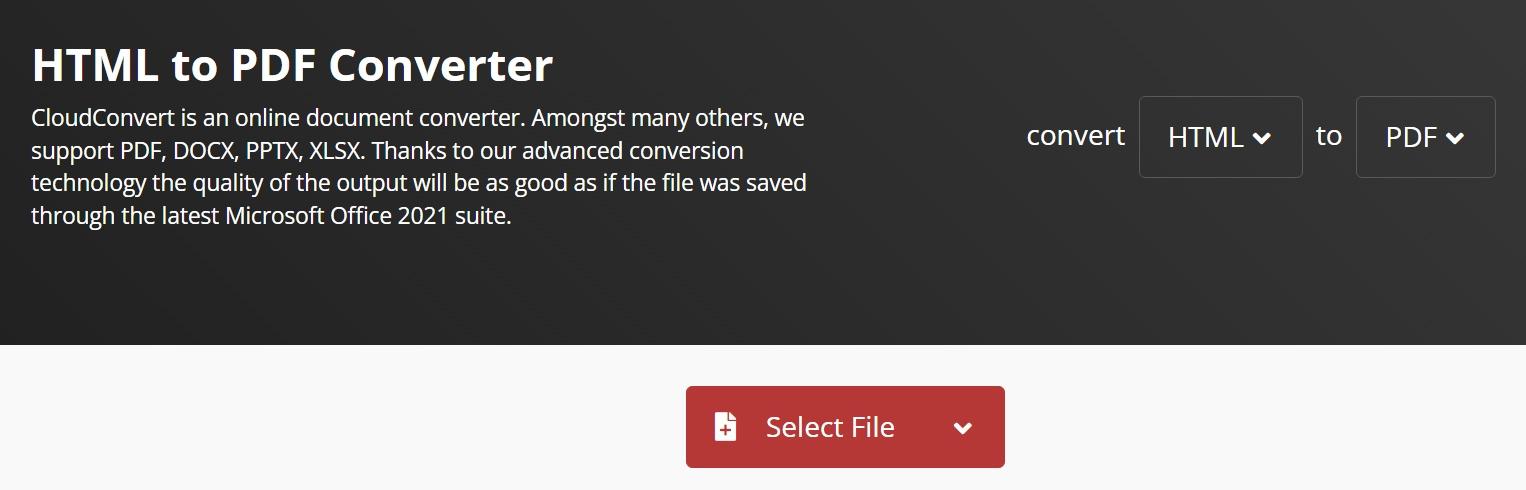
Step 2: Click ”Select File” to
upload your document, or use the dropdown menu to add a URL or file from
cloud storage.
Upload File
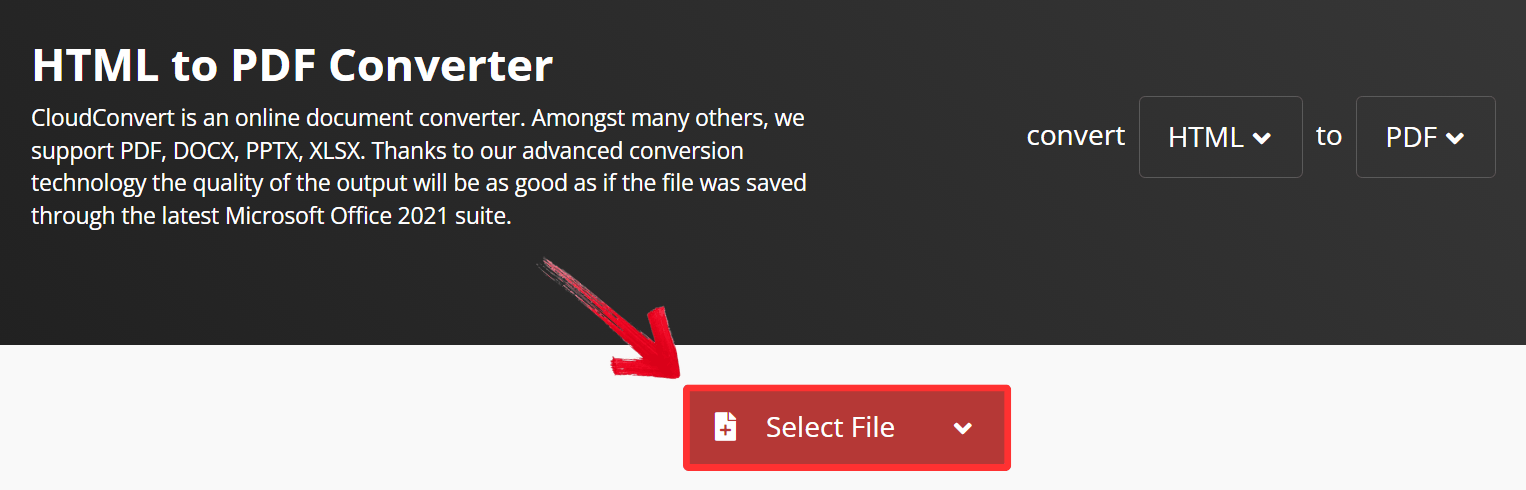
Step 3: Click the “Convert” button.
Once the status changes to Finished, click “Download”to retrieve your file.
Download and Export
Pros:
High degree of technical customization.
Clean, ad-free interface.
Cons:
Daily conversion limits for free users (usually 25
minutes/day).
5. FreeConvert.com
FreeConvert is best
known for its generous accessibility, offering some of the highest file
size limits available among free online services. It distinguishes
itself by supporting massive uploads of up to 1GB, a feature that most
competitors lock behind expensive paywalls or subscription tiers. This
makes it the optimal choice for users dealing with exceptionally large,
image-heavy HTML reports or extensive data logs that other converters
reject due to size restrictions.
FreeConvert HTML to PDF
The tool provides a straightforward, no-nonsense interface secured by
256-bit SSL encryption, focusing purely on processing heavy workloads
efficiently without burdening the user with complex configuration steps.
It leverages advanced conversion algorithms to compress and optimize
large web documents into manageable PDF files without significant loss
of visual quality.
Features:
Large File Support: Supports files up to
1GB.
Security: Uses 256-bit SSL encryption.
How to use:
This tool prioritizes speed and volume, allowing you to process even
exceptionally large HTML archives with minimal clicks and no complex
configuration.
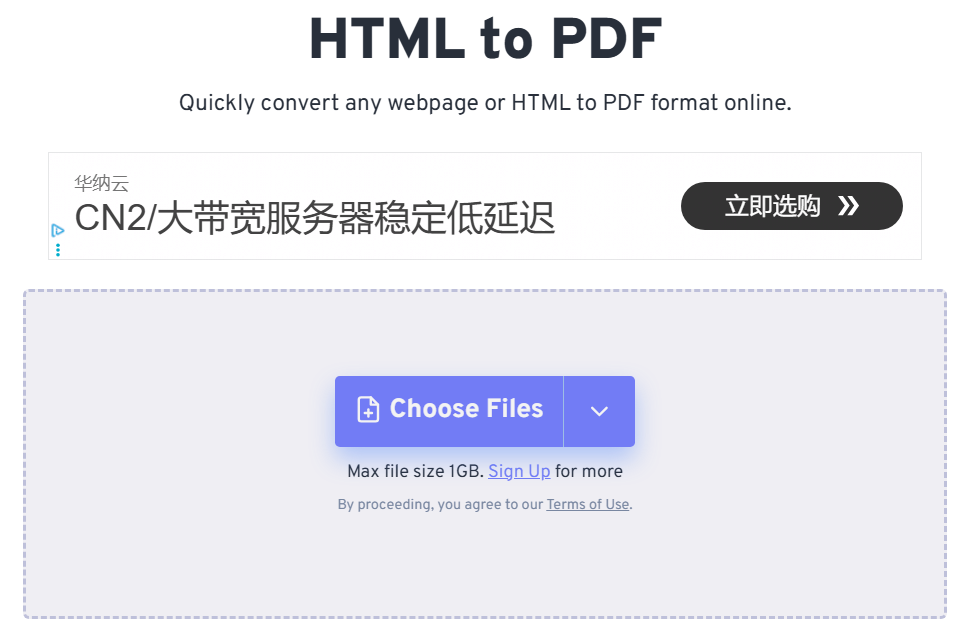
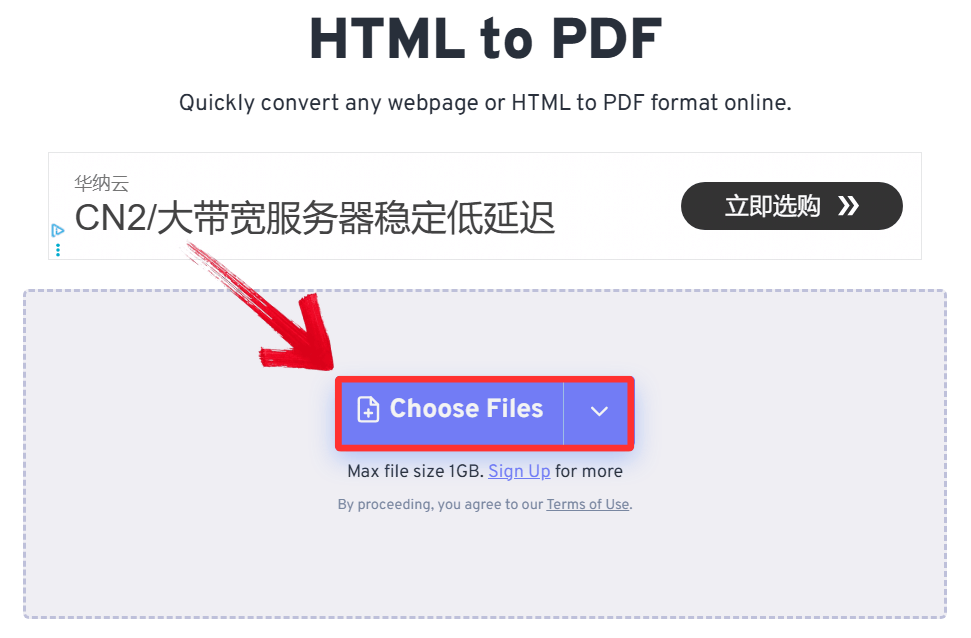
Step 2: Click “Choose Files” to
select your document from your computer, Dropbox, Google Drive, or a
URL.
Upload File
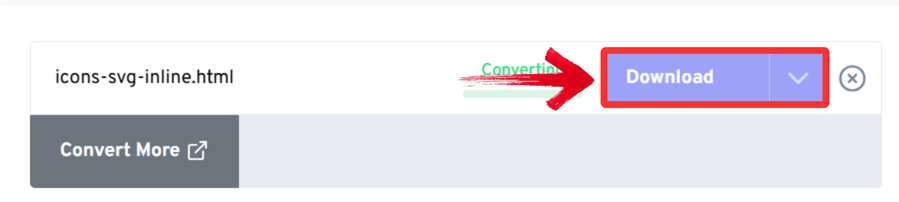
Step 3: Once the conversion is complete, click the“Download PDF” button to save the file.
Download and Export
Pros:
Very generous file size limits.
Simple, no-fuss process.
Cons:
The site is ad-supported, which can be distracting.
Quick Comparison Table
Selecting the ideal HTML to PDF converter often depends on balancing
specific project requirements against platform restrictions. You might
need a tool capable of handling massive file sizesfor a data log, or a precision engine that supports complex styling for
client deliverables. The comparison below outlines the distinct
advantages and limitations of each service, providing a clear overview
of which solution best fits your operational needs.
Feature
WPS PDF Tools
Adobe Acrobat
Sejda
CloudConvert
FreeConvert
Best For
Quality & Editing
Official Standards
Layout Control
Tech/Developers
Large Files
Platform
Web-Based (Online)
Web-Based (Online)
Web-Based (Online)
Web-Based (Online)
Web-Based (Online)
Ease of Use
Very Easy
Easy
Easy
Moderate
Very Easy
Requires Install?
No
No
No
No
No
Free Limits
Generous
Low (Login Req.)
3 tasks/day
25 mins/day
1GB Limit
Key Feature
High Fidelity
ISO Compliance
URL Conversion
Custom Rendering
Massive Uploads
Why Choose WPS PDF
Tools Convert HTML to PDF
Most Online converters listed above are effective, but most of them
have daily limits, annoying popups, or slow processing times. Relying on
purely web-based utilities for sensitive corporate or personal data
often raises valid concerns regarding data persistence and third-party
tracking. If you’re a professional seeking a secure, unrestricted
environment that prioritizes privacy, WPS PDF Tools and WPS Office are
perfect for you.
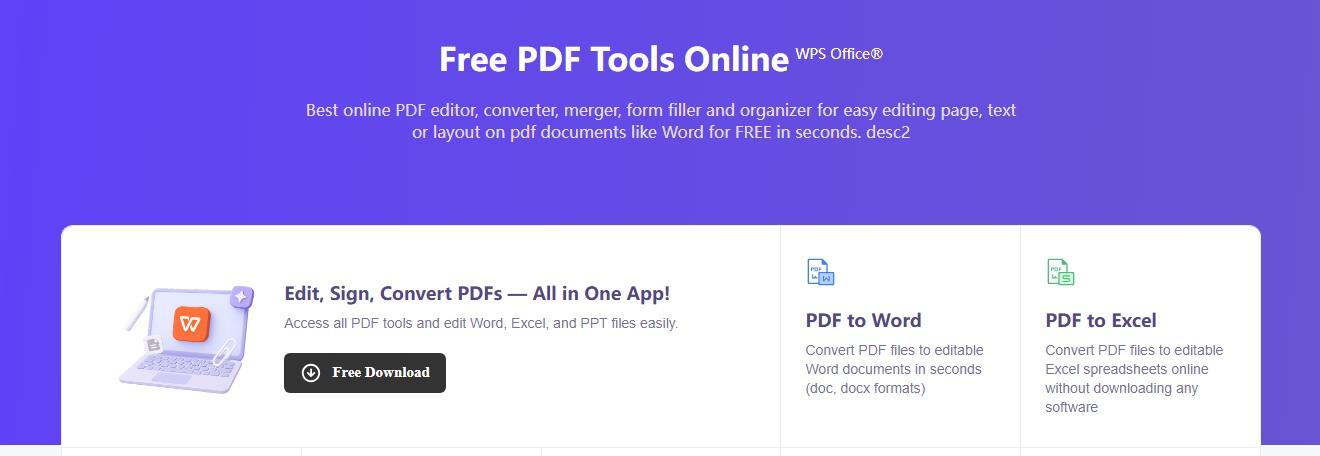
WPS PDF Tools
WPS PDF
Tools are designed as professional-grade document
solutions that operate without the problems of typical free online
converters. It distinguishes itself by offering a completely clean
interface free from distracting ads,
ensuring that your workflow remains focused and efficient. Unlike
competitors that monetize user data or impose strict caps to force
upgrades, WPS provides a transparent, reliable platform where the user's
privacy and productivity are paramount. On the other hand, if you need
complete security, privacy, and a complete ecosystem, then WPS
Office is a free and complete office suite that is light on the
device.
How to Use the WPS
HTML to PDF Converter
Converting your file is a straightforward process designed for speed,
allowing you to process documents immediately without complex account
setups.
Step 1: First, head on over to the WPS HTML to
PDF tool website.
WPS HTML to PDF Interface
Step 2: Upload your HTML by dragging it or clicking
the “Upload HTML” button. You could also paste a web
URL directly.
Upload your Image
Step 3: Your file will be converted automatically,
then just click “Download” to save the extracted file
onto your device.
Download and save the PDF
FAQs
Q1:
How do I add custom headers, footers, and page numbers to my PDF?
Libraries designed for print documents excel at this. WeasyPrint has
excellent support for the CSS Paged Media specification, which allows
you to define headers, footers, and page numbers directly in your CSS
file using @page rules. pdfkit also allows you to pass command-line
options for adding basic headers and footers.
Q2:
What's the main difference between an online converter and a Python
library?
Online converters are convenient, require no setup, and are great for
non-technical users. However, they offer less customization and can be a
security risk for sensitive data. Python libraries provide maximum
control over the output, are better for automation and batch processing,
and keep your data secure on your own machine, but they require coding
knowledge.
Q3:
Can I save a webpage as a PDF directly from my browser without a tool?
Yes. In Chrome, Edge, or Firefox, you can press Ctrl + P (Windows) or
Cmd + P (Mac) to open the print dialog. Under Destination or Printer,
select Save as PDF. This is the fastest method, but it often lacks
advanced formatting options and may include unwanted ads or headers.
Q4:
Why do images sometimes get cut off between pages in the PDF?
This is a common CSS issue. HTML doesn't naturally understand pages.
To fix this, you can add a simple CSS rule to your HTML file before
converting: img { page-break-inside: avoid; }. This tells the converter
(and WPS) to move the entire image to the next page rather than slicing
it in half.
Choosing the Right PDF
Solution
Converting HTML to PDF should not be a struggle characterized by
broken layouts or missing styles. While online platforms like Sejda or
FreeConvert provide instant solutions for immediate, on-the-go tasks, WPS PDF Toolsemerges as the superior choice when professional quality and editability
are paramount. It effectively bridges the gap between raw conversion and
comprehensive document design, enabling you to refine, edit, and perfect
your HTML documents within a single, intuitive interface.
Khadija Khan is a tech writer who explores office suites and creates content to simplify everyday tools. She teaches and inspires through clear, engaging writing.


'%3e%3cpath%20d='M8%200C12.4183%200%2016%203.58172%2016%208C16%2012.4183%2012.4183%2016%208%2016C3.58172%2016%200%2012.4183%200%208C0%203.58172%203.58172%200%208%200ZM11.6162%204.38379C11.2257%203.99337%2010.5927%203.99338%2010.2021%204.38379L8%206.58594L5.79785%204.38379C5.40732%203.99334%204.77429%203.99329%204.38379%204.38379C3.99331%204.77429%203.99335%205.40733%204.38379%205.79785L6.58594%208L4.38379%2010.2021C3.99348%2010.5927%203.99341%2011.2257%204.38379%2011.6162C4.77426%2012.0066%205.40734%2012.0065%205.79785%2011.6162L8%209.41406L10.2021%2011.6162C10.5927%2012.0066%2011.2257%2012.0067%2011.6162%2011.6162C12.0067%2011.2257%2012.0066%2010.5927%2011.6162%2010.2021L9.41406%208L11.6162%205.79785C12.0066%205.40735%2012.0066%204.77429%2011.6162%204.38379Z'%20fill='%23080E17'%20fill-opacity='0.46'/%3e%3c/g%3e%3cdefs%3e%3cclipPath%20id='clip0_3761_713'%3e%3crect%20width='16'%20height='16'%20fill='white'/%3e%3c/clipPath%3e%3c/defs%3e%3c/svg%3e)




'%3e%3cpath%20fill-rule='evenodd'%20clip-rule='evenodd'%20d='M21.4999%2010.9993C21.4999%205.20009%2016.7986%200.498901%2010.9993%200.498901C5.19994%200.498901%200.498657%205.20009%200.498657%2010.9993C0.498657%2016.2404%204.33858%2020.5844%209.35855%2021.3722V14.0346H6.69238V10.9993H9.35855V8.68594C9.35855%206.05427%2010.9262%204.60062%2013.3248%204.60062C14.4736%204.60062%2015.6753%204.80571%2015.6753%204.80571V7.38979H14.3512C13.0468%207.38979%2012.64%208.19921%2012.64%209.0296V10.9993H15.5523L15.0867%2014.0346H12.64V21.3722C17.66%2020.5844%2021.4999%2016.2404%2021.4999%2010.9993Z'%20fill='%231568EA'/%3e%3c/g%3e%3c/svg%3e)


'%3e%3cpath%20d='M2.42045%2022.1876H6.31818V12.7217L0.75%208.54553V20.5171C0.75%2021.4414%201.49892%2022.1876%202.42045%2022.1876Z'%20fill='%234285F4'/%3e%3cpath%20d='M19.682%2022.1876H23.5797C24.5041%2022.1876%2025.2502%2021.4387%2025.2502%2020.5171V8.54553L19.682%2012.7217'%20fill='%2334A853'/%3e%3cpath%20d='M19.682%205.48293V12.7216L25.2502%208.54543V6.31816C25.2502%204.25236%2022.8921%203.07469%2021.2411%204.31361'%20fill='%23FBBC04'/%3e%3cpath%20d='M6.31824%2012.7217V5.48303L13.0001%2010.4944L19.6819%205.48303V12.7217L13.0001%2017.733'%20fill='%23EA4335'/%3e%3cpath%20d='M0.75%206.31816V8.54543L6.31818%2012.7216V5.48293L4.75909%204.31361C3.10534%203.07469%200.75%204.25236%200.75%206.31816Z'%20fill='%23C5221F'/%3e%3c/g%3e%3cdefs%3e%3cclipPath%20id='clip0_2954_7305'%3e%3crect%20width='24.5'%20height='18.375'%20fill='white'%20transform='translate(0.75%203.8125)'/%3e%3c/clipPath%3e%3c/defs%3e%3c/svg%3e)





'%3e%3cpath%20d='M19.9911%204.11386V6.471H18.5894C18.0775%206.471%2017.7322%206.57814%2017.5536%206.79243C17.3751%207.00671%2017.2858%207.32814%2017.2858%207.75671V9.44421H19.9019L19.5536%2012.0871H17.2858V18.8639H14.5536V12.0871H12.2769V9.44421H14.5536V7.49779C14.5536%206.39064%2014.8632%205.53201%2015.4822%204.92189C16.1013%204.31177%2016.9257%204.00671%2017.9554%204.00671C18.8304%204.00671%2019.509%204.04243%2019.9911%204.11386Z'%20fill='%23333333'/%3e%3c/g%3e%3cdefs%3e%3cclipPath%20id='clip0_2938_8199'%3e%3crect%20width='16'%20height='16'%20fill='white'%20transform='translate(8%204.00671)'/%3e%3c/clipPath%3e%3c/defs%3e%3c/svg%3e)
'%3e%3cpath%20d='M17.5237%2010.7813L23.4811%204H22.0699L16.8949%209.88693L12.7648%204H8L14.2469%2012.9029L8%2020.0133H9.4112L14.8725%2013.7952L19.2352%2020.0133H24M9.92053%205.04213H12.0885L22.0688%2019.0224H19.9003'%20fill='%23333333'/%3e%3c/g%3e%3cdefs%3e%3cclipPath%20id='clip0_2938_8200'%3e%3crect%20width='16'%20height='16.0134'%20fill='white'%20transform='translate(8%204)'/%3e%3c/clipPath%3e%3c/defs%3e%3c/svg%3e)


