

'%3e%3cpath%20d='M8%200C12.4183%200%2016%203.58172%2016%208C16%2012.4183%2012.4183%2016%208%2016C3.58172%2016%200%2012.4183%200%208C0%203.58172%203.58172%200%208%200ZM11.6162%204.38379C11.2257%203.99337%2010.5927%203.99338%2010.2021%204.38379L8%206.58594L5.79785%204.38379C5.40732%203.99334%204.77429%203.99329%204.38379%204.38379C3.99331%204.77429%203.99335%205.40733%204.38379%205.79785L6.58594%208L4.38379%2010.2021C3.99348%2010.5927%203.99341%2011.2257%204.38379%2011.6162C4.77426%2012.0066%205.40734%2012.0065%205.79785%2011.6162L8%209.41406L10.2021%2011.6162C10.5927%2012.0066%2011.2257%2012.0067%2011.6162%2011.6162C12.0067%2011.2257%2012.0066%2010.5927%2011.6162%2010.2021L9.41406%208L11.6162%205.79785C12.0066%205.40735%2012.0066%204.77429%2011.6162%204.38379Z'%20fill='%23080E17'%20fill-opacity='0.46'/%3e%3c/g%3e%3cdefs%3e%3cclipPath%20id='clip0_3761_713'%3e%3crect%20width='16'%20height='16'%20fill='white'/%3e%3c/clipPath%3e%3c/defs%3e%3c/svg%3e)




'%3e%3cpath%20fill-rule='evenodd'%20clip-rule='evenodd'%20d='M21.4999%2010.9993C21.4999%205.20009%2016.7986%200.498901%2010.9993%200.498901C5.19994%200.498901%200.498657%205.20009%200.498657%2010.9993C0.498657%2016.2404%204.33858%2020.5844%209.35855%2021.3722V14.0346H6.69238V10.9993H9.35855V8.68594C9.35855%206.05427%2010.9262%204.60062%2013.3248%204.60062C14.4736%204.60062%2015.6753%204.80571%2015.6753%204.80571V7.38979H14.3512C13.0468%207.38979%2012.64%208.19921%2012.64%209.0296V10.9993H15.5523L15.0867%2014.0346H12.64V21.3722C17.66%2020.5844%2021.4999%2016.2404%2021.4999%2010.9993Z'%20fill='%231568EA'/%3e%3c/g%3e%3c/svg%3e)


'%3e%3cpath%20d='M2.42045%2022.1876H6.31818V12.7217L0.75%208.54553V20.5171C0.75%2021.4414%201.49892%2022.1876%202.42045%2022.1876Z'%20fill='%234285F4'/%3e%3cpath%20d='M19.682%2022.1876H23.5797C24.5041%2022.1876%2025.2502%2021.4387%2025.2502%2020.5171V8.54553L19.682%2012.7217'%20fill='%2334A853'/%3e%3cpath%20d='M19.682%205.48293V12.7216L25.2502%208.54543V6.31816C25.2502%204.25236%2022.8921%203.07469%2021.2411%204.31361'%20fill='%23FBBC04'/%3e%3cpath%20d='M6.31824%2012.7217V5.48303L13.0001%2010.4944L19.6819%205.48303V12.7217L13.0001%2017.733'%20fill='%23EA4335'/%3e%3cpath%20d='M0.75%206.31816V8.54543L6.31818%2012.7216V5.48293L4.75909%204.31361C3.10534%203.07469%200.75%204.25236%200.75%206.31816Z'%20fill='%23C5221F'/%3e%3c/g%3e%3cdefs%3e%3cclipPath%20id='clip0_2954_7305'%3e%3crect%20width='24.5'%20height='18.375'%20fill='white'%20transform='translate(0.75%203.8125)'/%3e%3c/clipPath%3e%3c/defs%3e%3c/svg%3e)


A Linux virtual machine (VM) is a full Linux system running inside software on your current computer—Windows, macOS, or another Linux host—without dual-booting or wiping disks. You create a virtual CPU, RAM, and disk, then install Ubuntu (or another distro) as the guest.
The shortest reliable path for most people is: enable hardware virtualization → install a hypervisor → create a VM with enough RAM/disk → install Ubuntu → add guest tools for display and shared folders. Success means you can log into the guest and run sudo apt update.
If you already know your goal, jump to: VirtualBox desktop Ubuntu, Multipass CLI Ubuntu, KVM on a Linux host, or Guest Additions / shared folders.
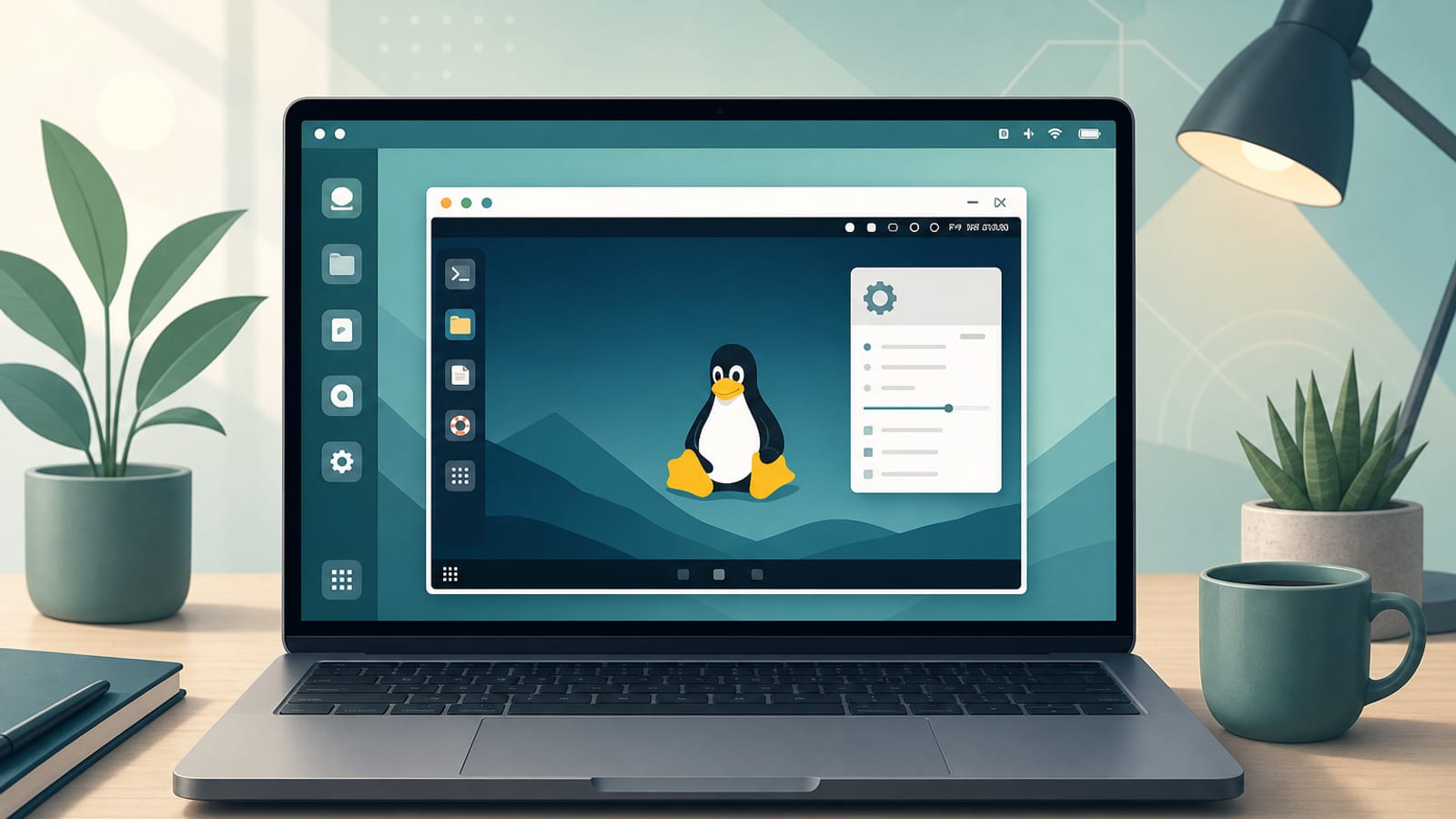
For the full PC install overview with Ubuntu, start with how to install Linux on a PC.
Pick the Right Linux VM Tool
| Goal | Best tool |
|---|---|
| Full Ubuntu Desktop GUI on Windows/macOS/Linux | VirtualBox (Canonical has a clear tutorial) |
| Fast Ubuntu CLI / cloud-style instances for developers | Multipass |
| Best performance on a Linux host | KVM + virt-manager (or QEMU/KVM) |
| Apple Silicon Mac desktop guest | UTM or Parallels (ARM Ubuntu), not classic amd64 VirtualBox |
| Enterprise / VMware shop | VMware Workstation/Player + open-vm-tools |
Ask Ubuntu traffic clusters around VirtualBox Guest Additions, shared folders, disk resize, and KVM/libvirt networking—those are the pain points after the first boot.
What You Need
- A host with free RAM and disk (leave headroom for the host OS)
- Hardware virtualization enabled (Intel VT-x / AMD-V / SVM) in firmware when required
- Internet to download the hypervisor and Ubuntu images
Ubuntu’s VirtualBox tutorial guidance for a comfortable Desktop guest:
- About 8 GB RAM (4 GB still usable)
- Up to about 4 vCPUs if the host can spare them (stay in VirtualBox’s “green” range)
- About 25 GB virtual disk minimum
Option 1: VirtualBox — Linux Desktop VM (Beginner Default)
VirtualBox runs on Windows, macOS, and Linux and is the usual answer when people search linux virtual machine wanting a windowed Ubuntu desktop.
1) Download VirtualBox and Ubuntu
- Install VirtualBox from the official VirtualBox downloads page.
- Download Ubuntu Desktop from the official Ubuntu Desktop download page.
- Save the
.isoon the host hard drive.
2) Create the VM
Canonical’s VirtualBox 7 flow:
- Open VirtualBox → New.
- Name it with “Ubuntu” so Type/Version auto-detect when possible.
- Select the Ubuntu ISO Image.
- Optional: use Unattended Guest OS Install—change default username/password (
vboxuser/changemeis weak / may lack sudo if left unchanged). Hostname must have no spaces. - Enable Guest Additions when offered.
- Assign RAM/CPU within safe host limits; create ~25 GB+ disk (dynamic allocation is fine).
- Finish → Start.
3) Finish Ubuntu and update
Let unattended install complete, or run the normal installer manually. Then:
sudo apt update && sudo apt upgrade -y
sudo snap refresh
Early resolution may stay low until Guest Additions finish—Ubuntu’s tutorial calls this expected.
4) Guest Additions (display, clipboard, shared folders)
Ask Ubuntu’s highest-traffic VirtualBox answers center here.
Typical path inside the Ubuntu guest:
sudo apt update
sudo apt install build-essential dkms linux-headers-$(uname -r)
Then VirtualBox menu → Devices → Insert Guest Additions CD image → run the Linux additions installer from the mounted CD → reboot.
5) Shared folders
- VM Settings → Shared Folders (or Devices → Shared Folders): add a host folder, enable auto-mount if desired.
- In the guest:
sudo usermod -aG vboxsf $USER- Log out/in or reboot. Auto-mounts often appear under
/media/sf_.
Ask Ubuntu’s standard fix for “can’t access shared folder” is the vboxsf group.
Option 2: Multipass — Fast Ubuntu VMs for Developers
Multipass is Canonical’s tool for cloud-style Ubuntu VMs on Linux, macOS, and Windows. It fetches Ubuntu images for you and is ideal when you want a shell, not a full Desktop ISO install.
On Ubuntu/Linux:
sudo snap install multipass
multipass launch --name dev --cpus 2 --memory 4G --disk 20G
multipass shell dev
Useful commands: multipass list, multipass stop, multipass start, multipass delete --purge.
Use Multipass when you need disposable Ubuntu environments for coding, testing, or cloud-init workflows. Use VirtualBox/UTM when you need a persistent GUI desktop.
Option 3: KVM + virt-manager on a Linux Host
If your host is already Linux, KVM usually outperforms VirtualBox for the same hardware.
Typical Ubuntu Desktop path:
sudo apt update
sudo apt install qemu-kvm libvirt-daemon-system virt-manager
Then open Virtual Machine Manager, create a new VM, attach an Ubuntu ISO, and allocate RAM/CPU/disk. Confirm your user can talk to libvirt (Ask Ubuntu’s classic virt-manager can't connect to libvirt threads usually mean group/socket permissions or the libvirt service not running).
Also watch for: default NAT network not active (network 'default' is not active), and bridge setup when you need LAN-visible guests.
Linux VM on Mac and Windows (Quick Notes)
- Windows host: VirtualBox or Multipass (Hyper-V backend where supported). Avoid Hyper-V / VirtualBox fights—fix host virtualization conflicts if 64-bit guests won’t start.
- Intel Mac: VirtualBox or Multipass work for amd64 guests.
- Apple Silicon Mac: prefer ARM Ubuntu guests in UTM/Parallels; Multipass can launch ARM instances. Do not expect a normal amd64 Desktop ISO VM to be the best path.
Everyday VM Settings That Matter
RAM/CPU: Over-allocating freezes the host. Stay within green/safe ranges.
Disk growth: Dynamic disks save host space; fixed/preallocated can be faster. Ask Ubuntu’s “increase VirtualBox disk size” threads remind you: resizing the virtual disk is only half the job—you must also grow the partition/filesystem inside the guest.
Snapshots: Great before risky experiments; bad as a substitute for backups.
Save state vs shutdown: Save state is like sleep; shut down cleanly before changing CPU/RAM settings.
Fix Common Linux VM Problems
64-bit Linux greyed out / VM won’t start
Enable VT-x/AMD-V in firmware. On Windows, resolve Hyper-V conflicts if VirtualBox cannot start guests.
Black screen or tiny 800×600 display
Install Guest Additions (VirtualBox) or open-vm-tools (VMware). Reboot the guest.
Shared folder permission denied
Add your user to vboxsf (VirtualBox) or fix vmhgfs/open-vm-tools mounts (VMware), then re-login.
Guest is painfully slow
Add RAM, enable virtualization extensions, use KVM on Linux hosts, avoid nested VMs unless you need them.
Multipass can’t launch
Check the daemon (multipass version/list), driver settings, and host free disk/RAM; on macOS, firewall/driver notes in Multipass docs can matter.
virt-manager “can’t connect to libvirt”
Ensure libvirtd is running and your user is in the right groups; reboot after group changes.
After the Linux VM Runs: Shareable Documents in the Guest
A Linux VM is often used for dev work, demos, lab notes, or reproducible test steps. Those terminal notes still need to become documents the host machine or a teammate can open easily.
WPS Office for Linux is a practical office layer inside the guest: Writer for procedure notes, Spreadsheet for test matrices, Presentation for walkthroughs, and PDF tools for fixed exports.
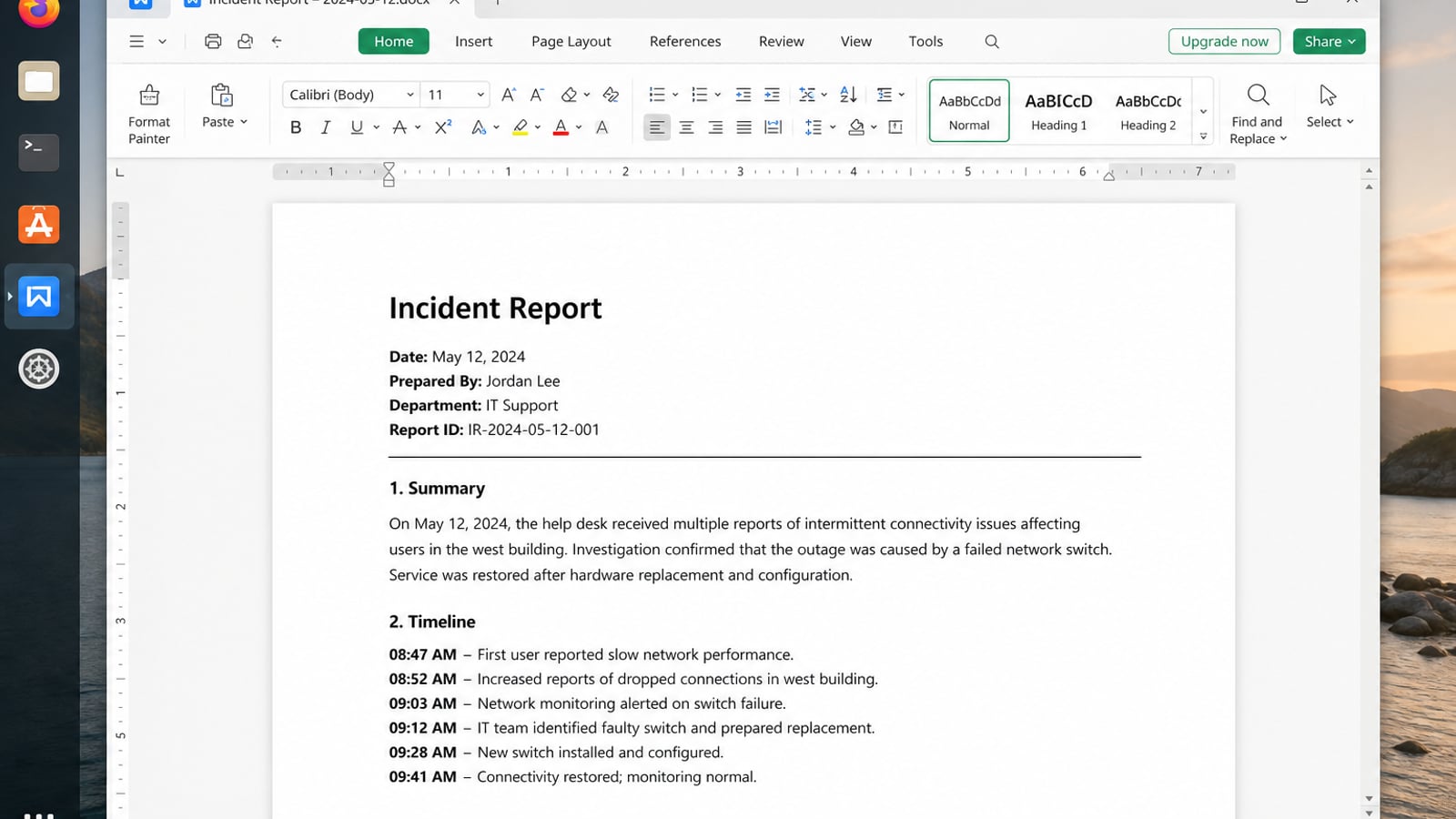
| What you need next | What WPS gives you |
|---|---|
| Turn VM notes and outputs into shareable files | Strong .docx / .xlsx / .pptx layout fidelity when files move between Linux, Windows, and macOS |
| One place for notes, sheets, slides, and PDFs | Free core suite: Writer, Spreadsheet, Presentation, plus PDF view/edit/convert tools |
| A familiar desktop UI for switchers | Ribbon-style apps with a lighter footprint than many heavy suites |
| A trusted install path | Official DEB (Ubuntu/Debian/Mint) and RPM packages from the vendor |
Get the current 64-bit package from the official WPS Office for Linux download page, install it with sudo apt install ./wps-office_VERSION_amd64.deb, then use your VM shared folder to move DOCX, XLSX, or PDFs between host and guest cleanly.
FAQ
What is a Linux virtual machine?
A complete Linux OS running as a guest inside virtualization software on your current computer.
Which Linux VM is best for beginners?
VirtualBox + Ubuntu Desktop for a GUI. Multipass if you mainly need an Ubuntu terminal quickly.
How much RAM should I give Ubuntu?
Ubuntu’s VirtualBox tutorial suggests about 8 GB when possible; 4 GB can still work for lighter use. Always leave RAM for the host.
Do I need Guest Additions?
For VirtualBox desktops, yes—for resizing, clipboard, and shared folders. Install after the guest OS is working.
Is Multipass the same as VirtualBox?
No. Multipass is optimized for fast Ubuntu instances (often CLI/cloud-style). VirtualBox is a general desktop hypervisor UI for full Desktop installs.
Can I run a Linux VM on Linux?
Yes—and KVM is usually the performance choice on Ubuntu hosts, with virt-manager as the GUI.

'%3e%3cpath%20d='M19.9911%204.11386V6.471H18.5894C18.0775%206.471%2017.7322%206.57814%2017.5536%206.79243C17.3751%207.00671%2017.2858%207.32814%2017.2858%207.75671V9.44421H19.9019L19.5536%2012.0871H17.2858V18.8639H14.5536V12.0871H12.2769V9.44421H14.5536V7.49779C14.5536%206.39064%2014.8632%205.53201%2015.4822%204.92189C16.1013%204.31177%2016.9257%204.00671%2017.9554%204.00671C18.8304%204.00671%2019.509%204.04243%2019.9911%204.11386Z'%20fill='%23333333'/%3e%3c/g%3e%3cdefs%3e%3cclipPath%20id='clip0_2938_8199'%3e%3crect%20width='16'%20height='16'%20fill='white'%20transform='translate(8%204.00671)'/%3e%3c/clipPath%3e%3c/defs%3e%3c/svg%3e)
'%3e%3cpath%20d='M17.5237%2010.7813L23.4811%204H22.0699L16.8949%209.88693L12.7648%204H8L14.2469%2012.9029L8%2020.0133H9.4112L14.8725%2013.7952L19.2352%2020.0133H24M9.92053%205.04213H12.0885L22.0688%2019.0224H19.9003'%20fill='%23333333'/%3e%3c/g%3e%3cdefs%3e%3cclipPath%20id='clip0_2938_8200'%3e%3crect%20width='16'%20height='16.0134'%20fill='white'%20transform='translate(8%204)'/%3e%3c/clipPath%3e%3c/defs%3e%3c/svg%3e)


