

'%3e%3cpath%20d='M8%200C12.4183%200%2016%203.58172%2016%208C16%2012.4183%2012.4183%2016%208%2016C3.58172%2016%200%2012.4183%200%208C0%203.58172%203.58172%200%208%200ZM11.6162%204.38379C11.2257%203.99337%2010.5927%203.99338%2010.2021%204.38379L8%206.58594L5.79785%204.38379C5.40732%203.99334%204.77429%203.99329%204.38379%204.38379C3.99331%204.77429%203.99335%205.40733%204.38379%205.79785L6.58594%208L4.38379%2010.2021C3.99348%2010.5927%203.99341%2011.2257%204.38379%2011.6162C4.77426%2012.0066%205.40734%2012.0065%205.79785%2011.6162L8%209.41406L10.2021%2011.6162C10.5927%2012.0066%2011.2257%2012.0067%2011.6162%2011.6162C12.0067%2011.2257%2012.0066%2010.5927%2011.6162%2010.2021L9.41406%208L11.6162%205.79785C12.0066%205.40735%2012.0066%204.77429%2011.6162%204.38379Z'%20fill='%23080E17'%20fill-opacity='0.46'/%3e%3c/g%3e%3cdefs%3e%3cclipPath%20id='clip0_3761_713'%3e%3crect%20width='16'%20height='16'%20fill='white'/%3e%3c/clipPath%3e%3c/defs%3e%3c/svg%3e)




'%3e%3cpath%20fill-rule='evenodd'%20clip-rule='evenodd'%20d='M21.4999%2010.9993C21.4999%205.20009%2016.7986%200.498901%2010.9993%200.498901C5.19994%200.498901%200.498657%205.20009%200.498657%2010.9993C0.498657%2016.2404%204.33858%2020.5844%209.35855%2021.3722V14.0346H6.69238V10.9993H9.35855V8.68594C9.35855%206.05427%2010.9262%204.60062%2013.3248%204.60062C14.4736%204.60062%2015.6753%204.80571%2015.6753%204.80571V7.38979H14.3512C13.0468%207.38979%2012.64%208.19921%2012.64%209.0296V10.9993H15.5523L15.0867%2014.0346H12.64V21.3722C17.66%2020.5844%2021.4999%2016.2404%2021.4999%2010.9993Z'%20fill='%231568EA'/%3e%3c/g%3e%3c/svg%3e)


'%3e%3cpath%20d='M2.42045%2022.1876H6.31818V12.7217L0.75%208.54553V20.5171C0.75%2021.4414%201.49892%2022.1876%202.42045%2022.1876Z'%20fill='%234285F4'/%3e%3cpath%20d='M19.682%2022.1876H23.5797C24.5041%2022.1876%2025.2502%2021.4387%2025.2502%2020.5171V8.54553L19.682%2012.7217'%20fill='%2334A853'/%3e%3cpath%20d='M19.682%205.48293V12.7216L25.2502%208.54543V6.31816C25.2502%204.25236%2022.8921%203.07469%2021.2411%204.31361'%20fill='%23FBBC04'/%3e%3cpath%20d='M6.31824%2012.7217V5.48303L13.0001%2010.4944L19.6819%205.48303V12.7217L13.0001%2017.733'%20fill='%23EA4335'/%3e%3cpath%20d='M0.75%206.31816V8.54543L6.31818%2012.7216V5.48293L4.75909%204.31361C3.10534%203.07469%200.75%204.25236%200.75%206.31816Z'%20fill='%23C5221F'/%3e%3c/g%3e%3cdefs%3e%3cclipPath%20id='clip0_2954_7305'%3e%3crect%20width='24.5'%20height='18.375'%20fill='white'%20transform='translate(0.75%203.8125)'/%3e%3c/clipPath%3e%3c/defs%3e%3c/svg%3e)


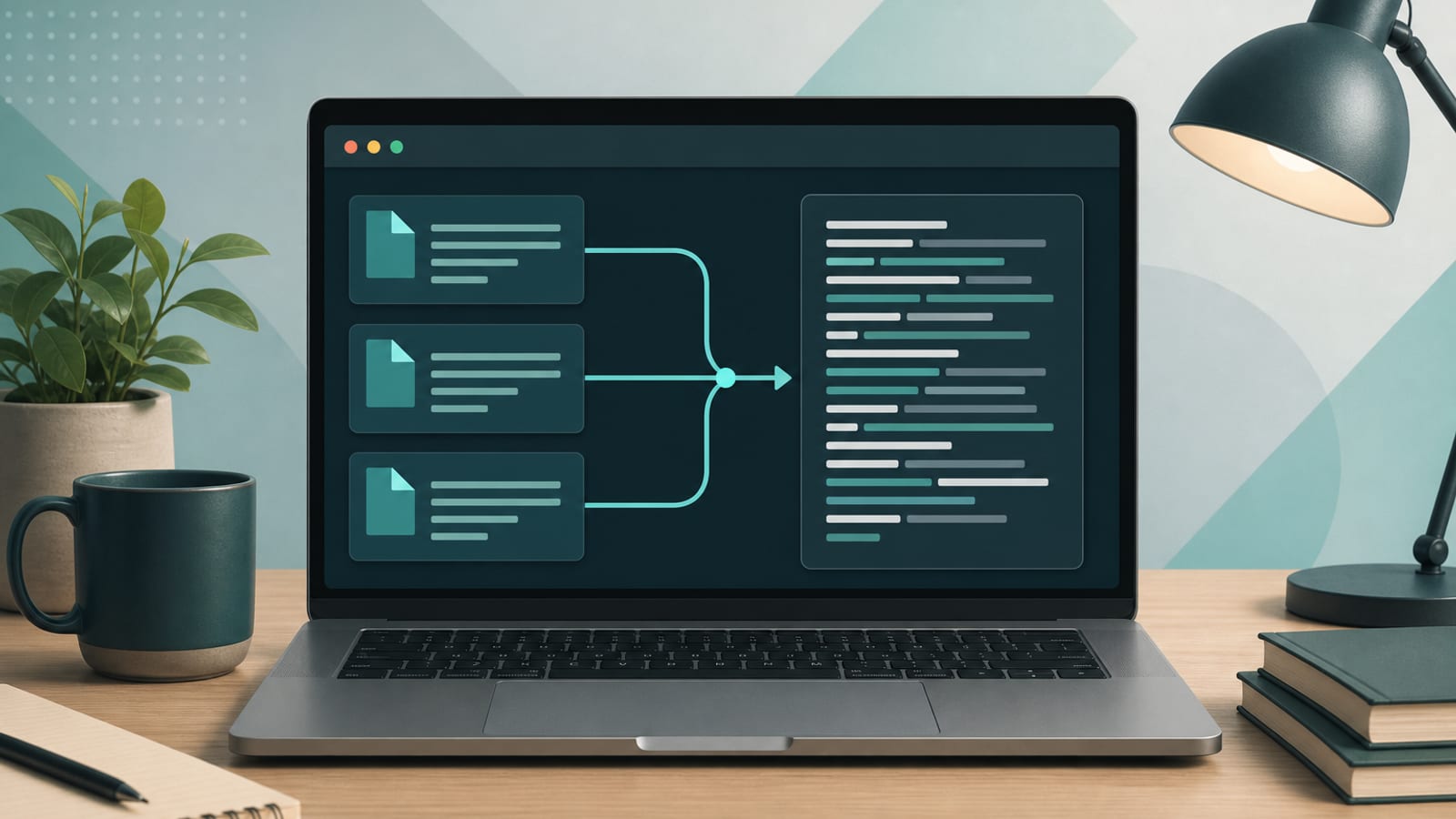
The cat command in Linux concatenates files and writes them to standard output. With one file it simply prints that file; with several files it prints them one after another. On Ubuntu and other GNU/Linux systems (GNU coreutils):
cat [OPTION]... [FILE]...With no FILE, or when FILE is -, cat reads standard input. Success means the content appears on your terminal (or in a redirected file). For long files, prefer less or more so you can scroll—Ubuntu’s CLI tutorials recommend less for paging.
Official reference: Ubuntu man page cat(1) — run man cat or cat --help locally.
If you already know your goal, jump to: create a file, append, concatenate, line numbers, or cat vs less.
Building a broader CLI toolkit? See essential Linux commands and the cheat sheet.
What Cat Is For
| Use | Example idea |
|---|---|
| Show a short file | cat notes.txt |
| Join files | cat a.txt b.txt > all.txt |
| Create/overwrite a file | cat > new.txt then type, Ctrl+D |
| Append to a file | cat >> log.txt |
| Pipe content into another command | cat file | grep error |
| Reveal hidden characters | cat -A file / cat -T file |
cat does not open an interactive editor (use nano/vim) and is a poor pager for huge logs.
Basic: Print a File
cat file.txt
cat /etc/hostname
Multiple files print in order:
cat part1.txt part2.txt part3.txtCreate or Overwrite a File (cat >)
cat > hello.txt
Hello from cat
This is line 2
Press Ctrl+D (EOF) to finish. This overwrites hello.txt if it already exists.
Safer for beginners: confirm the path before using > so you do not wipe an important file.
Append to a File (cat >>)
cat >> hello.txt
Extra line added later
Ctrl+D again. >> appends; > truncates.
Heredoc: Write Multi-Line Content in One Shot
Common shell pattern (also used in install scripts):
cat > config.env << 'EOF'
NAME=demo
DEBUG=true
EOF
Quoted 'EOF' keeps variables from expanding. Unquoted EOF allows $VAR expansion.
Concatenate Files into One
# Print joined content on screen
cat chapter1.md chapter2.md

# Write joined content to a new file
cat chapter1.md chapter2.md > book.md

# Append more files onto an existing file
cat chapter3.md >> book.md
Name comes from catenate—this is the original purpose.
Mix Files and Standard Input
From the man page examples:
# Print f, then whatever you type, then g
cat f - g

# Copy stdin to stdout (filter/pass-through)
cat
- means “read stdin at this position in the list.”
Useful Cat Options (GNU)
| Option | Meaning |
|---|---|
-n / --number | Number all output lines |
-b / --number-nonblank | Number nonempty lines only (overrides -n) |
-s / --squeeze-blank | Squeeze repeated blank lines |
-E / --show-ends | Show $ at end of each line |
-T / --show-tabs | Show tabs as ^I |
-v / --show-nonprinting | Show non-printing chars (^ / M- notation) |
-A / --show-all | Same as -vET |
-e | Same as -vE |
-t | Same as -vT |
-u | Ignored (POSIX compatibility) |
Examples:
cat -n script.sh              # numbered lines
cat -b messy.txt              # skip numbering blank lines
cat -s doublespaced.txt       # squeeze blank lines
cat -A weird.txt              # see tabs, line ends, odd chars
Cat in Pipelines
cat access.log | grep "404"
cat *.conf | wc -l
Often you can skip cat and pass the file to the next tool (grep "404" access.log)—a classic Unix efficiency tip. Keep cat when you need to join multiple files first or when teaching stdin flow.
Cat vs Less (and Related Tools)
| Tool | Best for |
|---|---|
cat | Short files; joining; simple create/append |
less | Long files you need to scroll (q to quit) |
tac | Reverse line order (GNU) |
less big.log
cat -n script.sh
zcat file.txt.gz | less
Ask Ubuntu and Ubuntu docs often point people to less when cat floods the terminal. For the last lines of a log—or live follow—use the tail command in Linux guide instead of stretching cat.
Permissions and Common Errors
cat: file.txt: No such file or directory
cat: secret.key: Permission denied- Check the path with
ls/pwd - Use
sudo cat /etc/shadowonly when you truly need root-readable files—avoid redirecting sudo output wrongly:
# Wrong: shell opens out.txt as you, before sudo
sudo cat /etc/hosts > /root/out.txt

# Better pattern
sudo tee /root/out.txt < /etc/hosts >/dev/null
# or
sudo bash -c 'cat /etc/hosts > /root/out.txt'
Redirection under root is easier with tee—covered in depth in the sudo and echo guides.
Quick Cheat Sheet
cat file.txt                      # view
cat a.txt b.txt > c.txt           # concatenate
cat > new.txt                     # create (Ctrl+D to end)
cat >> new.txt                    # append
cat -n file.txt                   # number lines
cat -A file.txt                   # show tabs/ends/nonprinting
man cat                           # full manual
From Terminal Text to Shareable Documents
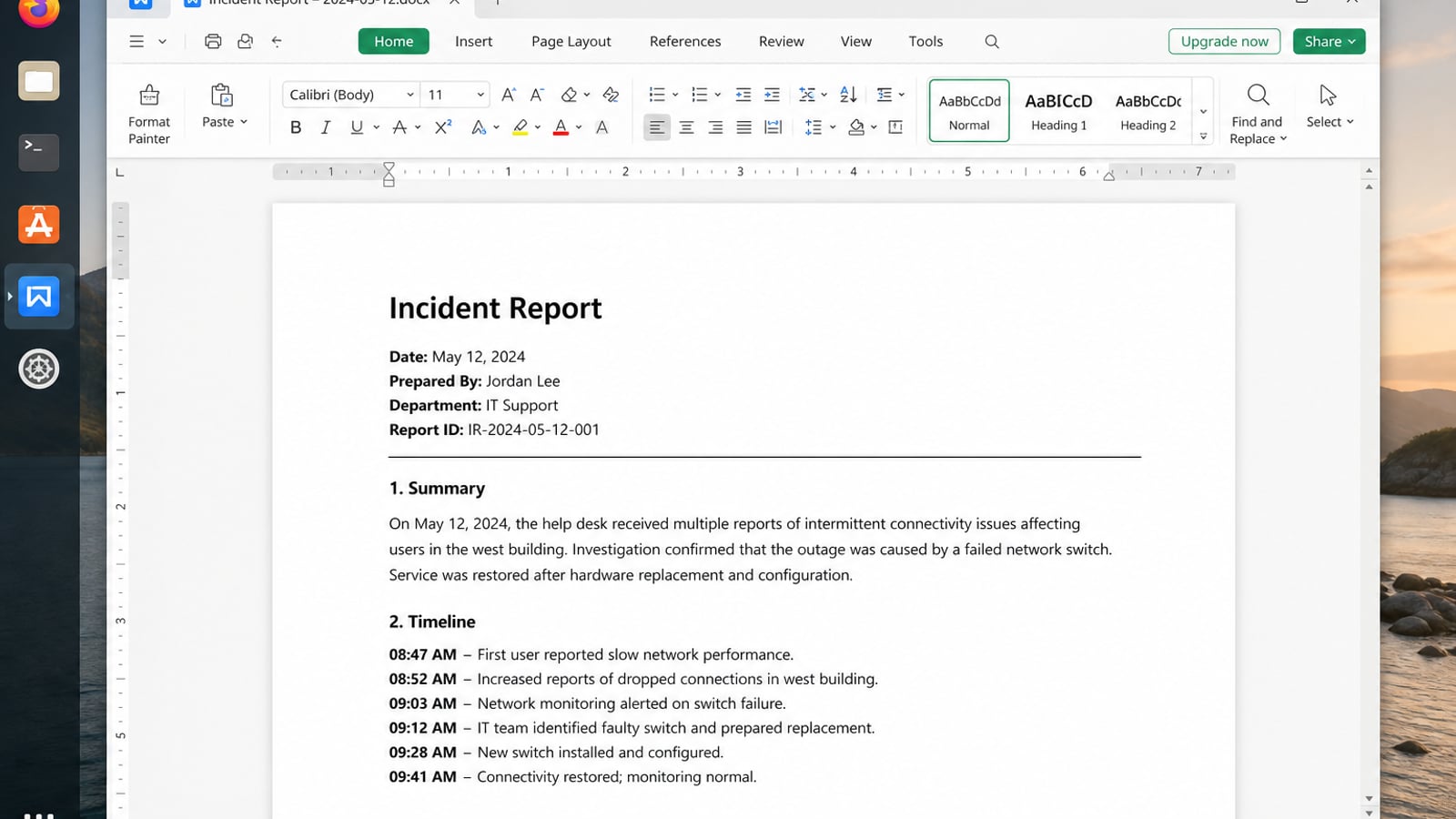
cat is perfect for printing, joining, and redirecting plain text. Once that text needs to become a formatted handoff, you usually want a desktop document instead of another shell redirect.
WPS Office for Linux fills that next step with Writer, Spreadsheet, Presentation, and PDF tools on Ubuntu.
| What you need next | What WPS gives you |
|---|---|
| Move plain text into DOCX, sheets, or PDFs | Strong .docx / .xlsx / .pptx layout fidelity when files move between Linux, Windows, and macOS |
| One place for notes, sheets, slides, and PDFs | Free core suite: Writer, Spreadsheet, Presentation, plus PDF view/edit/convert tools |
| A familiar desktop UI for switchers | Ribbon-style apps with a lighter footprint than many heavy suites |
| A trusted install path | Official DEB (Ubuntu/Debian/Mint) and RPM packages from the vendor |
Download the package from the official WPS Office for Linux download page, install it with sudo apt install ./wps-office_VERSION_amd64.deb, then paste your terminal text into Writer or export it as PDF when it needs a cleaner final form.
FAQ
What does the cat command do in Linux?
It concatenates files and prints them to standard output—commonly used to display or join text files.
How do I create a file with cat?cat > filename, type content, then Ctrl+D. Use >> to append instead of overwrite.
How do I merge two files with cat?cat file1 file2 > merged.txt
When should I use less instead of cat?
When the file is long and you need scrolling, search, or to avoid flooding the terminal.
What does cat -n do?
Numbers all output lines. Use cat -b to number only nonempty lines.
Where is the official documentation?
Run man cat or see the Ubuntu cat(1) man page.

'%3e%3cpath%20d='M19.9911%204.11386V6.471H18.5894C18.0775%206.471%2017.7322%206.57814%2017.5536%206.79243C17.3751%207.00671%2017.2858%207.32814%2017.2858%207.75671V9.44421H19.9019L19.5536%2012.0871H17.2858V18.8639H14.5536V12.0871H12.2769V9.44421H14.5536V7.49779C14.5536%206.39064%2014.8632%205.53201%2015.4822%204.92189C16.1013%204.31177%2016.9257%204.00671%2017.9554%204.00671C18.8304%204.00671%2019.509%204.04243%2019.9911%204.11386Z'%20fill='%23333333'/%3e%3c/g%3e%3cdefs%3e%3cclipPath%20id='clip0_2938_8199'%3e%3crect%20width='16'%20height='16'%20fill='white'%20transform='translate(8%204.00671)'/%3e%3c/clipPath%3e%3c/defs%3e%3c/svg%3e)
'%3e%3cpath%20d='M17.5237%2010.7813L23.4811%204H22.0699L16.8949%209.88693L12.7648%204H8L14.2469%2012.9029L8%2020.0133H9.4112L14.8725%2013.7952L19.2352%2020.0133H24M9.92053%205.04213H12.0885L22.0688%2019.0224H19.9003'%20fill='%23333333'/%3e%3c/g%3e%3cdefs%3e%3cclipPath%20id='clip0_2938_8200'%3e%3crect%20width='16'%20height='16.0134'%20fill='white'%20transform='translate(8%204)'/%3e%3c/clipPath%3e%3c/defs%3e%3c/svg%3e)


