

'%3e%3cpath%20d='M8%200C12.4183%200%2016%203.58172%2016%208C16%2012.4183%2012.4183%2016%208%2016C3.58172%2016%200%2012.4183%200%208C0%203.58172%203.58172%200%208%200ZM11.6162%204.38379C11.2257%203.99337%2010.5927%203.99338%2010.2021%204.38379L8%206.58594L5.79785%204.38379C5.40732%203.99334%204.77429%203.99329%204.38379%204.38379C3.99331%204.77429%203.99335%205.40733%204.38379%205.79785L6.58594%208L4.38379%2010.2021C3.99348%2010.5927%203.99341%2011.2257%204.38379%2011.6162C4.77426%2012.0066%205.40734%2012.0065%205.79785%2011.6162L8%209.41406L10.2021%2011.6162C10.5927%2012.0066%2011.2257%2012.0067%2011.6162%2011.6162C12.0067%2011.2257%2012.0066%2010.5927%2011.6162%2010.2021L9.41406%208L11.6162%205.79785C12.0066%205.40735%2012.0066%204.77429%2011.6162%204.38379Z'%20fill='%23080E17'%20fill-opacity='0.46'/%3e%3c/g%3e%3cdefs%3e%3cclipPath%20id='clip0_3761_713'%3e%3crect%20width='16'%20height='16'%20fill='white'/%3e%3c/clipPath%3e%3c/defs%3e%3c/svg%3e)




'%3e%3cpath%20fill-rule='evenodd'%20clip-rule='evenodd'%20d='M21.4999%2010.9993C21.4999%205.20009%2016.7986%200.498901%2010.9993%200.498901C5.19994%200.498901%200.498657%205.20009%200.498657%2010.9993C0.498657%2016.2404%204.33858%2020.5844%209.35855%2021.3722V14.0346H6.69238V10.9993H9.35855V8.68594C9.35855%206.05427%2010.9262%204.60062%2013.3248%204.60062C14.4736%204.60062%2015.6753%204.80571%2015.6753%204.80571V7.38979H14.3512C13.0468%207.38979%2012.64%208.19921%2012.64%209.0296V10.9993H15.5523L15.0867%2014.0346H12.64V21.3722C17.66%2020.5844%2021.4999%2016.2404%2021.4999%2010.9993Z'%20fill='%231568EA'/%3e%3c/g%3e%3c/svg%3e)


'%3e%3cpath%20d='M2.42045%2022.1876H6.31818V12.7217L0.75%208.54553V20.5171C0.75%2021.4414%201.49892%2022.1876%202.42045%2022.1876Z'%20fill='%234285F4'/%3e%3cpath%20d='M19.682%2022.1876H23.5797C24.5041%2022.1876%2025.2502%2021.4387%2025.2502%2020.5171V8.54553L19.682%2012.7217'%20fill='%2334A853'/%3e%3cpath%20d='M19.682%205.48293V12.7216L25.2502%208.54543V6.31816C25.2502%204.25236%2022.8921%203.07469%2021.2411%204.31361'%20fill='%23FBBC04'/%3e%3cpath%20d='M6.31824%2012.7217V5.48303L13.0001%2010.4944L19.6819%205.48303V12.7217L13.0001%2017.733'%20fill='%23EA4335'/%3e%3cpath%20d='M0.75%206.31816V8.54543L6.31818%2012.7216V5.48293L4.75909%204.31361C3.10534%203.07469%200.75%204.25236%200.75%206.31816Z'%20fill='%23C5221F'/%3e%3c/g%3e%3cdefs%3e%3cclipPath%20id='clip0_2954_7305'%3e%3crect%20width='24.5'%20height='18.375'%20fill='white'%20transform='translate(0.75%203.8125)'/%3e%3c/clipPath%3e%3c/defs%3e%3c/svg%3e)


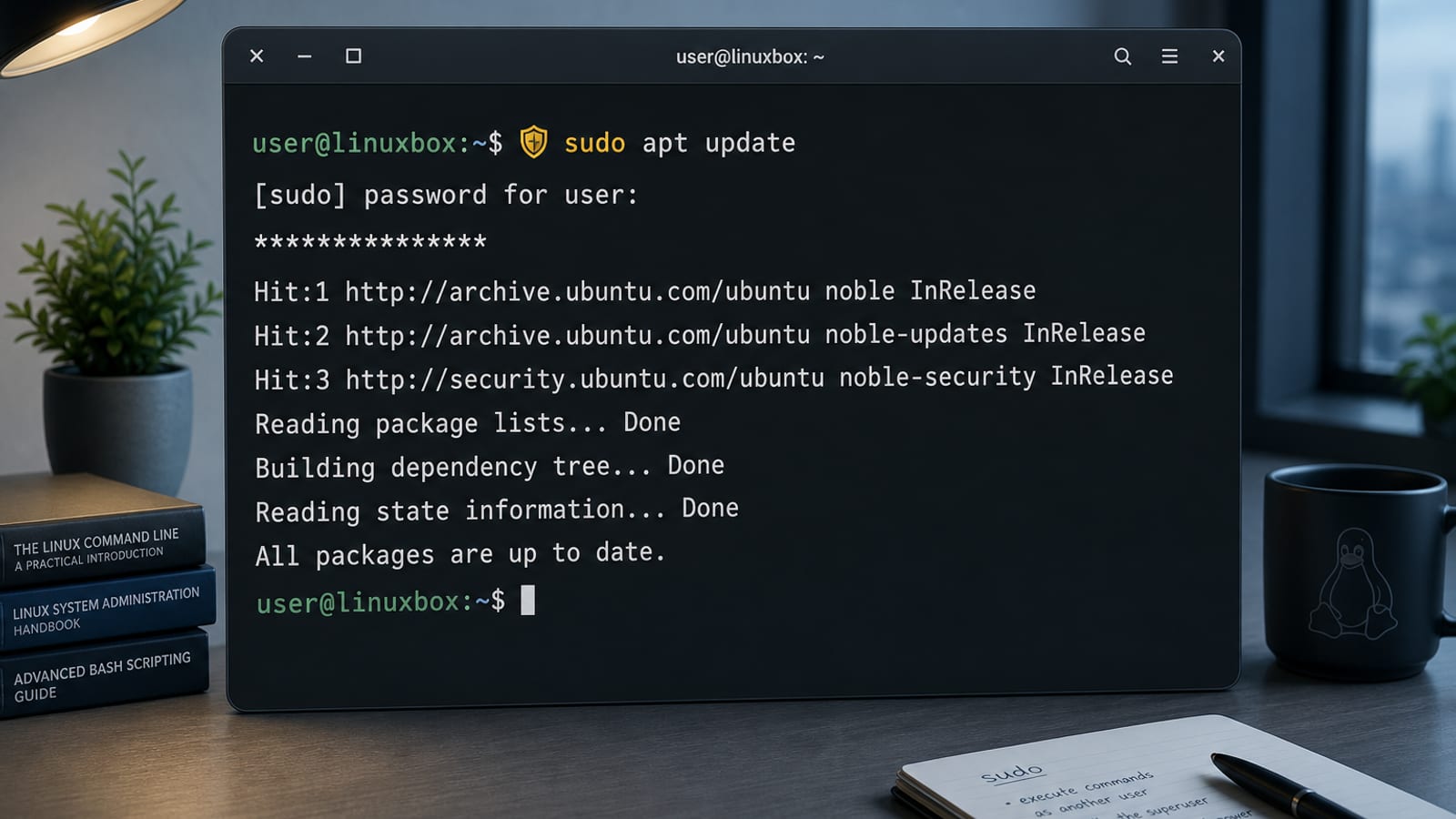
The sudo command in Linux lets a permitted user run a command as the superuser (or another user), according to a security policy—on Ubuntu, usually sudoers via /etc/sudoers and /etc/sudoers.d/. You authenticate with your password (not root’s), and credentials are cached for a short time (often about 15 minutes per terminal by default).
man sudo
sudo -V
sudo -l          # list what you may run
Official reference: Ubuntu man page sudo(8). Always edit policy with visudo so a typo does not lock you out of sudo. If you already know your goal, jump to: add a sudo user, -i/-u, redirection fix, or NOPASSWD. For writing text into files as root, pair with echo and tee.
For a broader Ubuntu terminal quick reference, see the Linux commands cheat sheet.
Basic Usage
sudo command [args...]
Examples on Ubuntu:
sudo apt update
sudo systemctl status ssh
sudo nano /etc/hosts
Enter your account password when prompted. Success means the command runs with elevated privileges; failure usually means wrong password, not in the sudo group, or the command is not allowed by policy.
Useful Options You Will Use Often
| Option | Meaning |
|---|---|
sudo -l | List your sudo privileges |
sudo -v | Refresh the credential cache (no command) |
sudo -k / sudo -K | Invalidate / clear cached credentials |
sudo -u user | Run as another user (not only root) |
sudo -i | Login shell as the target user (usually root) |
sudo -s | Shell as target, using $SHELL / invoking user’s shell |
sudo -E | Ask to preserve environment (policy may deny) |
sudo -n | Non-interactive; fail instead of prompting |
sudoedit file / sudo -e file | Edit a file safely as root |
sudo -u www-data whoami
# www-data

sudo -i
# root login shell (home, profile files)

sudo -s
# root shell; environment closer to your current session
Add a User to Sudo (Ask Ubuntu Classic)
On Ubuntu, members of the sudo group may run any command via sudo because /etc/sudoers includes:
%sudo ALL=(ALL:ALL) ALL
# Preferred: add existing user to sudo group
sudo adduser alice sudo
# or
sudo usermod -aG sudo alice
The change applies on the user’s next login. Check:
groups alice
sudo -l -U alice    # as an admin
To grant a custom rule, use visudo (or sudo visudo -f /etc/sudoers.d/alice)—do not blindly echo >> /etc/sudoers.
sudo -i vs sudo su vs sudo /bin/bash
Ask Ubuntu’s high-traffic comparison:
| Command | Rough effect |
|---|---|
sudo -i | Target user’s login shell (reads login profiles; home often becomes root’s) |
sudo su - | Similar login-style root shell via su |
sudo su | Root interactive shell; often stay in your previous directory |
sudo /bin/bash or sudo -s | Root shell with more of the calling user’s environment |
Prefer sudo -i when you want a clean root login environment. Prefer single-command sudo … when you only need one privileged action—less risk than staying root in a long session.
Passwordless Sudo (NOPASSWD) — Use Carefully
For automation, restrict specific commands, not full ALL, when possible:
sudo visudo -f /etc/sudoers.d/deploy
Example line:
deploy ALL=(ALL) NOPASSWD: /usr/bin/systemctl restart nginx
Broad form (higher risk):
alice ALL=(ALL) NOPASSWD: ALL
Rules are applied in order; the last matching entry wins (man 5 sudoers). Prefer files under /etc/sudoers.d/ with clear names, and check with sudo -l.
Classic Trap: sudo + Shell Redirection
This is the same pitfall as sudo echo … > file—the shell opens the target before privileges apply. Details and tee patterns also appear in the echo command guide.
This fails with “Permission denied”:
sudo echo "hello" > /etc/motd
Why: the shell opens /etc/motd before sudo runs—as your user. Fixes from Ask Ubuntu:
# tee writes as root
echo "hello" | sudo tee /etc/motd >/dev/null

# append
echo "hello" | sudo tee -a /etc/motd >/dev/null

# or a root shell for the whole line
sudo bash -c 'echo "hello" > /etc/motd'
Same idea for reading root-only files into a user-owned redirect: open the redirect with a root-aware tool (tee, dd, or bash -c).
Common Ubuntu Tasks with Sudo
sudo apt update && sudo apt upgrade
sudo apt install htop
sudo systemctl restart networking
sudo journalctl -u ssh -n 50
sudo fdisk -l
sudo mount /dev/sdb1 /mnt
Graphical apps: prefer not launching GUI tools with normal sudo as your desktop user (Ask Ubuntu warns about root-owned config under your home). Prefer PolicyKit/pkexec or dedicated admin tools when available.
Troubleshooting
| Problem | What to try |
|---|---|
user is not in the sudoers file | Log in as an admin; sudo adduser you sudo, then re-login |
| Wrong password | Use your password, not root’s (Ubuntu’s root account is often locked) |
sudo: unable to resolve host | Fix /etc/hosts so hostname matches (common Ask Ubuntu hit) |
Broken /etc/sudoers | Boot recovery / live USB; repair with visudo from a root shell |
| Redirection permission denied | Use tee or sudo bash -c '… > file' |
| Need to drop cache | sudo -k then next command re-prompts |
sudo -l                 # am I allowed?
id                      # groups?
getent group sudo       # who is in sudo?
Security Habits
Prefer
sudo commandover living in a root shell.Use
visudo/visudo -fonly.Prefer narrow
NOPASSWDcommand lists.Do not paste unknown scripts under
sudo.Clear cache on shared machines:
sudo -k.
Quick Cheat Sheet
sudo cmd                      # run as root
sudo -u user cmd              # run as user
sudo -i                       # root login shell
sudo -l                       # list privileges
sudo -v                       # refresh timeout
sudo -k                       # invalidate cache
sudo visudo                   # edit sudoers safely
sudo adduser name sudo        # grant sudo group
echo x | sudo tee /path       # write file as root
After Admin Tasks: User-Facing Documents on Linux
sudo is for privileged system work. Once the admin task is done, the next file you open is usually a normal note, spreadsheet, checklist, or PDF that should stay in your regular user workflow.
WPS Office for Linux fits that user-facing side of the job with Writer, Spreadsheet, Presentation, and PDF tools that do not require living in a root shell.
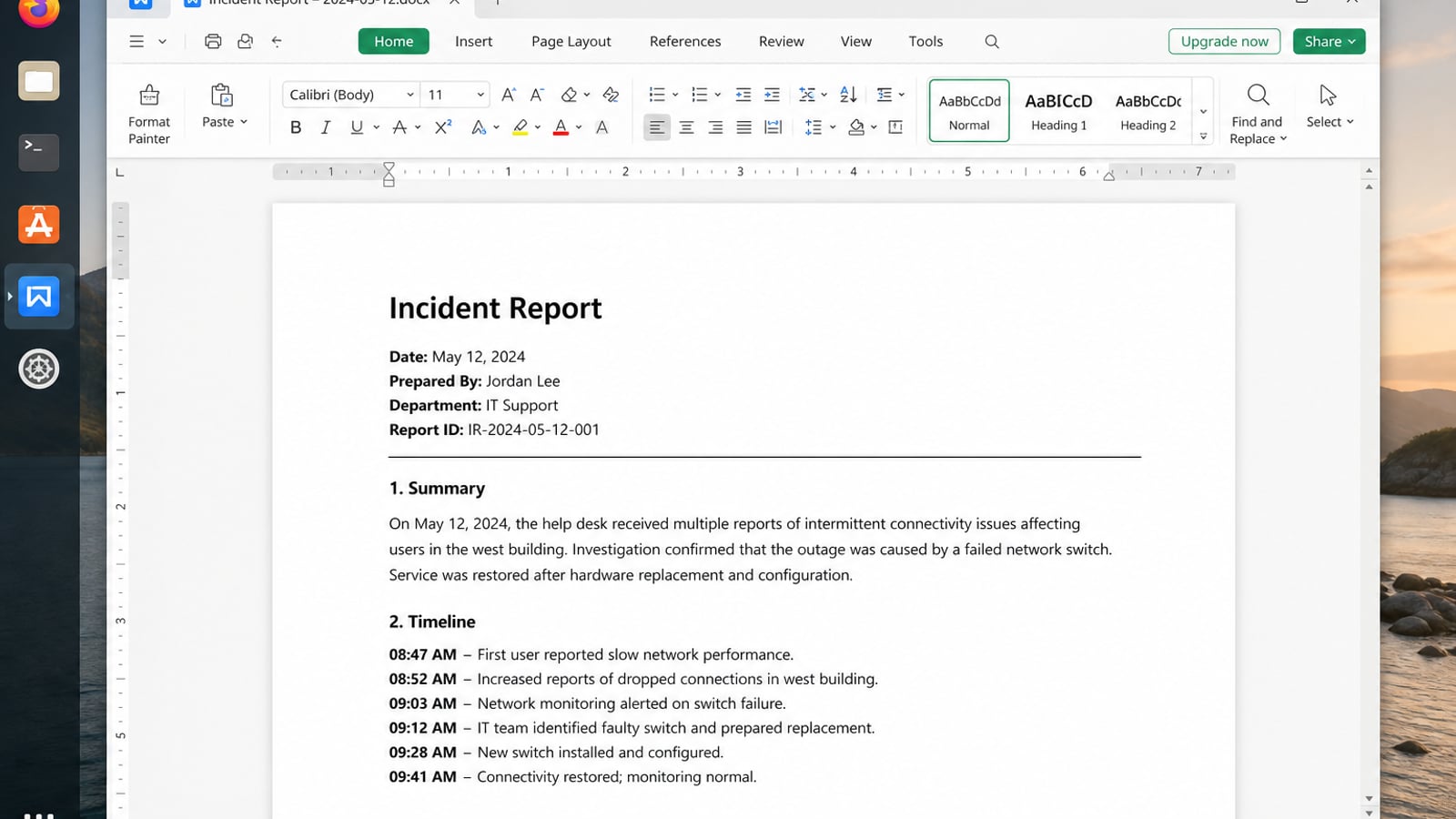
| What you need next | What WPS gives you |
|---|---|
| Create user-facing documents after privileged system work | Strong .docx / .xlsx / .pptx layout fidelity when files move between Linux, Windows, and macOS |
| One place for notes, sheets, slides, and PDFs | Free core suite: Writer, Spreadsheet, Presentation, plus PDF view/edit/convert tools |
| A familiar desktop UI for switchers | Ribbon-style apps with a lighter footprint than many heavy suites |
| A trusted install path | Official DEB (Ubuntu/Debian/Mint) and RPM packages from the vendor |
Download the current package from the official WPS Office for Linux download page, install it with sudo apt install ./wps-office_VERSION_amd64.deb, then return to a normal user session for the DOCX, spreadsheet, or PDF files you actually share.
FAQ
What does sudo mean?
“Superuser do”—run a command with elevated privileges allowed by policy.
What password does sudo ask for?
Your user password (if you are allowed), not the root password, on typical Ubuntu desktops.
How do I give someone sudo access?sudo adduser username sudo, then have them log in again.
How do I see my sudo rights?sudo -l
sudo vs su?su switches user (often needs the target password). sudo runs a command (or shell) as another user using your credentials and sudoers rules.
Where is the official documentation?
Run man sudo, man sudoers, and man visudo, or see the Ubuntu sudo(8) man page.

'%3e%3cpath%20d='M19.9911%204.11386V6.471H18.5894C18.0775%206.471%2017.7322%206.57814%2017.5536%206.79243C17.3751%207.00671%2017.2858%207.32814%2017.2858%207.75671V9.44421H19.9019L19.5536%2012.0871H17.2858V18.8639H14.5536V12.0871H12.2769V9.44421H14.5536V7.49779C14.5536%206.39064%2014.8632%205.53201%2015.4822%204.92189C16.1013%204.31177%2016.9257%204.00671%2017.9554%204.00671C18.8304%204.00671%2019.509%204.04243%2019.9911%204.11386Z'%20fill='%23333333'/%3e%3c/g%3e%3cdefs%3e%3cclipPath%20id='clip0_2938_8199'%3e%3crect%20width='16'%20height='16'%20fill='white'%20transform='translate(8%204.00671)'/%3e%3c/clipPath%3e%3c/defs%3e%3c/svg%3e)
'%3e%3cpath%20d='M17.5237%2010.7813L23.4811%204H22.0699L16.8949%209.88693L12.7648%204H8L14.2469%2012.9029L8%2020.0133H9.4112L14.8725%2013.7952L19.2352%2020.0133H24M9.92053%205.04213H12.0885L22.0688%2019.0224H19.9003'%20fill='%23333333'/%3e%3c/g%3e%3cdefs%3e%3cclipPath%20id='clip0_2938_8200'%3e%3crect%20width='16'%20height='16.0134'%20fill='white'%20transform='translate(8%204)'/%3e%3c/clipPath%3e%3c/defs%3e%3c/svg%3e)


