

'%3e%3cpath%20d='M8%200C12.4183%200%2016%203.58172%2016%208C16%2012.4183%2012.4183%2016%208%2016C3.58172%2016%200%2012.4183%200%208C0%203.58172%203.58172%200%208%200ZM11.6162%204.38379C11.2257%203.99337%2010.5927%203.99338%2010.2021%204.38379L8%206.58594L5.79785%204.38379C5.40732%203.99334%204.77429%203.99329%204.38379%204.38379C3.99331%204.77429%203.99335%205.40733%204.38379%205.79785L6.58594%208L4.38379%2010.2021C3.99348%2010.5927%203.99341%2011.2257%204.38379%2011.6162C4.77426%2012.0066%205.40734%2012.0065%205.79785%2011.6162L8%209.41406L10.2021%2011.6162C10.5927%2012.0066%2011.2257%2012.0067%2011.6162%2011.6162C12.0067%2011.2257%2012.0066%2010.5927%2011.6162%2010.2021L9.41406%208L11.6162%205.79785C12.0066%205.40735%2012.0066%204.77429%2011.6162%204.38379Z'%20fill='%23080E17'%20fill-opacity='0.46'/%3e%3c/g%3e%3cdefs%3e%3cclipPath%20id='clip0_3761_713'%3e%3crect%20width='16'%20height='16'%20fill='white'/%3e%3c/clipPath%3e%3c/defs%3e%3c/svg%3e)




'%3e%3cpath%20fill-rule='evenodd'%20clip-rule='evenodd'%20d='M21.4999%2010.9993C21.4999%205.20009%2016.7986%200.498901%2010.9993%200.498901C5.19994%200.498901%200.498657%205.20009%200.498657%2010.9993C0.498657%2016.2404%204.33858%2020.5844%209.35855%2021.3722V14.0346H6.69238V10.9993H9.35855V8.68594C9.35855%206.05427%2010.9262%204.60062%2013.3248%204.60062C14.4736%204.60062%2015.6753%204.80571%2015.6753%204.80571V7.38979H14.3512C13.0468%207.38979%2012.64%208.19921%2012.64%209.0296V10.9993H15.5523L15.0867%2014.0346H12.64V21.3722C17.66%2020.5844%2021.4999%2016.2404%2021.4999%2010.9993Z'%20fill='%231568EA'/%3e%3c/g%3e%3c/svg%3e)


'%3e%3cpath%20d='M2.42045%2022.1876H6.31818V12.7217L0.75%208.54553V20.5171C0.75%2021.4414%201.49892%2022.1876%202.42045%2022.1876Z'%20fill='%234285F4'/%3e%3cpath%20d='M19.682%2022.1876H23.5797C24.5041%2022.1876%2025.2502%2021.4387%2025.2502%2020.5171V8.54553L19.682%2012.7217'%20fill='%2334A853'/%3e%3cpath%20d='M19.682%205.48293V12.7216L25.2502%208.54543V6.31816C25.2502%204.25236%2022.8921%203.07469%2021.2411%204.31361'%20fill='%23FBBC04'/%3e%3cpath%20d='M6.31824%2012.7217V5.48303L13.0001%2010.4944L19.6819%205.48303V12.7217L13.0001%2017.733'%20fill='%23EA4335'/%3e%3cpath%20d='M0.75%206.31816V8.54543L6.31818%2012.7216V5.48293L4.75909%204.31361C3.10534%203.07469%200.75%204.25236%200.75%206.31816Z'%20fill='%23C5221F'/%3e%3c/g%3e%3cdefs%3e%3cclipPath%20id='clip0_2954_7305'%3e%3crect%20width='24.5'%20height='18.375'%20fill='white'%20transform='translate(0.75%203.8125)'/%3e%3c/clipPath%3e%3c/defs%3e%3c/svg%3e)


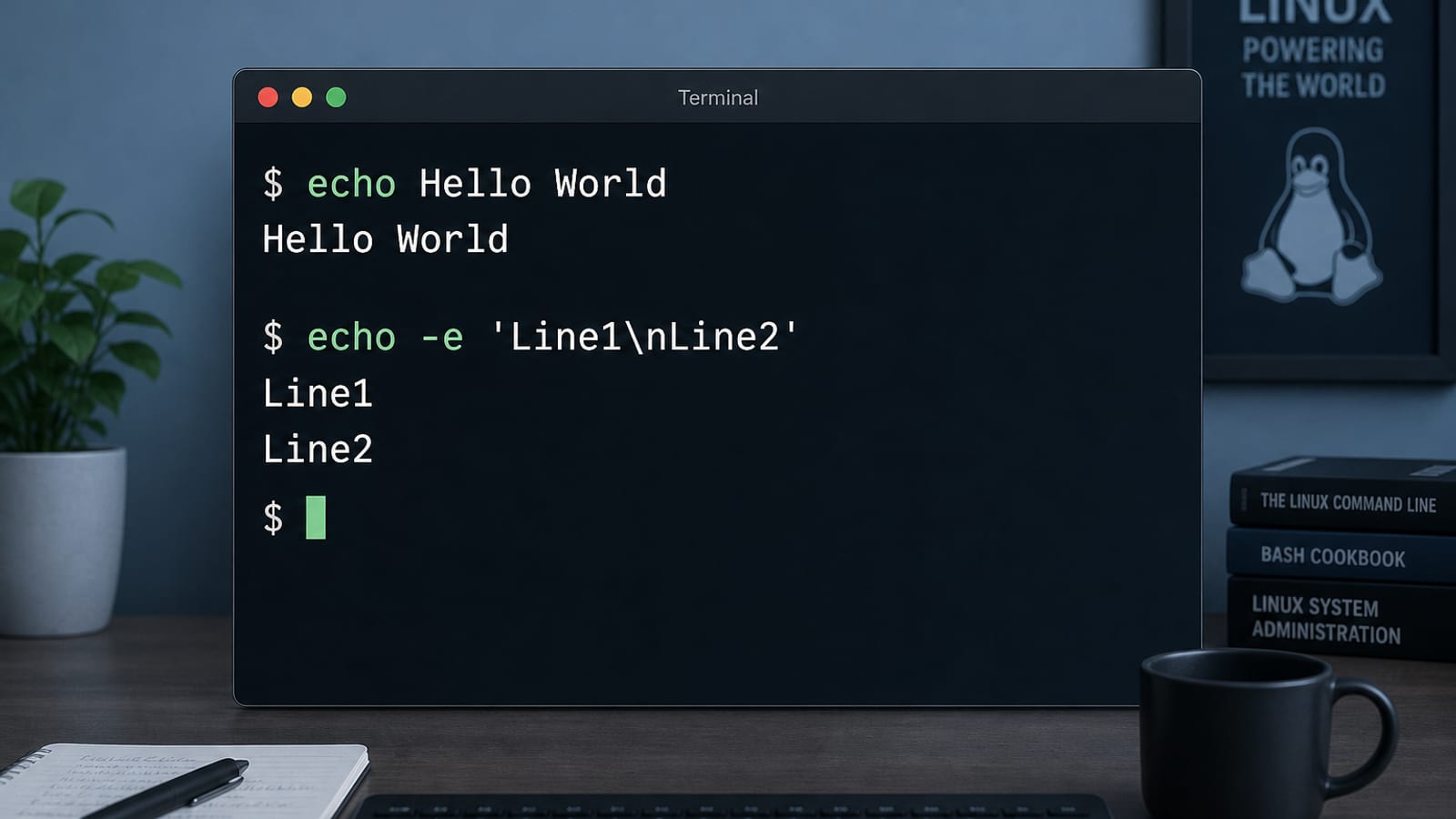
The echo command in Linux writes its arguments to standard output, usually followed by a newline. On Ubuntu you almost always use the shell builtin (type echo → echo is a shell builtin). GNU coreutils also ships /bin/echo for cases where no shell is involved. Official note from man echo: your shell’s echo may differ; printf is preferred when portability or option-like strings matter.
type -a echo
# echo is a shell builtin
# echo is /bin/echo

help echo          # bash builtin help
man echo           # documents /bin/echo (coreutils)
If you already know your goal, jump to: -n/-e, write to a file, newline quoting, or echo vs printf. To view files afterward, use cat or tail.
For a broader Ubuntu terminal quick reference, see the Linux commands cheat sheet.
Basic Syntax
echo [OPTION]... [STRING]...
echo Hello
echo Hello World
echo "Hello World"
Default behavior: print the strings separated by spaces, then a trailing newline.
Useful Options (-n, -e, -E)
GNU /bin/echo (and bash’s builtin with similar flags) supports:
| Option | Meaning |
|---|---|
-n | Do not print the trailing newline |
-e | Enable backslash escapes (\n, \t, …) |
-E | Disable escapes (default for /bin/echo) |
echo -n "Prompt: "          # cursor stays on same line
echo -e "Line1\nLine2"      # two lines
echo -e "Col1\tCol2"        # tab between columns
echo -e "Path: C:\\\\temp"  # show a backslash
Common escapes with -e (from the Ubuntu man page):
| Escape | Meaning |
|---|---|
\n | Newline |
\t | Tab |
\\ | Backslash |
\a | Bell |
\b | Backspace |
\r | Carriage return |
\c | Stop output here |
\xHH | Hex byte |
\0NNN | Octal byte |
Bash builtin details: help echo. External binary: man echo.
Variables and Quoting
name=Ubuntu
echo $name
echo "$name"              # safer with spaces/glob chars
echo "User: $USER home=$HOME"
echo 'Literally $USER'    # single quotes: no expansion
Unquoted $var still undergoes word-splitting and globbing—prefer "$var" in scripts.
Write (or Append) to a File
echo "first line" > notes.txt       # overwrite
echo "second line" >> notes.txt     # append
Root-owned files: sudo echo … > /etc/file fails—the shell opens the file as you. Use:
echo "options ..." | sudo tee /etc/modprobe.d/local.conf >/dev/null
echo "line" | sudo tee -a /etc/file >/dev/null
(Same Ask Ubuntu pattern as other sudo + redirection issues—see the sudo command guide.)
Newlines and Command Substitution (Classic Gotcha)
# File has multiple lines, but this prints one line:
echo $(cat input.txt)
# hello world !

# Keep newlines — quote the substitution:
echo "$(cat input.txt)"
Ask Ubuntu explanation: without quotes, word-splitting turns newlines into spaces. Also, $(…) strips trailing newlines—use cat/printf carefully when byte-exact output matters.
Why /bin/echo Exists
Ask Ubuntu: the builtin is for speed; /bin/echo exists because tools like find -exec, xargs, .desktop Exec=, and sudo echo run programs without a shell:
find src -name 'abc*' -type f -exec echo mv -nv {} dest/ \;
type -a echo
/bin/echo --version    # coreutils version string
Prefer printf over depending on differences between bash echo and /bin/echo.
Echo vs Printf
| Use | Prefer |
|---|---|
| Quick interactive print | echo |
Scripts, formats, leading - text | printf |
| Portable escape handling | printf |
# echo can mis-handle strings that look like options:
echo -n               # may mean “no newline,” not print “-n”

# printf is explicit:
printf '%s\n' -n
printf 'Name: %s\n' "$USER"
printf 'Line1\nLine2\n'
The coreutils man page explicitly recommends printf(1) as the preferred alternative.
Colors and Escape Sequences (Optional)
echo -e "\033[1;32mOK\033[0m"
# or
printf '\033[1;31mError\033[0m\n'
Works in terminals that understand ANSI codes; avoid relying on color in logs meant for files.
Common Mistakes
| Mistake | Fix |
|---|---|
Lost newlines with echo $(cat f) | echo "$(cat f)" or just cat f |
sudo echo x > /root/f permission denied | echo x | sudo tee /root/f |
Expecting -e everywhere | Behavior varies by shell; use printf in scripts |
| Unquoted variables | Use "$var" |
| Need exact bytes / formats | Prefer printf |
Quick Cheat Sheet
echo hello
echo -n "no newline"
echo -e "a\tb\nc"
echo "$VAR"
echo "line" > file
echo "line" >> file
echo x | sudo tee /path >/dev/null
printf '%s\n' "$VAR"          # safer in scripts
type -a echo
From Shell Output to Shareable Documents
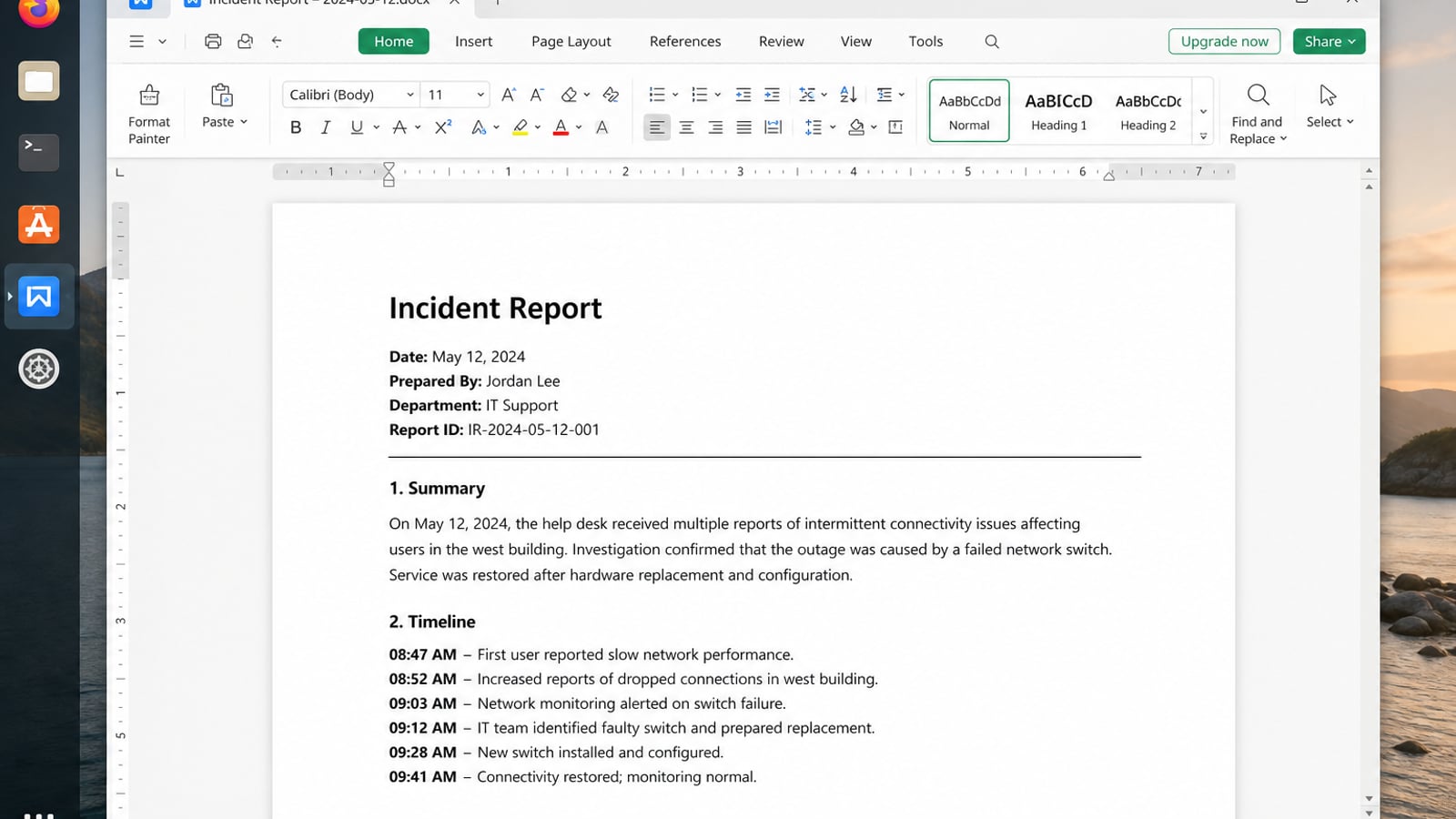
echo is a fast way to print values, append small lines, or build simple shell output. But when that output becomes a note, checklist, or attachment for someone else, plain terminal text is only the first step.
WPS Office for Linux gives Ubuntu a cleaner desktop handoff: Writer for formatted notes, Spreadsheet for structured values, and PDF for fixed output.
| What you need next | What WPS gives you |
|---|---|
| Turn shell output into a readable final document | Strong .docx / .xlsx / .pptx layout fidelity when files move between Linux, Windows, and macOS |
| One place for notes, sheets, slides, and PDFs | Free core suite: Writer, Spreadsheet, Presentation, plus PDF view/edit/convert tools |
| A familiar desktop UI for switchers | Ribbon-style apps with a lighter footprint than many heavy suites |
| A trusted install path | Official DEB (Ubuntu/Debian/Mint) and RPM packages from the vendor |
Use the official WPS Office for Linux download page, then install the local package with sudo apt install ./wps-office_VERSION_amd64.deb. Keep echo for shell text; use WPS when the result should open as a polished file instead of another terminal line.
FAQ
What does the echo command do in Linux?
It prints its arguments to standard output, normally ending with a newline.
What is echo -e?
It enables interpretation of backslash escapes like \n and \t (GNU echo / typical bash builtin).
What is echo -n?
It suppresses the trailing newline—useful for prompts.
Builtin vs /bin/echo?
Interactive bash uses the builtin; /bin/echo is for non-shell callers (find -exec, xargs, etc.).
When should I use printf instead?
In scripts, for reliable formatting, and when the string might look like an option.
Where is the official documentation?
Run help echo (bash), man echo (/bin/echo), and man printf, or see the Ubuntu echo(1) man page.

'%3e%3cpath%20d='M19.9911%204.11386V6.471H18.5894C18.0775%206.471%2017.7322%206.57814%2017.5536%206.79243C17.3751%207.00671%2017.2858%207.32814%2017.2858%207.75671V9.44421H19.9019L19.5536%2012.0871H17.2858V18.8639H14.5536V12.0871H12.2769V9.44421H14.5536V7.49779C14.5536%206.39064%2014.8632%205.53201%2015.4822%204.92189C16.1013%204.31177%2016.9257%204.00671%2017.9554%204.00671C18.8304%204.00671%2019.509%204.04243%2019.9911%204.11386Z'%20fill='%23333333'/%3e%3c/g%3e%3cdefs%3e%3cclipPath%20id='clip0_2938_8199'%3e%3crect%20width='16'%20height='16'%20fill='white'%20transform='translate(8%204.00671)'/%3e%3c/clipPath%3e%3c/defs%3e%3c/svg%3e)
'%3e%3cpath%20d='M17.5237%2010.7813L23.4811%204H22.0699L16.8949%209.88693L12.7648%204H8L14.2469%2012.9029L8%2020.0133H9.4112L14.8725%2013.7952L19.2352%2020.0133H24M9.92053%205.04213H12.0885L22.0688%2019.0224H19.9003'%20fill='%23333333'/%3e%3c/g%3e%3cdefs%3e%3cclipPath%20id='clip0_2938_8200'%3e%3crect%20width='16'%20height='16.0134'%20fill='white'%20transform='translate(8%204)'/%3e%3c/clipPath%3e%3c/defs%3e%3c/svg%3e)


