

'%3e%3cpath%20d='M8%200C12.4183%200%2016%203.58172%2016%208C16%2012.4183%2012.4183%2016%208%2016C3.58172%2016%200%2012.4183%200%208C0%203.58172%203.58172%200%208%200ZM11.6162%204.38379C11.2257%203.99337%2010.5927%203.99338%2010.2021%204.38379L8%206.58594L5.79785%204.38379C5.40732%203.99334%204.77429%203.99329%204.38379%204.38379C3.99331%204.77429%203.99335%205.40733%204.38379%205.79785L6.58594%208L4.38379%2010.2021C3.99348%2010.5927%203.99341%2011.2257%204.38379%2011.6162C4.77426%2012.0066%205.40734%2012.0065%205.79785%2011.6162L8%209.41406L10.2021%2011.6162C10.5927%2012.0066%2011.2257%2012.0067%2011.6162%2011.6162C12.0067%2011.2257%2012.0066%2010.5927%2011.6162%2010.2021L9.41406%208L11.6162%205.79785C12.0066%205.40735%2012.0066%204.77429%2011.6162%204.38379Z'%20fill='%23080E17'%20fill-opacity='0.46'/%3e%3c/g%3e%3cdefs%3e%3cclipPath%20id='clip0_3761_713'%3e%3crect%20width='16'%20height='16'%20fill='white'/%3e%3c/clipPath%3e%3c/defs%3e%3c/svg%3e)




'%3e%3cpath%20fill-rule='evenodd'%20clip-rule='evenodd'%20d='M21.4999%2010.9993C21.4999%205.20009%2016.7986%200.498901%2010.9993%200.498901C5.19994%200.498901%200.498657%205.20009%200.498657%2010.9993C0.498657%2016.2404%204.33858%2020.5844%209.35855%2021.3722V14.0346H6.69238V10.9993H9.35855V8.68594C9.35855%206.05427%2010.9262%204.60062%2013.3248%204.60062C14.4736%204.60062%2015.6753%204.80571%2015.6753%204.80571V7.38979H14.3512C13.0468%207.38979%2012.64%208.19921%2012.64%209.0296V10.9993H15.5523L15.0867%2014.0346H12.64V21.3722C17.66%2020.5844%2021.4999%2016.2404%2021.4999%2010.9993Z'%20fill='%231568EA'/%3e%3c/g%3e%3c/svg%3e)


'%3e%3cpath%20d='M2.42045%2022.1876H6.31818V12.7217L0.75%208.54553V20.5171C0.75%2021.4414%201.49892%2022.1876%202.42045%2022.1876Z'%20fill='%234285F4'/%3e%3cpath%20d='M19.682%2022.1876H23.5797C24.5041%2022.1876%2025.2502%2021.4387%2025.2502%2020.5171V8.54553L19.682%2012.7217'%20fill='%2334A853'/%3e%3cpath%20d='M19.682%205.48293V12.7216L25.2502%208.54543V6.31816C25.2502%204.25236%2022.8921%203.07469%2021.2411%204.31361'%20fill='%23FBBC04'/%3e%3cpath%20d='M6.31824%2012.7217V5.48303L13.0001%2010.4944L19.6819%205.48303V12.7217L13.0001%2017.733'%20fill='%23EA4335'/%3e%3cpath%20d='M0.75%206.31816V8.54543L6.31818%2012.7216V5.48293L4.75909%204.31361C3.10534%203.07469%200.75%204.25236%200.75%206.31816Z'%20fill='%23C5221F'/%3e%3c/g%3e%3cdefs%3e%3cclipPath%20id='clip0_2954_7305'%3e%3crect%20width='24.5'%20height='18.375'%20fill='white'%20transform='translate(0.75%203.8125)'/%3e%3c/clipPath%3e%3c/defs%3e%3c/svg%3e)


The tail command in Linux prints the last part of a file—by default the last 10 lines. It is part of GNU coreutils on Ubuntu and is the everyday tool for checking recent log output and watching files as they grow (-f / -F).
man tail
tail --version
Official reference: Ubuntu man page tail(1). With no file (or -), tail reads standard input. If you already know your goal, jump to: -n, -f/-F, multiple files, or grep pipelines. To print a whole short file, use cat instead.

For a broader Ubuntu terminal quick reference, see the Linux commands cheat sheet.
Basic Syntax
tail [OPTION]... [FILE]...
tail /var/log/syslog          # last 10 lines
tail notes.txt
With more than one file, GNU tail prints a header (==> filename <==<>) before each file’s output.
Show a Specific Number of Lines (-n)
tail -n 20 /var/log/syslog    # last 20 lines
tail -20 /var/log/syslog      # short form (GNU)
Start from a given line number with +:
# Skip the first 99 lines; print from line 100 onward
tail -n +100 bigfile.txt
Follow a Growing File (-f and -F)
Watch new lines as they are appended (Ctrl+C to stop):
tail -f /var/log/syslog
tail -f app.log
From the man page:
| Mode | Behavior |
|---|---|
-f / --follow | Follow by file descriptor (default). If the file is renamed, tail still follows the old inode. |
-F | Same as --follow=name --retry—follow by name, reopen after rotation/unlink. |
# Better for rotated logs (logrotate)
tail -F /var/log/nginx/access.log
Other useful follow options:
tail -f -s 2 app.log              # sleep ~2s between checks
tail -f --pid=1234 app.log        # stop when PID 1234 exits (GNU)
tail -f --retry missing.log       # keep trying if file is inaccessible
Multiple Files in One Terminal
Ask Ubuntu tip—pass several paths to one tail -f:
tail -f /var/log/syslog /var/log/auth.log
Headers label which file each block came from. Alternatives: multitail, tmux/screen splits, or terminal tabs.
tail -q -n 5 a.log b.log     # -q: quiet (no headers)
tail -v file.txt             # -v: always show headers
Bytes Instead of Lines (-c)
tail -c 100 file.bin         # last 100 bytes
tail -c +200 file.txt        # from byte 200 to end
NUM can use suffixes like K, M (see man tail).
Pipelines: Filter While Following
For grep flags and buffering details beyond this page, see the grep command in Linux guide.
Common Ask Ubuntu pattern—follow then filter:
tail -f my_file.log | grep "X"
Chaining two greps can look “stuck” because of buffering. Fixes:
tail -f /path/to/log | grep --line-buffered 'X' | grep -v 'Y'
# or
tail -f /path/to/log | stdbuf -oL grep 'X' | grep -v 'Y'
# or one awk rule
tail -f /path/to/log | awk '/X/ && !/Y/'
Also useful:
dmesg | tail -n 30
journalctl -u ssh -n 50      # systemd: often better than raw files
journalctl -f -u nginx       # follow a unit (alternative to tail -f)
Head vs Tail
| Command | Shows |
|---|---|
head | Beginning of a file |
tail | End of a file |
tail -f / -F | Live end of a growing/rotated file |
head -n 20 file.txt
tail -n 20 file.txt
Need the full file contents or to join files? That is cat's job—not tail.
Common Pitfalls
| Problem | What to try |
|---|---|
Log rotates and -f “stops” | Use tail -F (follow by name + retry) |
tail -f | grep | grep silent | --line-buffered / stdbuf -oL / awk |
| Live USB / overlayfs oddities | Some filesystems break inotify; see Ask Ubuntu workarounds |
| Huge noisy logs | tail -n first, then -f with grep |
| Need service-centric logs | Prefer journalctl -f -u … on systemd |
Stop a follow session with Ctrl+C. In scripts, prefer tail --pid=$$ -f … so follow ends when the parent process exits.
Quick Cheat Sheet
tail file                     # last 10 lines
tail -n 50 file               # last 50 lines
tail -n +100 file             # from line 100
tail -f file                  # follow (descriptor)
tail -F file                  # follow name (rotation-safe)
tail -f a.log b.log           # multiple files
tail -c 1K file               # last 1K bytes
tail -f log | grep --line-buffered ERROR
tail -f --pid=$PID app.log
From Terminal Logs to Shareable Documents
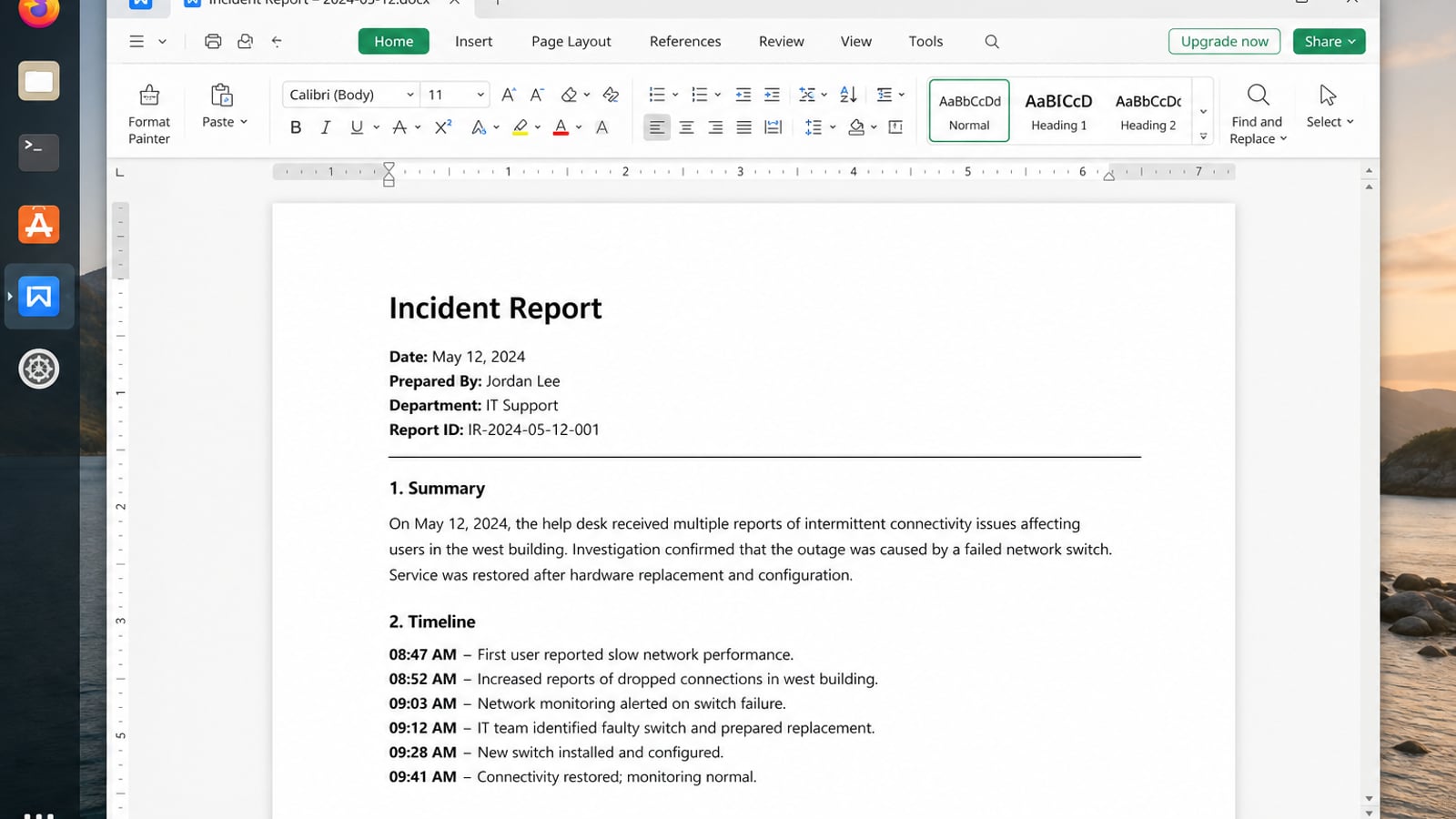
tail and tail -f belong in the terminal. After you isolate the failing lines, the next step is often a short incident note, a timestamp table, or a PDF for teammates still on Microsoft Office. For that handoff, use a desktop suite—not another pager.
WPS Office for Linux covers Writer, Spreadsheet, Presentation, and PDF tools on Ubuntu and other mainstream distributions, so the report you write on Linux opens cleanly for Windows colleagues.
What you need after tail | What WPS gives you |
|---|---|
| Keep charts, tables, and slides intact in Office files | Strong .docx / .xlsx / .pptx layout fidelity when exchanging with Windows or macOS |
| One app for notes, sheets, slides, and PDF | Free core suite: Writer, Spreadsheet, Presentation, plus PDF view/edit/convert |
| A familiar UI on a modest laptop | Ribbon-style desktop apps with a lighter footprint than many heavyweight suites |
| A trusted install path | Official DEB (Ubuntu/Debian/Mint) and RPM packages—no random mirrors |
Get the current 64-bit build from the official WPS Office for Linux download page (choose Deb on Ubuntu), then install the local file—replace VERSION with the name you downloaded:
cd ~/Downloads
sudo apt install ./wps-office_VERSION_amd64.deb
Open Writer, paste the snippet you pulled with tail and grep, and save as DOCX or export PDF so formatting survives the handoff. Keep tail for watching services; use WPS when those lines need to become a real document your team can open anywhere.


FAQ
What does the tail command do in Linux?
It prints the last part of a file (default: 10 lines), and can follow new data as the file grows.
What is the difference between tail -f and tail -F?-f follows the open file descriptor; -F follows the filename and retries—better when logs are rotated.
How do I show the last 100 lines?tail -n 100 filename
How do I follow two logs at once?tail -f /var/log/syslog /var/log/auth.log
Why did my grep pipeline stop updating?
Output buffering—use grep --line-buffered or stdbuf -oL.
Where is the official documentation?
Run man tail or see the Ubuntu tail(1) man page.

'%3e%3cpath%20d='M19.9911%204.11386V6.471H18.5894C18.0775%206.471%2017.7322%206.57814%2017.5536%206.79243C17.3751%207.00671%2017.2858%207.32814%2017.2858%207.75671V9.44421H19.9019L19.5536%2012.0871H17.2858V18.8639H14.5536V12.0871H12.2769V9.44421H14.5536V7.49779C14.5536%206.39064%2014.8632%205.53201%2015.4822%204.92189C16.1013%204.31177%2016.9257%204.00671%2017.9554%204.00671C18.8304%204.00671%2019.509%204.04243%2019.9911%204.11386Z'%20fill='%23333333'/%3e%3c/g%3e%3cdefs%3e%3cclipPath%20id='clip0_2938_8199'%3e%3crect%20width='16'%20height='16'%20fill='white'%20transform='translate(8%204.00671)'/%3e%3c/clipPath%3e%3c/defs%3e%3c/svg%3e)
'%3e%3cpath%20d='M17.5237%2010.7813L23.4811%204H22.0699L16.8949%209.88693L12.7648%204H8L14.2469%2012.9029L8%2020.0133H9.4112L14.8725%2013.7952L19.2352%2020.0133H24M9.92053%205.04213H12.0885L22.0688%2019.0224H19.9003'%20fill='%23333333'/%3e%3c/g%3e%3cdefs%3e%3cclipPath%20id='clip0_2938_8200'%3e%3crect%20width='16'%20height='16.0134'%20fill='white'%20transform='translate(8%204)'/%3e%3c/clipPath%3e%3c/defs%3e%3c/svg%3e)


