

'%3e%3cpath%20d='M8%200C12.4183%200%2016%203.58172%2016%208C16%2012.4183%2012.4183%2016%208%2016C3.58172%2016%200%2012.4183%200%208C0%203.58172%203.58172%200%208%200ZM11.6162%204.38379C11.2257%203.99337%2010.5927%203.99338%2010.2021%204.38379L8%206.58594L5.79785%204.38379C5.40732%203.99334%204.77429%203.99329%204.38379%204.38379C3.99331%204.77429%203.99335%205.40733%204.38379%205.79785L6.58594%208L4.38379%2010.2021C3.99348%2010.5927%203.99341%2011.2257%204.38379%2011.6162C4.77426%2012.0066%205.40734%2012.0065%205.79785%2011.6162L8%209.41406L10.2021%2011.6162C10.5927%2012.0066%2011.2257%2012.0067%2011.6162%2011.6162C12.0067%2011.2257%2012.0066%2010.5927%2011.6162%2010.2021L9.41406%208L11.6162%205.79785C12.0066%205.40735%2012.0066%204.77429%2011.6162%204.38379Z'%20fill='%23080E17'%20fill-opacity='0.46'/%3e%3c/g%3e%3cdefs%3e%3cclipPath%20id='clip0_3761_713'%3e%3crect%20width='16'%20height='16'%20fill='white'/%3e%3c/clipPath%3e%3c/defs%3e%3c/svg%3e)




'%3e%3cpath%20fill-rule='evenodd'%20clip-rule='evenodd'%20d='M21.4999%2010.9993C21.4999%205.20009%2016.7986%200.498901%2010.9993%200.498901C5.19994%200.498901%200.498657%205.20009%200.498657%2010.9993C0.498657%2016.2404%204.33858%2020.5844%209.35855%2021.3722V14.0346H6.69238V10.9993H9.35855V8.68594C9.35855%206.05427%2010.9262%204.60062%2013.3248%204.60062C14.4736%204.60062%2015.6753%204.80571%2015.6753%204.80571V7.38979H14.3512C13.0468%207.38979%2012.64%208.19921%2012.64%209.0296V10.9993H15.5523L15.0867%2014.0346H12.64V21.3722C17.66%2020.5844%2021.4999%2016.2404%2021.4999%2010.9993Z'%20fill='%231568EA'/%3e%3c/g%3e%3c/svg%3e)


'%3e%3cpath%20d='M2.42045%2022.1876H6.31818V12.7217L0.75%208.54553V20.5171C0.75%2021.4414%201.49892%2022.1876%202.42045%2022.1876Z'%20fill='%234285F4'/%3e%3cpath%20d='M19.682%2022.1876H23.5797C24.5041%2022.1876%2025.2502%2021.4387%2025.2502%2020.5171V8.54553L19.682%2012.7217'%20fill='%2334A853'/%3e%3cpath%20d='M19.682%205.48293V12.7216L25.2502%208.54543V6.31816C25.2502%204.25236%2022.8921%203.07469%2021.2411%204.31361'%20fill='%23FBBC04'/%3e%3cpath%20d='M6.31824%2012.7217V5.48303L13.0001%2010.4944L19.6819%205.48303V12.7217L13.0001%2017.733'%20fill='%23EA4335'/%3e%3cpath%20d='M0.75%206.31816V8.54543L6.31818%2012.7216V5.48293L4.75909%204.31361C3.10534%203.07469%200.75%204.25236%200.75%206.31816Z'%20fill='%23C5221F'/%3e%3c/g%3e%3cdefs%3e%3cclipPath%20id='clip0_2954_7305'%3e%3crect%20width='24.5'%20height='18.375'%20fill='white'%20transform='translate(0.75%203.8125)'/%3e%3c/clipPath%3e%3c/defs%3e%3c/svg%3e)


Best Linux apps for daily use in 2026 help new users moving from Windows or Mac pick stable desktop software without endless trial and error. This guide highlights popular, widely used tools across five categories: office productivity, code editors, media creation, system utilities, and local AI. Each section lists three practical picks with what they do well on Linux—and where they fit best.
Quick answer: For everyday documents shared with Windows/Mac coworkers, start with WPS Office or LibreOffice. For coding, use VS Code (or Neovim / Nano in the terminal). For media, try Kdenlive, GIMP, and Krita. Add VLC, Firefox, and Timeshift for playback, browsing, and backups. For local AI on capable hardware, look at Ollama, ComfyUI, and vLLM.


Best Linux Apps by Category (2026 Snapshot)
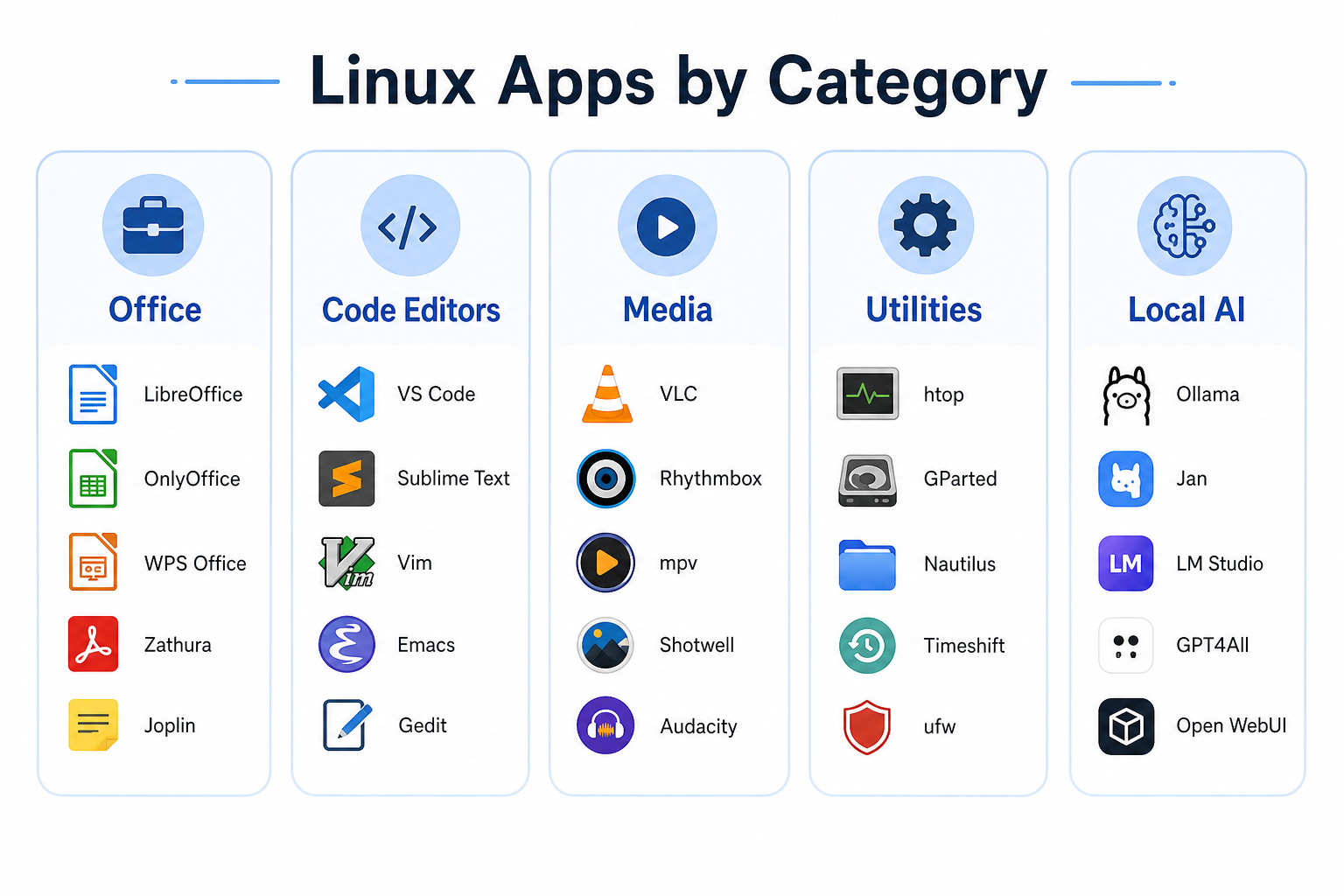
| Category | Top picks | Best for |
|---|---|---|
| Office | WPS Office, LibreOffice, OnlyOffice | Docs, sheets, slides, team editing |
| Code / text | VS Code, Neovim, Nano | Development and quick config edits |
| Video / image | Kdenlive, GIMP, Krita | Editing, photo work, digital painting |
| Daily utilities | VLC, Firefox, Timeshift | Media, browsing, system restore points |
| Local AI | Ollama, ComfyUI, vLLM | Offline models, image workflows, inference |
1. Office Productivity Tools
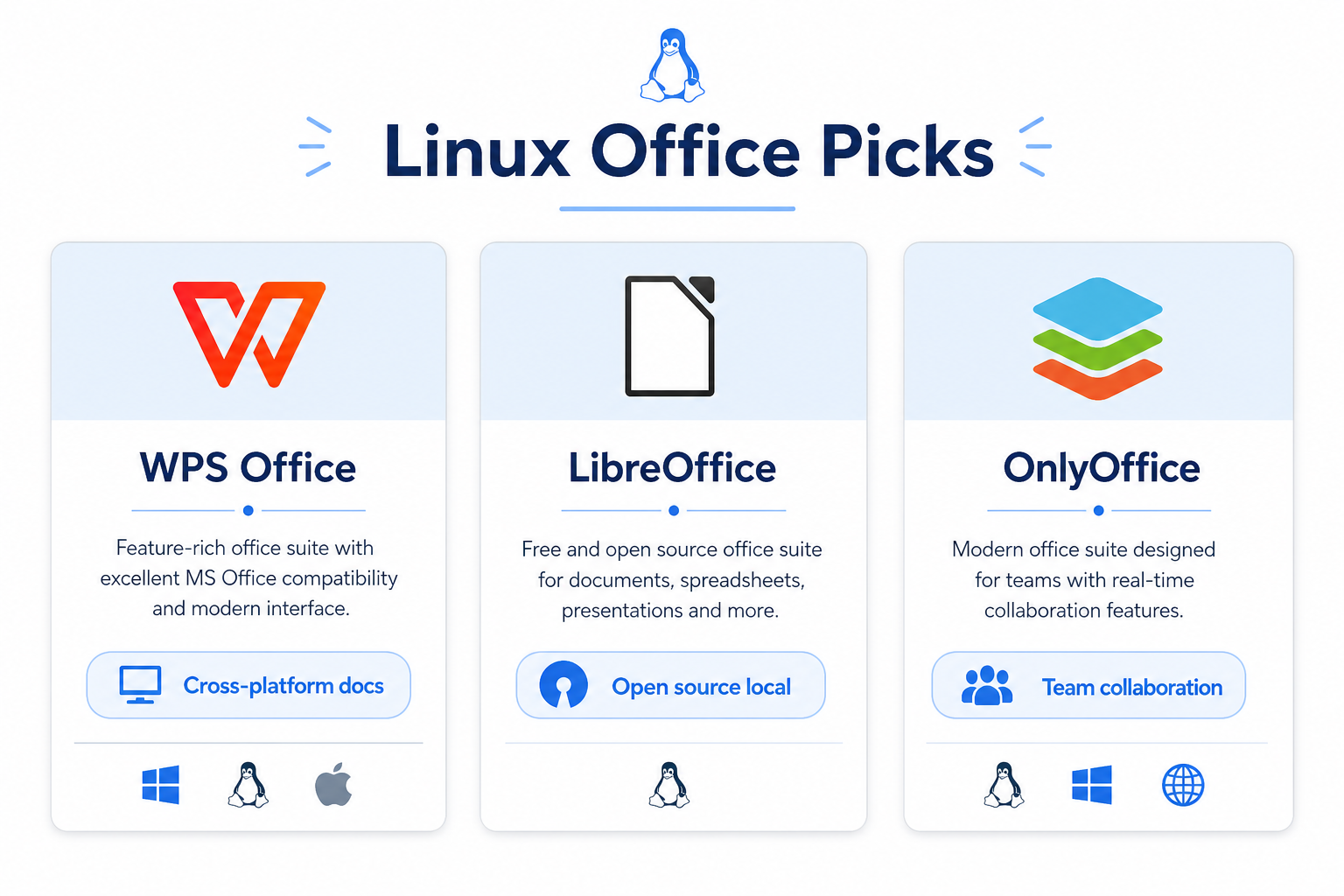
1.1 WPS Office for Linux
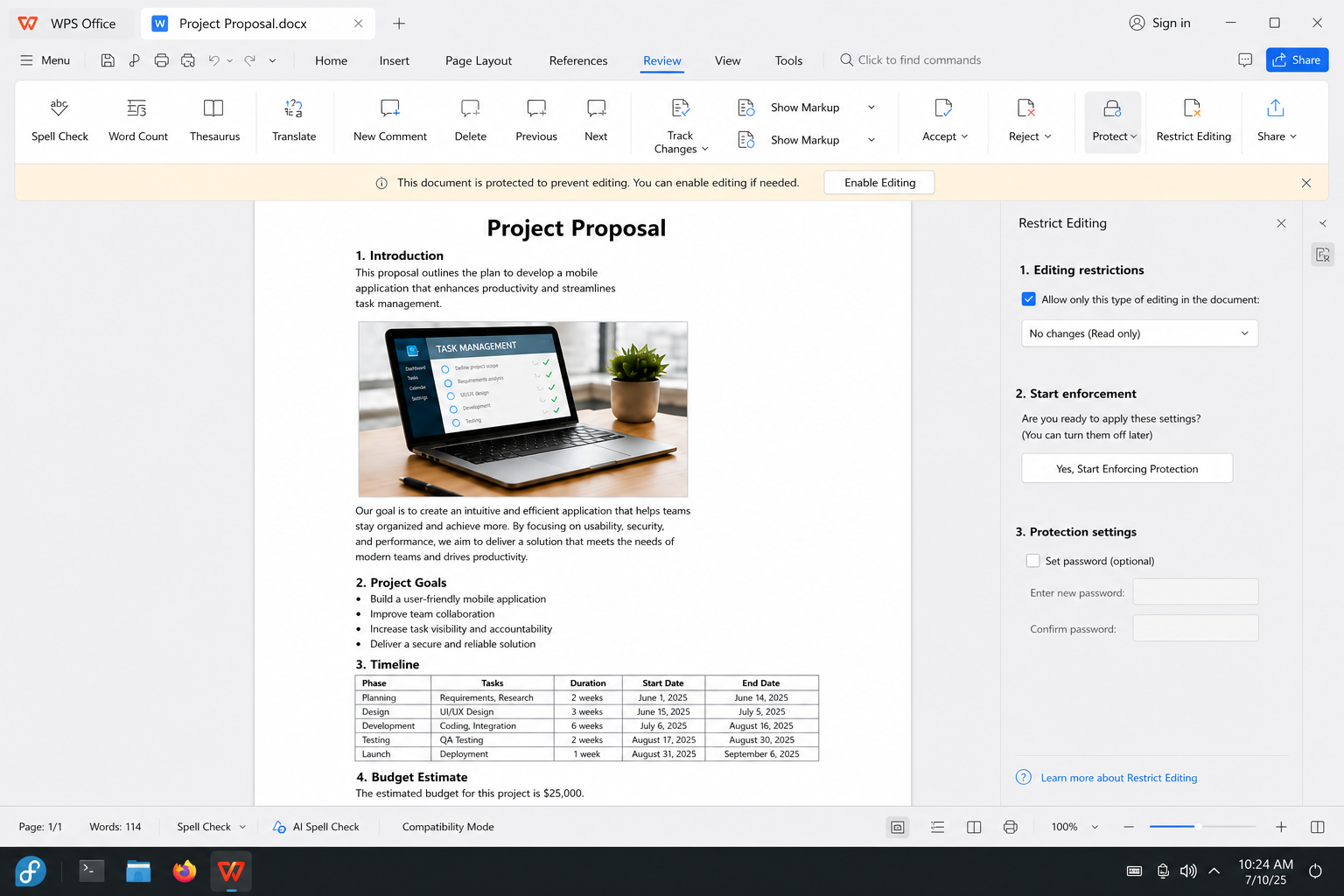
Linux strength: A practical “works with the Office world” option when you share files across operating systems.
1.2 LibreOffice
LibreOffice ships with many Linux distributions and is fully open source. It runs offline with no subscription, and it covers Writer, Calc, and Impress for local documents, spreadsheets, and slides. Compatibility with complex Microsoft Office files has improved over time, but very intricate Windows-authored layouts can still need a quick check before you send them out.
Linux strength: Ready after install on many distros—great for local-first work and open-source stacks.
1.3 OnlyOffice Desktop Editors
OnlyOffice Desktop Editors suits individuals and small teams that want solid document fidelity and local collaboration options. It handles tables and charts cleanly for many business files and can keep sensitive work off third-party clouds when you stay on local or self-hosted setups. Core editing features are free for personal and many small-team use cases (check current license terms for your size).
Linux strength: A collaboration-friendly desktop suite when privacy and formatting consistency matter.
| Office app | Choose it when… |
|---|---|
| WPS Office | You exchange a lot of Microsoft Office files across Windows/Mac/Linux |
| LibreOffice | You want an open-source suite preinstalled or local-first editing |
| OnlyOffice | You need desktop editors with stronger team/local collaboration focus |
2. Code and Text Editors
2.1 VS Code
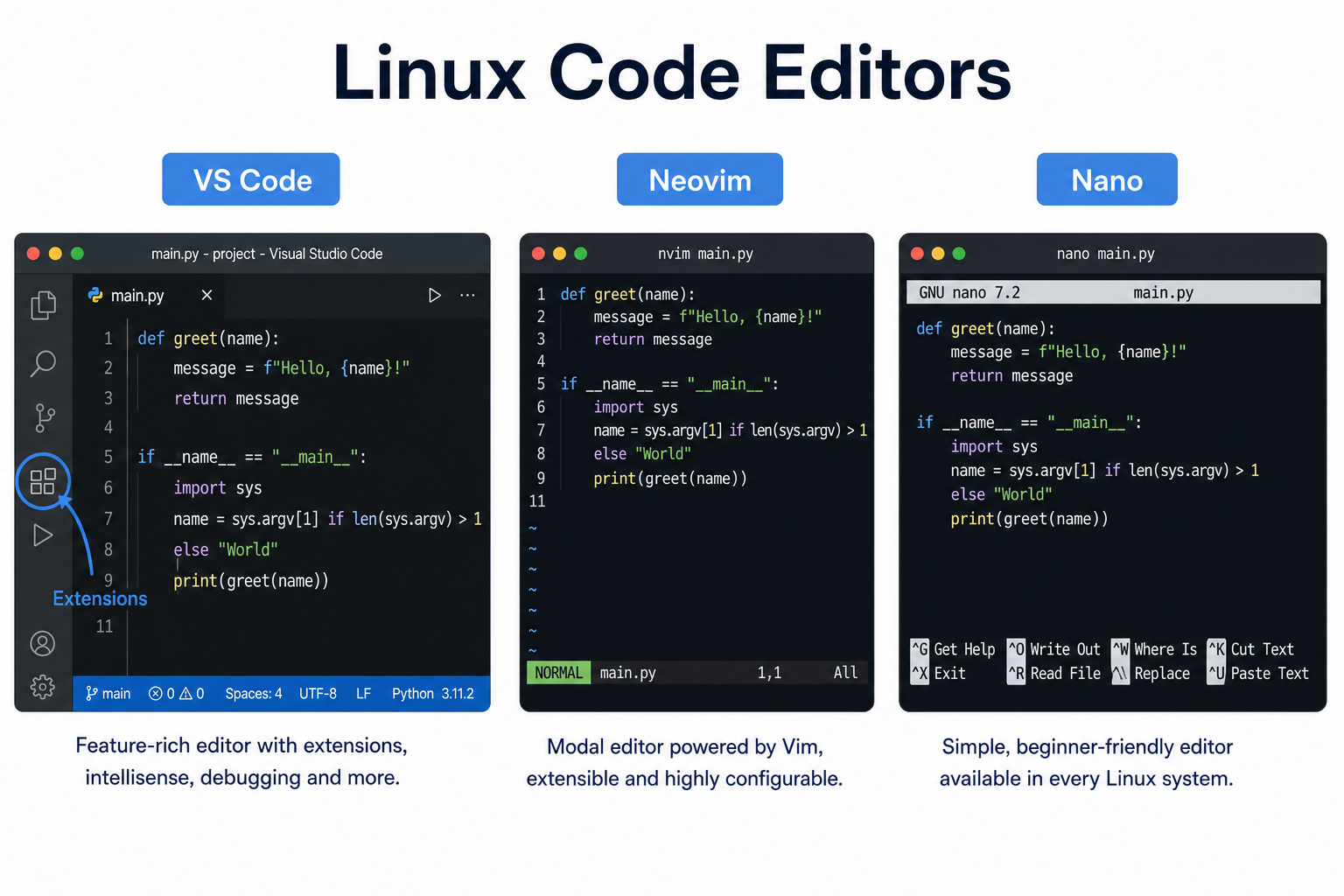
Visual Studio Code remains one of the most popular Linux developer editors. Extensions cover major languages, Git is built in, and the integrated terminal keeps edit-and-run loops fast. It balances features and performance well on typical developer laptops and receives frequent stable updates.
Linux strength: Huge extension ecosystem plus smooth terminal and Git workflows on desktop Linux.
2.2 Neovim
Neovim is a modern Vim-family editor built for speed and flexible configuration. It shines for remote SSH work and low-resource machines because it is keyboard-driven and light. A large plugin ecosystem supports contemporary development setups once you invest a bit of config time.
Linux strength: Excellent for servers and power users who live in the terminal.
2.3 Nano
Nano is the friendliest terminal editor for beginners. Shortcut hints appear at the bottom of the screen, so you can edit config files without memorizing Vim modes. It comes preinstalled on many Linux distributions and needs almost no setup.
Linux strength: Fast, no-drama edits for system configs and short scripts.
3. Video and Image Editing Software
3.1 Kdenlive
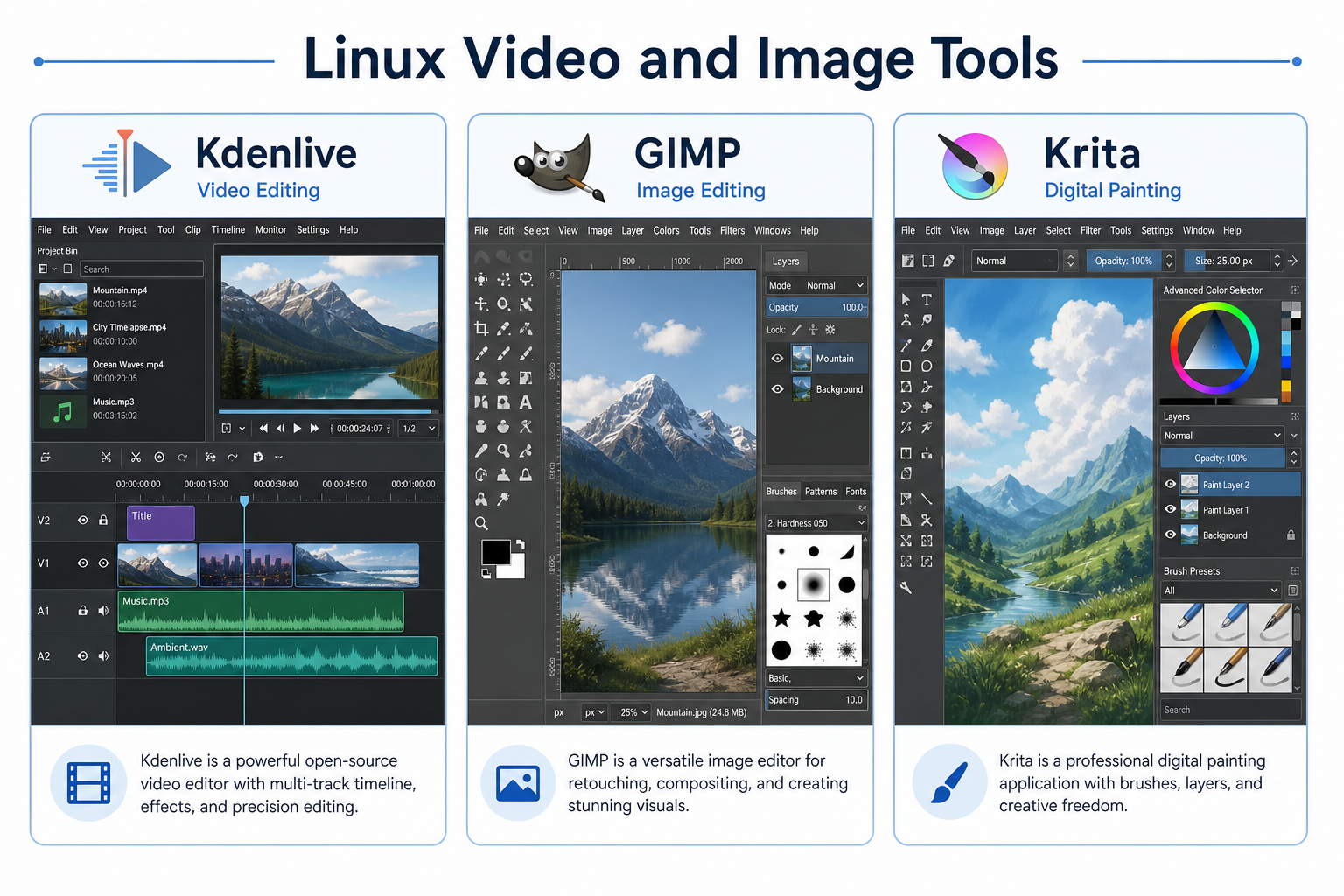
Kdenlive is a mature open-source video editor that runs well across Linux desktops (not only KDE). It supports multi-track timelines, proxy editing to ease hardware load, and customizable layouts. Plenty of free tutorials make it approachable for YouTube-style and semi-pro projects.
Linux strength: A capable native open-source NLE without a subscription.
3.2 GIMP
GIMP is Linux’s best-known open-source raster editor and a common free alternative to Photoshop for photo retouching and graphics. Community plugins extend it further (including AI-assisted tools where you choose to install them). Drawing-tablet support on Linux is solid for many creative workflows.
Linux strength: Full-featured image editing with a huge open-source community.
3.3 Krita
Krita focuses on digital painting and comics. It ships with rich brush presets and strong tablet pressure support, and it feels responsive on mid-range Linux laptops for canvas work.
Linux strength: Illustration-first painting tools that feel at home on Linux creatives’ machines.
4. Daily Media and System Utilities
4.1 VLC Media Player
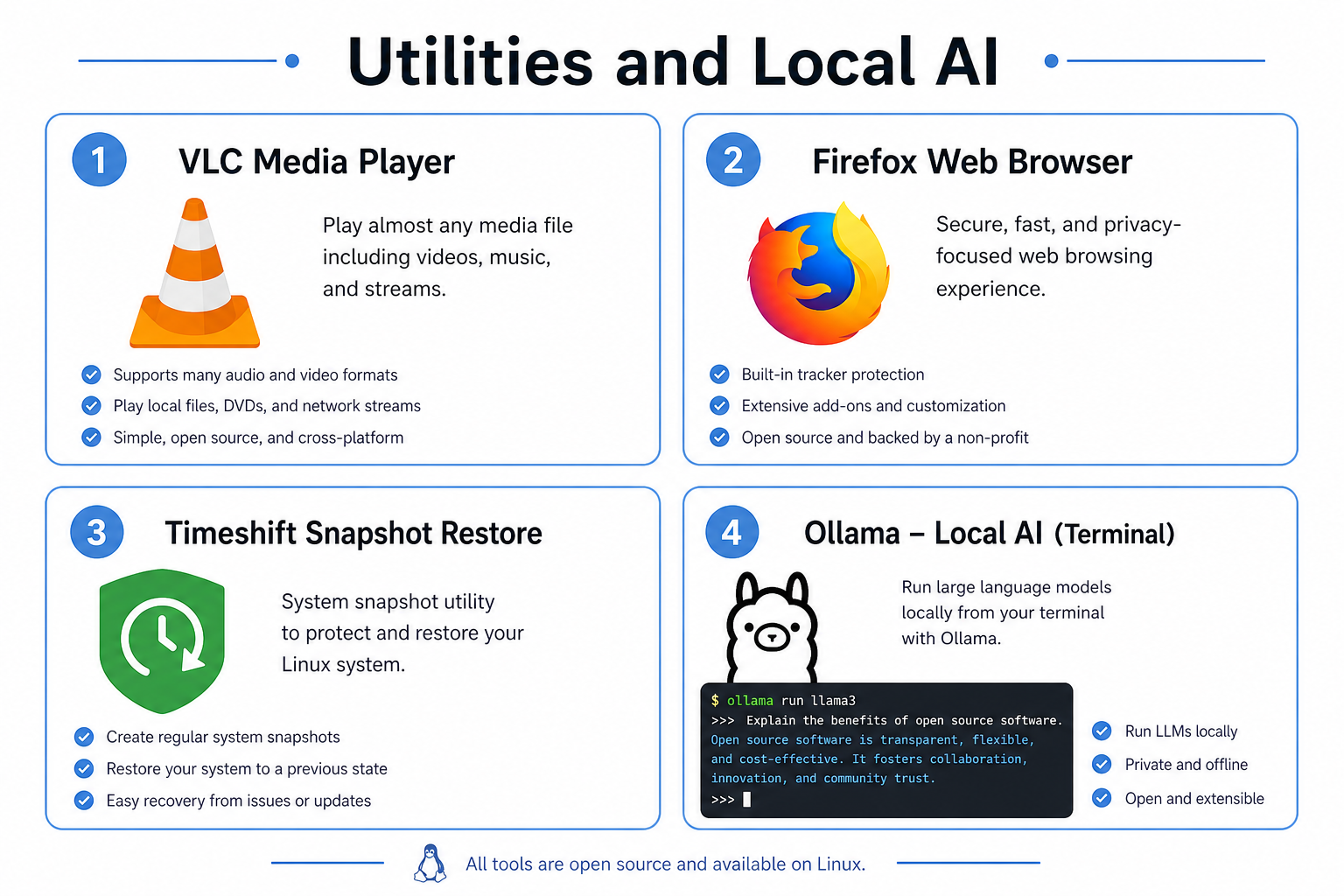
VLC is a trusted cross-platform player that handles most audio and video formats without hunting for codecs. It is lightweight enough for modest hardware and includes handy convert/stream extras when you need a quick format change.
Linux strength: “Just plays the file” reliability on almost any distro.
4.2 Firefox
Firefox is a default or first-choice browser on many Linux desktops. It integrates cleanly with GNOME and KDE for a lot of users, emphasizes privacy controls, and runs extensions reliably for everyday browsing.
Linux strength: Open-source browser culture that matches Linux desktop values.
4.3 Timeshift
Timeshift creates system snapshots so you can roll back after a bad update or config change. The GUI keeps core backup/restore steps approachable for newer Linux users, without requiring deep command-line knowledge for basic use.
Linux strength: A practical safety net before major upgrades—especially on Ubuntu-family systems.
5. Local AI Tools for Linux
These tools run well on Linux and are popular for offline or self-hosted AI. Some also exist on other platforms; Linux remains a strong home for GPU drivers, servers, and developer tooling.
5.1 Ollama
Ollama makes local large language models easier to download and run from the terminal. A short command flow handles model pull and chat, and GPU acceleration (where drivers allow) keeps setup lighter than building stacks by hand. Small quantized models can run on modest machines; larger models need more RAM/VRAM.
Linux strength: Fast path from install to local LLM for scripts, notes, and admin helpers.
5.2 ComfyUI
ComfyUI is a node-based workflow UI for Stable Diffusion–style image generation. On Linux with proper NVIDIA/CUDA (or other supported backends), many users build repeatable batch pipelines for design work. Speed and VRAM use depend on GPU, model size, and settings—not a fixed “always faster than Windows” guarantee.
Linux strength: Flexible visual pipelines for local image generation on capable hardware.
5.3 vLLM
vLLM is a high-throughput LLM inference engine commonly deployed on Linux servers. Features such as PagedAttention aim to improve GPU memory efficiency for serving traffic, and multi-GPU setups are a typical production path. It is aimed at serious inference/API workloads more than casual laptop use.
Linux strength: Server-side inference for teams hosting local AI APIs.
| AI tool | Rough hardware reality check |
|---|---|
| Ollama (small models) | Can work on limited RAM; larger models need more memory |
| ComfyUI | Best with a discrete GPU and ample system RAM |
| vLLM | Server / multi-GPU class hardware for stable high traffic |
Why Many Linux Users Pick WPS Office
LibreOffice is excellent for open-source and local-first documents. If you constantly open complex Microsoft Office files from coworkers, WPS Office for Linux is often the smoother daily driver:
Strong Microsoft Office compatibility for common Word, Excel, and PowerPoint files
Light resource use suitable for everyday laptops (exact RAM needs still depend on file size)
Free core editing for personal use, including practical PDF convert and markup features
Official DEB / RPM packages for major Linux distributions
How to Install WPS Office on Linux
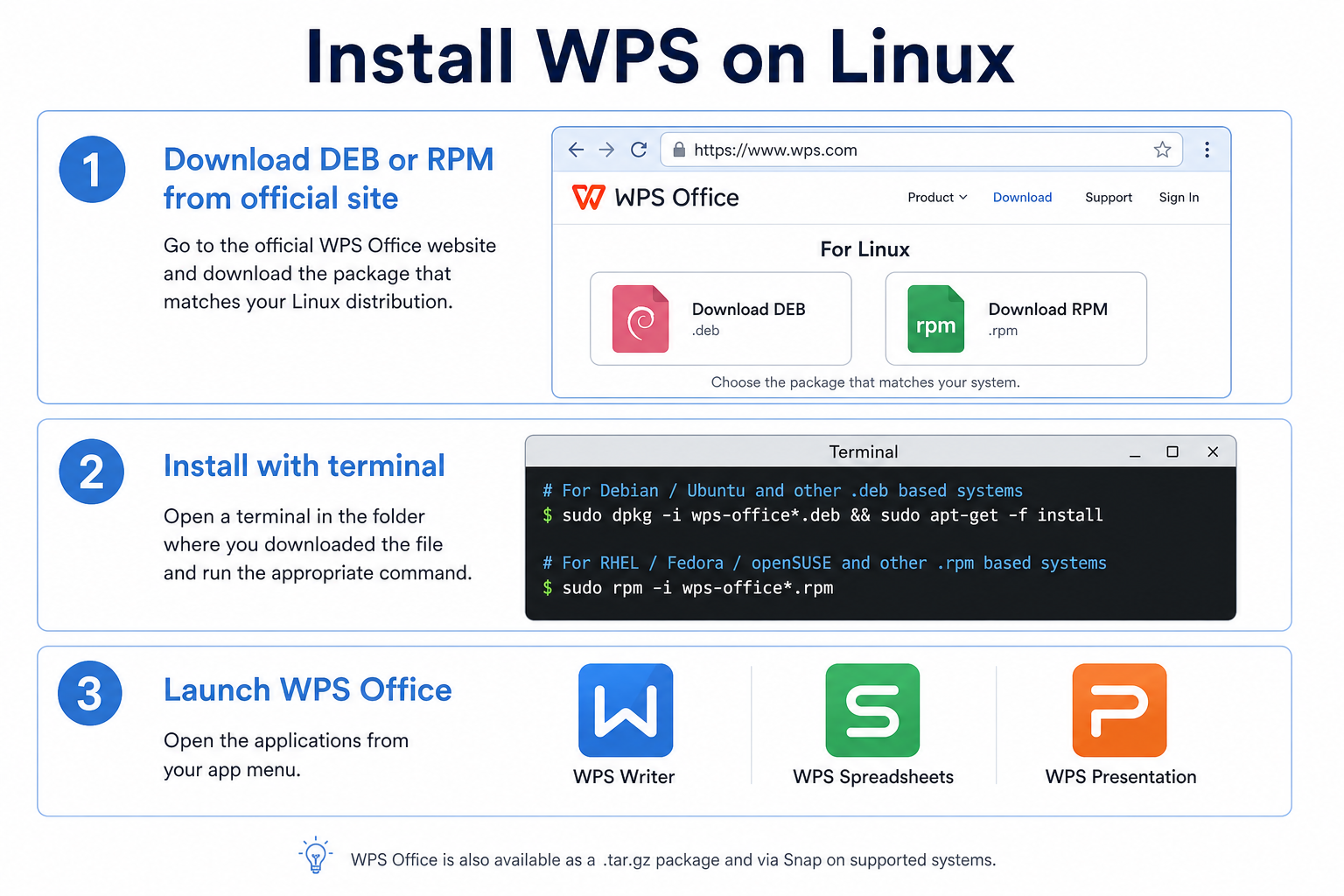
Open the official WPS download page and choose the DEB package (Debian/Ubuntu) or RPM package (Fedora/RHEL family).
Install with your package manager—for example:
Debian/Ubuntu:sudo dpkg -i wps-office*.debthen fix deps if needed withsudo apt -f install
Fedora/RHEL-style:sudo dnf install ./wps-office*.rpm(command may vary by distro)Launch WPS Writer, Spreadsheets, or Presentation from your app menu.
Open a sample .docx / .xlsx / .pptx and confirm layout before relying on it for critical files.
Prefer a GUI? Many distros let you open the downloaded package with the software installer instead of using the terminal.
Related Linux apps guides: Microsoft Office for Linux; Linux office suite; Linux PDF editor; Linux text editor; Linux video editor; best email client for Linux; WPS Linux install guide.
FAQ
Which office app fits most Linux users in 2026?
LibreOffice fits local-first and open-source workflows. WPS Office fits people who share Microsoft Office files with Windows and Mac users. OnlyOffice fits small teams that want desktop editors with a collaboration focus.
Can lightweight AI tools run on low-spec Linux laptops?
Small quantized models via Ollama can run on modest hardware. ComfyUI and vLLM generally need a capable GPU and more RAM for comfortable use.
Are all of these Linux apps free?
Most listed tools are free and open source. WPS core editing features are free for personal use. Enterprise inference deployments (for example some vLLM production setups) may involve infrastructure or commercial support costs—check each project’s current license.
What are the best Linux apps for beginners switching from Windows?
Start with Firefox, VLC, WPS Office or LibreOffice, VS Code if you code, and Timeshift before big system updates.
Conclusion
The best Linux apps for daily use in 2026 cover the same jobs you had on Windows or Mac: documents, coding, media, browsing, backups, and—even—local AI. Pick by workflow: LibreOffice or WPS for office files, VS Code for development, Kdenlive/GIMP/Krita for creative work, and Timeshift for safer upgrades. If cross-platform Office compatibility is your main pain point, WPS Office for Linux is a balanced, free-to-start choice with official packages for popular distributions.

'%3e%3cpath%20d='M19.9911%204.11386V6.471H18.5894C18.0775%206.471%2017.7322%206.57814%2017.5536%206.79243C17.3751%207.00671%2017.2858%207.32814%2017.2858%207.75671V9.44421H19.9019L19.5536%2012.0871H17.2858V18.8639H14.5536V12.0871H12.2769V9.44421H14.5536V7.49779C14.5536%206.39064%2014.8632%205.53201%2015.4822%204.92189C16.1013%204.31177%2016.9257%204.00671%2017.9554%204.00671C18.8304%204.00671%2019.509%204.04243%2019.9911%204.11386Z'%20fill='%23333333'/%3e%3c/g%3e%3cdefs%3e%3cclipPath%20id='clip0_2938_8199'%3e%3crect%20width='16'%20height='16'%20fill='white'%20transform='translate(8%204.00671)'/%3e%3c/clipPath%3e%3c/defs%3e%3c/svg%3e)
'%3e%3cpath%20d='M17.5237%2010.7813L23.4811%204H22.0699L16.8949%209.88693L12.7648%204H8L14.2469%2012.9029L8%2020.0133H9.4112L14.8725%2013.7952L19.2352%2020.0133H24M9.92053%205.04213H12.0885L22.0688%2019.0224H19.9003'%20fill='%23333333'/%3e%3c/g%3e%3cdefs%3e%3cclipPath%20id='clip0_2938_8200'%3e%3crect%20width='16'%20height='16.0134'%20fill='white'%20transform='translate(8%204)'/%3e%3c/clipPath%3e%3c/defs%3e%3c/svg%3e)


