

'%3e%3cpath%20d='M8%200C12.4183%200%2016%203.58172%2016%208C16%2012.4183%2012.4183%2016%208%2016C3.58172%2016%200%2012.4183%200%208C0%203.58172%203.58172%200%208%200ZM11.6162%204.38379C11.2257%203.99337%2010.5927%203.99338%2010.2021%204.38379L8%206.58594L5.79785%204.38379C5.40732%203.99334%204.77429%203.99329%204.38379%204.38379C3.99331%204.77429%203.99335%205.40733%204.38379%205.79785L6.58594%208L4.38379%2010.2021C3.99348%2010.5927%203.99341%2011.2257%204.38379%2011.6162C4.77426%2012.0066%205.40734%2012.0065%205.79785%2011.6162L8%209.41406L10.2021%2011.6162C10.5927%2012.0066%2011.2257%2012.0067%2011.6162%2011.6162C12.0067%2011.2257%2012.0066%2010.5927%2011.6162%2010.2021L9.41406%208L11.6162%205.79785C12.0066%205.40735%2012.0066%204.77429%2011.6162%204.38379Z'%20fill='%23080E17'%20fill-opacity='0.46'/%3e%3c/g%3e%3cdefs%3e%3cclipPath%20id='clip0_3761_713'%3e%3crect%20width='16'%20height='16'%20fill='white'/%3e%3c/clipPath%3e%3c/defs%3e%3c/svg%3e)




'%3e%3cpath%20fill-rule='evenodd'%20clip-rule='evenodd'%20d='M21.4999%2010.9993C21.4999%205.20009%2016.7986%200.498901%2010.9993%200.498901C5.19994%200.498901%200.498657%205.20009%200.498657%2010.9993C0.498657%2016.2404%204.33858%2020.5844%209.35855%2021.3722V14.0346H6.69238V10.9993H9.35855V8.68594C9.35855%206.05427%2010.9262%204.60062%2013.3248%204.60062C14.4736%204.60062%2015.6753%204.80571%2015.6753%204.80571V7.38979H14.3512C13.0468%207.38979%2012.64%208.19921%2012.64%209.0296V10.9993H15.5523L15.0867%2014.0346H12.64V21.3722C17.66%2020.5844%2021.4999%2016.2404%2021.4999%2010.9993Z'%20fill='%231568EA'/%3e%3c/g%3e%3c/svg%3e)


'%3e%3cpath%20d='M2.42045%2022.1876H6.31818V12.7217L0.75%208.54553V20.5171C0.75%2021.4414%201.49892%2022.1876%202.42045%2022.1876Z'%20fill='%234285F4'/%3e%3cpath%20d='M19.682%2022.1876H23.5797C24.5041%2022.1876%2025.2502%2021.4387%2025.2502%2020.5171V8.54553L19.682%2012.7217'%20fill='%2334A853'/%3e%3cpath%20d='M19.682%205.48293V12.7216L25.2502%208.54543V6.31816C25.2502%204.25236%2022.8921%203.07469%2021.2411%204.31361'%20fill='%23FBBC04'/%3e%3cpath%20d='M6.31824%2012.7217V5.48303L13.0001%2010.4944L19.6819%205.48303V12.7217L13.0001%2017.733'%20fill='%23EA4335'/%3e%3cpath%20d='M0.75%206.31816V8.54543L6.31818%2012.7216V5.48293L4.75909%204.31361C3.10534%203.07469%200.75%204.25236%200.75%206.31816Z'%20fill='%23C5221F'/%3e%3c/g%3e%3cdefs%3e%3cclipPath%20id='clip0_2954_7305'%3e%3crect%20width='24.5'%20height='18.375'%20fill='white'%20transform='translate(0.75%203.8125)'/%3e%3c/clipPath%3e%3c/defs%3e%3c/svg%3e)


How to install Linux is one of the first questions beginners ask when switching from Windows or Mac. Many people worry about data loss, confusing commands, and breaking their PC. This beginner guide walks through safe, practical steps: pick a beginner-friendly distro, create a bootable USB, install Linux alone or dual-boot with Windows, fix common errors, and set up useful apps like WPS Office after install.
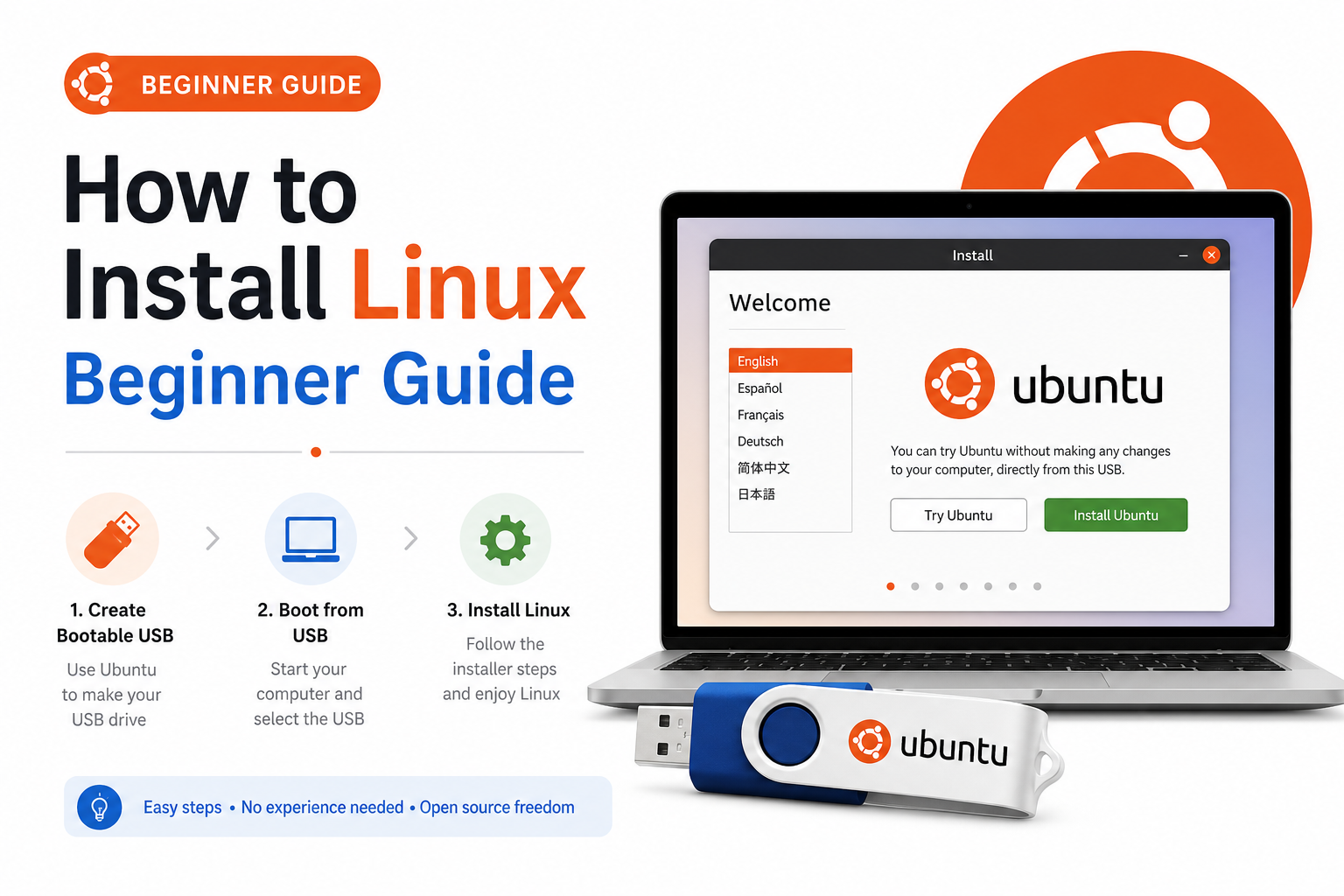
Quick answer: Back up your files. Download an official ISO (start with Ubuntu or Linux Mint). Write it to an 8GB+ USB with Rufus (Windows) or balenaEtcher. Boot from USB → choose Install alongside Windows for dual boot, or Erase disk and install only if you no longer need the old OS. Set username/password, finish, reboot, then install drivers and everyday apps.
Important: Always back up before changing partitions. Dual boot is safer for beginners who still need Windows. Apple Silicon Mac installs are a different path—this guide focuses mainly on typical Windows PCs.
Preparations Before You Install Linux
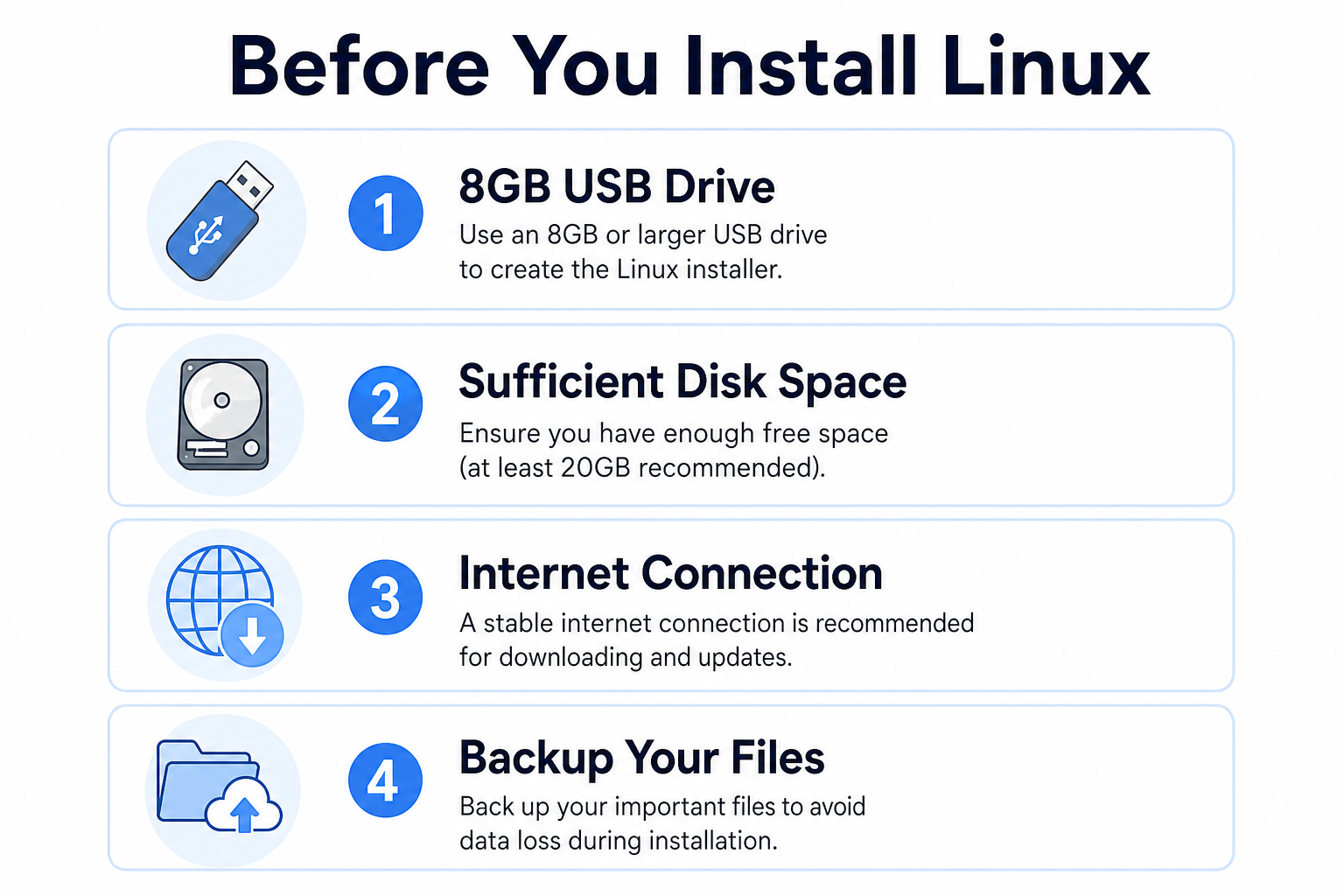
| What you need | Why |
|---|---|
| 8GB+ USB flash drive | Holds the installer ISO (contents will be erased) |
| ~25GB+ free disk space (50GB+ nicer for dual boot) | Room for the system, apps, and updates |
| Stable internet | Download the ISO and later updates/drivers |
| Full backup | Protects photos, work files, and Windows recovery options |
Charge your laptop or use a desktop UPS if possible—do not interrupt power mid-install.
Write down your Wi‑Fi password; some installers ask for it early.
If dual-booting, free space in Windows first (Disk Management → Shrink Volume).
Best Linux Distros for New Users
| Distro | Best for | Why beginners like it |
|---|---|---|
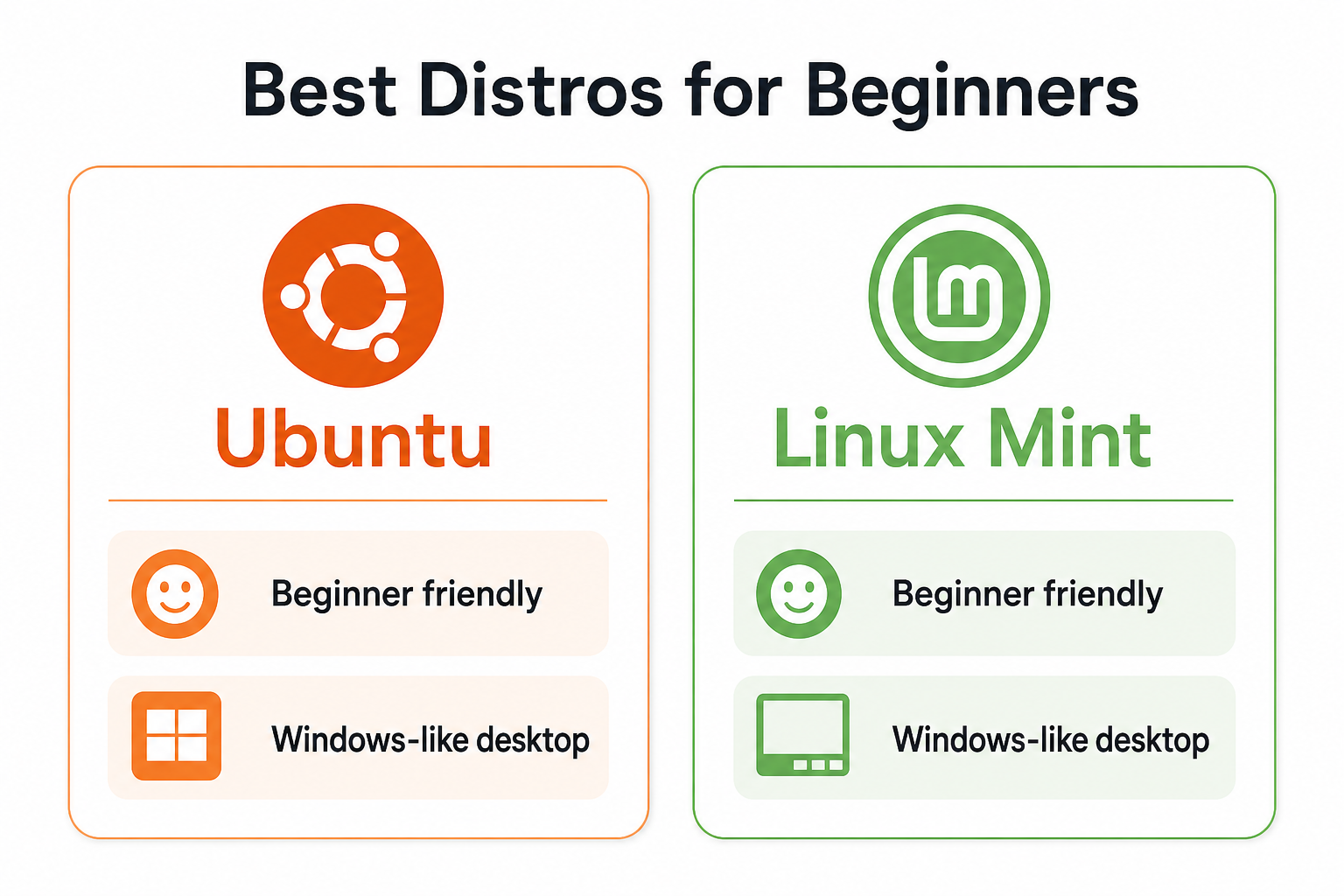
| Ubuntu | Most new desktop users | Huge guides, solid hardware support, clear installer |
| Linux Mint | Windows switchers / older PCs | Familiar desktop layout, friendly defaults, lighter feel |
| Fedora Workstation (optional) | Users who want newer packages | Polished GNOME experience; slightly steeper for absolute beginners |
If this is your first install, pick Ubuntu or Linux Mint and stick with the official download page only—avoid random “ISO mirror” sites.
Create a Bootable Installation USB
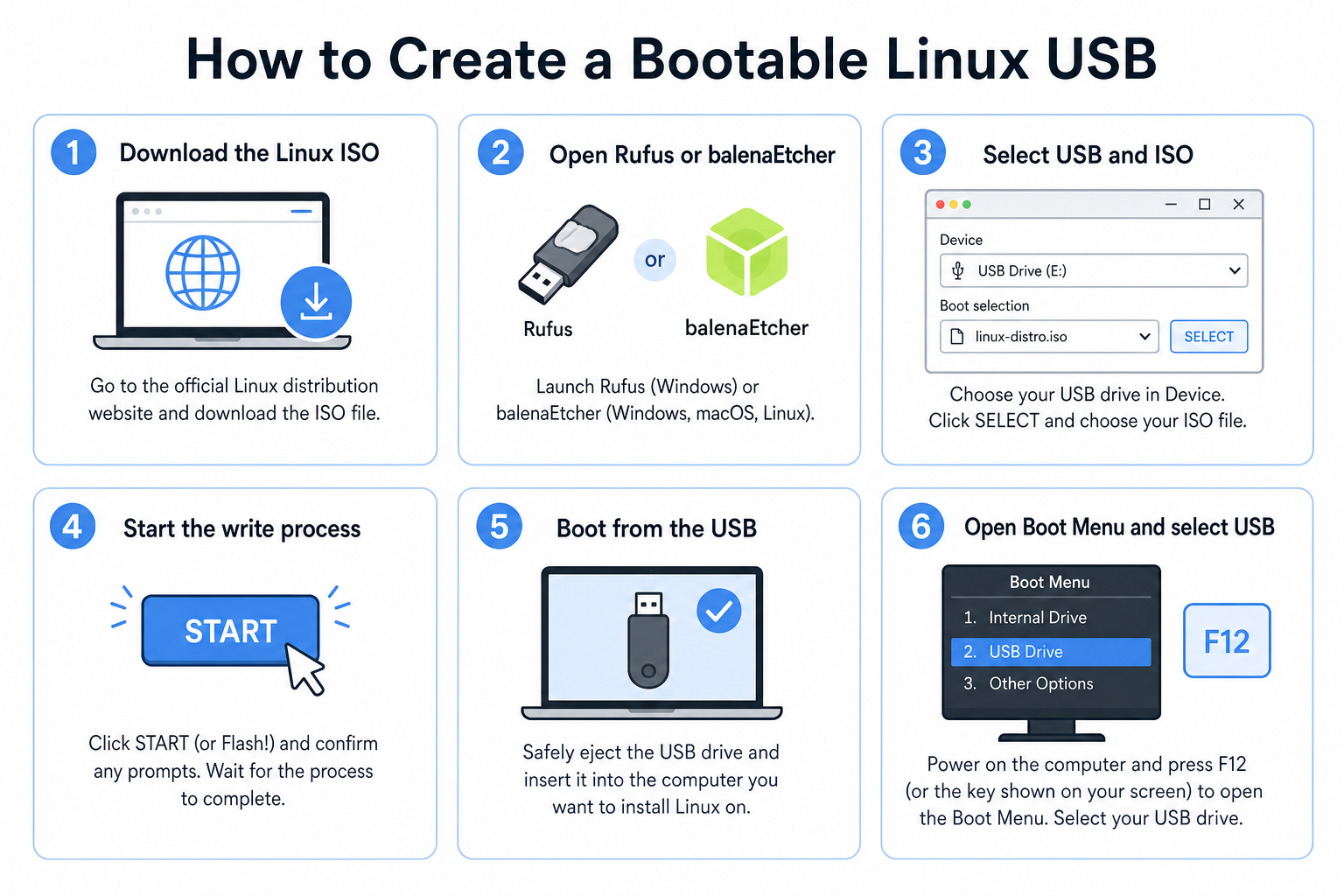
Download the official ISO from the distro website (Ubuntu.com or LinuxMint.com).
Install a USB writer:
Windows: Rufus (popular) or balenaEtcher
Mac: balenaEtcher
Insert the USB drive (back up anything on it first—writing the ISO erases the drive).
Select the ISO, choose the correct USB target, and start writing.
When finished, leave the USB plugged in and restart the PC.
Enter the boot menu (often F12, F10, Esc, or F2—varies by brand) and select the USB device.
If the PC boots straight into Windows, open firmware/BIOS settings and set USB first, or use the one-time boot menu. On some PCs you may need to temporarily adjust Secure Boot (many modern Ubuntu/Mint installs work with Secure Boot on; if USB will not start, try the distro’s Secure Boot docs before turning it off permanently).
Two Safe Installation Methods
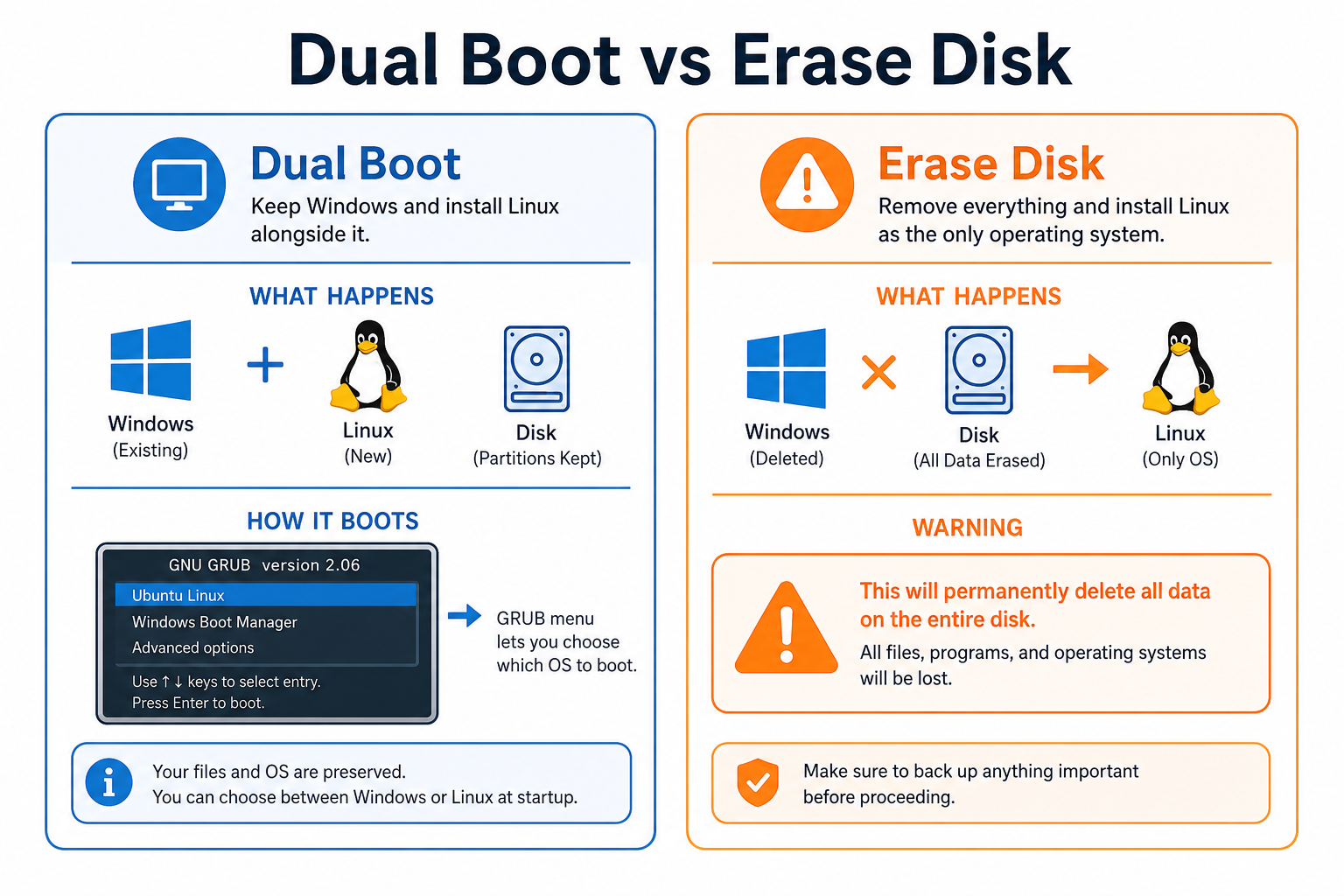
| Method | Keeps Windows? | Choose when… |
|---|---|---|
| Dual boot | Yes | You still need Windows apps, games, or school software |
| Erase disk / Linux only | No | This PC will be Linux-only and you have backups |
Method 1: Dual Boot Windows + Linux (Recommended for beginners)
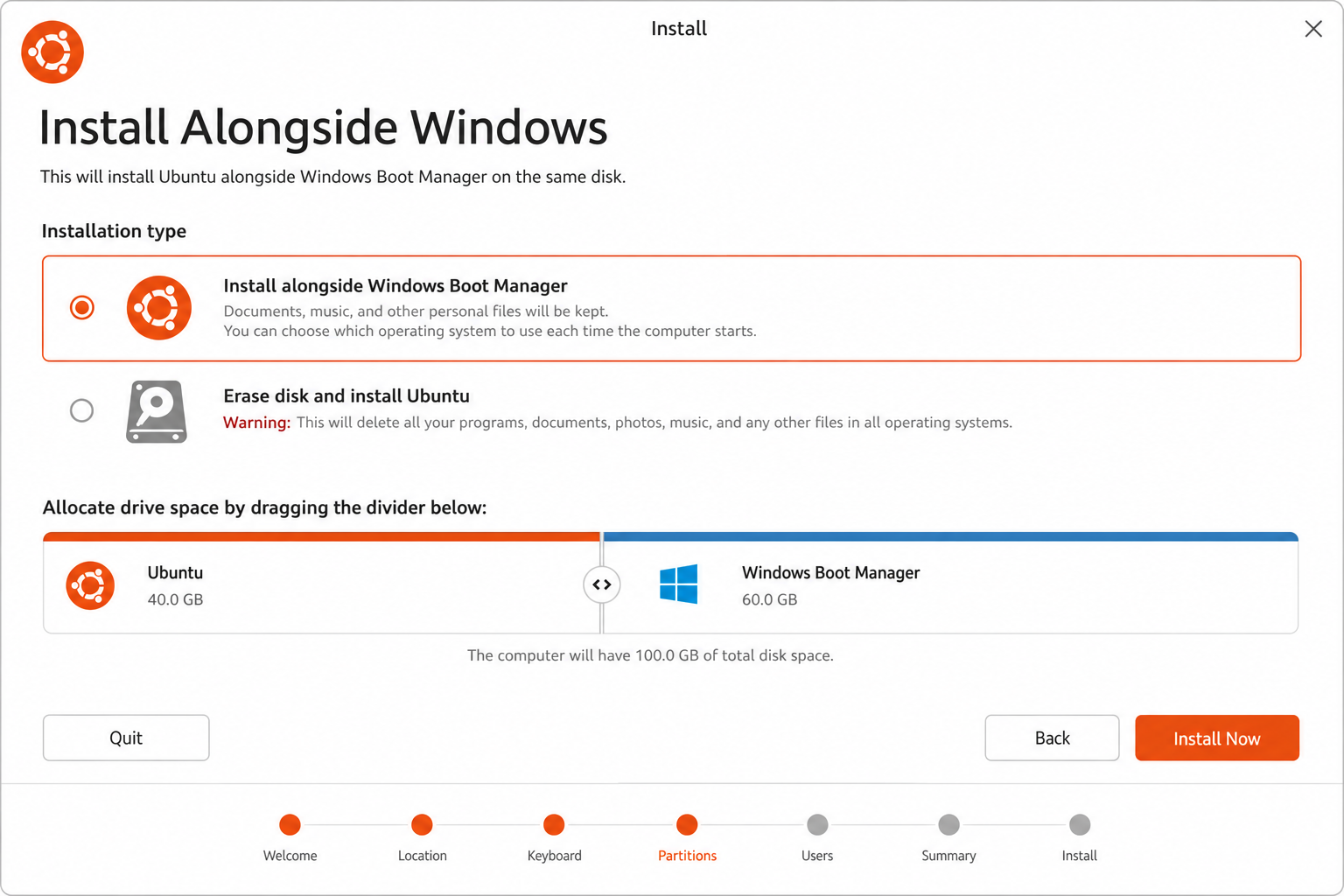
This keeps Windows and adds Linux on free disk space.
In Windows, open Disk Management, shrink a volume, and leave unallocated space (aim for 50GB+ if you can).
Boot from the Linux USB and choose Try or go straight to Install.
When asked about installation type, select Install alongside Windows (wording may vary slightly by distro).
Use the slider to give Linux enough space; leave Windows partitions alone unless you know what you are deleting.
Set timezone, keyboard, username, and a strong password.
Wait for the install to finish, remove the USB when prompted, and reboot.
At the boot menu (GRUB), pick Linux or Windows.
If you do not see “alongside Windows,” stop and use manual partitioning only with a clear backup—or ask for help. Guessing partition deletes can wipe Windows.
Method 2: Single Linux System (Erase entire disk)
Use this only if you no longer need Windows (or macOS on that machine) and your backup is complete.
Boot from the USB and start the installer.
On the disk page, choose Erase disk and install (or similar).
Confirm you understand the whole disk will be wiped.
Set timezone, username, and password.
Finish the install, reboot, and remove the USB.
Common Installation Errors and Quick Fixes
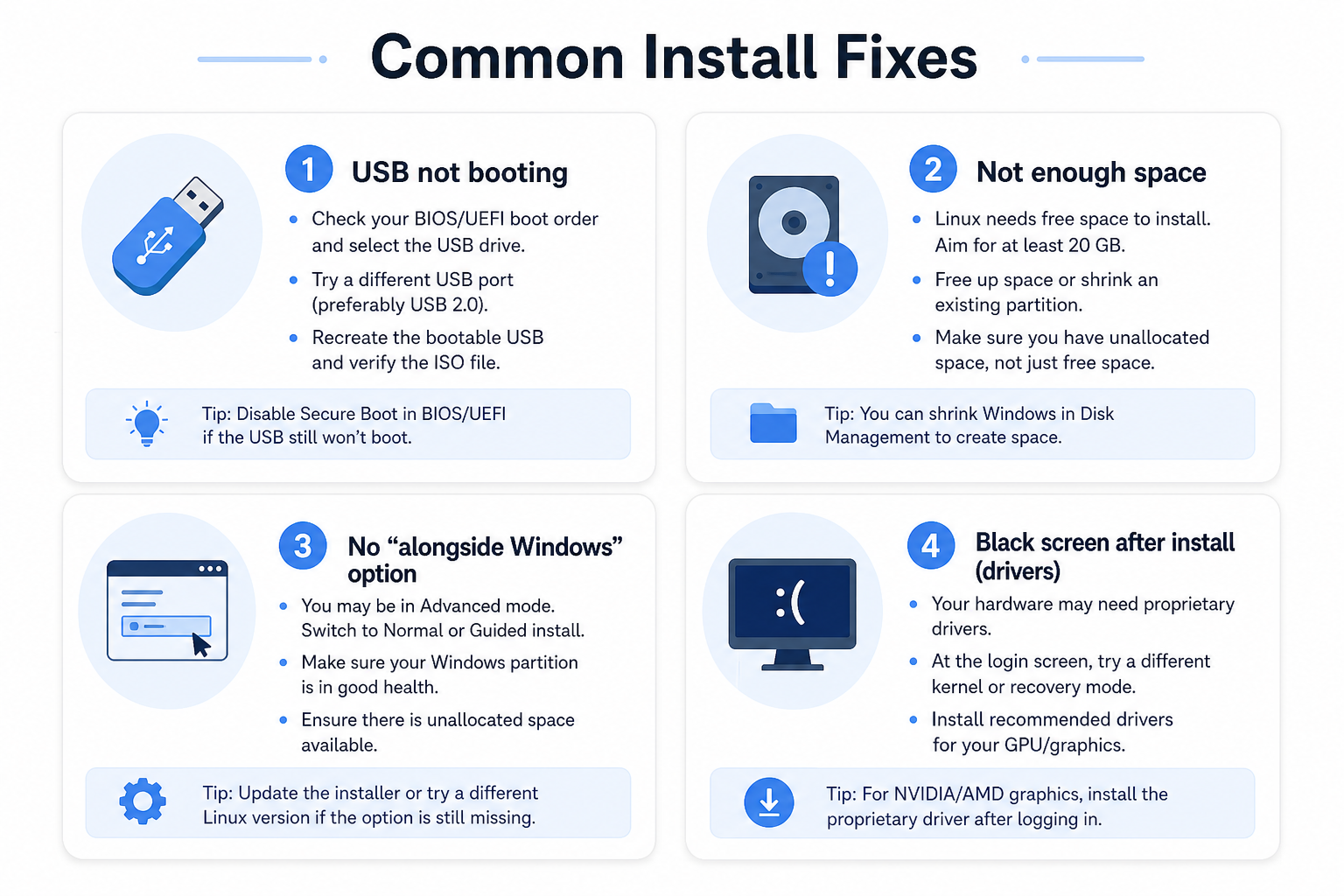
| Problem | What to try |
|---|---|
| USB will not boot | Use the one-time boot menu; confirm ISO hash; try another USB port/tool; review Secure Boot settings |
| Not enough space | Shrink Windows further; uninstall large apps; clean Disk Cleanup before dual boot |
| No “Install alongside Windows” | Boot Windows normally; disable Fast Startup; shrink volume again; retry USB |
| Black screen after install | Boot with recovery/nomodeset if needed; then install vendor GPU drivers from Additional Drivers / official docs |
| Wi‑Fi missing | Use Ethernet temporarily; enable proprietary drivers during/after install |
Must-Install Software After Linux Setup
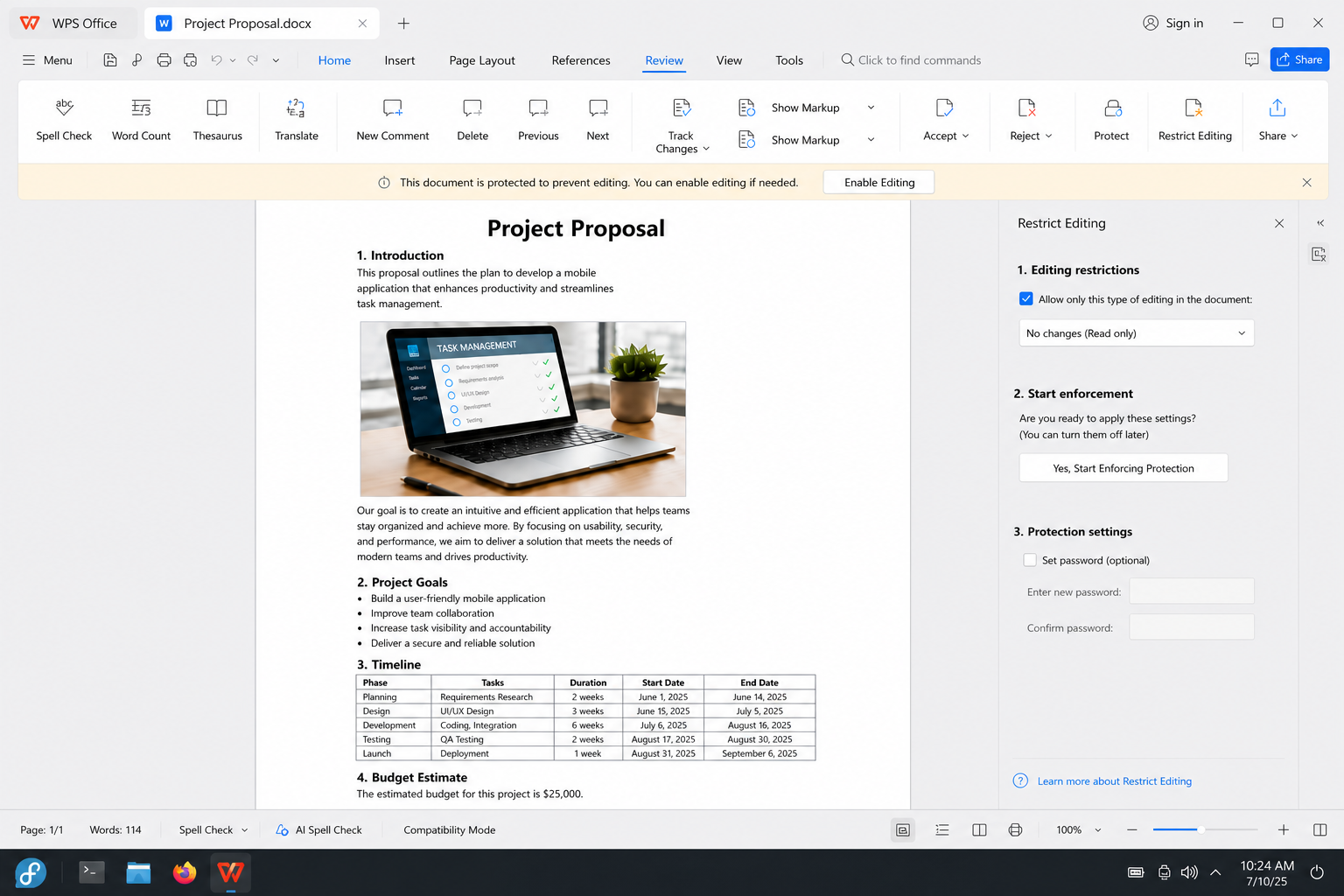
WPS Office
WPS Office is a free-to-start cross-platform suite for Linux users who still open Word, Excel, and PowerPoint files from Windows or Mac. It is a practical daily office option when you need strong Microsoft Office compatibility. Install the official DEB or RPM package for your distro, then open a sample .docx to confirm layout.


A media player
VLC plays most audio and video formats without hunting for codecs—install it from your Software Center or package manager.
Optional: a lightweight local AI helper
If your laptop has enough RAM, tools like Ollama can run small local models for drafts and notes. Skip this on very low-spec machines.
System updates and backups
Run your distro’s Software Updater first. Consider snapshot tools such as Timeshift (common on Ubuntu-family systems) before big upgrades.
How to Install WPS Office on Linux (Quick)
Download the official WPS DEB (Debian/Ubuntu/Mint) or RPM (Fedora/RHEL family) package.
Install via Software Center, or use the terminal package command for your distro.
Open WPS Writer / Spreadsheets / Presentation from the app menu.
Test with a real Office file you use at school or work.
Related Linux install guides: create a Linux bootable USB; dual boot Linux and Windows; install Linux on a Chromebook; install Linux on a Mac; Linux virtual machine guide; install Linux from USB; install Linux on VirtualBox; install Linux Mint from USB.
FAQ
Will installing Linux delete my Windows files?
Not if you choose dual boot carefully and do not select erase-disk options. Always back up first. Erase disk installs wipe the entire drive.
How much space does Linux need?
A minimal install can fit in roughly 25GB, but 50GB+ is more comfortable for apps, downloads, and updates—especially in dual boot.
Which Linux is best for beginners in 2026?
Ubuntu and Linux Mint remain the safest starting points for most new desktop users.
Do I need to know terminal commands to install Linux?
No for a standard GUI install. You may use a few optional commands later for drivers or apps, but the core installer is point-and-click.
Conclusion
Installing Linux as a beginner is manageable when you prepare: back up, pick Ubuntu or Mint, write a trusted USB, and prefer dual boot if you still need Windows. Avoid erase-disk unless you are sure. After setup, install updates, a media player, and—if you share Office documents—WPS Office for everyday .docx / .xlsx / .pptx work. Take partitions slowly; backups prevent most disaster stories.

'%3e%3cpath%20d='M19.9911%204.11386V6.471H18.5894C18.0775%206.471%2017.7322%206.57814%2017.5536%206.79243C17.3751%207.00671%2017.2858%207.32814%2017.2858%207.75671V9.44421H19.9019L19.5536%2012.0871H17.2858V18.8639H14.5536V12.0871H12.2769V9.44421H14.5536V7.49779C14.5536%206.39064%2014.8632%205.53201%2015.4822%204.92189C16.1013%204.31177%2016.9257%204.00671%2017.9554%204.00671C18.8304%204.00671%2019.509%204.04243%2019.9911%204.11386Z'%20fill='%23333333'/%3e%3c/g%3e%3cdefs%3e%3cclipPath%20id='clip0_2938_8199'%3e%3crect%20width='16'%20height='16'%20fill='white'%20transform='translate(8%204.00671)'/%3e%3c/clipPath%3e%3c/defs%3e%3c/svg%3e)
'%3e%3cpath%20d='M17.5237%2010.7813L23.4811%204H22.0699L16.8949%209.88693L12.7648%204H8L14.2469%2012.9029L8%2020.0133H9.4112L14.8725%2013.7952L19.2352%2020.0133H24M9.92053%205.04213H12.0885L22.0688%2019.0224H19.9003'%20fill='%23333333'/%3e%3c/g%3e%3cdefs%3e%3cclipPath%20id='clip0_2938_8200'%3e%3crect%20width='16'%20height='16.0134'%20fill='white'%20transform='translate(8%204)'/%3e%3c/clipPath%3e%3c/defs%3e%3c/svg%3e)


