

'%3e%3cpath%20d='M8%200C12.4183%200%2016%203.58172%2016%208C16%2012.4183%2012.4183%2016%208%2016C3.58172%2016%200%2012.4183%200%208C0%203.58172%203.58172%200%208%200ZM11.6162%204.38379C11.2257%203.99337%2010.5927%203.99338%2010.2021%204.38379L8%206.58594L5.79785%204.38379C5.40732%203.99334%204.77429%203.99329%204.38379%204.38379C3.99331%204.77429%203.99335%205.40733%204.38379%205.79785L6.58594%208L4.38379%2010.2021C3.99348%2010.5927%203.99341%2011.2257%204.38379%2011.6162C4.77426%2012.0066%205.40734%2012.0065%205.79785%2011.6162L8%209.41406L10.2021%2011.6162C10.5927%2012.0066%2011.2257%2012.0067%2011.6162%2011.6162C12.0067%2011.2257%2012.0066%2010.5927%2011.6162%2010.2021L9.41406%208L11.6162%205.79785C12.0066%205.40735%2012.0066%204.77429%2011.6162%204.38379Z'%20fill='%23080E17'%20fill-opacity='0.46'/%3e%3c/g%3e%3cdefs%3e%3cclipPath%20id='clip0_3761_713'%3e%3crect%20width='16'%20height='16'%20fill='white'/%3e%3c/clipPath%3e%3c/defs%3e%3c/svg%3e)




'%3e%3cpath%20fill-rule='evenodd'%20clip-rule='evenodd'%20d='M21.4999%2010.9993C21.4999%205.20009%2016.7986%200.498901%2010.9993%200.498901C5.19994%200.498901%200.498657%205.20009%200.498657%2010.9993C0.498657%2016.2404%204.33858%2020.5844%209.35855%2021.3722V14.0346H6.69238V10.9993H9.35855V8.68594C9.35855%206.05427%2010.9262%204.60062%2013.3248%204.60062C14.4736%204.60062%2015.6753%204.80571%2015.6753%204.80571V7.38979H14.3512C13.0468%207.38979%2012.64%208.19921%2012.64%209.0296V10.9993H15.5523L15.0867%2014.0346H12.64V21.3722C17.66%2020.5844%2021.4999%2016.2404%2021.4999%2010.9993Z'%20fill='%231568EA'/%3e%3c/g%3e%3c/svg%3e)


'%3e%3cpath%20d='M2.42045%2022.1876H6.31818V12.7217L0.75%208.54553V20.5171C0.75%2021.4414%201.49892%2022.1876%202.42045%2022.1876Z'%20fill='%234285F4'/%3e%3cpath%20d='M19.682%2022.1876H23.5797C24.5041%2022.1876%2025.2502%2021.4387%2025.2502%2020.5171V8.54553L19.682%2012.7217'%20fill='%2334A853'/%3e%3cpath%20d='M19.682%205.48293V12.7216L25.2502%208.54543V6.31816C25.2502%204.25236%2022.8921%203.07469%2021.2411%204.31361'%20fill='%23FBBC04'/%3e%3cpath%20d='M6.31824%2012.7217V5.48303L13.0001%2010.4944L19.6819%205.48303V12.7217L13.0001%2017.733'%20fill='%23EA4335'/%3e%3cpath%20d='M0.75%206.31816V8.54543L6.31818%2012.7216V5.48293L4.75909%204.31361C3.10534%203.07469%200.75%204.25236%200.75%206.31816Z'%20fill='%23C5221F'/%3e%3c/g%3e%3cdefs%3e%3cclipPath%20id='clip0_2954_7305'%3e%3crect%20width='24.5'%20height='18.375'%20fill='white'%20transform='translate(0.75%203.8125)'/%3e%3c/clipPath%3e%3c/defs%3e%3c/svg%3e)


A sharp and clear logo is the cornerstone for creating a strong identity for your personal brand. However, many beginners don’t know how to create polished logos that blend into the background, making their designs seem quite unprofessional. So, how can you get clean, transparent finishes on your logos without any hassle? In this guide, I’ll be walking you through how to remove background from logo with some of the best tools available.
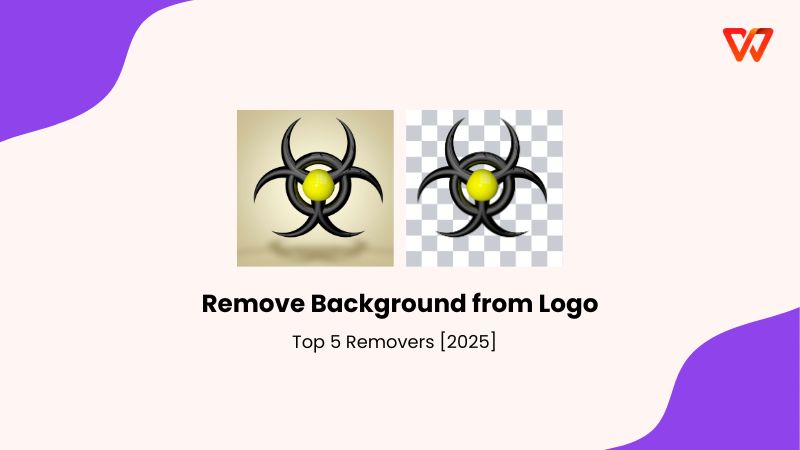
Why People Need to Remove the Background from Logo in Images
Removing background from professional logos is something everyone needs every once in a while, whether you’re a graphic designer or a student working on a creative project. There are many reasons you might need to remove the background from logo in images, and knowing the right tools to use helps you save a lot of time when you need them. In this section, I’ll be highlighting some of the most common reasons people need to remove background from logofree.
Reasons
Makes your logos more flexible across various devices
Gives a clean and professional look to your designs
Transparent logos can be adapted easily to match your brand
Top 5 Image Background Removers
Learning how to remove backgroundfrom logo can be a stressful challenge, especially if you’re a beginner who has never done it before. I’ve been there myself, and I know how easy it is to feel lost and overwhelmed. But there’s nothing to worry about once you have the right tools to use to simplify the process. In this section, I’ll be covering 5 of the best AI background removal tools and helping you choose the right one for your requirements.
1. WPS Photo
WPS Photo proved to be one of the most reliable and versatile tools I’ve tried during my testing, ensuring a smooth and user-friendly experience without any delays to slow me down. It gave me a straightforward and easy-to-use interface that helped me polish my logos in just a few simple steps, helping me save a lot of time and be more efficient in my workflow.
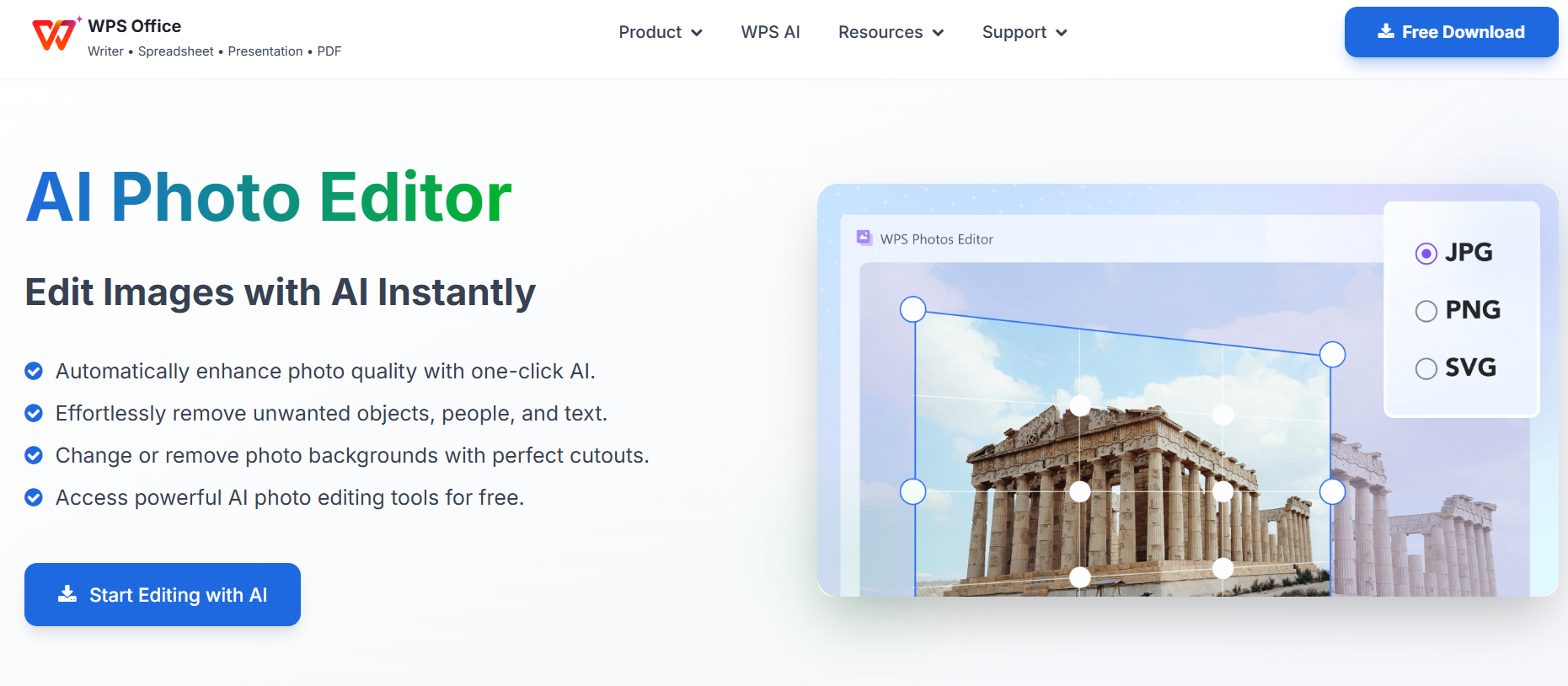
Features
AI Image Enhancer: Improve the quality of your image using AI enhancement.
AI Upscaler: Bring life back into old photos by restoring them through the AI upscaler.
AI Watermark Removal: If there are any watermarks on your template, you can elevate the visual appeal with the watermark removal tool.
AI Background Blur: Emphasize focus on the main subjects of your photo by blurring the background.
Pros
Completely free to use
Efficient and quick processing
Lossless exports
Provides all-in-one convenience
Cons
Limited advanced editing tools
Some AI features require an internet connection
If WPS Photo feels like the right tool for your logo designing needs, these are the steps you need to follow to ensure a seamless editing process.
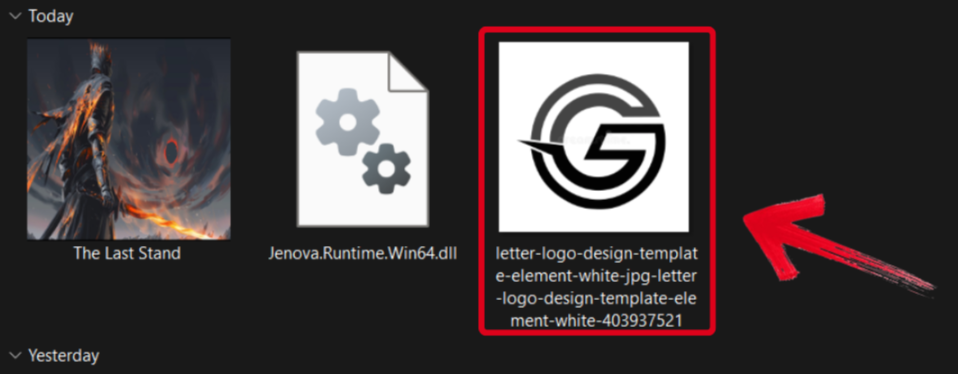
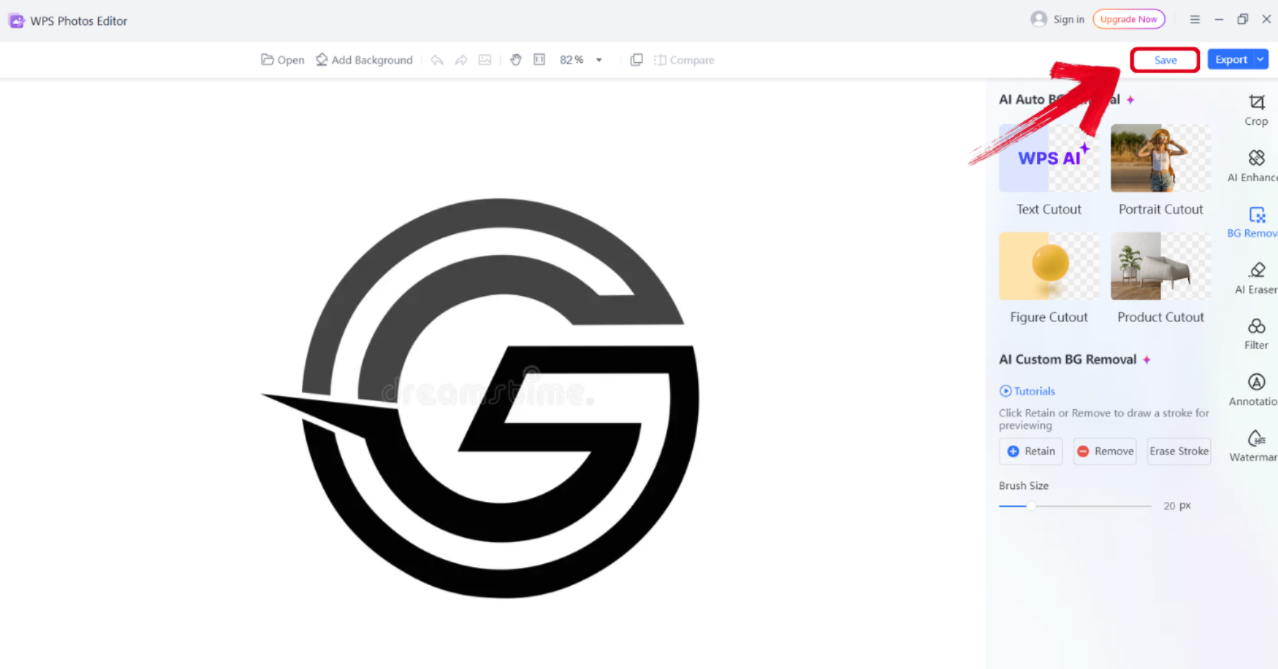
Step 1: Open your photo in WPS Photo to get started.
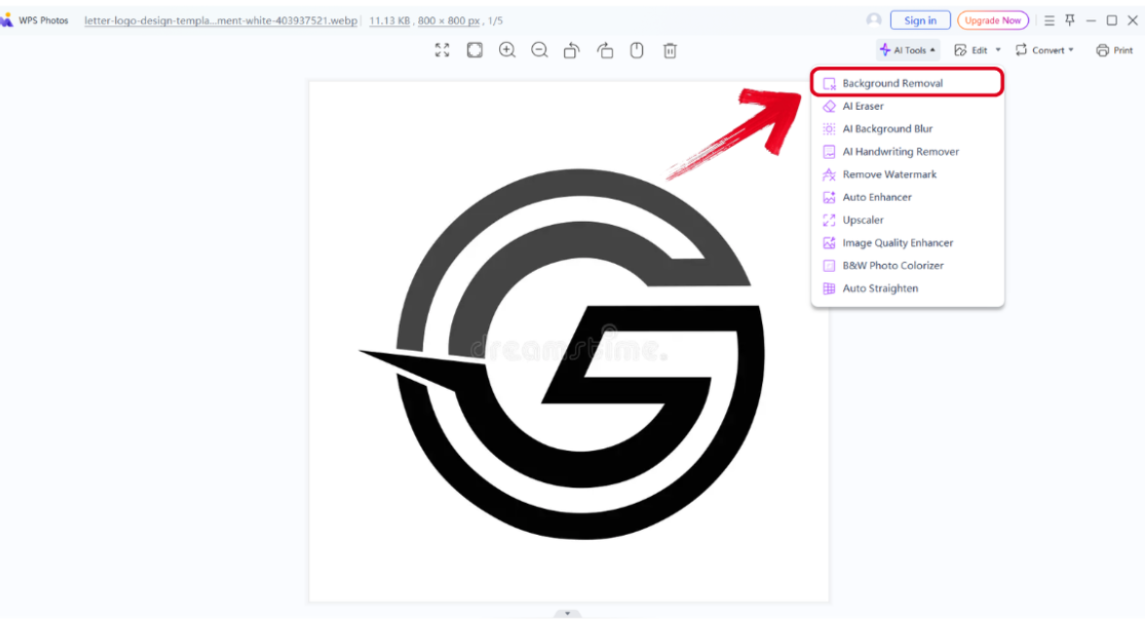
Step 2: Once your photo is open, go into theAI Tools menu and select Background Removal.
Step 3: After your image has completed its processing, press Save to download the final result to your computer.
2. Adobe Acrobat
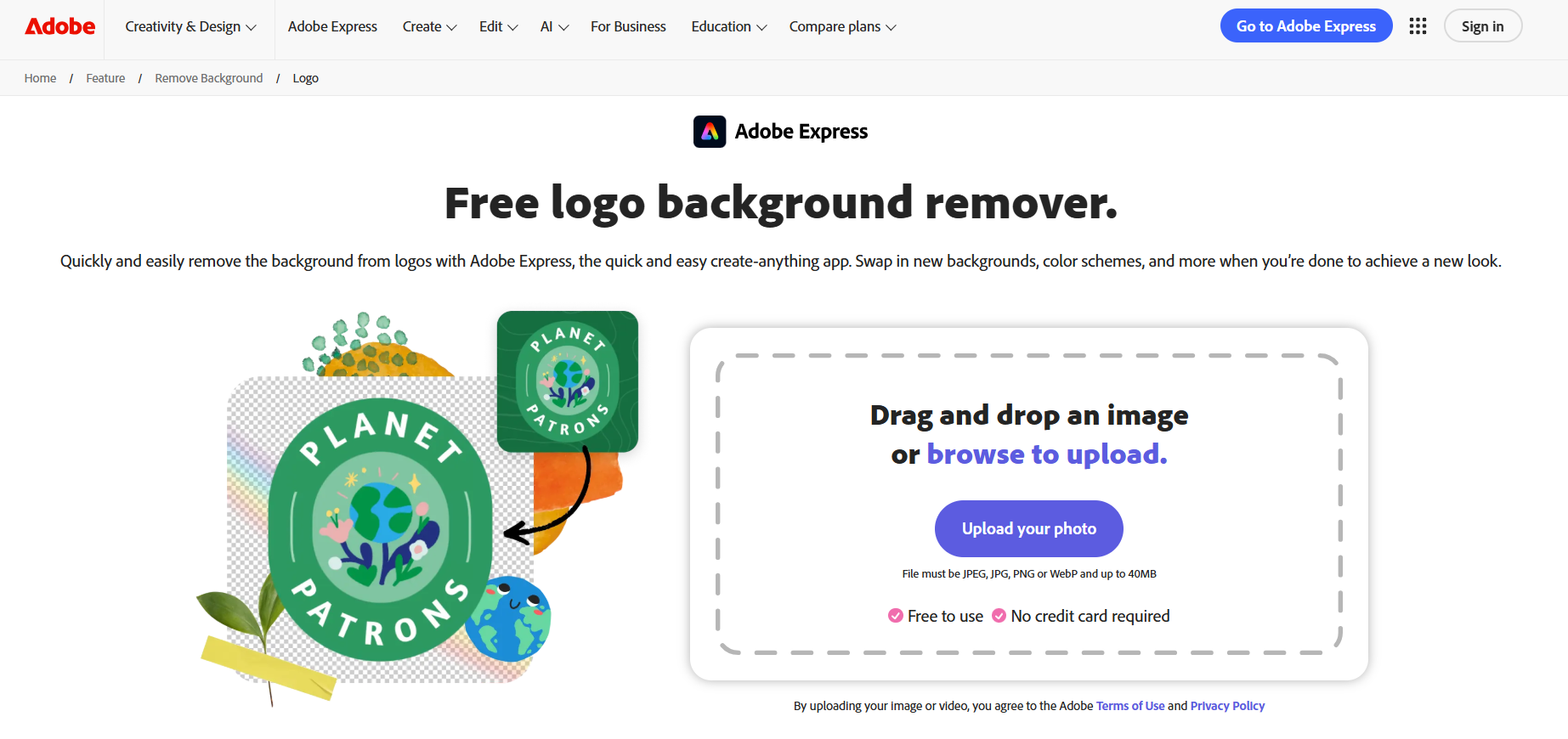
Adobe Acrobat is the perfect option for those looking for a quick and simple solution that does the job without making you go through any hassle. It’s a web-based tool that takes your uploaded image and delivers polished, transparent results in just a few seconds. I found the experience to be quite streamlined and easy to use, making sure I knew what I had to do even as a first-time user.
Features
AI-powered background removal
Erase tool for quick refinement
Flexible design integration
Pros
One-click background removal
Fully web-based
Integrated with Adobe Express
Cons
Struggles with complex designs
Some features require the premium subscription
If Adobe Acrobat feels like a good option for your design needs, just follow these steps to ensure polished and accurate results.
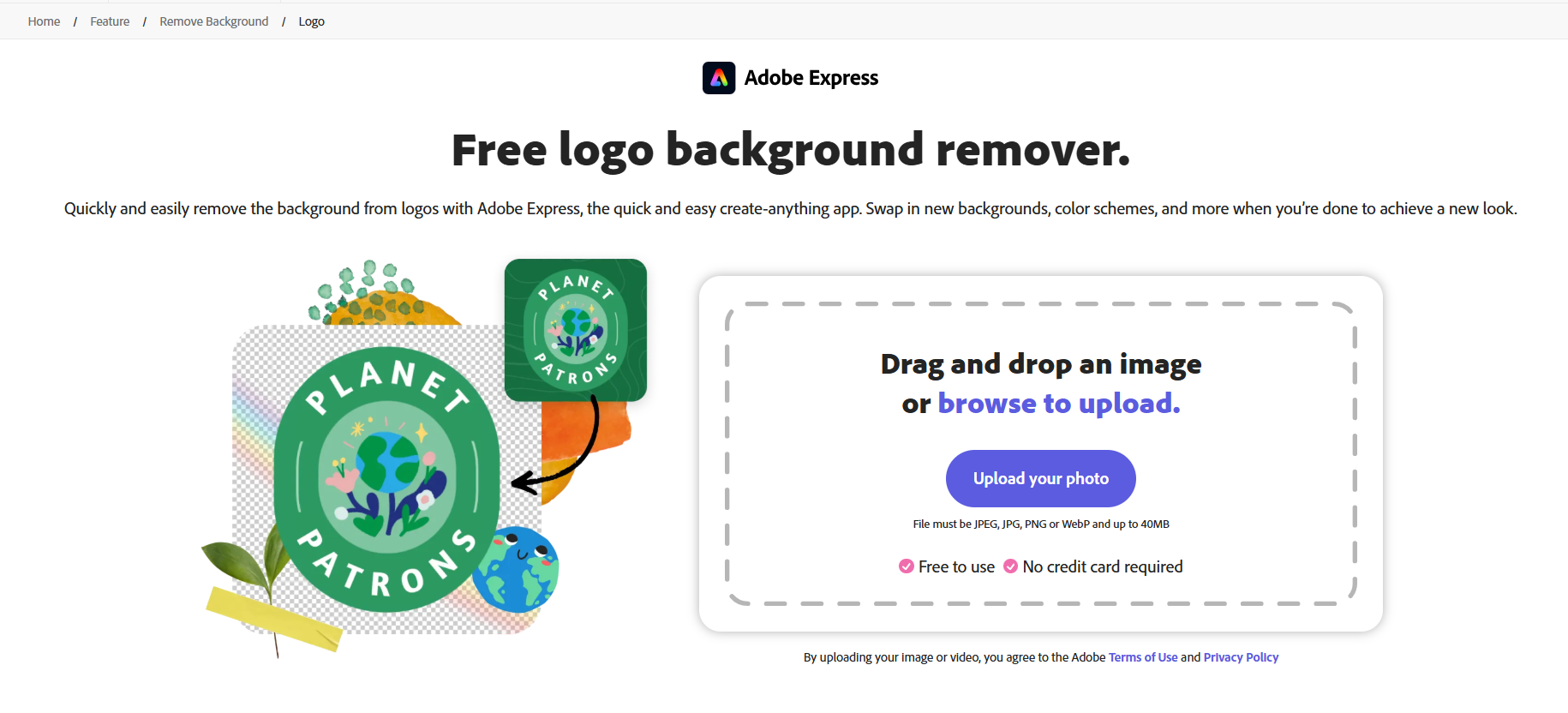
Step 1: Visit Adobe Acrobat on your web browser and upload your logo to get started.
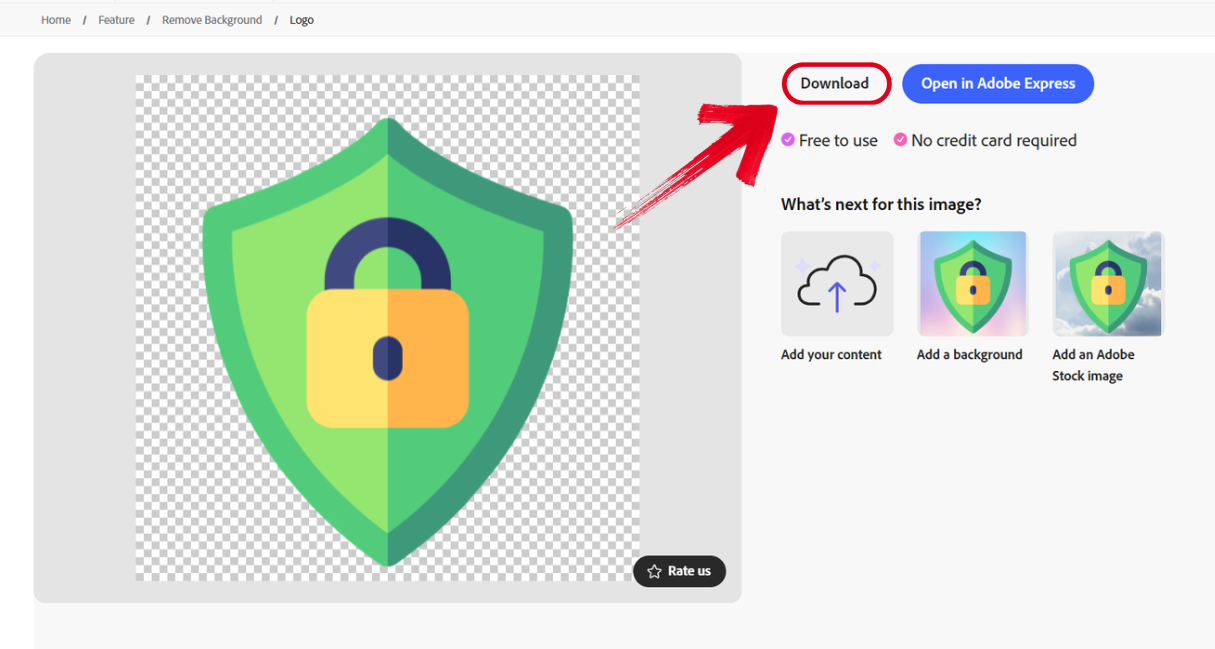
Step 2: Once the image has been fully processed, simply press Download to export it to your device.
3. Canva
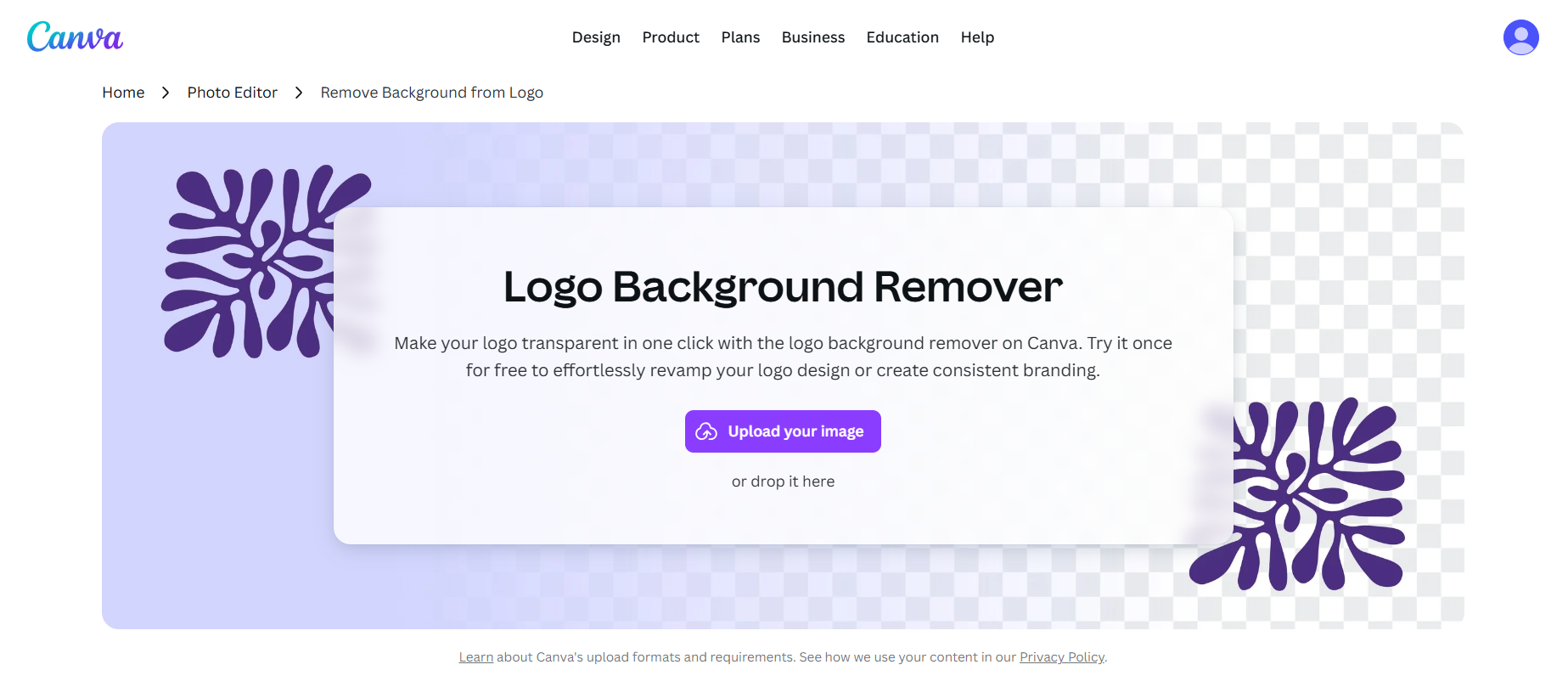
Canvais one of the most well-known and reliable options for graphic designers seeking an all-in-one tool to meet all their creative needs. Its built-in background removal tool for logos is one of the most accurate and precise ones I’ve ever used, not leaving any rough edges in my final results. I personally was incredibly impressed by how easy and intuitive the entire experience felt, and its simplicity didn’t even make me feel like I was using it for the first time.
Features
AI-powered tools
Massive stock library
Real-time collaboration features
Versatile export options
Pros
Easy drag-and-drop interface
Fully cloud-based functionality
Beginner-friendly experience
Cons
Limited advanced editing tools
Not ideal for complex projects
If Canva feels like the right tool for your editing needs, you can follow these steps to ensure polished and high-quality results.
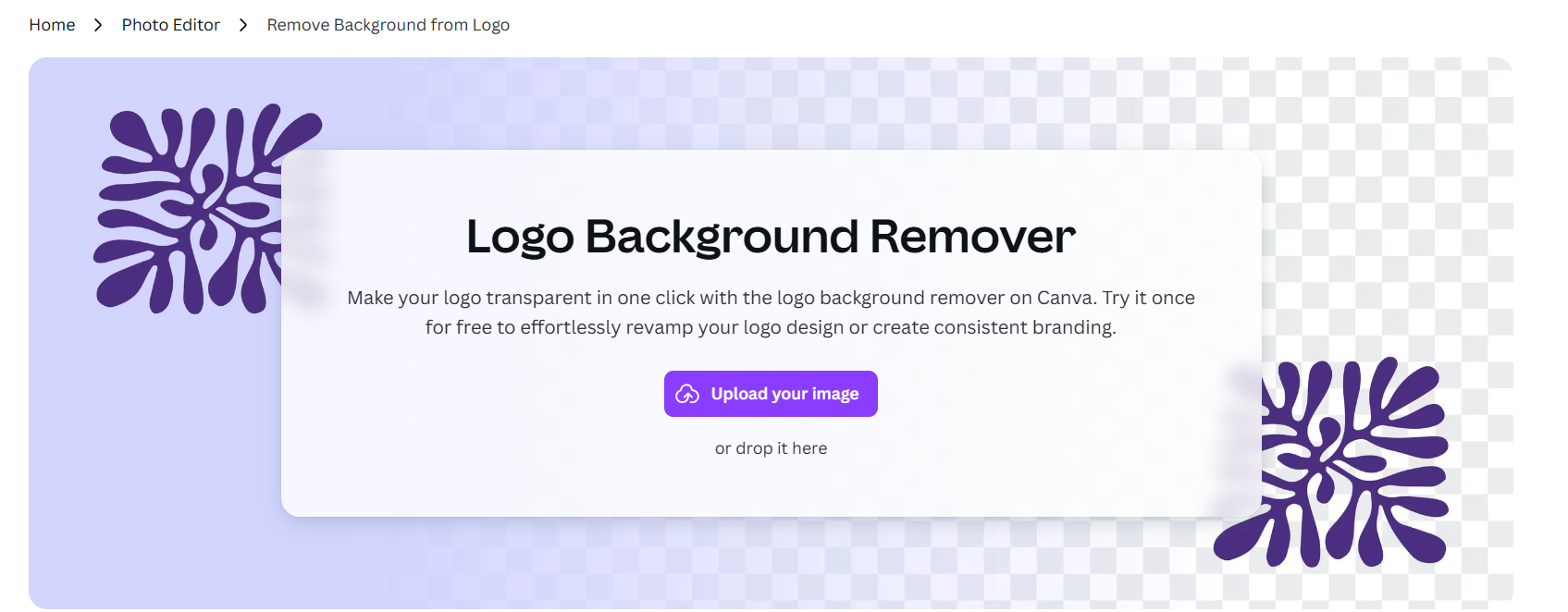
Step 1: Visit Canva’s Logo Background Remover on your web browser and upload the logo you want to edit.
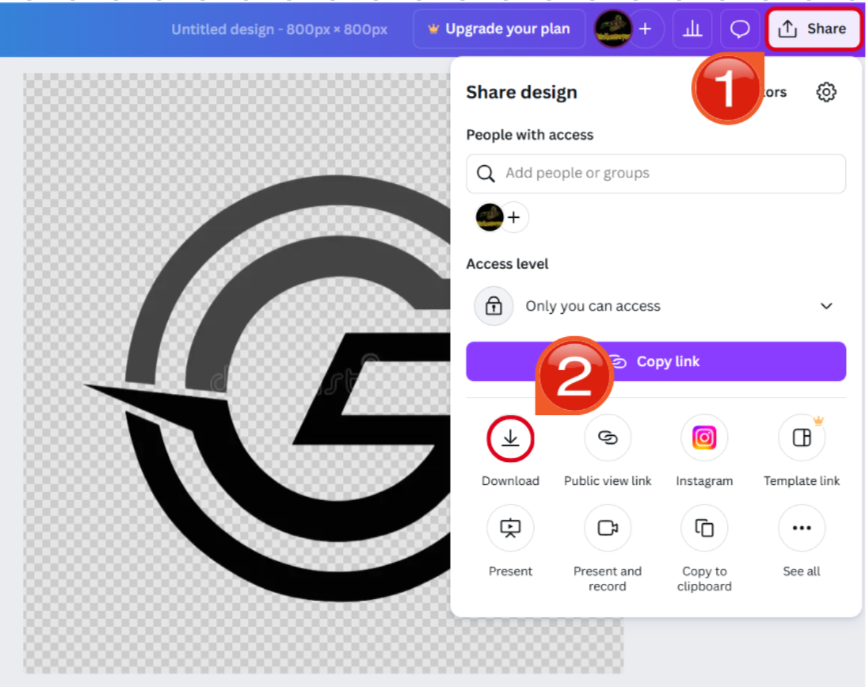
Step 2: Once your image is done, open theShare menu and press Download to export it to your device.
4. Removebg
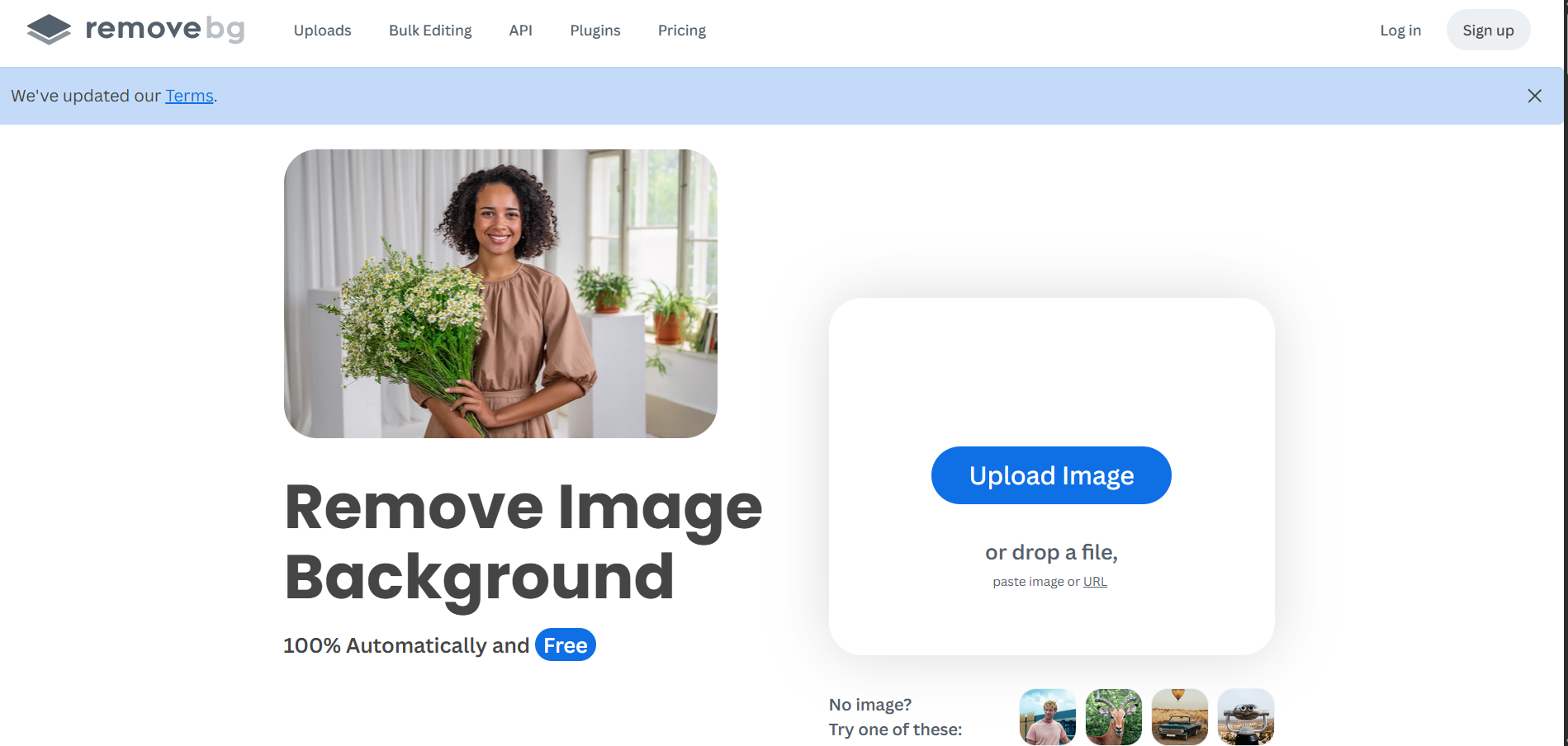
Removebg is one of the simplest options I’ve tried when looking for reliable solutions to polish my logos, providing a quick and effective way to remove the background from my images in just a few simple steps. My experience with it went incredibly smoothly, and I didn’t face any issues or slowdowns along the way, making it an ideal option for beginners and first-time users looking for a straightforward tool for their logo polishing.
Features
AI-powered background removal
Erase and restore tools for quick polishing
Blur and shadow effects
Pros
Intuitive and user-friendly interface
Security for your personal images
Wide range of use cases
Cons
Internet requirement
Occasional crashes
Low image quality
If you want to use Removebg to remove the background from the logos, these are the steps you need to follow for the best results.
Step 1: Visit Removebg on your web browser and upload your logo to get started.
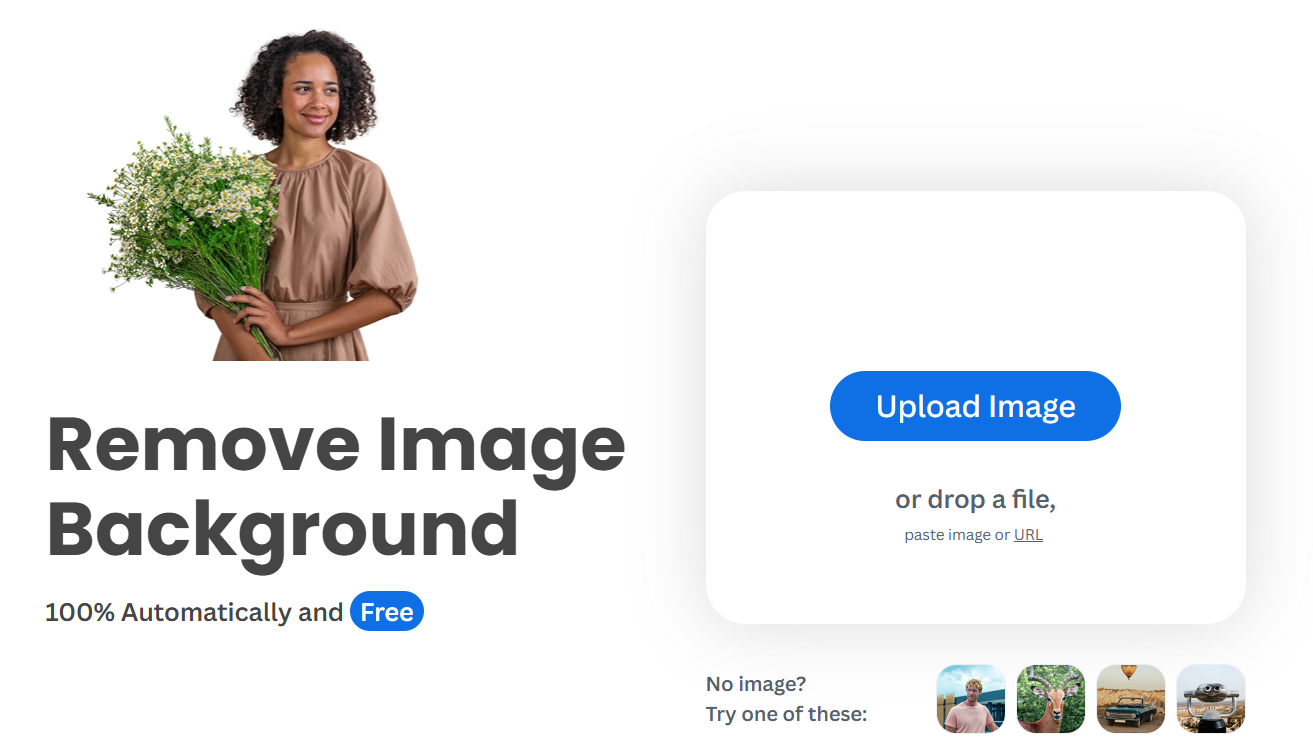
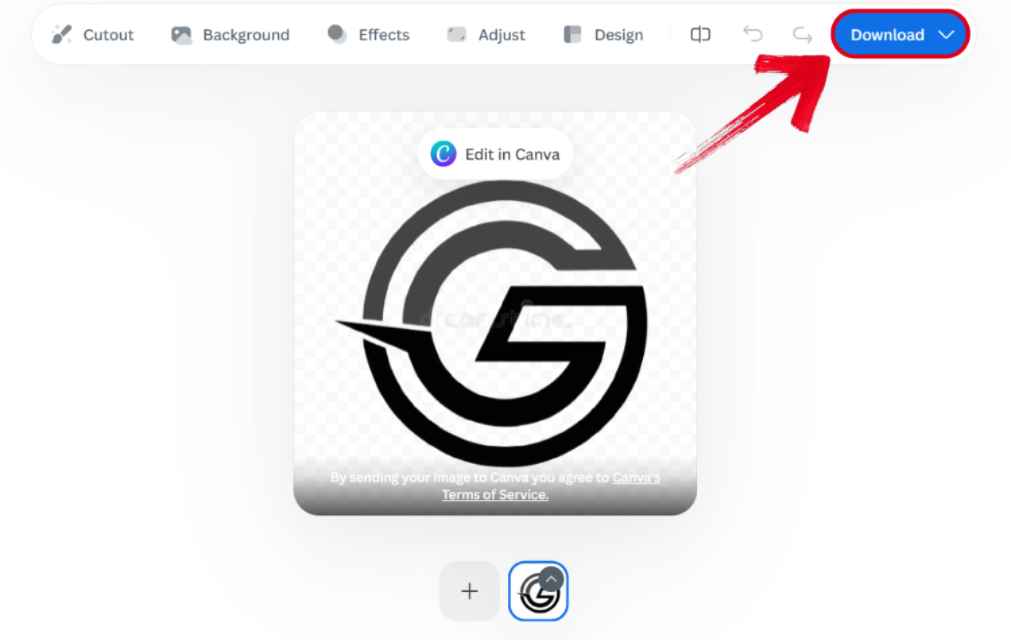
Step 2: Once your image has been processed completely, just press Download to export it to your device.
5. Pixelcut
Pixelcutis the ideal option for those looking for a simple and reliable tool that offers a wide variety of useful tools to help you be more efficient in your creative work. Its built-in background removal tool is one of the quickest ones I’ve ever tried in my experience, delivering professional and polished results in just a few seconds. What really stood out to me about Pixelcut was how smooth and seamless the interface felt, making sure there are no irrelevant elements cluttering my screen and overwhelming me.
Features
Magic eraser to help you remove unwanted elements from images
Batch editing support
Automatic sizing presets
Mobile-friendly editor
Pros
Pre-made templates
User-friendly interface
Accessible on all devices
Clean and professional results
Cons
Limited functionality on the free version
Less suitable for complex graphics
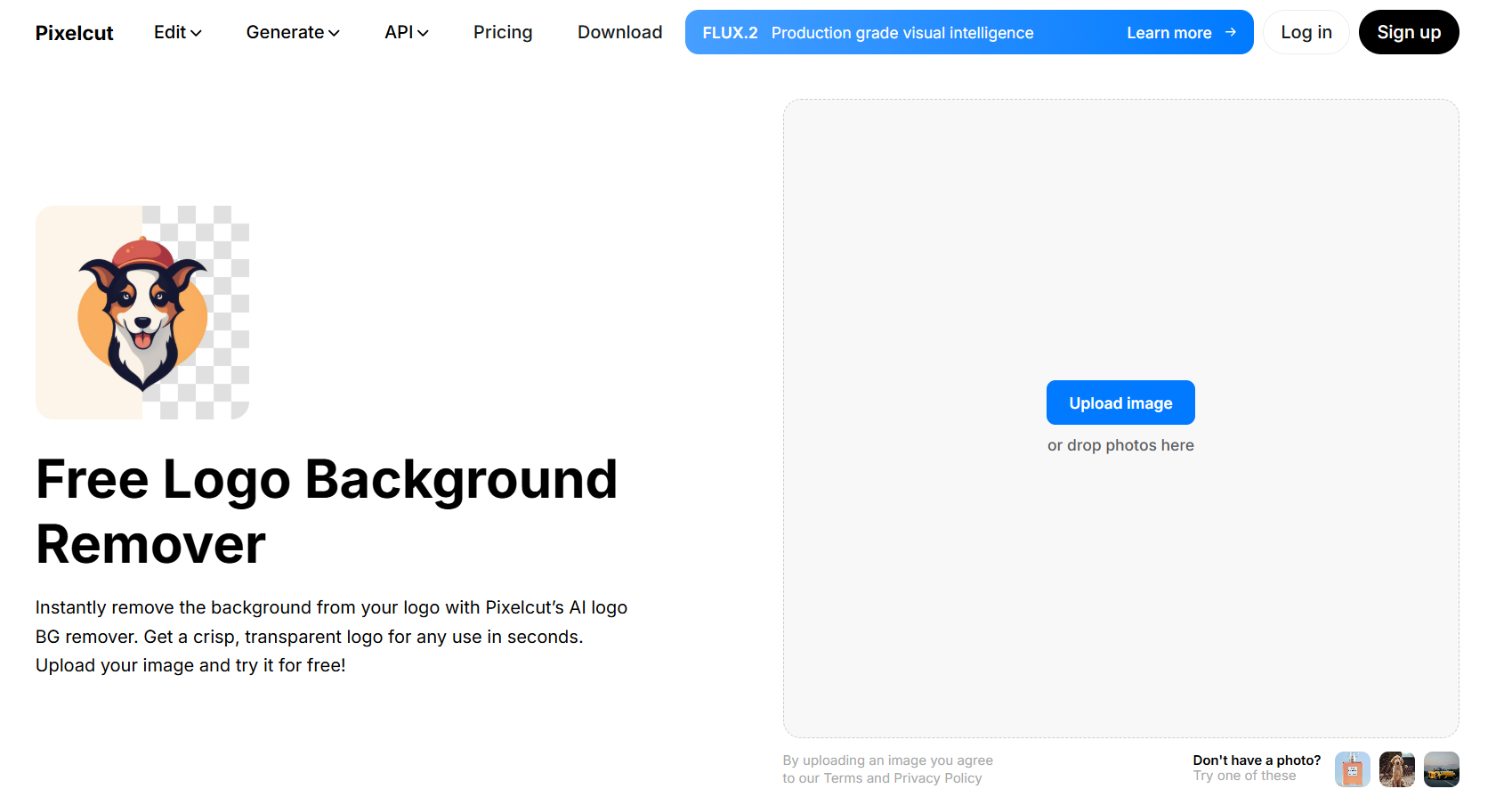
If you want to use Pixelcut for your logo polishing, these are the steps you can follow to ensure a smooth and hassle-free editing process.
Step 1: Visit Pixelcut on your web browser and upload the logo image you want to edit.

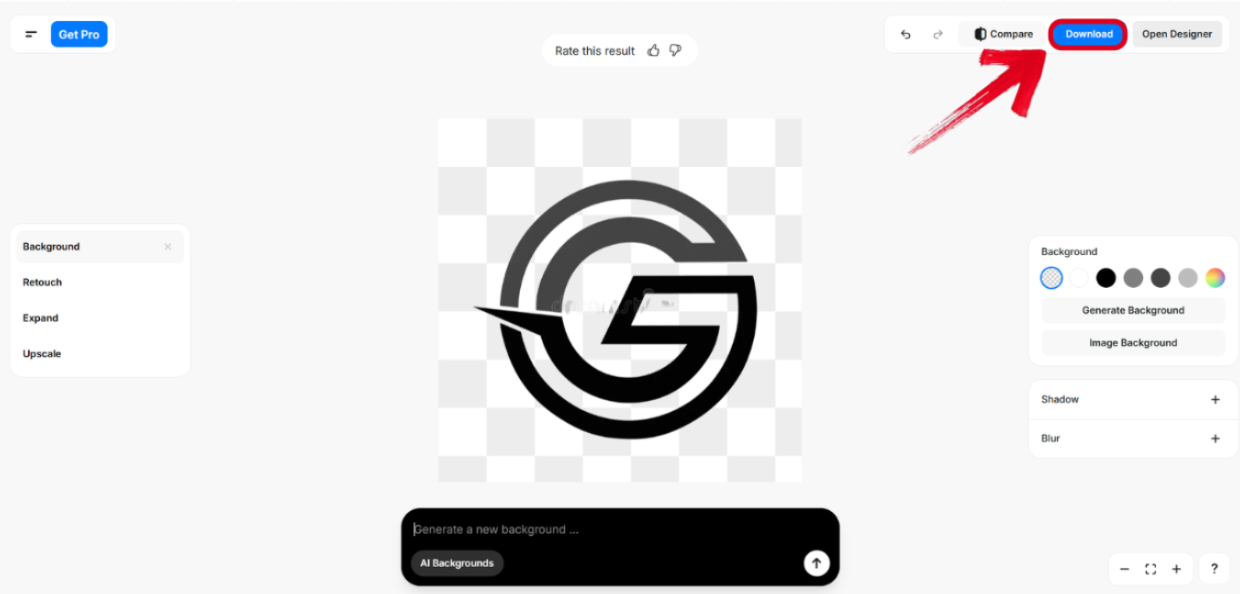
Step 2: Make any further edits if you want, using the built-in tools provided, and press Download once you’re ready to export your image.
Quick Comparison Table of the Top 5 Background Logo Removers
All the tools I’ve covered in this guide have been thoroughly tried and tested by me and have helped me be more efficientand productive in my workflow, saving me a lot of time and effort in my logo design. But if you’re unsure which option suits your needs more, don’t worry. In this section, I’ll be comparing these 5 tools side-by-side and breaking down their key strengths and unique featuresto help you decide the right option for your requirements.
| Tool | Accuracy | Ease of Use | Free Version | AI-Powered | Best For |
|---|---|---|---|---|---|
| Remove.bg | High | Excellent | Yes (Low-res) | Yes | Quick edits, personal use |
| Pixelcut | Medium | Excellent | Yes | Yes | Beginner-friendly, simple tasks |
| WPS Photos | Excellent | Excellent | Yes (Free tier) | Yes | All users, professional-quality visuals |
| Canva | High | Excellent | No (Pro only) | Yes | Marketing visuals, social media |
| Adobe Acrobat | Professional | Low | No | Yes | Professionals, complex images |
Enhance Your Photos After Removing the Background with WPS Photo
Once you’re done removing the background from your image, you can often end up with low-res images that lose the color and sharpness they once had. I personally rely on WPS Photo’s AI enhancement features to get high-res results every single time. It’s completely free and filled with useful features that help me design polished and clean logos every single time, without making me deal with any hassle.
If you want a reliable and seamless way to enhance your images after removing their background, these are the steps you can follow on WPS Photo.
Step 1: Open the image you want to enhance using WPS Photo to get started.
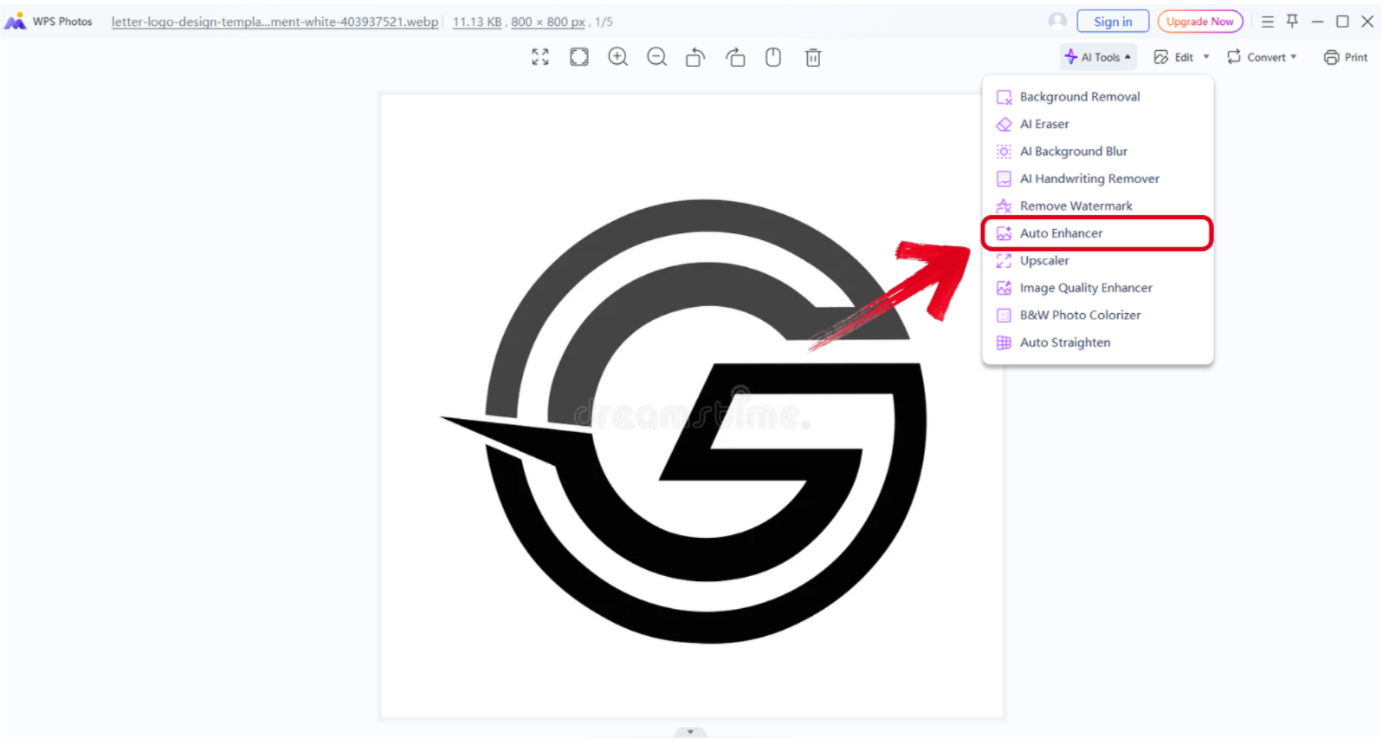
Step 2: Once it’s open, press the AI Tools menu and select Auto Enhancement.
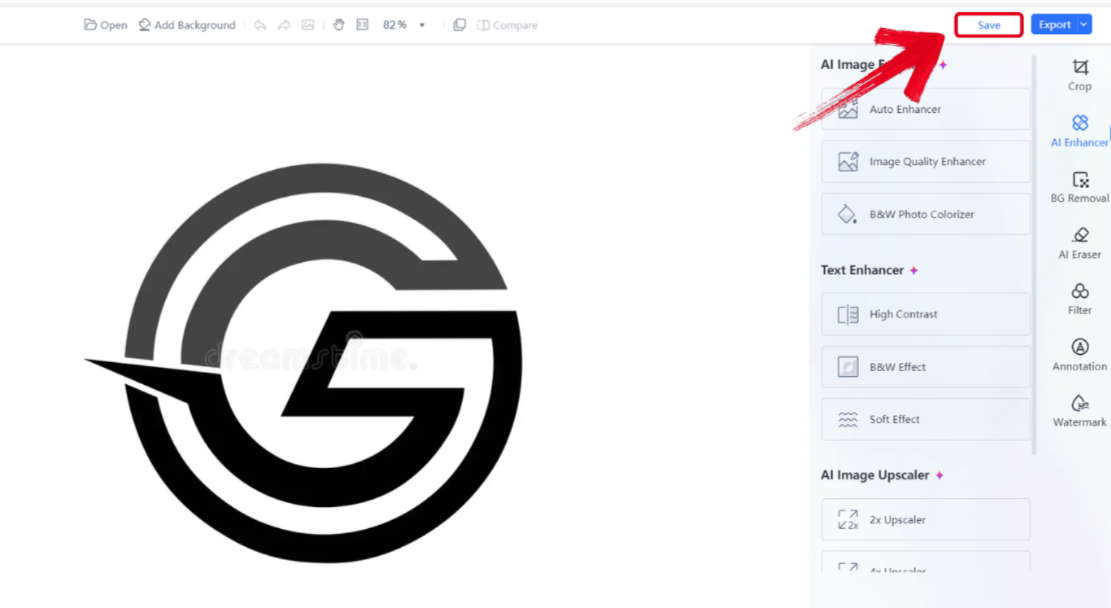
Step 3: After your image has been completely processed and enhanced, press Download to export the final result to your device.
FAQs
Q1. What is the best file format to save my logo after removing the background?
You should always save your logo as a PNG file. Unlike JPGs, the PNG format supports transparency, allowing your logo to sit cleanly on top of other images or colored backgrounds.
Q2. Can I remove the background from images in Illustrator without using other software? Is WPS Office a free alternative to Photoshop for logo editing?
WPS Office offers a robust free version that includes many powerful features. While it is more lightweight than Photoshop, it is often the superior choice for business users who need quick, high-quality edits without a steep learning curve or high subscription costs.
Q3. Can I batch process multiple logos at once?
Many top converters offer batch processing. WPS Office creates a streamlined environment where you can handle multiple images within your presentations or documents efficiently, increasing your productivity.
Q4. Will removing the background affect the quality of my logo?
No, when you use reliable tools like WPS Office, the quality of your logo remains intact. Background removal only isolates the main subject while preserving its resolution and clarity.
Q5. Can I use my transparent logo on any background color or image?
Yes, PNG logos with transparency can be placed on any color or image without unsightly edges or background clashes, making them perfect for websites, presentations, and marketing materials.
Polishing Logos Seamlessly
Removing the background from your logos is essential if you want it to look professional and polished, ensuring a clean and versatile look that can be used anywhere. In this guide, I’ve covered 5 of the most reliable tools you can use to simplify the process and learn how to remove background from logo. You can use WPS Phototo further enhance your edited images using the built-in AI tools provided. It’s completely free and is filled with smart tools that ensure a smooth and hassle-free photo editing experience, making it a perfect option for any creative looking to boost their productivity.

'%3e%3cpath%20d='M19.9911%204.11386V6.471H18.5894C18.0775%206.471%2017.7322%206.57814%2017.5536%206.79243C17.3751%207.00671%2017.2858%207.32814%2017.2858%207.75671V9.44421H19.9019L19.5536%2012.0871H17.2858V18.8639H14.5536V12.0871H12.2769V9.44421H14.5536V7.49779C14.5536%206.39064%2014.8632%205.53201%2015.4822%204.92189C16.1013%204.31177%2016.9257%204.00671%2017.9554%204.00671C18.8304%204.00671%2019.509%204.04243%2019.9911%204.11386Z'%20fill='%23333333'/%3e%3c/g%3e%3cdefs%3e%3cclipPath%20id='clip0_2938_8199'%3e%3crect%20width='16'%20height='16'%20fill='white'%20transform='translate(8%204.00671)'/%3e%3c/clipPath%3e%3c/defs%3e%3c/svg%3e)
'%3e%3cpath%20d='M17.5237%2010.7813L23.4811%204H22.0699L16.8949%209.88693L12.7648%204H8L14.2469%2012.9029L8%2020.0133H9.4112L14.8725%2013.7952L19.2352%2020.0133H24M9.92053%205.04213H12.0885L22.0688%2019.0224H19.9003'%20fill='%23333333'/%3e%3c/g%3e%3cdefs%3e%3cclipPath%20id='clip0_2938_8200'%3e%3crect%20width='16'%20height='16.0134'%20fill='white'%20transform='translate(8%204)'/%3e%3c/clipPath%3e%3c/defs%3e%3c/svg%3e)


