

'%3e%3cpath%20d='M8%200C12.4183%200%2016%203.58172%2016%208C16%2012.4183%2012.4183%2016%208%2016C3.58172%2016%200%2012.4183%200%208C0%203.58172%203.58172%200%208%200ZM11.6162%204.38379C11.2257%203.99337%2010.5927%203.99338%2010.2021%204.38379L8%206.58594L5.79785%204.38379C5.40732%203.99334%204.77429%203.99329%204.38379%204.38379C3.99331%204.77429%203.99335%205.40733%204.38379%205.79785L6.58594%208L4.38379%2010.2021C3.99348%2010.5927%203.99341%2011.2257%204.38379%2011.6162C4.77426%2012.0066%205.40734%2012.0065%205.79785%2011.6162L8%209.41406L10.2021%2011.6162C10.5927%2012.0066%2011.2257%2012.0067%2011.6162%2011.6162C12.0067%2011.2257%2012.0066%2010.5927%2011.6162%2010.2021L9.41406%208L11.6162%205.79785C12.0066%205.40735%2012.0066%204.77429%2011.6162%204.38379Z'%20fill='%23080E17'%20fill-opacity='0.46'/%3e%3c/g%3e%3cdefs%3e%3cclipPath%20id='clip0_3761_713'%3e%3crect%20width='16'%20height='16'%20fill='white'/%3e%3c/clipPath%3e%3c/defs%3e%3c/svg%3e)



'%3e%3cpath%20fill-rule='evenodd'%20clip-rule='evenodd'%20d='M21.4999%2010.9993C21.4999%205.20009%2016.7986%200.498901%2010.9993%200.498901C5.19994%200.498901%200.498657%205.20009%200.498657%2010.9993C0.498657%2016.2404%204.33858%2020.5844%209.35855%2021.3722V14.0346H6.69238V10.9993H9.35855V8.68594C9.35855%206.05427%2010.9262%204.60062%2013.3248%204.60062C14.4736%204.60062%2015.6753%204.80571%2015.6753%204.80571V7.38979H14.3512C13.0468%207.38979%2012.64%208.19921%2012.64%209.0296V10.9993H15.5523L15.0867%2014.0346H12.64V21.3722C17.66%2020.5844%2021.4999%2016.2404%2021.4999%2010.9993Z'%20fill='%231568EA'/%3e%3c/g%3e%3c/svg%3e)


'%3e%3cpath%20d='M2.42045%2022.1876H6.31818V12.7217L0.75%208.54553V20.5171C0.75%2021.4414%201.49892%2022.1876%202.42045%2022.1876Z'%20fill='%234285F4'/%3e%3cpath%20d='M19.682%2022.1876H23.5797C24.5041%2022.1876%2025.2502%2021.4387%2025.2502%2020.5171V8.54553L19.682%2012.7217'%20fill='%2334A853'/%3e%3cpath%20d='M19.682%205.48293V12.7216L25.2502%208.54543V6.31816C25.2502%204.25236%2022.8921%203.07469%2021.2411%204.31361'%20fill='%23FBBC04'/%3e%3cpath%20d='M6.31824%2012.7217V5.48303L13.0001%2010.4944L19.6819%205.48303V12.7217L13.0001%2017.733'%20fill='%23EA4335'/%3e%3cpath%20d='M0.75%206.31816V8.54543L6.31818%2012.7216V5.48293L4.75909%204.31361C3.10534%203.07469%200.75%204.25236%200.75%206.31816Z'%20fill='%23C5221F'/%3e%3c/g%3e%3cdefs%3e%3cclipPath%20id='clip0_2954_7305'%3e%3crect%20width='24.5'%20height='18.375'%20fill='white'%20transform='translate(0.75%203.8125)'/%3e%3c/clipPath%3e%3c/defs%3e%3c/svg%3e)



In our visually driven world, images speak louder than words, unless
unwanted text gets in the way. Whether it’s a watermark, caption, meme
text, or logo, text overlays can distort your message or ruin an
otherwise perfect shot. Many people try removing text manually only to
end up with smudged colors and unnatural patches. And not everyone has
the luxury of mastering Photoshop.
So how can you quickly and cleanly erase text from images without
professional tools? In this guide, we explore the best AI-powered text
removal tools and walk you through simple steps to achieve flawless,
professional-quality visuals.


Part 1: What is Text Removal & Why It Matters?
Text removal is the process of erasing text overlays, captions, watermarks, logos, stickers, timestamps, from images or videos using software or AI tools. Modern tools use intelligent inpainting technology to rebuild the underlying background, producing natural-looking results with minimal effort.
Why Remove Text from Images?
Clean Aesthetics
Perfect for social media posts, blog banners, or digital portfolios.
Reusability
Reuse existing visuals for multiple contexts without distracting text.
Brand Consistency
Ensures design alignment when repurpose assets (as long as it’s legally permitted).
Accessibility
Prepare images for translation, adaptation, or localization.
Common use cases include memes, marketing graphics, YouTube thumbnails, product images, school projects, and personal photo cleanups.
Part 2: Top Tools for Removing Text from Images
1. Pixelcut
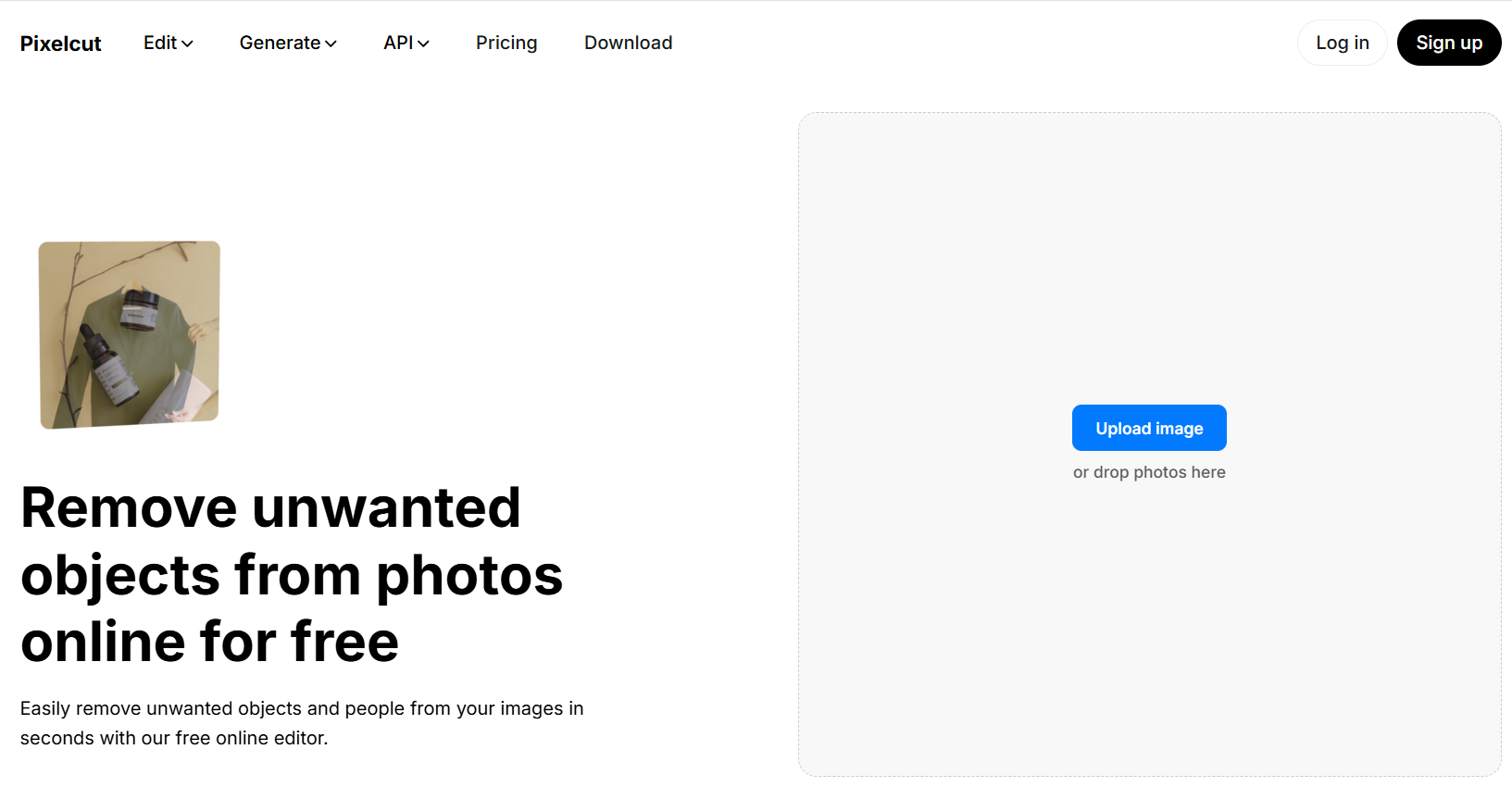
Pixelcut’s Cleanup tool specializes in fast AI inpainting,
making it one of the most accurate text removal solutions online.
My Experience Using Pixelcut
When I tested Pixelcut on images with flat-color backgrounds, it produced perfect results. On patterns, it needed minor refinements but still outperformed most competitors.
2. Clipdrop
Text Remover
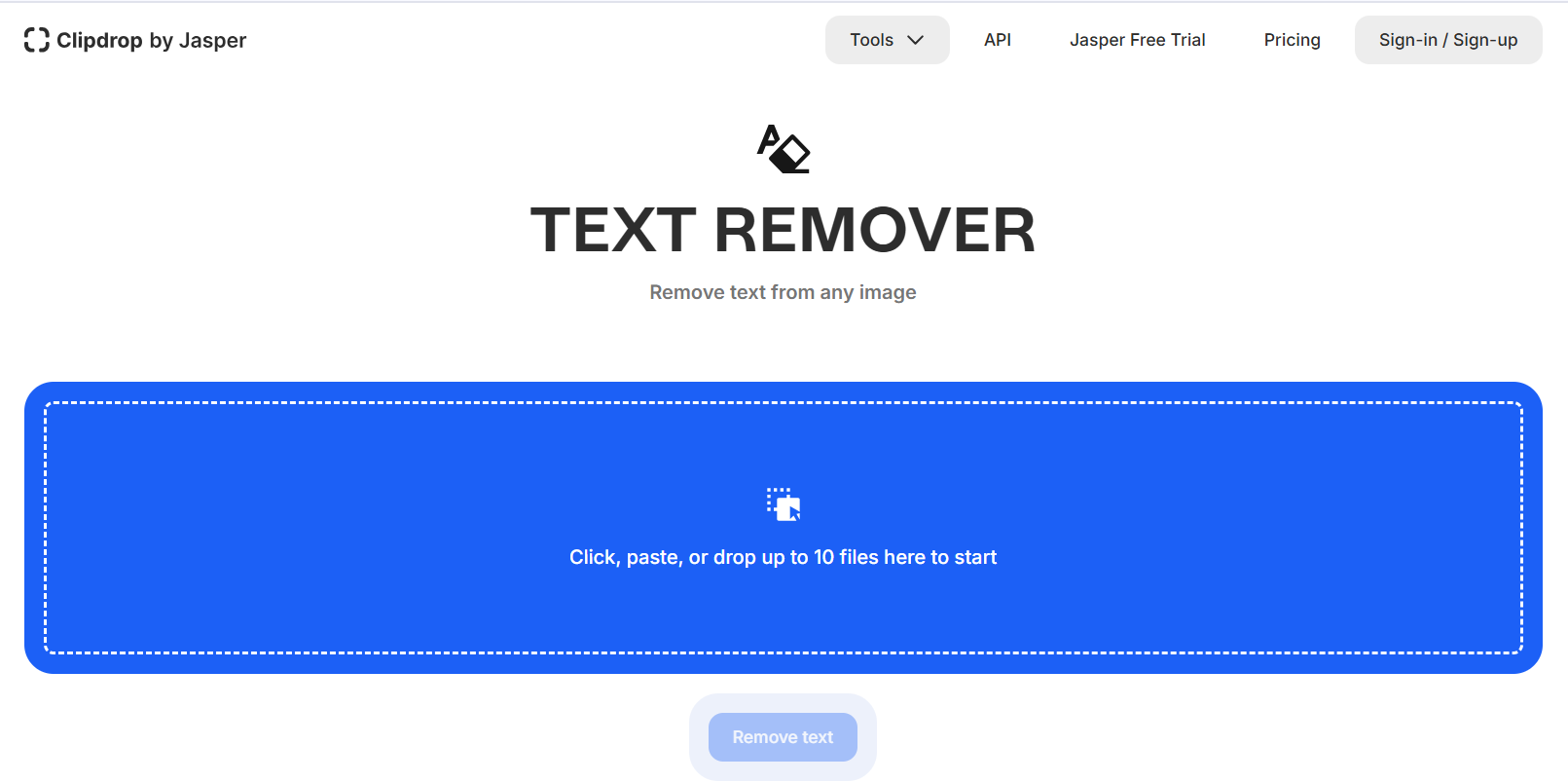
Clipdrop is known for its fast, reliable AI tools. Its Text
Remover is one of the most popular options for users looking to remove text from images online free.
Personal Use Review
Clipdrop is my go-to for quick fixes. It handles gradients impressively, something most online tools struggle with.
3. Canva
Canva’s built in AI remover is perfect for people who
frequently design social media posts.

My Experience
Great when I’m already designing inside Canva. The eraser quality is decent, though not as strong as Pixelcut or Clipdrop.
4. EzRemove
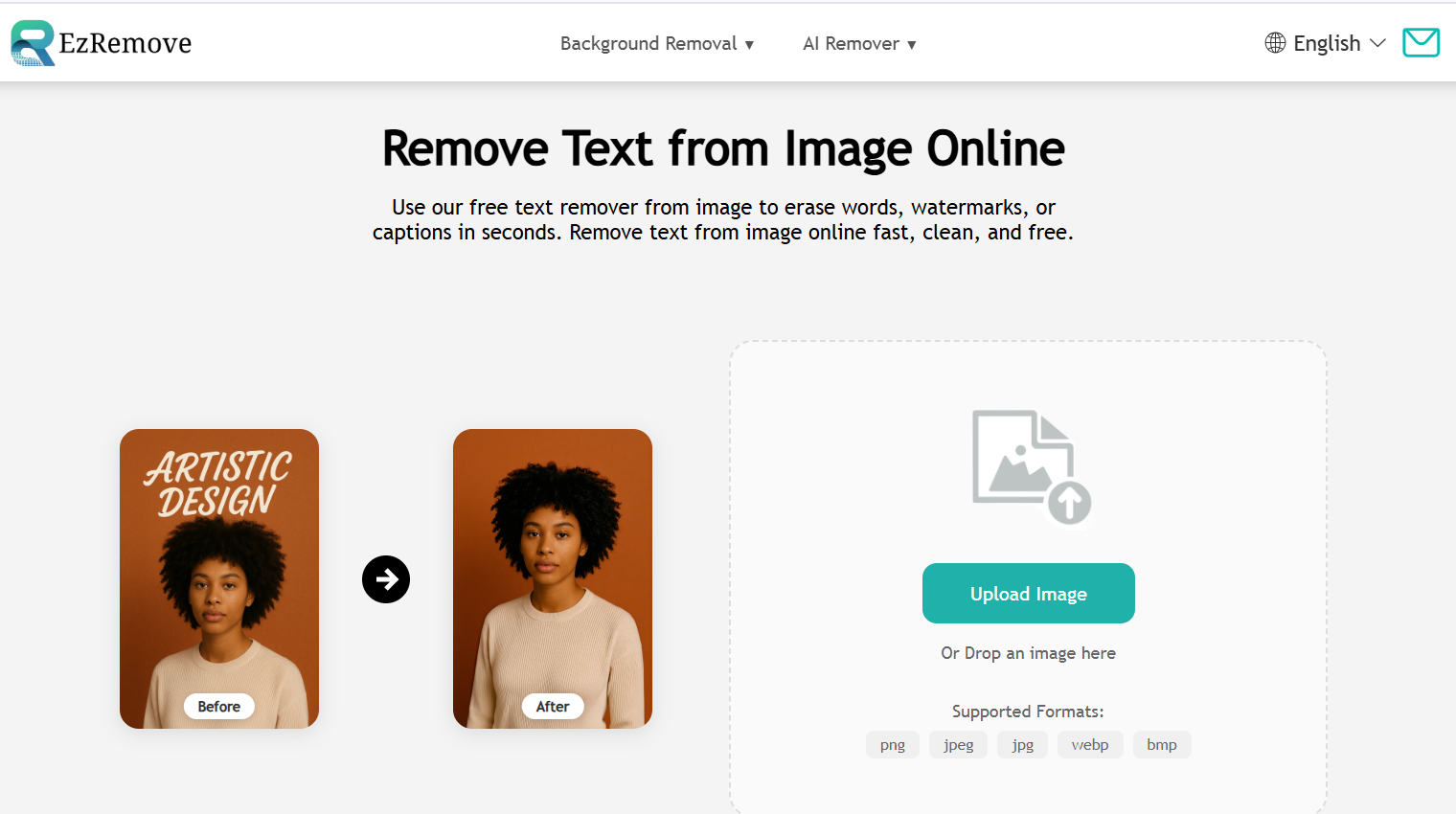
EzRemove is a simple, intuitive online AI remover focusing on
clean, trace-free edits.
My Experience
Perfect for beginners, no learning curve at all. Good results for simple backgrounds.
5. Fotor
Fotor combines photo editing with AI-powered cleanup tools.

My Experience
Best for editing + removal in one interface. Results are good but may require retries for perfect output.
Part 3: Comparison Table
| Tool | Accuracy | Ease of Use | Free Tier | Best For | Notable Strength |
|---|---|---|---|---|---|
| Pixelcut | ⭐⭐⭐⭐⭐ | Easy | Limited | Clean removals | Best natural reconstruction |
| Clipdrop | ⭐⭐⭐⭐⭐ | Very Easy | Yes | Fast results | Smart text detection |
| Canva | ⭐⭐⭐⭐ | Easy | Limited | Designers | Editing + removal in one place |
| EzRemove | ⭐⭐⭐⭐ | Very Easy | Yes | Quick use | No login, clean UI |
| Fotor | ⭐⭐⭐⭐ | Easy | Yes | Photo editing + removal | AI enhance + remove combo |
Part 4: Enhance Your Images with WPS AI Photo
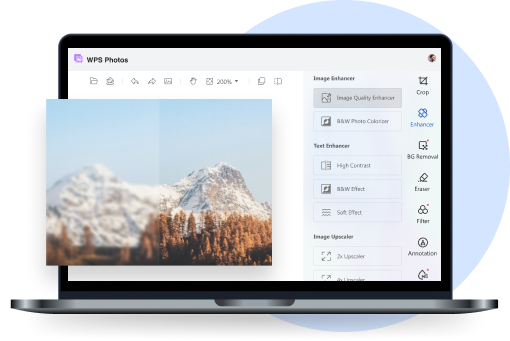
After removing text, you may notice issues like noise, blurriness, uneven lighting, or artifacts. This is where WPS AI Photo shines, helping you refine images before or after text removal.
WPS AI Photo is a powerful, beginner-friendly editor that enhances photos with only a few clicks.
Introducing WPS AI Photo: More Than Just Text Removal
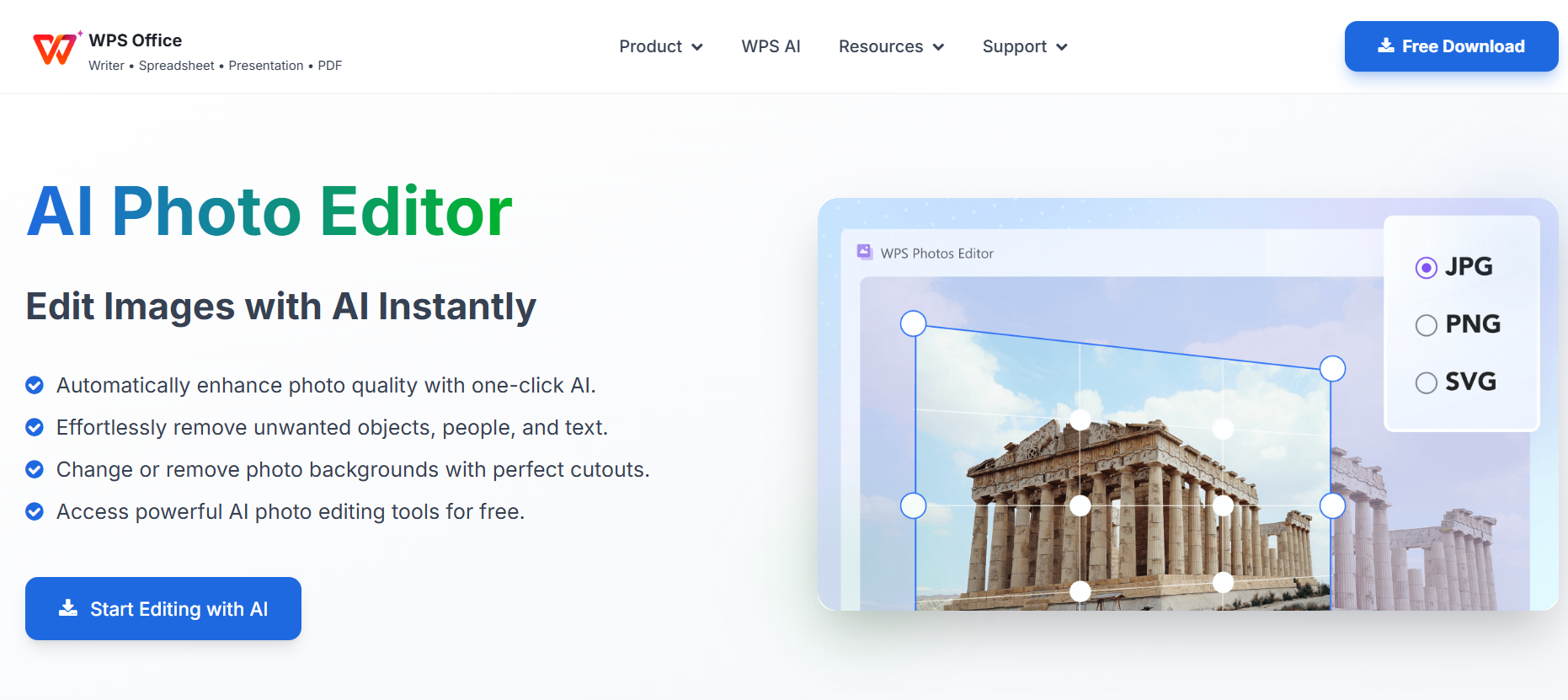
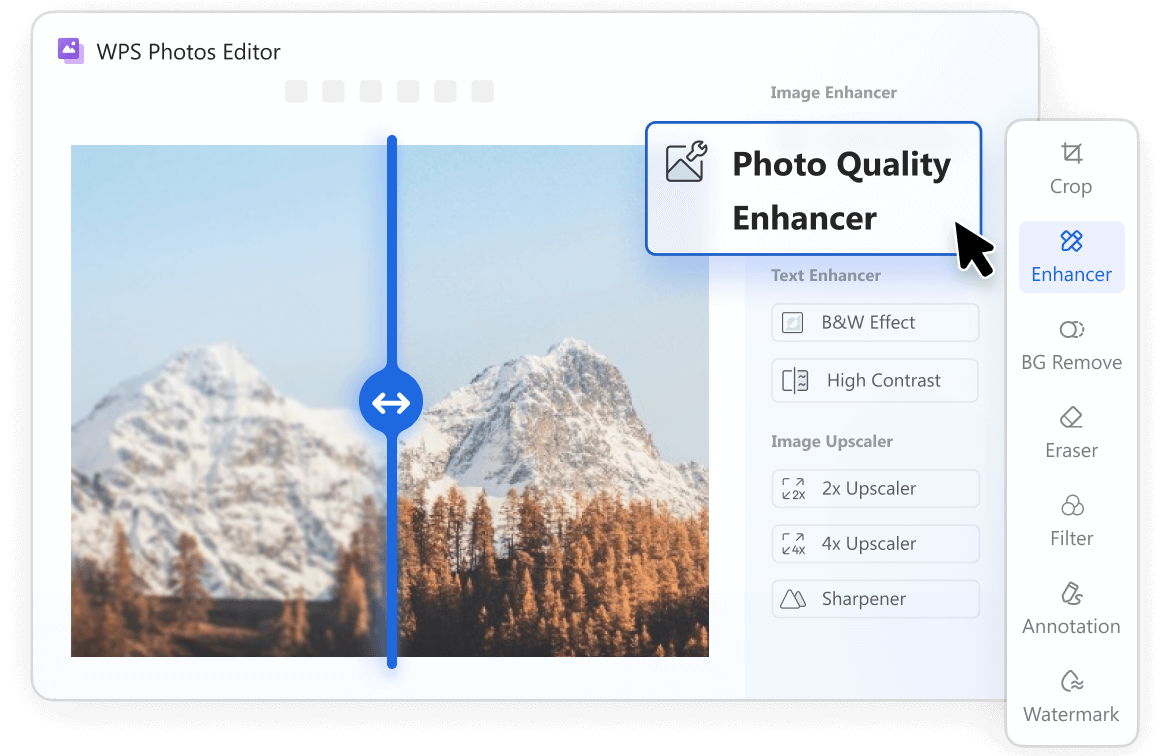
WPS AI Photo offers advanced AI tools such as enhancement, object removal, retouching, background repair, and color correction.
My Personal Experience with WPS AI Photo
I tried WPS AI Photo on a travel shot with blurred text and low lighting. The AI remover cleaned the text instantly, and the AI Enhance tool sharpened my image far better than expected. Lighting corrections also improved colors dramatically. WPS has become my go-to for preparing social media visuals.
How to Remove Text and Enhance Images with WPS AI Photo?
Step 1: Open Your Image in WPS AI Photo
Launch WPS Office → Select AI Photo → Upload your image.
Step 2: Use the AI Object Remover
Highlight the text area → AI analyzes → Text disappears while keeping the background natural.

Step 3: Enhance Image Quality (Optional)
Use AI Enhance to fix lighting, improve sharpness, or upscale resolution.
Step 4: Save and Export
Download your finished image in high quality for social media, marketing, or design use.
FAQs
Q1: Can I remove text from an image without leaving a trace?
Yes. Tools like Clipdrop and WPS AI Photo use AI inpainting to reconstruct the background naturally.
Q2: Is it legal to remove watermarks?
Removing watermarks from copyrighted images without permission is illegal. Always check content rights.
Q3: What’s the best free tool for removing text from videos?
Clipfly and Fotor offer free video cleanup tools, though HD exports may be limited.
Q4: Can WPS AI Photo remove text from complex backgrounds?
Yes, though extremely complex patterns may require multiple passes.
Q5: Does removing text reduce image quality?
It depends on the tool. AI tools maintain quality better than manual editing.
Q6: Can these tools remove handwritten text?
Yes, though results vary, smooth backgrounds work best.

'%3e%3cpath%20d='M19.9911%204.11386V6.471H18.5894C18.0775%206.471%2017.7322%206.57814%2017.5536%206.79243C17.3751%207.00671%2017.2858%207.32814%2017.2858%207.75671V9.44421H19.9019L19.5536%2012.0871H17.2858V18.8639H14.5536V12.0871H12.2769V9.44421H14.5536V7.49779C14.5536%206.39064%2014.8632%205.53201%2015.4822%204.92189C16.1013%204.31177%2016.9257%204.00671%2017.9554%204.00671C18.8304%204.00671%2019.509%204.04243%2019.9911%204.11386Z'%20fill='%23333333'/%3e%3c/g%3e%3cdefs%3e%3cclipPath%20id='clip0_2938_8199'%3e%3crect%20width='16'%20height='16'%20fill='white'%20transform='translate(8%204.00671)'/%3e%3c/clipPath%3e%3c/defs%3e%3c/svg%3e)
'%3e%3cpath%20d='M17.5237%2010.7813L23.4811%204H22.0699L16.8949%209.88693L12.7648%204H8L14.2469%2012.9029L8%2020.0133H9.4112L14.8725%2013.7952L19.2352%2020.0133H24M9.92053%205.04213H12.0885L22.0688%2019.0224H19.9003'%20fill='%23333333'/%3e%3c/g%3e%3cdefs%3e%3cclipPath%20id='clip0_2938_8200'%3e%3crect%20width='16'%20height='16.0134'%20fill='white'%20transform='translate(8%204)'/%3e%3c/clipPath%3e%3c/defs%3e%3c/svg%3e)


