

'%3e%3cpath%20d='M8%200C12.4183%200%2016%203.58172%2016%208C16%2012.4183%2012.4183%2016%208%2016C3.58172%2016%200%2012.4183%200%208C0%203.58172%203.58172%200%208%200ZM11.6162%204.38379C11.2257%203.99337%2010.5927%203.99338%2010.2021%204.38379L8%206.58594L5.79785%204.38379C5.40732%203.99334%204.77429%203.99329%204.38379%204.38379C3.99331%204.77429%203.99335%205.40733%204.38379%205.79785L6.58594%208L4.38379%2010.2021C3.99348%2010.5927%203.99341%2011.2257%204.38379%2011.6162C4.77426%2012.0066%205.40734%2012.0065%205.79785%2011.6162L8%209.41406L10.2021%2011.6162C10.5927%2012.0066%2011.2257%2012.0067%2011.6162%2011.6162C12.0067%2011.2257%2012.0066%2010.5927%2011.6162%2010.2021L9.41406%208L11.6162%205.79785C12.0066%205.40735%2012.0066%204.77429%2011.6162%204.38379Z'%20fill='%23080E17'%20fill-opacity='0.46'/%3e%3c/g%3e%3cdefs%3e%3cclipPath%20id='clip0_3761_713'%3e%3crect%20width='16'%20height='16'%20fill='white'/%3e%3c/clipPath%3e%3c/defs%3e%3c/svg%3e)




'%3e%3cpath%20fill-rule='evenodd'%20clip-rule='evenodd'%20d='M21.4999%2010.9993C21.4999%205.20009%2016.7986%200.498901%2010.9993%200.498901C5.19994%200.498901%200.498657%205.20009%200.498657%2010.9993C0.498657%2016.2404%204.33858%2020.5844%209.35855%2021.3722V14.0346H6.69238V10.9993H9.35855V8.68594C9.35855%206.05427%2010.9262%204.60062%2013.3248%204.60062C14.4736%204.60062%2015.6753%204.80571%2015.6753%204.80571V7.38979H14.3512C13.0468%207.38979%2012.64%208.19921%2012.64%209.0296V10.9993H15.5523L15.0867%2014.0346H12.64V21.3722C17.66%2020.5844%2021.4999%2016.2404%2021.4999%2010.9993Z'%20fill='%231568EA'/%3e%3c/g%3e%3c/svg%3e)


'%3e%3cpath%20d='M2.42045%2022.1876H6.31818V12.7217L0.75%208.54553V20.5171C0.75%2021.4414%201.49892%2022.1876%202.42045%2022.1876Z'%20fill='%234285F4'/%3e%3cpath%20d='M19.682%2022.1876H23.5797C24.5041%2022.1876%2025.2502%2021.4387%2025.2502%2020.5171V8.54553L19.682%2012.7217'%20fill='%2334A853'/%3e%3cpath%20d='M19.682%205.48293V12.7216L25.2502%208.54543V6.31816C25.2502%204.25236%2022.8921%203.07469%2021.2411%204.31361'%20fill='%23FBBC04'/%3e%3cpath%20d='M6.31824%2012.7217V5.48303L13.0001%2010.4944L19.6819%205.48303V12.7217L13.0001%2017.733'%20fill='%23EA4335'/%3e%3cpath%20d='M0.75%206.31816V8.54543L6.31818%2012.7216V5.48293L4.75909%204.31361C3.10534%203.07469%200.75%204.25236%200.75%206.31816Z'%20fill='%23C5221F'/%3e%3c/g%3e%3cdefs%3e%3cclipPath%20id='clip0_2954_7305'%3e%3crect%20width='24.5'%20height='18.375'%20fill='white'%20transform='translate(0.75%203.8125)'/%3e%3c/clipPath%3e%3c/defs%3e%3c/svg%3e)


The demand for a reliable face swap app for photos has increased significantly, providing quick, AI-powered solutions for transforming photos and videos with realistic results. However, users aren’t sure which app will give them the most effective results without requiring too much effort. So, what kind of face swap app can deliver the best possible results with ease? In this guide, I’ll be walking you through 5 face swap app free and helping you decide the right one for yourself.

Top 5 Face Swap Apps
When you’re trying to find a reliable face swap solution, choosing the right one can often feel overwhelming. The internetis flooded with options to choose from, but most of them tend to be incredibly slow and unreliable. I’ve gone through a bunch of tools myself and have narrowed them down to 5 of the most effective options that deliver optimal results with minimal effort. In this section, I’ll be breaking each one of them down by their key strengths and featuresto help you choose the right one.
Canva
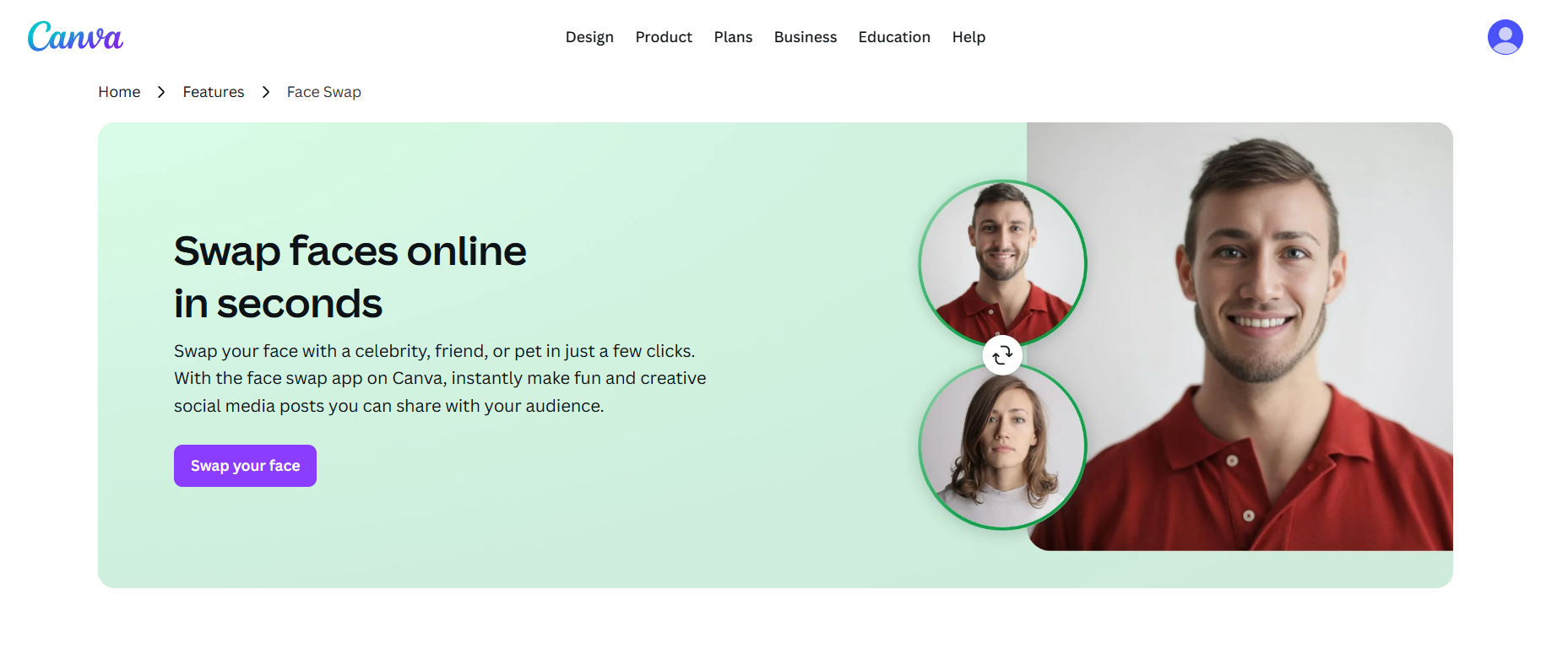
Canvais one of the most popular image tools, well-known for its vast library of design features. It offers many tools to choose from, ranging from basic tools like blurring and editing to AI-powered capabilities like face swapping. I found it to be an incredibly easy-to-use and straightforward solution for those looking for a simple tool that doesn’t require any previous experience or technical expertise.
Features
Drag-and-Drop Editing: Provides an incredibly easy and straightforward editing experience, making it ideal for beginners.
Browser-Based Functionality: No downloads or setup required; works entirely in your browser.
Design Integration: Easily integrates with your existing projects.
Pros
Completely free
No setup required
AI-powered assistance
Fast processing speeds
Cons
Requires an internet connection
Limited advanced editing features
Using Canva for your face swapping is incredibly straightforward, and you can follow the steps I’ve highlighted below for a hassle-free process.
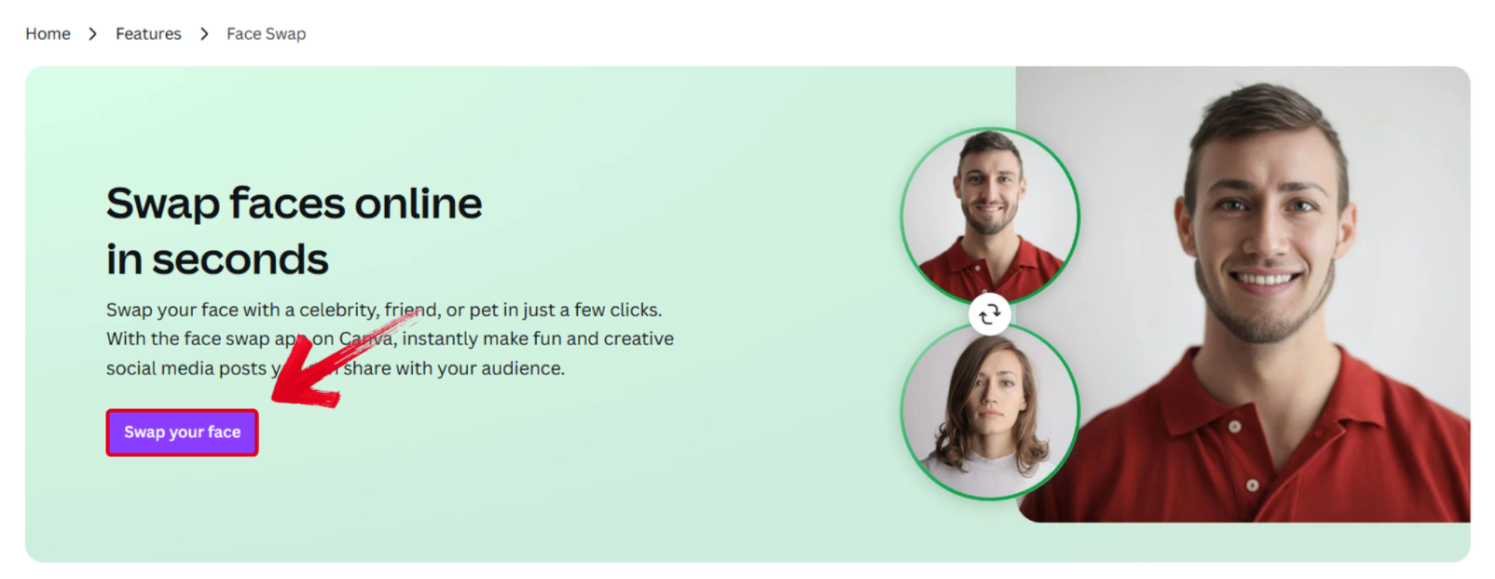
Step 1: Visit Canva’sofficial website and select Swap your face to get started.
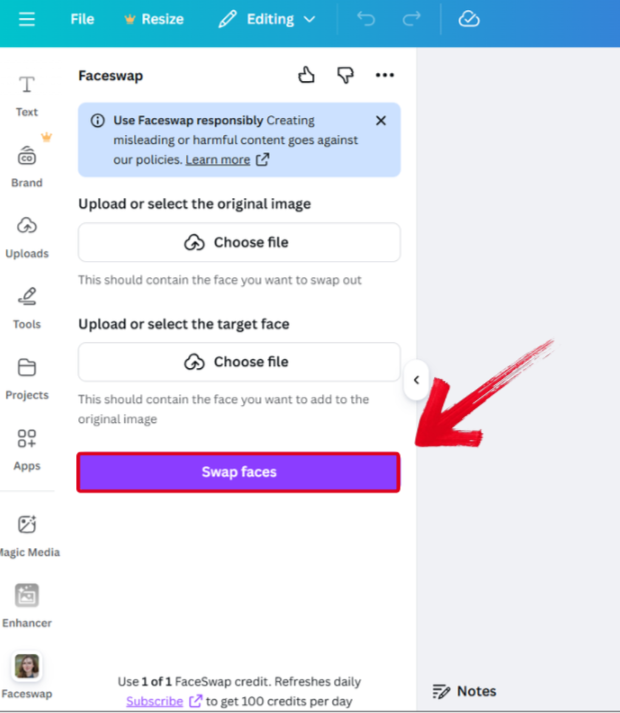
Step 2: Upload the Original Imageand the Target Face, then press Swap faces to start the editing process.
Step 3: Once the processing is complete, simply press Add to design to add it to your project.

YouCam Online Editor
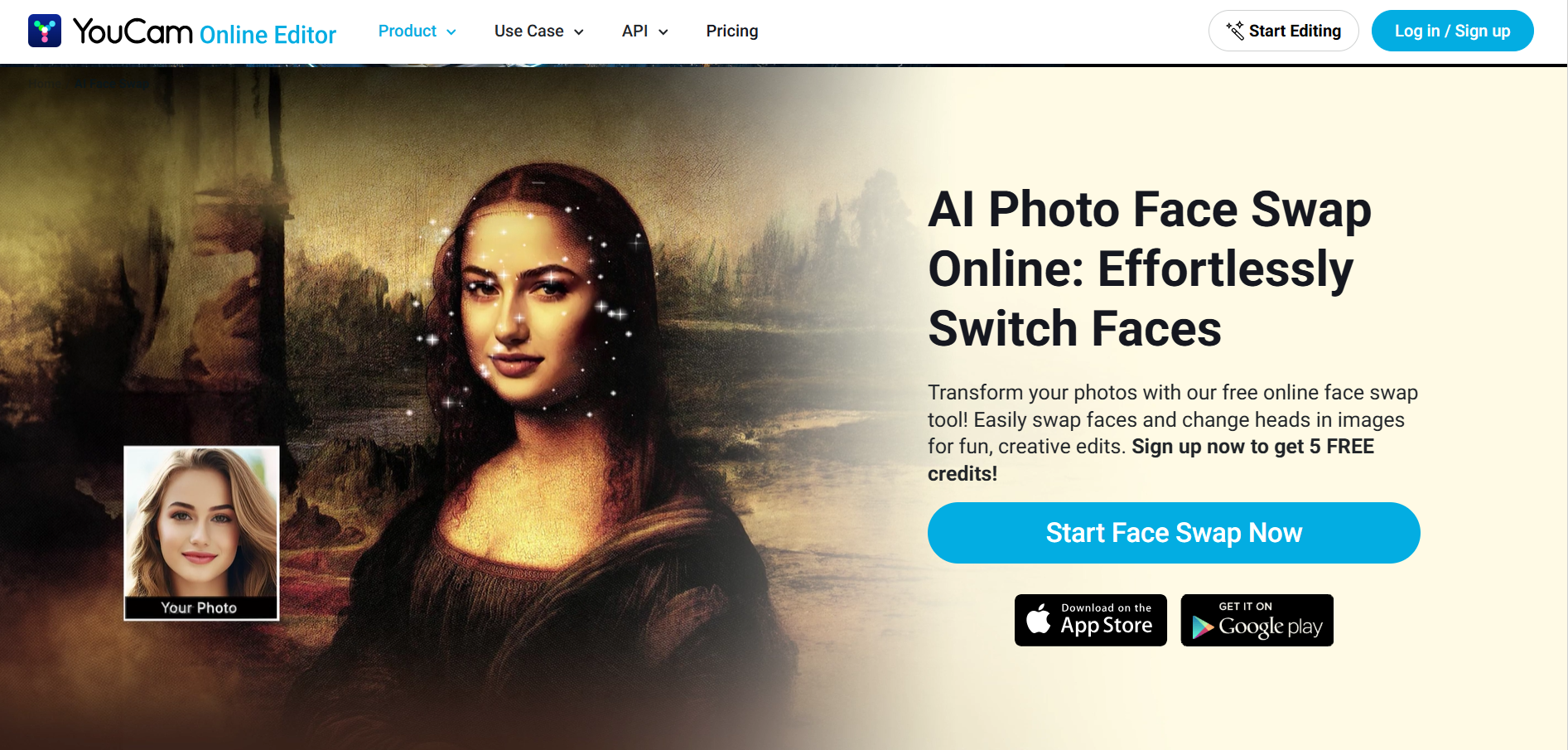
If you want a quick, effective tool that will give you reliable face-swapping results without much hassle, YouCam is a great choice. It features a wide variety of default templates to choose from, along with functionality for adding your own custom images to add your face to. The interface is simple and intuitive, ensuring a confusion-free experience even as a first-time user.
Features
AI Object Removal: Remove unwanted elements from your photos easily.
Magic Brush & Layers: Provides functionality for custom brushes and basic layer management.
Beauty Tools: Skin smoothing, face reshaping, and teeth whitening.
Pros
Free to use
Fully web-based
A variety of AI tools to choose from
Custom templates
Cons
Requires an internet connection
Limited free functionality
Using YouCam to swap your face with another pic is very simple and requires just a few simple steps. I’ve highlighted each one below to help you simplify the process.
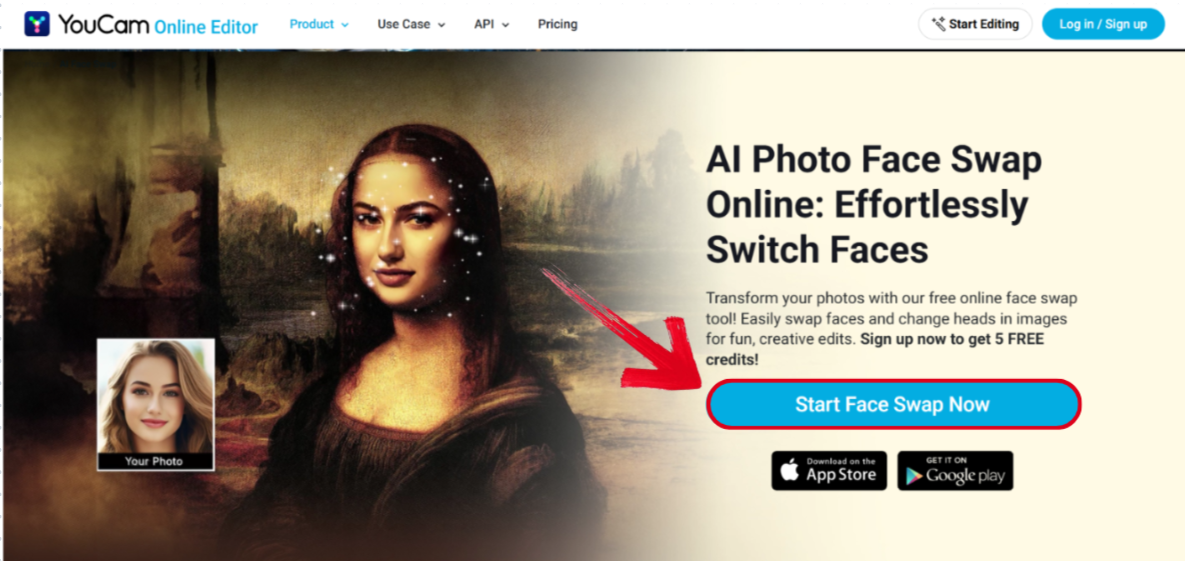
Step 1: Visit YouCam’sofficial website and select Start Face Swap Now to get started.
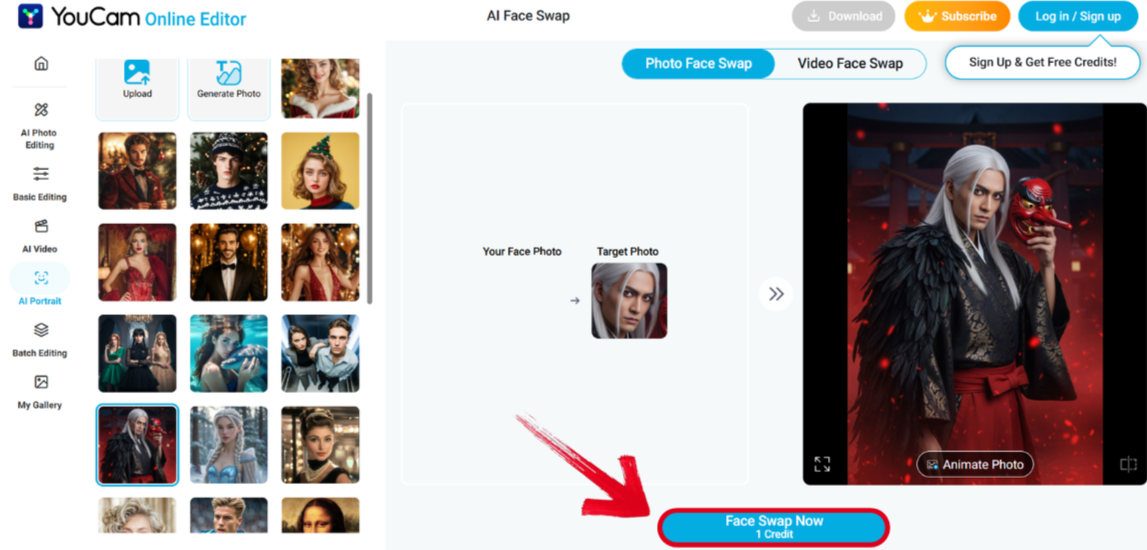
Step 2: Select the image you want to add your own face to and upload your own face, then press Face Swap Now to start.
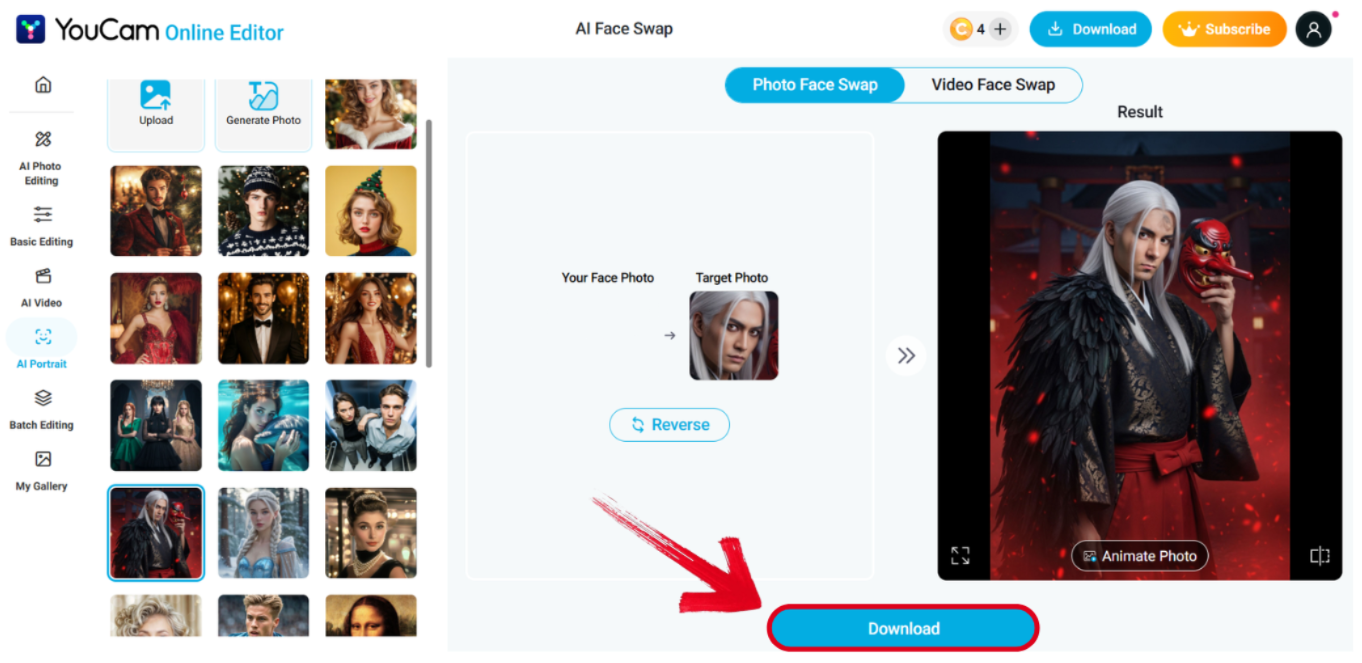
Step 3: Once the processing is complete, simply press Download to export it to your device.
Reface
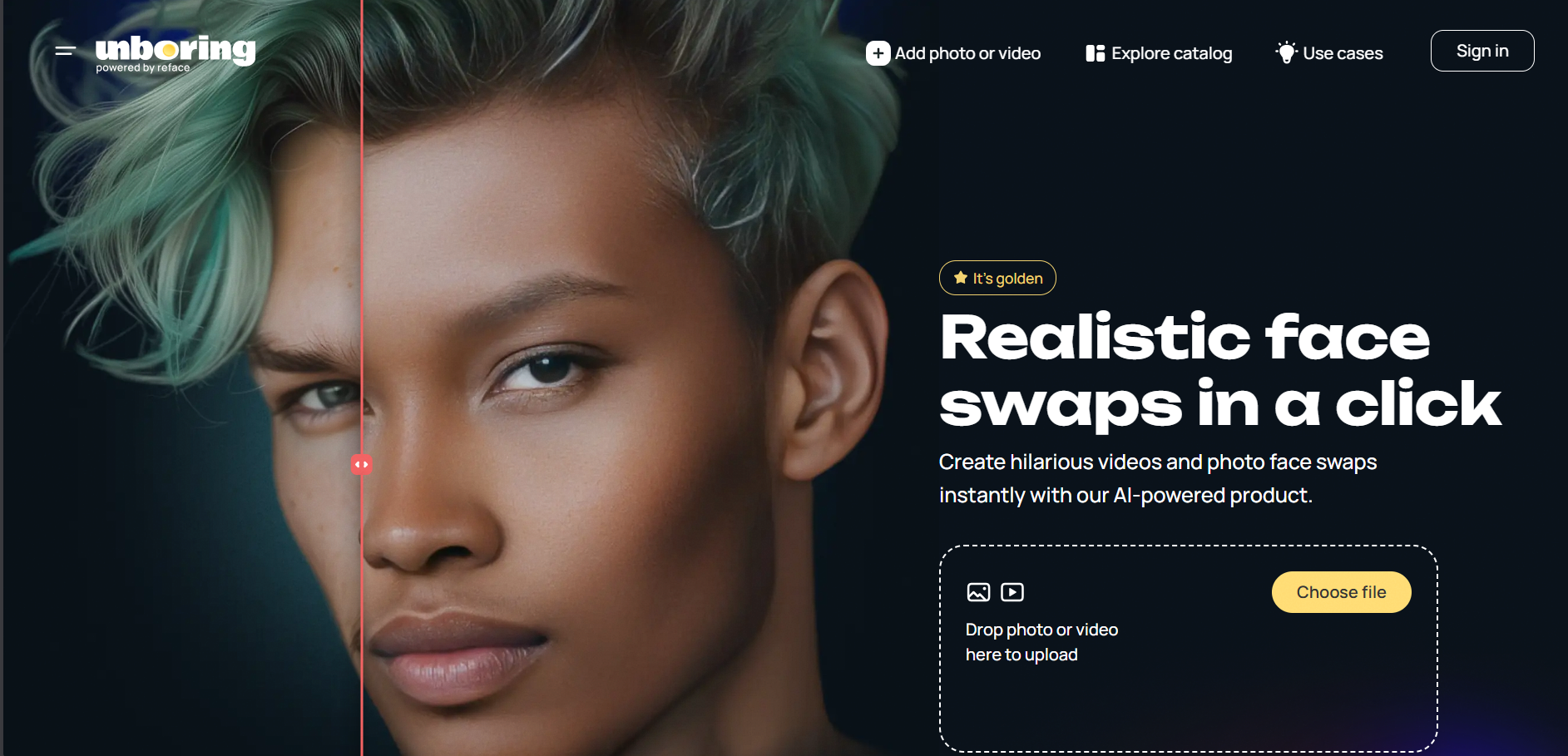
Reface has been one of the most versatile and advanced tools I’ve used during my testing, providing a large variety of useful tools to help you in your creative workflow. Its face-swapping capabilities are the most reliable ones I’ve tried, providing clean and polished results every single time. I found it to be the perfect option for professionals looking for an all-in-one AI tool to help them edit their photos easily.
Features
Image Restyling: Experiment on your photos with different styles.
Animation: Make full animations from a stationary image in just a few steps.
Video Restyling: Transform your videos using a variety of attractive filters.
Pros
Realistic results
Massive content library
Fast processing speeds
Cons
Privacy concerns
Watermarks
Using Reface for face swapping is incredibly straightforward and can be done very quickly. I’ll walk you through each step of the process to help you simplify the process.
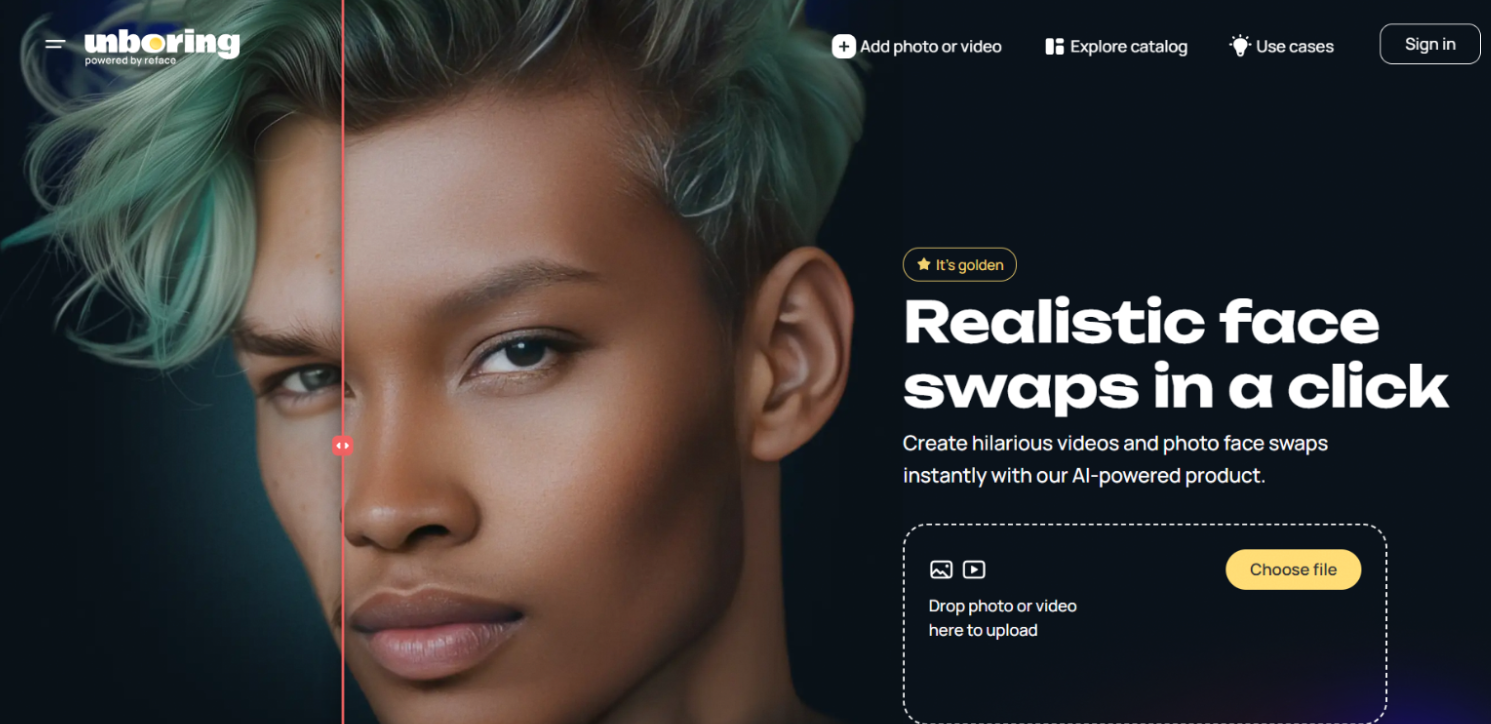
Step 1: Visit YouCam’s official website and upload the face you want to add to a photo to get started.
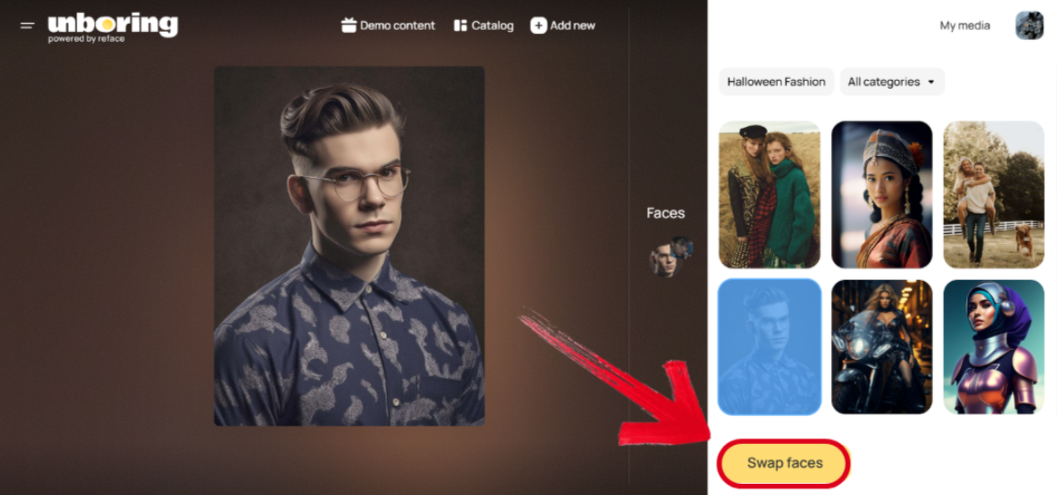
Step 2: Select the image you want to add your own face to, then press Swap faces.
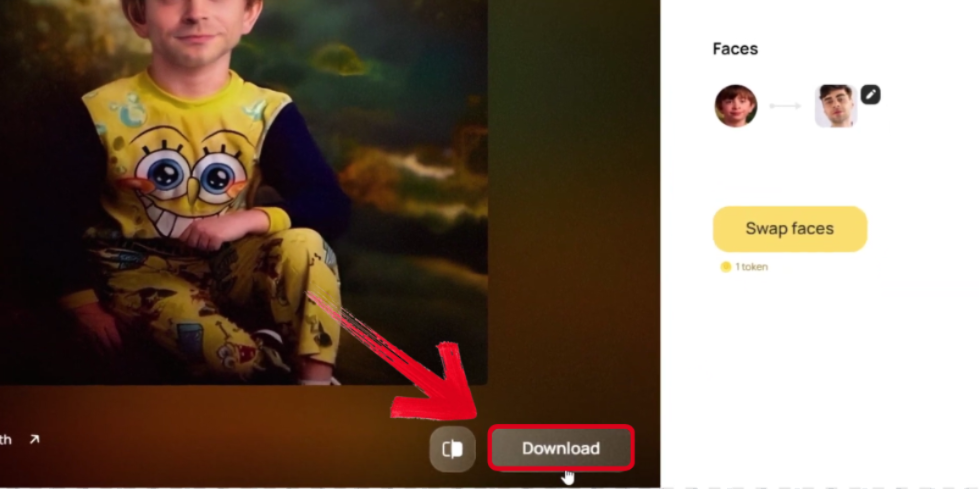
Step 3: Once the processing is complete, simply press Download to export it to your device.
FaceFusion
If you’re looking for a face-swapping app that delivers realistic results for photos and videos, then FaceFusion is one of the best options you can go for. It’s completely web-based, so you can access it from any device, providing excellent accessibility to users on the go. Moreover, the accurate and precise results make it one of the most effective options out there in my personal experience.

Features
Open-Source: The complete source code is available for public use.
Powerful Face Swapping: Change the face of any video or picture in just a few seconds.
Pros
Web-based functionality
Powerful AI assistance
Variety of models to choose from
Cons
Requires payment for local installation
No editing features
Using FaceFusion can be a great way to get optimal results for your face swapping. I’ll walk you through each step of the process to help you simplify the process.
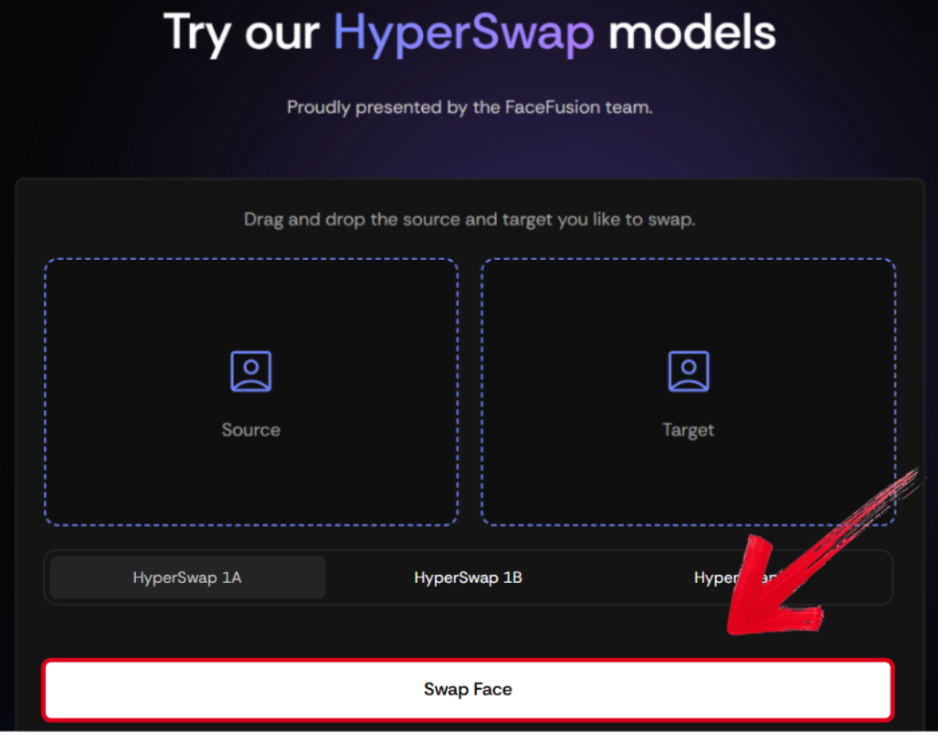
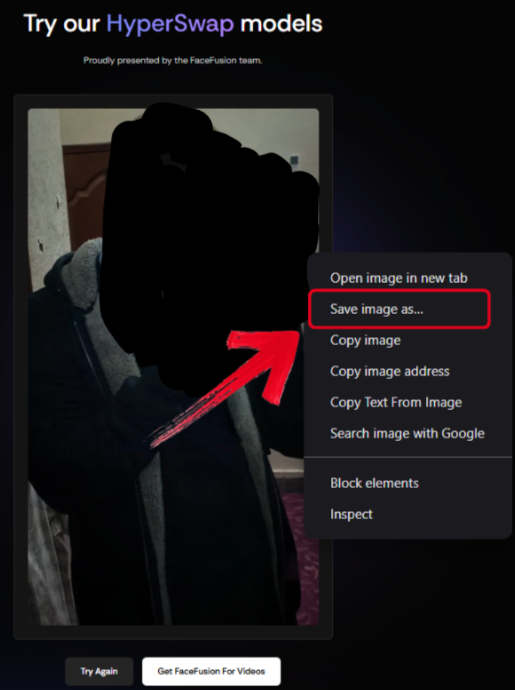
Step 1: Visit FaceFusion’s official website and upload the source and target photos, then press Swap Face.
Step 2: Once the processing is complete,right-click the photo and press Save image as to download it to your device.
Snapchat
Snapchat is a popular choice for social media among teenagers and young people, providing a variety of creative filters to add to your photos. One of these filters is its own face swap app video filter that allows you to add your face onto any photo of yours easily. It provides decent results in minimal time, making it an ideal choice for those looking for a quick, reliable solution.

Features
Built-in Filters: Variety of different filters to choose from in your photos.
Easy Sharing: Allows you to instantly share your photos to friends and family.
Pros
Completely free
Streaks and filters
Quick processing
Cons
Limited editing features
Using Snapchat can be a great way to swap your face in photos without spending much time on third-party tools. I’ll walk you through each step of the process to help you simplify the process.
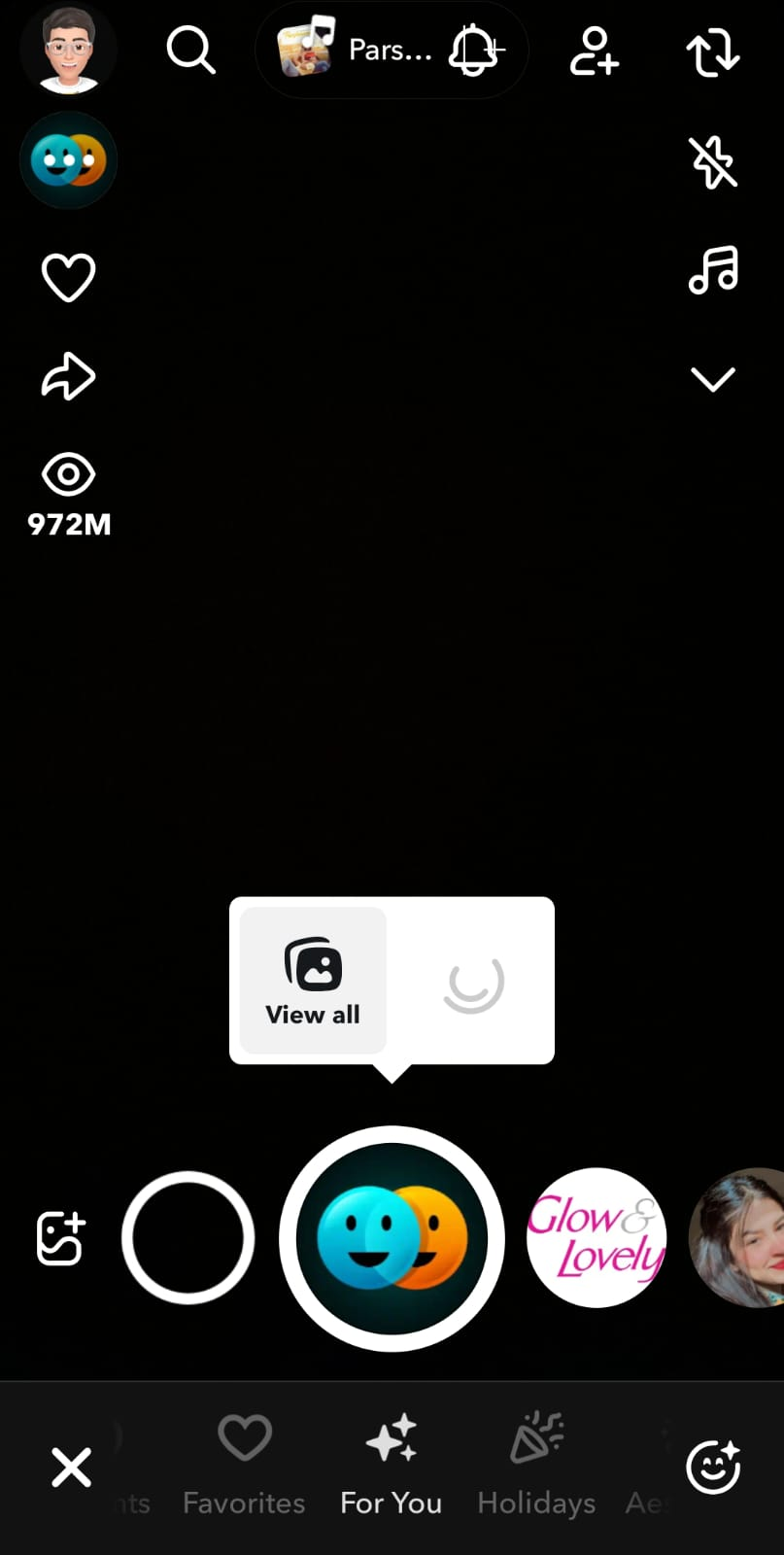
Step 1: Open Snapchat on your phone and navigate to the Face Swap filter and select the photo you want to face swap with from your gallery.
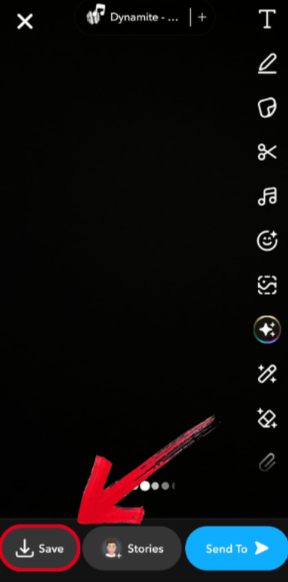
Step 2: Once you’ve taken your picture, simply pressSave to download it to your device.
Comparison of the Face Swap APP
All of the tools I’ve mentioned above have been extensively tried and tested by me and all of them have delivered professional and high-quality results every single time. However, if you’re trying to choose the right one for your requirements, I can understand how confusing it can be. In this section, I’ll be comparing each of these tools side-by-sideand helping you decide the right one for your work.
| Criteria | Canva | YouCam | Reface | FaceFusion | Snapchat |
|---|---|---|---|---|---|
| Ease of Use | High; drag-and-drop web tool. | High; intuitive with custom templates. | High; one-tap "polished" results. | Medium; specialized, precise results. | High; real-time filter usage. |
| AI Quality | Good; natural AI-powered blending. | Clean; reliable, hassle-free outcomes. | Realistic; clean, polished results. | Professional; accurate and precise. | Decent; fun, AR-based filters. |
| Photo vs. Video | Both; focuses on design integration. | Photo Focus; features custom templates. | Both; versatile for advanced workflows. | Both; handles photos and videos. | Both; uses camera or gallery. |
| Free vs. Paid | Completely Free; no setup. | Freemium; limited free functionality. | Paid Focus; watermarks on free version. | Paid Install; web-version is accessible. | Completely Free; funded by social features. |
| Compatibility | Web-based; no downloads needed. | Web-based; works in browsers. | Web-based; all-in-one AI tool. | Web-based; accessible from any device. | Mobile-native (iOS/Android). |
| Speed/Processing | Fast; browser-based processing. | Fast; quick, effective results. | Fast; efficient for pros. | Fast; reliable web processing. | Instant; real-time on-device. |
Boost Your Faceswap Photo: Improve Image Quality in Seconds With WPS Photo
Once you’re done swapping faces with your photos, the next thing you can do is further enhance their image quality using online tools. There are many tools you can use for this step, but I’ve found most of them to be either unreliable or locked behind paywalls. To ensure a completely free and hassle-free experience, I rely on WPS Photofor all my image enhancement needs. It’s incredibly efficient and extremely reliable, providing high-quality and precise results every single time. It’s the perfect companion to anyone trying to boost their productivity with a seamless tool.
Features
AI Photo Enhancer: Enhance your image clarity and resolution easily with the AI-powered enhancer.
AI Background Remover: Automatically removes photo backgrounds without any cutoffs or lost details.
Basic Edit Tools: Crop, rotate, adjust colors, add filters, annotations, and watermarks.
Full Privacy & Local Processing: All edits happen directly on your device, keeping your images safe and secure.
Price
Completely free
Pros
Completely free
Easy to use
Beginner-friendly interface
Powerful AI assistance
Cons
Limited advanced editing features
If you feel like WPS Photos is the right tool for your image enhancement needs, then getting started is incredibly simple. I’ll walk you through each step in detail myself to clear out any confusion you might have.
Step 1: Open the image you want to enhance with WPS Photos to get started.
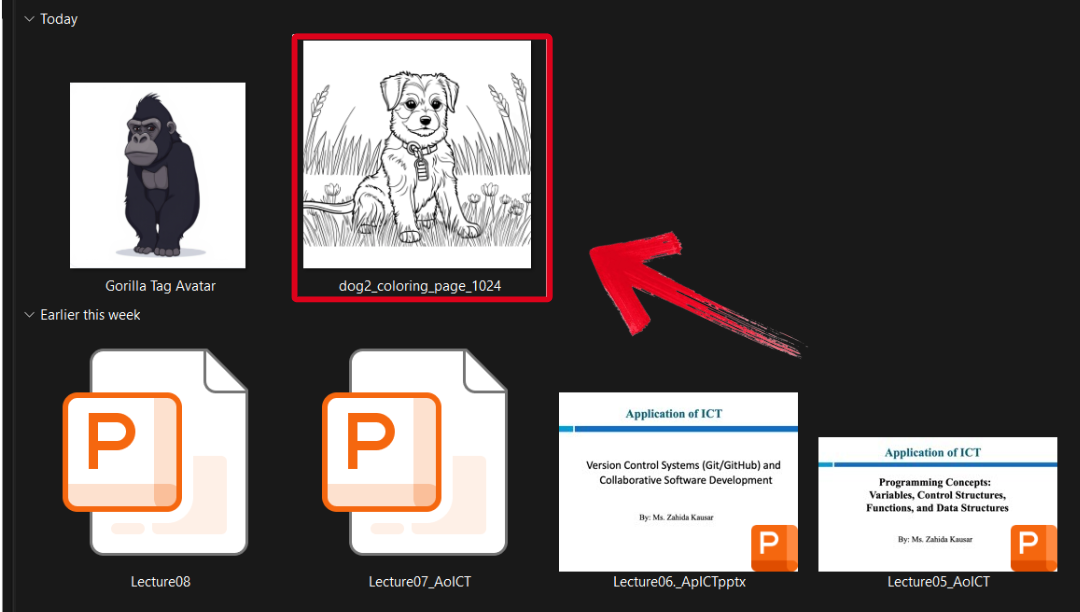
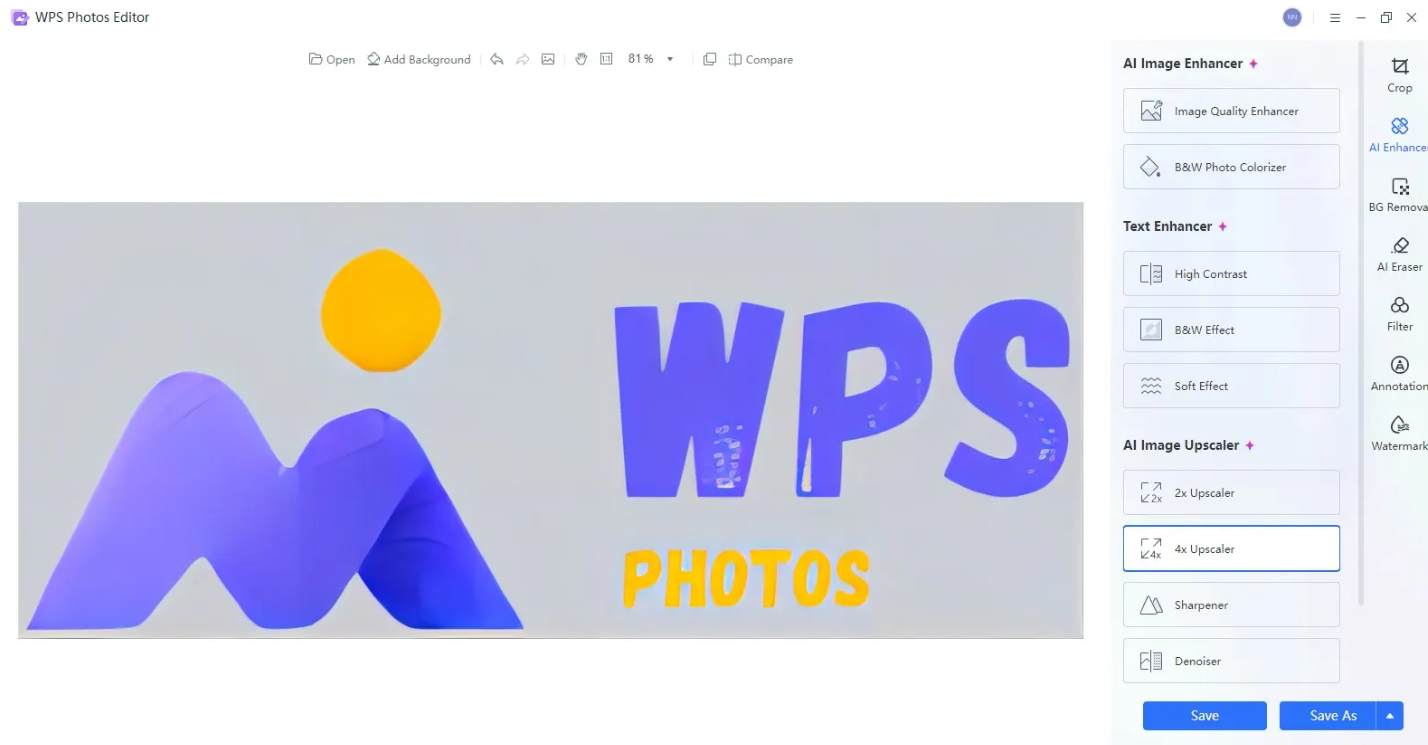
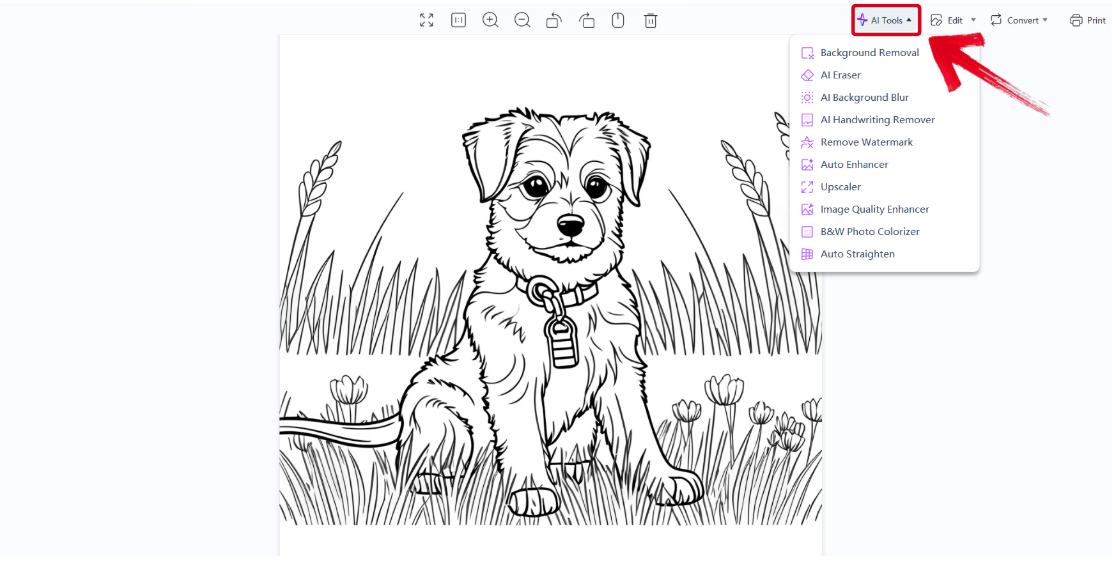
Step 2: In the WPS Photos window, you’ll see a bunch of editing tools given to you, including smart AI Toolsto help you enhance your photos.
AI Image Enhancer: Improve the quality of your image using AI enhancement.
AI Upscaler: Bring life back into old photos by restoring them through the AI upscaler.
AI Watermark Removal: If there are any watermarks on your template, you can elevate the visual appeal with thewatermarkremoval tool.
AI Background Blur: Bring focus to the main objects of your photo by blurring the background.
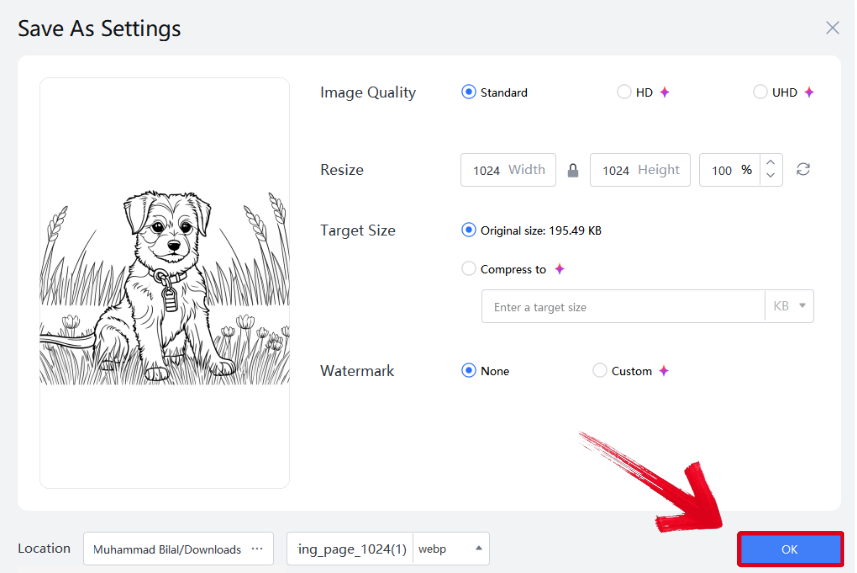
Step 3: Press Ctrl + S to open theSave As window. Adjust the image quality, size, and format, and then press OK to finish.
FAQs
Q1: Are face swap apps safe to use?
Most face swap apps are safe to use, but it's important to read their privacy policies. Ensure that the app does not misuse or store your personal data without consent.
Q2: Can ChatGPT do Faceswap?
Yes, ChatGPT can facilitate face swapping, especially using custom GPTs or AI tools integrated with it, allowing users to upload images and swap faces in generated or existing photos, though sometimes an external AI hack is needed to fix faces in DALL-E 3 generations. You can use specific "Face Swapper" GPTs within ChatGPT to upload photos and switch faces, creating personalized content like custom thumbnails.
Q3: How do I add another face in a video?
To add another face in a video you need a face swap app like YouCam Video. Simply upload your video to the app's Face Swap feature and then upload the new face that you want to add. The app's advanced AI will generate a super realistic video.
Q4. How can WPS AI help my face swap images?
WPS AI can auto-enhance quality, remove backgrounds, and match tones between photos, helping your images blend naturally when placed together.
Q5. What is AI Video & Photo Face Swap?
AI face swap is a technology that uses artificial intelligence to replace one person's face with another in photos and videos.
Face swap for photos has been popular for quite some time but face swap for video is on the rise! You can shake things up for your TikTok videos or YouTube Shorts and create entertaining content to share.
Simplifying Face Swaps
Face swapping has become one of the most needed features on social media, with people around the world looking for a way to add their faces to online pictures. In this guide, I’ve highlighted 5 of the most reliable face swap apps to help you simplify the process and get accurate results without much hassle. You can use WPS Phototo further enhance your image quality. It’s completely free and gives your images the much-needed enhancement it needs to appear professional and polished every single time.

'%3e%3cpath%20d='M19.9911%204.11386V6.471H18.5894C18.0775%206.471%2017.7322%206.57814%2017.5536%206.79243C17.3751%207.00671%2017.2858%207.32814%2017.2858%207.75671V9.44421H19.9019L19.5536%2012.0871H17.2858V18.8639H14.5536V12.0871H12.2769V9.44421H14.5536V7.49779C14.5536%206.39064%2014.8632%205.53201%2015.4822%204.92189C16.1013%204.31177%2016.9257%204.00671%2017.9554%204.00671C18.8304%204.00671%2019.509%204.04243%2019.9911%204.11386Z'%20fill='%23333333'/%3e%3c/g%3e%3cdefs%3e%3cclipPath%20id='clip0_2938_8199'%3e%3crect%20width='16'%20height='16'%20fill='white'%20transform='translate(8%204.00671)'/%3e%3c/clipPath%3e%3c/defs%3e%3c/svg%3e)
'%3e%3cpath%20d='M17.5237%2010.7813L23.4811%204H22.0699L16.8949%209.88693L12.7648%204H8L14.2469%2012.9029L8%2020.0133H9.4112L14.8725%2013.7952L19.2352%2020.0133H24M9.92053%205.04213H12.0885L22.0688%2019.0224H19.9003'%20fill='%23333333'/%3e%3c/g%3e%3cdefs%3e%3cclipPath%20id='clip0_2938_8200'%3e%3crect%20width='16'%20height='16.0134'%20fill='white'%20transform='translate(8%204)'/%3e%3c/clipPath%3e%3c/defs%3e%3c/svg%3e)


