

'%3e%3cpath%20d='M8%200C12.4183%200%2016%203.58172%2016%208C16%2012.4183%2012.4183%2016%208%2016C3.58172%2016%200%2012.4183%200%208C0%203.58172%203.58172%200%208%200ZM11.6162%204.38379C11.2257%203.99337%2010.5927%203.99338%2010.2021%204.38379L8%206.58594L5.79785%204.38379C5.40732%203.99334%204.77429%203.99329%204.38379%204.38379C3.99331%204.77429%203.99335%205.40733%204.38379%205.79785L6.58594%208L4.38379%2010.2021C3.99348%2010.5927%203.99341%2011.2257%204.38379%2011.6162C4.77426%2012.0066%205.40734%2012.0065%205.79785%2011.6162L8%209.41406L10.2021%2011.6162C10.5927%2012.0066%2011.2257%2012.0067%2011.6162%2011.6162C12.0067%2011.2257%2012.0066%2010.5927%2011.6162%2010.2021L9.41406%208L11.6162%205.79785C12.0066%205.40735%2012.0066%204.77429%2011.6162%204.38379Z'%20fill='%23080E17'%20fill-opacity='0.46'/%3e%3c/g%3e%3cdefs%3e%3cclipPath%20id='clip0_3761_713'%3e%3crect%20width='16'%20height='16'%20fill='white'/%3e%3c/clipPath%3e%3c/defs%3e%3c/svg%3e)




'%3e%3cpath%20fill-rule='evenodd'%20clip-rule='evenodd'%20d='M21.4999%2010.9993C21.4999%205.20009%2016.7986%200.498901%2010.9993%200.498901C5.19994%200.498901%200.498657%205.20009%200.498657%2010.9993C0.498657%2016.2404%204.33858%2020.5844%209.35855%2021.3722V14.0346H6.69238V10.9993H9.35855V8.68594C9.35855%206.05427%2010.9262%204.60062%2013.3248%204.60062C14.4736%204.60062%2015.6753%204.80571%2015.6753%204.80571V7.38979H14.3512C13.0468%207.38979%2012.64%208.19921%2012.64%209.0296V10.9993H15.5523L15.0867%2014.0346H12.64V21.3722C17.66%2020.5844%2021.4999%2016.2404%2021.4999%2010.9993Z'%20fill='%231568EA'/%3e%3c/g%3e%3c/svg%3e)


'%3e%3cpath%20d='M2.42045%2022.1876H6.31818V12.7217L0.75%208.54553V20.5171C0.75%2021.4414%201.49892%2022.1876%202.42045%2022.1876Z'%20fill='%234285F4'/%3e%3cpath%20d='M19.682%2022.1876H23.5797C24.5041%2022.1876%2025.2502%2021.4387%2025.2502%2020.5171V8.54553L19.682%2012.7217'%20fill='%2334A853'/%3e%3cpath%20d='M19.682%205.48293V12.7216L25.2502%208.54543V6.31816C25.2502%204.25236%2022.8921%203.07469%2021.2411%204.31361'%20fill='%23FBBC04'/%3e%3cpath%20d='M6.31824%2012.7217V5.48303L13.0001%2010.4944L19.6819%205.48303V12.7217L13.0001%2017.733'%20fill='%23EA4335'/%3e%3cpath%20d='M0.75%206.31816V8.54543L6.31818%2012.7216V5.48293L4.75909%204.31361C3.10534%203.07469%200.75%204.25236%200.75%206.31816Z'%20fill='%23C5221F'/%3e%3c/g%3e%3cdefs%3e%3cclipPath%20id='clip0_2954_7305'%3e%3crect%20width='24.5'%20height='18.375'%20fill='white'%20transform='translate(0.75%203.8125)'/%3e%3c/clipPath%3e%3c/defs%3e%3c/svg%3e)


A cause and effect diagram can be an incredibly powerful tool to locate the root cause of an issue, especially when the stakes are high. However, many teams struggle to organize the diagram and waste a lot of time making everything from scratch. So, is there a free and reliable way to simplify this process? In this article, I’ll be highlighting 10 of the most reliable free cause and effect diagram templates and showing you how to edit them effectively.


How to Create a Cause and Effect Diagram
A cause and effect diagram is a visual tool that is used to organize all the potential root causes of a specific problem by displaying them in great detail. One of the most popular types of cause and effect diagrams is a fishbone or Ishikawa diagram, but a tree diagram can also be a reliable way to map your cause and effects. Knowing how to create a cause and effect diagram can be a great skill to have when you’re trying to troubleshoot an issue, helping you locate the root cause in an organized and structured manner.
Top 10 Cause and Effect Diagram Templates [Free Download]
A well-structured cause and effect diagram is essential to any problem-solving strategy. However, when you’re designing one from scratch, it’s easy to feel lost as a beginner. You can simplify the process for yourself by using free, customizable cause and effect diagram examples. In this section, I’ll be highlighting 10 of the most effective options I found which helped me streamline my workflow and solve my problems with ease.
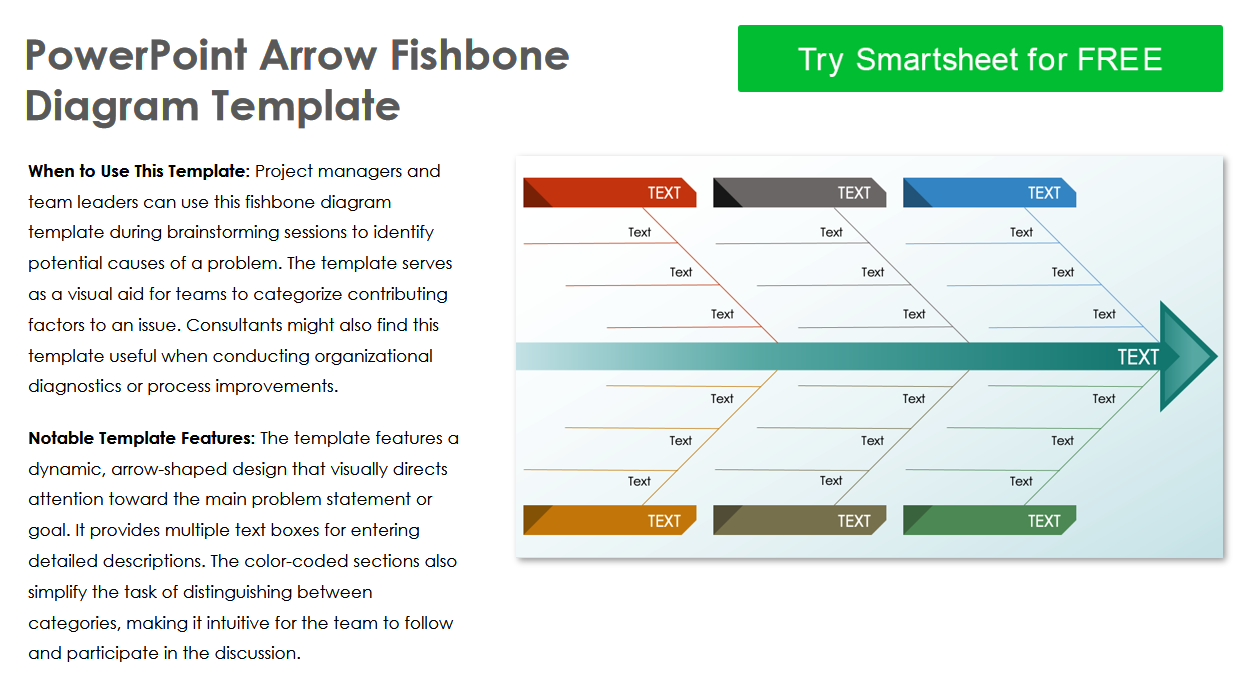
1. PowerPoint Arrow Fishbone Diagram Template
The PowerPoint Arrow Fishbone Diagram Template is a great option for project managers and team leaders looking for a reliable diagram to identify potential causes during their brainstorming sessions. It features an arrow-shaped design that visually draws attention towards the main problem, along with multiple text boxes for descriptions.
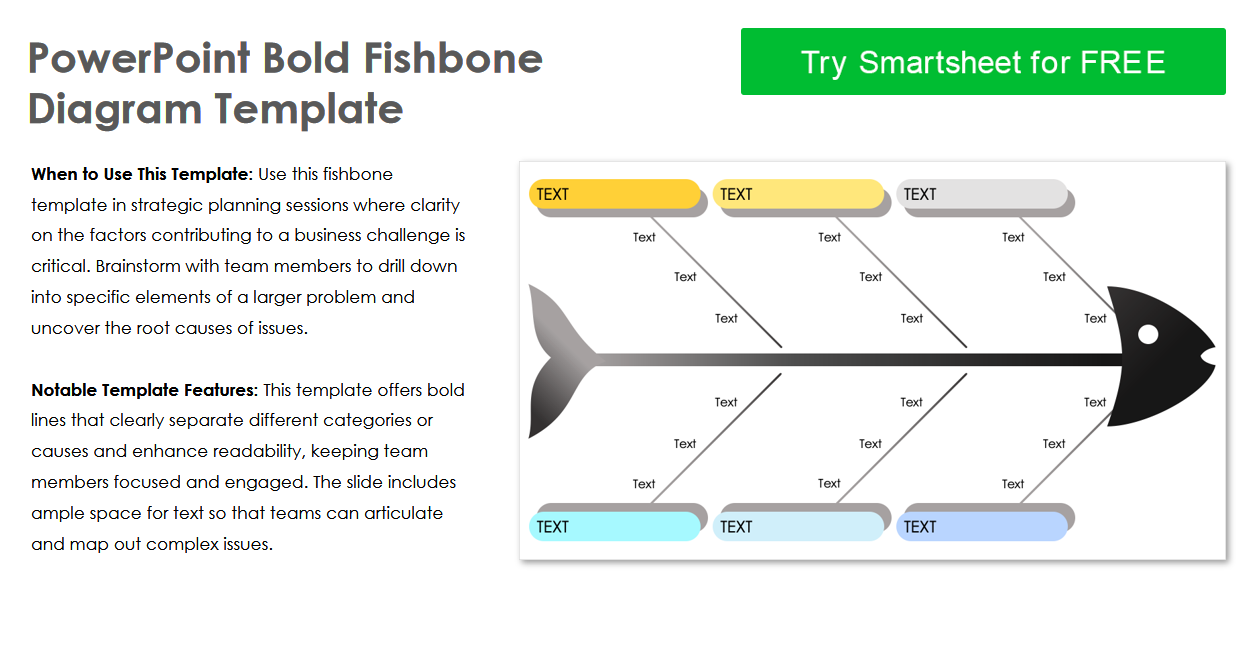
The PowerPoint Bold Fishbone Diagram Template is the perfect option for strategic planning sessions where you need to prioritize clarity on potential causes of your problem. It features bold lines that divide different categories or causes to keep your team members focused and engaged on the important parts.
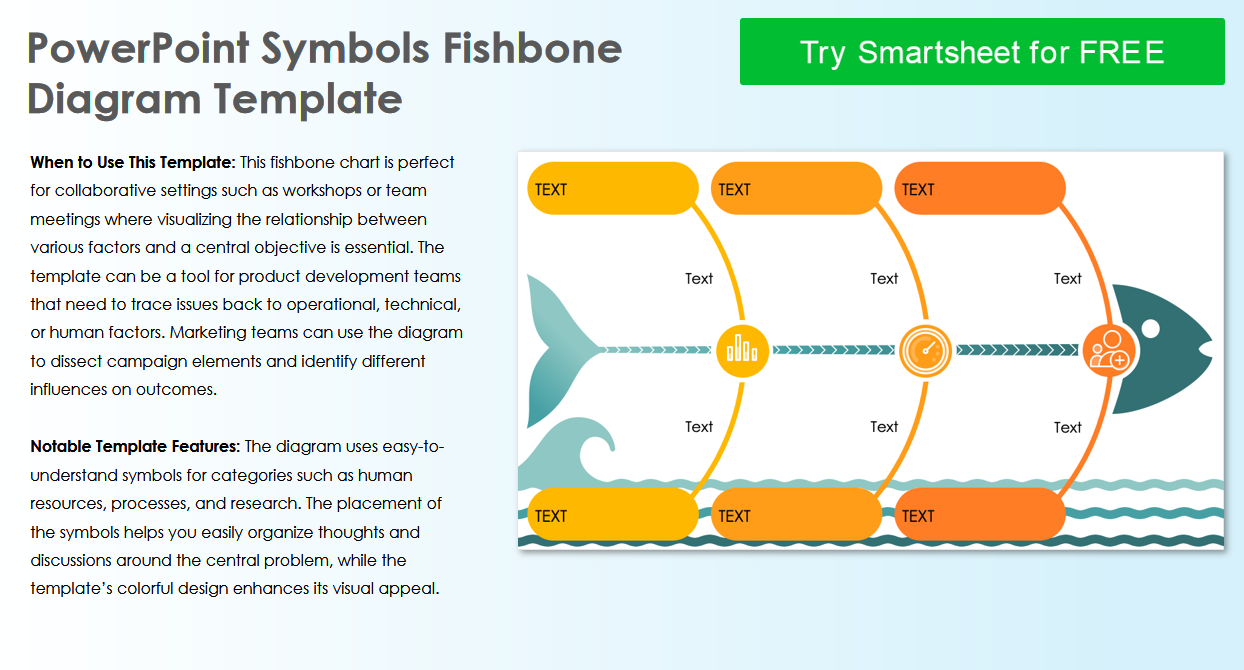
3. PowerPoint Symbols Fishbone Diagram Template
The PowerPoint Symbols Fishbone Diagram Template is the best option for workshops or team meetings where you need to show the relationship between various factors visually. It uses easy-to-understand symbols for different categories and possible causes, helping you organize all the information in a structured and polished manner.
4. PowerPoint Traditional Ishikawa Diagram Template
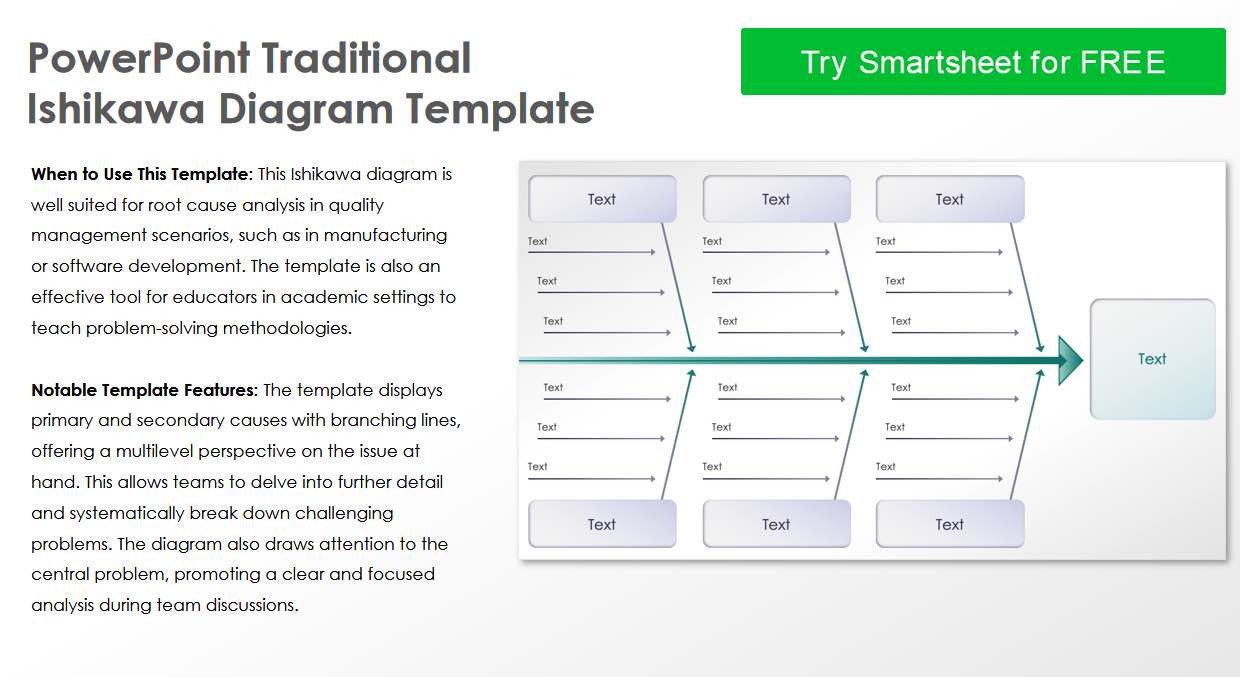
If you’re looking for something detailed that will help you analyze potential root causes in quality management scenarios, the PowerPoint Traditional Ishikawa Diagram Template is an ideal option for you. It features primary and secondary causes with branching lines, offering a clear perspective to the problem and contributing factors.
5. PowerPoint 8-Prong Fishbone Diagram Template
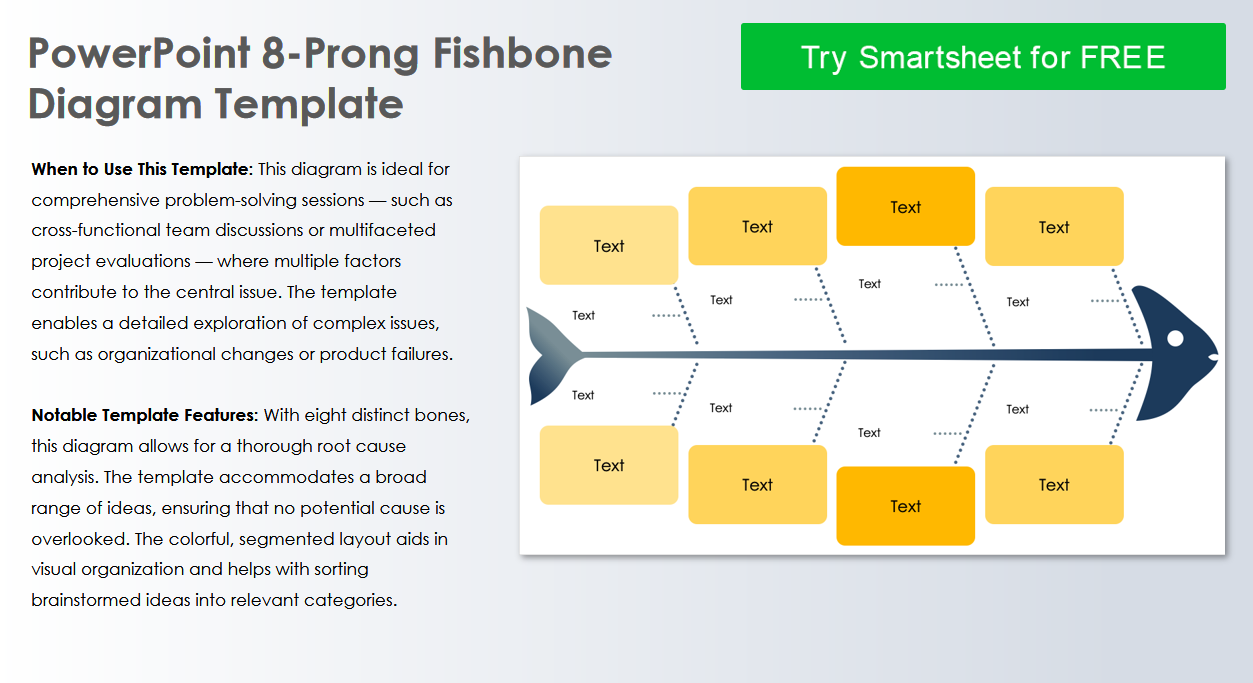
If the stakes are high and you need a cause and effect diagram for your problem-solving sessions where multiple factors may be contributing to the main problem, the PowerPoint 8-Prong Fishbone Diagram Template would be my recommendation for you. It features eight distinct bones that allow for a detailed and in-depth root cause analysis.
6. PowerPoint 3D Fishbone Diagram Template
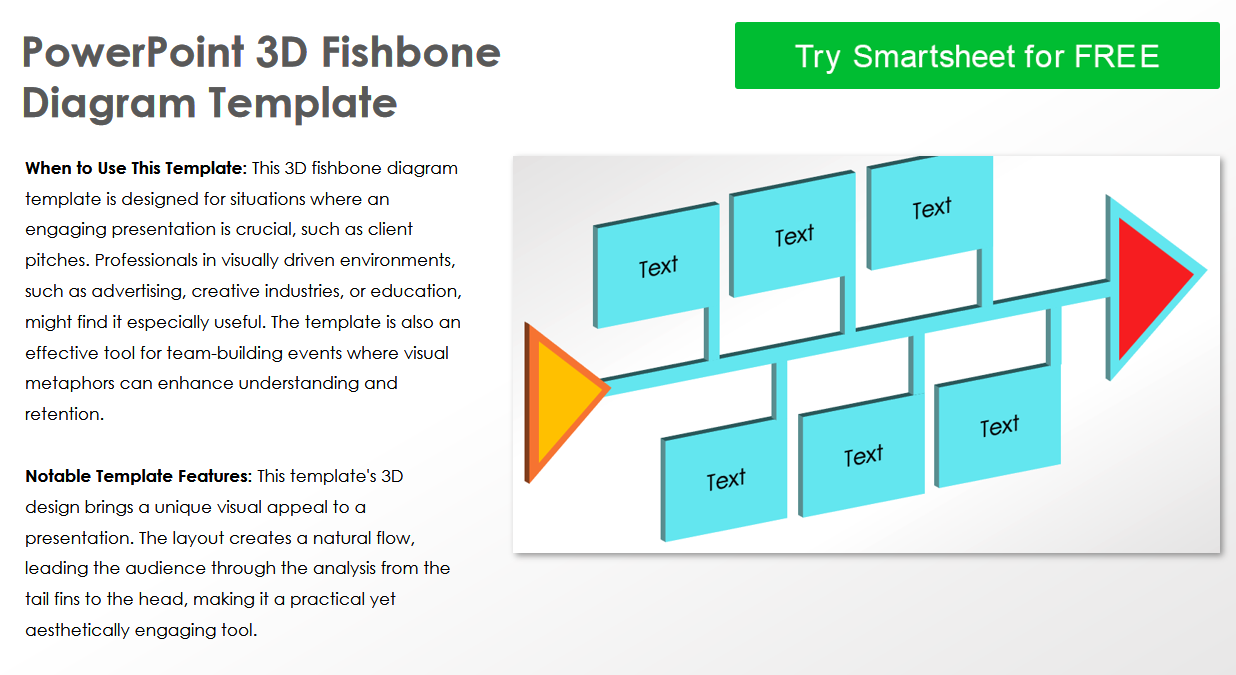
The PowerPoint 3D Fishbone Diagram Template is designed for those situations where you need to provide engaging presentations that don’t bore the audience, such as investor meetings. It brings a unique visual appeal to presentations by creating a natural flow to the analysis, making it a practical tool that doesn’t compromise on the aesthetics.
7. PowerPoint Triangles Fishbone Diagram Template
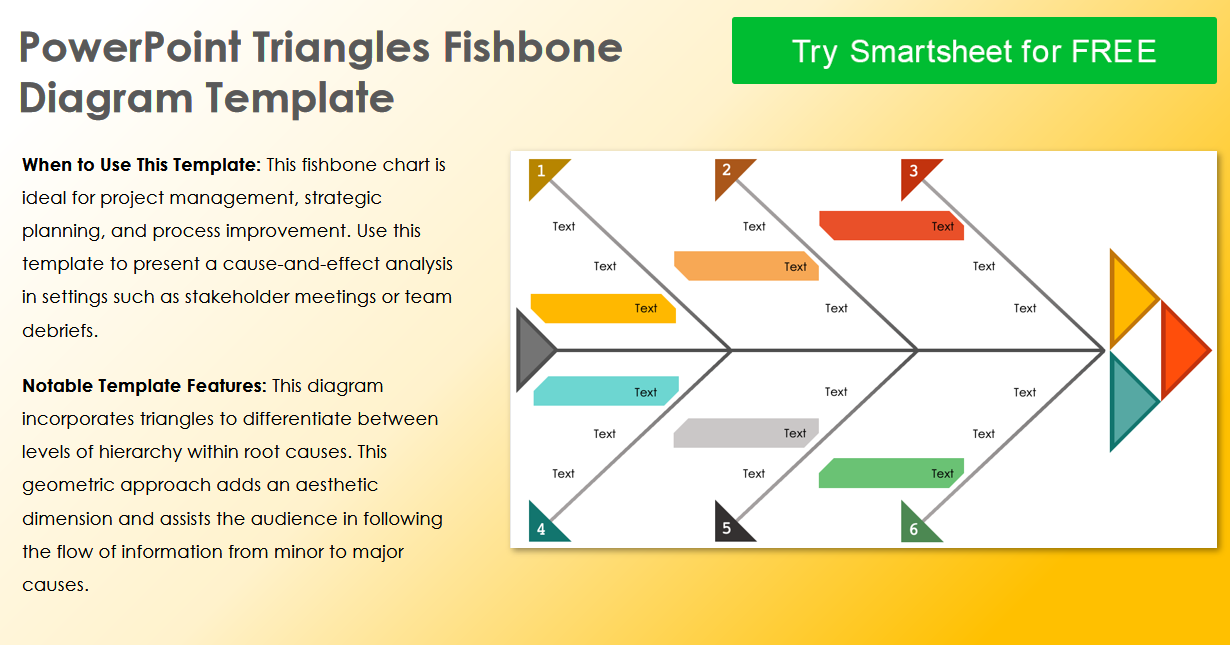
The PowerPoint Triangles Fishbone Diagram Template is an ideal choice for project management where you need to present a cause-and-effect analysis in formal settings. It uses triangles to differentiate between the different levels of root causes, adding an aesthetic dimension to help the audience follow the flow of information.
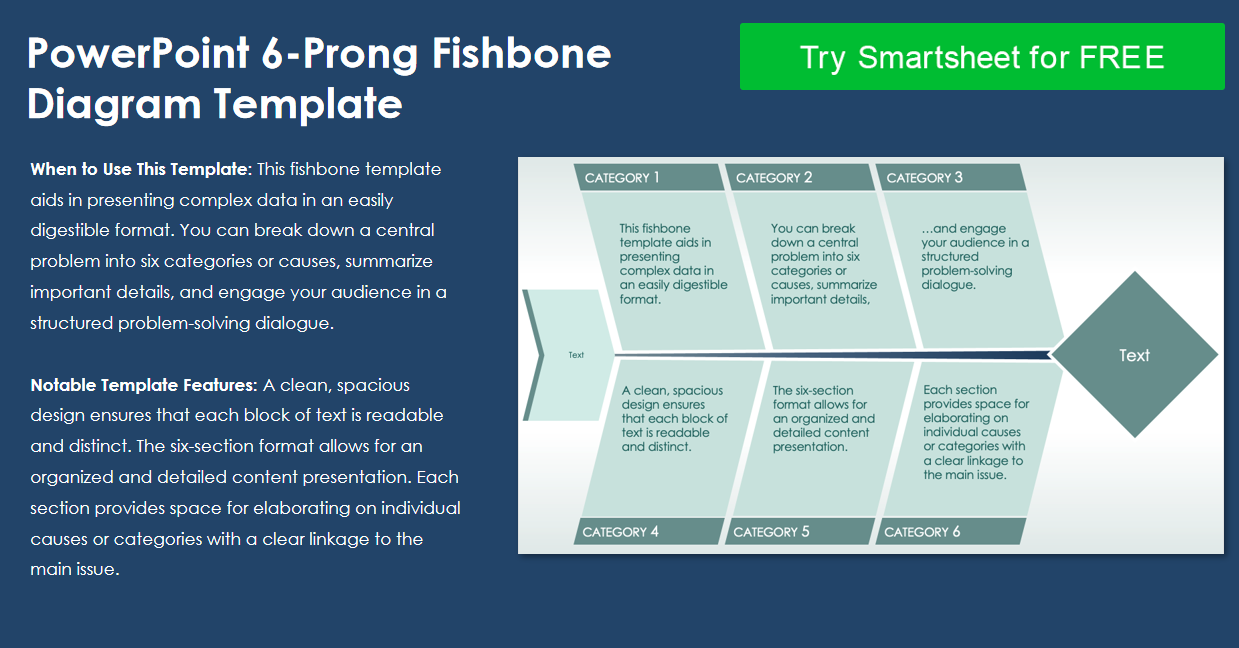
8. PowerPoint 6-Prong Fishbone Diagram Template
The PowerPoint 6-Prong Fishbone Diagram Template helps to present complex and detailed data in a way that’s clear and easy-to-understand, breaking down the main problem into sub-categories and causes to summarize important details. It ensures a clean and polished layout that makes sure everything is organized and readable.
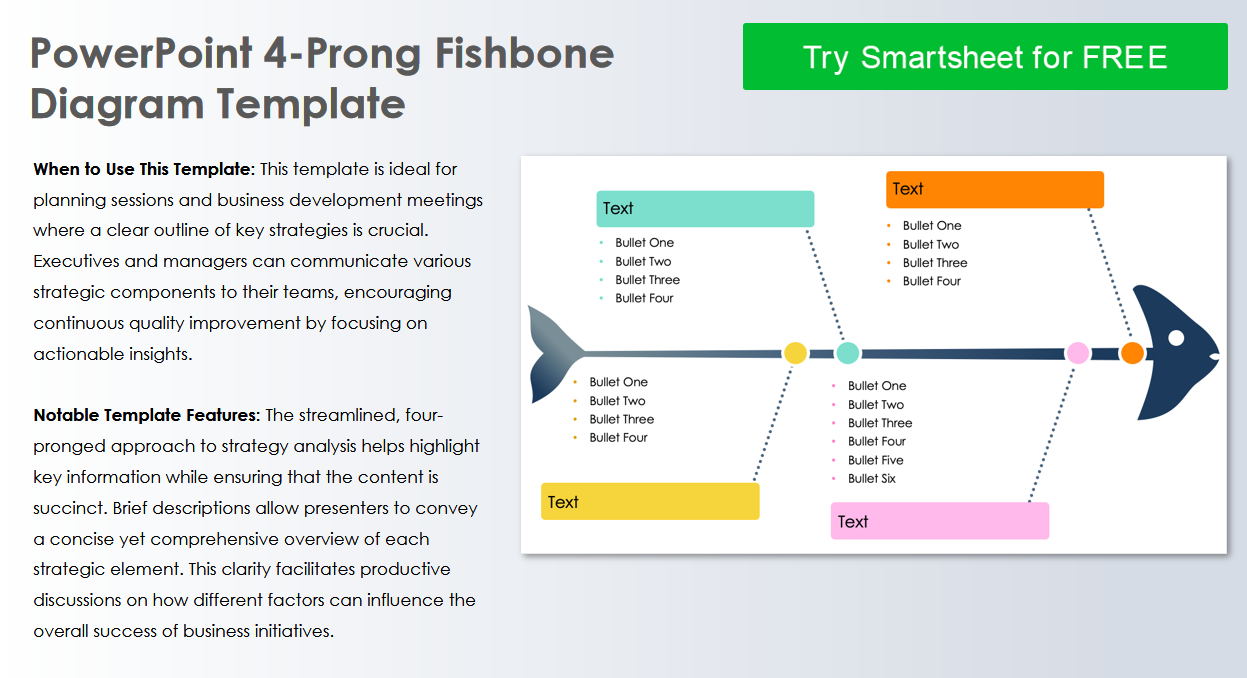
9. PowerPoint 4-Prong Fishbone Diagram Template
If you’re having regular planning sessions and meetings where you need a clear outline of your strategies, the PowerPoint 4-Prong Fishbone Diagram Template would be the perfect choice for you. It provides a streamlined, four-prong approach to mapping out the root causes of your main problem, allowing a concise yet comprehensive approach to your analysis.
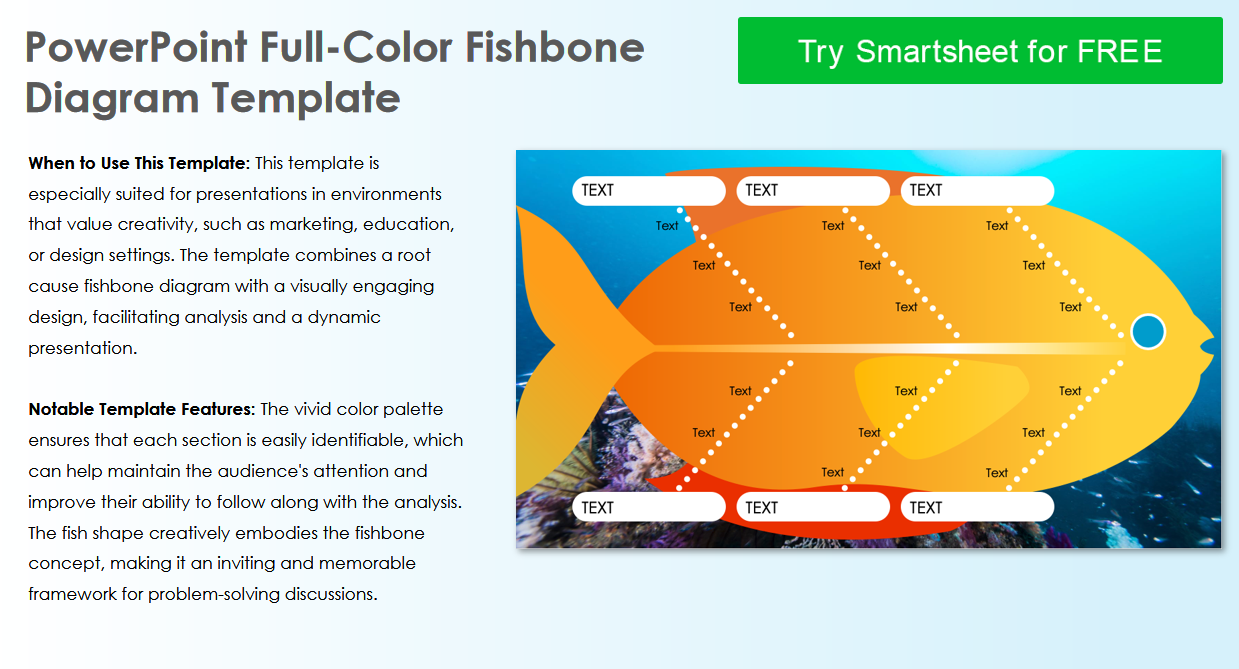
10. PowerPoint Full-Color Fishbone Diagram Template
If you want a cause-effect template for settings where you need to show your creativity, such as marketing and educational settings, the PowerPoint Full-Color Fishbone Diagram Template would definitely help. Its vivid color palette ensures a distinct and clear layout that keeps the attention of your viewers while helping them keep track of all the information easily.
How to Edit and Print Cause and Effect Diagram Template in PowerPoint
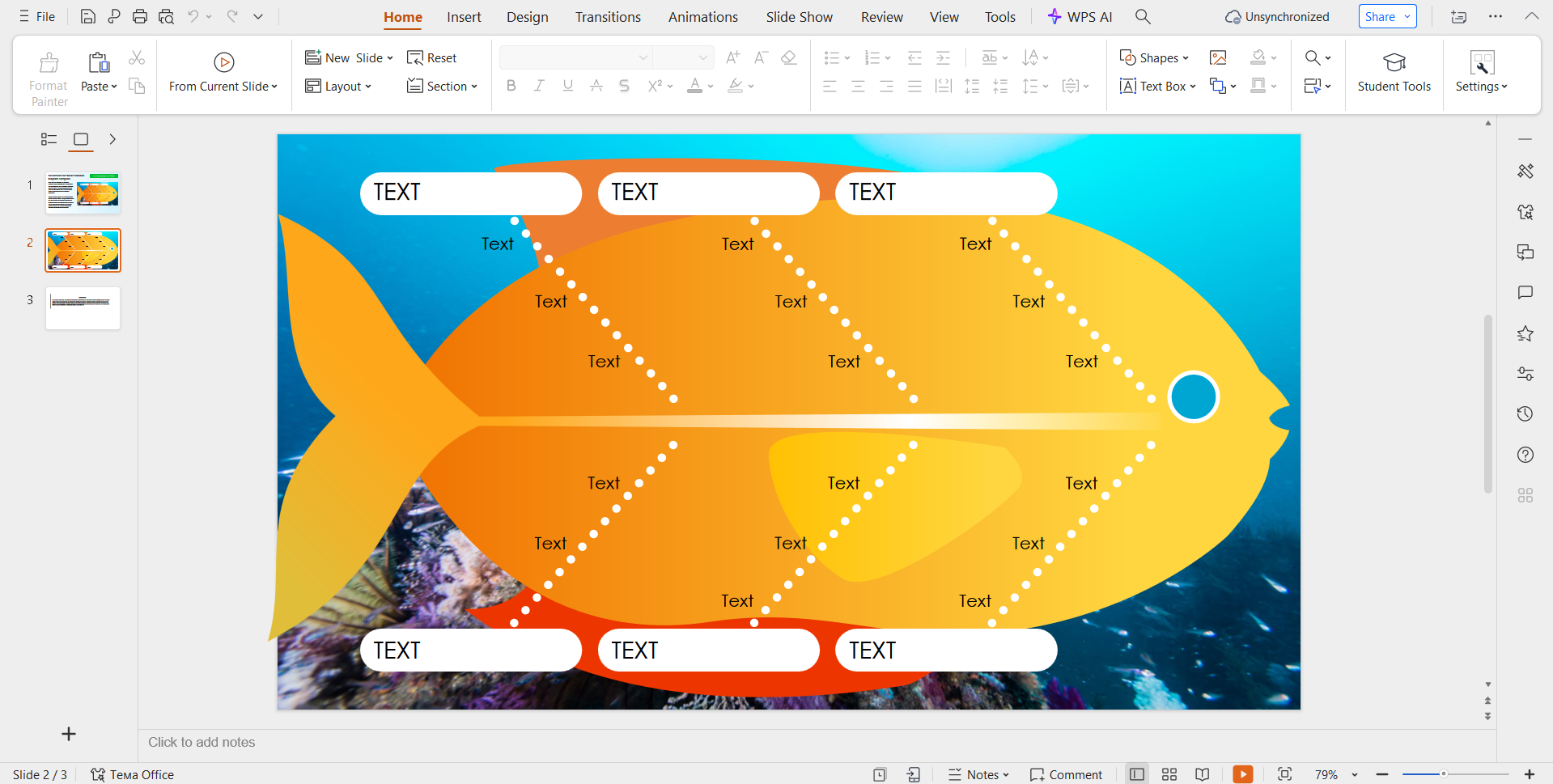
After picking the cause and effect diagram template you’ll be using for your root cause analysis, you need to actually edit and customize it to use for your presentations. There are many different tools you can try for this step, but I personally rely on WPS Presentation to ensure a smooth and hassle-free process. In this section, I’ll be highlighting each step of the process to help you easily format your templates without any confusion.
Step 1: Open your PPT-formatted template using WPS Office to get started.
Step 2: Customize the template to add in the details of your issue and contributing factors. You can even change the colours and add in more text boxes.
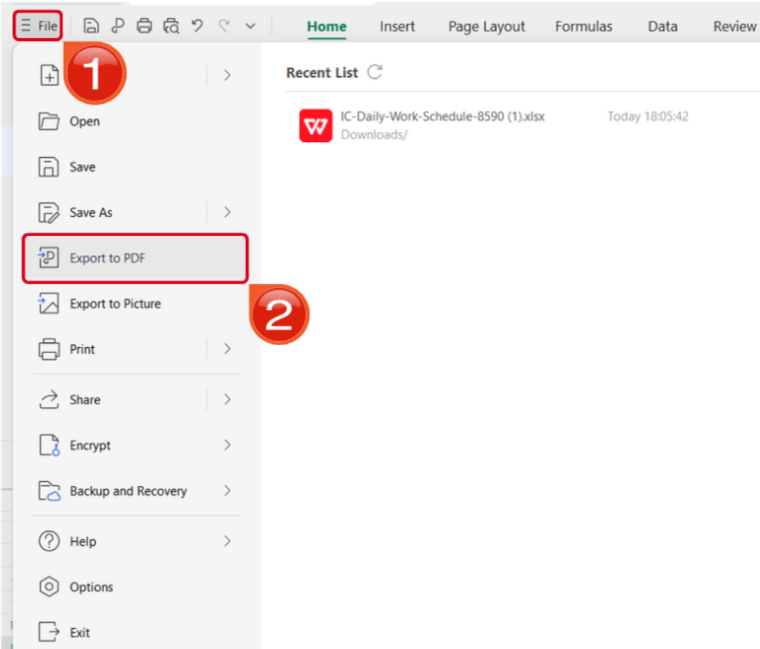
Step 3: Open the Files menu and select Export to PDF to convert your template to a PDF document.
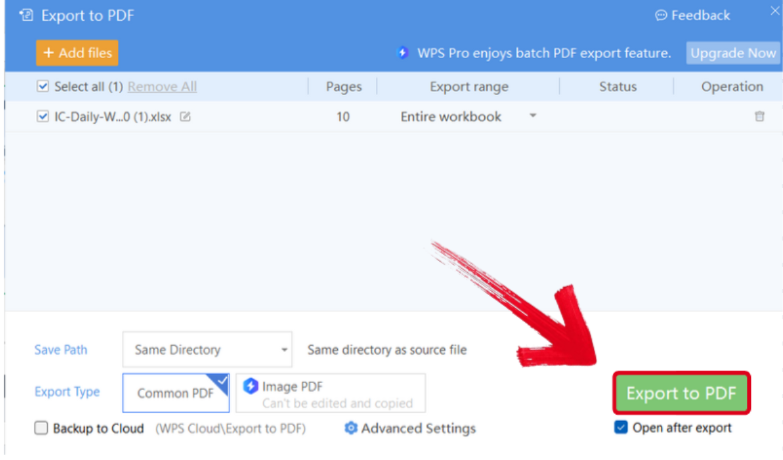
Step 4: Your PPT file will now start conversion into a PDF file. Press Export to PDF to save it to your device.
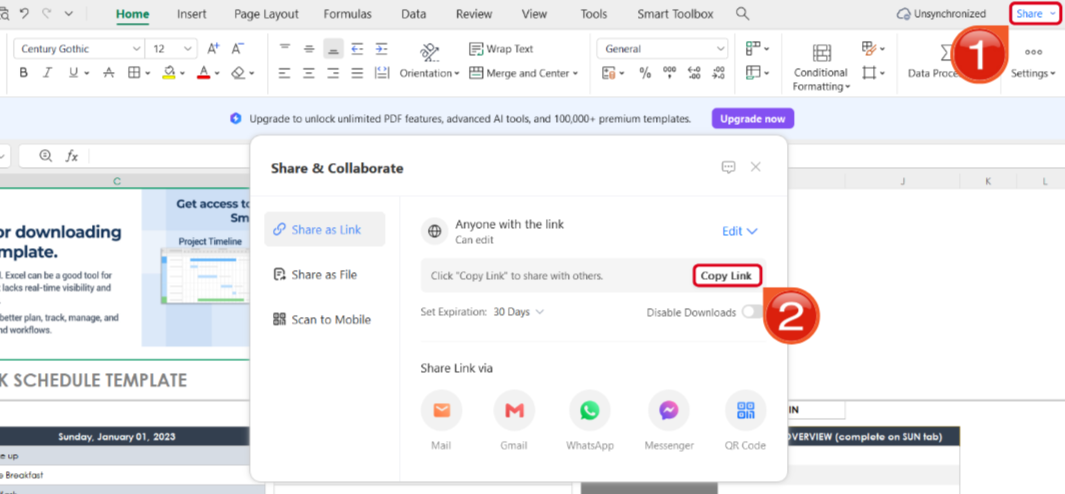
Step 5: Once you’re done saving it as a PDF, press Share to generate an online link for your file. Then press Copy Link to copy it to your clipboard and share it with others.
Free Office Suite with Editable Templates & Smart AI
When I’m trying to figure out what’s causing the issue in my project, I’m very stressed and I can’t add to my stress by wasting time using unreliable tools. This is where WPS Office really helps me be more productive without any delays. It provides me with a complete office suite filled with countless templates and smart AI tools to help me maximize my efficiency, all for completely free.

FAQs
Q1. How do you start filling out a cause and effect diagram?
Begin by clearly stating the problem, which is the effect, at the head of the fish. Draw the main bones and label them with your chosen categories such as the six Ms. For each category, brainstorm possible causes and add them as smaller bones.
Q2. How is it different from a mind map?
A mind map is a flexible tool used to explore ideas branching from a central concept. A cause and effect diagram is more structured and organizes ideas into predefined categories, which helps identify root causes.
Q3. What is the main purpose of creating a cause and effect diagram?
Its purpose is to identify all possible causes behind a problem in a systematic and visual way, helping teams uncover hidden issues and understand how different factors contribute to a single effect.
Q4. When should you use a cause and effect diagram during problem solving?
It is best used in the early investigation stage when a problem is known but the underlying causes are unclear. It allows teams to analyze contributing factors in an organized and focused format.

'%3e%3cpath%20d='M19.9911%204.11386V6.471H18.5894C18.0775%206.471%2017.7322%206.57814%2017.5536%206.79243C17.3751%207.00671%2017.2858%207.32814%2017.2858%207.75671V9.44421H19.9019L19.5536%2012.0871H17.2858V18.8639H14.5536V12.0871H12.2769V9.44421H14.5536V7.49779C14.5536%206.39064%2014.8632%205.53201%2015.4822%204.92189C16.1013%204.31177%2016.9257%204.00671%2017.9554%204.00671C18.8304%204.00671%2019.509%204.04243%2019.9911%204.11386Z'%20fill='%23333333'/%3e%3c/g%3e%3cdefs%3e%3cclipPath%20id='clip0_2938_8199'%3e%3crect%20width='16'%20height='16'%20fill='white'%20transform='translate(8%204.00671)'/%3e%3c/clipPath%3e%3c/defs%3e%3c/svg%3e)
'%3e%3cpath%20d='M17.5237%2010.7813L23.4811%204H22.0699L16.8949%209.88693L12.7648%204H8L14.2469%2012.9029L8%2020.0133H9.4112L14.8725%2013.7952L19.2352%2020.0133H24M9.92053%205.04213H12.0885L22.0688%2019.0224H19.9003'%20fill='%23333333'/%3e%3c/g%3e%3cdefs%3e%3cclipPath%20id='clip0_2938_8200'%3e%3crect%20width='16'%20height='16.0134'%20fill='white'%20transform='translate(8%204)'/%3e%3c/clipPath%3e%3c/defs%3e%3c/svg%3e)


