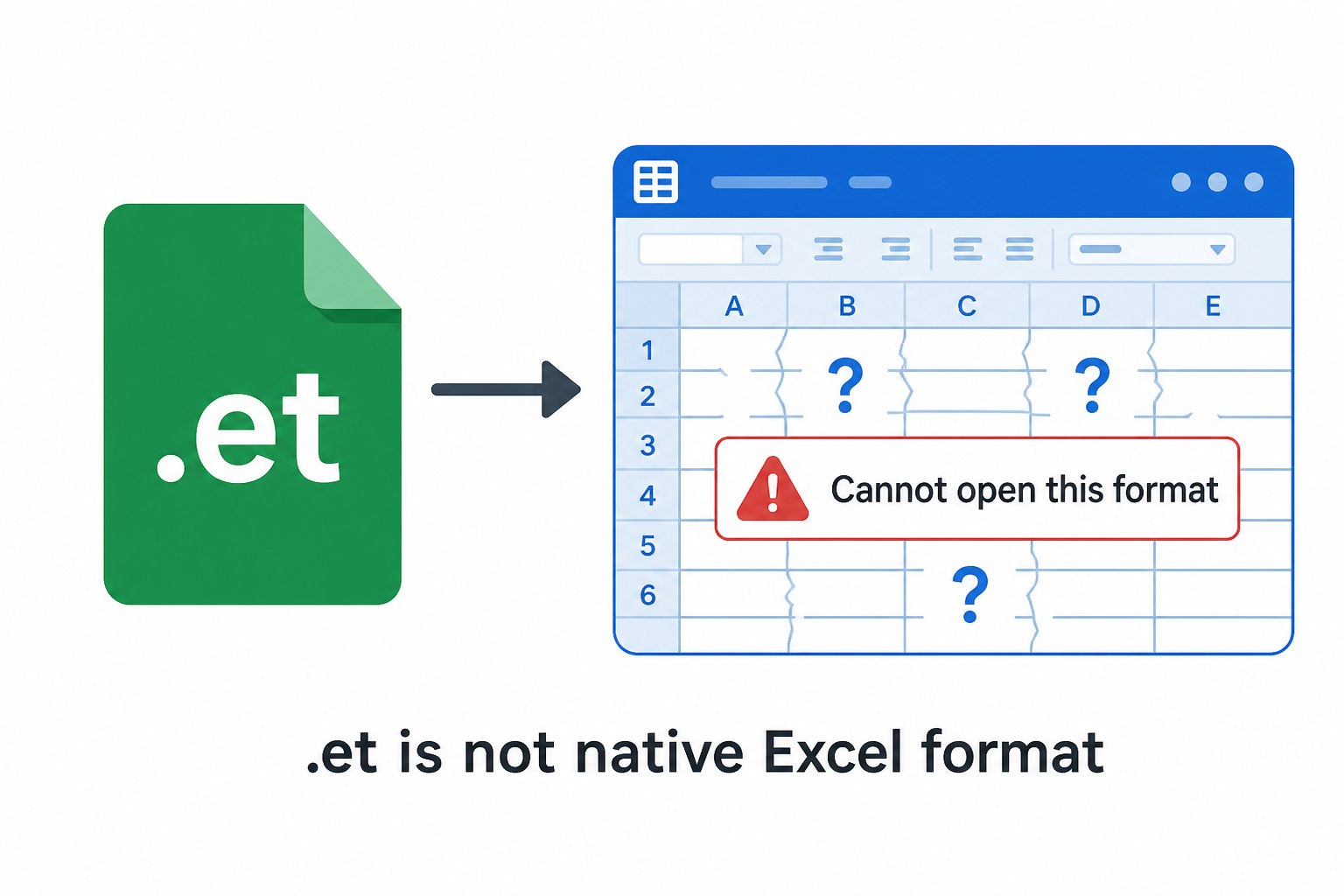
Can Word open an ET file? No—and there is no one-click “Export to DOCX” in WPS Spreadsheets. Open .et, copy the table, paste into WPS Writer as an editable table, then Save As DOCX.
Online “ET to Word” tools often paste a static image you cannot edit. The reliable path keeps borders, merged cells, and colors in a real Word table.
Editable Word tableKeep borders & merged cellsWindows · Mac
Quote-Q3.et → Writer → .docx
Open .et → Copy table → Paste in Writer → Save As DOCX
fx=SUM(D2:D5)
A
B
C
D
1
Item
Qty
Unit
Total
2
License
12
$49
$588
3
Support
12
$19
$228
4
Training
2
$199
$398
5
Total
$1,214
.et open→Copy→Paste in Writer→.docx
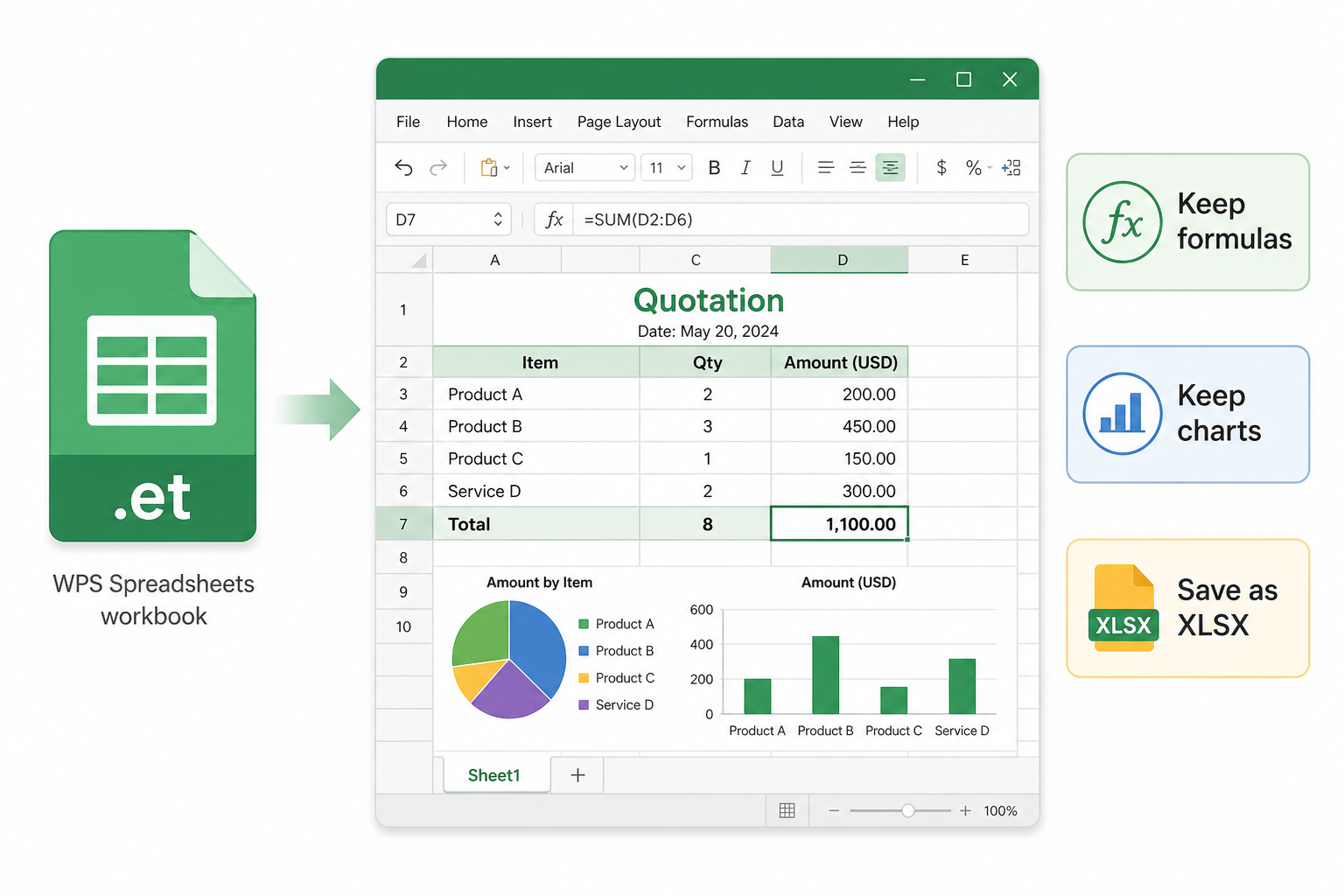
ET file to Word workflow in WPS Office
Quick context
What is an ET file?
An .et file is the native spreadsheet format of WPS Spreadsheets. Word and Excel do not open it directly. To put the data in a report, copy the table into WPS Writer and save a standard .docx—not a screenshot pasted as an image.
Pain → Solution
Why ET → Word fails—and how to get an editable table
Word cannot read .et. Online converters often return images. The fix is open, copy, paste with formatting, Save As DOCX.
Why Microsoft Word Cannot Open .et Files
Word has no native .et decoder—double-click fails and you cannot extract table data until the sheet is opened elsewhere.
WPS solution: Open .et in Spreadsheets, copy the range, paste into Writer, Save As DOCX.
Open the .docx in Word on Windows or Mac for teammates who only use Microsoft 365.
Same install includes Spreadsheets + Writer + PDF.
Word blockedCopy-pasteDOCX
Word / Excel · cannot open .et
Local WPS · real spreadsheet UI
Online ET to Word Converters Output Images
Many “et to docx online free” sites paste a flat picture—borders look fine until you try to edit a cell and nothing moves.
WPS solution: Paste as an editable Word table with source formatting.
Keep merged cells, border colors, and cell text you can change.
Avoid watermark / size-limit upload gates on quote files.
Editable tableNot imageFormatting
Upload Risk for Quotes and Business Tables
Sending .et files to random converter sites creates privacy risk, registration walls, and files that come back as images anyway.
WPS solution: Local open + copy-paste—no upload required.
Free basic workflow: open et, paste to Writer, export docx.
Protect pricing and customer data on your machine.
PrivacyLocalNo upload
Local files · no upload
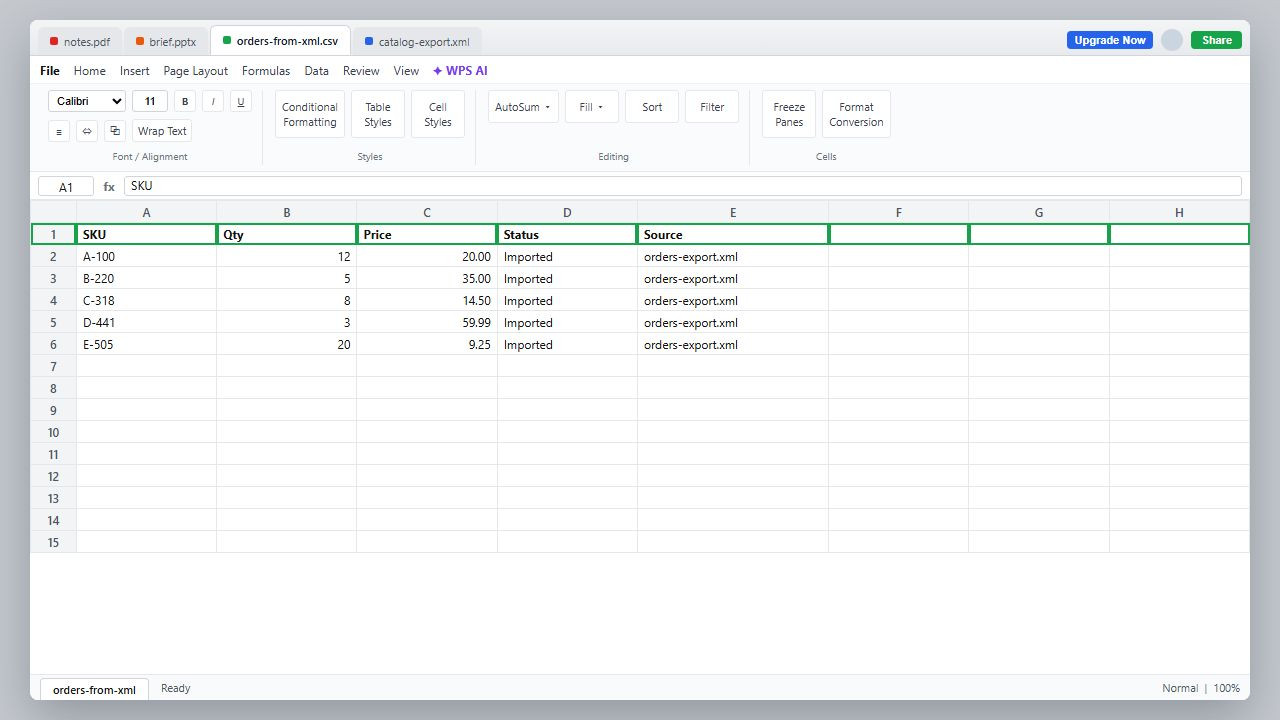
WPS Spreadsheets · native open
LibreOffice Copy-Paste Still Breaks Complex ET
Limited .et support plus paste into Word often drops conditional formatting, misaligns merged cells, and loses charts.
WPS solution: Native .et open with full sheet structure before copy.
Paste with Keep Source Formatting in Writer to reduce manual fixes.
Windows and Mac use the same four-step workflow.
Merged cellsChartsMac
Built into WPS Office
Get ET tables into Word as editable DOCX
Spreadsheets opens .et. Writer receives the pasted table. Save As DOCX for Microsoft Word—no fake one-click export from the sheet app.
For many .et attachments: open each sheet, copy the table, paste into a Writer doc or section, Save As DOCX—repeat without mass upload.
Safer for folders of quotes than batch online converters.
Set WPS as default .et opener to speed the loop.
Also opens xlsx / xls when sources mix.
BatchLocalQuotes
Step-by-step
How to Convert ET File to DOCX
Important: WPS Spreadsheets has no “Export to DOCX” button. Follow open → copy → paste → Save As.
1
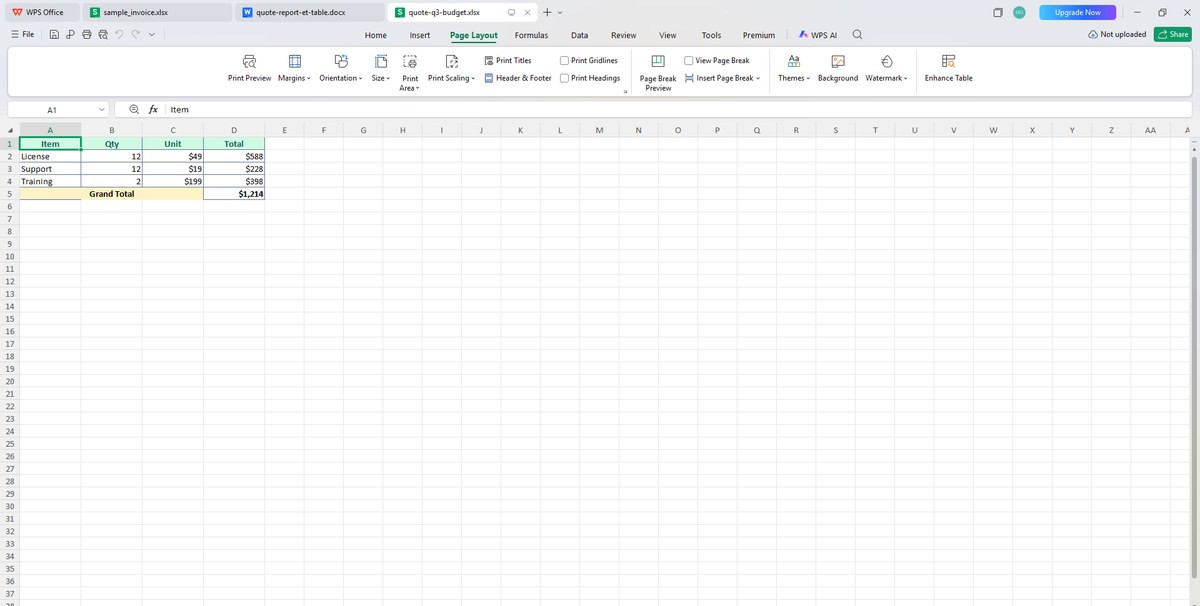
Open the .et file in WPS Spreadsheets
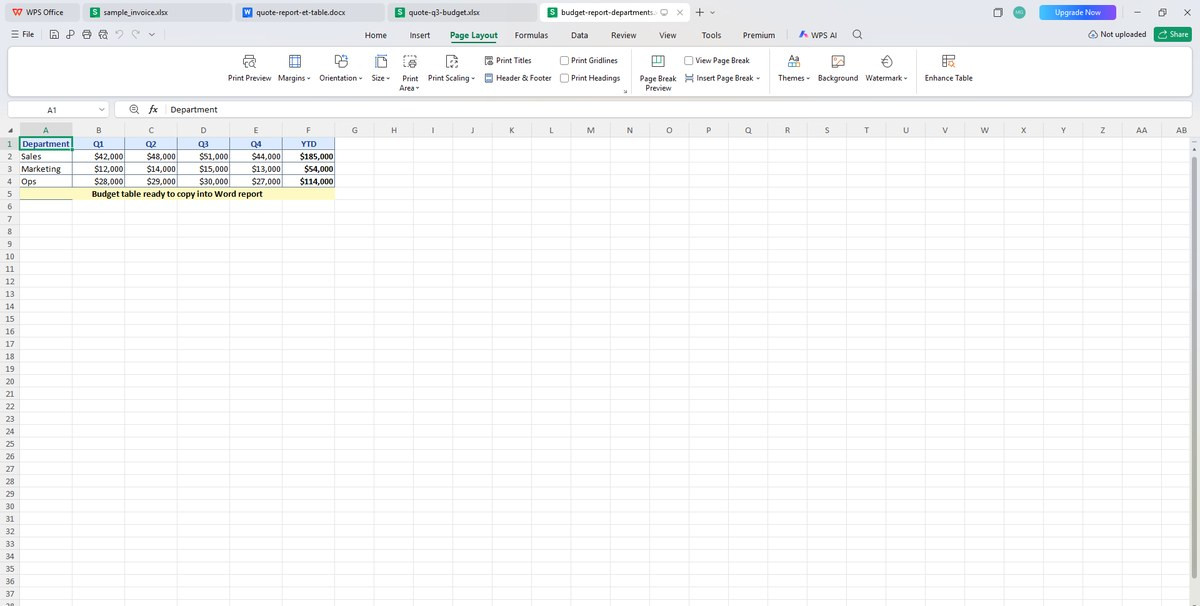
Install WPS Office. Launch Spreadsheets and open your .et workbook. Confirm borders, merged cells, and charts look correct before you copy.
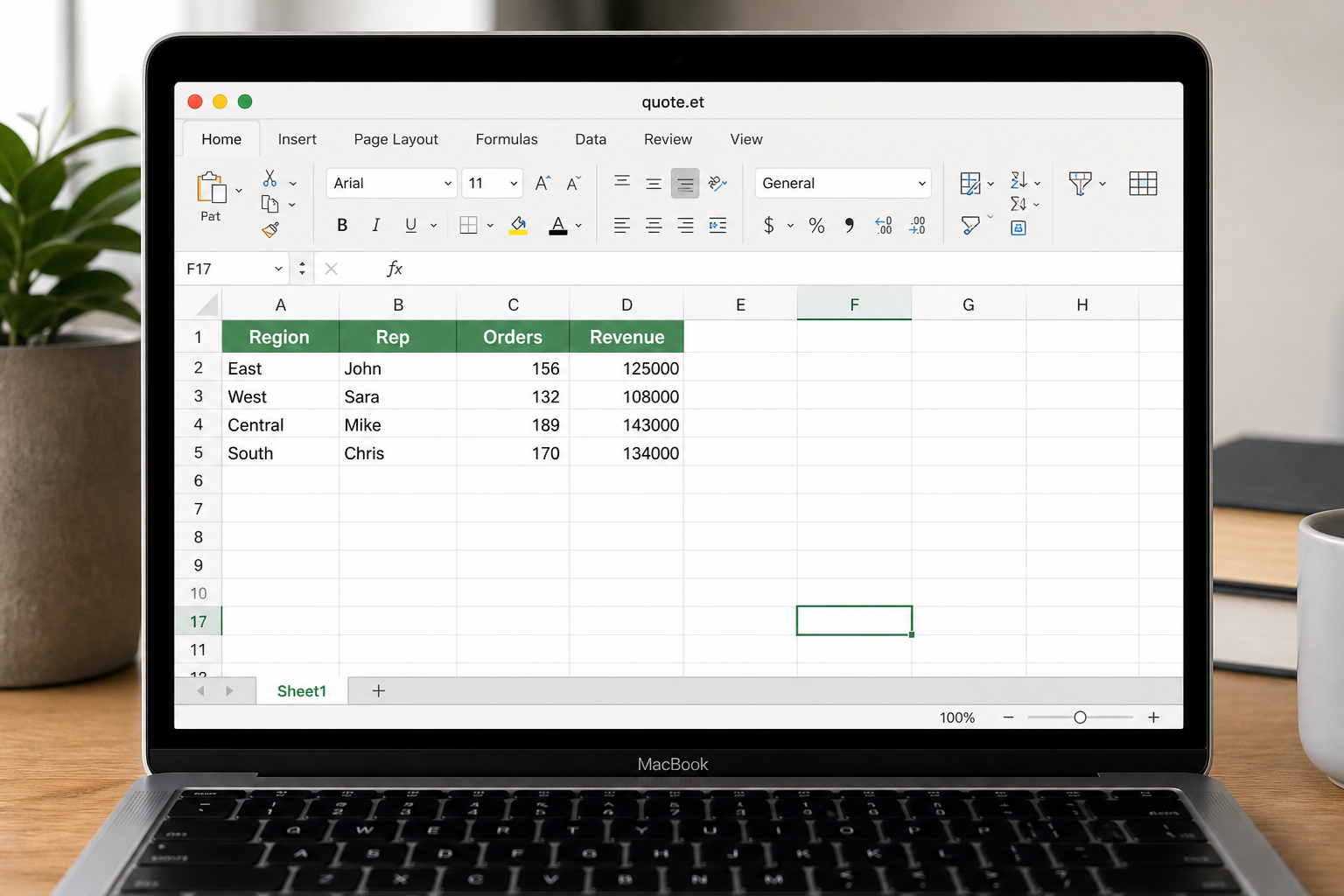
Spreadsheets · open .et
Open ET file in WPS Spreadsheets
2
Select and copy the table
Drag to select the cells you need—including header rows and merged blocks. Press Ctrl+C (Windows) or Cmd+C (Mac). Copy one sheet at a time if the workbook has multiple tabs.
Tip: include the header row so Writer pastes column labels with the grid.
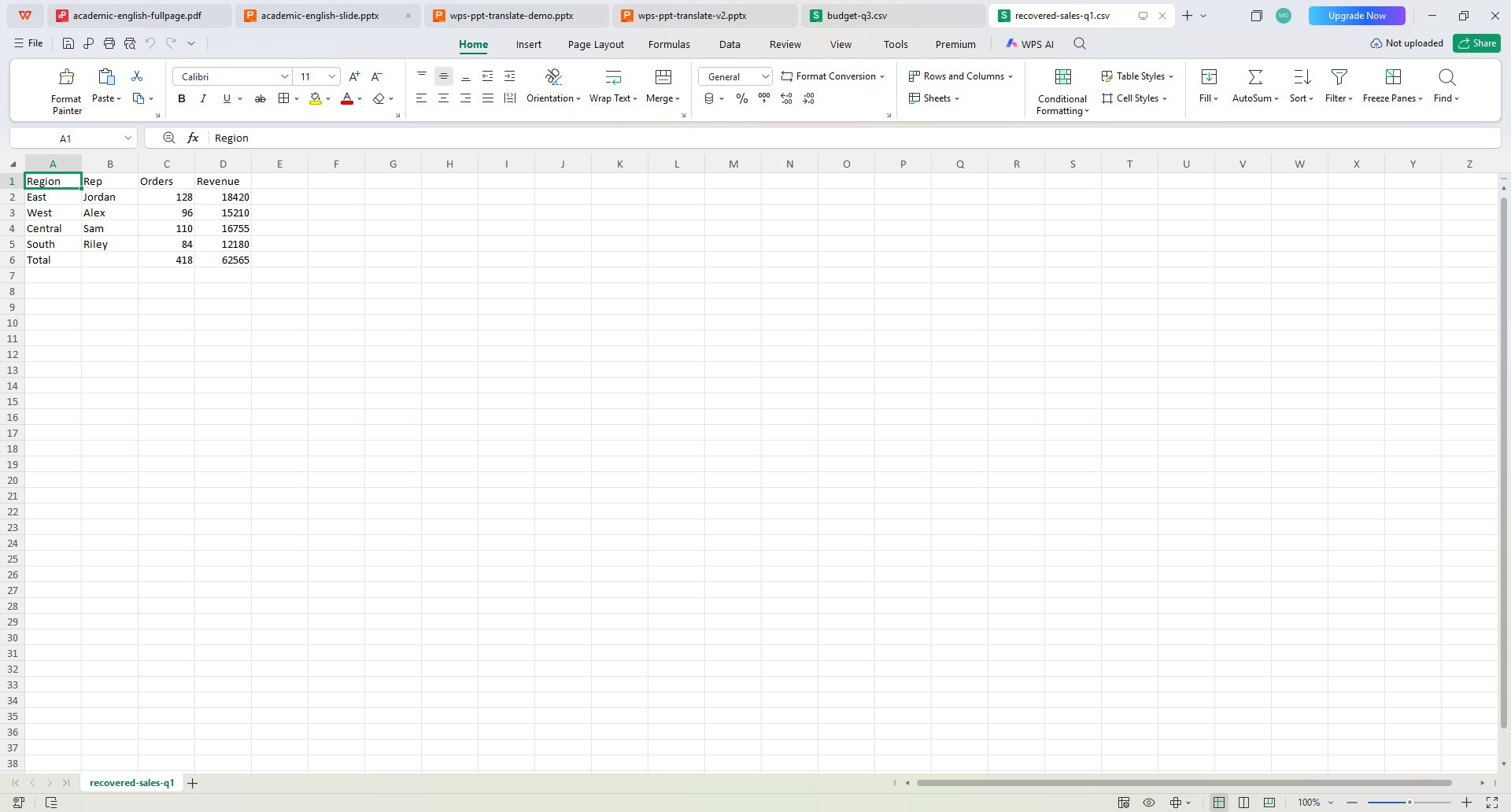
Spreadsheets · select & copy
Select the range in WPS Spreadsheets, then Copy
3
Paste into WPS Writer (Keep Source Formatting)
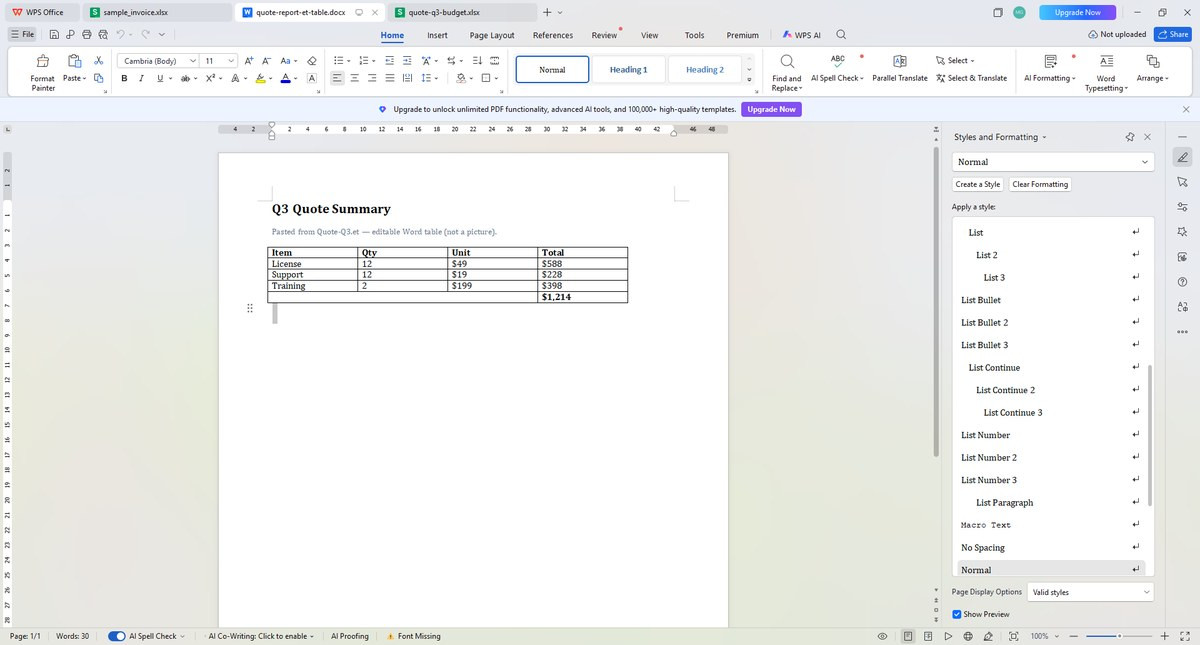
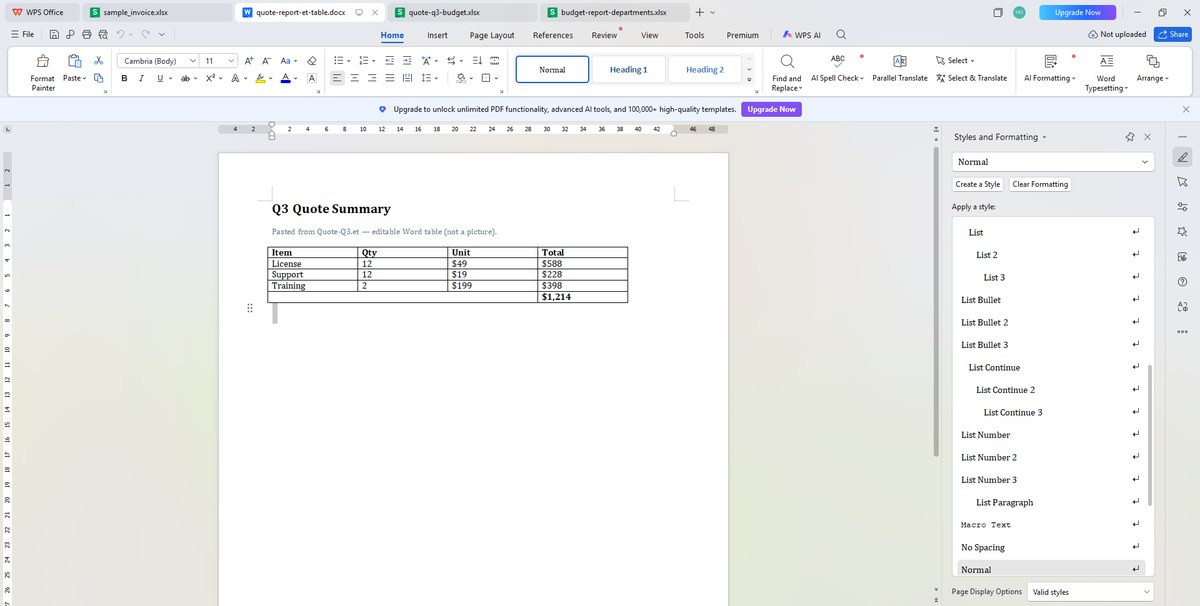
Open WPS Writer, place the cursor where the table belongs, and paste with Keep Source Formatting (or Paste Special → HTML/table). You should get an editable Word table—not a picture.
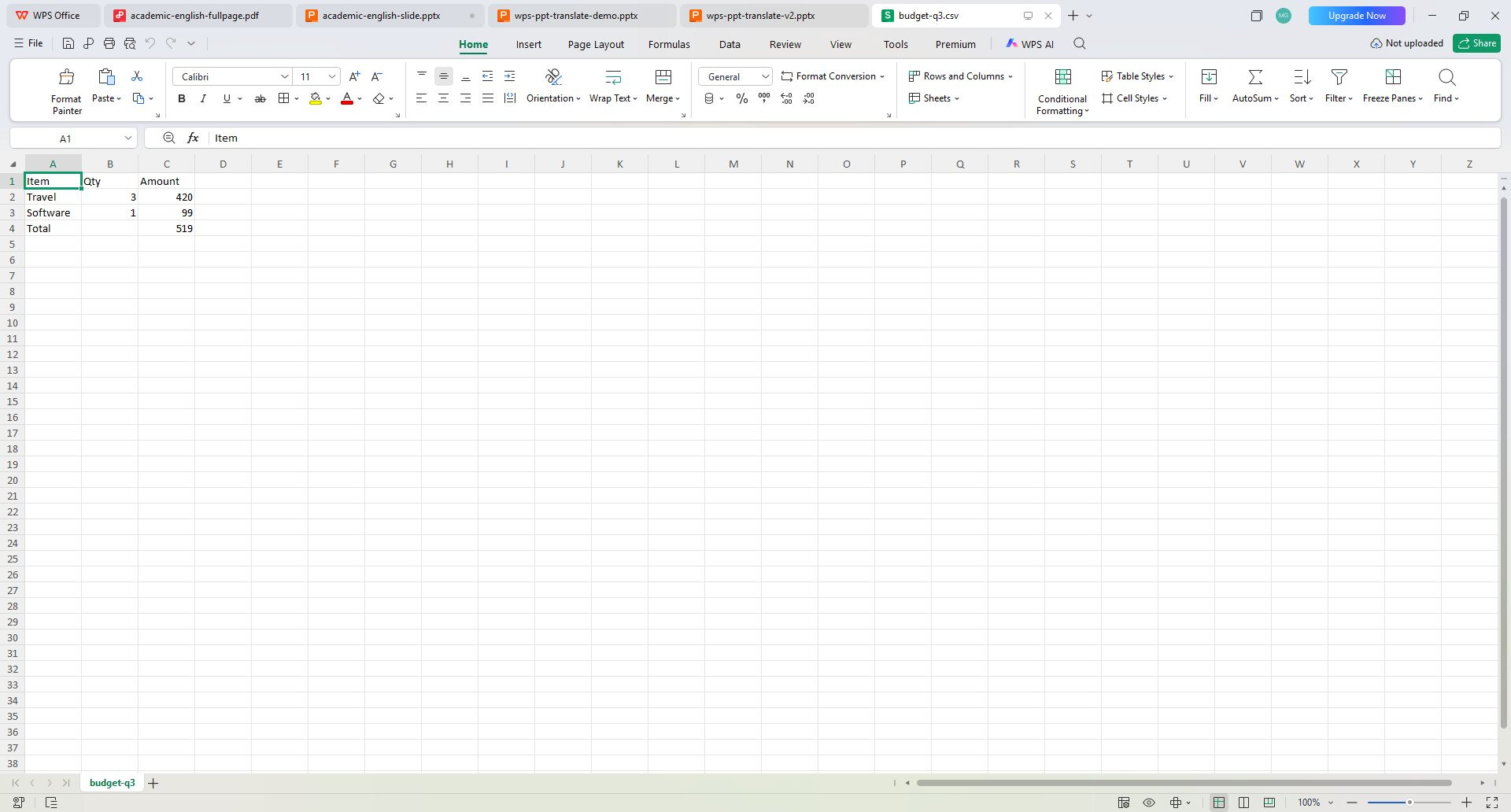
Writer · paste editable table
Editable table in WPS Writer after paste
4
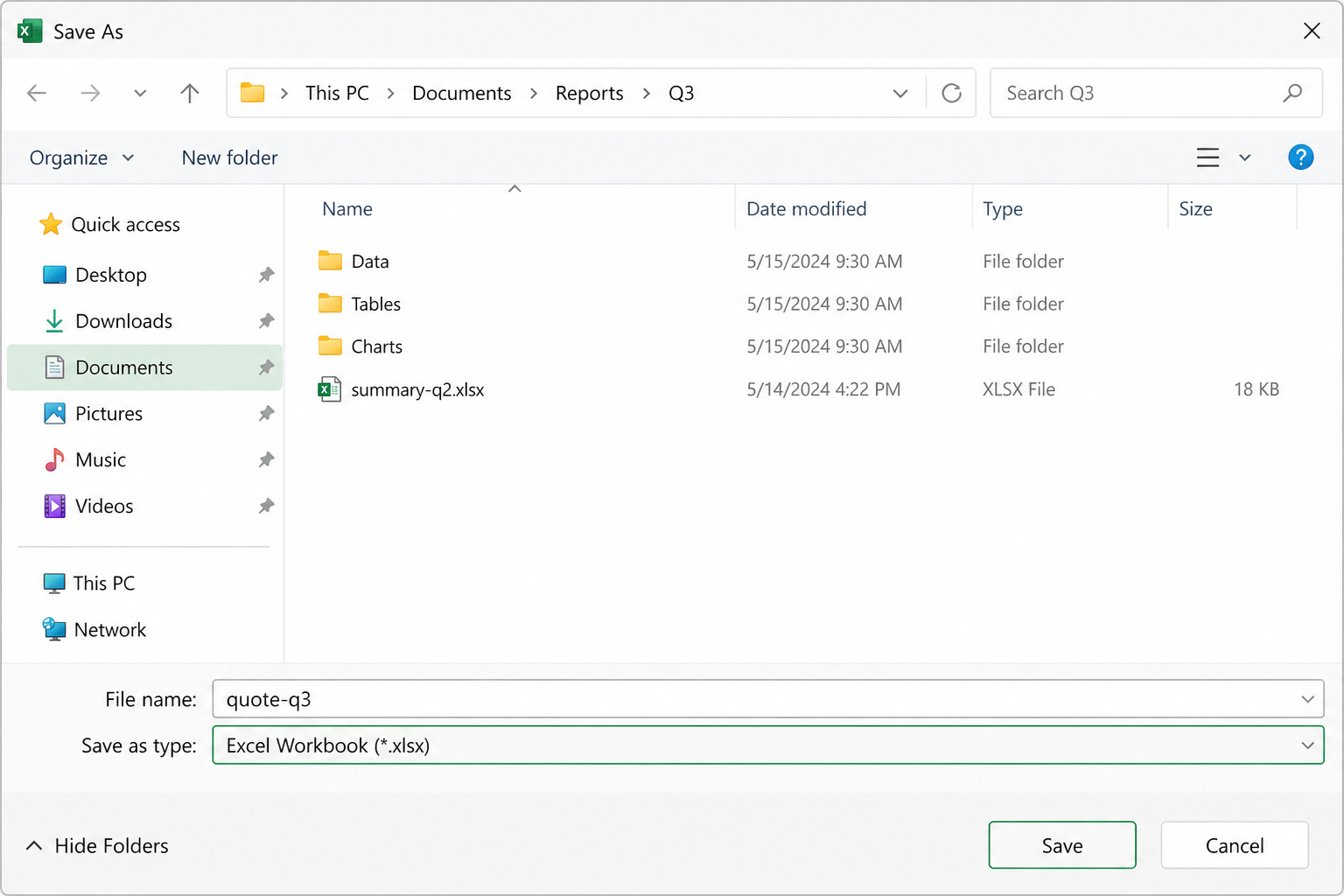
Save As Word Document (.docx)
In Writer, go to File → Save As, choose Word Document (*.docx), and save. Open the file in Microsoft Word on Windows or Mac to confirm the table is still editable.
No. Word does not read .et. Open the sheet in WPS Spreadsheets, copy the table into WPS Writer, Save As DOCX, then open that file in Word.
Not from WPS Spreadsheets—there is no Export to DOCX button. Use open → copy → paste in Writer → Save As .docx.
The native spreadsheet format of WPS Spreadsheets—worksheets, formulas, charts, and formatting in one workbook.
Online converters often rasterize the grid. Copy from WPS and paste with Keep Source Formatting in Writer for an editable table.
Re-copy from the original .et in WPS, paste with source formatting, and avoid pasting through an online converter. Split very wide tables if needed.
Upload sites may watermark, cap file size, or require accounts—and can leak business data. Prefer local copy-paste in WPS.
Repeat the local loop: open each .et, copy table, paste into Writer (new doc or section), Save As DOCX. Avoid mass-upload batch websites.
Word cannot open .et. LibreOffice has limited support and paste often breaks layout. Online tools frequently output images. WPS open + copy + paste is the reliable editable-table path.
Yes. Same workflow on Mac: open .et in WPS Spreadsheets, copy, paste into WPS Writer with source formatting, Save As DOCX, open in Word for Mac.
Some chart objects do not paste as live Word charts. Copy the data table for editing; re-create charts in Word if you need native Word chart objects.
Free download · all platforms
Put ET tables in Word—editable, not image-only
Open .et, copy, paste into Writer, Save As DOCX. No fake one-click export—just a workflow that Word can actually edit.