AI Expand Image

Describe extra background space and review the generated extension before downloading.

or drag and drop your photo here

Choose full-image editing for broad changes, or brush a selected area when only one part needs attention.

Source preview

Paint over the area to edit, then describe the change you want in the instruction box.

Image details will appear here after upload.

Brush size28 px
Describe the exact visual change you want to generate.0 / 500

0%

Processing...

Image Expansion
No Signup Required
Prompt Editing
No Ads
Free to Use
No Sign-Up
No Ads
Any Browser

How to expand an image in 3 steps

  1. Step 1: Upload the Image

    Choose a photo that needs more surrounding space, a wider crop, or extra background around the subject. Clear subject edges make review easier.

  2. Step 2: Describe the Extension

    Write what should appear around the existing image, such as more sky, wall, desk, landscape, or neutral background. This helps expand image background with ai prompts stay specific.

  3. Step 3: Generate and Review Borders

    Inspect the new edges, patterns, lighting, and subject proportions before downloading. Try another prompt if the extended area does not match the original scene.

Add More Space Around an Image

Add More Space Around an Image

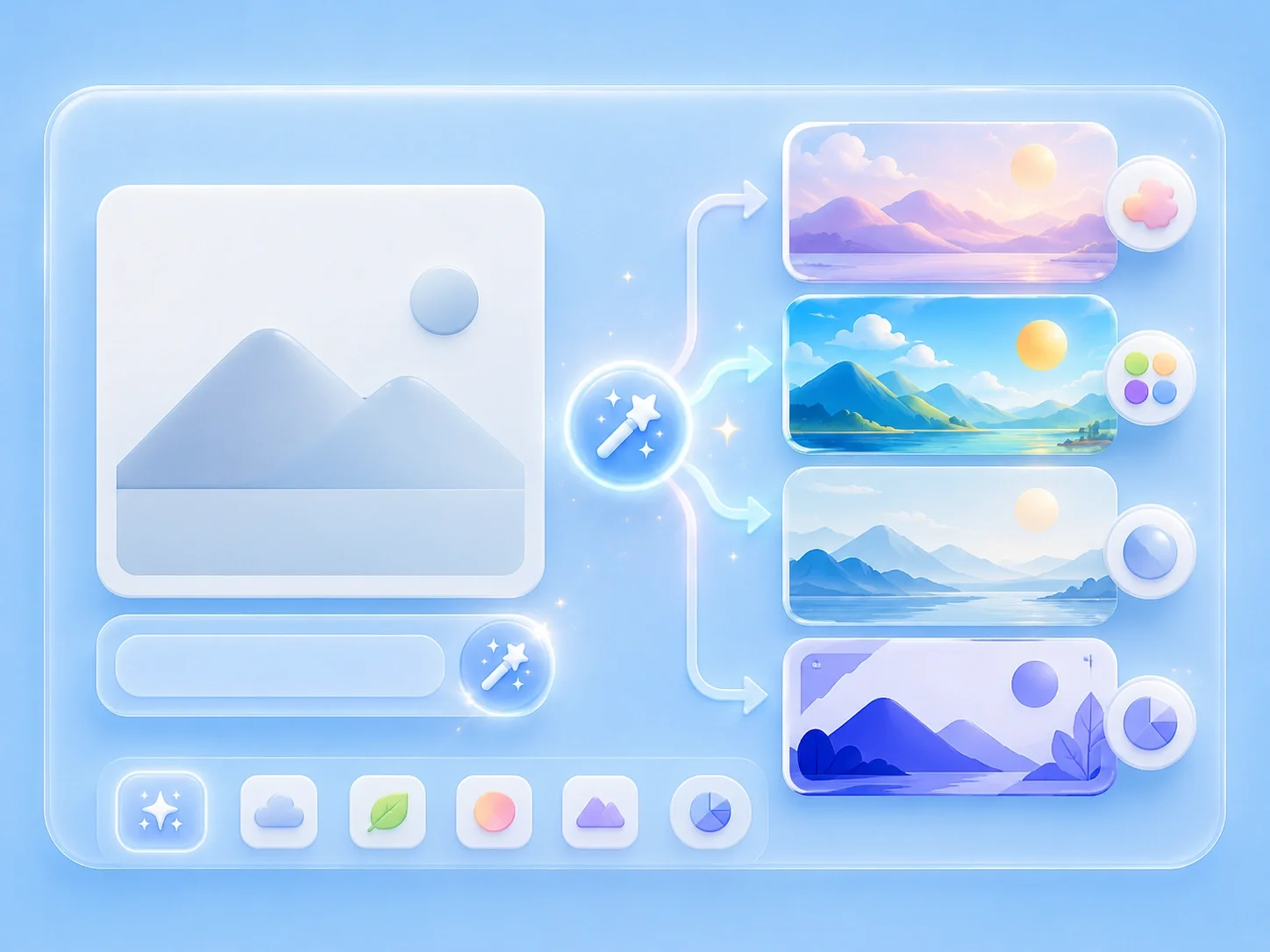
A useful photo can be too tightly cropped for a banner, slide, product layout, or social post. This editor lets you upload the image, describe the extra surrounding area, and generate an expanded version for review. It supports ai expand image free tasks when you need more canvas without manually rebuilding the scene.

Expand Image
Prompted Background Extension

Prompted Background Extension

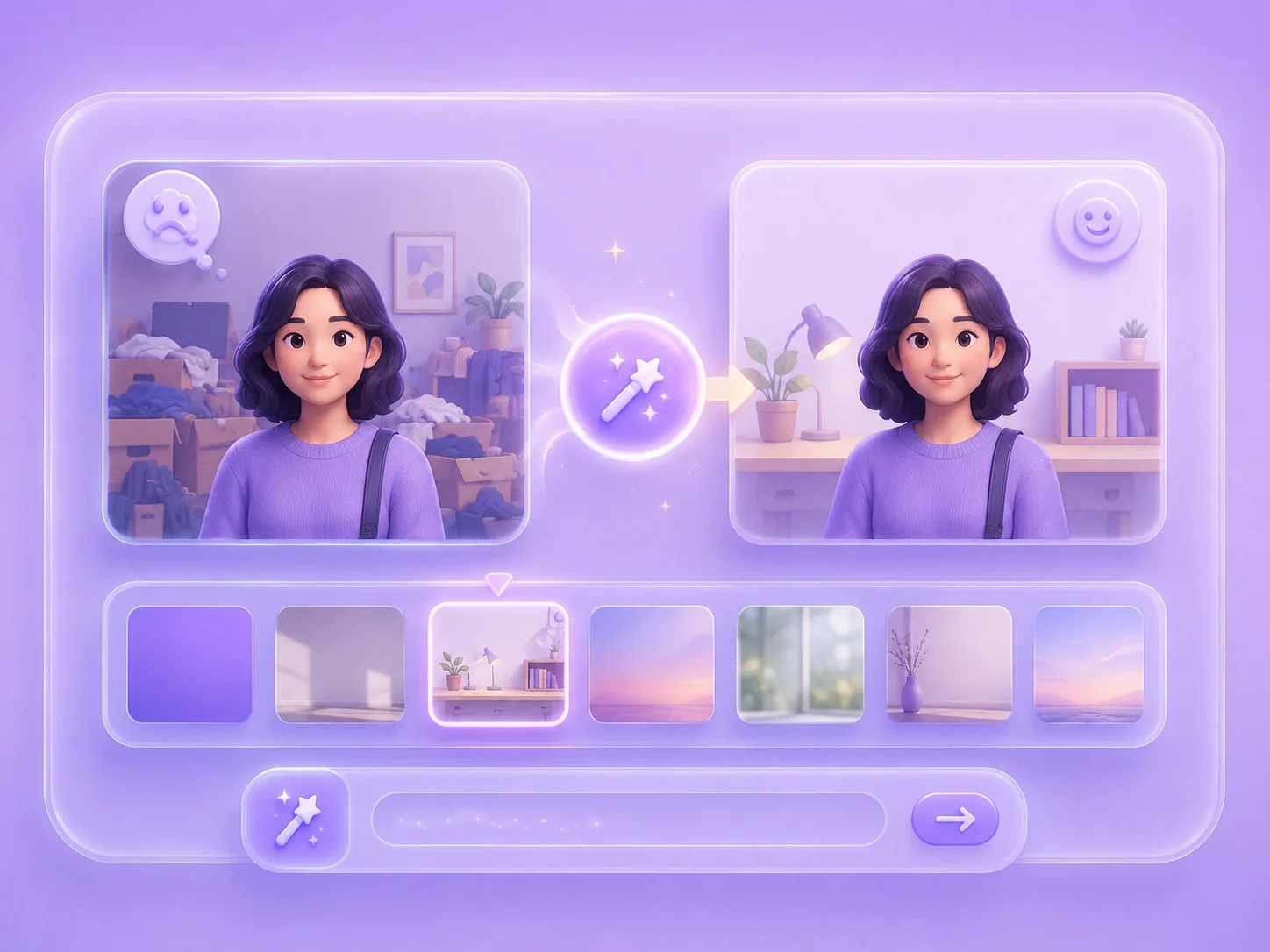
Image expansion works best when the added area is described clearly. Mention whether you need more wall, sky, studio background, desk surface, landscape, or empty space for text. This makes an ai image expander online free workflow easier to evaluate after generation.

Describe More Space
Layouts for Slides, Posts, and Product Drafts

Layouts for Slides, Posts, and Product Drafts

Different formats often require more room than the original crop provides. You can extend image with ai online for presentation headers, website visuals, social graphics, or ecommerce drafts, then check whether the added background fits the subject. The goal is a usable layout option that still needs visual review.

Fit More Layouts
Careful Checks for Generated Edges

Careful Checks for Generated Edges

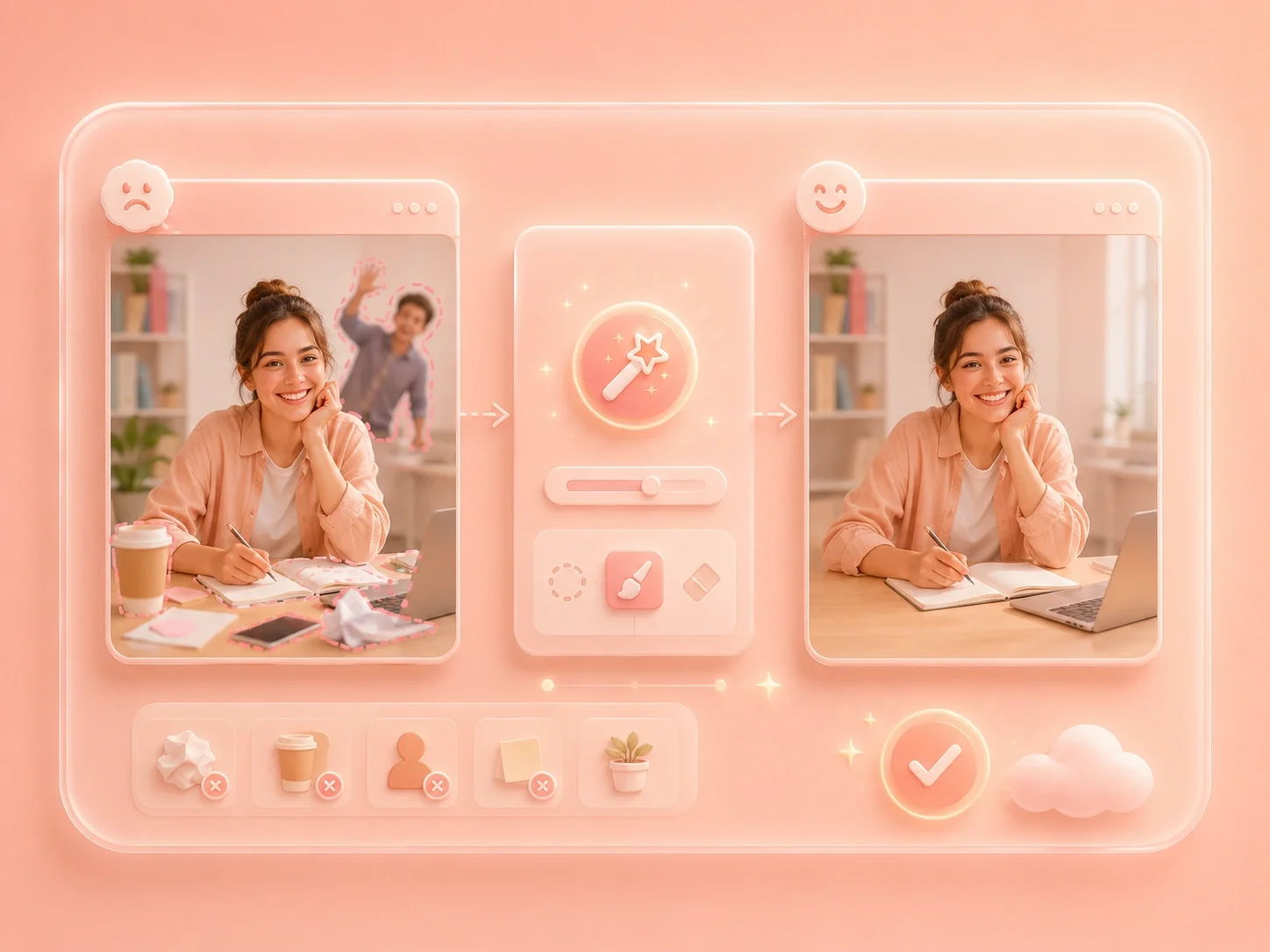
Expanded image areas are generated, so they can introduce mismatched texture, repeating patterns, or awkward object shapes. Review the borders, lighting, subject outline, and any area meant to hold text. This keeps ai outpainting image free use practical without assuming the added scene is perfect.

Review the Extension

Image expansion user reviews

First-person reviews from users adding space around images

Slide cover

I had a portrait that was too tight for a presentation cover. I described more background space, generated a wider version, and checked the edges before using it.

Slide cover

User review

Product layout

I needed extra room around a product photo for layout text. Expanding the background helped me test a better composition without reshooting immediately.

Product layout

User review

Social banner

I wanted a social banner from a square image. The online expansion workflow gave me an extended version to review for patterns and lighting.

Social banner

User review

ai expand image FAQ

01

What is ai expand image?

It is a prompt-guided workflow for adding generated background space around an uploaded image. You describe the extension and review the new image before downloading.

02

Can I expand an image for social posts for free?

Yes. It can help test wider or taller layouts for social graphics, banners, and posts, but the added area should be reviewed before publishing.

03

How do I expand image background with ai?

Upload the image, describe what should continue around the existing photo, generate the result, and inspect the new borders for consistency.

04

What is ai outpainting image free used for?

It is commonly used to extend a scene beyond the original crop. Treat the added area as generated content and check whether it matches the original photo.

05

Can I extend image with ai online for product photos?

You can create more background space for a draft or layout, then review product edges, shadows, and surface details before using the image commercially.

06

What should I check after using an ai image expander online free?

Review borders, repeated patterns, lighting, subject proportions, and whether the new space fits the intended layout.