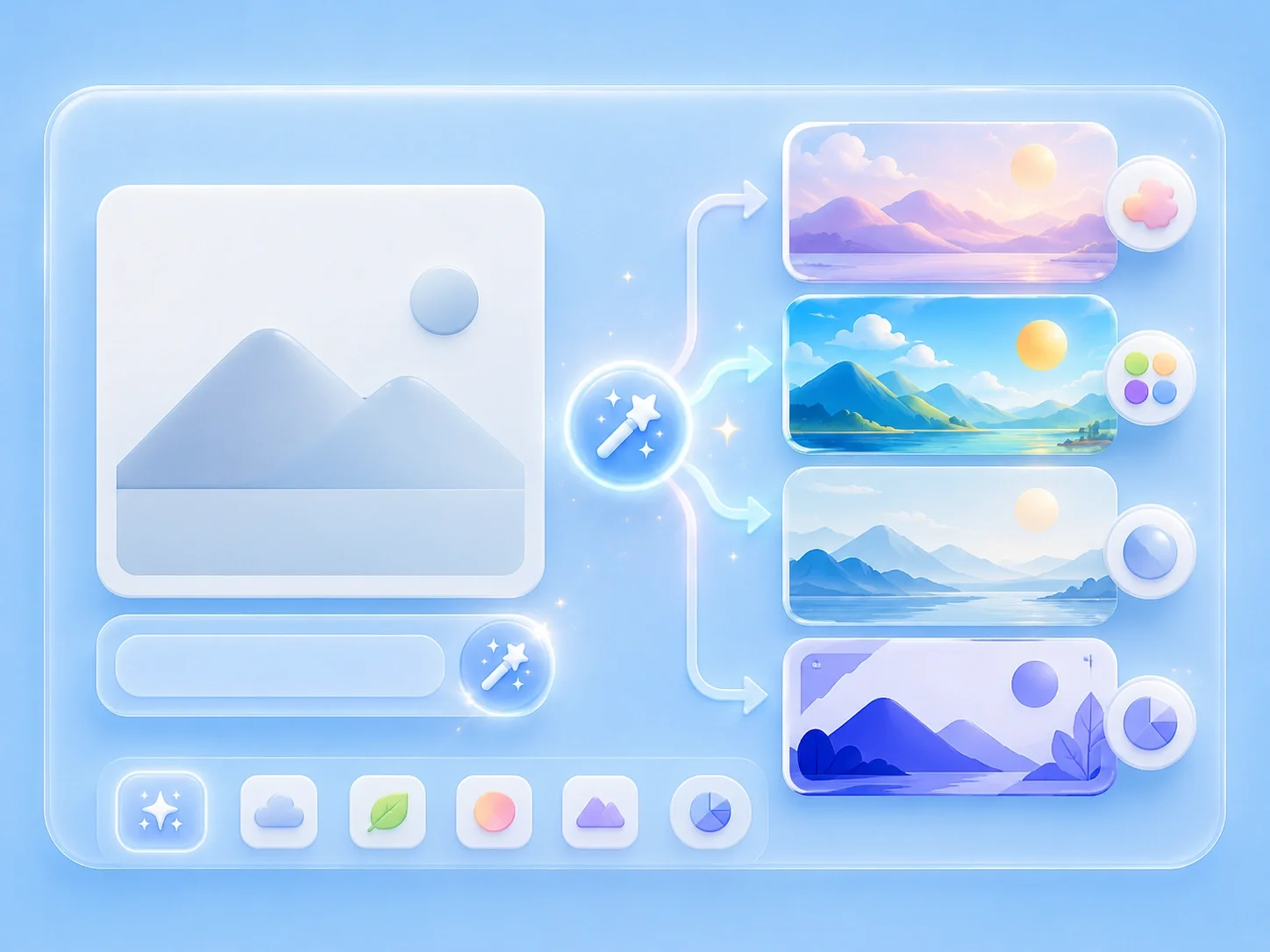
AI Image Editor with Prompt

Use this prompt-based image editor online to turn simple text instructions into full-image edits or selected-area changes.

or drag and drop your photo here

Choose full-image editing for broad changes, or brush a selected area when only one part needs attention.

Source preview

Paint over the area to edit, then describe the change you want in the instruction box.

Image details will appear here after upload.

Brush size28 px
Describe the exact visual change you want to generate.0 / 500

0%

Processing...

Free Prompt Editing
No Signup Required
Text-Guided Edits
No Ads
Free to Use
No Sign-Up
No Ads
Any Browser

How to use a prompt-based AI image editor in 3 steps

  1. Step 1: Upload Your Image

    Start by adding the photo you want to edit. The editor reads the file details before you move into prompt editing.

  2. Step 2: Type a Clear Prompt

    Use an ai image editor with text prompt workflow to describe the exact change, such as removing clutter, replacing a background, or retouching one selected area.

  3. Step 3: Generate and Download

    Review the generated version against your original goal. If the edit needs adjustment, refine the prompt and generate again before downloading.

Prompt Editing for Everyday Photo Fixes

Prompt Editing for Everyday Photo Fixes

Manual photo software can slow you down when you only know what needs to change, not which tool setting to use. This editor lets you upload an image, enter a written instruction, and generate a new version from that prompt. It is useful when you need an online ai photo editor with prompt for class visuals, work slides, profile images, or quick social posts.

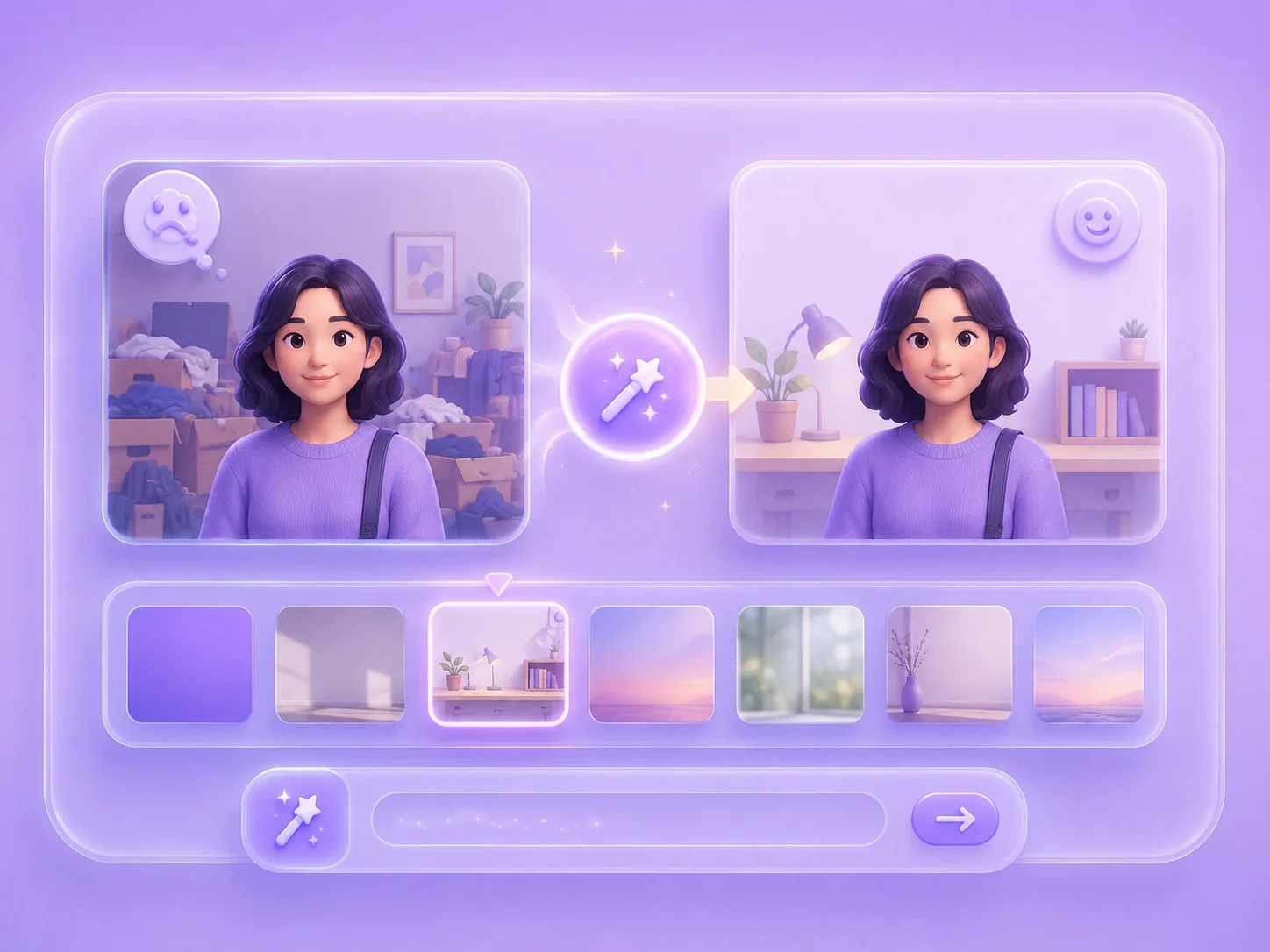
Start with a Prompt
Selected-Area Edits for Precise Changes

Selected-Area Edits for Precise Changes

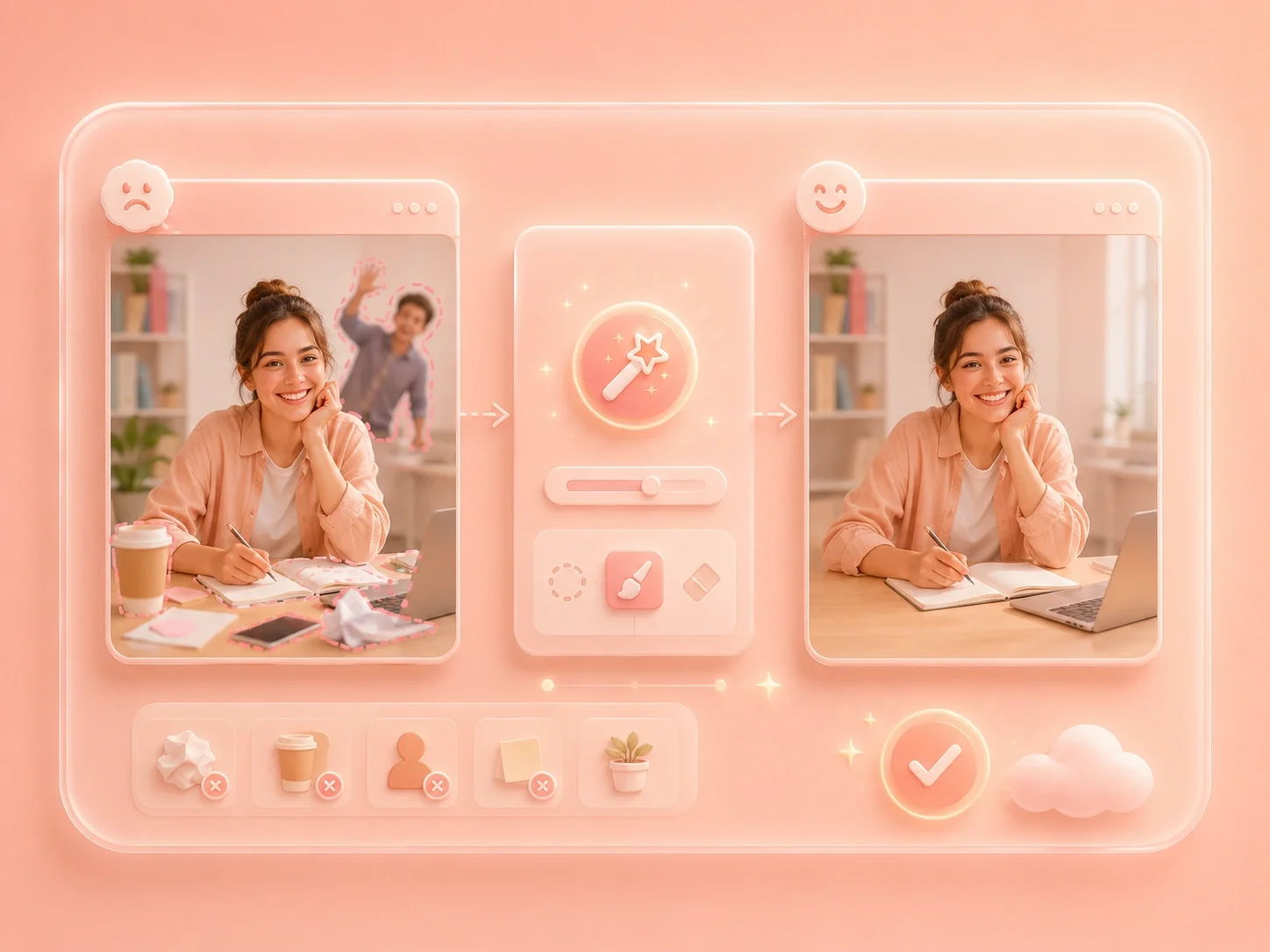
Whole-image edits can create extra work when only one detail needs attention. Brush mode lets you mark the area you want to change, then pair that selection with a short instruction. That makes edit image with ai prompt free workflows more controlled for faces, signs, backgrounds, and product details.

Select an Area
Background, Object, and Style Requests in One Flow

Background, Object, and Style Requests in One Flow

Different photo problems often appear in the same image, so switching between separate tools becomes tedious. The editor supports prompt requests for common changes such as object removal, background replacement, local retouching, and style adjustment. You can keep the task in one page and review each result before using it.

Try Common Edits
Results You Can Review Before Saving

Results You Can Review Before Saving

AI edits still need a human check because small details, text, or edges can change unexpectedly. After generation, compare the result with the goal in your prompt and decide whether to download or revise. This keeps free prompt editing practical without promising that every generated version is final on the first try.

Review the Result

Prompt AI image editor user reviews

First-person scenarios from users who need quick text-guided photo edits

Profile photo edits

I needed a cleaner profile image but did not want to learn layers or masks. I typed the change I wanted, checked the result, and fixed the distracting background before sharing it.

Profile photo edits

User review

Presentation cleanup

I had one object ruining a presentation image. Using a prompt with a selected area helped me focus the edit instead of rebuilding the slide from scratch.

Presentation cleanup

User review

Style testing

I wanted to test a different style before posting a photo. Prompt editing gave me a faster way to compare ideas and keep the version that matched my message.

Style testing

User review

ai image editor with prompt FAQ

01

What is ai image editor with prompt?

It is an online editing workflow where you upload an image, type the change you want, and generate an edited version. You can use it for full-image changes or brush a selected area for a more focused request.

02

Can I use free prompt-based image editing without complex tools?

Yes. The page is built around upload, prompt, generate, review, and download steps, so you do not need to work through professional editing panels.

03

How specific should my prompt be?

Write the visible change, the area to change, and the result you expect. For example, mention whether you want to remove an object, change a background, adjust a face detail, or restyle the full image.

04

Does ai image editor with prompt online support local edits?

Yes. You can switch to brush mode, paint over the area you want to modify, and use the prompt to describe the local change.

05

What should I check after editing with a text prompt?

Review edges, faces, product details, readable text, and background consistency. Regenerate if the edited image changes something important.

06

Can I use an online ai photo editor with prompt for work or school images?

Yes, it can help prepare presentation visuals, assignment images, profile photos, and social graphics. Always review the generated result before publishing or submitting it.