
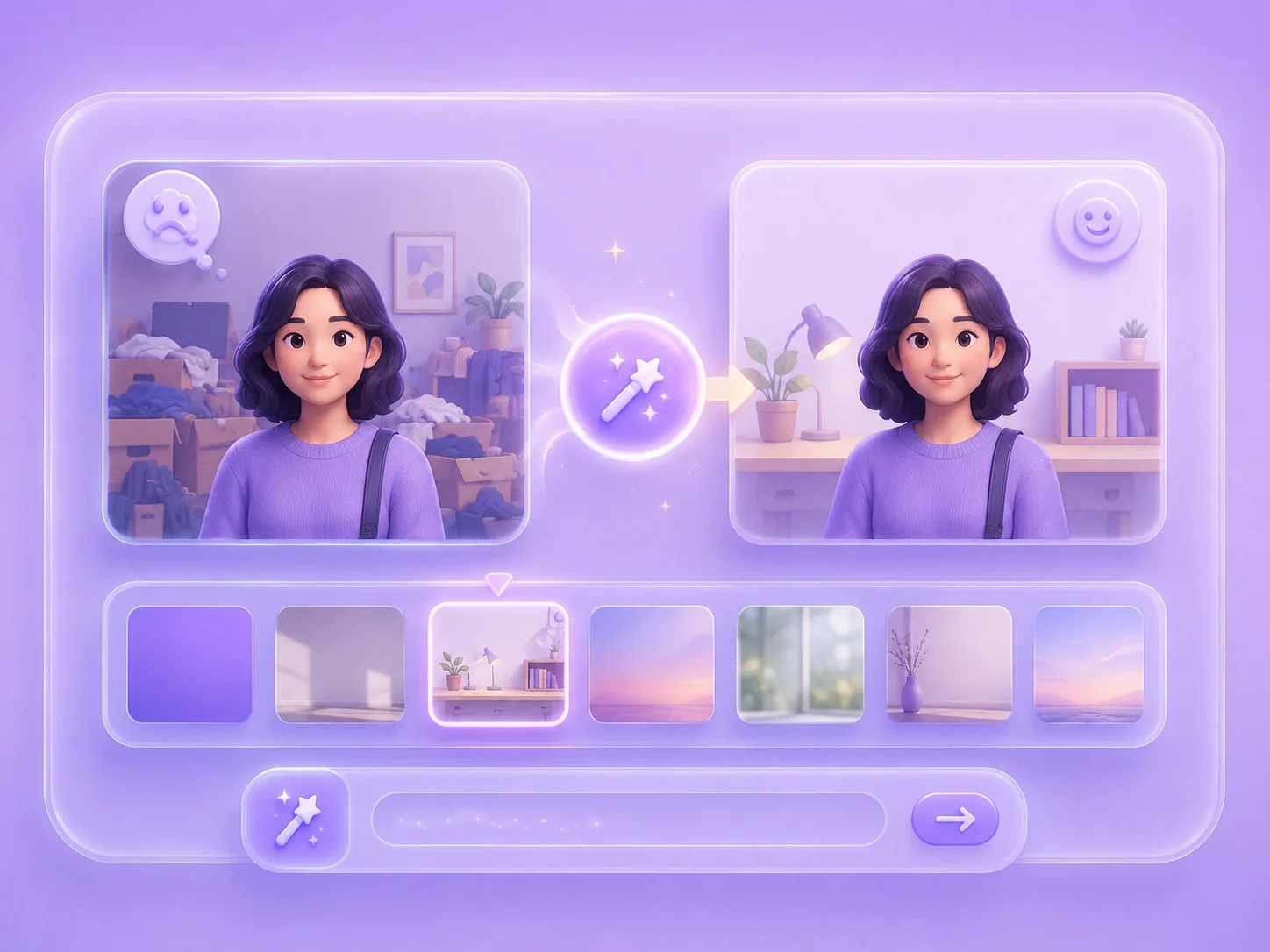
AI Remove Object from Photo

Clean distracting details from photos with text instructions and optional brush selection.

or drag and drop your photo here

Choose full-image editing for broad changes, or brush a selected area when only one part needs attention.

Source preview

Paint over the area to edit, then describe the change you want in the instruction box.

Image details will appear here after upload.

Brush size28 px
Describe the exact visual change you want to generate.0 / 500

0%

Processing...

Object Cleanup
No Signup Required
Brush Selection
No Ads
Free to Use
No Sign-Up
No Ads
Any Browser

How to remove unwanted objects from a photo in 3 steps

  1. Step 1: Upload the Photo

    Choose the image that contains the unwanted object. A clear source image gives you a better starting point for object cleanup.

  2. Step 2: Mark or Describe the Object

    Use a prompt to name the item you want removed, or brush over the distracting area first. This helps remove unwanted object from photo ai requests stay focused.

  3. Step 3: Generate and Inspect

    Review the result around the removed object, especially edges, shadows, and repeated background details. Regenerate with a clearer prompt if the image still needs work.

Cleaner Photos Without Manual Object Cleanup

Cleaner Photos Without Manual Object Cleanup

A small object, stranger, cable, or stain can make an otherwise useful photo feel unfinished. The editor lets you upload the image, describe what should be removed, and generate a cleaned version for review. This supports ai remove object from photo free tasks where the main goal is to rescue a usable image quickly.


Remove an Object
Brush Selection for Distracting Details

Brush Selection for Distracting Details

Object removal becomes harder when the target sits close to a face, product, or important background edge. Brush mode lets you paint over the unwanted area before writing the instruction. That gives an ai object remover online free workflow a clearer editing target for clutter, marks, and small mistakes.

Brush the Object
Useful Cleanup for Work, School, and Social Images

Useful Cleanup for Work, School, and Social Images

Photo clutter often appears right before a picture needs to be shared, submitted, or placed in a document. You can clean presentation visuals, assignment photos, profile pictures, and ecommerce drafts without opening a full editing suite. The result should still be checked for natural edges and background consistency.

Clean Photo Clutter
Review Edges Before You Save

Review Edges Before You Save

AI object removal can change nearby texture, shadows, or repeated patterns. After generation, zoom mentally into the area where the object was removed and compare it with the surrounding scene. This makes free ai photo object remover use more reliable for practical publishing decisions.

Review the Cleanup

Object removal user reviews

First-person reviews from users removing distractions from otherwise useful photos

Product draft cleanup

I had a great product image with one distracting item in the corner. I brushed the object, described the removal, and checked the background before using the image.

Product draft cleanup

User review

Class slide image

I needed a cleaner photo for a class slide. Removing the extra object helped the main subject stand out without rebuilding the whole visual.

Class slide image

User review

Social photo cleanup

I wanted to post a travel photo but a stranger pulled attention from the scene. The online cleanup workflow helped me test a cleaner version fast.

Social photo cleanup

User review

ai remove object from photo FAQ

01

What is ai remove object from photo?

It is a prompt-based editing workflow for removing unwanted items from an image. You can describe the object or use brush selection for a more focused edit.

02

Can I remove small details for free?

Yes. It can be useful for small marks, clutter, background distractions, and unwanted items, especially when you clearly describe or select the target area.

03

How do I get better object removal results?

Use a clear image, mark the object if needed, and write a direct prompt such as remove the cup on the table. Review the surrounding texture after generation.

04

Does online object removal work for people in the background?

You can request that a background person be removed, then inspect the result for natural edges and scene consistency before using the image.

05

What should I check after using an ai object remover online free?

Look at shadows, patterns, edges, faces, and any area that was close to the removed object. Regenerate if the background looks inconsistent.

06

Can I remove multiple unwanted objects?

You can describe multiple targets in the prompt, but complicated edits may need more than one attempt. Focused prompts usually make review easier.