
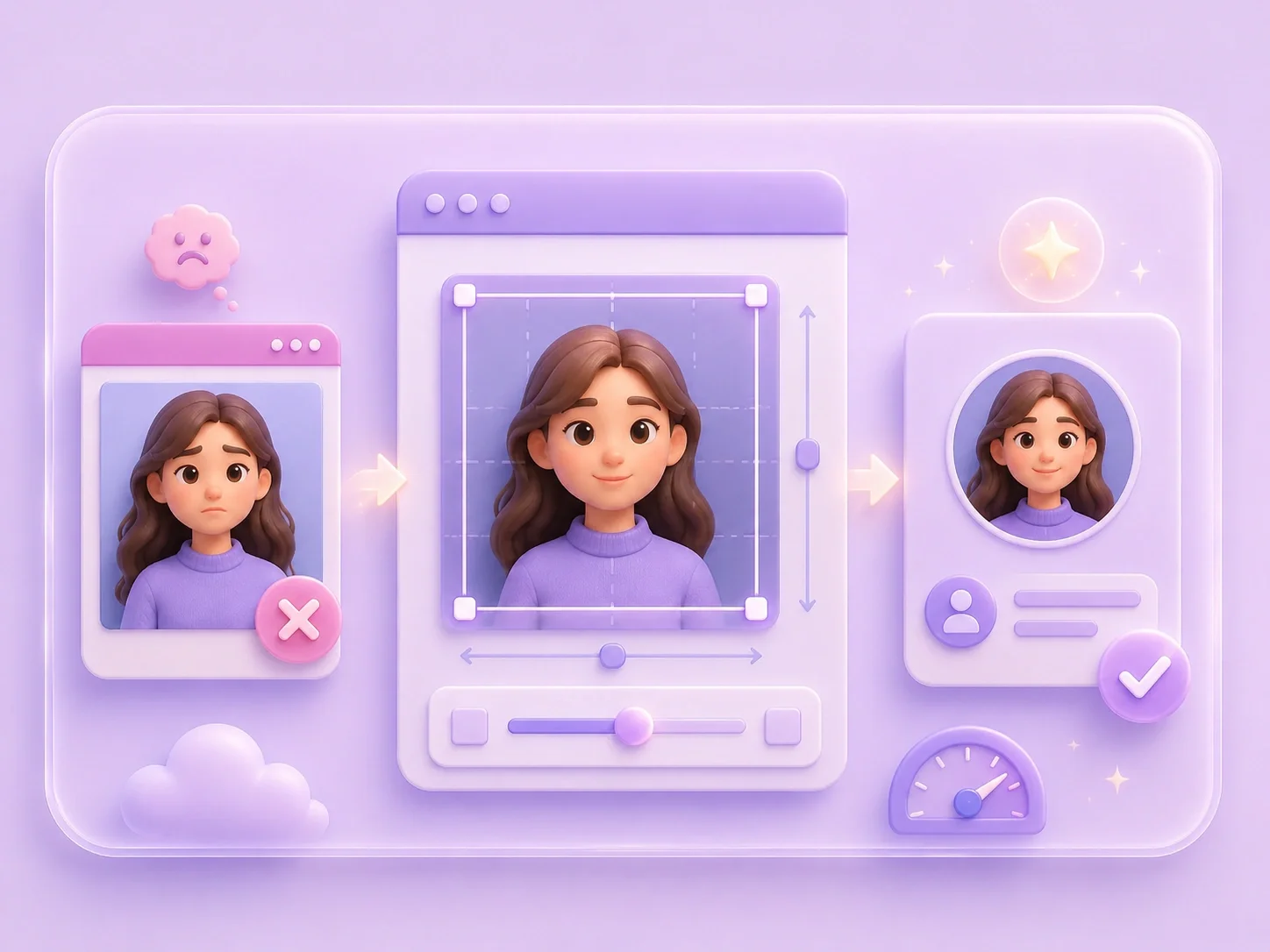
Passport Photo Resizer

Set precise dimensions and crop area for a passport photo, then preview the file.

or drag and drop a file here

Preview

0 × 0 px • 0 B

WidthHeight
px
px
Scale
%
Aspect Ratio:
Crop area: × px
Output format
Output: × px
0%

Processing...

Free and Unlimited
No Signup Required
Save Time
No Ads
Free to Use
No Sign-Up
No Ads
Any Browser

How to Use Passport Photo Resizer in 3 Steps

  1. Step 1: Upload Your Image

    Choose the original image whenever possible. This gives you a clear reference for the resize. Review the starting composition before you change it.

  2. Step 2: Set Dimensions or Crop

    Enter width and height, choose a percentage or preset, or adjust the crop. Keep proportions when they matter. Use current requirements from the issuing authority; this tool does not validate official eligibility.


  3. Step 3: Preview and Download

    Check the output dimensions, main subject, and visible details. Adjust the settings if the result does not suit the destination. Download only after your review.

Passport Photo Resizer for Intentional Sizing

Passport Photo Resizer for Intentional Sizing

Wrong dimensions can create a crop or stretched result that does not suit the next upload. Use the controls above to choose width, height, percentage, preset, or crop settings. Use current requirements from the issuing authority; this tool does not validate official eligibility.

Resize Avatar
Keep the Important Subject Visible

Keep the Important Subject Visible

A face, product, logo, or headline can lose impact when the framing changes. Use the preview and crop area to inspect what remains visible. Correct the composition before you save the file.

Resize for Social
Prepare Images for Real Uploads

Prepare Images for Real Uploads

Use these controls for passport applications, renewals, and official submissions. Different destinations can need different dimensions or framing. Check the current destination requirements before you upload.

Resize Product Image
Review the Output Before You Save

Review the Output Before You Save

The preview lets you inspect dimensions and visible detail before download. Compare the result with the purpose of the image. Save the file only when the crop and size fit your next step.

Scale Image

Illustrative Passport Photo Resizer Scenarios

First-person examples of common resizing pain points; these are illustrative scenarios, not customer reviews.

Profile photos

I need the image to fit its destination, so I set the dimensions and inspect the preview before I upload it.

Profile photos

Illustrative scenario

Social media graphics

I do not want the important part of my image cropped out, so I adjust the framing and check the visible area.

Social media graphics

Illustrative scenario

Product photos

I am preparing an image for a specific use, so I verify the output dimensions and details before I download it.

Product photos

Illustrative scenario

Passport Photo Resizer FAQ

01

What is an passport photo resizer?

It is a tool for changing an uploaded image with dimensions, percentage, presets, or crop controls. Use current requirements from the issuing authority; this tool does not validate official eligibility.

02

How do I resize photo for passport size?

Find the current official specification, enter those dimensions, and compare the preview with the authority’s complete guidance.

03

What passport photo dimensions should I use?

Yes. Enter width and height in pixels, then review the output.

04

Should I keep the aspect ratio?

Keep it locked when the image should scale proportionally. Unlock it only when you deliberately need a different shape.

05

Can I crop the image?

Yes. Use the crop controls to adjust the visible area, then inspect the preview.

06

Which image formats can I upload?

The interface accepts common JPG, PNG, and WebP image files.