Student study workflow

AI Homework Helper: The Complete Student Guide

A practical guide for middle school, college, and online learners who need homework help that goes beyond a single chatbot—from reading PDFs and drafting essays to grammar checks, OCR, and Word to PDF submission.

ChatPDF AI writer Grammar checker Word to PDF
Free Download WPS Office
Student doing homework at a desk with laptop textbook and notes

Three homework pain points AI can actually help with

An AI homework helper earns its place when it tackles the blockers students hit every week: long PDFs with no time left, a blank page that won’t turn into a draft, and notes scattered across devices before the deadline. Below is what that looks like in practice—and where the line is for academic integrity.

Long PDFs, little time

Textbook chapters and research PDFs are too long to finish before class. Students need ChatPDF summaries and Q&A so they can find definitions, examples, and key claims fast—then verify on the source page.

Blank page, messy draft

Essays and reports stall at outlining, wording, and grammar. Searchers want an AI writer for structure and polish, plus a grammar checker and spell check—without turning the assignment into someone else’s work.

Notes scattered, deadline near

Handwritten worksheets, phone photos, and drafts live on different devices. Students need image/handwriting to text, Word to PDF for submission, and cloud sync so nothing is lost at the last minute.

Integrity first: Schools increasingly allow AI for brainstorming and revision, but submitting AI-written answers as your own work is usually against policy. Use the tools below to learn faster—then verify facts, write in your voice, and cite sources.

Recommended homework workflow with WPS Office

A realistic homework path: understand the reading, clear up confusing parts, draft your answer, polish the writing, prepare the file for submission, then save a backup. Each step below shows how an AI homework helper supports that work—without doing the assignment for you.

1 Read the materials first

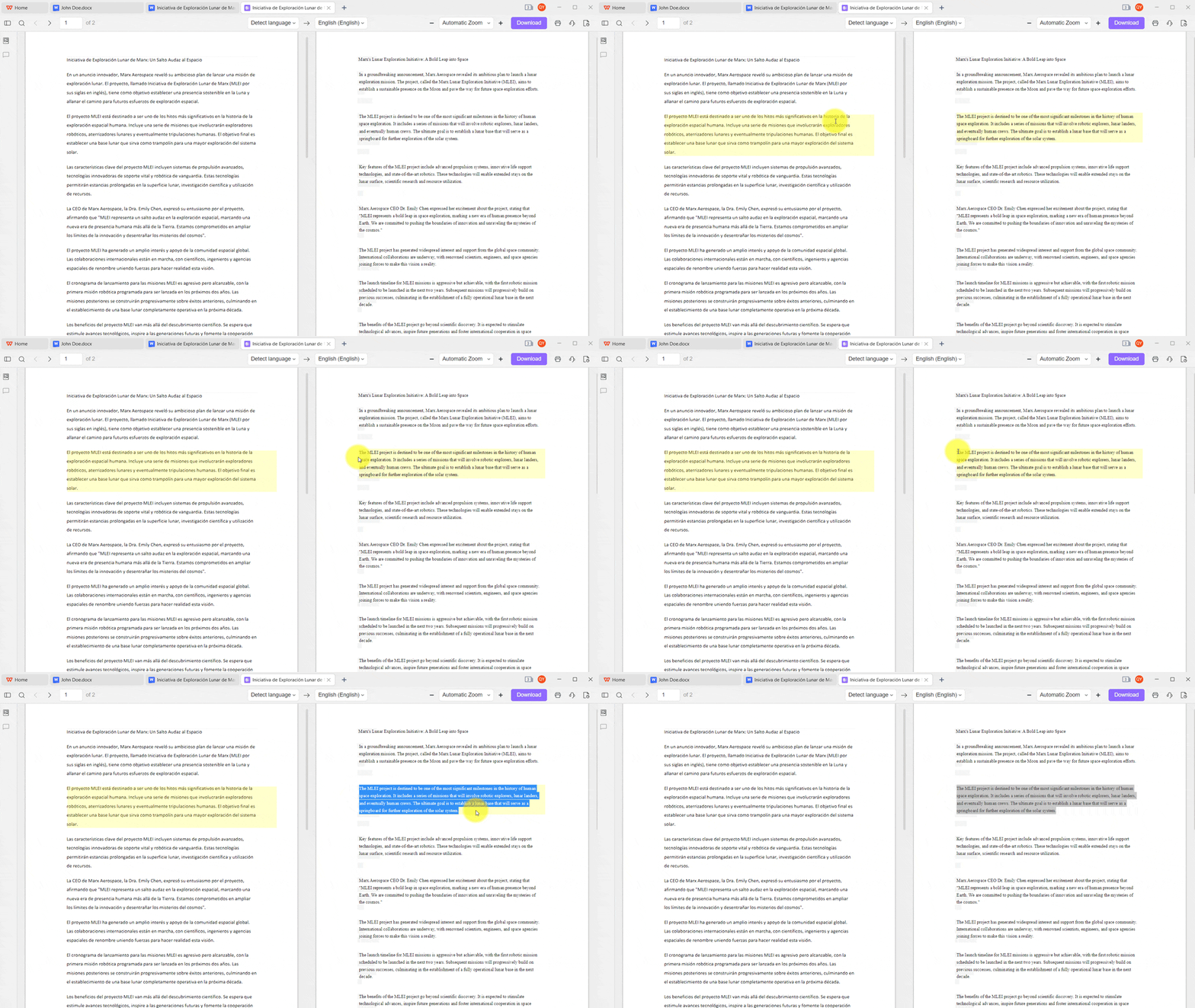
Start with the reading load—the pain point behind most “homework help” searches. Open your chapter or assigned paper in WPS PDF, then launch ChatPDF from the AI toolbox.

  1. Upload or open the textbook PDF (one chapter at a time works best).
  2. Ask for a short overview: “Summarize this chapter in 5 bullet points.”
  3. Skim the summary, then mark which sections you still need to read in full.
  4. Copy key bullets into your notes—do not treat the summary as a finished assignment.
ChatPDF summarizing a textbook PDF chapter in WPS Office
AI explain and translate selected terms while studying a PDF in WPS
2 Clear up confusing parts

After the overview, dig into what still blocks you. Stay inside the same ChatPDF session and ask precise study questions, or select a tough term for a plain-language explanation or AI translation.

  1. Ask definition prompts: “What does [term] mean in this chapter?”
  2. Ask for examples: “Give one classroom-friendly example of this idea.”
  3. Ask for simplification: “Explain this paragraph like I’m new to the topic.”
  4. Click source links in the answer and confirm the claim on the original page.
  5. Write the verified point in your own words before moving on.
Integrity tip: If the AI invents a page number or quote you cannot find, discard it. ChatPDF is a study guide, not a citation generator.
3 Outline and draft your answer

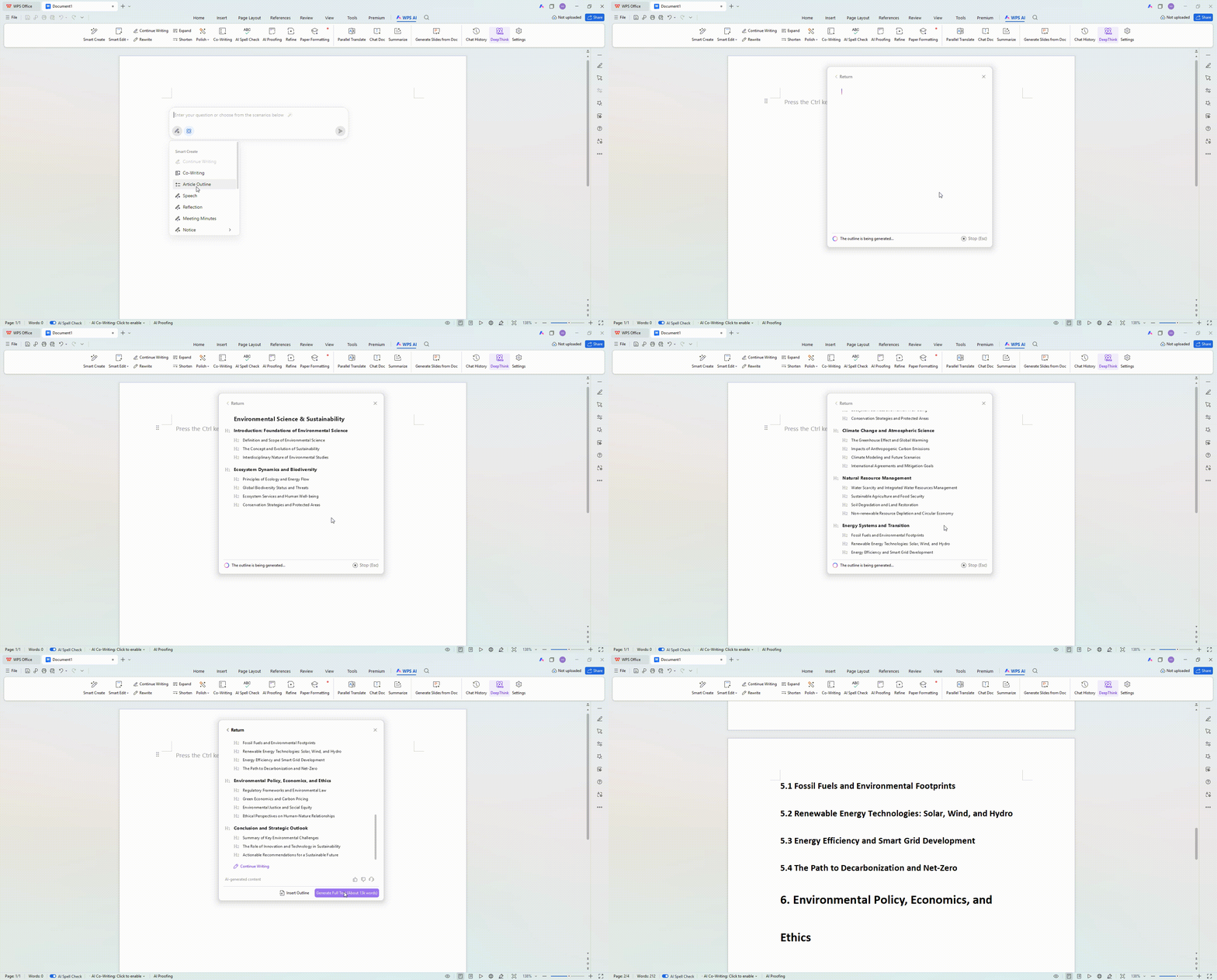
Now switch to Writer with your notes open. People searching for an essay writer or AI writer usually need structure—not a paper to paste. Use WPS AI Writer as a planning and phrasing assistant.

  1. Paste your thesis or prompt and ask for 2–3 outline options.
  2. Pick one outline and rewrite the headings so each section matches your evidence.
  3. Draft the hard paragraph yourself first; use Continue writing only when you are stuck.
  4. Ask for alternate phrasing of sentences you already wrote—then keep the version that sounds like you.
  5. Insert citations and quotes from sources you actually opened.
AI Writer generating an outline and draft support in WPS Writer
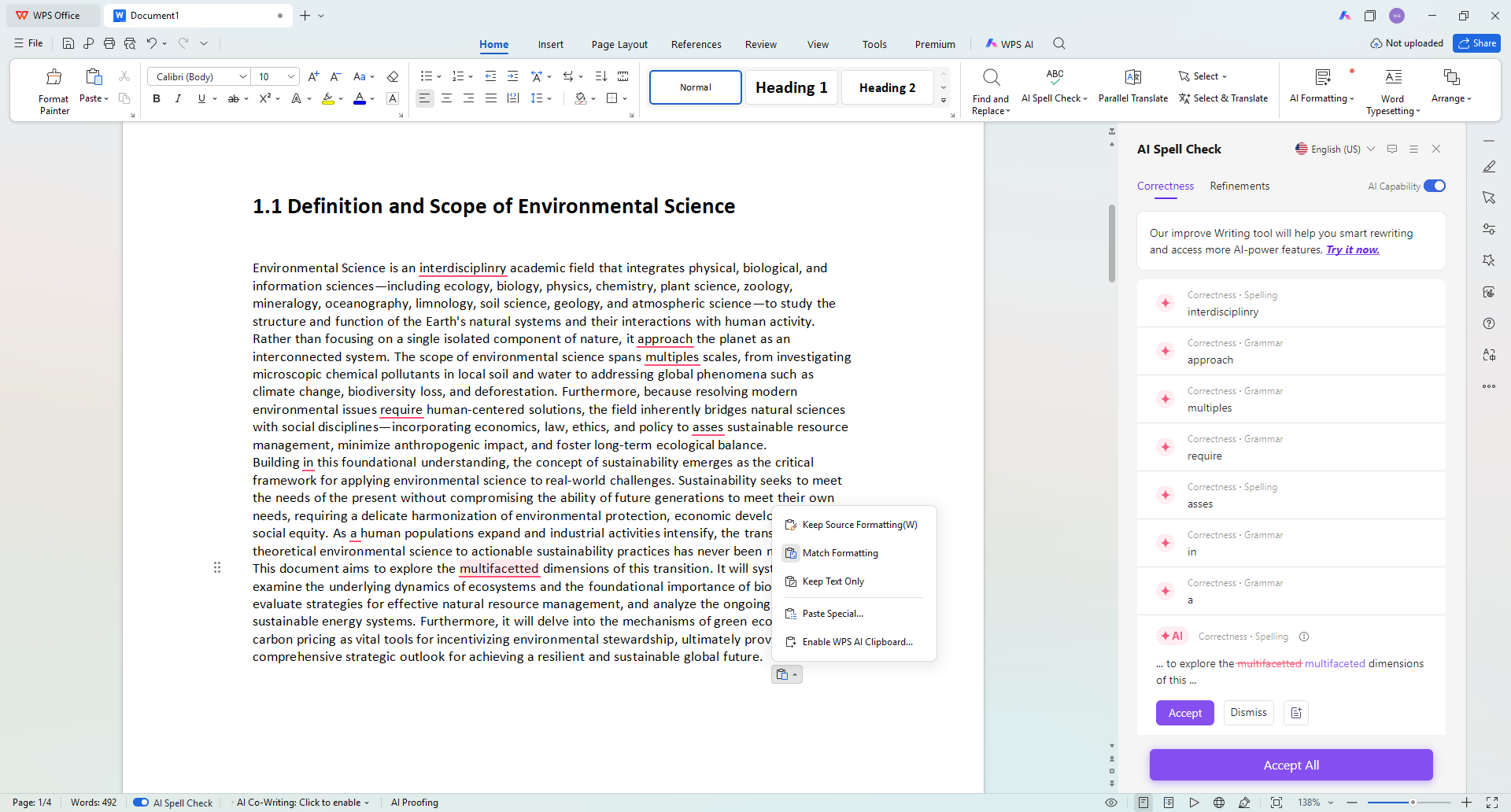
Grammar checker and spell check suggestions in WPS Writer
4 Polish grammar and wording

Before you format the final file, clean mechanics so the teacher reads your argument—not your typos. Open the Review tools and run AI Spell Check / grammar checker on the full draft.

  1. Select the whole essay (or run document-level check).
  2. Review correctness suggestions first: spelling, subject-verb agreement, punctuation.
  3. Then review clarity suggestions—accept only changes that keep your meaning.
  4. Scan headings, captions, and the works-cited list; those lines often get skipped.
  5. Do one final human read-aloud pass for tone and missing words.
5 Prepare the file to submit

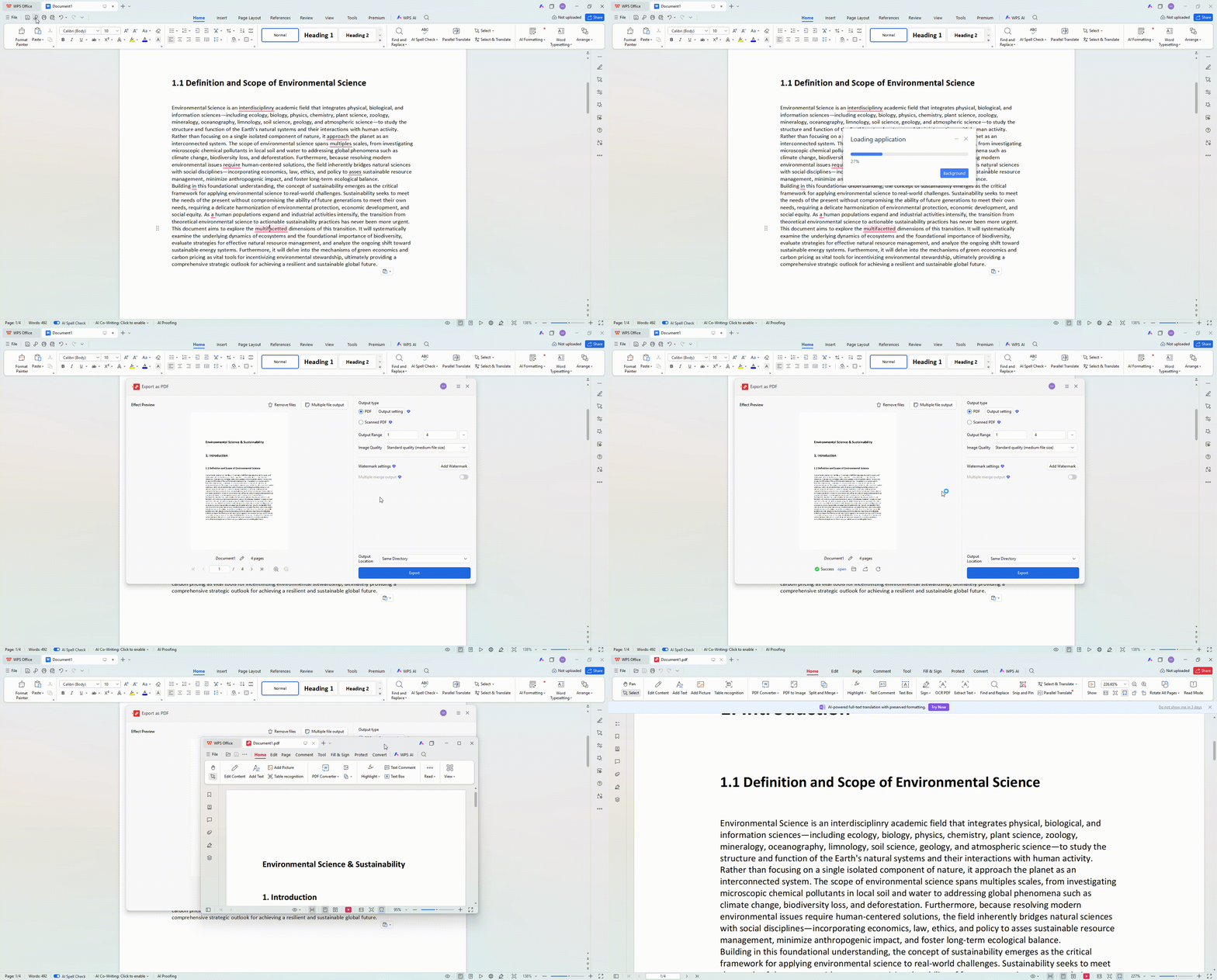
Most portals want a PDF so fonts and page breaks stay stable. When the draft is ready, use Word to PDF inside WPS instead of screenshotting pages.

  1. Confirm page size, margins, and required cover page match the brief.
  2. Choose File → Export / Convert to PDF (or the PDF converter entry).
  3. Preview the PDF: check page numbers, heading breaks, and image placement.
  4. If only one page shifted, fix it in Writer and export again—avoid editing the wrong version.
  5. Name the file with course + assignment + your name before upload.
Converting a Word essay to PDF for homework submission in WPS
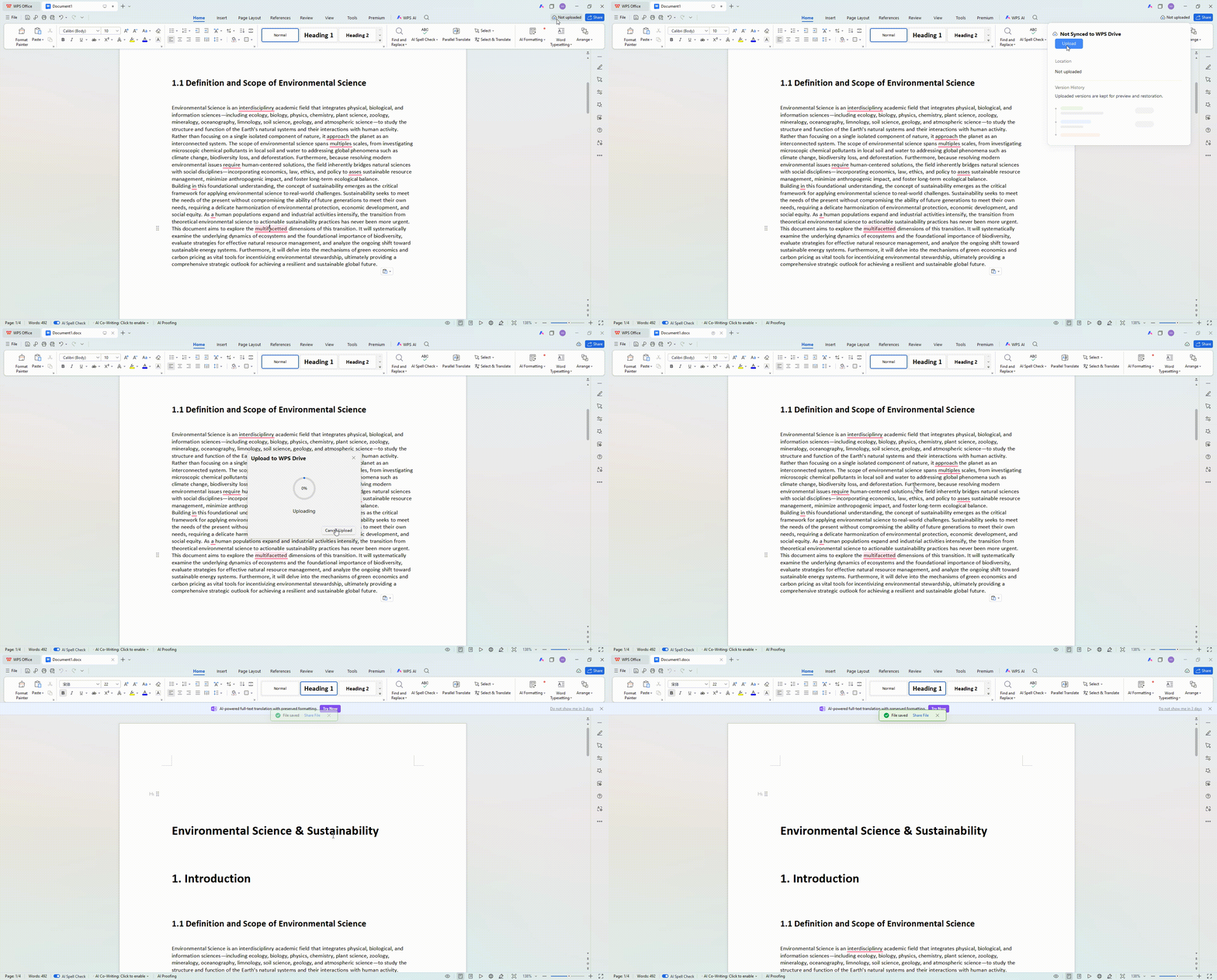
Cloud backup and version history for homework files in WPS
6 Save a backup before the deadline

The last failure mode is a lost laptop or a crashed browser five minutes before the deadline. Save both the editable .docx and the final PDF to WPS Cloud documents, then confirm sync on a second device.

  1. Save the working document to WPS Cloud (or your school-approved drive).
  2. Upload the final PDF beside it with a clear filename.
  3. Open the cloud link on your phone to verify the latest version uploaded.
  4. If available, keep version history so you can restore an earlier draft after a bad edit.
  5. Submit from the device required by the LMS, then leave the cloud copy untouched as backup.

Follow this homework path in one suite

From reading and drafting to polishing, submitting, and backing up—with WPS Office.

Free Download

Highlights

Six student highlights in one WPS workspace

A card-style overview of six toolkit strengths—different from the step-by-step workflow above.

AI Reading concept: ChatPDF textbook Q and A and summaries
AI Reading

ChatPDF + AI summarizer

Open textbook PDFs, get chapter overviews, and ask follow-up questions with source links before you take notes.

Explore ChatPDF →
AI Writing concept: outline draft polish and grammar help
AI Writing

Outline, draft support, grammar

Use AI Writer for structure and phrasing, then keep authorship yours. Finish with grammar checker and spell check.

Explore AI Writer →
OCR and PDF concept: handwriting to text and Word to PDF
OCR & PDF

Image to text + Word to PDF

Digitize worksheet photos or neat notes, proofread OCR errors, then export a submission-ready PDF.

Explore PDF tools →
Translation concept: select text and translate study materials
Translation

Translate & explain vocabulary

Select tough terms or paragraphs for translation and plain-language explanations while you stay inside the same document.

Explore AI Translator →
All-in-one concept: open Word Excel PowerPoint and PDF in one suite
All-in-one

Open all homework files in one app

Writer, Spreadsheets, Presentation, and PDF live in one WPS Office install—less app-switching when an assignment mixes docs, tables, slides, and scans.

Download WPS Office →
Cloud backup concept: sync homework files across laptop phone and cloud
Cloud backup

Save, sync, and restore before the deadline

Keep the editable draft and final PDF in the cloud, confirm sync on a second device, and use version history when a last-minute edit goes wrong.

Explore Cloud documents →

Watch & learn

Student study videos with WPS Office

See how students use WPS for a new semester, productive study weeks, and real assignment sessions—then try the same workflow yourself.

New semester with free WPS Office

A student walkthrough of using WPS as a Microsoft Office alternative for school.

Productive study week at uni

Note-taking and study motivation from a real university week—starts at the study segment.

Do assignments with me in WPS

A real assignment session using WPS Office—follow along while you work.

Quick student checklist

Tap each item before you submit. Your checks are saved in this browser so you can come back later.

Finish the checklist, then submit with WPS Office.

Free Download

FAQ

AI homework helper FAQ

Download

Study smarter with WPS Office AI tools

Read PDFs with ChatPDF, draft and polish in Writer, check grammar, convert Word to PDF, and keep homework synced—all in one student-friendly workspace.

WPS Office download for AI homework helper tools