Top 5 Tools for Device Manager Windows 10
Compare the best Windows 10 device management tools for driver updates, hardware troubleshooting, deeper diagnostics, and cleaner reporting with WPS Office as the top recommendation for documenting every fix.
At a glance
Start with the built-in option, then move into faster update tools, lighter utilities, and advanced diagnostics.
Windows Device Manager
The safest place to start when you need quick hardware checks, driver rollbacks, or device status details.
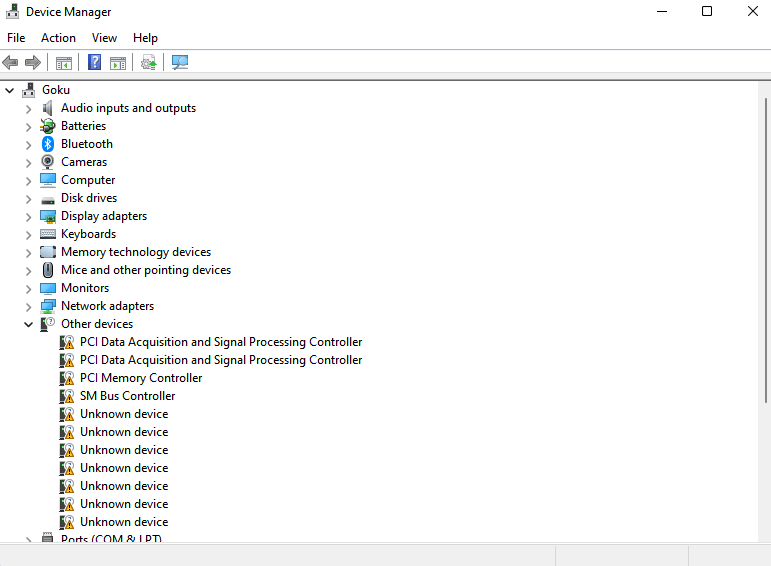
Device Manager is Windows 10’s native control point for viewing hardware, checking status, and managing drivers. It handles updates, uninstall actions, and rollback tasks without requiring extra software.
It lacks automation and bulk workflows, but its direct Windows integration makes it stable and dependable for day-to-day troubleshooting.
Key features
- Native integration with Windows 10
- Update, disable, uninstall, or roll back drivers
- View hardware status and device IDs
Pros
- No installation required
- Reliable and consistent for fast checks
Cons
- No automated updates
- No backup workflows or bulk management tools
It remains the first stop when an update goes sideways and you need a predictable rollback path.
Driver Booster
A smart alternative when you want one-click driver updates instead of manual hunting.
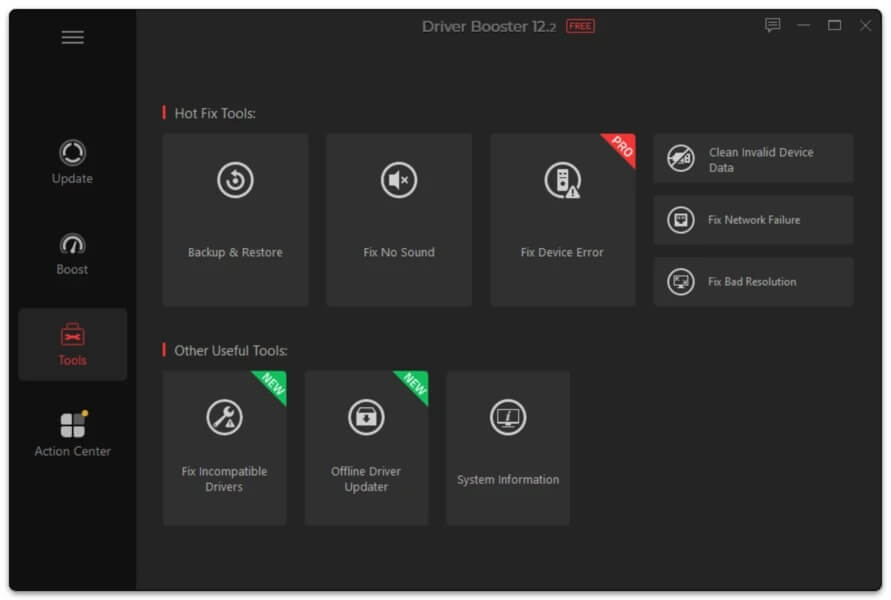
Driver Booster automates the update process and pulls from a large driver database, which makes it especially useful for gamers and casual users dealing with lag or hardware glitches.
It also creates backup and restore points before major changes, adding a layer of safety that basic tools do not provide.
Key features
- One-click driver updates
- Large driver database
- Backup and restore before updating
Why it works in real troubleshooting
A stubborn sound card issue that Device Manager could not resolve was fixed after a single scan. That makes Driver Booster a strong pick when standard Windows tools stop short.
Pros
- User-friendly interface
- Fast and reliable scanning
Cons
- Ads in the free version
- Some features are locked behind Pro
Driver Easy
A practical all-in-one companion for identifying, downloading, and fixing outdated drivers with less guesswork.
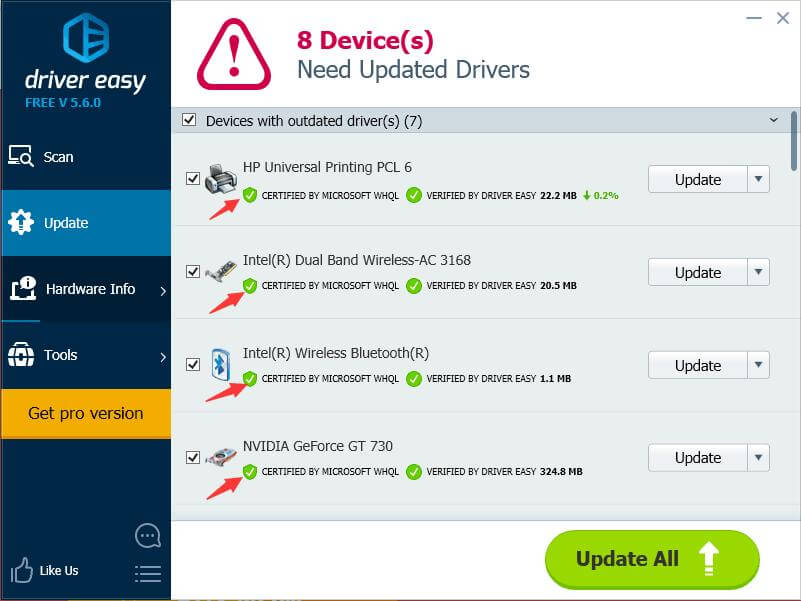
Driver Easy is built for users who want accurate scans, detailed hardware information, and a smoother update flow. It supports both online and offline scanning, which is valuable when working on older or disconnected systems.
Its guided interface makes it approachable for beginners while still being efficient enough for technicians handling several machines.
Key features
- Scan and fix outdated drivers
- Detailed hardware info
- Offline scan option
Where it saves time
During bulk office setups, Driver Easy can cut hours of manual work, especially on systems that do not have internet access during deployment.
Pros
- Straightforward UI
- Supports batch downloads
Cons
- Free version has limitations
- Scanning can be slightly slower
SlimDrivers
A lean supplement for older systems that need quick scans, restore points, and minimal overhead.
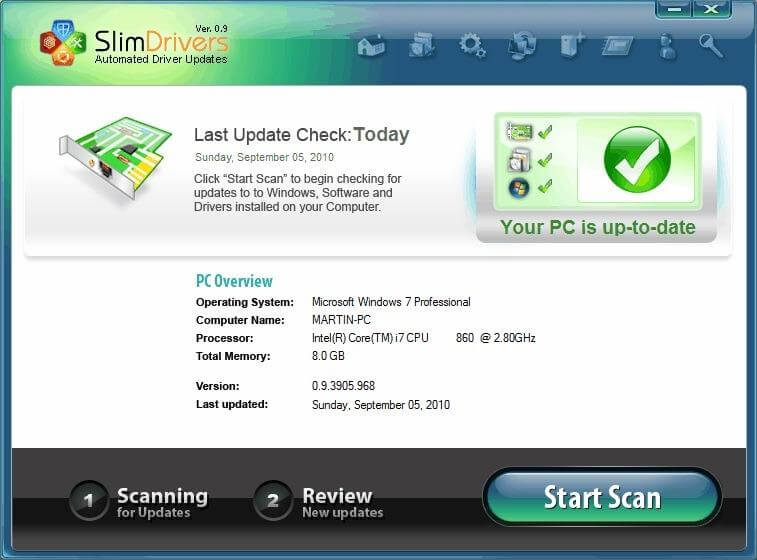
SlimDrivers focuses on speed and simplicity with cloud-based scanning, scheduled checks, and backup support. It is a strong fit for users with limited storage or older hardware.
Because it stays lightweight, it can be a practical rescue tool when a system is already struggling.
Key features
- Cloud-based scanning
- Backup and restore points
- Scheduled scans
Why users keep it around
It can quickly surface missing drivers on budget or aging laptops, including cases where Device Manager never flagged the real graphics issue.
Pros
- Lightweight app
- Decent free version
Cons
- No bulk update in the free version
- Contains ads
AIDA64
The advanced choice for real-time monitoring, benchmarking, and hardware-level analysis beyond standard device tools.
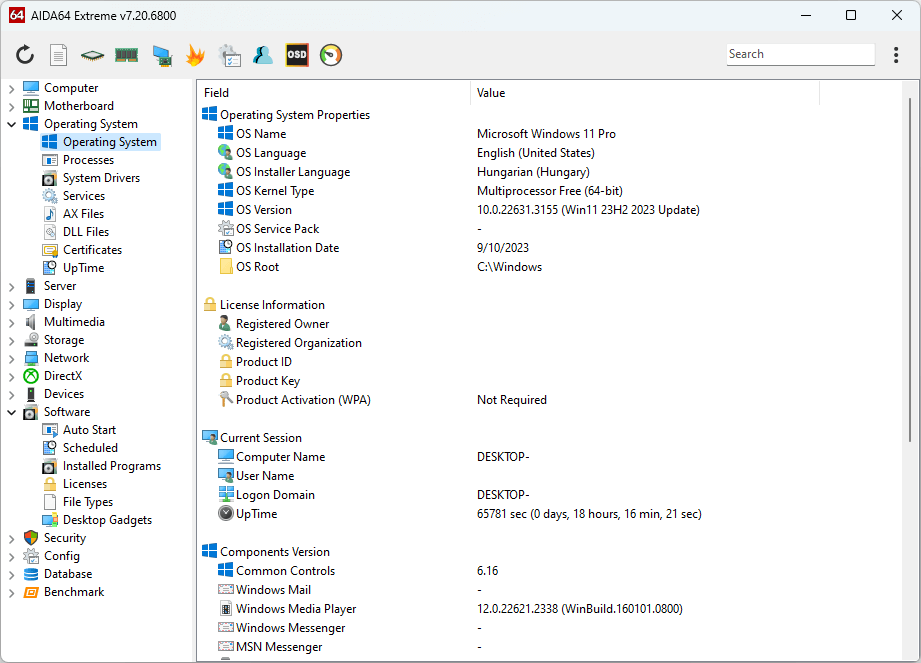
AIDA64 is built for users who need more than driver management. It delivers live monitoring for temperatures, voltages, storage, CPU, GPU, and network behavior while also offering benchmark data.
That deeper visibility makes it useful for diagnosing persistent errors, stress testing, and spotting hardware health issues early.
Key features
- Sensor monitoring for temperatures and voltages
- Detailed system reports
- Device benchmarking
What makes it stand out
Its diagnostics can reveal issues that a normal device manager misses, including overheating components such as an SSD before the damage becomes serious.
Pros
- Extremely detailed data
- Real-time feedback
Cons
- Steeper learning curve
- Paid tool
Where WPS turns troubleshooting into clean documentation
WPS Office is not a device manager, but it becomes the workflow layer that helps you record, organize, export, and share everything you discover while fixing Windows hardware issues.
As you run scans, install drivers, and troubleshoot errors, clear reporting matters. WPS Office gives you Writer, Spreadsheet, PDF tools, and cloud storage in one lightweight suite.
How WPS supports device work
- Use WPS Writer to draft device reports and maintenance notes.
- Track performance logs and driver versions in WPS Spreadsheet.
- Annotate manuals, reports, and support documents in WPS PDF.
- Sync files across devices with WPS Cloud.
It is especially useful for compiling client maintenance logs and exporting simple PDF instructions for less technical users.
Key differences at a glance
This side-by-side view keeps the strengths, best-fit use cases, and tradeoffs clear before you choose a tool.
| Tool | Best For | Key Features | Strengths | Limitations |
|---|---|---|---|---|
| Windows Device Manager | Built-in device management | Basic driver management, device status indicators, rollback and uninstall options | Pre-installed, safe, straightforward | No auto updates, no bulk driver install, minimal UI |
| Driver Booster | Automatic driver updates and gaming | One-click updates, huge driver database, backup before changes | Fast scans, great for gamers, user-friendly | Ads in free version, some features Pro-only |
| Driver Easy | Multi-device maintenance | Offline scanning, hardware info, batch downloads | Great UI, good for technicians managing multiple PCs | Free version limited, slower scanning |
| SlimDrivers | Lightweight systems and quick fixes | Cloud-based scanning, scheduled updates, restore points | Lightweight, quick install, real-time scanning | Ads, no bulk update in free version |
| AIDA64 | Deep diagnostics and advanced users | Real-time monitoring, system benchmarking, hardware analytics | Exceptionally detailed reports, professional-grade | Paid only, steeper learning curve |
Common questions before you update drivers
These quick answers cover access, safety, warning signs, and rollback basics inside Windows 10.
The best fit depends on depth, but WPS completes the workflow
Windows Device Manager is the safest starting point, while Driver Booster, Driver Easy, SlimDrivers, and AIDA64 each solve a different layer of driver or hardware work. WPS Office stands out as the best companion because it helps you turn fixes, logs, and reports into something organized and shareable.
Download WPS Office for cleaner device reports and shared troubleshooting notes
Use Writer, Spreadsheet, PDF, and cloud tools to keep driver updates, system checks, and support handoffs organized in one lightweight workspace.