

'%3e%3cpath%20d='M8%200C12.4183%200%2016%203.58172%2016%208C16%2012.4183%2012.4183%2016%208%2016C3.58172%2016%200%2012.4183%200%208C0%203.58172%203.58172%200%208%200ZM11.6162%204.38379C11.2257%203.99337%2010.5927%203.99338%2010.2021%204.38379L8%206.58594L5.79785%204.38379C5.40732%203.99334%204.77429%203.99329%204.38379%204.38379C3.99331%204.77429%203.99335%205.40733%204.38379%205.79785L6.58594%208L4.38379%2010.2021C3.99348%2010.5927%203.99341%2011.2257%204.38379%2011.6162C4.77426%2012.0066%205.40734%2012.0065%205.79785%2011.6162L8%209.41406L10.2021%2011.6162C10.5927%2012.0066%2011.2257%2012.0067%2011.6162%2011.6162C12.0067%2011.2257%2012.0066%2010.5927%2011.6162%2010.2021L9.41406%208L11.6162%205.79785C12.0066%205.40735%2012.0066%204.77429%2011.6162%204.38379Z'%20fill='%23080E17'%20fill-opacity='0.46'/%3e%3c/g%3e%3cdefs%3e%3cclipPath%20id='clip0_3761_713'%3e%3crect%20width='16'%20height='16'%20fill='white'/%3e%3c/clipPath%3e%3c/defs%3e%3c/svg%3e)




'%3e%3cpath%20fill-rule='evenodd'%20clip-rule='evenodd'%20d='M21.4999%2010.9993C21.4999%205.20009%2016.7986%200.498901%2010.9993%200.498901C5.19994%200.498901%200.498657%205.20009%200.498657%2010.9993C0.498657%2016.2404%204.33858%2020.5844%209.35855%2021.3722V14.0346H6.69238V10.9993H9.35855V8.68594C9.35855%206.05427%2010.9262%204.60062%2013.3248%204.60062C14.4736%204.60062%2015.6753%204.80571%2015.6753%204.80571V7.38979H14.3512C13.0468%207.38979%2012.64%208.19921%2012.64%209.0296V10.9993H15.5523L15.0867%2014.0346H12.64V21.3722C17.66%2020.5844%2021.4999%2016.2404%2021.4999%2010.9993Z'%20fill='%231568EA'/%3e%3c/g%3e%3c/svg%3e)


'%3e%3cpath%20d='M2.42045%2022.1876H6.31818V12.7217L0.75%208.54553V20.5171C0.75%2021.4414%201.49892%2022.1876%202.42045%2022.1876Z'%20fill='%234285F4'/%3e%3cpath%20d='M19.682%2022.1876H23.5797C24.5041%2022.1876%2025.2502%2021.4387%2025.2502%2020.5171V8.54553L19.682%2012.7217'%20fill='%2334A853'/%3e%3cpath%20d='M19.682%205.48293V12.7216L25.2502%208.54543V6.31816C25.2502%204.25236%2022.8921%203.07469%2021.2411%204.31361'%20fill='%23FBBC04'/%3e%3cpath%20d='M6.31824%2012.7217V5.48303L13.0001%2010.4944L19.6819%205.48303V12.7217L13.0001%2017.733'%20fill='%23EA4335'/%3e%3cpath%20d='M0.75%206.31816V8.54543L6.31818%2012.7216V5.48293L4.75909%204.31361C3.10534%203.07469%200.75%204.25236%200.75%206.31816Z'%20fill='%23C5221F'/%3e%3c/g%3e%3cdefs%3e%3cclipPath%20id='clip0_2954_7305'%3e%3crect%20width='24.5'%20height='18.375'%20fill='white'%20transform='translate(0.75%203.8125)'/%3e%3c/clipPath%3e%3c/defs%3e%3c/svg%3e)


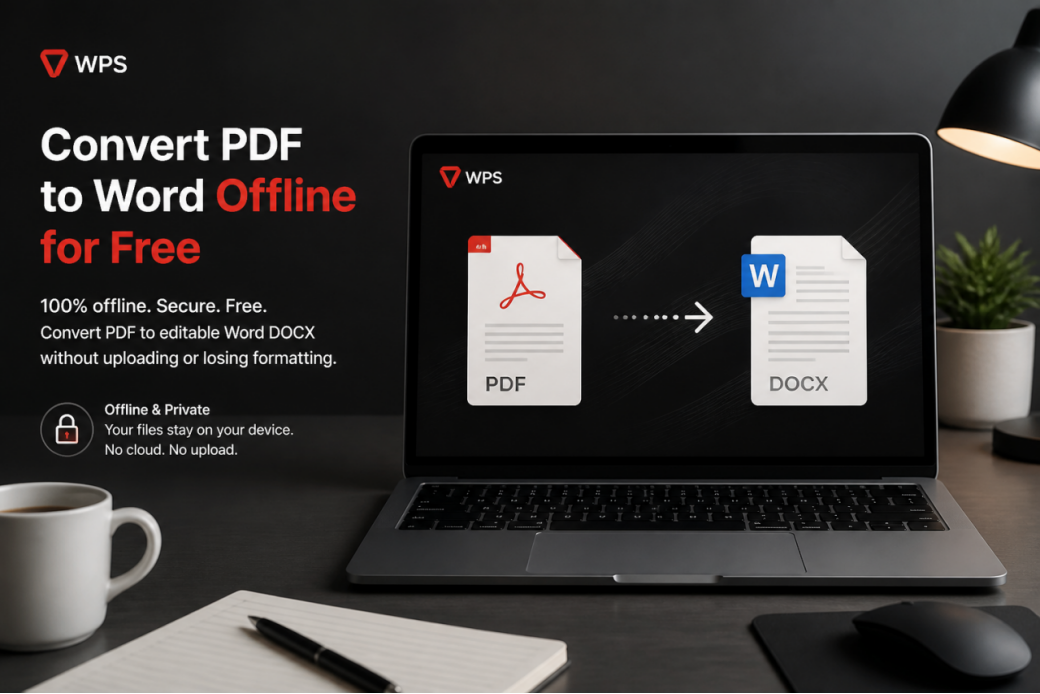
Tired of uploading contracts, resumes, and school files to random online PDF converters? Online tools can be slow, capped, or risky when the document is private. A better path is a PDF to Word offline converter that keeps the file on your device while you turn it into an editable DOC or DOCX.
This guide shows how to convert PDF to Word offline for free with WPS Office, a lightweight suite with built-in PDF tools for Windows, macOS, Linux, Android, and iOS. You can get WPS from the official site, the App Store, or Google Play, then convert locally without sending the PDF to an unknown website.
Why convert PDF to Word offline?
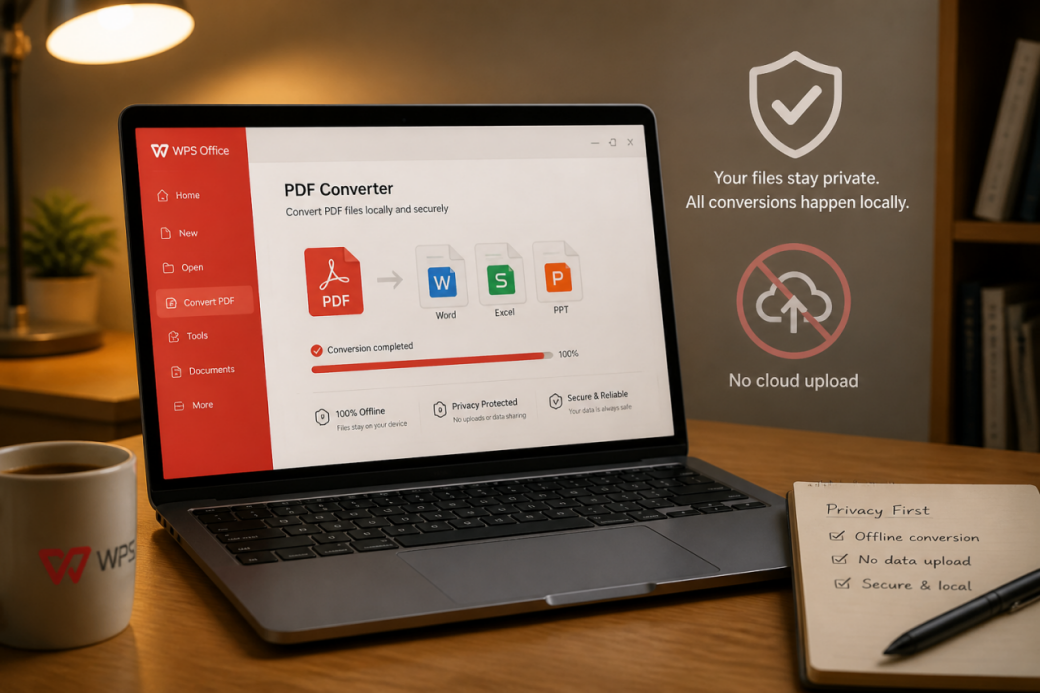
PDF is great for sharing a fixed layout. It is not great when you need to rewrite a paragraph, fix a table, or reuse the content in a report. Converting offline helps you:
Keep sensitive files on your computer or phone instead of uploading them
Edit the result in Writer as a normal Word document
Avoid weak Wi-Fi delays and site queue limits
Preserve more of the original fonts, bullets, and table structure with a dedicated converter
If you only need a quick browser conversion, WPS also offers online PDF tools. For private or recurring work, the offline converter inside WPS PDF to Word is usually the better default.
Steps to convert PDF to Word with WPS Office
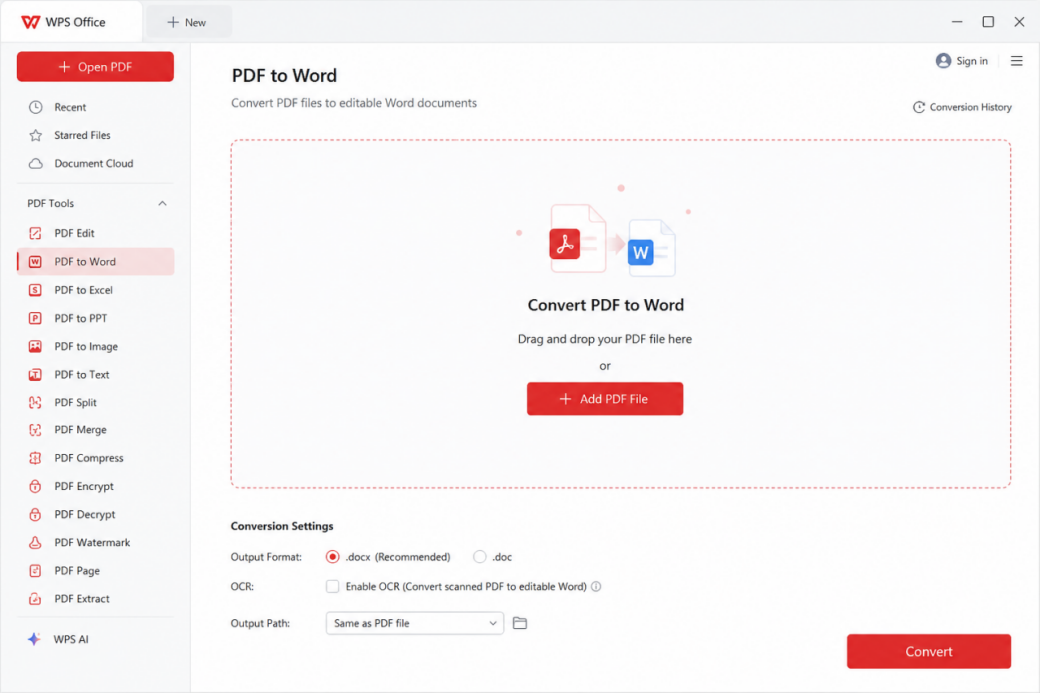
PDF files are hard to edit freely. WPS PDF to Word Converter is built to be quick, simple, and accurate. It also supports related PDF work such as notes, page edits, split/merge, and conversion into more text formats when you need them.
Follow these steps to convert PDF to Word offline:
Step 1. Download and open WPS Office on your device.
Step 2. Open PDF Tools, or choose the PDF to Word converter from the home tools list.
Step 3. Drag your PDF into the landing area, or click Upload / Select File and choose it from local storage.
Step 4. Click Convert.
Step 5. Wait a few seconds. In the offline WPS app, the Word file opens for preview so you can edit and save it as DOC or DOCX.
Prefer a portable-focused walkthrough? See this WPS PDF to Word converter guide.
Tip: If your PDF is image-heavy and you only need the pictures, convert key pages to JPG first, then place those images into Word. If the whole document must stay editable as text, stay on PDF to Word instead.
Characteristics of WPS PDF to Word Converter
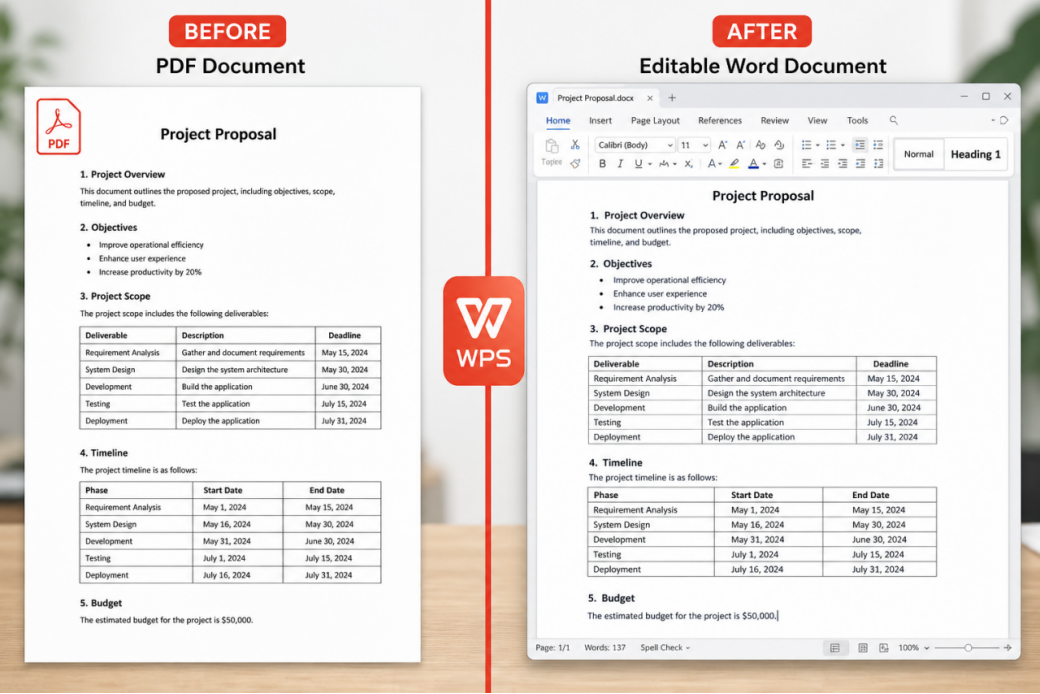
WPS aims to keep formatting intact during conversion. That means fonts, layouts, bullets, and tables have a better chance of surviving the jump from PDF to DOC/DOCX, so you spend less time fixing the file after conversion.
What you get with the WPS PDF to Word workflow:
High-quality PDF to DOC/DOCX conversion with layout retention as a priority
Support for common Microsoft Word formats such as DOC, DOCX, and related text outputs
Batch or multi-file conversion options when you need to process more than one PDF
Extra PDF utilities to split, merge, annotate, and reorganize pages before or after conversion
Desktop and mobile access so you can convert on Windows, Mac, Android, or iOS
A familiar office suite around the converter, including Writer for immediate editing
You can also explore the broader WPS PDF converter tools for PDF to Excel, PPT, and image formats when Word is not the right destination.
Other useful notes:
If a file becomes hard to open after a bad export elsewhere, WPS file repair tools can help in supported cases.
Image-only content may need OCR. Plain text PDFs usually convert faster and cleaner.
Free conversion availability can vary by platform and plan. Install WPS and check the converter panel for your current free or premium limits before large batch jobs.


Convert scanned PDFs to editable Word
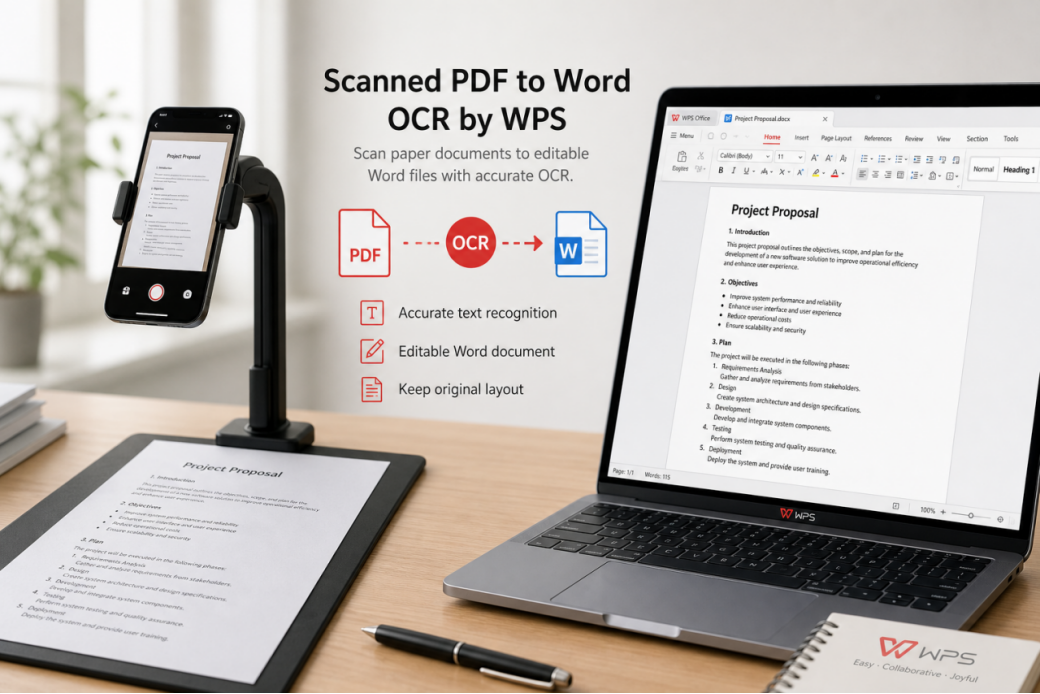
A scanned PDF is basically a picture of a page. A normal converter may give you an image inside Word instead of real text. For scans, use a PDF to Word flow with OCR so the app can recognize characters and rebuild editable paragraphs.
WPS supports scanned PDF conversion workflows with OCR-oriented tools. Start from your local file in WPS Office, run PDF to Word for scanned documents, then review the DOCX for spelling and layout before you share it.
FAQ
Can I convert PDF to Word offline for free?
Yes. Install WPS Office and use the built-in PDF to Word tool on your device. Core conversion is available in the free suite experience, while advanced or high-volume use may depend on your plan and region.
Is offline conversion better than online converters?
For private files, yes. Offline conversion avoids uploading documents to third-party sites. It is also steadier when your connection is weak. Online converters remain useful for one-off public files when you cannot install software.
Will the Word file keep the original PDF layout?
WPS focuses on preserving fonts, tables, and page structure during PDF to DOC/DOCX conversion. Complex designs can still need light cleanup, so always preview the Word file after converting.
Can I convert PDF to Word on Android or iPhone?
Yes. WPS Office is available on Android and iOS, so you can convert and edit on mobile as well as on desktop.
What if I need PDF to Excel instead of Word?
Use the matching converter in WPS PDF tools when your PDF is mostly tables. Browse free PDF converter options or open the Excel conversion path inside the WPS app.
Conclusion
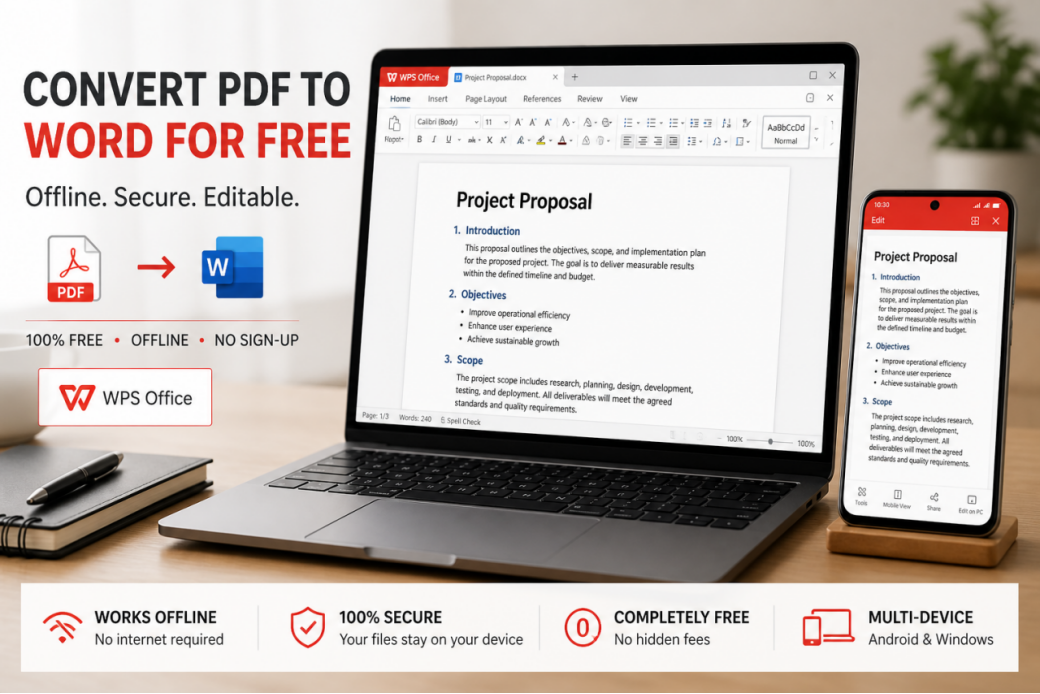
You now have a clear offline path: install WPS Office, open PDF to Word, convert locally, then edit in Writer. That workflow protects privacy better than random upload sites and gives you an editable DOC/DOCX you can finish as your own document.
Before you convert, decide what the reader needs. After you convert, clean headings, check tables, and save a final DOCX or export back to PDF if you need a fixed share copy.
Ready to try it? Download WPS Office and convert PDF to Word offline on your computer or phone.

'%3e%3cpath%20d='M19.9911%204.11386V6.471H18.5894C18.0775%206.471%2017.7322%206.57814%2017.5536%206.79243C17.3751%207.00671%2017.2858%207.32814%2017.2858%207.75671V9.44421H19.9019L19.5536%2012.0871H17.2858V18.8639H14.5536V12.0871H12.2769V9.44421H14.5536V7.49779C14.5536%206.39064%2014.8632%205.53201%2015.4822%204.92189C16.1013%204.31177%2016.9257%204.00671%2017.9554%204.00671C18.8304%204.00671%2019.509%204.04243%2019.9911%204.11386Z'%20fill='%23333333'/%3e%3c/g%3e%3cdefs%3e%3cclipPath%20id='clip0_2938_8199'%3e%3crect%20width='16'%20height='16'%20fill='white'%20transform='translate(8%204.00671)'/%3e%3c/clipPath%3e%3c/defs%3e%3c/svg%3e)
'%3e%3cpath%20d='M17.5237%2010.7813L23.4811%204H22.0699L16.8949%209.88693L12.7648%204H8L14.2469%2012.9029L8%2020.0133H9.4112L14.8725%2013.7952L19.2352%2020.0133H24M9.92053%205.04213H12.0885L22.0688%2019.0224H19.9003'%20fill='%23333333'/%3e%3c/g%3e%3cdefs%3e%3cclipPath%20id='clip0_2938_8200'%3e%3crect%20width='16'%20height='16.0134'%20fill='white'%20transform='translate(8%204)'/%3e%3c/clipPath%3e%3c/defs%3e%3c/svg%3e)


