

'%3e%3cpath%20d='M8%200C12.4183%200%2016%203.58172%2016%208C16%2012.4183%2012.4183%2016%208%2016C3.58172%2016%200%2012.4183%200%208C0%203.58172%203.58172%200%208%200ZM11.6162%204.38379C11.2257%203.99337%2010.5927%203.99338%2010.2021%204.38379L8%206.58594L5.79785%204.38379C5.40732%203.99334%204.77429%203.99329%204.38379%204.38379C3.99331%204.77429%203.99335%205.40733%204.38379%205.79785L6.58594%208L4.38379%2010.2021C3.99348%2010.5927%203.99341%2011.2257%204.38379%2011.6162C4.77426%2012.0066%205.40734%2012.0065%205.79785%2011.6162L8%209.41406L10.2021%2011.6162C10.5927%2012.0066%2011.2257%2012.0067%2011.6162%2011.6162C12.0067%2011.2257%2012.0066%2010.5927%2011.6162%2010.2021L9.41406%208L11.6162%205.79785C12.0066%205.40735%2012.0066%204.77429%2011.6162%204.38379Z'%20fill='%23080E17'%20fill-opacity='0.46'/%3e%3c/g%3e%3cdefs%3e%3cclipPath%20id='clip0_3761_713'%3e%3crect%20width='16'%20height='16'%20fill='white'/%3e%3c/clipPath%3e%3c/defs%3e%3c/svg%3e)



'%3e%3cpath%20fill-rule='evenodd'%20clip-rule='evenodd'%20d='M21.4999%2010.9993C21.4999%205.20009%2016.7986%200.498901%2010.9993%200.498901C5.19994%200.498901%200.498657%205.20009%200.498657%2010.9993C0.498657%2016.2404%204.33858%2020.5844%209.35855%2021.3722V14.0346H6.69238V10.9993H9.35855V8.68594C9.35855%206.05427%2010.9262%204.60062%2013.3248%204.60062C14.4736%204.60062%2015.6753%204.80571%2015.6753%204.80571V7.38979H14.3512C13.0468%207.38979%2012.64%208.19921%2012.64%209.0296V10.9993H15.5523L15.0867%2014.0346H12.64V21.3722C17.66%2020.5844%2021.4999%2016.2404%2021.4999%2010.9993Z'%20fill='%231568EA'/%3e%3c/g%3e%3c/svg%3e)


'%3e%3cpath%20d='M2.42045%2022.1876H6.31818V12.7217L0.75%208.54553V20.5171C0.75%2021.4414%201.49892%2022.1876%202.42045%2022.1876Z'%20fill='%234285F4'/%3e%3cpath%20d='M19.682%2022.1876H23.5797C24.5041%2022.1876%2025.2502%2021.4387%2025.2502%2020.5171V8.54553L19.682%2012.7217'%20fill='%2334A853'/%3e%3cpath%20d='M19.682%205.48293V12.7216L25.2502%208.54543V6.31816C25.2502%204.25236%2022.8921%203.07469%2021.2411%204.31361'%20fill='%23FBBC04'/%3e%3cpath%20d='M6.31824%2012.7217V5.48303L13.0001%2010.4944L19.6819%205.48303V12.7217L13.0001%2017.733'%20fill='%23EA4335'/%3e%3cpath%20d='M0.75%206.31816V8.54543L6.31818%2012.7216V5.48293L4.75909%204.31361C3.10534%203.07469%200.75%204.25236%200.75%206.31816Z'%20fill='%23C5221F'/%3e%3c/g%3e%3cdefs%3e%3cclipPath%20id='clip0_2954_7305'%3e%3crect%20width='24.5'%20height='18.375'%20fill='white'%20transform='translate(0.75%203.8125)'/%3e%3c/clipPath%3e%3c/defs%3e%3c/svg%3e)


You’ve got a lot of data at hand, and you’re juggling multiple tasks in Excel; formatting headers, adding charts, tables, and images, adjusting text and number formatting, inserting formulas, all at once. These are just the basics that most Excel users work with. Thankfully, the Ribbon makes all these tools easily accessible in one place.
But what if you find the Ribbon too small or difficult to navigate? If you’re struggling to locate commands quickly, you can enlarge the Ribbon to make it more convenient to use. In this article, I’ll show you two simple methods on how to enlarge Excel ribbon to see how you can work more efficiently.

Change Windows Display Scaling
The first method to address how to enlarge the Excel ribbon to see it more clearly doesn’t involve changing any settings in Excel itself. Instead, it focuses on adjusting your system settings. This approach is more effective because it enhances visibility across all applications, making it especially useful if you struggle with small text.
It also gives you more control over your display, allowing you to improve contrast, magnify elements, and create a more comfortable working environment. Let’s go through the steps to access Windows display settings and make these adjustments to improve both visibility and productivity.
Step 1: To view your Windows display settings, simply use the “Windows + I” shortcut key to open Windows Settings.
Step 2: In Windows Settings, head over to the “System” tab on the left pane, and then select “Display”.

Step 3: On the next screen, you will find all your Windows display settings that you can change. To enlarge the display, use the “Scale” field and select a different size from the drop-down menu.
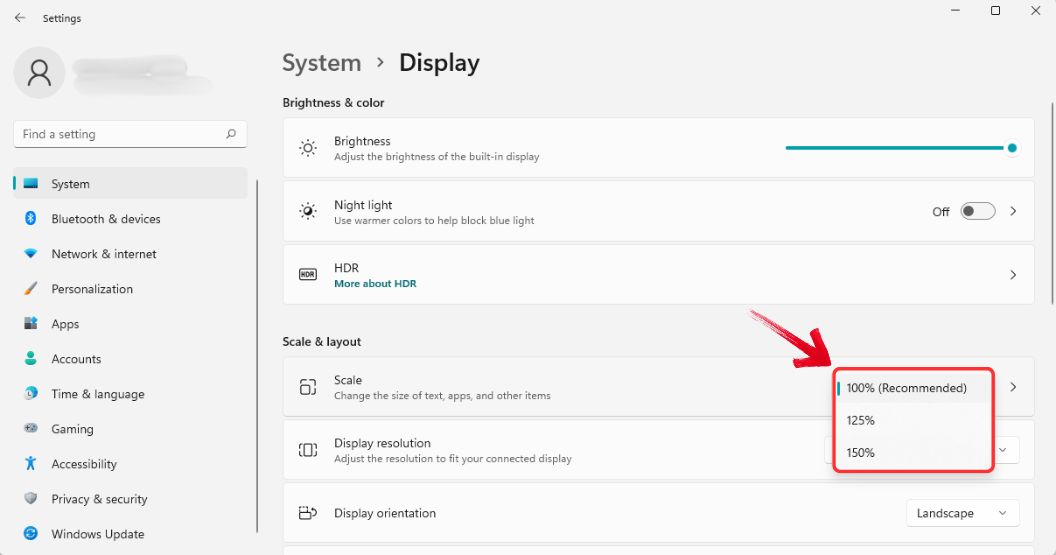
Once you’ve changed the display settings, open Excel, and you’ll notice an enlarged Ribbon along with a more magnified and visually clear interface. This effect applies system-wide, improving visibility in other applications like web browsers. If needed, you can always revert to the original settings or use the Custom Scale option for a more personalized zoom level.
Change the Size of Ribbon or Toolbar Buttons
The next method involves adjusting the Ribbon size directly within Excel, without modifying any system-wide settings. Excel provides built-in options to optimize the interface, making it easier to navigate and work efficiently. This approach is ideal if you only want to enlarge the Ribbon without affecting other applications or display settings. Now, let’s go through the steps to adjust the Ribbon size in Excel.
Step 1: Open Excel on your system and click on the “File” menu in the top-left corner.

Step 2: Click on “Options” in the left pane to open Excel Options.

Step 3: In the “General” tab in the left pane, navigate to the User Interface options section where the Ribbon optimization settings are located.
Step 4: At the top, under "When using multiple displays", you can adjust the Ribbon size for “Best appearance” or optimize it for “Compatibility”.

Step 5: Once you’ve made your selection, click “OK” and restart Excel to apply the changes.
Better Free Alternative: WPS Office
Excel is a powerful tool that has been around for ages, shaping the way data is handled and represented. With each update, it introduces new features, improving data visualization, analysis, and organization, allowing users to refine their ability to work with large datasets seamlessly.
However, Excel can be quite expensive—mainly because Microsoft believes its premium tools justify the hefty price tag. But do you really need to pay so much? With alternatives like WPS Office, you get all the essential features of Excel at a much more affordable price.
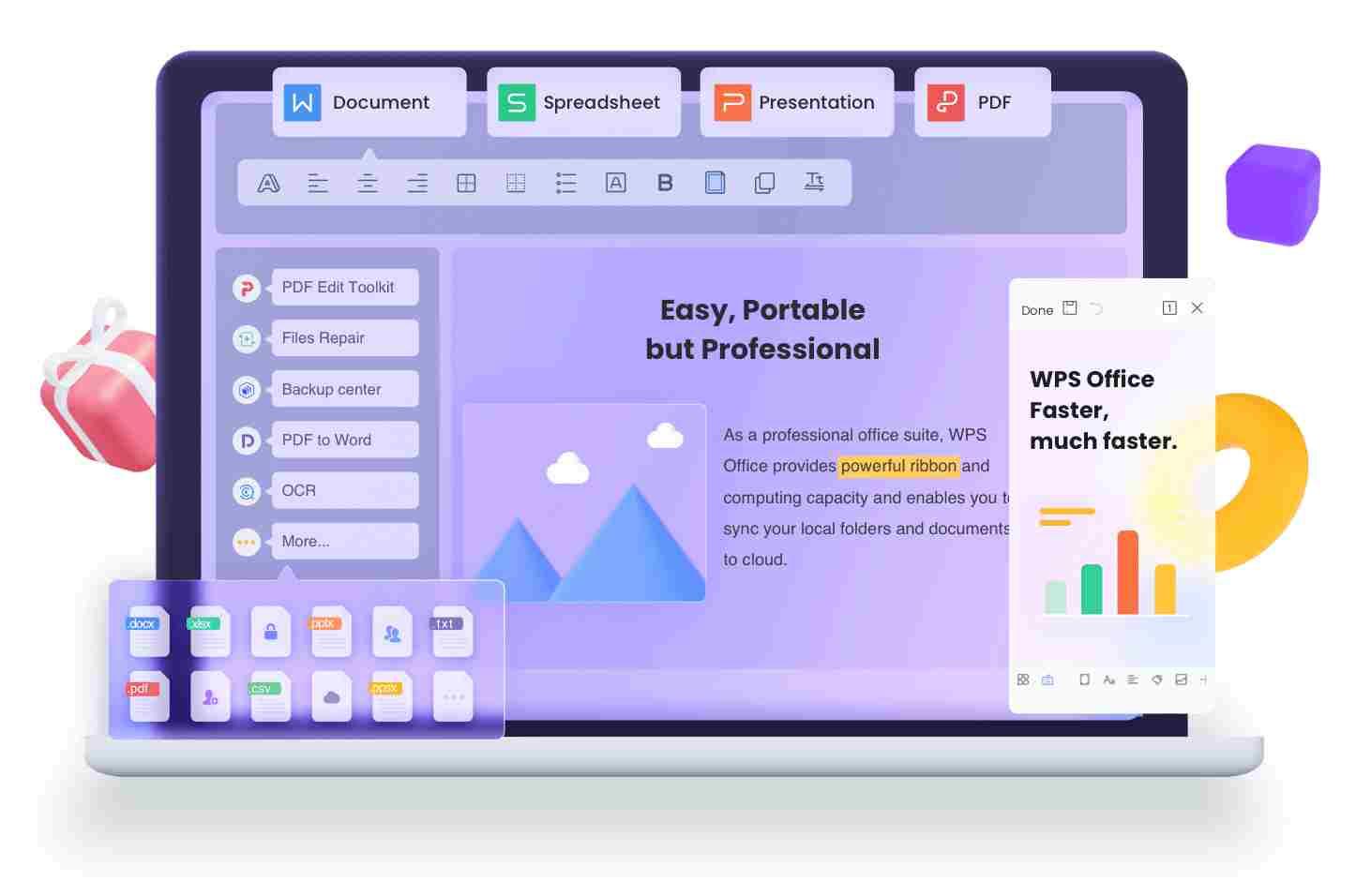
WPS Office has always positioned itself as an accessible productivity tool—not just in terms of cost but also in usability. It’s designed to be user-friendly, making it easier for anyone to work efficiently without struggling with complex interfaces. Whether you're handling spreadsheets, visualizing data, or formatting reports, WPS Office provides a seamless experience without the heavy price tag.
Modify the Ribbon Size in Earlier Versions
WPS Office has always prioritized ease of accessibility, embedding it deep within its design philosophy. Even if you’re using an older version, Ribbon optimization options have been available for years. Over time, the interface has evolved, with a few changes here and there, but the core functionality remains.
Going back to an older version to prepare this guide felt like stepping into a time machine—bringing back memories of when I first explored WPS Office’s features, appreciating how familiar yet refined it has become over the years. Here’s how to enlarge the Excel Ribbon to see it more clearly in older WPS Office versions:
Step 1: Open WPS Office on your system and navigate to “Home” within the dashboard.

Step 2: The Ribbon customization settings are available in the "Skin Center". To open Skin Center, click on the "Shirt" icon in the top-right corner of the dashboard.

Step 3: In the Skin Center window, click on the "Custom" tab and adjust the font size using the Font drop-down menu.

Step 4: The changes will be applied instantly across all WPS Office applications, enhancing visibility and accessibility for a better user experience.

Modify the Ribbon Color in the Latest Versions
With a more modern interface and improved UI/UX, WPS Office now gives you greater control over customizing your Ribbon. Features like App Skin allow you to change the Ribbon’s color, while font customization lets you select a style that suits you best.
Step 1: Open WPS Office on your system and click on the “Global Settings” icon in the top-right corner, next to the “Customer Support” icon.
Step 2: In the Global Settings drop-down menu, select “Themes” to open the WPS Office Theme Settings.

Step 3: In the Theme Settings window, navigate to the “Skin” tab to change the color of your WPS Office Ribbon.

Once you apply the changes, the new Ribbon settings will be reflected across all WPS Office applications, including Writer, Spreadsheet, Presentation, and PDF, eliminating the need to adjust each app separately.
FAQs
1. Can I enlarge the Excel ribbon without changing my entire display settings?
Yes, you can increase the size of the Excel ribbon without changing your entire display settings. This can be done through the User Interface options in Excel’s settings, where you can adjust the ribbon and toolbar size. However, the customization options within Excel are limited compared to Windows display scaling, which allows for more comprehensive adjustments.
2. Will changing the Windows display scaling affect other applications?
Yes, modifying the Windows display scaling will impact all applications on your system. It increases the size of text, icons, and other interface elements across all programs, not just Excel. While this can improve readability, it may also cause some applications to appear blurry or improperly scaled, depending on their compatibility with high-resolution settings.Using the Data tab and selecting “Clear All” is the most straightforward.
3. How to add a tab in Excel?
Adding a tab in Excel is simple. Click on the "+" icon next to the existing sheet tabs at the bottom of the window.
Intuitive Data Handling with WPS Office
The Ribbon is one of the most important parts of any productivity tool, giving you easy access to essential features. It’s designed to make navigation simple and efficient, so you can quickly find the tools you need without wasting time. However, if you’re wondering how to enlarge Excel Ribbon to see commands more clearly, there are ways to adjust it for better visibility.
WPS Office does this really well by offering a ribbon that looks and feels similar to Microsoft Office, making it easy to switch over. But beyond that, it improves accessibility by clearly organizing features, so everything is right where you need it. Whether you're formatting text, inserting charts, or using formulas, WPS Office makes mastering Excel formatting tips smoother and more intuitive.

'%3e%3cpath%20d='M19.9911%204.11386V6.471H18.5894C18.0775%206.471%2017.7322%206.57814%2017.5536%206.79243C17.3751%207.00671%2017.2858%207.32814%2017.2858%207.75671V9.44421H19.9019L19.5536%2012.0871H17.2858V18.8639H14.5536V12.0871H12.2769V9.44421H14.5536V7.49779C14.5536%206.39064%2014.8632%205.53201%2015.4822%204.92189C16.1013%204.31177%2016.9257%204.00671%2017.9554%204.00671C18.8304%204.00671%2019.509%204.04243%2019.9911%204.11386Z'%20fill='%23333333'/%3e%3c/g%3e%3cdefs%3e%3cclipPath%20id='clip0_2938_8199'%3e%3crect%20width='16'%20height='16'%20fill='white'%20transform='translate(8%204.00671)'/%3e%3c/clipPath%3e%3c/defs%3e%3c/svg%3e)
'%3e%3cpath%20d='M17.5237%2010.7813L23.4811%204H22.0699L16.8949%209.88693L12.7648%204H8L14.2469%2012.9029L8%2020.0133H9.4112L14.8725%2013.7952L19.2352%2020.0133H24M9.92053%205.04213H12.0885L22.0688%2019.0224H19.9003'%20fill='%23333333'/%3e%3c/g%3e%3cdefs%3e%3cclipPath%20id='clip0_2938_8200'%3e%3crect%20width='16'%20height='16.0134'%20fill='white'%20transform='translate(8%204)'/%3e%3c/clipPath%3e%3c/defs%3e%3c/svg%3e)


