

'%3e%3cpath%20d='M8%200C12.4183%200%2016%203.58172%2016%208C16%2012.4183%2012.4183%2016%208%2016C3.58172%2016%200%2012.4183%200%208C0%203.58172%203.58172%200%208%200ZM11.6162%204.38379C11.2257%203.99337%2010.5927%203.99338%2010.2021%204.38379L8%206.58594L5.79785%204.38379C5.40732%203.99334%204.77429%203.99329%204.38379%204.38379C3.99331%204.77429%203.99335%205.40733%204.38379%205.79785L6.58594%208L4.38379%2010.2021C3.99348%2010.5927%203.99341%2011.2257%204.38379%2011.6162C4.77426%2012.0066%205.40734%2012.0065%205.79785%2011.6162L8%209.41406L10.2021%2011.6162C10.5927%2012.0066%2011.2257%2012.0067%2011.6162%2011.6162C12.0067%2011.2257%2012.0066%2010.5927%2011.6162%2010.2021L9.41406%208L11.6162%205.79785C12.0066%205.40735%2012.0066%204.77429%2011.6162%204.38379Z'%20fill='%23080E17'%20fill-opacity='0.46'/%3e%3c/g%3e%3cdefs%3e%3cclipPath%20id='clip0_3761_713'%3e%3crect%20width='16'%20height='16'%20fill='white'/%3e%3c/clipPath%3e%3c/defs%3e%3c/svg%3e)




'%3e%3cpath%20fill-rule='evenodd'%20clip-rule='evenodd'%20d='M21.4999%2010.9993C21.4999%205.20009%2016.7986%200.498901%2010.9993%200.498901C5.19994%200.498901%200.498657%205.20009%200.498657%2010.9993C0.498657%2016.2404%204.33858%2020.5844%209.35855%2021.3722V14.0346H6.69238V10.9993H9.35855V8.68594C9.35855%206.05427%2010.9262%204.60062%2013.3248%204.60062C14.4736%204.60062%2015.6753%204.80571%2015.6753%204.80571V7.38979H14.3512C13.0468%207.38979%2012.64%208.19921%2012.64%209.0296V10.9993H15.5523L15.0867%2014.0346H12.64V21.3722C17.66%2020.5844%2021.4999%2016.2404%2021.4999%2010.9993Z'%20fill='%231568EA'/%3e%3c/g%3e%3c/svg%3e)


'%3e%3cpath%20d='M2.42045%2022.1876H6.31818V12.7217L0.75%208.54553V20.5171C0.75%2021.4414%201.49892%2022.1876%202.42045%2022.1876Z'%20fill='%234285F4'/%3e%3cpath%20d='M19.682%2022.1876H23.5797C24.5041%2022.1876%2025.2502%2021.4387%2025.2502%2020.5171V8.54553L19.682%2012.7217'%20fill='%2334A853'/%3e%3cpath%20d='M19.682%205.48293V12.7216L25.2502%208.54543V6.31816C25.2502%204.25236%2022.8921%203.07469%2021.2411%204.31361'%20fill='%23FBBC04'/%3e%3cpath%20d='M6.31824%2012.7217V5.48303L13.0001%2010.4944L19.6819%205.48303V12.7217L13.0001%2017.733'%20fill='%23EA4335'/%3e%3cpath%20d='M0.75%206.31816V8.54543L6.31818%2012.7216V5.48293L4.75909%204.31361C3.10534%203.07469%200.75%204.25236%200.75%206.31816Z'%20fill='%23C5221F'/%3e%3c/g%3e%3cdefs%3e%3cclipPath%20id='clip0_2954_7305'%3e%3crect%20width='24.5'%20height='18.375'%20fill='white'%20transform='translate(0.75%203.8125)'/%3e%3c/clipPath%3e%3c/defs%3e%3c/svg%3e)


How to Make a Donut Chart: When to Use It Instead of a Pie Chart
A donut chart is a pie chart with its center removed. That single change does more than refresh the look: the hollow middle becomes a home for a total or a key number, and the ring makes short category arcs easier to compare at a glance. Used well, it is one of the fastest ways to show how a few parts add up to a whole.
This guide explains what a donut chart is, how it differs from a pie chart, when each one is the better pick, and how to make a donut chart step by step in WPS Spreadsheet. If you mainly build presentations, the same logic applies there too.
How to Make a Donut Chart: When to Use It Instead of a Pie Chart
What Is a Donut Chart?
A donut chart (often spelled doughnut chart) shows parts of a whole as colored segments of a ring. Each segment's arc length matches its share of the total, just like a pie slice. The difference is the empty circle in the middle, which you can leave blank or fill with a summary number such as total revenue, total votes, or the headline percentage.
Because the eye compares arc length and position along the ring rather than angles at one point, many readers find a donut slightly easier to read than a pie, especially when one segment clearly dominates. The center KPI also saves you a separate text box: the chart and its headline number become one object.
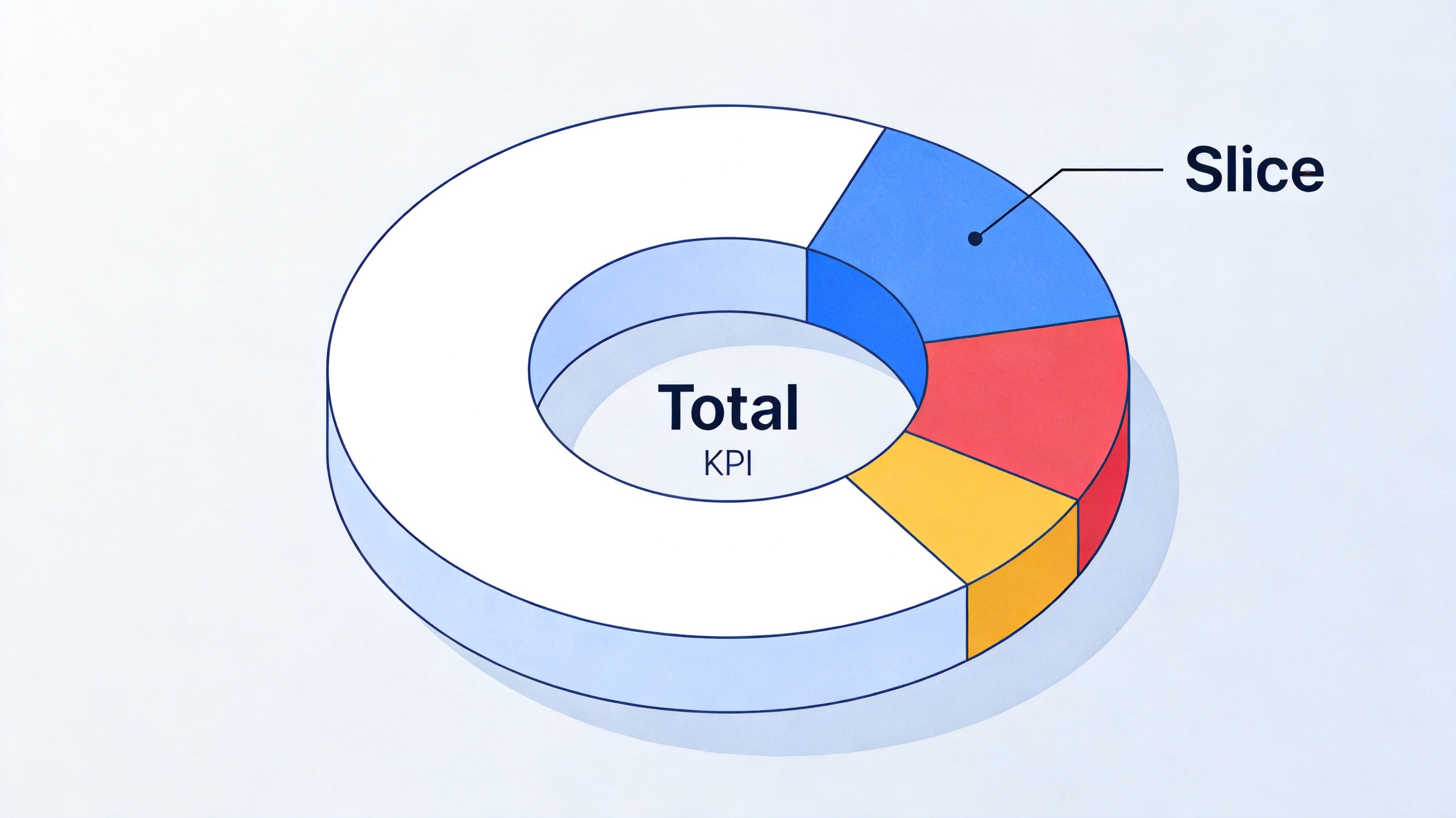
Donut chart with center KPI


Donut Chart vs Pie Chart: Key Differences
Both charts do the same job: split a whole into a few parts. The practical differences are structural. A pie chart is a solid circle, so every slice is read as an angle from the center. A donut chart pushes the data outward into a ring, which frees the center for a label and slightly improves arc comparison. For a full walkthrough of the pie side, see how to make a pie chart in Excel.
| Feature | Pie chart | Donut chart |
|---|---|---|
| Shape | Full circle | Ring with hollow center |
| Center space | None | Holds a total, KPI, or label |
| Recommended categories | 2 to 6 | 2 to 5 |
| Reading style | Judges slice angles | Compares arc lengths around the ring |
| Best fit | Simple share of total, printed reports | Dashboards, KPI callouts, modern layouts |
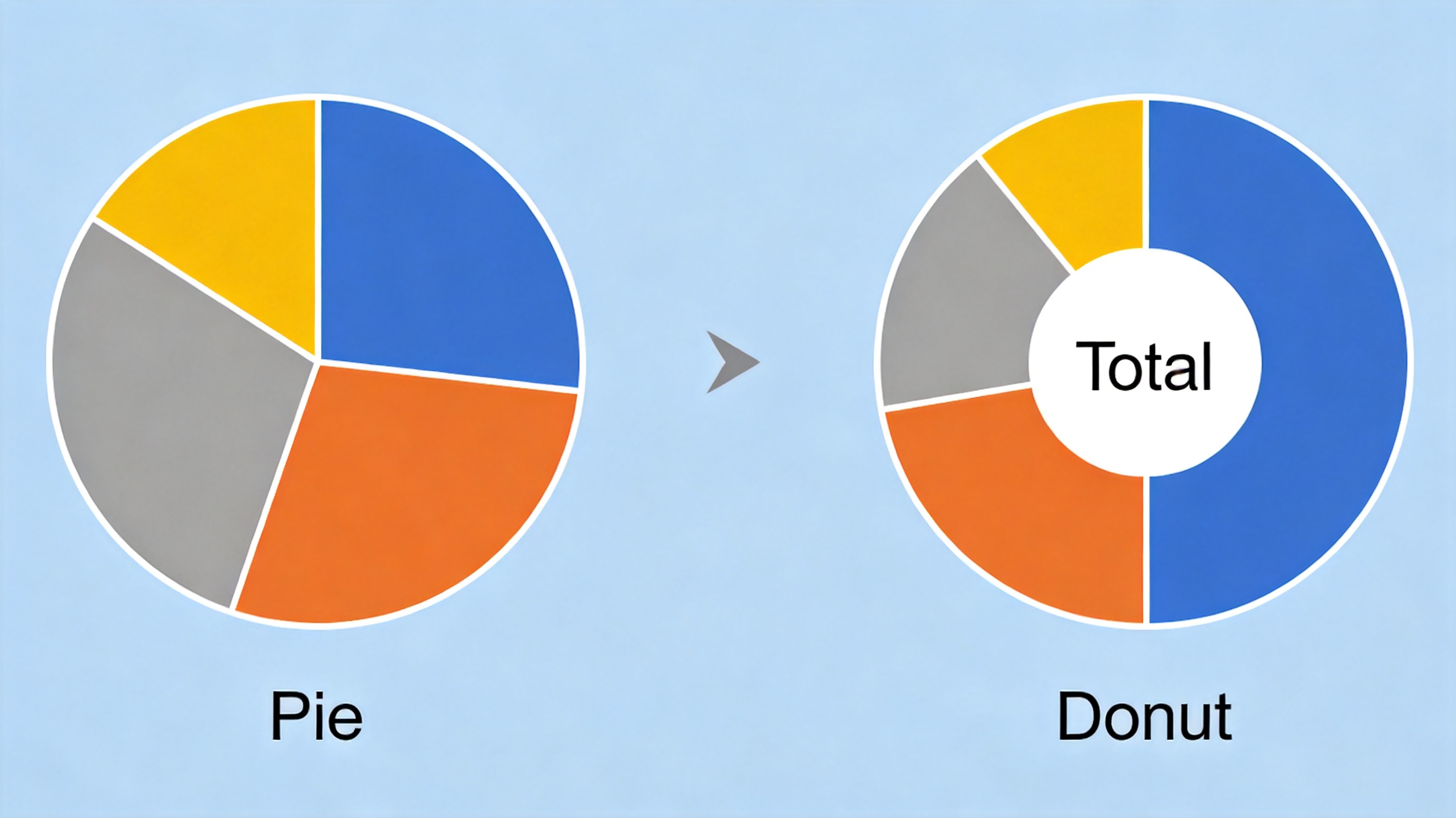
Pie chart versus donut chart
When to Use a Donut Chart
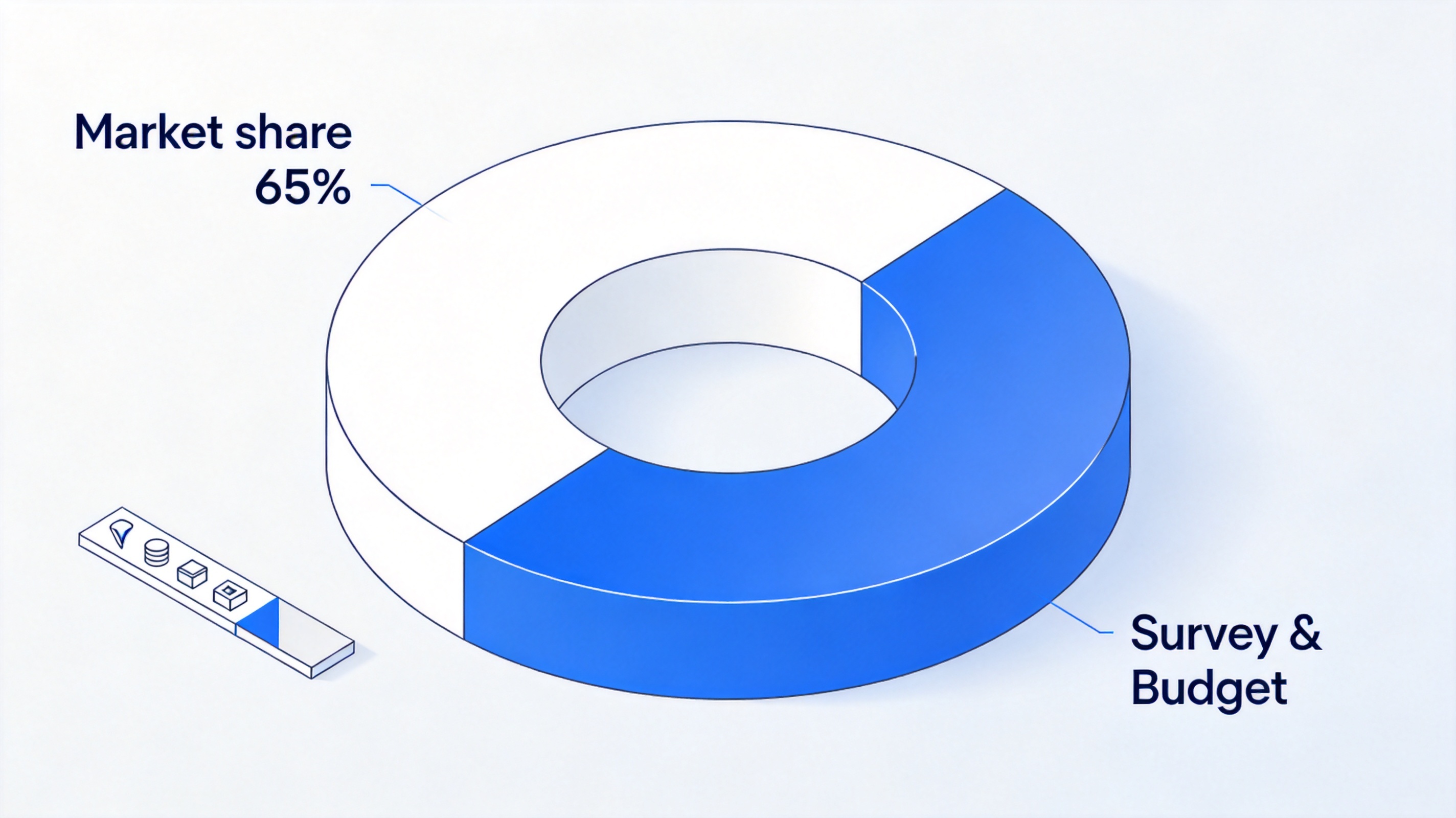
Reach for a donut chart when three conditions hold. First, you have a small number of categories — two to five works best, since many thin arcs become hard to tell apart. Second, the parts genuinely sum to one whole, such as market share, budget allocation, or survey answers. Third, you want the center to carry a headline number.
Typical examples include a market-share ring where your company's dominant share sits in the center, a survey result showing the yes share, or a budget split by department. If your values are close to each other (say 24% versus 26%) or you have more than five categories, a bar chart communicates the differences more accurately — see how to make a pie chart in PowerPoint for the presentation-focused counterpart.
Donut chart for market share
How to Make a Donut Chart in WPS Spreadsheet
WPS Spreadsheet follows the same chart-insertion flow as Excel, so the steps below translate directly if you work in either app.
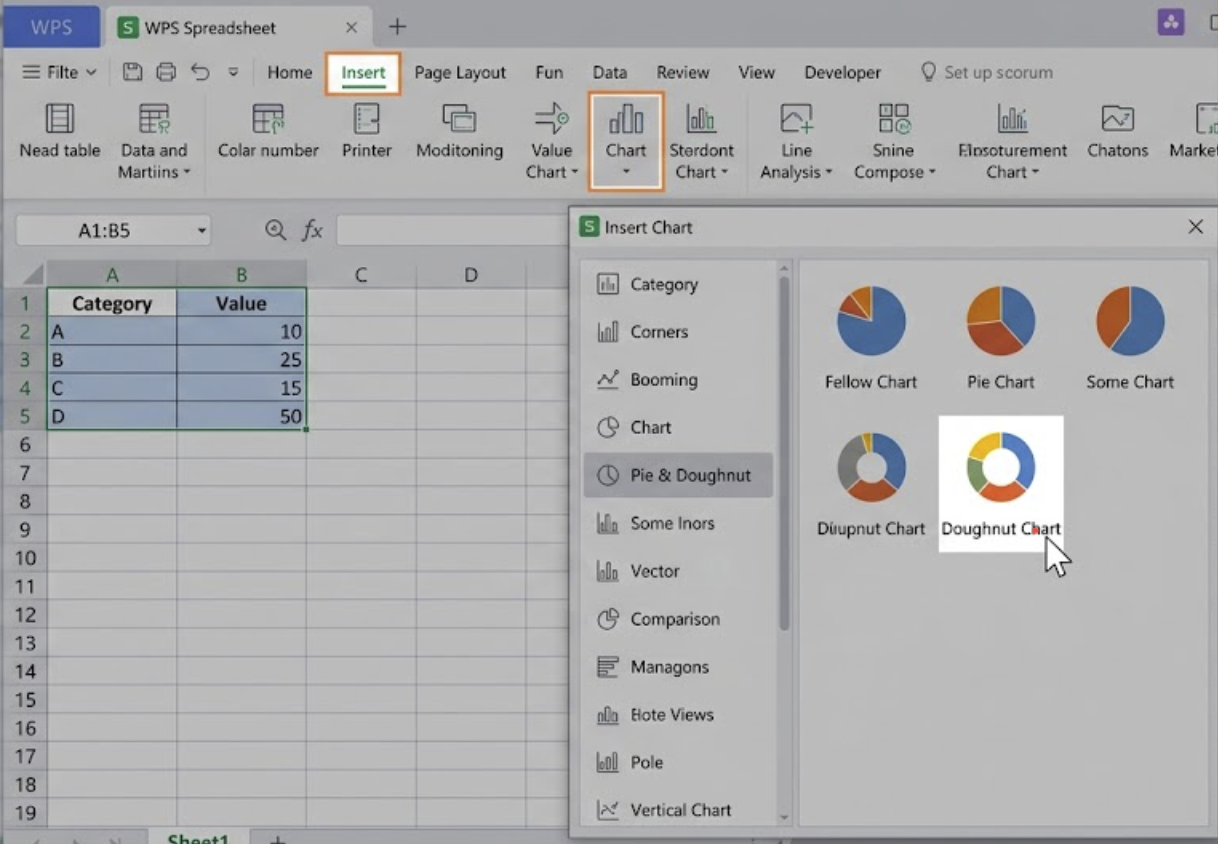
Enter your data — put categories in one column and their values in the next, one row per category.
Select the range — include the header row so the chart picks up the legend text automatically.
Open the chart menu — go to Insert > Chart, then choose the Doughnut chart type from the gal
Confirm the preview — the dialog shows a live doughnut preview of your selected data; click Insert (or OK) to place the chart on the sheet.
Add the center total — insert a text box, place it over the hollow center, and link or type the total value.
Polish the details — add data labels with percentages, adjust the hole size, and restyle colors from the chart tools. The object-level workflow is the same one described in how to format elements of a chart.
The Best Free Alternative: WPS Office for Donut Charts
You do not need a paid Microsoft subscription to build clean donut charts. WPS Office bundles Writer, Spreadsheet, Presentation, and PDF tools in one free download, with a familiar ribbon layout and full support for .xlsx, .pptx, and .docx files, so any donut chart you create opens without conversion issues.
WPS Office
FAQs
1. What is the difference between a donut chart and a pie chart?
A donut chart is a pie chart with a hollow center. The ring shape lets you place a total or key metric in the middle, and many readers find the arcs slightly easier to compare than pie slice angles.
2. How many categories should a donut chart have?
Two to five is the comfortable range. With more than five segments, the smaller arcs become hard to distinguish, and a bar chart is usually the better choice.
3. Can I make a donut chart in Excel?
Yes. Select your data, go to Insert > Insert Pie or Doughnut Chart, and pick the doughnut option. The steps in WPS Spreadsheet are nearly identical.
4. What should I put in the center of a donut chart?
The most useful choice is the number the whole ring sums to, such as total sales, total responses, or the single headline percentage you want readers to remember.
5. Is a donut chart better than a pie chart?
Neither is universally better. Use a pie chart for simple printed reports with up to six categories, and a donut chart when you want a center KPI or a more modern dashboard look. For precise value comparison, prefer a bar chart.


'%3e%3cpath%20d='M19.9911%204.11386V6.471H18.5894C18.0775%206.471%2017.7322%206.57814%2017.5536%206.79243C17.3751%207.00671%2017.2858%207.32814%2017.2858%207.75671V9.44421H19.9019L19.5536%2012.0871H17.2858V18.8639H14.5536V12.0871H12.2769V9.44421H14.5536V7.49779C14.5536%206.39064%2014.8632%205.53201%2015.4822%204.92189C16.1013%204.31177%2016.9257%204.00671%2017.9554%204.00671C18.8304%204.00671%2019.509%204.04243%2019.9911%204.11386Z'%20fill='%23333333'/%3e%3c/g%3e%3cdefs%3e%3cclipPath%20id='clip0_2938_8199'%3e%3crect%20width='16'%20height='16'%20fill='white'%20transform='translate(8%204.00671)'/%3e%3c/clipPath%3e%3c/defs%3e%3c/svg%3e)
'%3e%3cpath%20d='M17.5237%2010.7813L23.4811%204H22.0699L16.8949%209.88693L12.7648%204H8L14.2469%2012.9029L8%2020.0133H9.4112L14.8725%2013.7952L19.2352%2020.0133H24M9.92053%205.04213H12.0885L22.0688%2019.0224H19.9003'%20fill='%23333333'/%3e%3c/g%3e%3cdefs%3e%3cclipPath%20id='clip0_2938_8200'%3e%3crect%20width='16'%20height='16.0134'%20fill='white'%20transform='translate(8%204)'/%3e%3c/clipPath%3e%3c/defs%3e%3c/svg%3e)


