

'%3e%3cpath%20d='M8%200C12.4183%200%2016%203.58172%2016%208C16%2012.4183%2012.4183%2016%208%2016C3.58172%2016%200%2012.4183%200%208C0%203.58172%203.58172%200%208%200ZM11.6162%204.38379C11.2257%203.99337%2010.5927%203.99338%2010.2021%204.38379L8%206.58594L5.79785%204.38379C5.40732%203.99334%204.77429%203.99329%204.38379%204.38379C3.99331%204.77429%203.99335%205.40733%204.38379%205.79785L6.58594%208L4.38379%2010.2021C3.99348%2010.5927%203.99341%2011.2257%204.38379%2011.6162C4.77426%2012.0066%205.40734%2012.0065%205.79785%2011.6162L8%209.41406L10.2021%2011.6162C10.5927%2012.0066%2011.2257%2012.0067%2011.6162%2011.6162C12.0067%2011.2257%2012.0066%2010.5927%2011.6162%2010.2021L9.41406%208L11.6162%205.79785C12.0066%205.40735%2012.0066%204.77429%2011.6162%204.38379Z'%20fill='%23080E17'%20fill-opacity='0.46'/%3e%3c/g%3e%3cdefs%3e%3cclipPath%20id='clip0_3761_713'%3e%3crect%20width='16'%20height='16'%20fill='white'/%3e%3c/clipPath%3e%3c/defs%3e%3c/svg%3e)




'%3e%3cpath%20fill-rule='evenodd'%20clip-rule='evenodd'%20d='M21.4999%2010.9993C21.4999%205.20009%2016.7986%200.498901%2010.9993%200.498901C5.19994%200.498901%200.498657%205.20009%200.498657%2010.9993C0.498657%2016.2404%204.33858%2020.5844%209.35855%2021.3722V14.0346H6.69238V10.9993H9.35855V8.68594C9.35855%206.05427%2010.9262%204.60062%2013.3248%204.60062C14.4736%204.60062%2015.6753%204.80571%2015.6753%204.80571V7.38979H14.3512C13.0468%207.38979%2012.64%208.19921%2012.64%209.0296V10.9993H15.5523L15.0867%2014.0346H12.64V21.3722C17.66%2020.5844%2021.4999%2016.2404%2021.4999%2010.9993Z'%20fill='%231568EA'/%3e%3c/g%3e%3c/svg%3e)


'%3e%3cpath%20d='M2.42045%2022.1876H6.31818V12.7217L0.75%208.54553V20.5171C0.75%2021.4414%201.49892%2022.1876%202.42045%2022.1876Z'%20fill='%234285F4'/%3e%3cpath%20d='M19.682%2022.1876H23.5797C24.5041%2022.1876%2025.2502%2021.4387%2025.2502%2020.5171V8.54553L19.682%2012.7217'%20fill='%2334A853'/%3e%3cpath%20d='M19.682%205.48293V12.7216L25.2502%208.54543V6.31816C25.2502%204.25236%2022.8921%203.07469%2021.2411%204.31361'%20fill='%23FBBC04'/%3e%3cpath%20d='M6.31824%2012.7217V5.48303L13.0001%2010.4944L19.6819%205.48303V12.7217L13.0001%2017.733'%20fill='%23EA4335'/%3e%3cpath%20d='M0.75%206.31816V8.54543L6.31818%2012.7216V5.48293L4.75909%204.31361C3.10534%203.07469%200.75%204.25236%200.75%206.31816Z'%20fill='%23C5221F'/%3e%3c/g%3e%3cdefs%3e%3cclipPath%20id='clip0_2954_7305'%3e%3crect%20width='24.5'%20height='18.375'%20fill='white'%20transform='translate(0.75%203.8125)'/%3e%3c/clipPath%3e%3c/defs%3e%3c/svg%3e)


When a customer wants to buy from you without a storefront checkout, you need a simple document that captures what they ordered, how much it costs, and who is buying. That document is an order form, and a spreadsheet is the fastest way to build one. In this guide, you will learn how to create an order form in Excel step by step — from laying out the columns to adding drop-down lists, automatic totals, and saving it as a reusable template.
How to Create an Order Form in Excel (Step-by-Step Guide)
What Is an Order Form and What Should It Include?
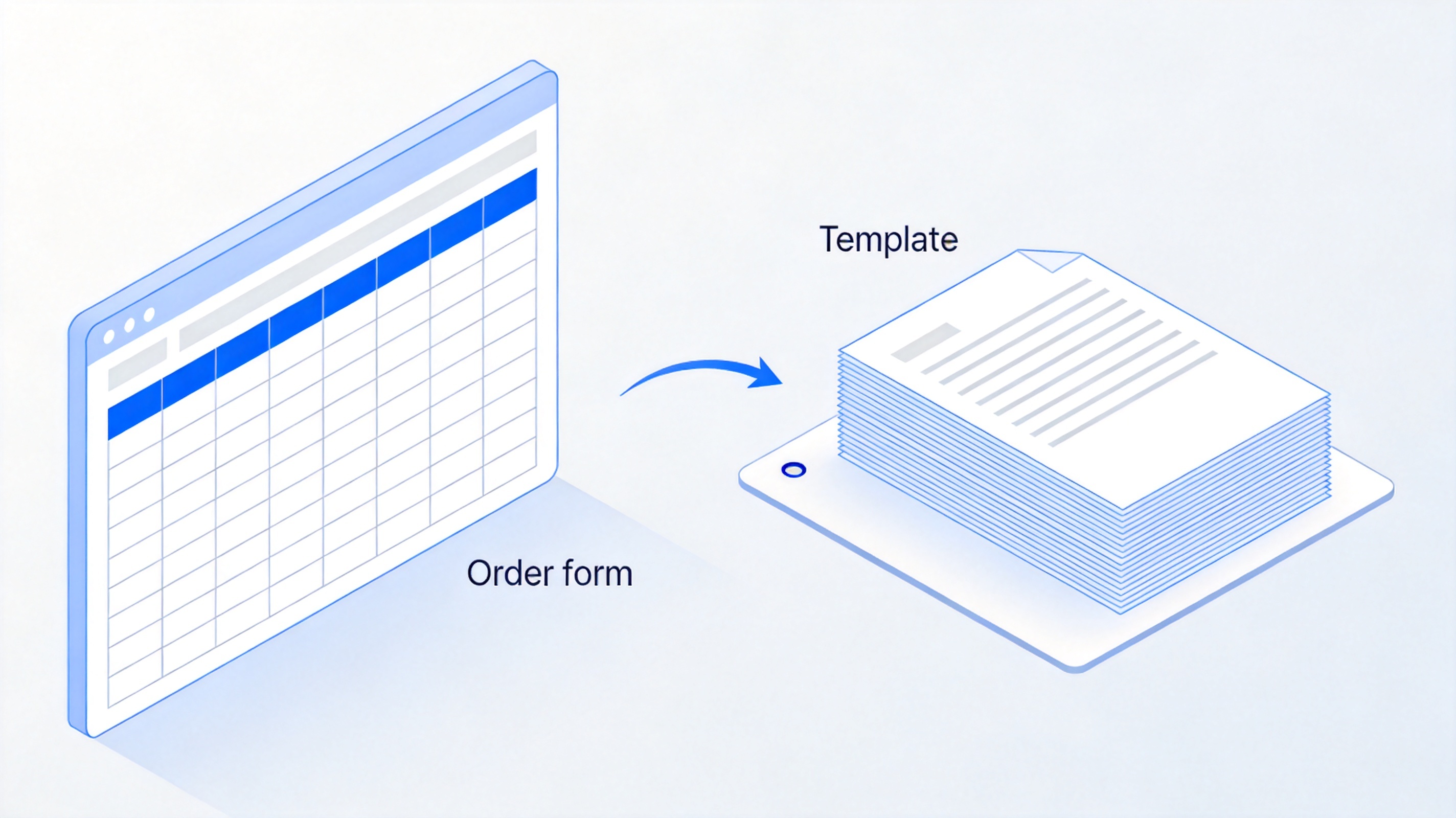
An order form is a structured document a buyer fills in to request products or services. For a small business, it replaces back-and-forth emails with one standardized record: the buyer's details, the items ordered, quantities, prices, and the amount due.
A practical order form usually contains three groups of fields:
Customer information — name, phone or email, and delivery address.
Order details — item name or SKU, quantity, and unit price, one row per product.
Financial summary — subtotal, discounts or tax if applicable, and the total due.
Keep only the fields you actually use. Every extra field adds friction for the customer and cleanup work for you. Once the field list is clear, building the form in a spreadsheet takes minutes.

Order form essential fields overview


How to Create an Order Form in Excel: Main Steps
This is the core workflow for building an order form in Excel. The same steps work in WPS Spreadsheet and Google Sheets, because the layout and formulas are identical.
Set up the header area. In rows 1–4, type your business name, the words Order Form, an order number, and the date. Merge a few cells above the table for a clean title bar.
Create the item table. In row 6, type the column headers: Item, Qty, Unit Price, Line Total. Leave 10–15 empty rows below for products.
Add the customer fields. Above or beside the table, add labeled cells for Customer Name, Email, Phone, and Delivery Address.
Add the summary rows. Below the table, add Subtotal, Tax, and Total Due labels in the last two columns.
Format for printing. Select the table, add borders, bold the headers, and set the print area so the form fits one page.
At this point the skeleton of your Excel order form is done. The next two sections make it easier to fill in and harder to get wrong.
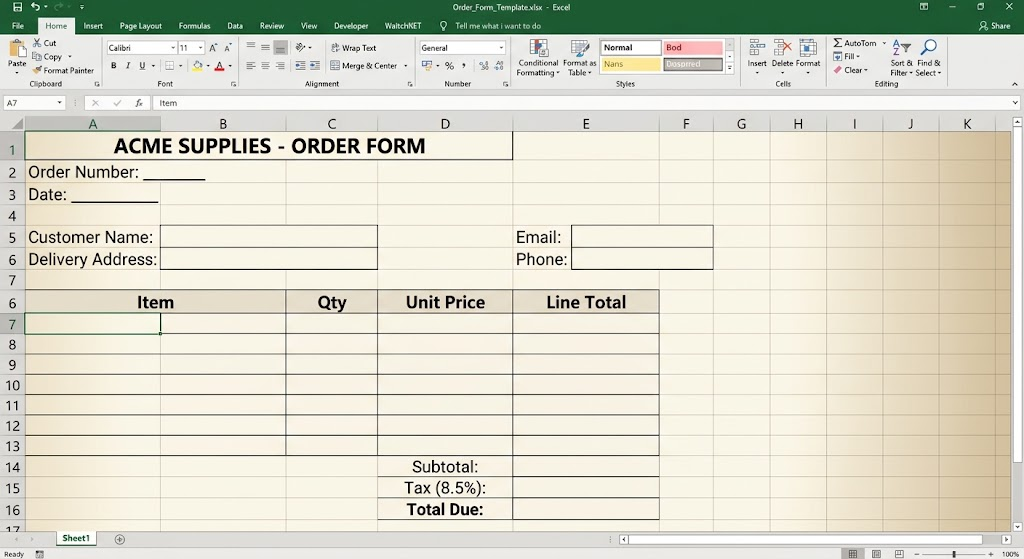
Building order form columns in Excel
Add a Drop-Down List and Data Validation to Your Order Form
Manual entry is where order forms go wrong — misspelled product names make totals and reports unreliable. Data validation fixes this by restricting what can be typed into a cell.
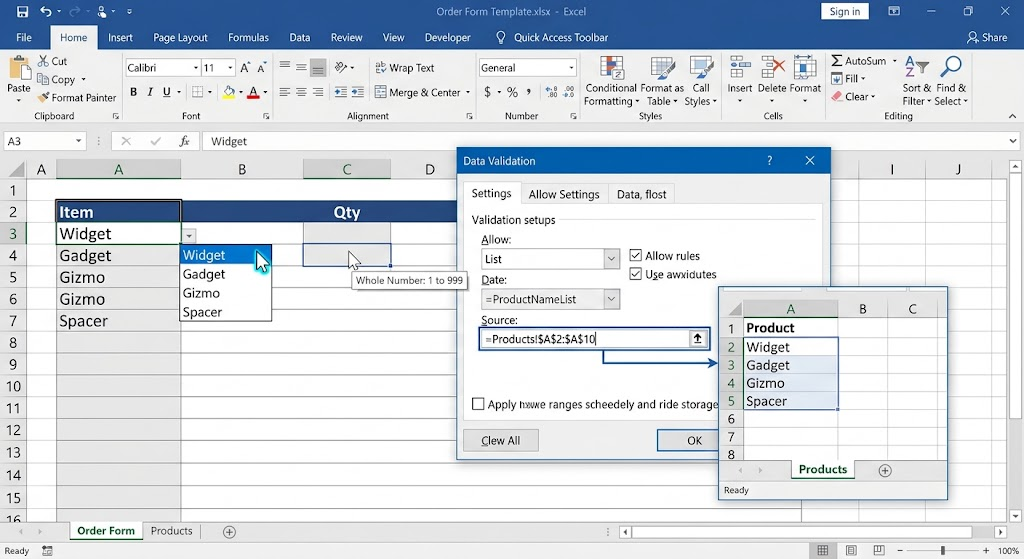
List your products. On a second sheet named Products, type each product name and its current price in two columns.
Select the Item column in your order form where customers choose products.
Open data validation. Go to the Data tab and click Data Validation.
Choose List in the Allow box, then point the Source at your product names on the Products sheet, or type them separated by commas.
Add quantity rules. For the Qty column, set a whole number between 1 and 999 so negative or text entries are rejected.
Now the person filling in the form picks products from a drop-down list instead of typing them, which keeps every order consistent. If you later want to clean up or edit these lists, see this guide on how to remove a drop-down list in Excel.
Auto-Calculate Totals in Your Order Form
The biggest advantage of a spreadsheet order form is that math happens automatically. You only need two formulas.
Calculate each line. In the first Line Total cell, enter =Qty*Unit Price (for example =B7*C7), then drag the fill handle down for all item rows.
Sum the subtotal. In the Subtotal cell, enter =SUM(D7:D20), covering the whole Line Total column.
Add tax if needed. In the Tax cell, enter =Subtotal*8.5% — replace the rate with your local rate.
Compute the total due. In the Total Due cell, enter =Subtotal+Tax.
To hide zeros on empty rows, wrap the line formula as =IF(B7="","",B7*C7), so the form looks clean before any products are added. Prices update themselves the moment a customer changes a quantity, and the same approach powers most free invoice templates you will find online.
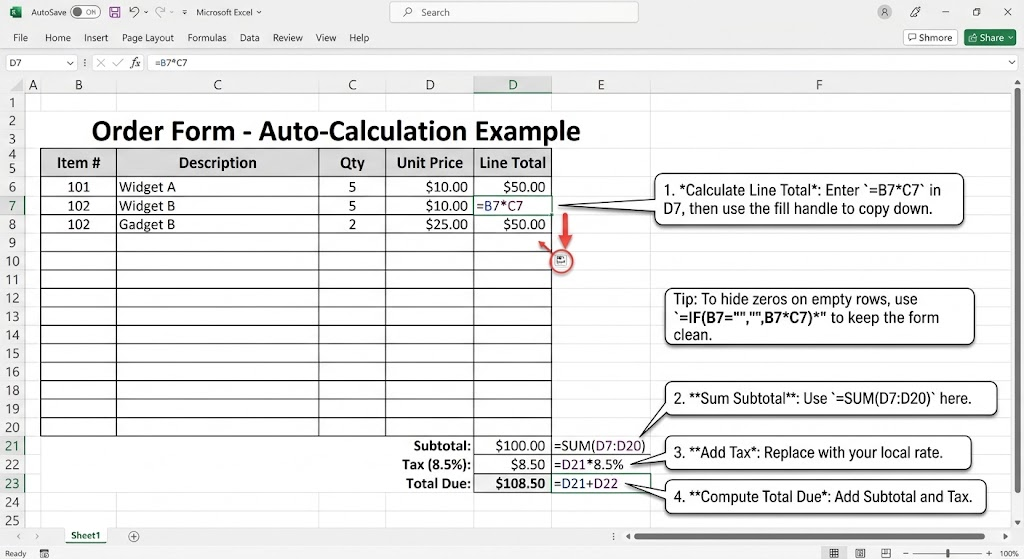
Auto calculate order total formula
Turn Your Order Form into a Reusable Template
Once the form works, save it as a template so every new order starts from a blank, protected copy instead of a used one.
Clear the sample data. Delete the item rows you typed while testing, but keep the headers, formulas, and drop-down lists.
Save as a template file. Go to File > Save As and choose the Excel template format, or simply save a master copy named Order-Form-Master and duplicate it for each new order.
Lock the formulas. Select the cells customers fill in, open Format Cells > Protection and uncheck Locked, then protect the sheet. Editing is now limited to the input cells.
Keep a product sheet in sync. Update prices on the Products sheet rather than in the form itself, so the template stays accurate.
With a template in place, creating a new order takes under a minute: duplicate the file, fill the drop-downs, and the totals calculate themselves.
Saving order form as reusable template
The Best Free Alternative: WPS Office for Order Forms
You do not need a paid Microsoft 365 subscription to do any of the above. WPS Office is a free office suite whose Spreadsheet app opens and edits .xlsx files with full support for the features used in this guide — drop-down lists, data validation, SUM formulas, cell protection, and PDF export.
The workflow is identical: set up the header, build the item table, add validation, and let formulas handle the totals. WPS also includes thousands of ready-made spreadsheet templates, including sales order forms, so you can start from a designed layout instead of a blank grid. If you already received Excel order forms from customers, WPS opens them directly with formatting intact.

WPS Spreadsheet interface
FAQs
1. Can I create an order form in Excel for free?
Yes. Every feature in this guide — tables, data validation, formulas, and templates — works in free office suites such as WPS Office, so you never need a paid subscription to build an order form in Excel.
2. How do I add more products to my order form later?
Add new rows inside the item table and extend the drop-down Source range or the product list on the Products sheet. Keep the SUM range wider than your current rows so new items are counted automatically.
3. Can customers fill in an Excel order form digitally?
Yes. Protect the sheet so only input cells are editable, then send the .xlsx file by email. Customers fill it in any spreadsheet app and send it back, or you can export it to PDF for printing.
4. How do I prevent formula errors in my order form?
Use data validation to restrict quantities to whole numbers, wrap line totals in an IF formula that checks for empty rows, and protect the formula cells so they cannot be overwritten by accident.
5. What is the difference between an order form and an invoice?
An order form is filled in by the buyer before payment to request goods, while an invoice is issued by the seller after the order to request payment. Many businesses generate the invoice directly from the completed order form.


'%3e%3cpath%20d='M19.9911%204.11386V6.471H18.5894C18.0775%206.471%2017.7322%206.57814%2017.5536%206.79243C17.3751%207.00671%2017.2858%207.32814%2017.2858%207.75671V9.44421H19.9019L19.5536%2012.0871H17.2858V18.8639H14.5536V12.0871H12.2769V9.44421H14.5536V7.49779C14.5536%206.39064%2014.8632%205.53201%2015.4822%204.92189C16.1013%204.31177%2016.9257%204.00671%2017.9554%204.00671C18.8304%204.00671%2019.509%204.04243%2019.9911%204.11386Z'%20fill='%23333333'/%3e%3c/g%3e%3cdefs%3e%3cclipPath%20id='clip0_2938_8199'%3e%3crect%20width='16'%20height='16'%20fill='white'%20transform='translate(8%204.00671)'/%3e%3c/clipPath%3e%3c/defs%3e%3c/svg%3e)
'%3e%3cpath%20d='M17.5237%2010.7813L23.4811%204H22.0699L16.8949%209.88693L12.7648%204H8L14.2469%2012.9029L8%2020.0133H9.4112L14.8725%2013.7952L19.2352%2020.0133H24M9.92053%205.04213H12.0885L22.0688%2019.0224H19.9003'%20fill='%23333333'/%3e%3c/g%3e%3cdefs%3e%3cclipPath%20id='clip0_2938_8200'%3e%3crect%20width='16'%20height='16.0134'%20fill='white'%20transform='translate(8%204)'/%3e%3c/clipPath%3e%3c/defs%3e%3c/svg%3e)


