

'%3e%3cpath%20d='M8%200C12.4183%200%2016%203.58172%2016%208C16%2012.4183%2012.4183%2016%208%2016C3.58172%2016%200%2012.4183%200%208C0%203.58172%203.58172%200%208%200ZM11.6162%204.38379C11.2257%203.99337%2010.5927%203.99338%2010.2021%204.38379L8%206.58594L5.79785%204.38379C5.40732%203.99334%204.77429%203.99329%204.38379%204.38379C3.99331%204.77429%203.99335%205.40733%204.38379%205.79785L6.58594%208L4.38379%2010.2021C3.99348%2010.5927%203.99341%2011.2257%204.38379%2011.6162C4.77426%2012.0066%205.40734%2012.0065%205.79785%2011.6162L8%209.41406L10.2021%2011.6162C10.5927%2012.0066%2011.2257%2012.0067%2011.6162%2011.6162C12.0067%2011.2257%2012.0066%2010.5927%2011.6162%2010.2021L9.41406%208L11.6162%205.79785C12.0066%205.40735%2012.0066%204.77429%2011.6162%204.38379Z'%20fill='%23080E17'%20fill-opacity='0.46'/%3e%3c/g%3e%3cdefs%3e%3cclipPath%20id='clip0_3761_713'%3e%3crect%20width='16'%20height='16'%20fill='white'/%3e%3c/clipPath%3e%3c/defs%3e%3c/svg%3e)




'%3e%3cpath%20fill-rule='evenodd'%20clip-rule='evenodd'%20d='M21.4999%2010.9993C21.4999%205.20009%2016.7986%200.498901%2010.9993%200.498901C5.19994%200.498901%200.498657%205.20009%200.498657%2010.9993C0.498657%2016.2404%204.33858%2020.5844%209.35855%2021.3722V14.0346H6.69238V10.9993H9.35855V8.68594C9.35855%206.05427%2010.9262%204.60062%2013.3248%204.60062C14.4736%204.60062%2015.6753%204.80571%2015.6753%204.80571V7.38979H14.3512C13.0468%207.38979%2012.64%208.19921%2012.64%209.0296V10.9993H15.5523L15.0867%2014.0346H12.64V21.3722C17.66%2020.5844%2021.4999%2016.2404%2021.4999%2010.9993Z'%20fill='%231568EA'/%3e%3c/g%3e%3c/svg%3e)


'%3e%3cpath%20d='M2.42045%2022.1876H6.31818V12.7217L0.75%208.54553V20.5171C0.75%2021.4414%201.49892%2022.1876%202.42045%2022.1876Z'%20fill='%234285F4'/%3e%3cpath%20d='M19.682%2022.1876H23.5797C24.5041%2022.1876%2025.2502%2021.4387%2025.2502%2020.5171V8.54553L19.682%2012.7217'%20fill='%2334A853'/%3e%3cpath%20d='M19.682%205.48293V12.7216L25.2502%208.54543V6.31816C25.2502%204.25236%2022.8921%203.07469%2021.2411%204.31361'%20fill='%23FBBC04'/%3e%3cpath%20d='M6.31824%2012.7217V5.48303L13.0001%2010.4944L19.6819%205.48303V12.7217L13.0001%2017.733'%20fill='%23EA4335'/%3e%3cpath%20d='M0.75%206.31816V8.54543L6.31818%2012.7216V5.48293L4.75909%204.31361C3.10534%203.07469%200.75%204.25236%200.75%206.31816Z'%20fill='%23C5221F'/%3e%3c/g%3e%3cdefs%3e%3cclipPath%20id='clip0_2954_7305'%3e%3crect%20width='24.5'%20height='18.375'%20fill='white'%20transform='translate(0.75%203.8125)'/%3e%3c/clipPath%3e%3c/defs%3e%3c/svg%3e)


Counting a till at the end of a shift means answering one question: how many of each note and coin make up this total? A short spreadsheet does it exactly, with no manual trial and error, and shows the leftover amount after every denomination so you can see the maths is right.
Cash Denomination Calculator in Excel: Count Bills and Coins
Set Up the Denomination Table
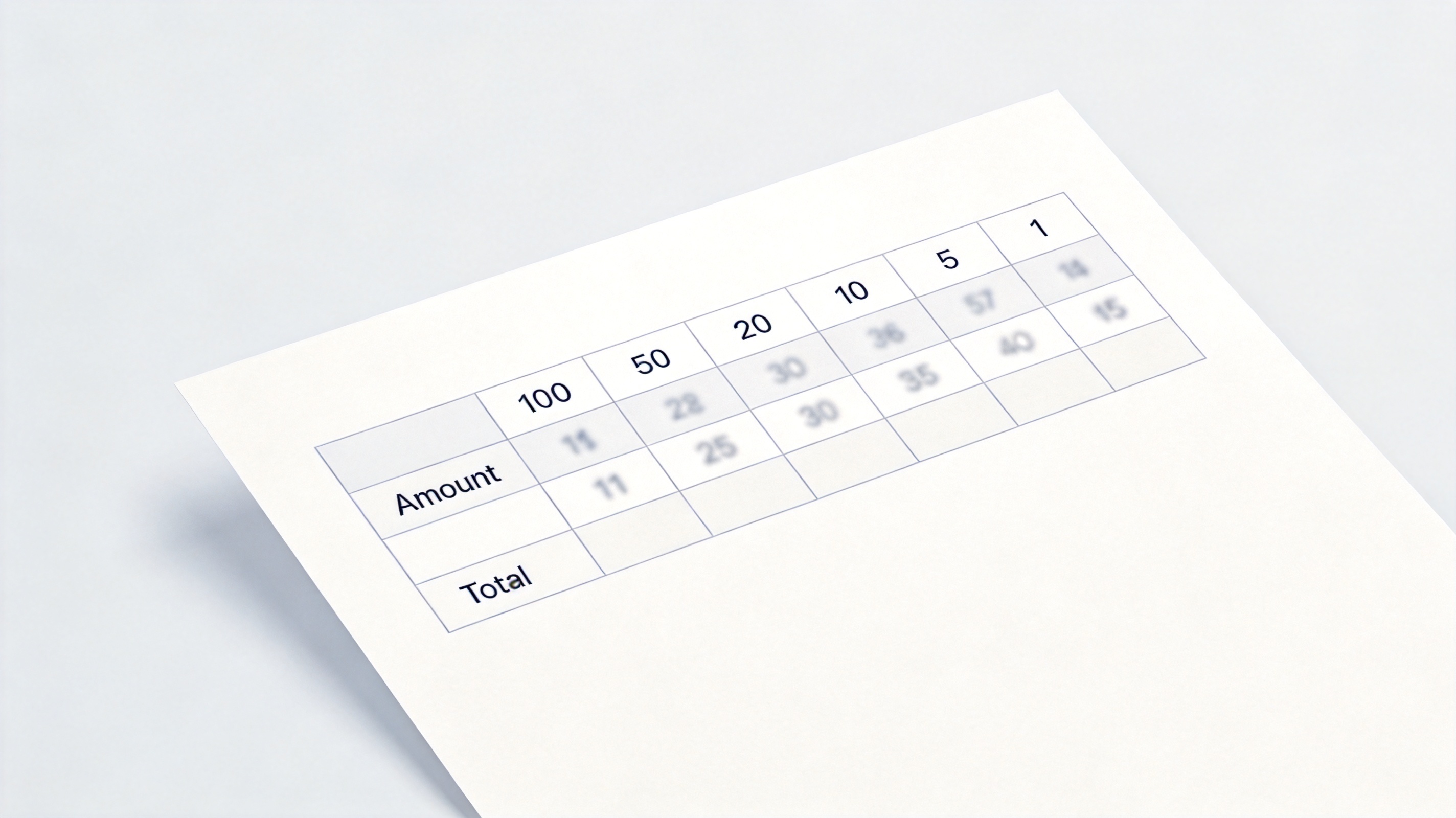
Lay the sheet out so each denomination gets its own column heading, from the largest note down to the smallest coin.
In row 3, type the denominations in descending order: 100, 50, 20, 10, 5, 1.
In column A, put a label such as Amount on row 4 and the cash total in cells A5 downward.
Leave the cells under each denomination empty — the formula fills them with counts.
Add a final Total column that adds the value of every count back together.
Denomination table layout in a spreadsheet


Count Each Denomination with INT and SUM
The trick is to subtract the value you have already allocated before moving to the next, smaller denomination.
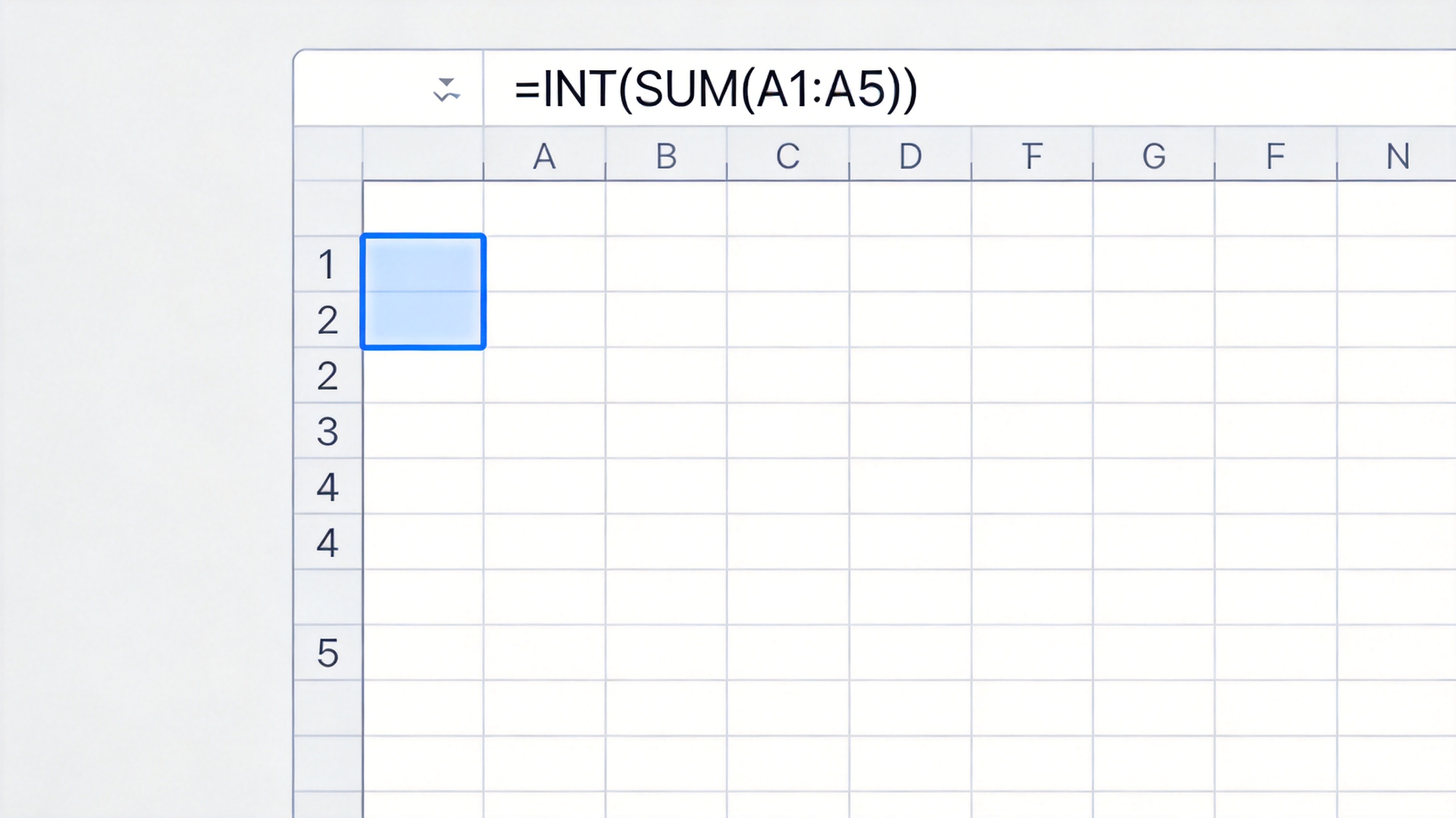
In the first denomination cell (B4, under 100) use =INT($A4/B$3). INT drops the decimals, so 286 divided by 100 returns 2.
In the next cell (C4, under 50) use =INT(($A4-SUMPRODUCT($B$3:B$3,$B4:B4))/C$3). This subtracts the 200 already counted, then divides the remaining 86.
Drag that formula across to the last denomination. Each column looks at the value left over after the bigger notes.
In the check cell use =SUMPRODUCT($B$3:$G$3,$B4:$G4); it must equal the amount in A4, or a count is wrong.
INT and SUM formula counts each denomination
Extend the Calculator to Coins and Fix Rounding
Notes are whole numbers; coins are not, and that is where results start drifting by a cent.
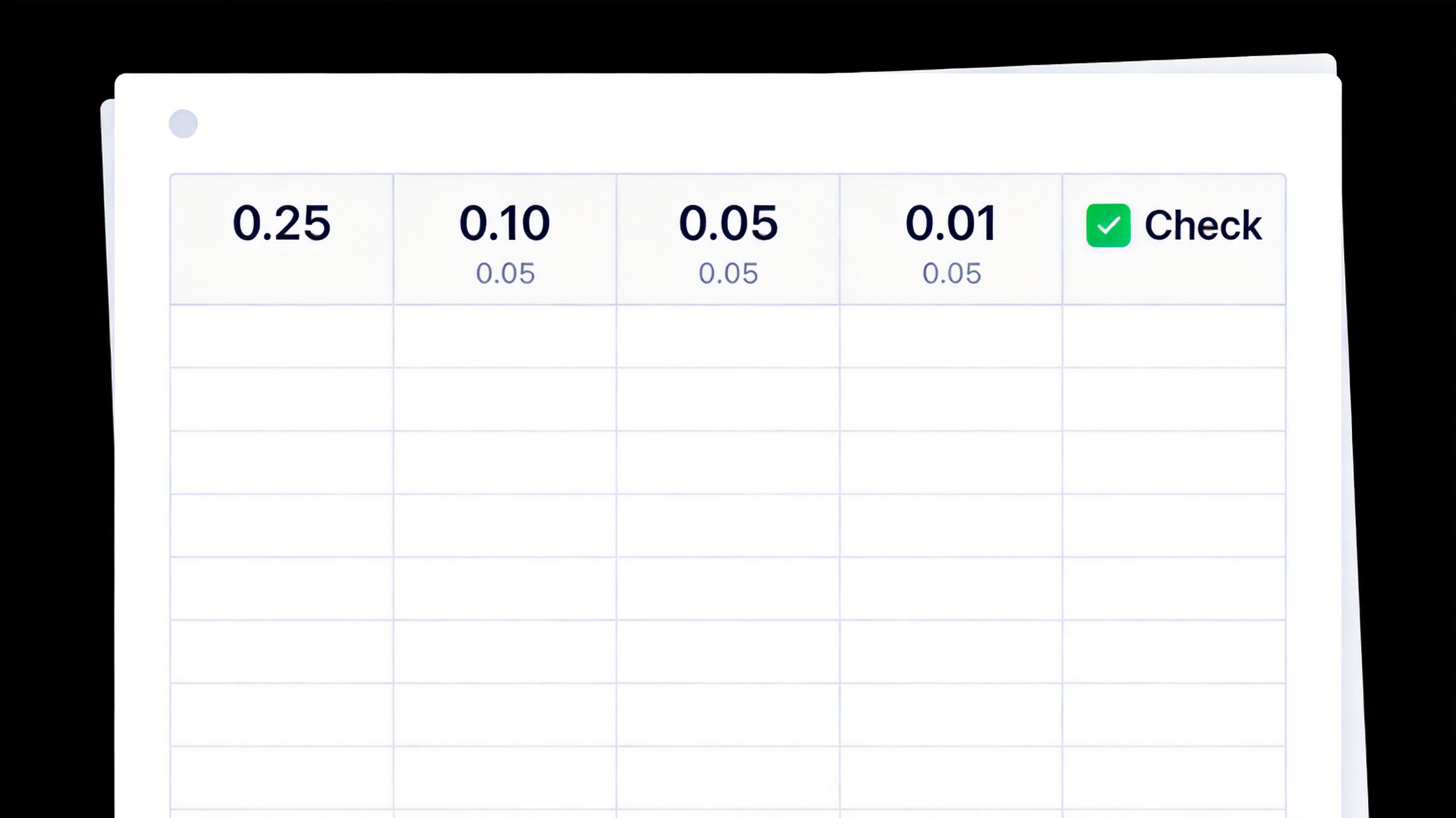
Add coin columns to the right: 0.25, 0.10, 0.05, 0.01, and extend the drag handle so the formulas cover them.
Wrap the calculation in ROUND — for example =ROUND(INT(($A4-SUMPRODUCT($B$3:F$3,$B4:F4))/G$3),0) — so floating point noise does not turn a 0.01 count into 0.
If your business only handles whole dollars, hide the coin columns instead of deleting them, and keep them ready for the day a customer pays in change.
Coin columns and a reconciliation check
The Best Free Alternative: WPS Office
INT, SUMPRODUCT, and ROUND behave identically in WPS Spreadsheet and Microsoft Excel, so the calculator you build today keeps working whichever app opens it.
| What you need | WPS Spreadsheet | Microsoft Excel |
|---|---|---|
| INT, SUMPRODUCT, ROUND | Identical behaviour | Identical behaviour |
| Opening .xlsx till sheets | Full compatibility | Full compatibility |
| Conditional formatting for mismatches | Included | Included |
| Cost | Free for everyday use | Subscription |
Works on the counter: the same sheet opens on the shop tablet and the back-office desktop.
Free templates: start from an existing cash-log or float-count layout instead of a blank grid.
No conversion step: paste counts from a POS export and the formulas update instantly.
Offline by default: till totals stay on your device rather than syncing to a cloud service.
WPS Spreadsheet for cash denomination counting
FAQs
Why does my denomination calculator leave one unit behind?
Almost always floating point rounding. Wrap the count formula in ROUND so values such as 4.999999 become 5 instead of dropping to 4.
Can I use this for a currency without a 1 unit coin?
Yes. Replace the denomination row with your own values — for example 200, 100, 50, 20, 10, 5, 2 — and the same formula logic still works.
How do I show the leftover after each denomination?
Add a helper row with =A4-SUMPRODUCT($B$3:B$3,$B4:B4) under each column, so you can watch the running remainder fall to zero.
Is there a dynamic array version that returns all counts at once?
Yes, if your app supports LET and SCAN: let the array walk the denominations while carrying the remaining amount, then return all counts with HSTACK.
Can I count a mixed till with rolled coins?
Enter each roll as its face value in a separate row, then sum the rows into one Amount cell before the breakdown runs.


'%3e%3cpath%20d='M19.9911%204.11386V6.471H18.5894C18.0775%206.471%2017.7322%206.57814%2017.5536%206.79243C17.3751%207.00671%2017.2858%207.32814%2017.2858%207.75671V9.44421H19.9019L19.5536%2012.0871H17.2858V18.8639H14.5536V12.0871H12.2769V9.44421H14.5536V7.49779C14.5536%206.39064%2014.8632%205.53201%2015.4822%204.92189C16.1013%204.31177%2016.9257%204.00671%2017.9554%204.00671C18.8304%204.00671%2019.509%204.04243%2019.9911%204.11386Z'%20fill='%23333333'/%3e%3c/g%3e%3cdefs%3e%3cclipPath%20id='clip0_2938_8199'%3e%3crect%20width='16'%20height='16'%20fill='white'%20transform='translate(8%204.00671)'/%3e%3c/clipPath%3e%3c/defs%3e%3c/svg%3e)
'%3e%3cpath%20d='M17.5237%2010.7813L23.4811%204H22.0699L16.8949%209.88693L12.7648%204H8L14.2469%2012.9029L8%2020.0133H9.4112L14.8725%2013.7952L19.2352%2020.0133H24M9.92053%205.04213H12.0885L22.0688%2019.0224H19.9003'%20fill='%23333333'/%3e%3c/g%3e%3cdefs%3e%3cclipPath%20id='clip0_2938_8200'%3e%3crect%20width='16'%20height='16.0134'%20fill='white'%20transform='translate(8%204)'/%3e%3c/clipPath%3e%3c/defs%3e%3c/svg%3e)


