

'%3e%3cpath%20d='M8%200C12.4183%200%2016%203.58172%2016%208C16%2012.4183%2012.4183%2016%208%2016C3.58172%2016%200%2012.4183%200%208C0%203.58172%203.58172%200%208%200ZM11.6162%204.38379C11.2257%203.99337%2010.5927%203.99338%2010.2021%204.38379L8%206.58594L5.79785%204.38379C5.40732%203.99334%204.77429%203.99329%204.38379%204.38379C3.99331%204.77429%203.99335%205.40733%204.38379%205.79785L6.58594%208L4.38379%2010.2021C3.99348%2010.5927%203.99341%2011.2257%204.38379%2011.6162C4.77426%2012.0066%205.40734%2012.0065%205.79785%2011.6162L8%209.41406L10.2021%2011.6162C10.5927%2012.0066%2011.2257%2012.0067%2011.6162%2011.6162C12.0067%2011.2257%2012.0066%2010.5927%2011.6162%2010.2021L9.41406%208L11.6162%205.79785C12.0066%205.40735%2012.0066%204.77429%2011.6162%204.38379Z'%20fill='%23080E17'%20fill-opacity='0.46'/%3e%3c/g%3e%3cdefs%3e%3cclipPath%20id='clip0_3761_713'%3e%3crect%20width='16'%20height='16'%20fill='white'/%3e%3c/clipPath%3e%3c/defs%3e%3c/svg%3e)




'%3e%3cpath%20fill-rule='evenodd'%20clip-rule='evenodd'%20d='M21.4999%2010.9993C21.4999%205.20009%2016.7986%200.498901%2010.9993%200.498901C5.19994%200.498901%200.498657%205.20009%200.498657%2010.9993C0.498657%2016.2404%204.33858%2020.5844%209.35855%2021.3722V14.0346H6.69238V10.9993H9.35855V8.68594C9.35855%206.05427%2010.9262%204.60062%2013.3248%204.60062C14.4736%204.60062%2015.6753%204.80571%2015.6753%204.80571V7.38979H14.3512C13.0468%207.38979%2012.64%208.19921%2012.64%209.0296V10.9993H15.5523L15.0867%2014.0346H12.64V21.3722C17.66%2020.5844%2021.4999%2016.2404%2021.4999%2010.9993Z'%20fill='%231568EA'/%3e%3c/g%3e%3c/svg%3e)


'%3e%3cpath%20d='M2.42045%2022.1876H6.31818V12.7217L0.75%208.54553V20.5171C0.75%2021.4414%201.49892%2022.1876%202.42045%2022.1876Z'%20fill='%234285F4'/%3e%3cpath%20d='M19.682%2022.1876H23.5797C24.5041%2022.1876%2025.2502%2021.4387%2025.2502%2020.5171V8.54553L19.682%2012.7217'%20fill='%2334A853'/%3e%3cpath%20d='M19.682%205.48293V12.7216L25.2502%208.54543V6.31816C25.2502%204.25236%2022.8921%203.07469%2021.2411%204.31361'%20fill='%23FBBC04'/%3e%3cpath%20d='M6.31824%2012.7217V5.48303L13.0001%2010.4944L19.6819%205.48303V12.7217L13.0001%2017.733'%20fill='%23EA4335'/%3e%3cpath%20d='M0.75%206.31816V8.54543L6.31818%2012.7216V5.48293L4.75909%204.31361C3.10534%203.07469%200.75%204.25236%200.75%206.31816Z'%20fill='%23C5221F'/%3e%3c/g%3e%3cdefs%3e%3cclipPath%20id='clip0_2954_7305'%3e%3crect%20width='24.5'%20height='18.375'%20fill='white'%20transform='translate(0.75%203.8125)'/%3e%3c/clipPath%3e%3c/defs%3e%3c/svg%3e)


To look up an image in Excel or WPS Spreadsheet, build a two-column table of names and pictures, link each picture to its cell, then use a data validation dropdown with INDEX and MATCH to swap images instantly. This creates a searchable picture gallery that works like a photo lookup without VBA or macros.
How to Lookup an Image in Excel: Build a Searchable Picture Gallery
How to Set Up the Image Lookup Table
Every image lookup starts with a clean data table where the picture column sits next to the name column. The name column is the lookup key; the logo column holds the images that will be shown:
Create two columns: label the first one Name and the second one Picture (for example Club Name and Logo).
Insert your images in the Picture column, one picture per row, resized to roughly the same dimensions.
Keep the rows aligned: every image must sit in the same row as its name, or the lookup returns the wrong picture.
The table below is the classic setup, with club names and their logos in matching rows:
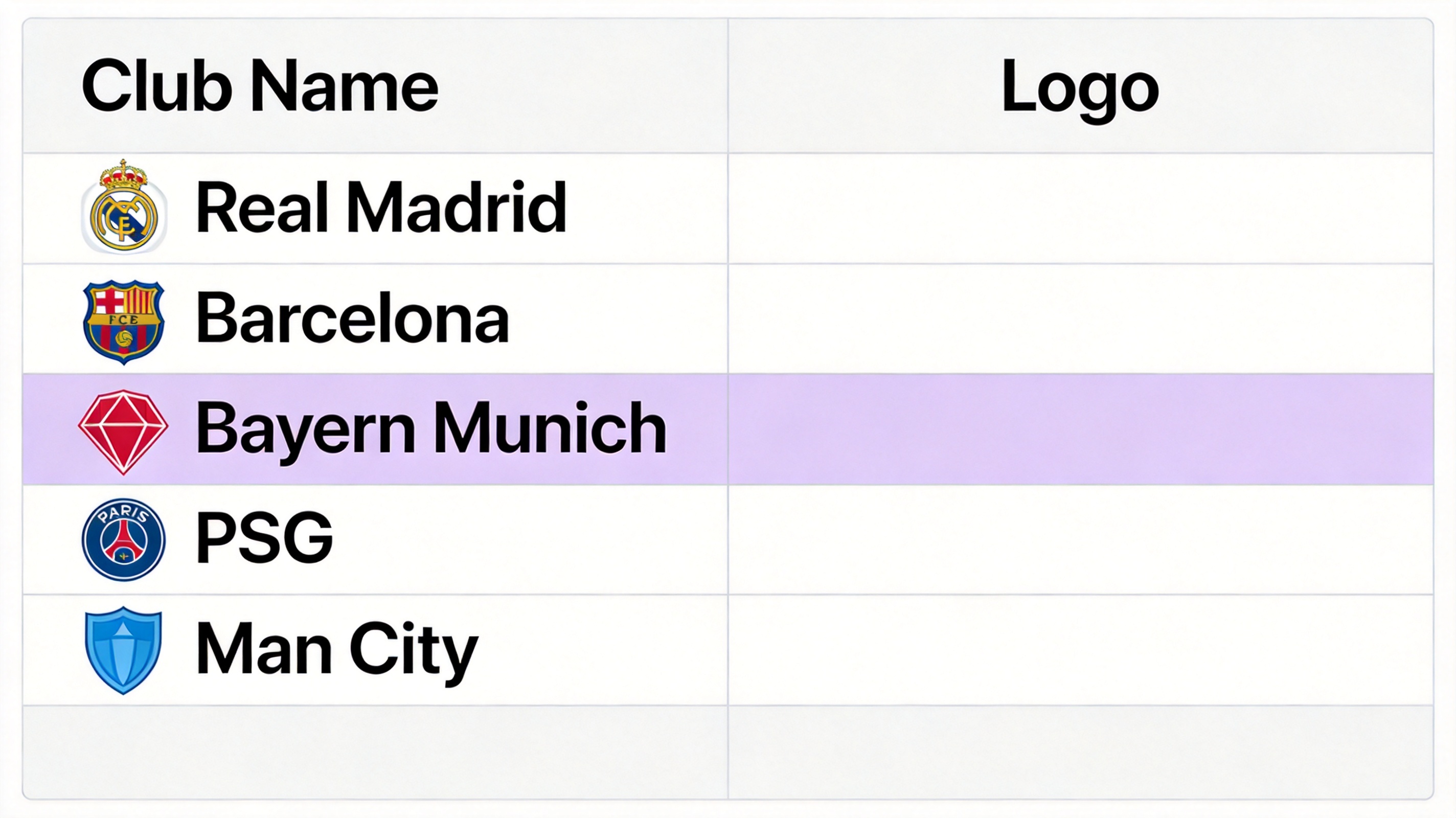
Excel picture lookup data table


How to Create the Image Lookup Dropdown
A data validation dropdown turns the gallery into a searchable picture lookup: you pick a name, and the matching image appears. To build it:
Click the cell where you want the selector (for example E3), then open Data > Data Validation.
In the Allow box, choose List and set the Source to the name range, such as =B3:B22.
Click OK. A dropdown arrow now appears in the cell, listing every name from the lookup table.
The Data Validation dialog below uses the name list as the dropdown source:
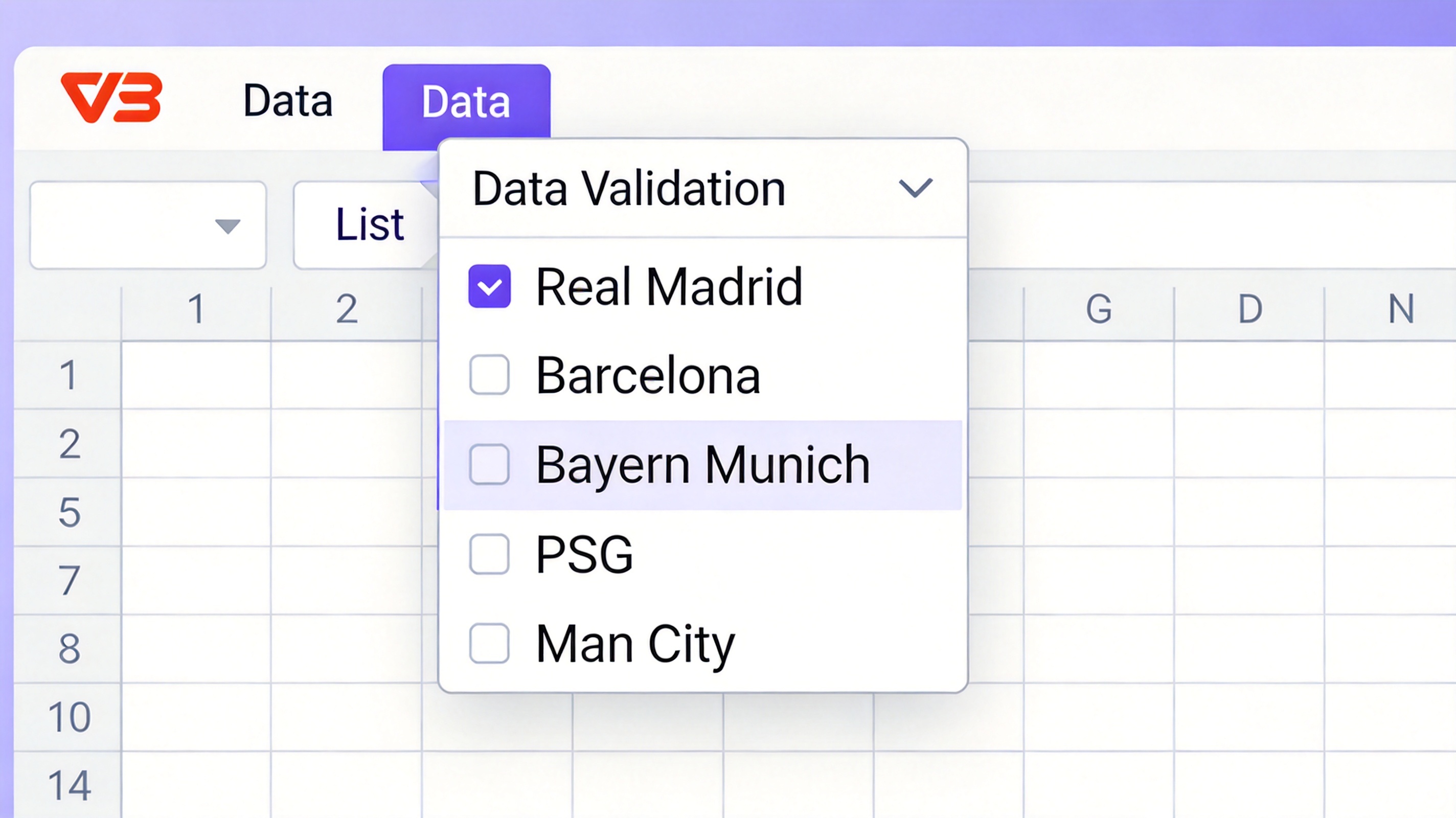
Excel data validation dropdown list
How to Link the Lookup Image to a Name with INDEX and MATCH
Spreadsheet cells cannot hold a formula result and a picture at the same time, so the image itself must be linked to a result cell with a named range. The formula =INDEX(C3:C22, MATCH(E3, B3:B22, 0)) finds the row of the selected name and returns the picture stored there:
Select the picture range (C3:C22) and open Formulas > Name Manager; create a name such as Pictures.
Copy the picture from the table, paste it near the dropdown, and in the formula bar set it equal to the INDEX MATCH formula that returns the picture.
Select a name from the dropdown; the linked picture changes to that name's image.
The Name Manager below shows the INDEX MATCH formula behind the linked picture:
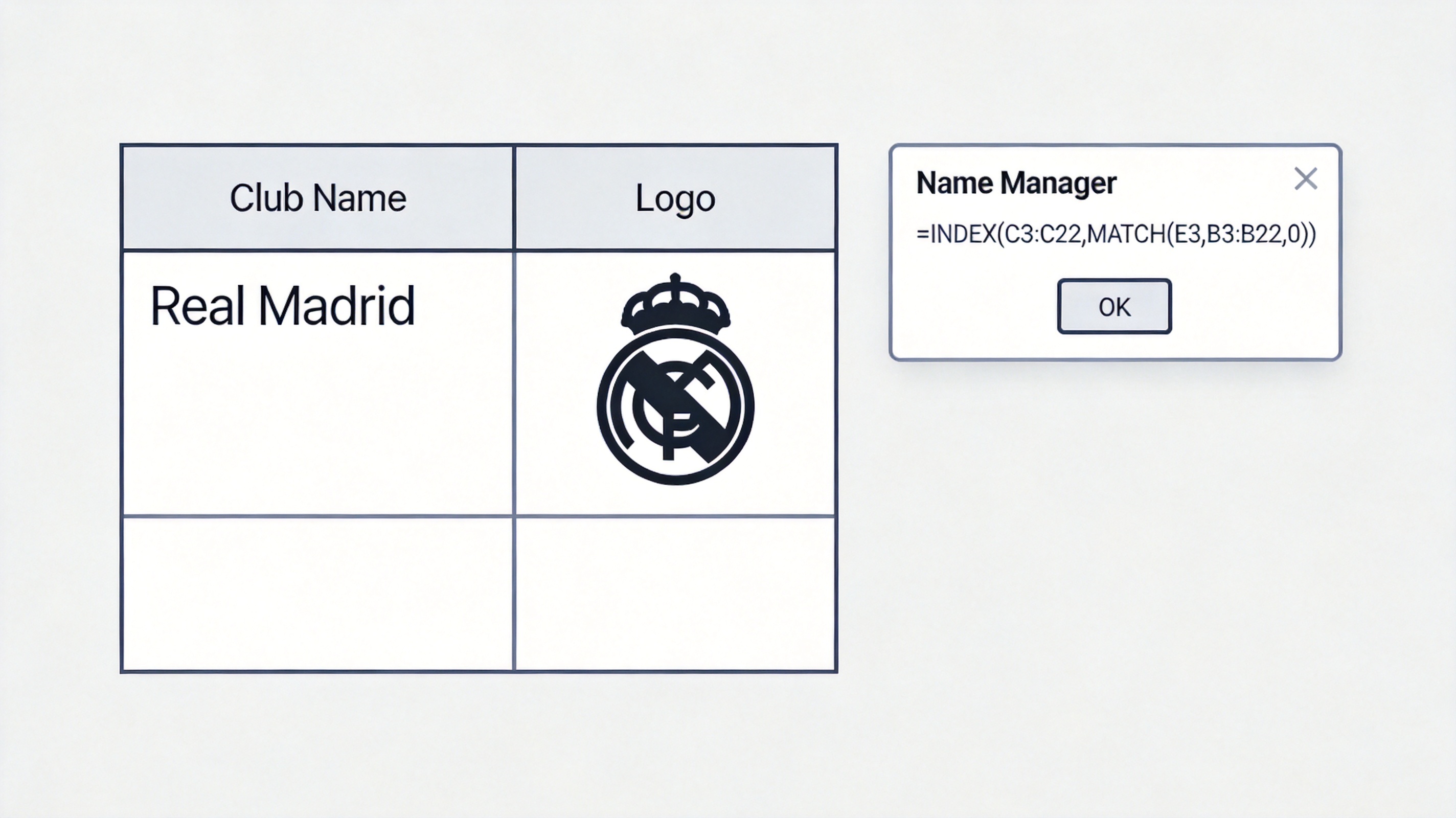
Excel name manager index match formula
The Best Free Alternative: WPS Office
WPS Spreadsheet supports the same picture lookup workflow, including data validation lists, Name Manager, and INDEX MATCH formulas, with full .xlsx compatibility. That means galleries you build in Excel open and keep working in WPS Office, and vice versa. The free suite also bundles Writer, Presentation, and a PDF toolkit for exporting your gallery as a shareable report.
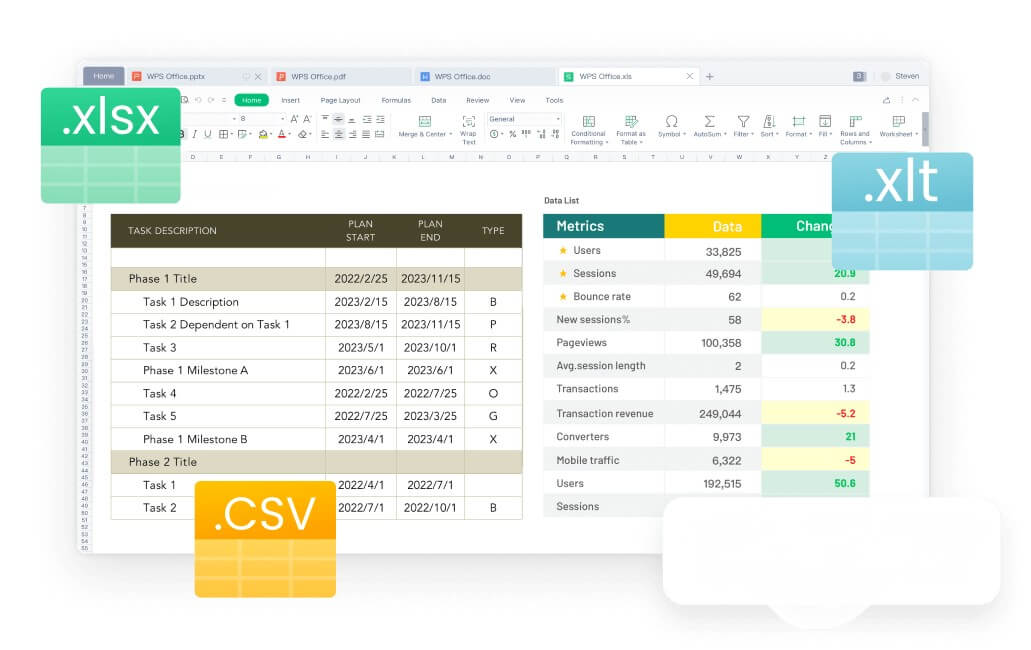
WPS Spreadsheet data and formats
FAQs
Can Excel look up and display images automatically?
Yes. Link a picture to an INDEX MATCH result with a named range, then pick a name from a data validation dropdown and the image swaps automatically.
Why is my lookup picture not changing when I select a name?
The picture is probably not linked to the formula. Paste the image, click the formula bar, and type the INDEX MATCH formula so the picture equals the returned value.
Do I need macros for a picture lookup in Excel?
No. Data validation, Name Manager, and INDEX MATCH do the whole job without VBA, and the file stays macro-free and easy to share.
Does WPS Spreadsheet support picture lookup?
Yes. WPS Spreadsheet supports data validation lists, named ranges, and INDEX MATCH, so the same picture lookup workflow works with full .xlsx compatibility.
How do I resize images before building the gallery?
Insert each image, hold the corner handle, and drag to roughly the same height; then align the pictures with the rows before creating the named range.


'%3e%3cpath%20d='M19.9911%204.11386V6.471H18.5894C18.0775%206.471%2017.7322%206.57814%2017.5536%206.79243C17.3751%207.00671%2017.2858%207.32814%2017.2858%207.75671V9.44421H19.9019L19.5536%2012.0871H17.2858V18.8639H14.5536V12.0871H12.2769V9.44421H14.5536V7.49779C14.5536%206.39064%2014.8632%205.53201%2015.4822%204.92189C16.1013%204.31177%2016.9257%204.00671%2017.9554%204.00671C18.8304%204.00671%2019.509%204.04243%2019.9911%204.11386Z'%20fill='%23333333'/%3e%3c/g%3e%3cdefs%3e%3cclipPath%20id='clip0_2938_8199'%3e%3crect%20width='16'%20height='16'%20fill='white'%20transform='translate(8%204.00671)'/%3e%3c/clipPath%3e%3c/defs%3e%3c/svg%3e)
'%3e%3cpath%20d='M17.5237%2010.7813L23.4811%204H22.0699L16.8949%209.88693L12.7648%204H8L14.2469%2012.9029L8%2020.0133H9.4112L14.8725%2013.7952L19.2352%2020.0133H24M9.92053%205.04213H12.0885L22.0688%2019.0224H19.9003'%20fill='%23333333'/%3e%3c/g%3e%3cdefs%3e%3cclipPath%20id='clip0_2938_8200'%3e%3crect%20width='16'%20height='16.0134'%20fill='white'%20transform='translate(8%204)'/%3e%3c/clipPath%3e%3c/defs%3e%3c/svg%3e)


