

'%3e%3cpath%20d='M8%200C12.4183%200%2016%203.58172%2016%208C16%2012.4183%2012.4183%2016%208%2016C3.58172%2016%200%2012.4183%200%208C0%203.58172%203.58172%200%208%200ZM11.6162%204.38379C11.2257%203.99337%2010.5927%203.99338%2010.2021%204.38379L8%206.58594L5.79785%204.38379C5.40732%203.99334%204.77429%203.99329%204.38379%204.38379C3.99331%204.77429%203.99335%205.40733%204.38379%205.79785L6.58594%208L4.38379%2010.2021C3.99348%2010.5927%203.99341%2011.2257%204.38379%2011.6162C4.77426%2012.0066%205.40734%2012.0065%205.79785%2011.6162L8%209.41406L10.2021%2011.6162C10.5927%2012.0066%2011.2257%2012.0067%2011.6162%2011.6162C12.0067%2011.2257%2012.0066%2010.5927%2011.6162%2010.2021L9.41406%208L11.6162%205.79785C12.0066%205.40735%2012.0066%204.77429%2011.6162%204.38379Z'%20fill='%23080E17'%20fill-opacity='0.46'/%3e%3c/g%3e%3cdefs%3e%3cclipPath%20id='clip0_3761_713'%3e%3crect%20width='16'%20height='16'%20fill='white'/%3e%3c/clipPath%3e%3c/defs%3e%3c/svg%3e)




'%3e%3cpath%20fill-rule='evenodd'%20clip-rule='evenodd'%20d='M21.4999%2010.9993C21.4999%205.20009%2016.7986%200.498901%2010.9993%200.498901C5.19994%200.498901%200.498657%205.20009%200.498657%2010.9993C0.498657%2016.2404%204.33858%2020.5844%209.35855%2021.3722V14.0346H6.69238V10.9993H9.35855V8.68594C9.35855%206.05427%2010.9262%204.60062%2013.3248%204.60062C14.4736%204.60062%2015.6753%204.80571%2015.6753%204.80571V7.38979H14.3512C13.0468%207.38979%2012.64%208.19921%2012.64%209.0296V10.9993H15.5523L15.0867%2014.0346H12.64V21.3722C17.66%2020.5844%2021.4999%2016.2404%2021.4999%2010.9993Z'%20fill='%231568EA'/%3e%3c/g%3e%3c/svg%3e)


'%3e%3cpath%20d='M2.42045%2022.1876H6.31818V12.7217L0.75%208.54553V20.5171C0.75%2021.4414%201.49892%2022.1876%202.42045%2022.1876Z'%20fill='%234285F4'/%3e%3cpath%20d='M19.682%2022.1876H23.5797C24.5041%2022.1876%2025.2502%2021.4387%2025.2502%2020.5171V8.54553L19.682%2012.7217'%20fill='%2334A853'/%3e%3cpath%20d='M19.682%205.48293V12.7216L25.2502%208.54543V6.31816C25.2502%204.25236%2022.8921%203.07469%2021.2411%204.31361'%20fill='%23FBBC04'/%3e%3cpath%20d='M6.31824%2012.7217V5.48303L13.0001%2010.4944L19.6819%205.48303V12.7217L13.0001%2017.733'%20fill='%23EA4335'/%3e%3cpath%20d='M0.75%206.31816V8.54543L6.31818%2012.7216V5.48293L4.75909%204.31361C3.10534%203.07469%200.75%204.25236%200.75%206.31816Z'%20fill='%23C5221F'/%3e%3c/g%3e%3cdefs%3e%3cclipPath%20id='clip0_2954_7305'%3e%3crect%20width='24.5'%20height='18.375'%20fill='white'%20transform='translate(0.75%203.8125)'/%3e%3c/clipPath%3e%3c/defs%3e%3c/svg%3e)


Wondering how many days are left before your next day off? Instead of flipping through a paper calendar, you can make a spreadsheet answer that question for you. With a short list of holiday dates and a few functions, Excel can tell you which holiday comes next, when it falls, and how long you still have to wait.
This guide shows three reliable ways to do it: pick the earliest upcoming date from a list, calculate the date of holidays that always land on the nth weekday, and build a countdown calendar that refreshes itself every day. Every formula below works the same way in WPS Spreadsheet and Microsoft Excel.
How to Find the Next Holiday in Excel (Formulas + Free Template)
What You Need Before You Find the Next Holiday in Excel
All three methods in this article rely on one thing: a column of holiday dates stored as real date values, not text. If your dates are left-aligned in the cell, Excel is probably treating them as text, and comparisons such as >=TODAY() will quietly fail. Type dates in a format your regional settings recognize, or build them with the DATE function to be safe.
You also need a clear definition of what counts as a holiday for you: fixed-date holidays such as Christmas, or floating ones such as Labor Day. Keep both kinds in the same list with a name column next to the date column. For a ready-made yearly layout to paste your list into, see how to create a calendar in Excel.
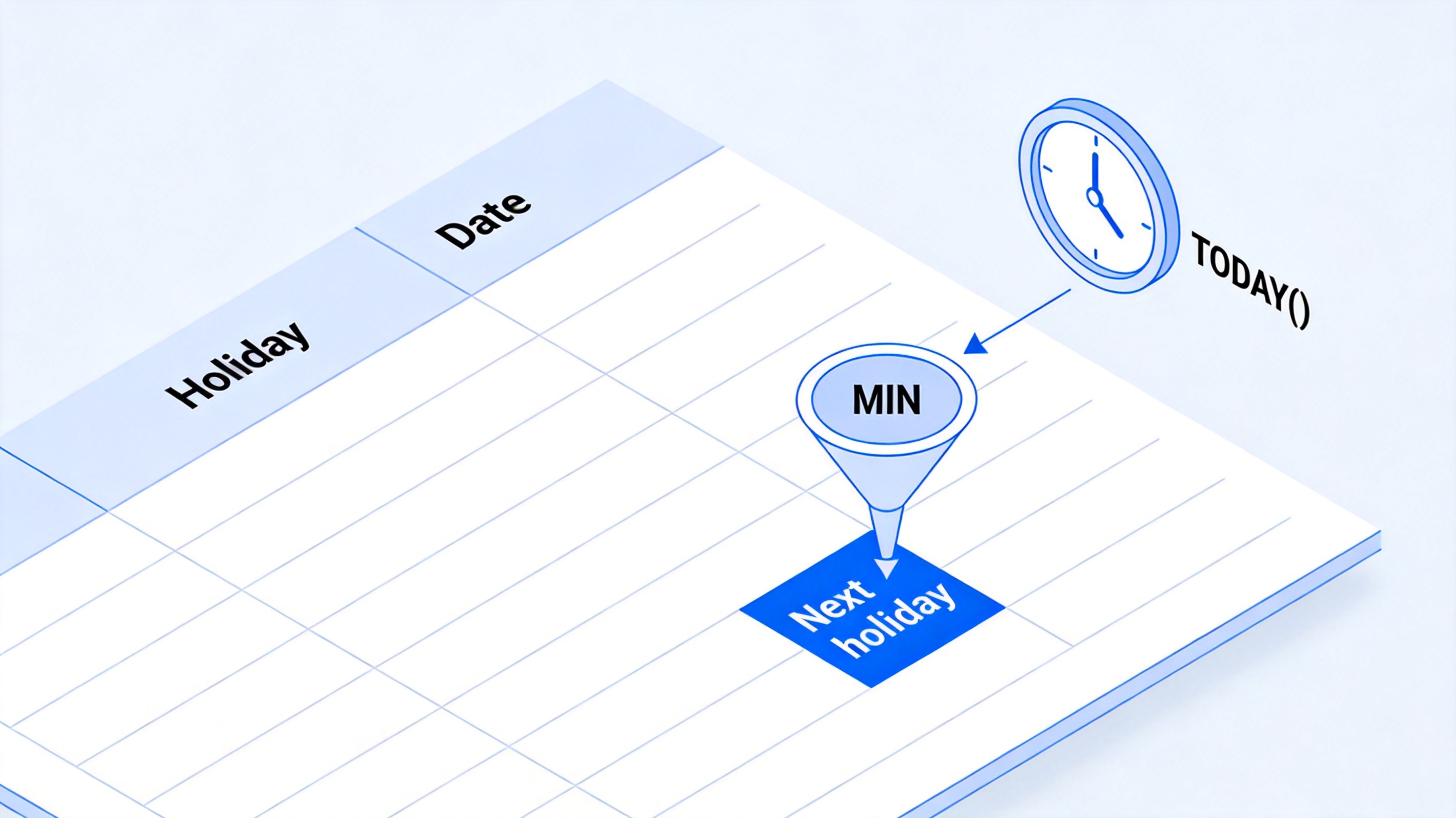
TODAY and MIN find next holiday


How to Find the Next Holiday in Excel with MIN and TODAY
The core idea is simple: keep only the dates that have not passed yet, then take the smallest one. Suppose holidays are named in A2:A10 and dated in B2:B10:
Enter the array formula
=MIN(IF(B2:B10>=TODAY(),B2:B10))in an empty cell. In older Excel versions confirm it with Ctrl+Shift+Enter; in modern versions and WPS Spreadsheet a plain Enter works.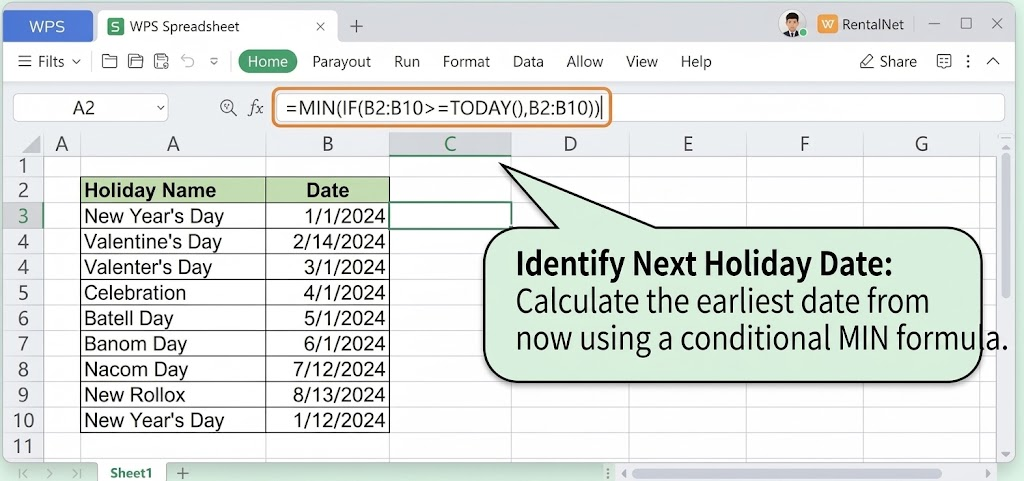
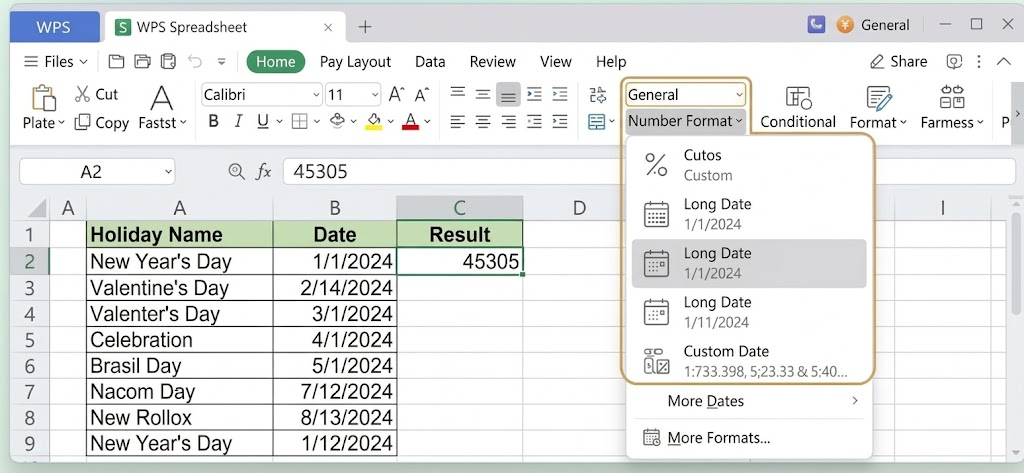
Format the result as a date. If the cell shows a large number such as 46310, open Home > Number Format and choose a date style.
Pull the holiday name with
=INDEX(A2:A10,MATCH(MIN(IF(B2:B10>=TODAY(),B2:B10)),B2:B10,0)), which looks up which holiday owns that date.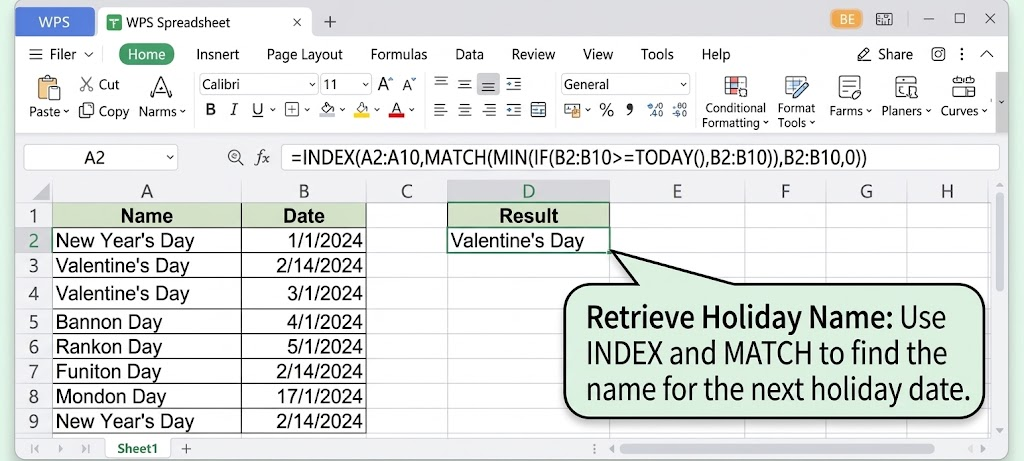
Prefer a non-array option? Use
=MINIFS(B2:B10,B2:B10,">="&TODAY()), which filters for dates on or after today without Ctrl+Shift+Enter.
How to Calculate the Next Holiday That Falls on an Nth Weekday
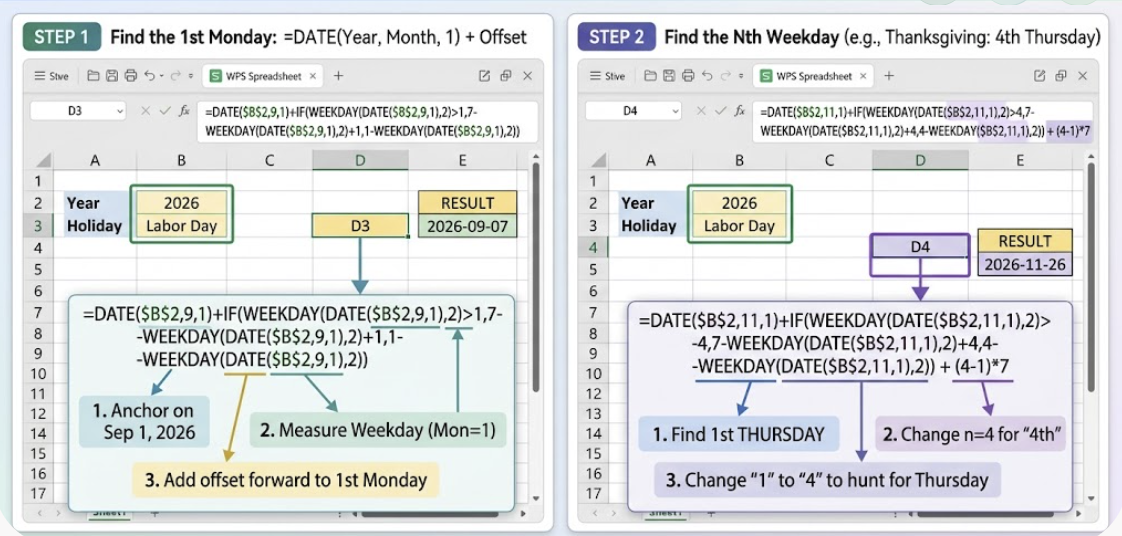
Many holidays do not sit on a fixed date; they land on the first Monday of a month, the third Monday, the fourth Thursday, and so on. You can generate those dates for any year with DATE, WEEKDAY, and a small offset. For Labor Day 2026, the first Monday of September:
=DATE(2026,9,1)+IF(WEEKDAY(DATE(2026,9,1),2)>1,7-WEEKDAY(DATE(2026,9,1),2)+1,1-WEEKDAY(DATE(2026,9,1),2))
Here is how the formula thinks, and how to bend it to other holidays:
Anchor on the first of the month with DATE(2026,9,1), then measure which weekday that day is using WEEKDAY(...,2), where Monday equals 1.
Add the offset that steps forward to the first Monday. Change the comparison value from 1 to 4 (with the same adjustment) to hunt for the first Thursday, as Thanksgiving needs.
Reach the nth weekday by adding (n-1)*7 days: for Presidents’ Day, the third Monday of February, add 14 to the first-Monday result.
Point the year at a cell such as B2 instead of typing 2026, then one dropdown changes every calculated holiday in the sheet at once.
Fixed-date holidays like Christmas need no math at all—just DATE(2026,12,25). Movable holidays tied to moon phases, such as Easter or Lunar New Year, are out of reach for these functions; keep those as typed dates in your list.
How to Build a Next Holiday Countdown Calendar
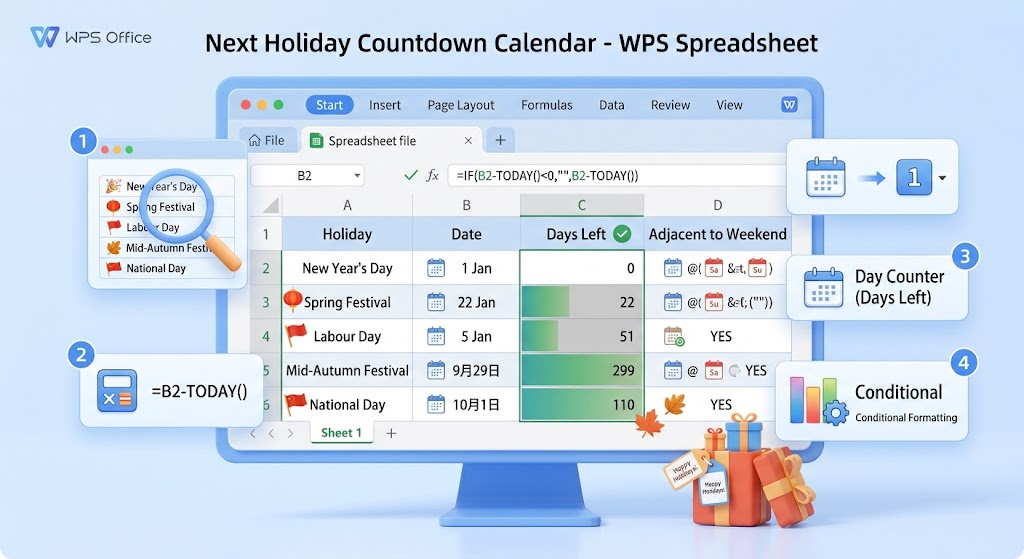
Once your list holds real dates, a countdown is one formula away. The number of days until a holiday in B2 is simply =B2-TODAY(), because Excel stores dates as serial numbers. Build the full view like this:
List every holiday for the year in columns A (name) and B (date), sorted or not—the formulas do not care about order.
Add a Days-left column with
=IF(B2-TODAY()<0,"",b2-today())<>, so past holidays show blank instead of negative numbers, then fill down.Fix the formatting if results appear as dates: select the column and set Home > Number Format > General.
Highlight the next holiday with conditional formatting, or select the Days-left column and apply Conditional Formatting > Data Bars for an instant visual countdown.
Because TODAY() recalculates every time the file opens, the countdown stays current without any maintenance. If you plan vacations around weekends too, add a second column that checks whether the holiday lands adjacent to a Saturday or Sunday. A printable monthly layout for the same list is covered in how to create an Excel calendar in WPS Office.
holiday countdown data bars Excel
The Best Free Alternative: WPS Office for Holiday Tracking in Excel
Everything in this guide works in Microsoft Excel, but you do not need a paid subscription to run it. WPS Spreadsheet is part of WPS Office, a free office suite that covers Writer, Presentation, and Spreadsheets, and it is built to feel instantly familiar to Excel users.
Here is why it is a strong pick for a next-holiday tracker:
Every formula from this article runs unchanged. MIN, IF, INDEX, MATCH, MINIFS, DATE, WEEKDAY, and array-entry behavior all match Excel, so you can copy the formulas above straight into a WPS sheet.
Full file compatibility. WPS Spreadsheet opens and saves .xlsx, .xls, .xlsm, and .csv files, so you can start the tracker in Excel at work and finish it in WPS at home without conversion warnings or broken dates.
Free on every platform. Native apps for Windows, macOS, Linux, Android, and iOS, plus browser-based office tools, so the same holiday file follows you from desktop to phone; sign in with a free WPS account and WPS Cloud keeps it in sync.
A template library built for this job. The built-in template store includes yearly and monthly calendars, holiday planners, countdown sheets, and vacation trackers—pick one, paste in your holiday list, and the formulas from the previous section drop straight in.
Extras that round out planning. The suite bundles a PDF toolkit for converting and editing documents, so you can export the finished countdown calendar as a clean PDF to share or print.
For anyone who checks dates on more than one device, or simply does not want to pay for a spreadsheet, WPS Office is the most complete free way to keep a next-holiday calendar running all year.
WPS Office English home screen
FAQs
Why does my MIN formula return a large number instead of a date?
The calculation is right; the cell formatting is not. Dates are serial numbers, so 46310 is a real date. Select the cell and set Home > Number Format to a date style.
Does the array formula always need Ctrl+Shift+Enter?
Only in older Excel versions. Microsoft 365, Excel 2021, and WPS Spreadsheet handle =MIN(IF(...)) with a plain Enter. If you want to avoid the question entirely, use MINIFS.
Can I use this for holidays in any country?
Yes. The formulas do not care which holidays you list. Type your own country’s dates, or calculate nth-weekday holidays with the DATE and WEEKDAY approach shown above.
Can Excel calculate Easter or other moon-based holidays?
Not reliably with basic functions. Keep movable holidays as typed dates in your list; the countdown and next-holiday formulas will still work on them.
Do these formulas work in WPS Spreadsheet?
Yes, every formula and the conditional-formatting data bars behave the same in WPS Spreadsheet, and files saved there open in Excel without conversion.


'%3e%3cpath%20d='M19.9911%204.11386V6.471H18.5894C18.0775%206.471%2017.7322%206.57814%2017.5536%206.79243C17.3751%207.00671%2017.2858%207.32814%2017.2858%207.75671V9.44421H19.9019L19.5536%2012.0871H17.2858V18.8639H14.5536V12.0871H12.2769V9.44421H14.5536V7.49779C14.5536%206.39064%2014.8632%205.53201%2015.4822%204.92189C16.1013%204.31177%2016.9257%204.00671%2017.9554%204.00671C18.8304%204.00671%2019.509%204.04243%2019.9911%204.11386Z'%20fill='%23333333'/%3e%3c/g%3e%3cdefs%3e%3cclipPath%20id='clip0_2938_8199'%3e%3crect%20width='16'%20height='16'%20fill='white'%20transform='translate(8%204.00671)'/%3e%3c/clipPath%3e%3c/defs%3e%3c/svg%3e)
'%3e%3cpath%20d='M17.5237%2010.7813L23.4811%204H22.0699L16.8949%209.88693L12.7648%204H8L14.2469%2012.9029L8%2020.0133H9.4112L14.8725%2013.7952L19.2352%2020.0133H24M9.92053%205.04213H12.0885L22.0688%2019.0224H19.9003'%20fill='%23333333'/%3e%3c/g%3e%3cdefs%3e%3cclipPath%20id='clip0_2938_8200'%3e%3crect%20width='16'%20height='16.0134'%20fill='white'%20transform='translate(8%204)'/%3e%3c/clipPath%3e%3c/defs%3e%3c/svg%3e)


